

Choosing a channel
Available channels depend on which integrations the contact has. Current options in Hoop:- SMS
- Facebook & Instagram Messages
- GMB Messages
- TikTok DMs
- Web Chat Widget
- Internal Comments (private team notes, not visible to contacts)
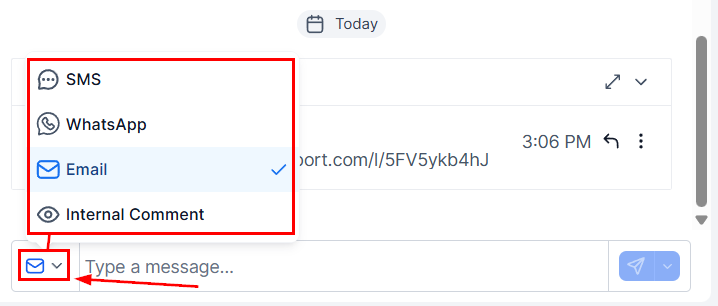
Channel selector above the message box
Starting a new conversation
Click the + bubble icon to compose a fresh message to any contact or team member.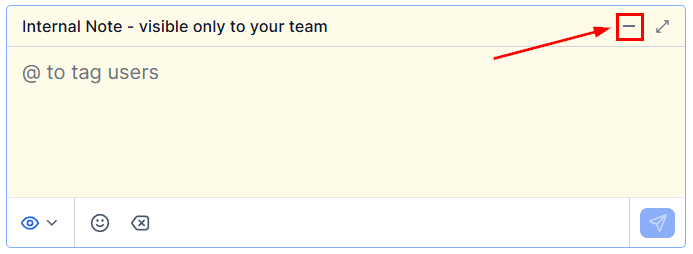
New message dialog
Choose conversation type
Single contact conversation
Group SMS
Internal chat
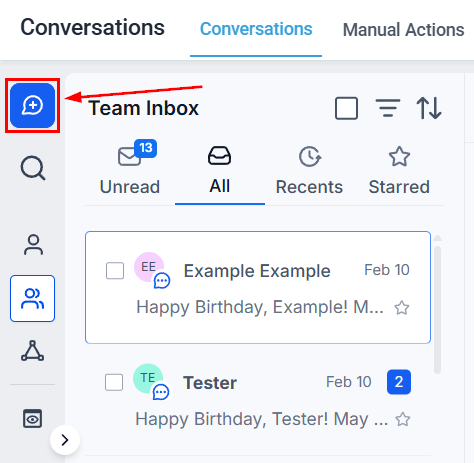
Contact selector for new conversations
Sending an SMS
Open the SMS channel
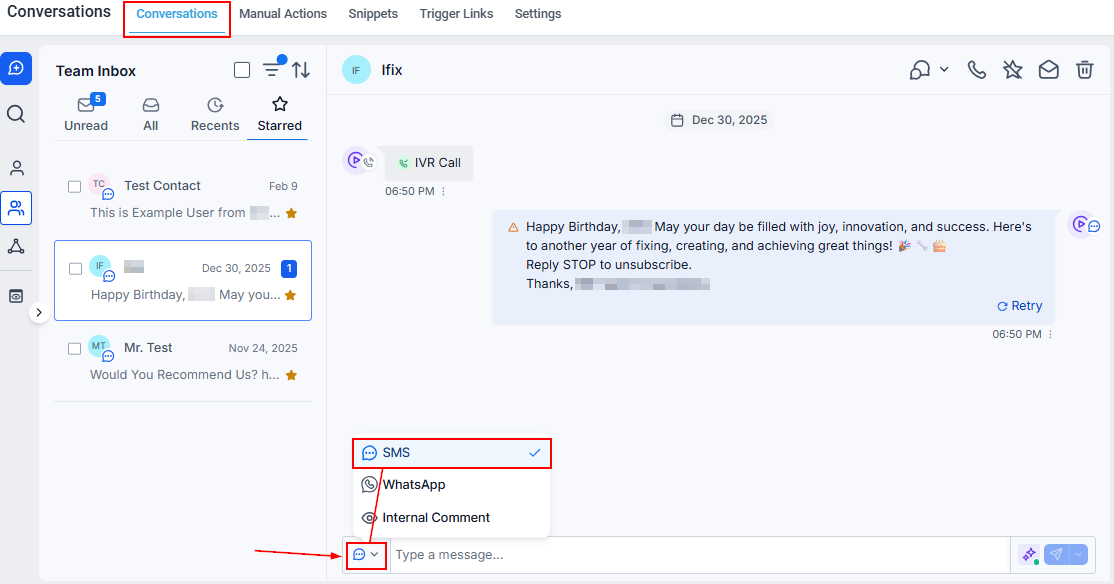
SMS message box
Compose your message
- Smiley face — emoji picker (search by keyword or browse categories)
- Paperclip — attach files or images (keep total size under 500 KB for best delivery)
- Paper icon — insert a saved SMS snippet
- Lightning bolt — insert a trigger link
- Tag icon — insert a custom value (e.g., first name)
- Dollar sign — request payment via a payment link
Send now or schedule
- Send now — click the paper plane button.
- Schedule — click the timer icon, set date, time, and timezone, click Schedule, then Send Later.
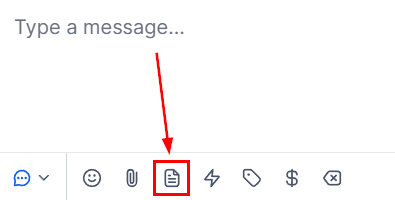
SMS snippets panel
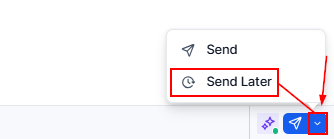
Schedule SMS for later delivery
Canceling a scheduled SMS
Click Cancel next to the queued message and confirm. The draft is permanently deleted.Sending an email
Open the email channel
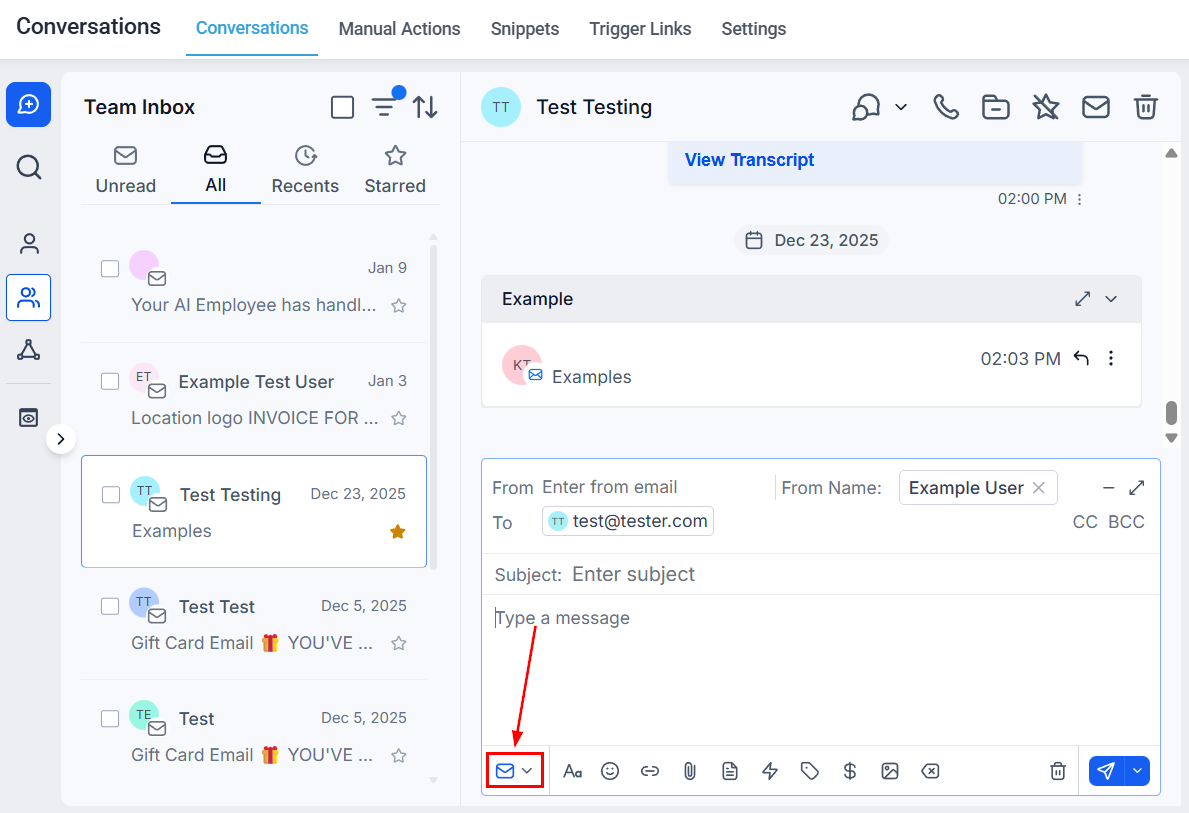
Email composer
Fill in header fields
- Sender — name and address shown to the contact
- Recipient — contact email; add CC or BCC as needed
- Subject — first line recipients see in their inbox
Format and enrich the body
- Click A for formatting options (bold, italic, lists, etc.)
- Click {…} to insert custom merge fields
- Click the link icon to add a hyperlink (opens in same or new tab)
- Click the paperclip to attach files
- Click the paper icon to insert a saved email template
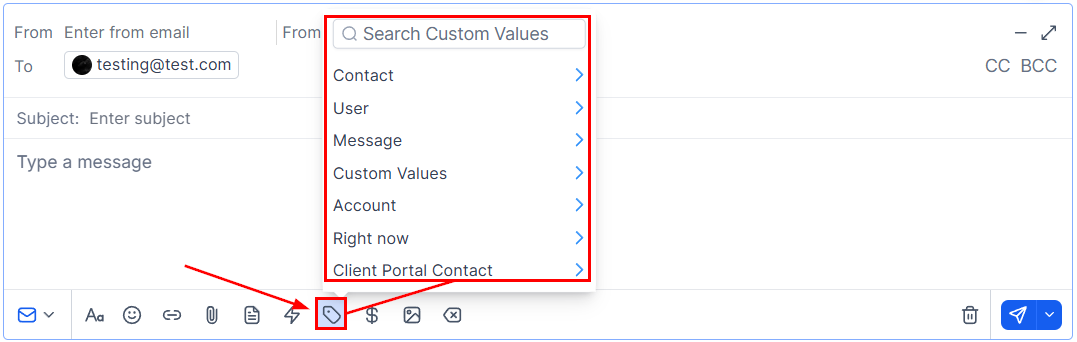
Email formatting toolbar
Send now, schedule, or use AI scheduling
- Send now — click Send.
- Schedule — click the dropdown arrow next to Send → Send Later → set date/time/timezone → Send Schedule.
- AI Scheduling — choose a time window (e.g., next 48 hours) → Send with AI Optimization. The AI picks the highest-engagement moment in that window based on the recipient’s historical patterns.
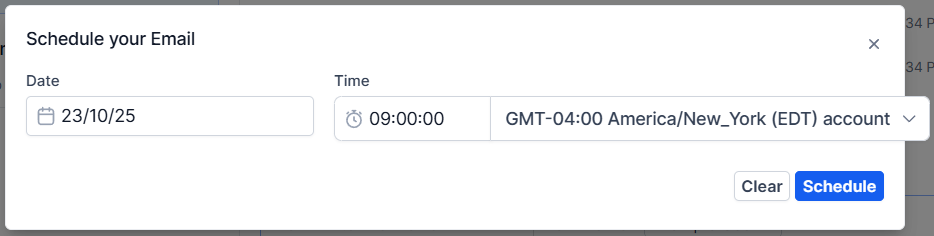
Email scheduling options
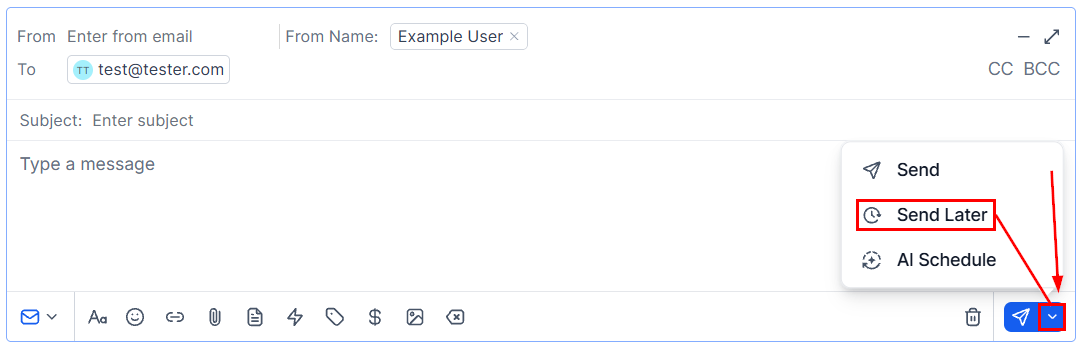
AI scheduler for emails
CC and BCC
In the email composer, click CC or BCC next to the To field. Type an address or pick from your contacts. CC recipients can see each other; BCC recipients are hidden from all others.Sending a group SMS
Open new conversation
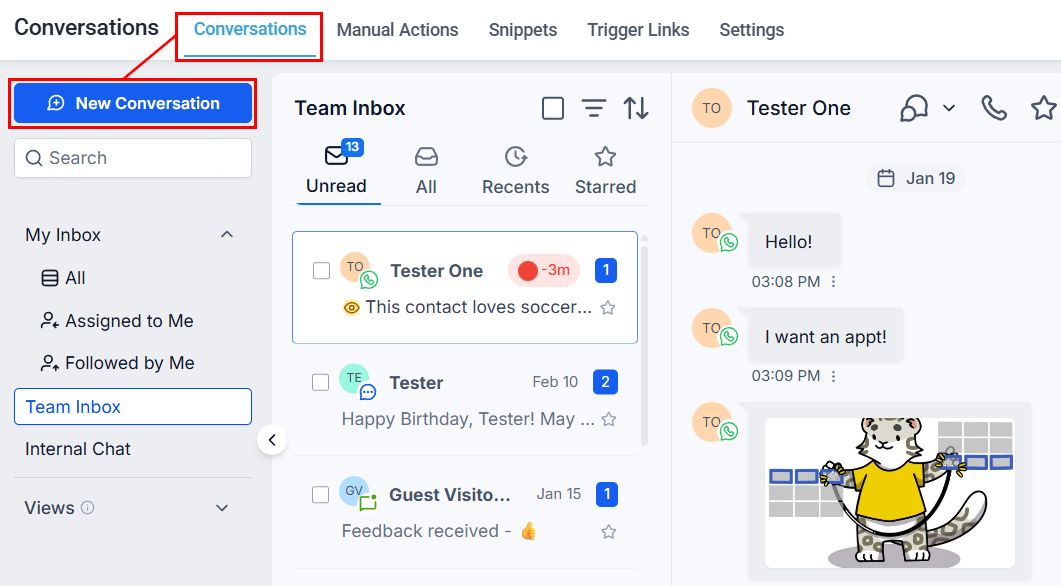
Start a group SMS
Select Group Conversation
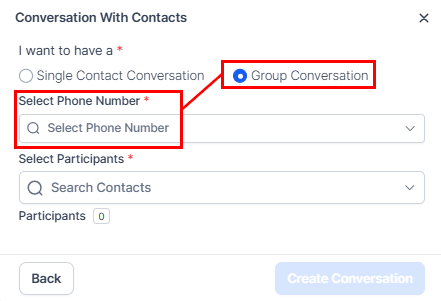
Group conversation type selection
Add participants
Send
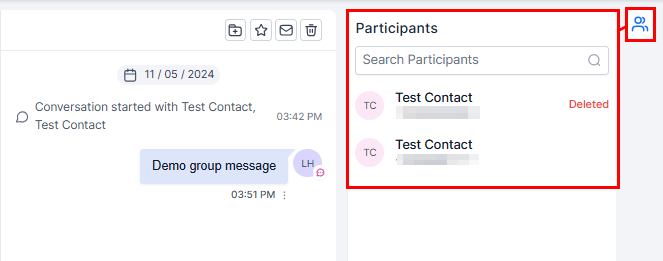
Participant management in group SMS
Key benefits of group SMS
Key benefits of group SMS
- Enhanced collaboration — stakeholders stay in one thread.
- Centralized messaging — no need for individual messages.
- Real-time engagement — all participants can reply in context.
Delivery tracking
Delivery tracking
Access permissions
Access permissions
Scheduling messages
Any channel supports scheduled sending.Compose your message
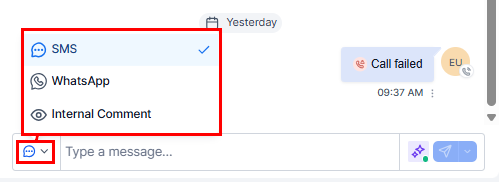
Choose channel before scheduling
Open Send Later
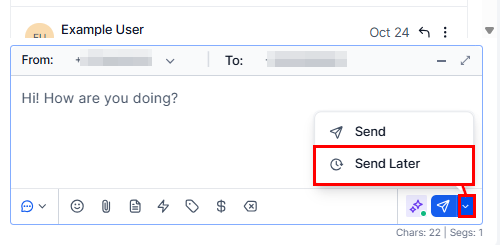
Send Later option
Set date and time
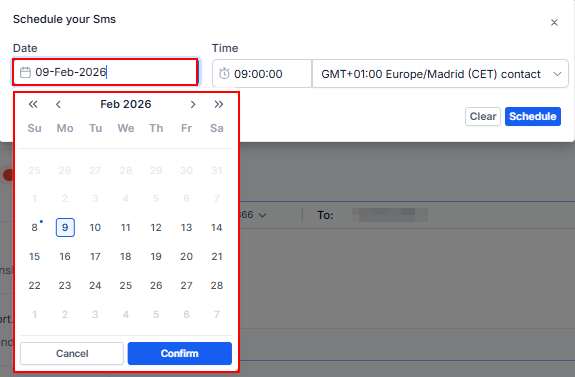
Date and time picker
Confirm