Add private team notes and send internal chats in Hoop conversations without the contact seeing them.
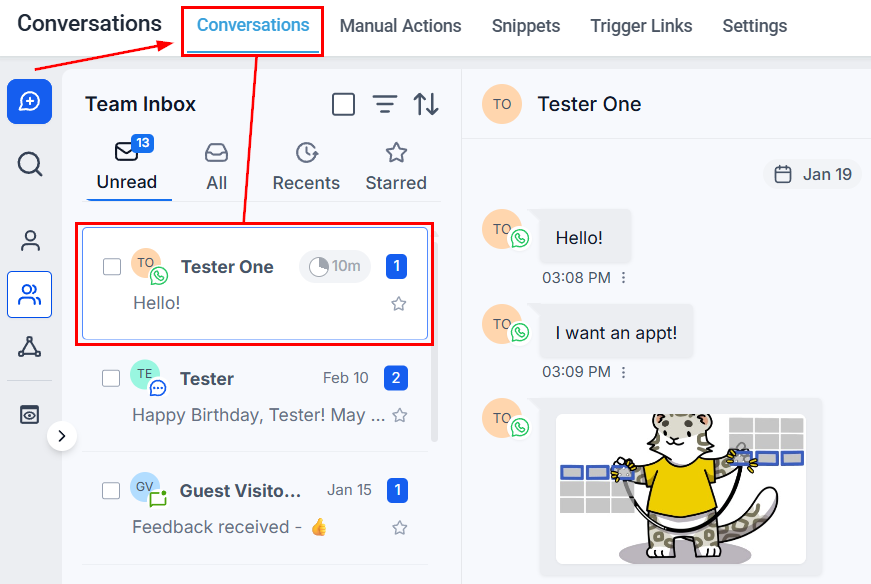
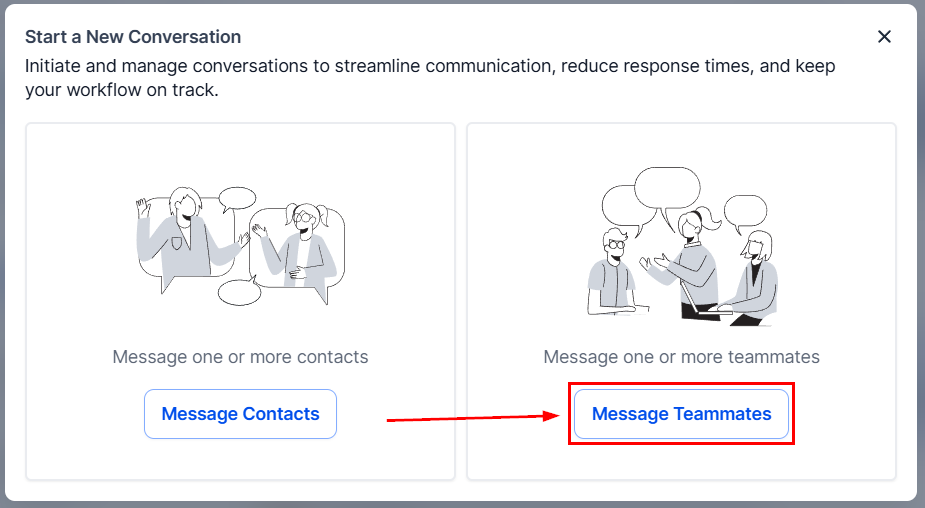
Hoop provides two ways for your team to communicate privately within Conversations: Internal Comments (notes attached to a contact’s conversation thread) and Internal Chat (a separate private messaging thread with team members). Neither is visible to contacts.
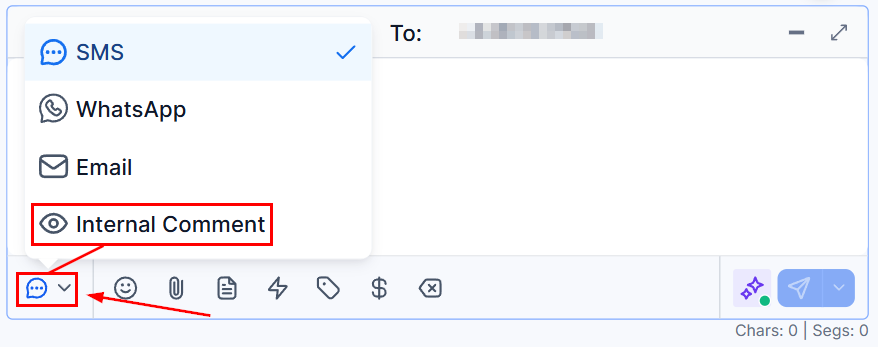
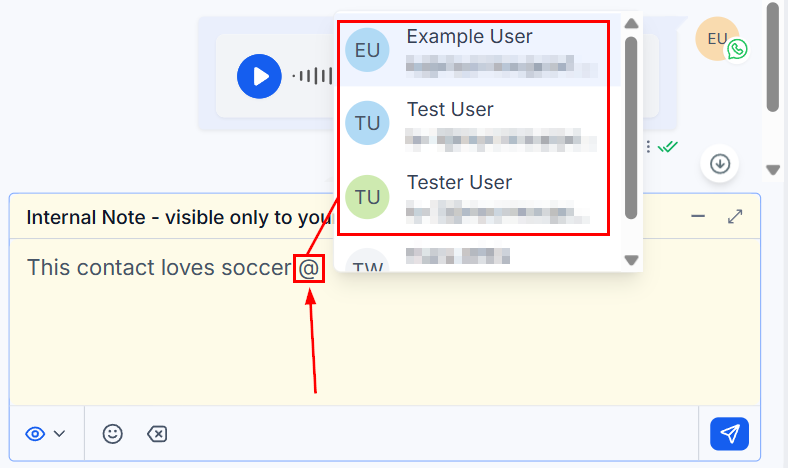
Internal Comments appear inside a contact’s conversation timeline as private notes. Use them to share context, request peer review, or document important updates for anyone who handles that contact.
Tagged team members receive a notification when the comment is posted. You will also receive notifications for any conversation where you have been mentioned.
Mentions filter — use the Quick Filter for Mentions to find conversations where you or a specific team member was tagged.
Internal Comments filter — inside a conversation, apply the Internal Comments filter to view only the private notes in the thread, making it easy to navigate internal history.
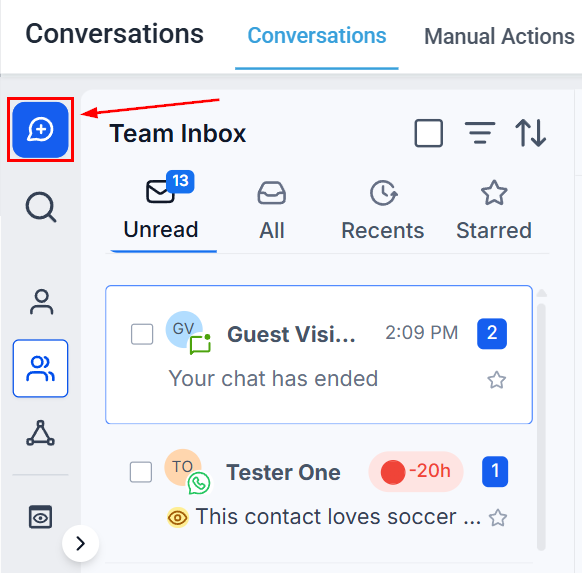
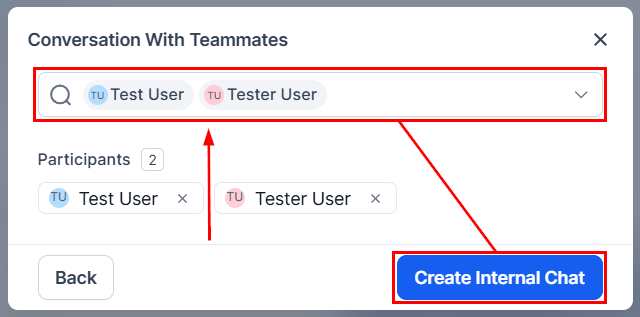
Internal Chat is a private messaging thread between team members — entirely separate from any contact conversation. It is only visible to the participants you select.