Create, configure, and manage the stages in your sales pipelines — including naming, ordering, dashboard visibility, and handling opportunities when stages are removed.
Pipeline stages are the steps an opportunity moves through from first contact to close. Every pipeline you create is made up of stages, and every opportunity always sits in exactly one stage. Well-designed stages reflect the real actions and decisions that happen in your sales process, making it easy for your team to know when a deal should move forward.
Stages are displayed as columns on the kanban board, arranged from left to right in the order you define. Opportunities move between stages by drag-and-drop on the board, by selecting a new stage in the opportunity detail panel, or automatically through workflow automations.Every pipeline automatically includes two system stages that cannot be deleted:
Won — for opportunities closed successfully
Lost — for opportunities that did not close
These appear at the far right of your board and are special: moving an opportunity to Won or Lost changes its status (and prompts for a lost reason, in the case of Lost) in addition to changing its stage.
Stages are created as part of the pipeline setup. To add a new pipeline with stages:
1
Go to Pipeline Settings
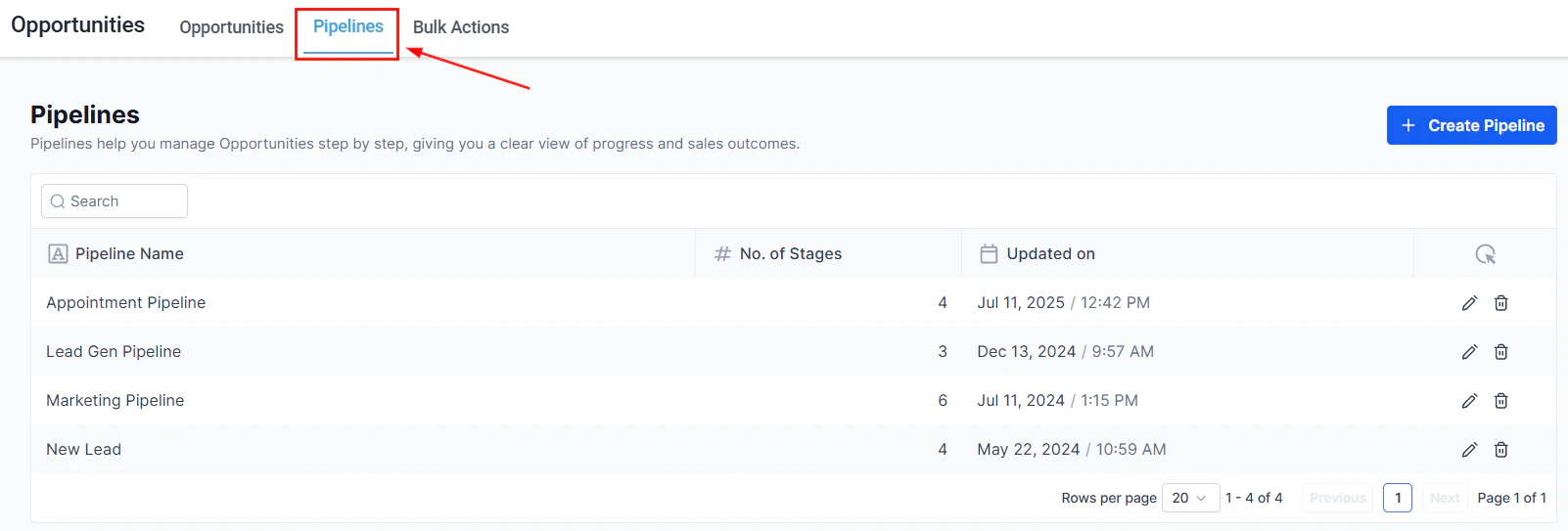
Navigate to Opportunities > Opportunity Settings (the gear icon), then click + Add Pipeline.
Pipeline Settings showing existing pipelines and the option to add a new one
2
Name the pipeline
Enter a unique name for the pipeline. Pipeline names must be unique within your account.
3
Add stages
Click + Add Stage and enter a name for each stage in your process. Add as many stages as you need. Stage names must be unique within the same pipeline.
Adding stages to a new pipeline
4
Order the stages
Drag stages up or down to set the order they appear on the board from left to right.
5
Save
Click Save to create the pipeline. The kanban board will now show your new pipeline’s stages as columns.
Stage names should be action-oriented and unambiguous — your team should be able to tell at a glance exactly what it means for an opportunity to be in that stage.Effective stage names:
New Lead
Qualification Call Booked
Proposal Sent
Negotiation
Contract Signed
Avoid vague names like:
Follow Up (what kind?)
In Progress (relative to what?)
Stage 1, Stage 2 (not descriptive)
Think about what specific action or outcome moves a deal into each stage and name the stage to reflect that state.
Open Opportunities > Opportunity Settings and select the pipeline
Drag the stages into the order you want (left to right on the board)
Click Save
The board updates immediately to reflect the new order. Opportunities remain in their stages — the stage itself moves, not the opportunities within it.
Dragging stages to reorder them in Pipeline Settings
Each stage has two visibility controls that determine whether it appears in reporting widgets:
Control
Widget affected
Use case
Visible in funnel chart
Funnel widget on dashboards
Include a stage in the sequential funnel visualization
Visible in pie chart
Stage distribution widget
Include a stage in the current-distribution pie chart
Toggle these settings per stage in Pipeline Settings. For example, you might exclude a “Nurture” holding stage from your funnel chart because it is not a linear step in the sales progression, while keeping it visible in the stage distribution to see how many deals are parked there.
Before you can delete a stage, any opportunities currently in that stage must be moved. The platform will prompt you to select a destination stage when you attempt to delete.
1
Open Pipeline Settings
Navigate to Opportunities > Opportunity Settings and select the pipeline.
2
Click delete on the stage
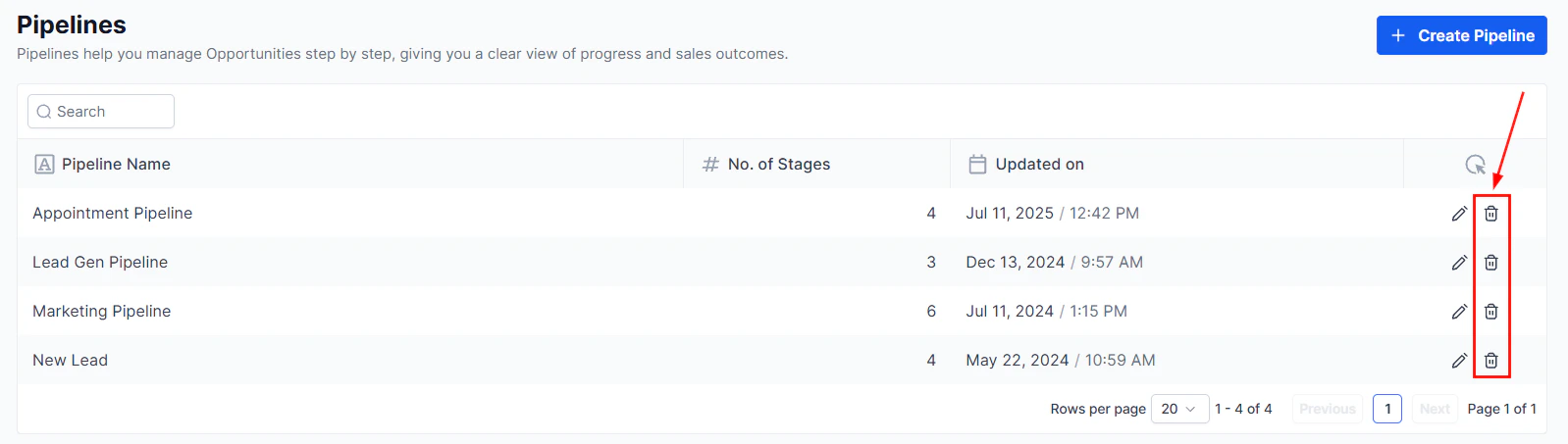
Click the delete icon next to the stage you want to remove.
3
Choose a destination
If there are opportunities in that stage, select the stage they should move to. The platform will move them automatically before removing the stage.
4
Confirm
Click Confirm to complete the deletion.
Deleting a stage permanently removes it from your pipeline and from historical reporting. Consider renaming or reordering a stage before deleting it — especially if it appears in workflow conditions or saved filters.
The stages in your pipeline should map to the real steps in your sales process — not an idealized version of it. A few principles:Keep it lean. Most sales processes can be represented in 5 to 8 stages. More stages than that often reflect edge cases rather than the main path. If you have 15 stages, consider whether some could be merged.Each stage should have a clear entry criteria. What has to be true for a deal to move into this stage? If the answer is “it depends,” the stage may need to be redefined or split.Match automation to stages. If a workflow triggers when a deal enters a stage (e.g., send a proposal template when entering “Proposal Sent”), the stage name becomes a critical system reference — keep names stable once automations are attached.Use separate pipelines for different processes. If you have meaningfully different sales motions (e.g., one for inbound leads and one for enterprise outbound), use separate pipelines with stages tailored to each. Trying to handle both in one pipeline usually results in awkward stage names that don’t quite fit either process.
There is no hard limit on the number of stages per pipeline. Practically, most teams find 5 to 8 stages provides a useful structure without being unwieldy on the board.
Can I reorder stages without affecting existing opportunities?
Yes. Reordering stages changes the column order on the board but does not change which stage any opportunity is in.
Can I have stages with the same name in different pipelines?
Yes. Stage names must be unique within a single pipeline, but the same name can appear in multiple different pipelines.
What happens to automations when I rename a stage?
Workflow conditions that reference a stage by name will need to be updated to use the new name. Review any automations that filter or trigger on that stage after renaming.
Can I delete the Won and Lost stages?
No. Won and Lost are system stages and cannot be deleted or renamed. Every pipeline includes them automatically.
Do stage changes appear in the audit log?
Yes. Every time an opportunity moves to a different stage, the change is recorded in the activity timeline and the audit log with a timestamp and the user who made the change.