The Contacts section is your central hub for every person your business has ever interacted with. It gives you smart filtering, a full activity timeline, task management, custom data fields, and the tools to keep your contact database clean and accurate.
The Contacts section showing smart lists and contact records
Smart lists
Create filtered views using advanced conditions, save them for instant reuse, and share them with your team.
Bulk actions
Apply tags, send messages, export, or delete multiple contacts at once without opening individual records.
Contact details
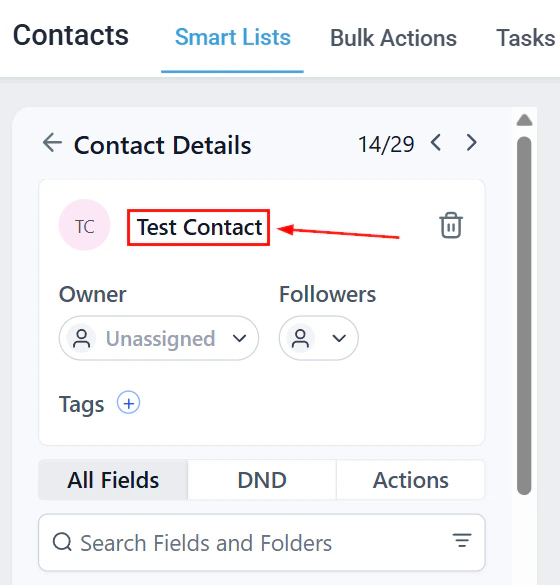
View the full history of any contact — messages, appointments, payments, tasks, and associated opportunities.
Tasks
Create and track follow-up tasks linked to contact records so nothing falls through the cracks.
Tags
Organize contacts with custom tags for segmentation, smart list filtering, and automation triggers.
Notes
Add free-form notes to a contact record to capture context from calls, meetings, or research.
Custom fields
Add business-specific data fields to contact records to capture information beyond the standard fields.
Importing contacts
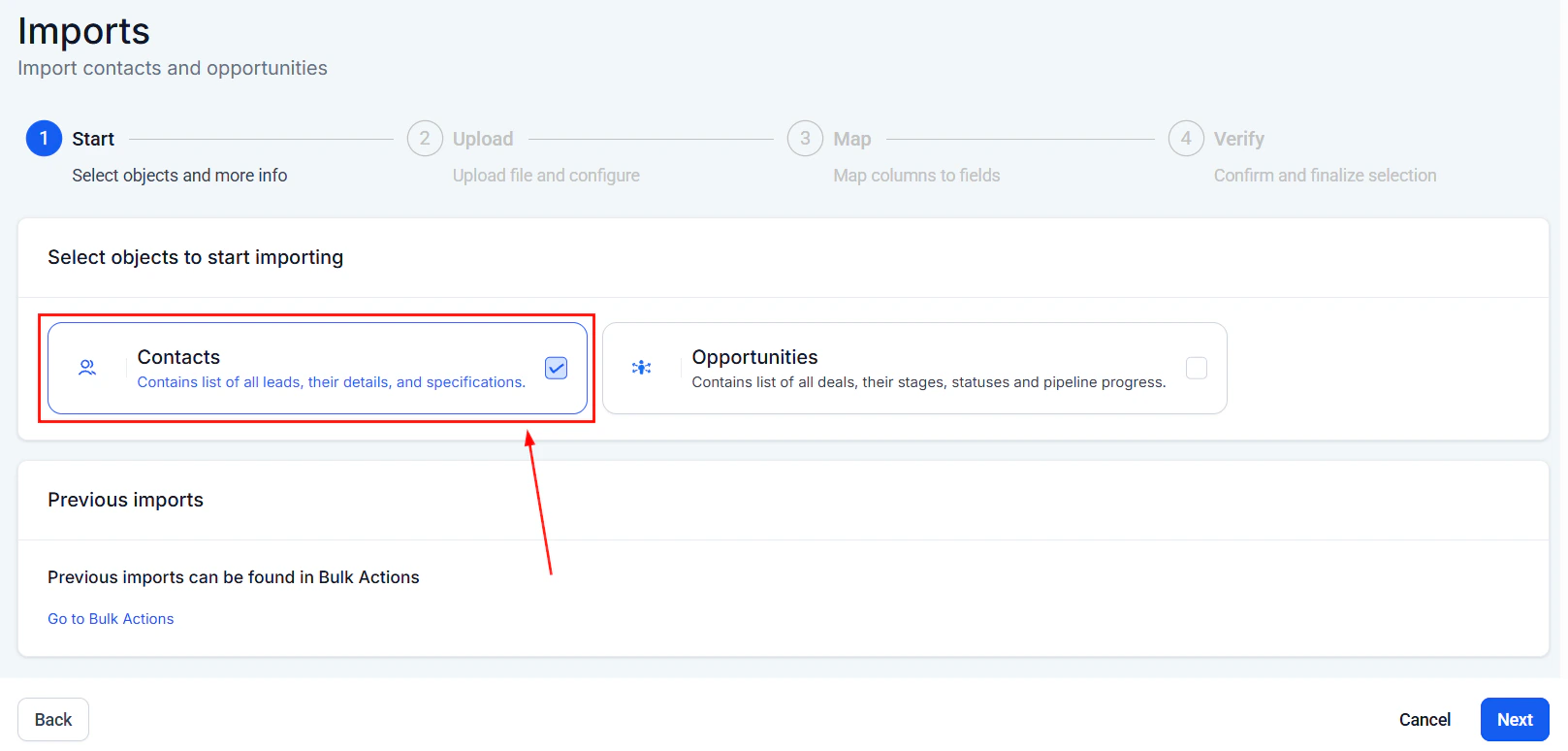
Bring contacts into HoopAI from a CSV file, map fields, and track import progress.
Duplicate management
Detect, merge, and restore duplicate contact records to keep your database clean and accurate.
Appointments
View and manage all appointments scheduled with a contact directly from their record.
Contact activity
Review a full chronological timeline of every interaction, change, and event tied to a contact.
Contact scoring
Automatically score contacts based on engagement behaviors to prioritize follow-up and outreach.
Associations
Link contacts to opportunities, custom objects, and other records to model real-world relationships.
Businesses
Group contacts under a business (company) record and track account-level relationships.
Followers
Follow a contact record to receive notifications whenever it is updated or has new activity.
Exporting contacts
Export a filtered contact list to a CSV file for use in external tools or for data backups.
Do not contact
Mark contacts as do-not-contact to suppress outbound communication across all channels.
Opportunities & pipelines
Track leads through your sales pipeline — kanban board, list view, pipeline stages, and opportunity reporting.
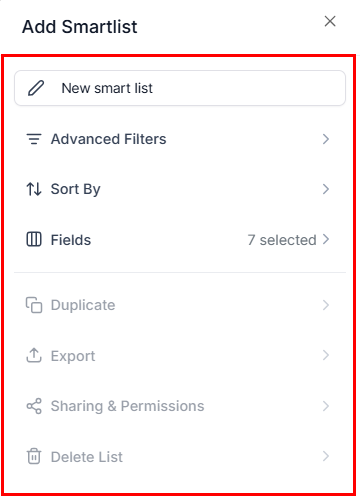
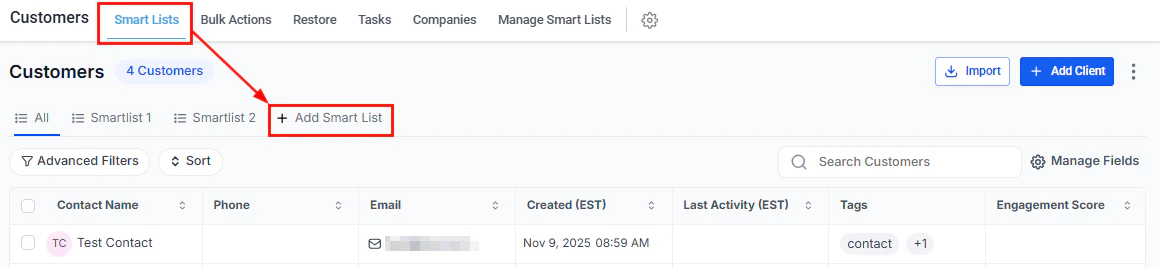
Add a new smart list using the + Add Smart List button
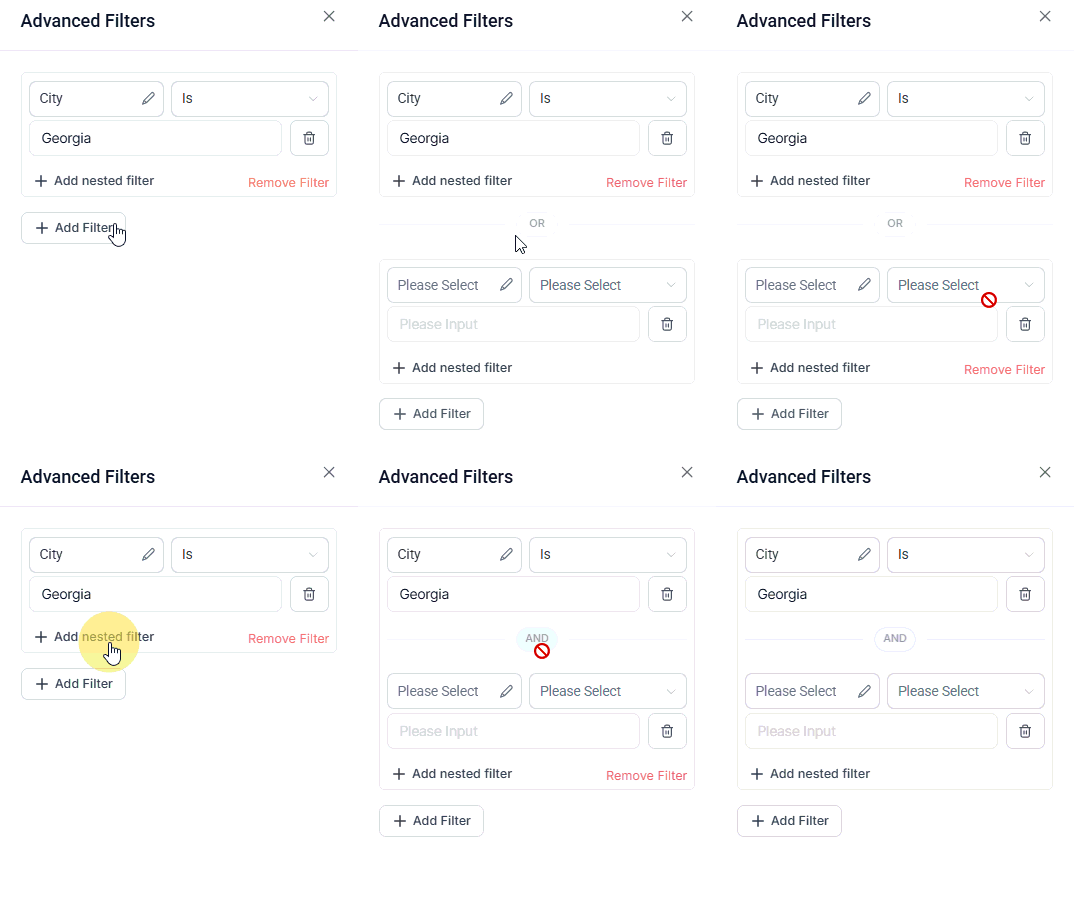
Use nested filter groups for complex segmentation logic
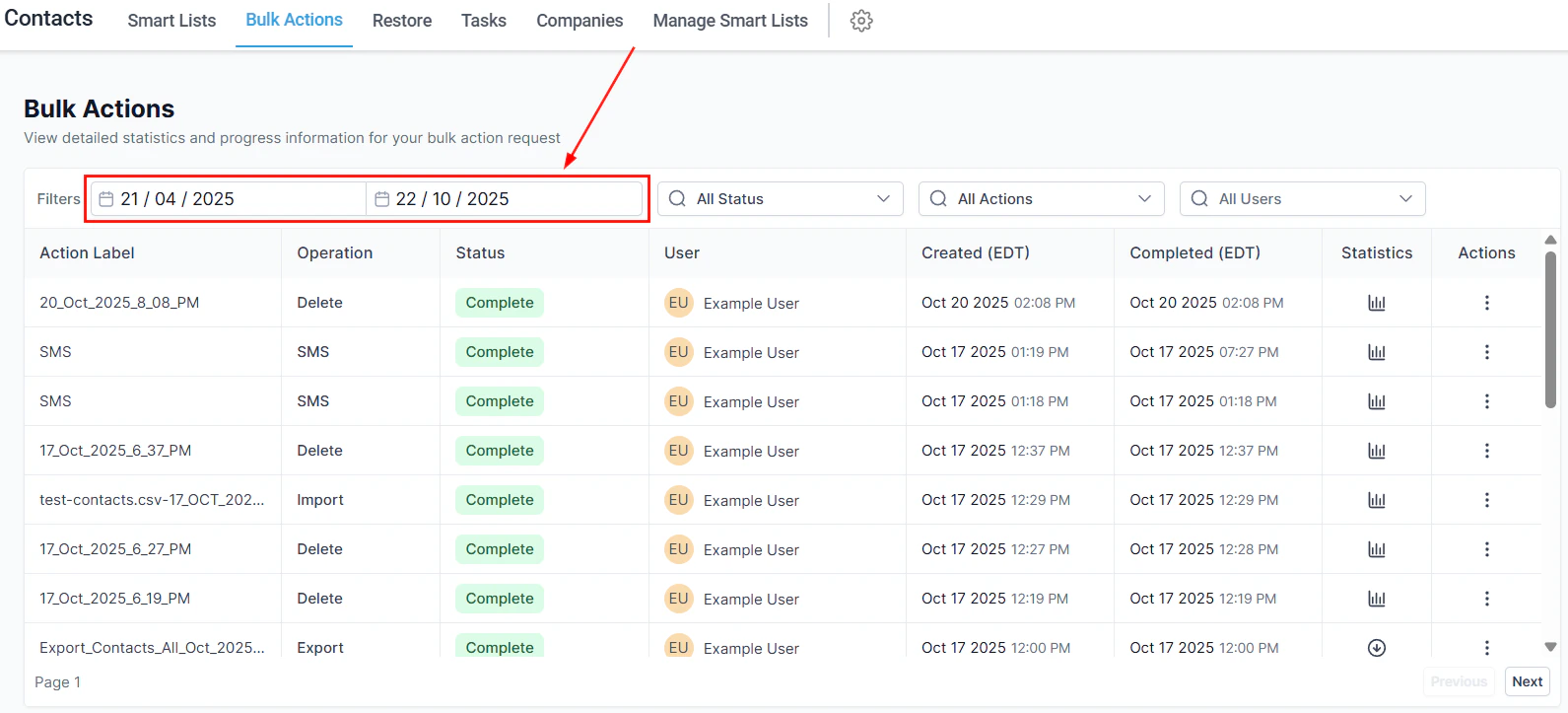
Bulk actions toolbar with options for SMS, email, tags, export, and more
Contact details record with left panel tabs and right information panel
Upload your CSV and map fields to HoopAI contact fields
Go to Contacts and click Import in the top-right corner. Upload a CSV file, map your columns to HoopAI fields, and let the importer handle deduplication automatically.
2
Set up custom fields
Navigate to Settings → Custom Fields and add any business-specific fields you need — job title, preferred location, intake date, or anything else not covered by the standard contact record.
3
Create smart lists for your most common segments
Click + Add Smart List, build a filter using the field conditions that define your segment (for example, tag equals “lead” and source equals “website”), and save it so it appears in the top navigation for one-click access.
4
Configure contact scoring
Go to Settings → Manage Scoring and define the engagement behaviors that should increase or decrease a contact’s score. High-scoring contacts will surface at the top of your follow-up queue.
5
Set up do-not-contact rules
Review any contacts that have opted out or asked not to be contacted, and apply the Do Not Contact flag so the platform suppresses all outbound messages for those records automatically.
Contacts can also be created automatically when someone fills out a form, books an appointment, completes a purchase, or is imported via a workflow action — you do not need to add every contact manually.
What is the difference between a smart list and a tag?
A tag is a label attached directly to a contact record — it’s a piece of data stored on the contact itself. A smart list is a saved filter query that returns contacts meeting certain conditions in real time. Tags are often used as filter conditions inside smart lists, but the two are separate things. Deleting a tag removes it from all contacts; deleting a smart list removes only the saved view, not any data.
What is the difference between importing contacts and using bulk actions?
Importing contacts is for bringing new contact records into HoopAI from an external CSV file. Bulk actions operate on contacts that already exist in the platform — for example, applying a tag, sending a message, or exporting a filtered list to CSV. Use import to get data in; use bulk actions to manage data that is already there.
How does duplicate management work?
HoopAI detects potential duplicates based on matching email addresses and phone numbers. You can review flagged duplicates in the Contacts section and choose to merge them — the system combines all notes, tasks, and activity from both records into one. Merges can be reversed within a limited window.
What does the Do Not Contact flag actually suppress?
When a contact is marked Do Not Contact, the platform will not send any outbound SMS, email, or call initiated through workflows, campaigns, or manual sends from the Conversations inbox. The flag does not prevent team members from viewing the contact record or from receiving inbound messages from that contact.
What is the difference between associations and businesses?
Businesses (companies) are a specific type of account-level record — you group individual contacts under a business to represent a corporate relationship. Associations are a broader linking system that lets you connect contacts to any other object type, such as opportunities or custom objects. Every contact under a business has an association to that business, but associations cover many more relationship types.
Can I export a specific smart list?
Yes. Apply the smart list filter so the view shows only the contacts you want, then use Bulk Actions → Export to download those contacts as a CSV. The export respects whatever filters and columns are active in the current view.