Assign monetary value to deals, understand how pipeline totals are calculated, and use value data for forecasting, prioritization, and reporting.
The opportunity value field records the estimated monetary worth of a deal. It is one of the most important data points in your pipeline because it feeds into every financial view of your sales process — column totals on the board, pipeline value summaries, forecast reports, and dashboard widgets.Keeping values up to date and accurate is the foundation of reliable pipeline reporting.
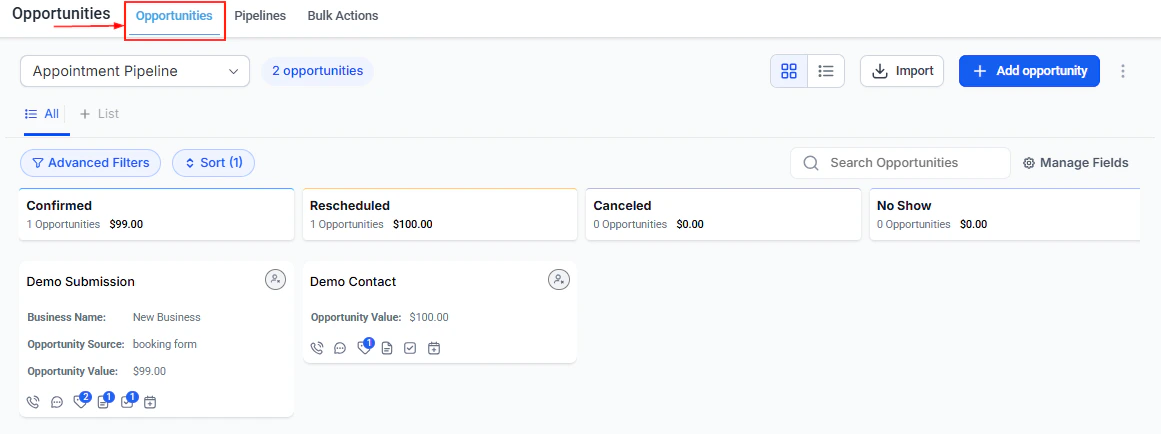
At the top of each stage column on the kanban board, the platform displays the total value of all opportunities currently in that stage. This gives your team an instant read on how much revenue is at each step of your process.For example:
Proposal Sent column shows $48,000 → that is the combined value of all open deals currently at the proposal stage
Negotiation column shows $22,500 → revenue that is close to closing but not yet won
Monitoring these totals during team meetings lets you quickly identify where revenue is concentrated and whether your pipeline is healthy.
In list view, the value column is sortable and filterable:
Sort — click the Value column header to rank opportunities from highest to lowest (or reverse). Use this to quickly surface your highest-value deals for prioritization.
Filter — add a value range filter to see only deals above a minimum threshold (e.g., value greater than $5,000) or within a specific range.
Combining a value filter with a close date filter (close date this month + value greater than $2,000) quickly shows you which deals need attention to hit this month’s revenue target.
Opportunity value can be used as a filter condition in workflow automations. This lets you trigger different actions based on deal size.Example use cases:
When a new opportunity is created with value over $10,000 → automatically add the sales manager as a follower
When an opportunity enters the Proposal stage with value over $25,000 → create a task for executive review
When a deal is marked Lost with value over $5,000 → notify the team lead for a win/loss debrief
To set this up, use any opportunity-based workflow trigger (such as Opportunity Created or Pipeline Stage Changed) and add a Lead Value filter condition specifying the amount threshold.
Raw pipeline value (the sum of all open deal values) overstates your likely revenue because not all deals will close. Weighted forecasting accounts for the probability of each deal closing based on its current stage.How weighted value works:Each pipeline stage has an implied close probability based on where it sits in your process. A deal in your very first stage might have a 10% chance of closing, while a deal in the final negotiation stage might have a 90% chance.Weighted value = Opportunity Value × Stage Close Probability
Stage
Deal Value
Close Probability
Weighted Value
New Lead
$10,000
10%
$1,000
Proposal Sent
$10,000
40%
$4,000
Negotiation
$10,000
75%
$7,500
Contract Signed
$10,000
95%
$9,500
By summing weighted values across your pipeline, you get a more realistic revenue forecast than adding up raw values alone.
Weighted probability percentages are not set on individual stages in the HoopAI platform — they are applied through reporting tools and dashboard configurations. Work with your account manager to set up weighted pipeline reporting for your team.
The Opportunities section of your dashboard can display value-based metrics as widgets:
Total pipeline value — sum of all open opportunity values across selected pipelines or stages
Average deal value — mean value of open opportunities, segmented by stage, pipeline, or assigned user
Won revenue — total value of opportunities marked Won within a date range
Lost value — total value of opportunities marked Lost (useful for understanding revenue at risk)
Value by stage — bar or funnel chart showing value concentration at each stage
To add these, go to Dashboards, click + Add Widget, and select the Opportunities widget type. Configure the pipeline, date range, and metric you want to display.
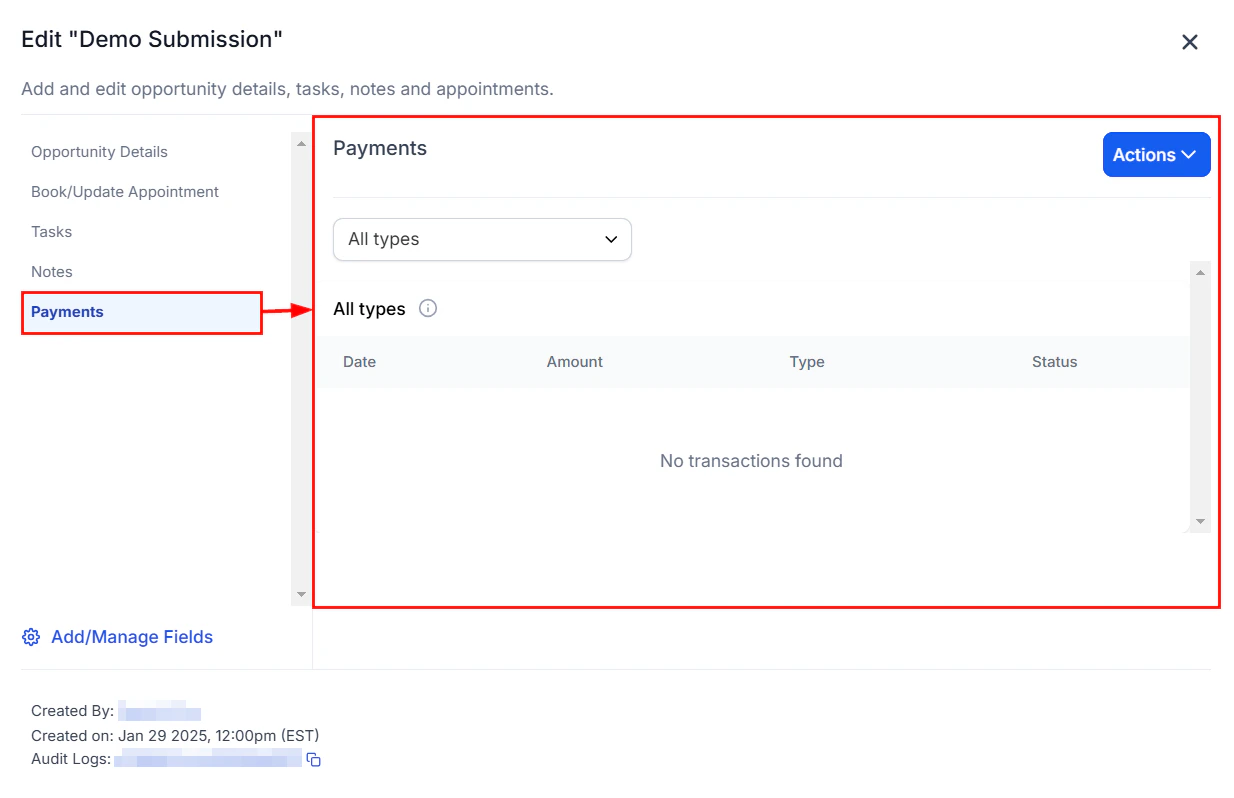
The Payments tab on an opportunity for tracking invoices and revenue
If deal value can be derived from information collected elsewhere — such as a form submission, survey response, or payment — you can set the opportunity value automatically through workflows.Example: A contact submits a quote request form with a “Budget” field. A workflow triggers on form submission, creates an opportunity, and maps the Budget field value to the opportunity value using a dynamic merge tag.To do this:
Create or edit a workflow with an opportunity trigger or the Create Opportunity action
In the Opportunity Value field within the action, use a dynamic value merge tag (e.g., {{contact.budget}} or {{form.budget_field}})
The workflow populates the value automatically when the trigger fires
Opportunity values use the currency configured for your account. Contact your account administrator to confirm or change the default currency.
Can I filter opportunities by value range?
Yes. In both board view and list view, use the filter toolbar to add a Lead Value filter specifying a minimum, maximum, or range.
Does the opportunity value update automatically if I change stages?
No. The value field does not change automatically when a deal moves stages. Update it manually as the deal scope changes, or use a workflow automation to set it based on trigger data.
Is opportunity value included in CSV exports?
Yes. The value field is always included in CSV exports regardless of whether it is shown as a visible column in your current list view layout.
Can I use opportunity value in workflow conditions?
Yes. Any opportunity-based workflow trigger supports a Lead Value filter condition. You can also reference opportunity value in workflow actions using dynamic merge tags.
What happens to pipeline value totals when a deal is marked Won or Lost?
Won and Lost opportunities are removed from the open stage column totals. The column total at the top of each stage reflects only currently open opportunities in that stage.