Switch to list view to see opportunities in a sortable table, manage visible columns, apply advanced filters, and bulk-edit deals efficiently.
List view displays your opportunities as rows in a table rather than cards on a kanban board. It is especially useful when you have a large number of deals, need to compare values across many records at once, or want to sort and filter with precision before taking bulk actions.
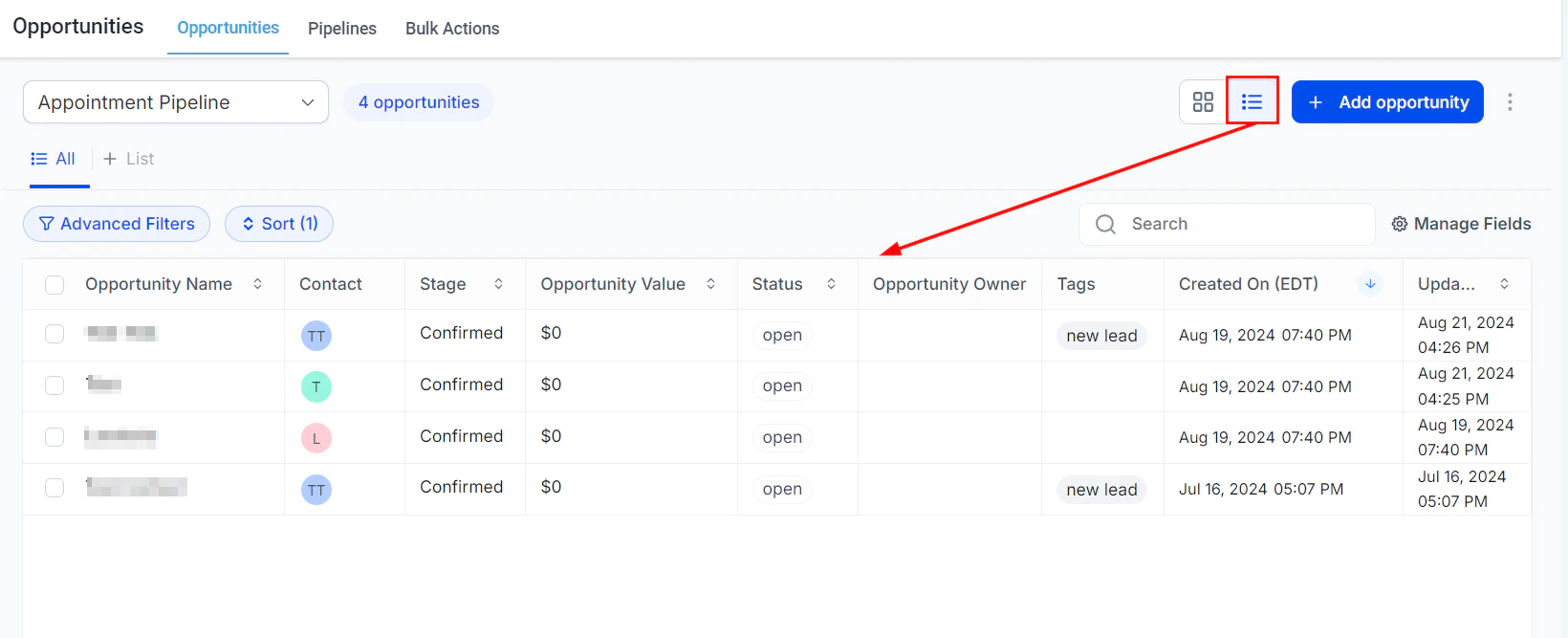
Click the List view icon in the view toggle at the top right of the Opportunities section. The board remembers your last-used view, so list view will be the default next time you open Opportunities until you switch back.
Opportunities displayed in list view as a sortable table
Each row in list view represents a single opportunity. Columns display the fields you have chosen to show (see Managing columns below). Standard columns include:
Column
Description
Opportunity name
The deal name; click to open the opportunity detail panel
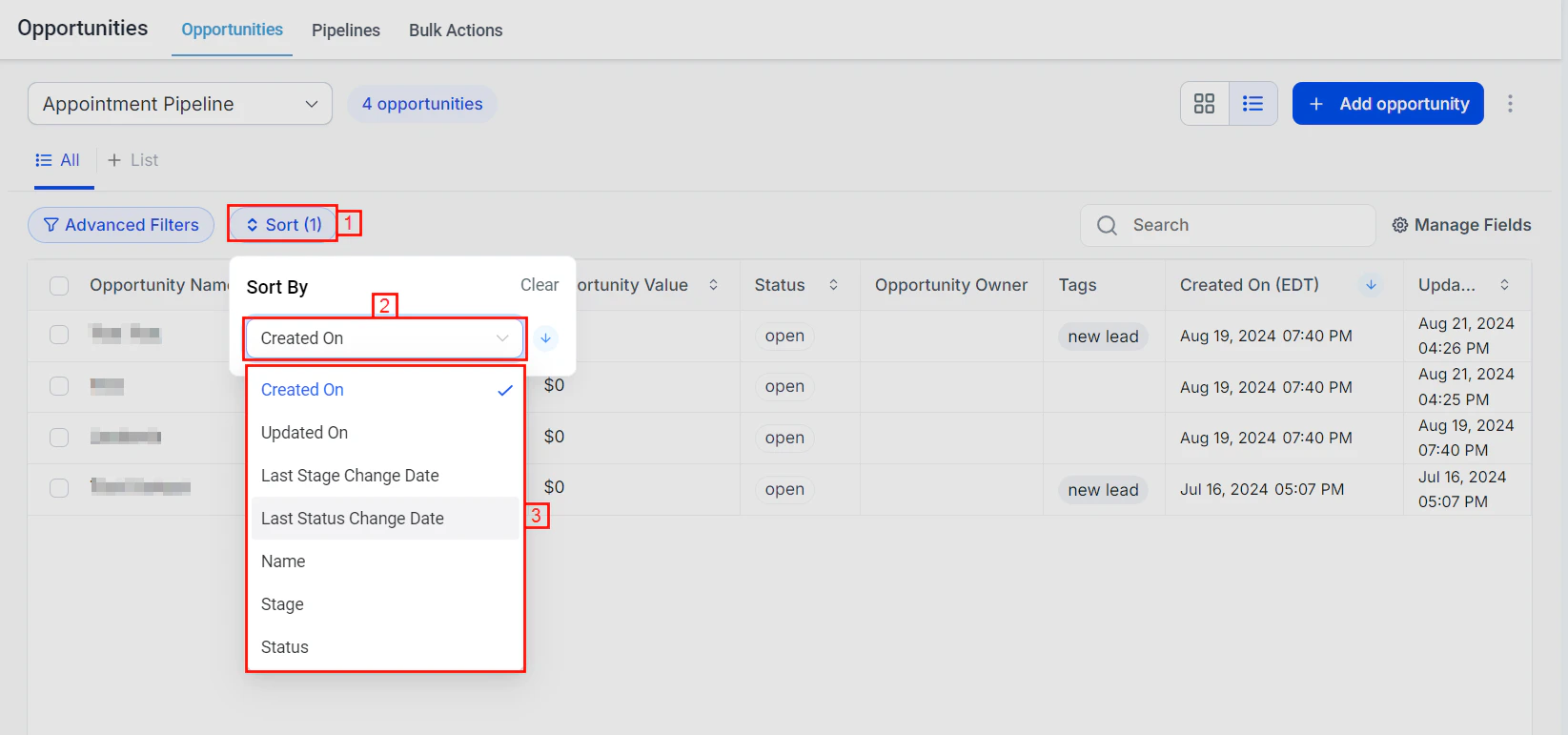
Click any column header to sort the table by that field in ascending order. Click the same header again to reverse the sort to descending. An arrow indicator shows the active sort column and direction.
Sorting opportunities by column headers in list view
You can sort by:
Opportunity value (highest to lowest, or lowest to highest)
Close date (soonest or farthest away)
Stage (alphabetical)
Last activity (most or least recently active)
Created date
Contact name
Any custom field column you have added
Sort by Close date ascending to surface deals closing soonest and prioritize your follow-up accordingly.
Use the filter toolbar above the table to narrow down which opportunities appear. All the same filters available on the kanban board apply in list view:
Pipeline — filter to a specific pipeline (you can view multiple pipelines at once in list view)
Stage — show only opportunities in selected stages
Status — Open, Won, Lost, Abandoned, or any combination
Assigned user — filter to a specific team member’s deals
Date range — filter by created date, close date, or last activity date
Opportunity value — filter to a numeric range
Tags — include or exclude specific tags
Lead source — filter by origin
Custom fields — filter by any custom field value
Combine multiple filters to create precise views. For example, filter to Open status + Close date this month + Value over $5,000 to see your highest-priority deals closing soon.
You control which fields appear as columns in list view and in what order.
1
Open the column manager
Click the Manage Fields button (or the columns icon) at the top right of the list view table.
2
Select columns
Check the fields you want to show. Available fields include all standard opportunity fields, custom fields you have created, and key contact information fields (contact name, email, phone).
3
Reorder columns
Drag fields up or down in the column manager to change their left-to-right order in the table.
4
Apply
Click Apply to update the table. Your column layout is saved per user.
You can also resize columns directly in the table by dragging the column border left or right.
List view is the most efficient place to perform bulk edits because you can see all opportunities at once and select precisely the ones you need.
1
Select opportunities
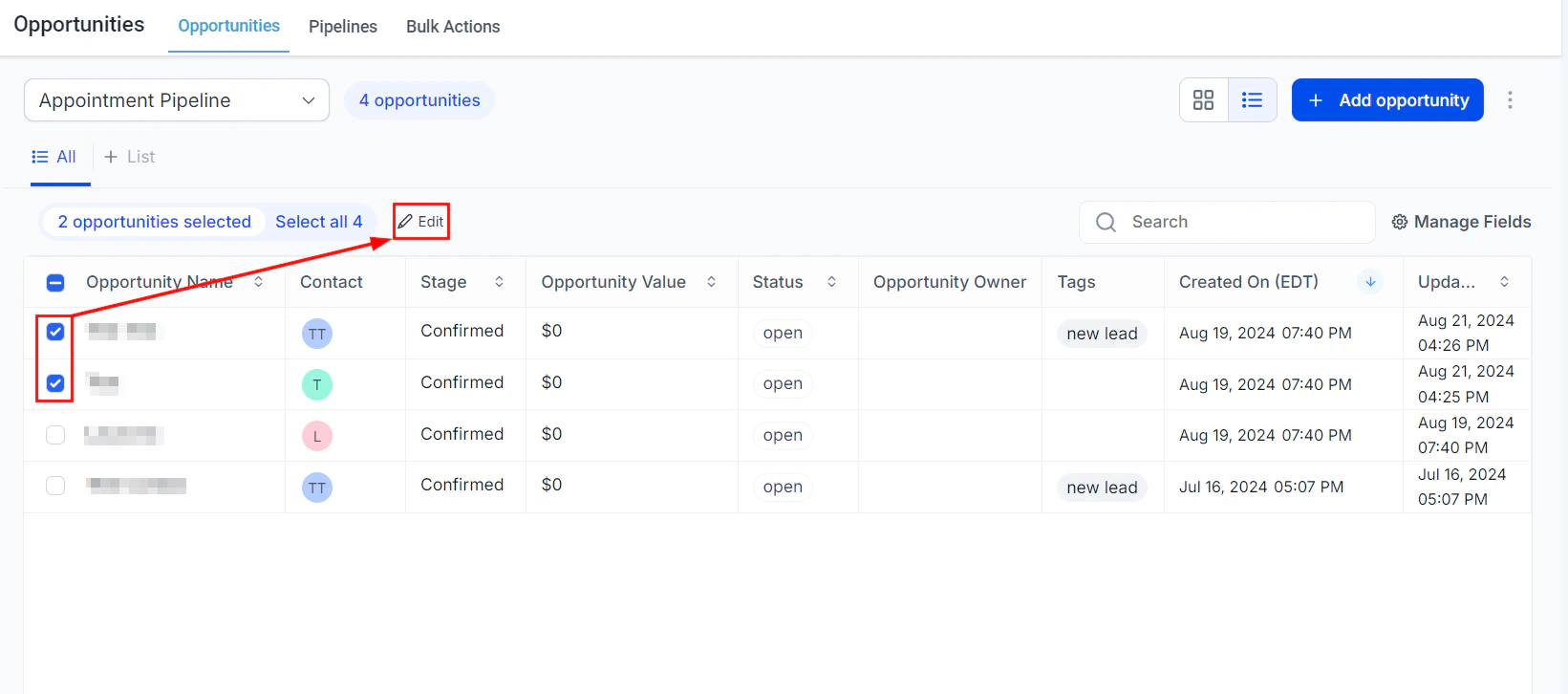
Check the checkbox on the left side of each row you want to include. Click the checkbox in the column header to select all visible rows. Use filters first to narrow down the set.
2
Open the bulk actions menu
Once records are selected, the bulk actions toolbar appears above the table showing available operations.
The bulk actions toolbar for editing multiple opportunities at once
3
Choose an action
Available bulk actions include:
Edit — update stage, owner, close date, tags, value, or custom fields across all selected opportunities
Unlike the kanban board (which shows one pipeline at a time), list view can display opportunities across multiple pipelines simultaneously. Use the pipeline filter to select multiple pipelines, or clear the pipeline filter to see all pipelines at once. The Pipeline column shows which pipeline each deal belongs to.
The table supports single-column sorting at a time. To effectively multi-sort, apply filters to narrow the data first, then sort by the most important column.
Are my column and filter settings saved?
Yes. Column selections, column widths, and saved filter presets are stored per user. They persist between sessions so you see the same layout every time you return to list view.
Can I change a stage directly in list view without opening the opportunity?
Yes. Click the Stage cell on any row to open an inline dropdown and select a new stage without opening the full detail panel.
Does the export include custom fields?
Yes. All custom field values are included in the exported CSV as additional columns, regardless of whether those columns are visible in your current table layout.
Why does list view show opportunities from multiple pipelines?
By default, list view shows all pipelines unless you filter to a specific one. Use the pipeline filter in the filter toolbar to limit the view to a single pipeline if needed.
Can I undo a bulk edit?
Bulk edits cannot be undone automatically. Review your selection and the changes carefully before confirming. To recover deleted opportunities, go to Opportunity Settings > Deleted Opportunities.