

How followers work
- A contact can have up to 10 followers in addition to its owner
- Followers have the same edit permissions as the contact owner
- The follower feature is most meaningful when Restrict data visibility to only assigned data is enabled for a user — without that setting, users can see all contacts regardless of follower status
- Followers are visible in the contact header so every team member can see who is monitoring that record
Adding followers to a contact
1
Open the contact record
Navigate to Contacts > Smart Lists and click a contact’s name to open their record.
2
Locate the followers control
In the contact header at the top of the record, look for the Followers icon (a people/group icon) next to the owner assignment area.
3
Add a follower
Click the Followers icon to open the follower dropdown. Select up to 10 team members from the list. Their avatars or names appear in the header immediately.
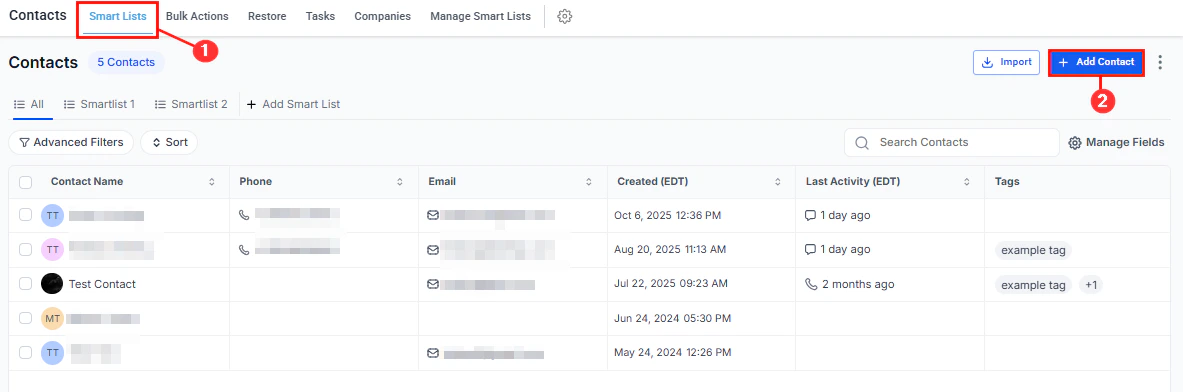
Adding followers to a contact record from the contact header
Removing a follower
1
Open the contact record
Click the contact’s name to open their record.
2
Open the followers dropdown
Click the Followers icon in the contact header.
3
Remove the follower
Click the X next to the team member’s name to remove them as a follower. The change takes effect immediately.
Setting up restricted data visibility
Followers are most powerful when combined with restricted data visibility. This setting prevents users from seeing contacts they neither own nor follow, which is useful in multi-team environments where each user should only work with their own leads.1
Open staff settings
Navigate to Settings > My Staff and click the Edit button for the team member whose visibility you want to restrict.
2
Enable restricted visibility
In the user’s permission settings, enable Restrict data visibility to only assigned data. When this is turned on, the user will only see contacts where they are listed as owner or follower.
3
Save changes
Click Save. The setting takes effect immediately for that user’s next login or page refresh.
If a team member reports that they cannot see a contact they expect to have access to, verify that restricted data visibility is enabled for their account and then confirm they are listed as a follower (or owner) on that contact record.
Bulk-adding followers
Bulk-adding followers using the smart list bulk actions toolbar
1
Select contacts
In Contacts > Smart Lists, check the contacts you want to update.
2
Open bulk actions
Click the More dropdown in the bulk actions toolbar and select Add Followers (if available in your account).
3
Select team members and confirm
Choose the team members to add as followers and click Apply. All selected contacts are updated simultaneously.
Difference between owner and follower
Frequently asked questions
Do followers receive notifications when the contact is updated?
Do followers receive notifications when the contact is updated?
Followers gain data visibility rather than explicit notifications. To ensure team members are alerted to activity on a contact, use workflow triggers and notification actions to send internal alerts.
Can a contact have more than one owner?
Can a contact have more than one owner?
No. Each contact has exactly one owner. Use followers to give additional team members access without transferring ownership.
What happens to followers when a contact is merged?
What happens to followers when a contact is merged?
When duplicate contacts are merged, the followers from both records are combined on the master record, up to the maximum of 10 followers.
Can I use follower status in smart list filters?
Can I use follower status in smart list filters?
Yes. In the Advanced Filters of Smart Lists, you can filter by follower to see all contacts a specific team member is following.