Use the visual kanban board to manage opportunities by pipeline stage, drag cards to advance deals, and customize what you see at a glance.
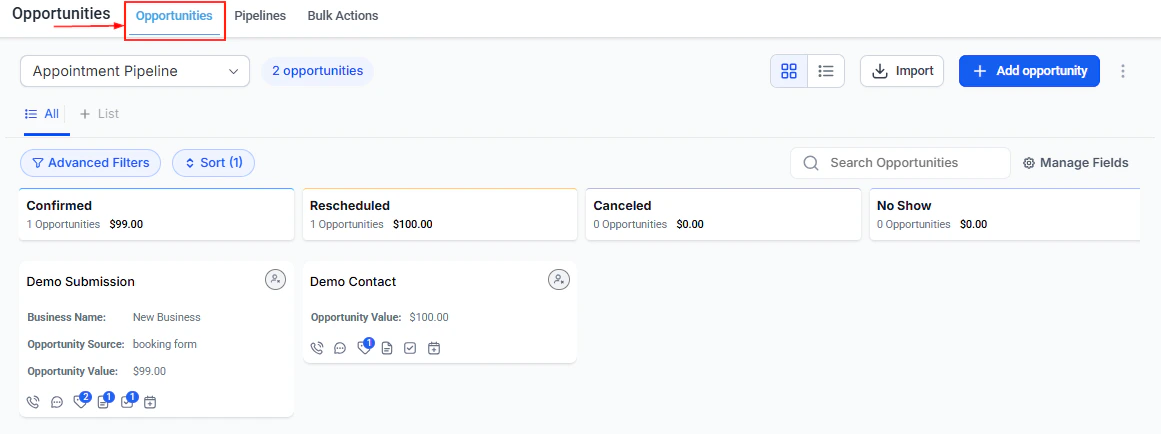
The kanban board is the default view for Opportunities. It displays your pipeline as a set of columns — one for each stage — with opportunity cards arranged inside them. This visual layout makes it easy to see where every deal stands, identify bottlenecks, and move opportunities forward by dragging cards between columns.
If you are currently in list view, switch back to the kanban board by clicking the Board view icon in the view toggle at the top right of the Opportunities section.
The kanban board displaying opportunities organized by pipeline stage
Each opportunity appears as a card within its stage column. Cards display the key details you choose to show (see Customizing cards below). By default, a card shows:
If smart tags are configured for your pipeline, they appear as colored labels on the cards they match. Tags help you instantly spot high-priority deals, at-risk opportunities, or specific deal types without opening the record.
Use the pipeline dropdown at the top left of the Opportunities section to switch between different pipelines. Only one pipeline is displayed at a time on the board. Changing the pipeline refreshes the board to show that pipeline’s stages and opportunities.
To advance — or revert — an opportunity through your pipeline, drag its card from one column and drop it into another.
1
Locate the card
Find the opportunity card in its current stage column. Cards are sorted by most recently updated by default.
2
Click and drag
Click and hold the card, then drag it horizontally to the target stage column.
3
Drop to confirm
Release the card in the new column. The opportunity’s stage updates immediately and the column totals recalculate.
When you drag a card to the Won or Lost stage, the platform will prompt you to confirm the status change. For Lost, you will also be asked to select a lost reason before the move is completed.
If your pipeline is wide (many stages), scroll horizontally within the board to reveal all columns.
If dragging is not practical — for example, when the target stage is far to the right — you can also change the stage from inside the opportunity record:
Click the card to open the opportunity detail panel
You can control which fields appear on every card in the board view. Customizations can be applied to the current pipeline or to all pipelines at once.
1
Open Manage Fields
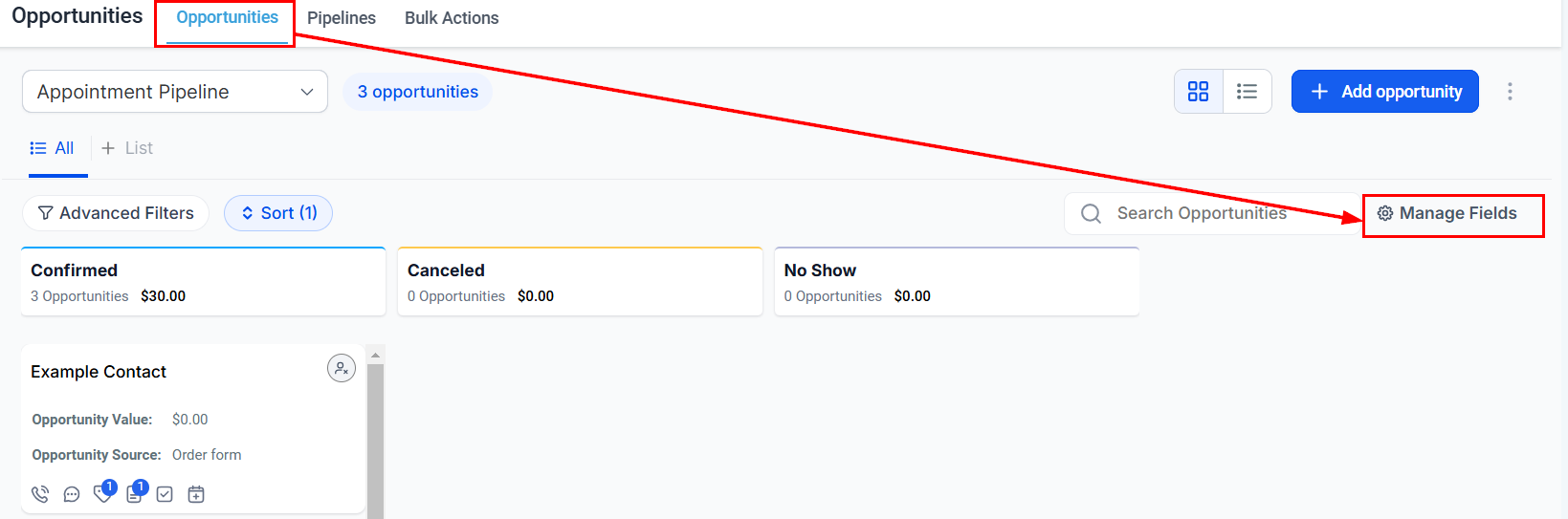
Click Manage Fields in the top-right area of the Opportunities board.
The Manage Fields panel for customizing opportunity cards
2
Select up to 7 fields
Choose from three categories:
Standard opportunity fields — name, status, lost reason, value, owner, source
Custom opportunity fields — any custom fields you have created
Primary contact information — contact name, phone, email, business name, engagement score, task due dates
Opportunity activity — creation date, last updated date, days since status change, days since stage change
3
Choose a layout
Select one of three display styles:
Layout
Description
Default
Shows field labels alongside values
Compact
Shows values only; labels appear on hover
Unlabeled
One line per field, values only
4
Configure quick actions
Switch to the Quick Actions tab to enable or disable the icon counters shown at the bottom of each card — conversations, tasks, notes, tags, calls, and appointments.
5
Apply
Click Apply to save. Choose whether to apply to the current pipeline or all pipelines.
You can select multiple cards directly on the kanban board and act on them without switching to list view.
1
Enable selection mode
Click the Select button or check the checkbox that appears when hovering over a card. The board enters selection mode — dragging and clicking to open cards is temporarily disabled.
2
Select cards
Check additional cards you want to include. Use Select All to select every card visible on the current board.
3
Apply a bulk action
With cards selected, choose an action from the bulk actions toolbar: edit fields, change stage, reassign owner, add tags, or delete.
4
Exit selection mode
Click Cancel or deselect all cards to return to normal board mode.
If your pipeline has hundreds of opportunities, apply a date range or assigned-user filter before working on the board. This improves load time and keeps the board focused on the deals most relevant to you right now.
Use smart tags to surface the deals that need attention without manually reading every card
Set a consistent field layout on cards so your whole team sees the same information at a glance
Stage columns show a running total — use that number during team check-ins to review pipeline value at a glance
Boards are per-pipeline; create separate pipelines for different products or regions rather than cramming everything into one long pipeline
Cards are ordered by last-updated date by default. There is no manual drag-to-reorder within a single column, but you can sort and filter to surface the most important cards.
What happens to column totals when I mark a deal Won or Lost?
Deals marked Won or Lost are removed from the open stage columns. The Won and Lost stage columns (if visible) will show those deals and their values separately. The total at the top of each column reflects only the deals currently in that stage.
Can I hide certain stages from the board?
Stage visibility is controlled in Pipeline Settings. You can hide a stage from the funnel chart and pie chart widgets, but all stages defined in your pipeline will appear as columns on the board.
Why is card drag-and-drop not working?
Drag-and-drop is disabled while the board is in selection mode. Click Cancel or deselect all cards to exit selection mode and re-enable drag-and-drop.
Do card customizations affect all users?
Card field settings are per-user and per-pipeline by default. When you apply changes, you can choose to apply them to the current pipeline or all pipelines, but other team members manage their own card display preferences independently.