Import, export, delete, tag, message, merge, and automate multiple contacts at once using bulk actions in the HoopAI Platform.
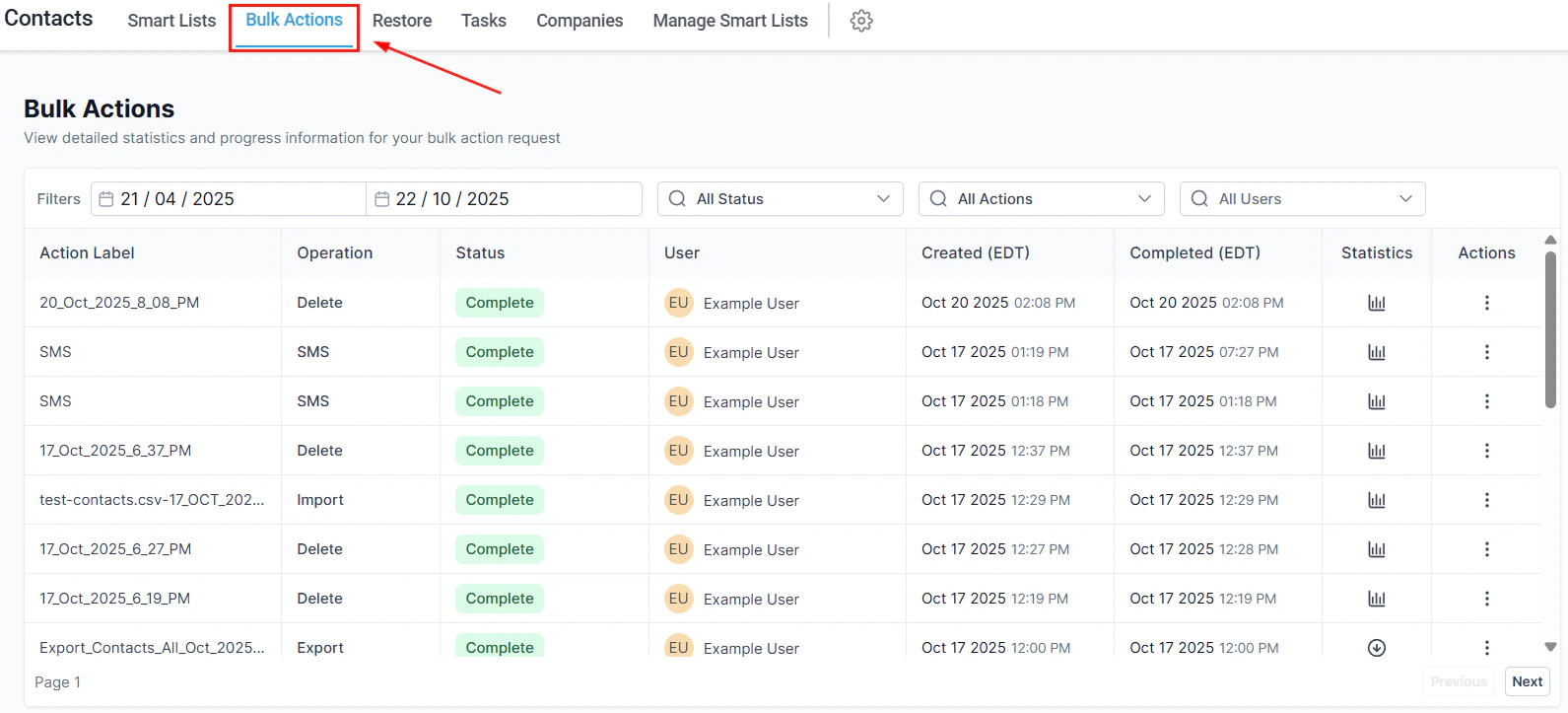
Bulk actions let you perform operations on many contacts simultaneously, saving significant time when managing large contact databases. All bulk operations can be monitored and managed in the Bulk Actions tab within the Contacts section.
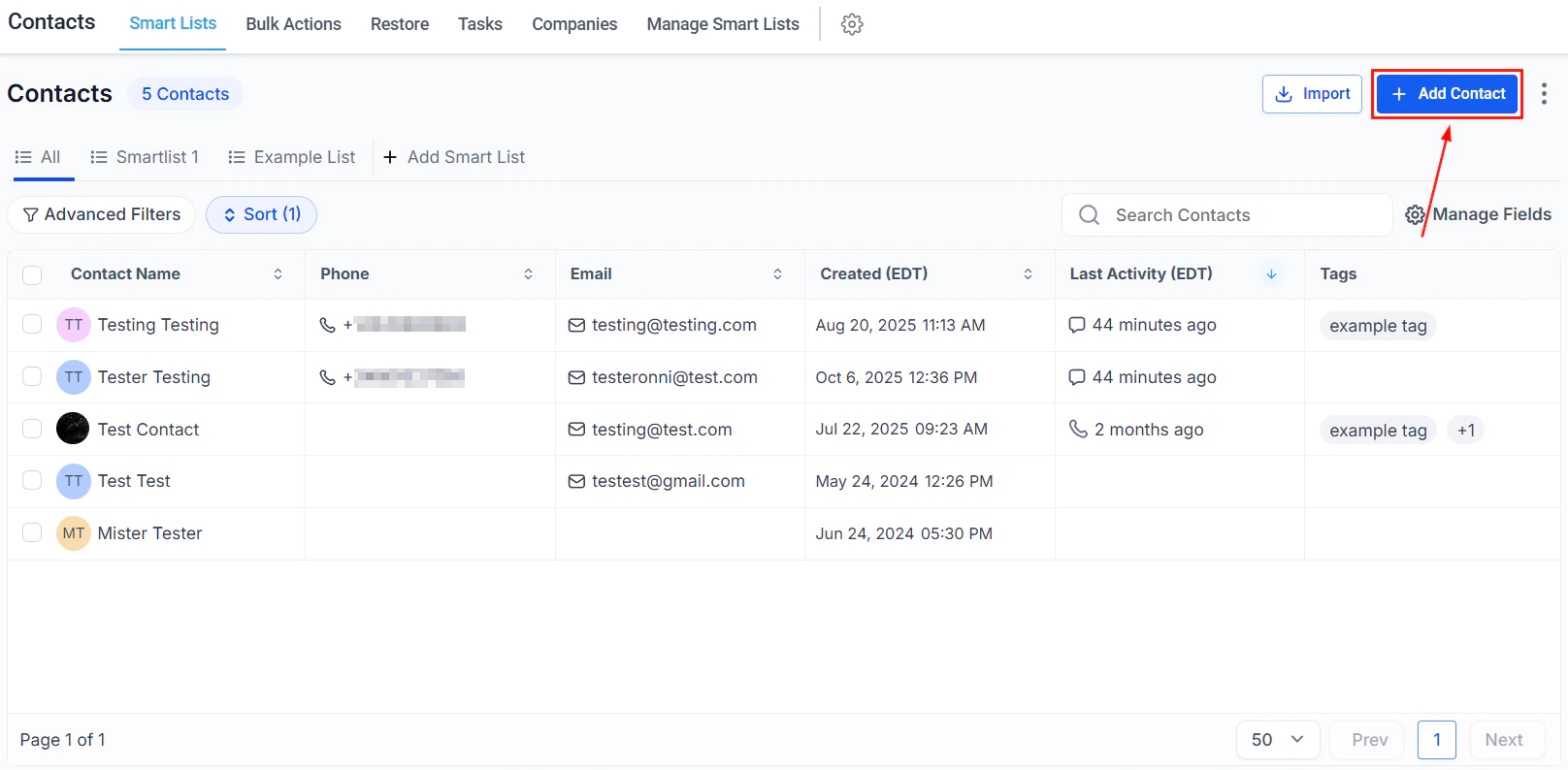
When an SMS, call, Facebook, Instagram, GMB message, or email is received from a potential client, the system automatically adds them to your contacts. You can also add contacts manually.
1
Open the Add Contact form
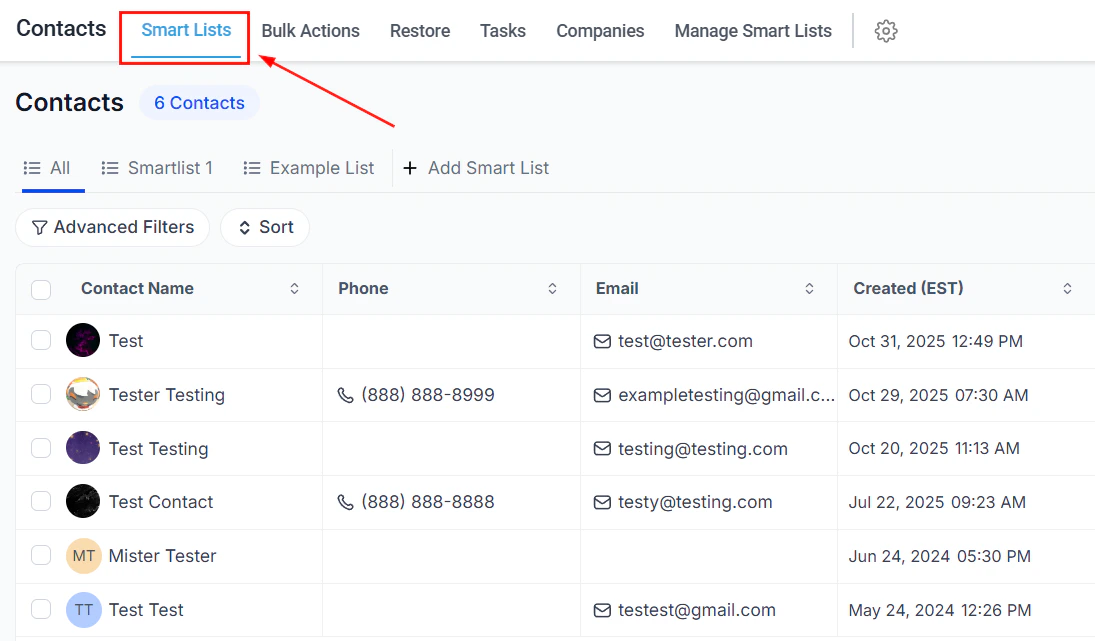
In the Smart Lists tab, click the + button at the top left of the contacts page.
2
Fill in contact details
Complete the fields in the contact creation form:
Contact Image — upload a photo (512x512 px, under 2.5 MB) to identify the contact
The Smart Lists tab includes a toolbar with quick action buttons for managing contacts efficiently.
Import contacts
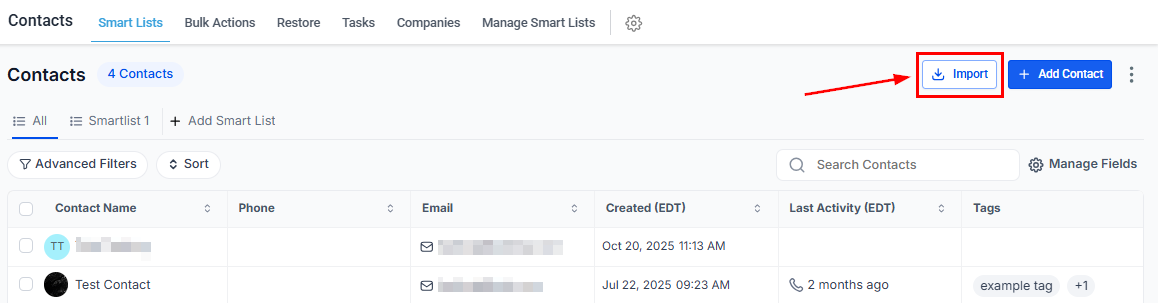
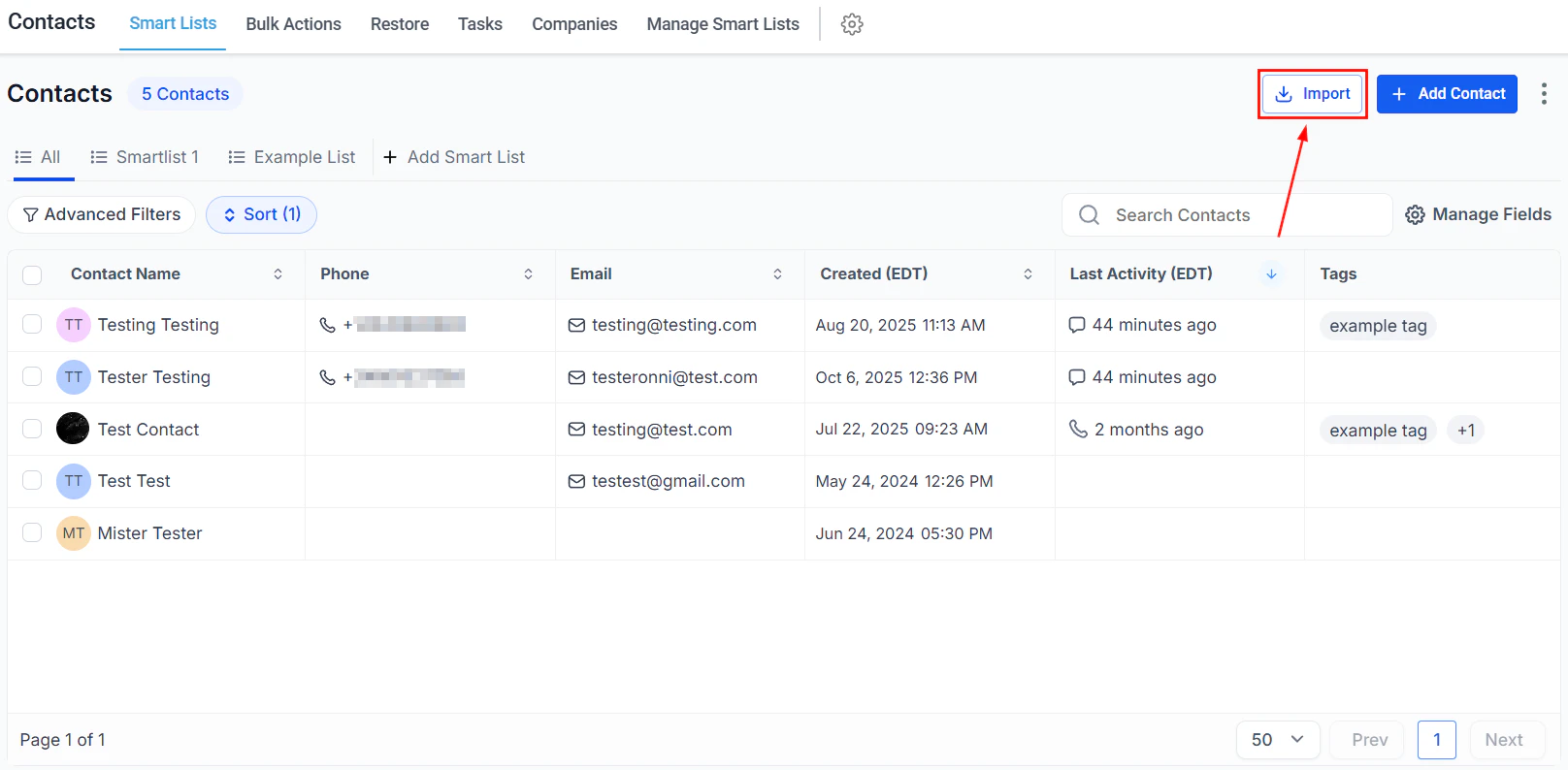
Upload contacts to the system using the Import Contacts icon in the toolbar.
Export contacts
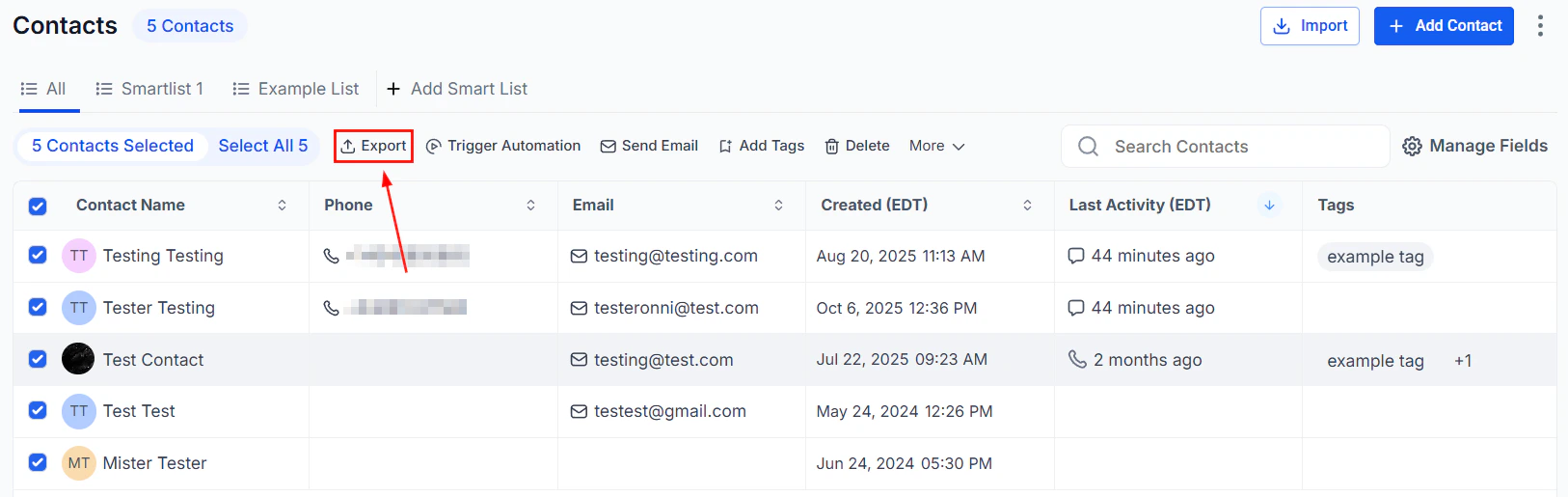
Select contacts, then click Export to download them as a CSV file.
Trigger automation
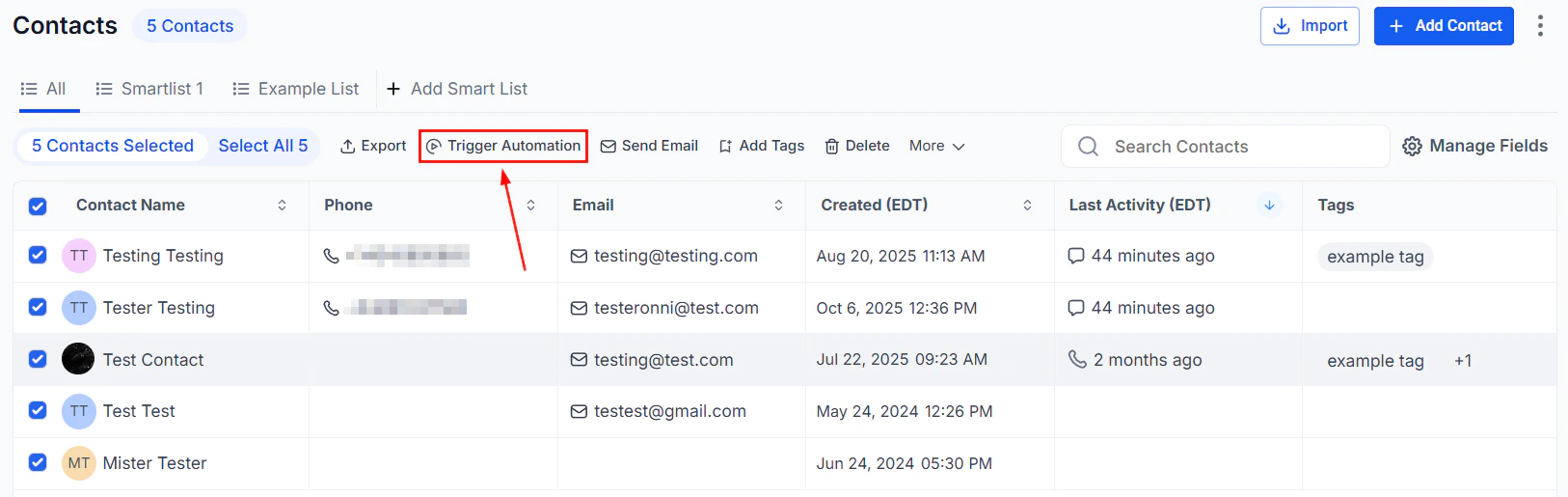
Select contacts, then click Add to Automation to enroll them in a workflow.
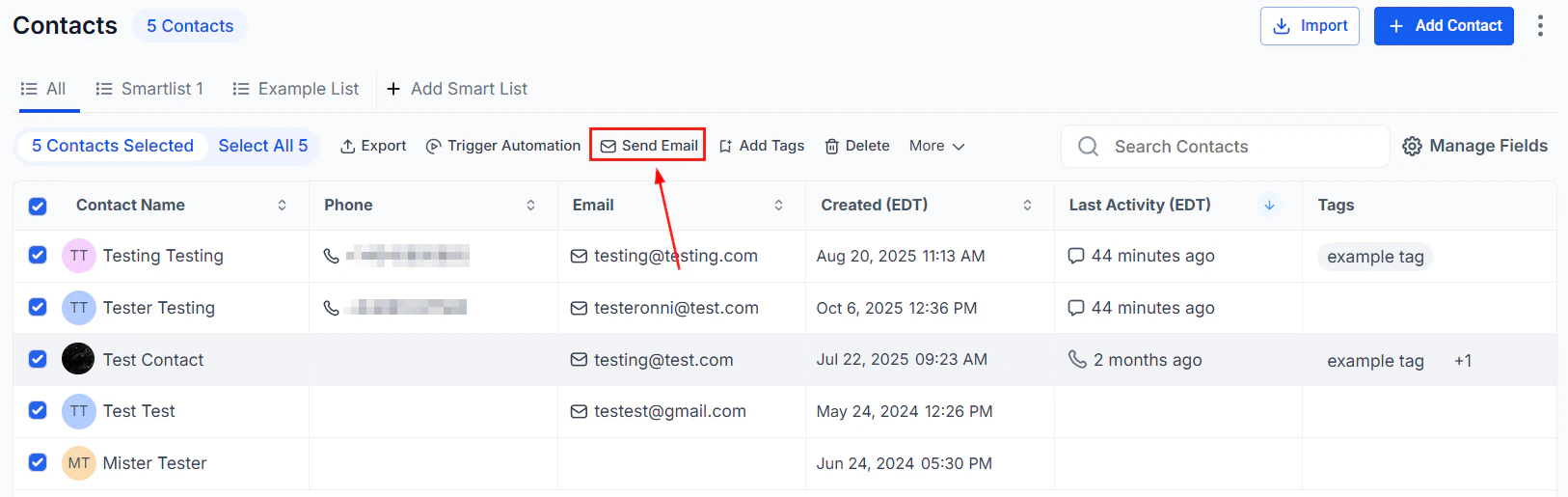
Send email
Select contacts, then click Send Email to send an email to one or multiple contacts simultaneously.
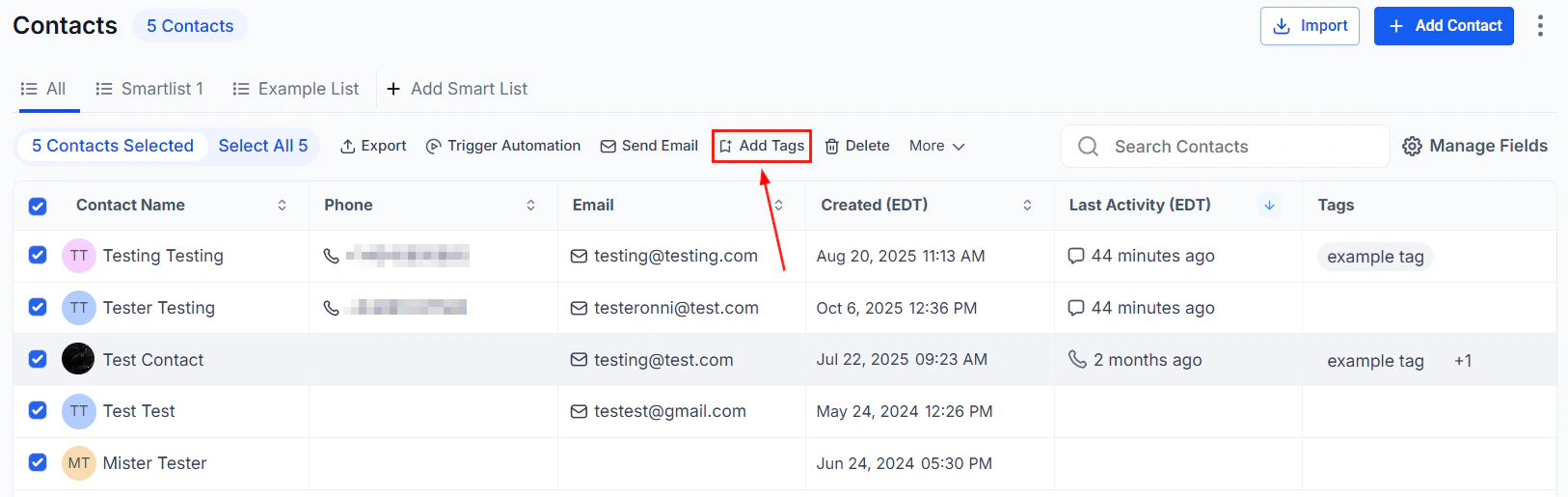
Add tag
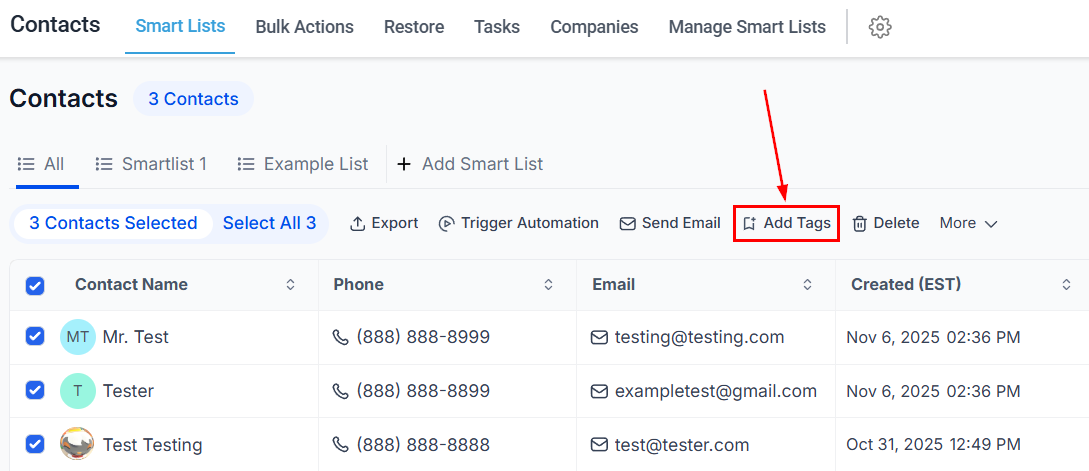
Select contacts, then click Add Tag to apply tags with a single click.
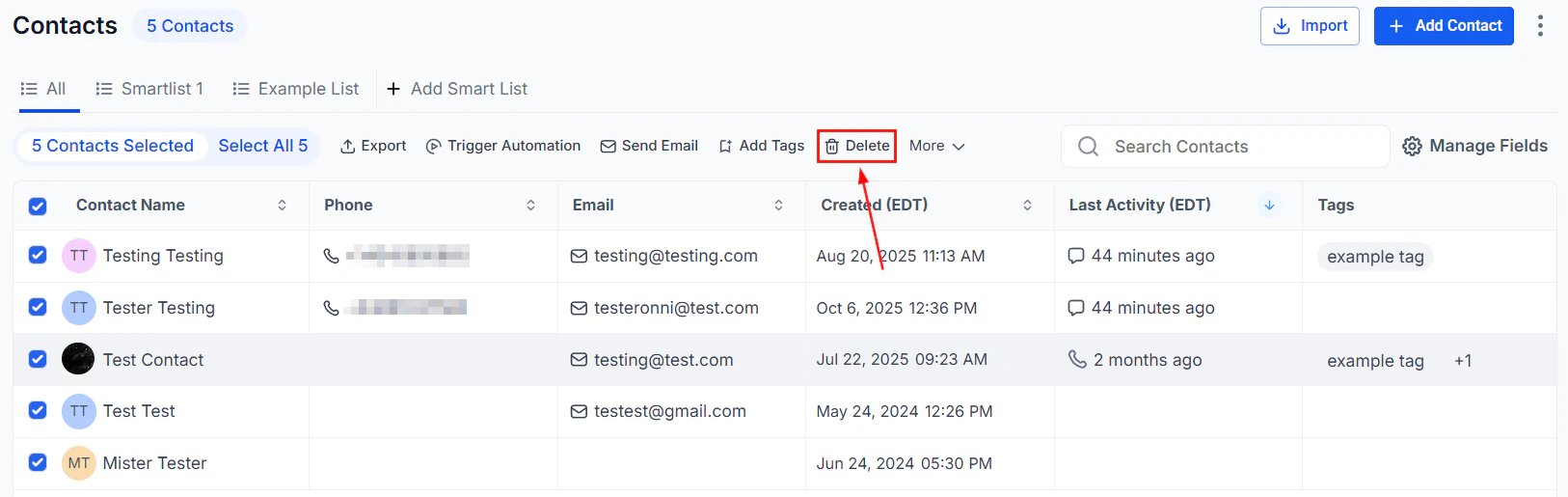
Delete contact
Select contacts, then click Delete Contact to remove them from your database.
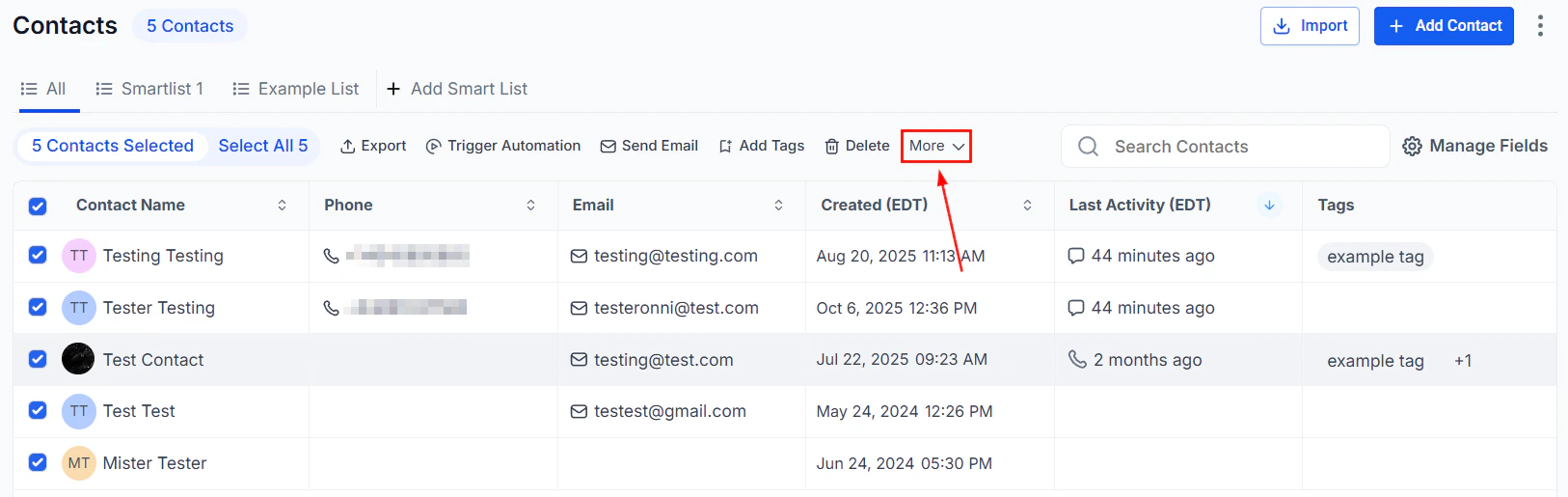
More actions
Click More to access the full list of available bulk actions, including SMS, WhatsApp, review requests, opportunity management, merge, and company updates.
Before uploading, ensure your CSV file meets these requirements:
Format: .csv with a single sheet
Size: under 30 MB
Encoding: UTF-8
A header row with column names matching Hoop field names
Additional formatting guidelines:
Essential columns — include name, email, and phone number; map these during import to avoid errors
Contact owner — include the user’s name in “FirstName LastName” or “LastName FirstName” format
Phone numbers — use E.164 format (e.g., +1 1234567890); US formats like 123-456-7890 are also accepted
Dates — use mm/dd/yyyy or yyyy/mm/dd with /, -, or . separators
Tags — format as Value 1, Value 2, Value 3
2
Open the Import wizard
Click the Import icon at the top right of the Contacts tab.
3
Select objects to import
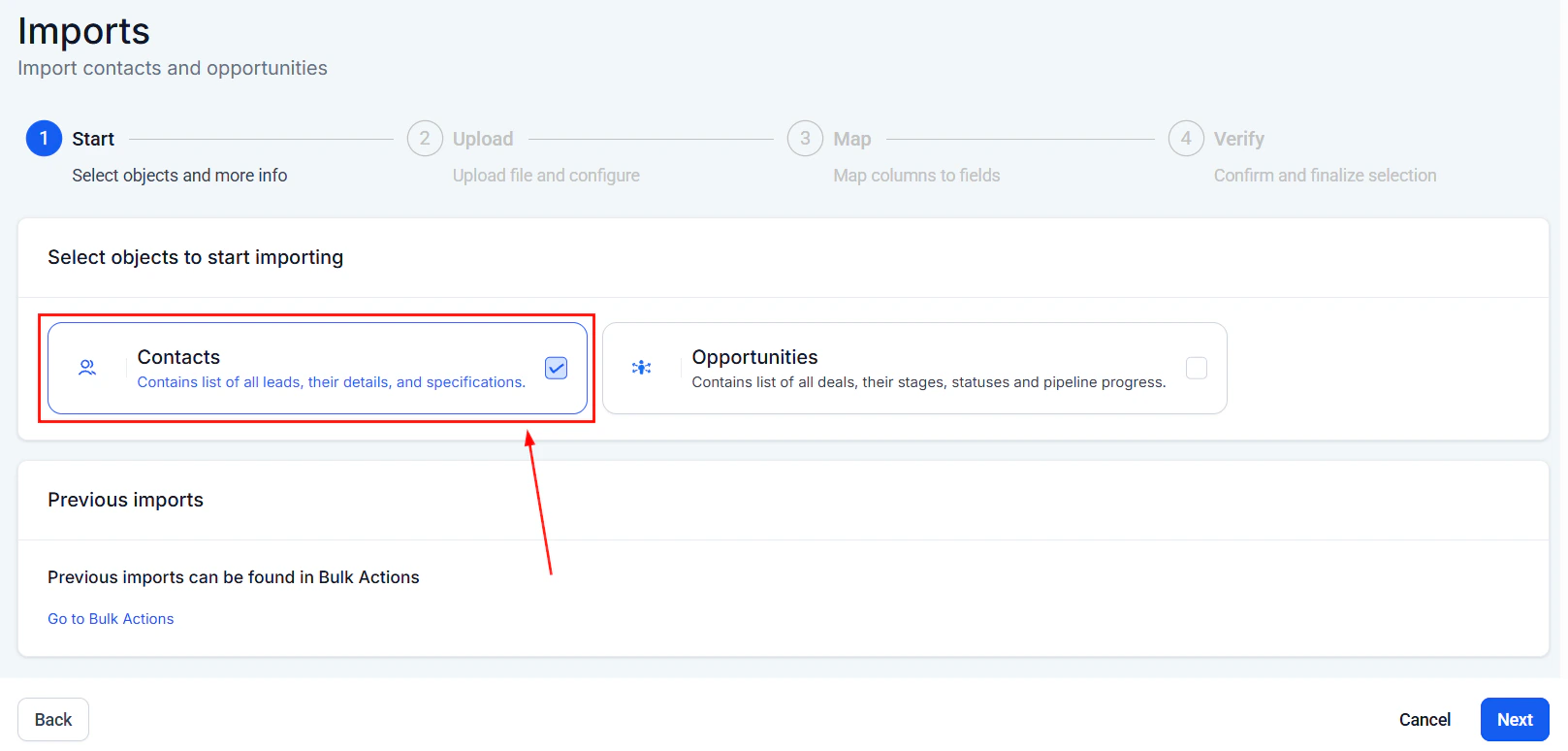
Choose whether to import Contacts, Opportunities, or both, then click Next.
4
Upload your file
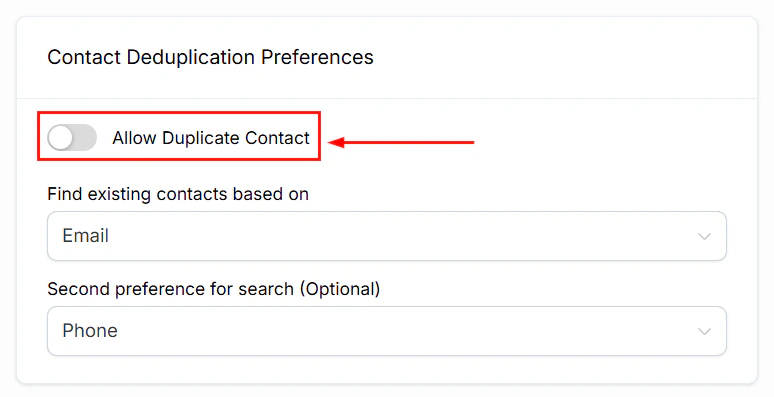
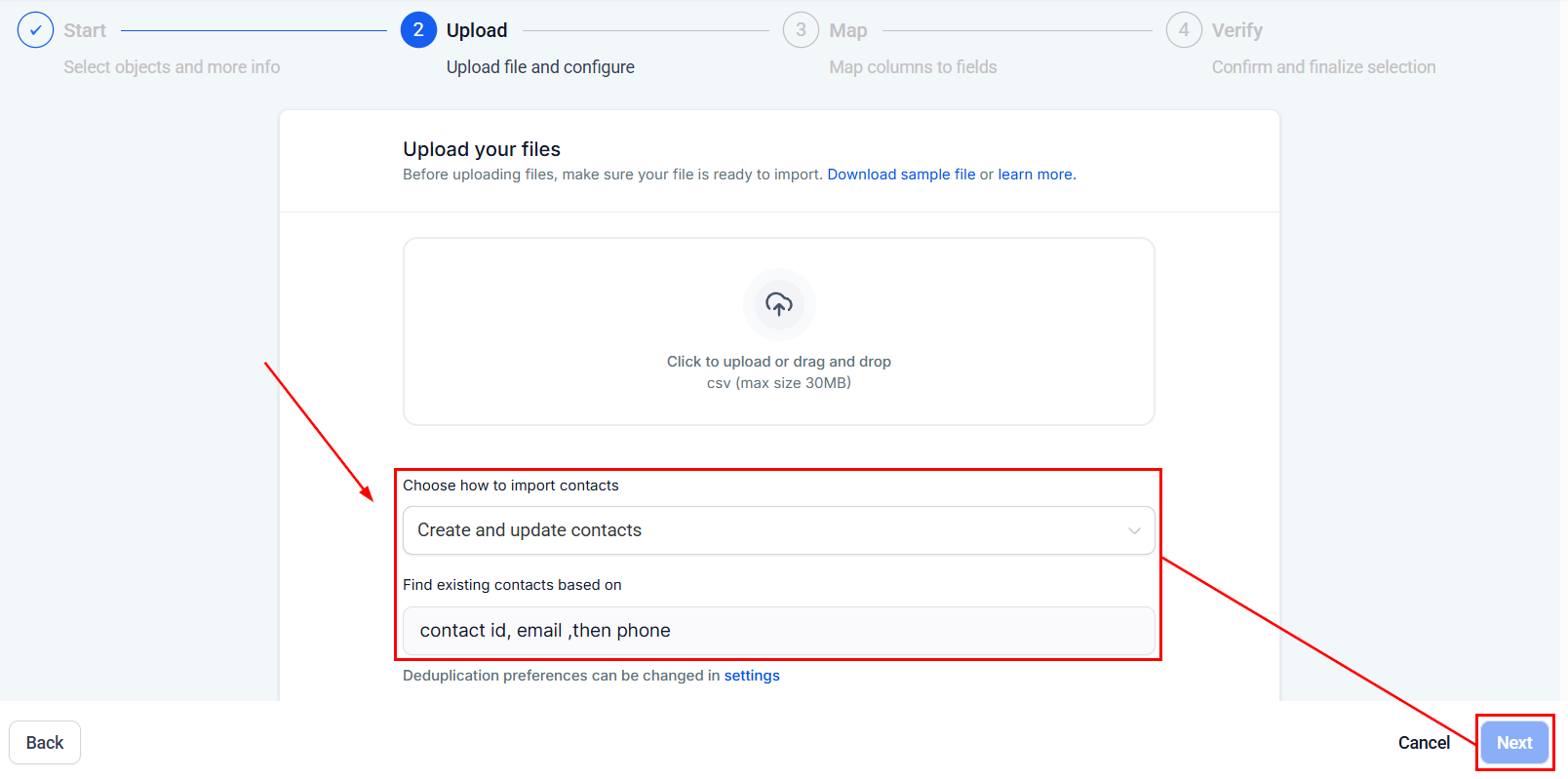
Click Upload a File and select your CSV. The system uses email addresses (then phone numbers) as the default unique identifier for deduplication. You can change this in Settings.
Click Next to proceed.
5
Map fields
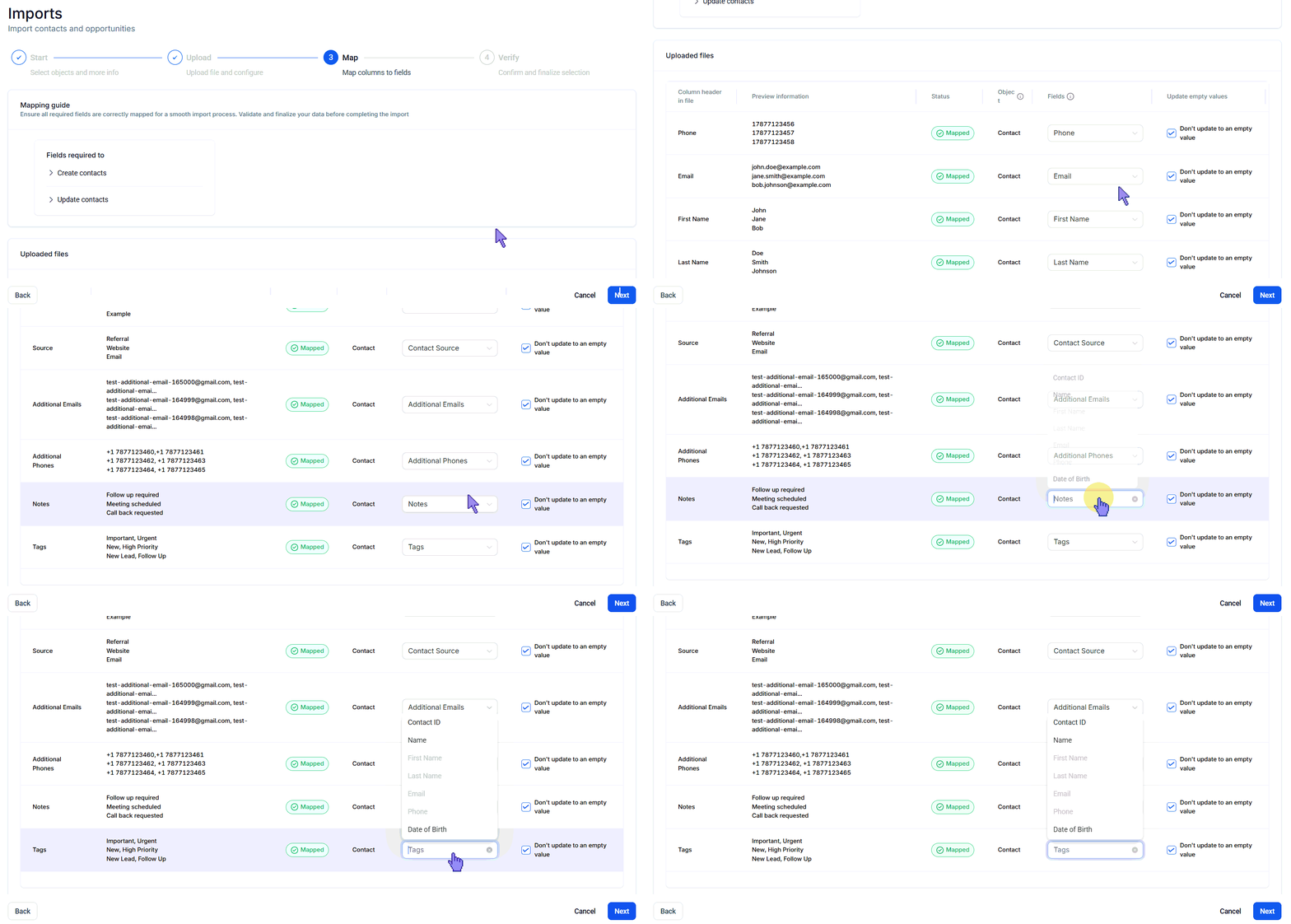
Map each column in your CSV to the corresponding Hoop contact field. Use the preview column to verify matches.
6
Configure preferences and start import
In the final step, you can:
Create a Smart List for newly imported contacts
Add contacts to a workflow by selecting a workflow from the dropdown
Add tags to categorize the imported contacts
Review the import mapping, check the compliance checkbox to confirm all contacts have opted in to receive communications, then click Start Bulk Import.
Monitor progress in the Bulk Actions tab.
Contact imports cannot be reversed. Double-check your CSV mapping before confirming. To undo a mistaken import, navigate to the Bulk Actions tab and use the restore option in the three-dot menu for that action.
When multiple contacts share the same address, company, or other information, include the shared data in each contact’s row in the CSV. Hoop automatically associates contacts with matching company or address values.
Go to Contacts, then click the Bulk Actions tab. Locate your import in the list.
2
Check import statistics
Click Show Stats on the import to see the total contacts processed, successful imports, and errors.
3
Review error logs
Click the Error tab to see errors by line number. Each line corresponds to a contact row in your CSV.
Common errors and resolutions:
Formatting errors — ensure column headers and data types match Hoop’s required format
Missing information — check that all required fields (name, email, phone) are present
Duplicate contacts — the system may reject contacts that duplicate existing entries; use the deduplication settings to manage this
Before importing, use spreadsheet software to clean and validate your data. If you encounter persistent errors, try importing a smaller batch first to isolate the problem.
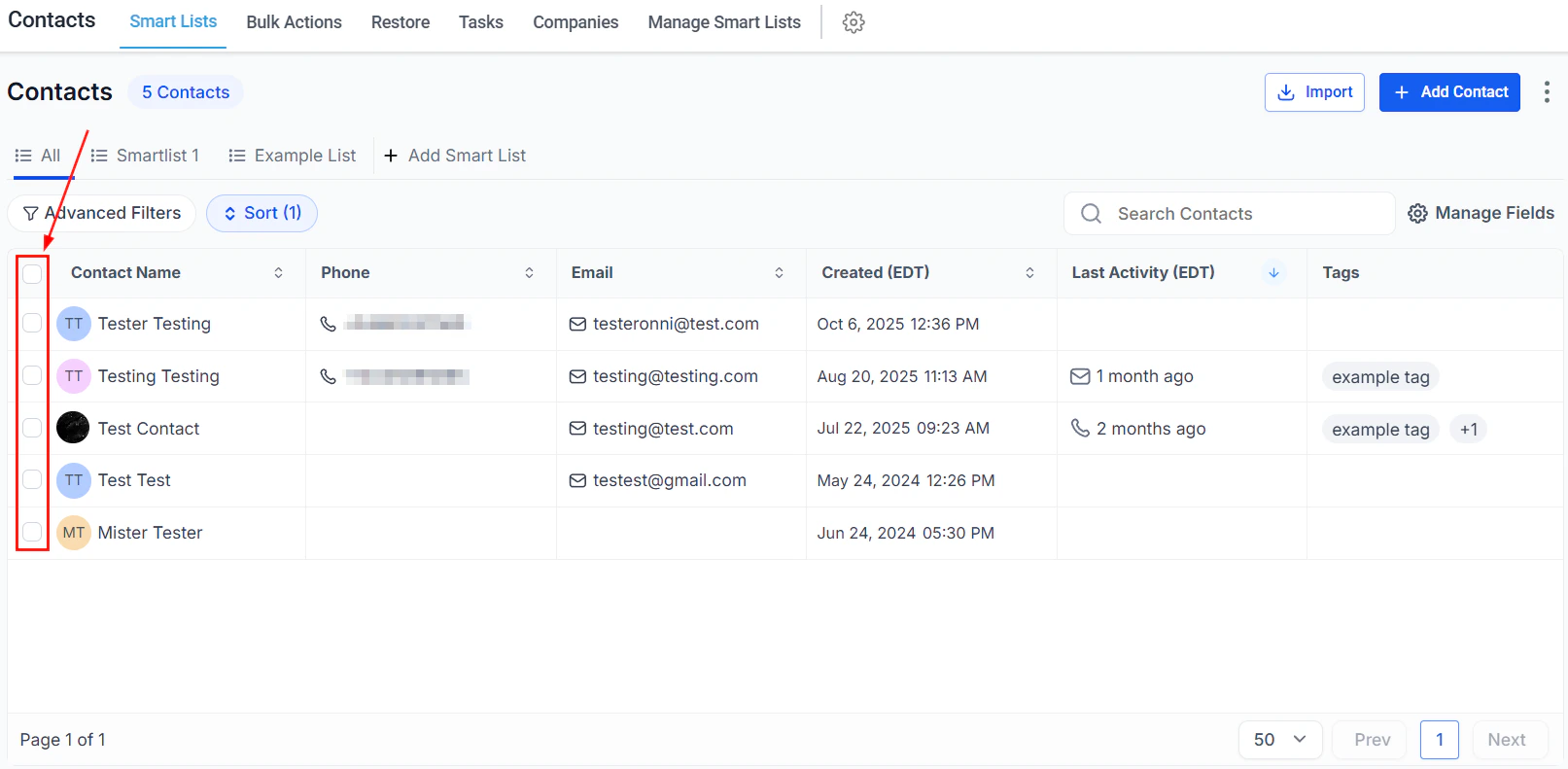
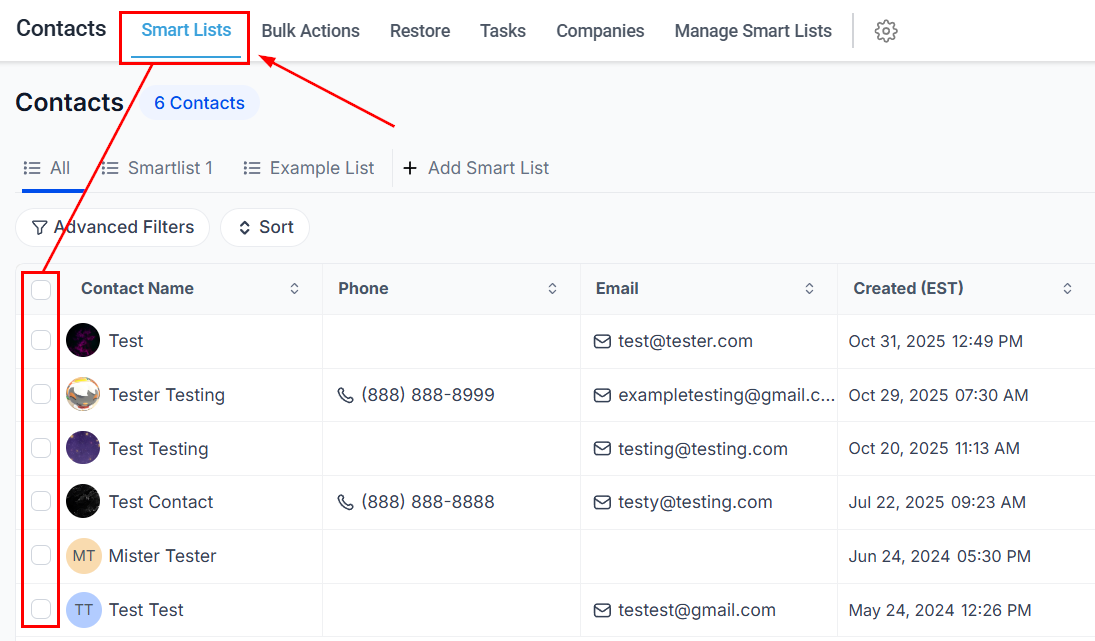
In the Smart Lists tab, check the contacts you want to export.
2
Click Export
Click the Export action button.
3
Confirm the download
Confirm the action to download a CSV file to your device.
The exported CSV includes: Contact ID, first name, last name, business name, company name, phone number, email address, date created, last activity date, tags, additional email addresses, and additional phone numbers.
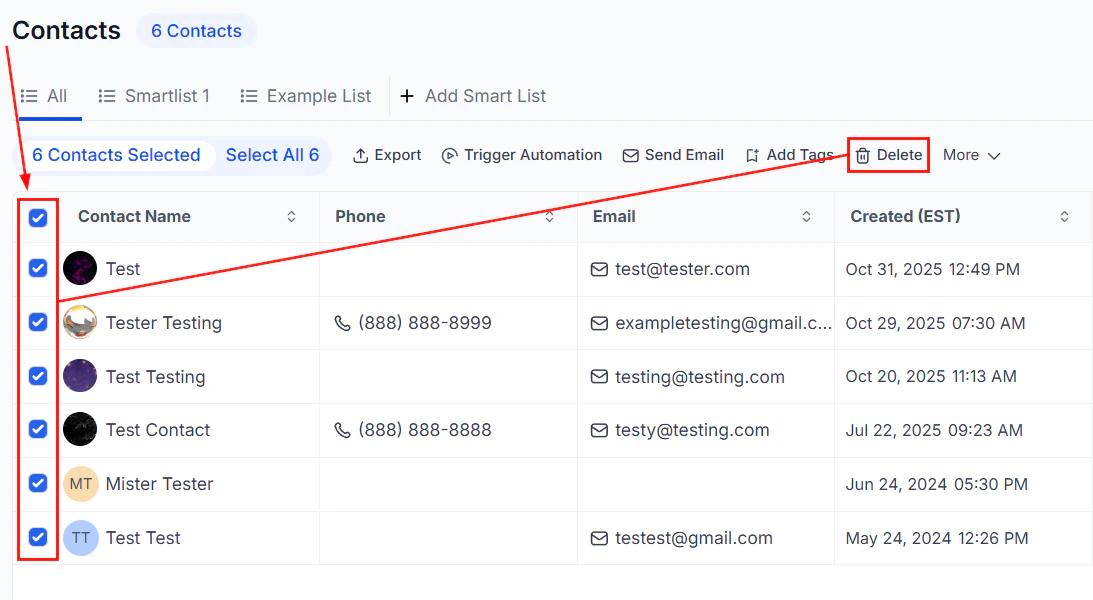
In the Smart Lists tab, check the contacts you want to remove.
2
Click the trash icon
Click the Delete (trash) icon in the bulk actions toolbar.
3
Confirm deletion
Type DELETE to confirm the action, then click Delete.
Deleting contacts also removes all associated conversations, notes, opportunities, tasks, appointments, and manual actions. Active campaigns and workflows for those contacts are also stopped. This action cannot be undone from the contact list — recover deleted contacts from the Restore section of Contacts.
In the Smart Lists tab, select the contacts you want to tag.
2
Open Add Tag
Click the Add Tag button in the bulk actions panel.
3
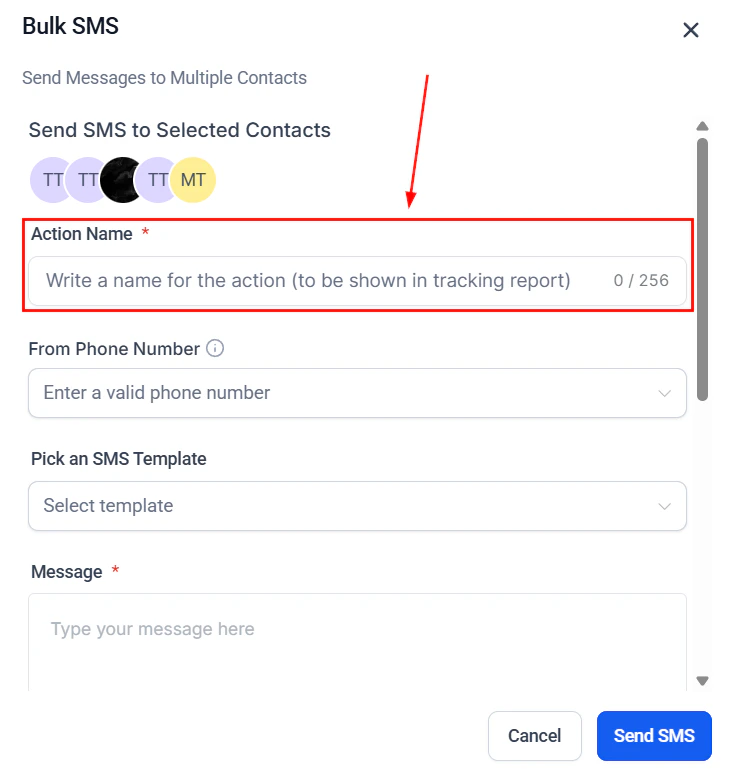
Name the action
Enter a descriptive name for the action. This name appears in the tracking report.
4
Select tags and confirm
Click the tags field to open the dropdown and select the tags to apply. Tags already applied to all selected contacts will not appear in the list. Click Add Tags to queue the bulk action.
In the Smart Lists tab, select the contacts to message. Open the More dropdown and select Send SMS.
2
Name the action and choose a sender number
Enter a name for the action (shown in tracking reports). Select the phone number to send from. If none is selected, the last used number for each contact is used; if this is the first message for that contact, the default number is used.
3
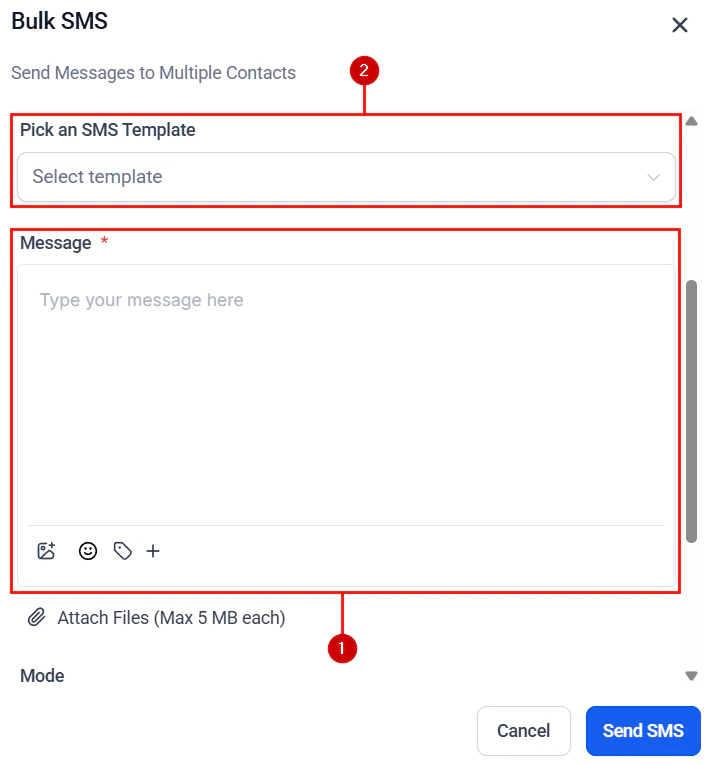
Compose your message
Write a message from scratch or select a pre-saved template. Use custom fields (first name, email, phone) for personalization. Add attachments or emojis as needed.
4
Choose a sending mode
Select how to deliver the messages:
Send All at Once — delivers to all selected contacts instantly
Send at a Scheduled Time — choose a specific date and time
Send in Drip Mode — sends in batches; configure Start On, Batch Quantity, Repeat After, Send On days, and an optional time window
5
Send
Review your selections and click Send to queue the bulk action. Track progress in the Bulk Actions tab.
In the Smart Lists tab, select the contacts to email. Click the Send Email button.
2
Review recipients and proceed
Review the recipient list, note any restrictions (invalid addresses, unsubscribed contacts), and click Confirm and Proceed.
3
Set up the email
Action label — enter a name that appears in the tracking report
From Name / From Email — the sender’s name and email address
Subject — a compelling subject line
Pre-header (optional) — preview text shown in email clients
4
Draft your email
Choose one of three methods:
Quick Compose — write directly in the editor with font, color, and attachment options (files up to 10 MB)
Smart Builder — create a new template using the Design, Code, or Plain Text editor
Select Existing Template — search your library or browse the Template Library
5
Configure additional settings
Expand Additional Settings to enable Click Tracking and UTM Tracking, add tags, and send a test email to preview before sending.
6
Choose a sending mode and send
Select Send All at Once, Send at Scheduled Time, or Add in Drip Mode (with Start Date, Batch size, Repeat After, Send On days, and optional time window). Check the consent box and click Send Email to queue the bulk action.
In the Smart Lists tab, select the contacts to message. Open the More dropdown and click the WhatsApp icon.
2
Check messaging limits
If you have exceeded your 24-hour messaging limit, a warning will appear. You can upgrade your limit from 250 to 1,000 conversations per day by completing the business verification process.
WhatsApp messaging operates within a 24-hour window. The contact must have interacted with you within the past 24 hours for a business-initiated message to be delivered.
3
Configure the message
Enter a name for the action (shown in reporting)
Select the phone number to send from
Choose an approved WhatsApp template from the dropdown
Optionally enable Fallback to SMS to send a regular text if the WhatsApp message fails
4
Choose a sending mode and send
Select Send All at Once, Send at a Scheduled Time, or Send in Drip Mode (with Start On, Batch Quantity, Repeat After, Send On days, and an optional time window). Click Confirm to send.
In the Smart Lists tab, select the desired contacts. Open the More dropdown and select Request Reviews.
2
Name the action and choose a channel
Enter a recognizable name for tracking. Choose to send via Email, SMS, or WhatsApp.
3
Choose a sending mode and send
Select Send All at Once, Send at a Scheduled Time, or Add in Drip Mode (with Start On, Batch Quantity, Repeat After, Send On, and an optional time window). Click Send Review Requests to queue the action.
Customize your review request message format in the Reputation section for a more tailored experience.
In the Smart Lists tab, select the contacts. Open the More dropdown and choose Manage Company.
2
Choose the operation
Select whether to Add, Update, or Remove the selected contacts from a company record. Enter a name for the action and select the appropriate company if adding.
3
Confirm
Click Confirm to apply the changes. Review results under Contacts > Bulk Actions.
In the Smart Lists tab, select the duplicate contact records you want to consolidate. Open the More dropdown and select Merge.
2
Choose a master record
Use the Select All from this column button to quickly designate all information from one contact, which also sets that contact as the master record. Or click the radio button next to a contact to manually set the master.
3
Select data to retain
Choose which data fields to keep from each contact. By default, only fields with differing values are shown. Enable All Fields to compare every available field.
4
Complete the merge
Click Merge Contact to finalize.
Merging contacts is irreversible. Review your field selections carefully before confirming.
Verifying email addresses before sending reduces bounce rates, improves deliverability, and maintains your sender reputation.
Bulk email verification requires the LC Email system. It is not compatible with Mailgun, Google SMTP, or SendGrid. There is a small cost per email verified — contact your Hoop administrator for pricing details. Only primary email addresses can be verified.
1
Select contacts and open Email Verification
In the Smart Lists tab, select the contacts whose email addresses you want to verify. Click the Email Verification bulk action button.
2
Name the batch and confirm
Assign a name to the verification batch, then click Confirm.
3
Review results
Go to Contacts > Bulk Actions to monitor the verification status (Complete, Processing, Canceled, or Failed). Click Show Stats to see a breakdown of valid, invalid, and errored emails.
Click any data point to view individual contacts and their verification status. From there you can:
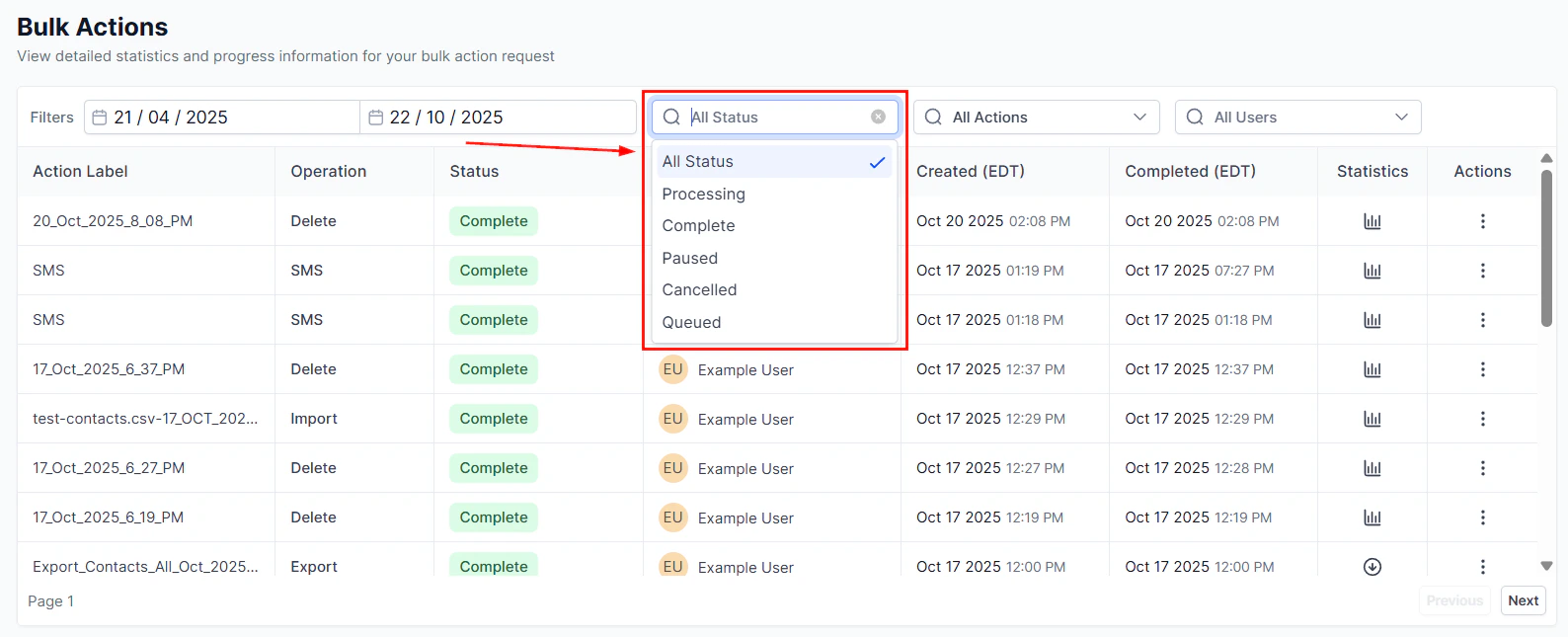
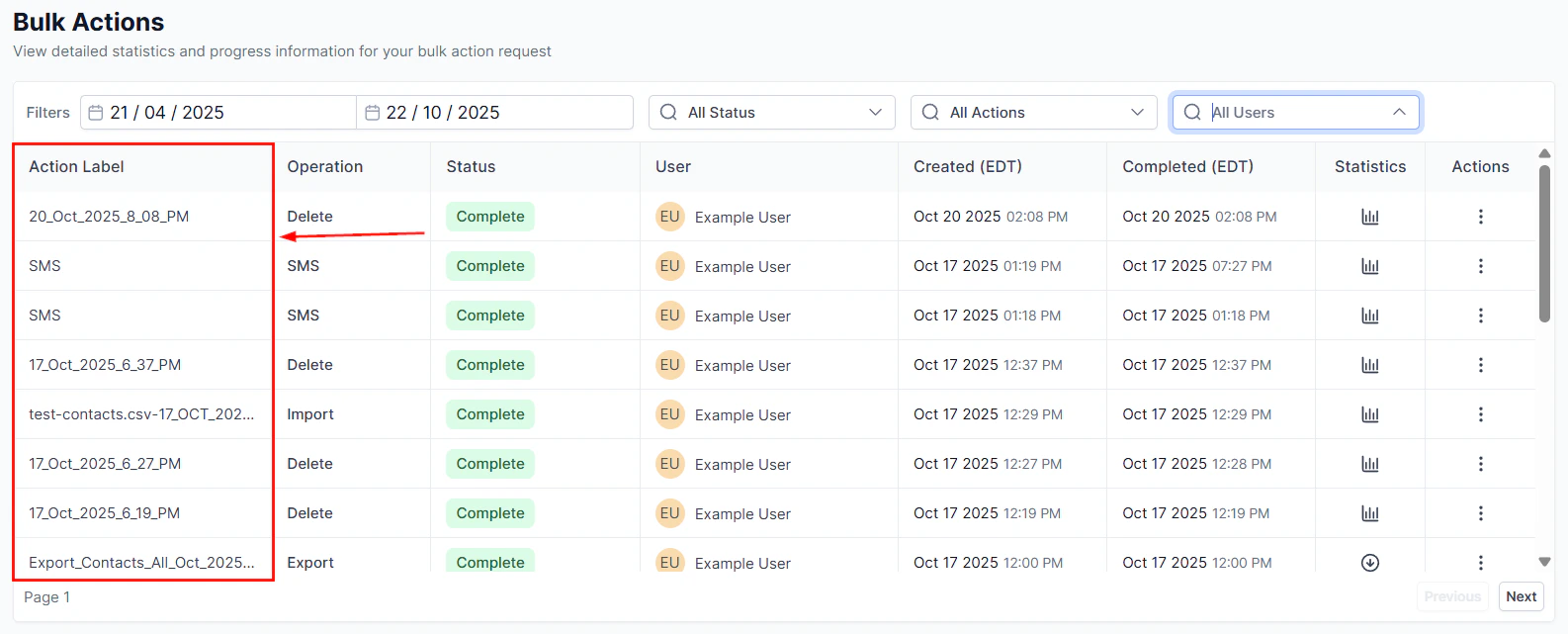
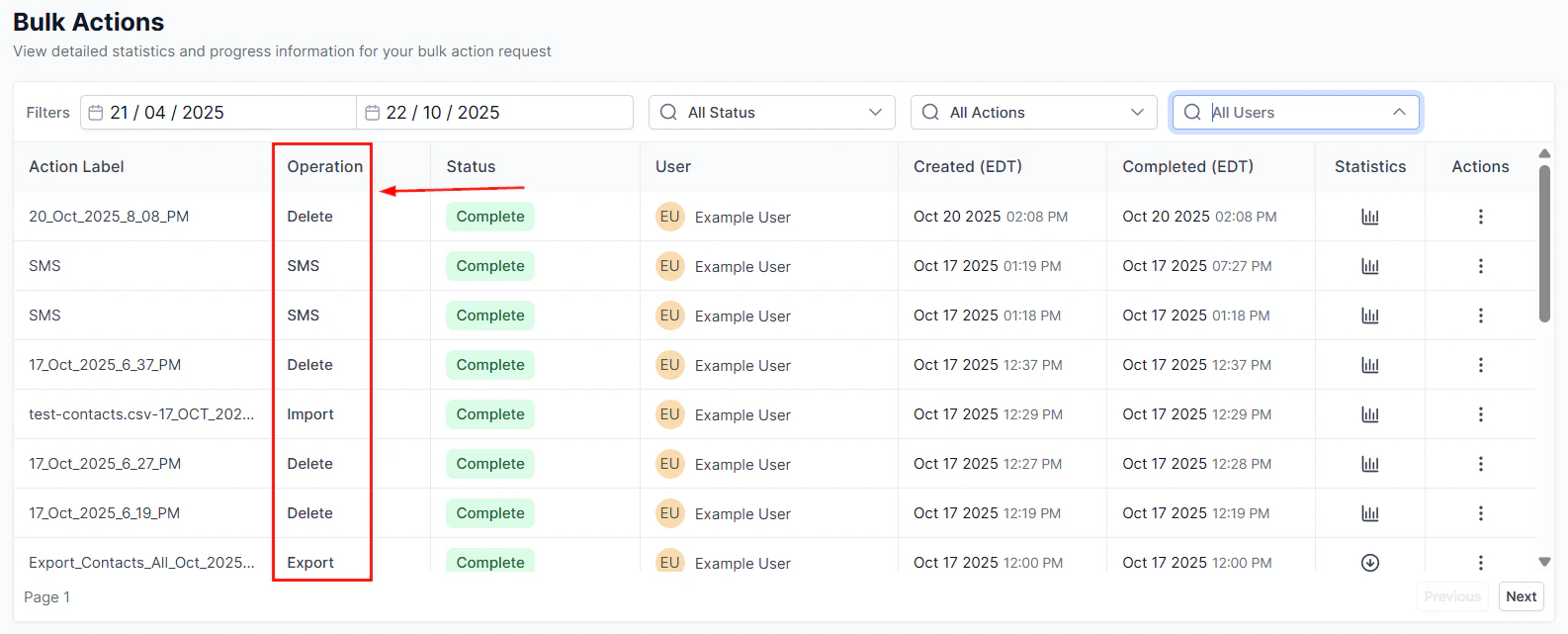
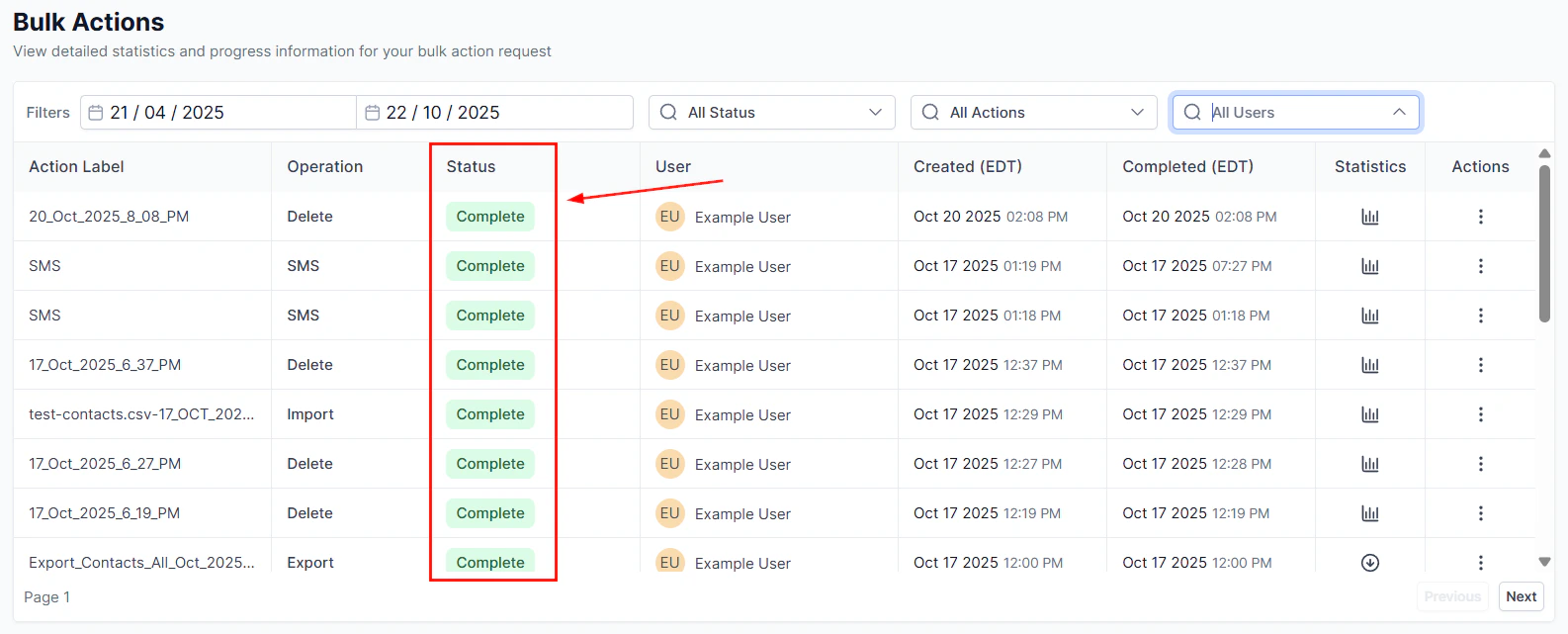
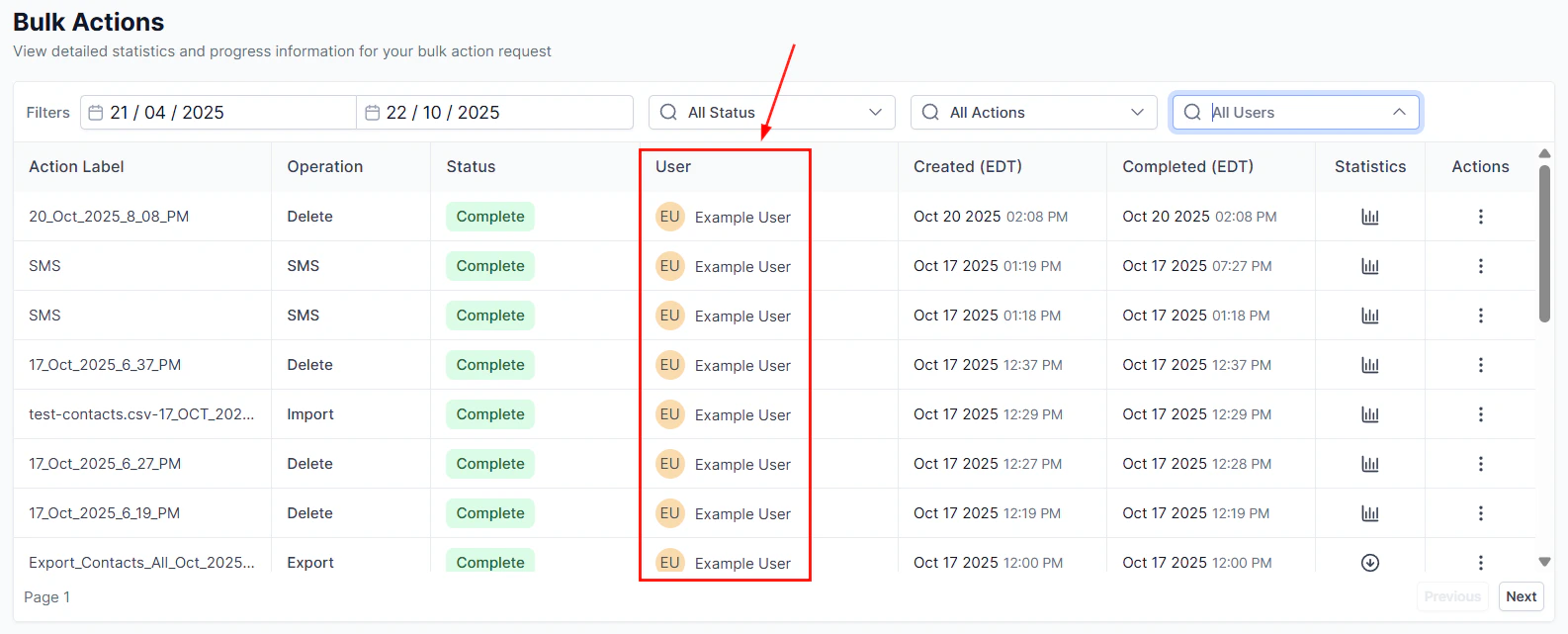
All bulk operations are tracked in the Bulk Actions tab within Contacts.
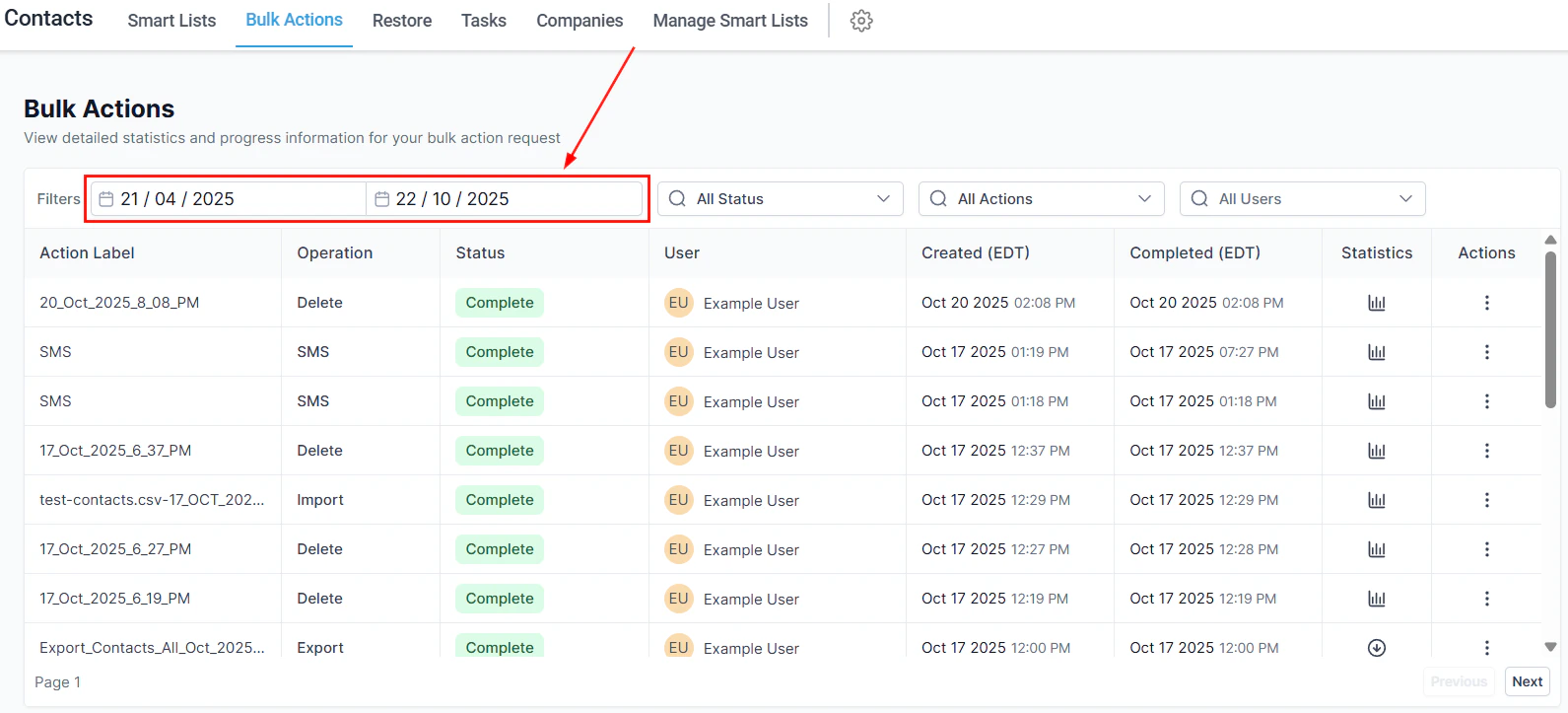
Filter by date range
Use the date range filter to view bulk actions within a specific timeframe.
Filter by status, action, or user
Use the Status, Action, and User dropdowns to narrow your view:
Status — filter by delivery stage (in progress, completed, canceled)
Action — filter by action type (email, SMS, workflow, tags, opportunities, etc.)
User — filter by the team member who created the action
Click Apply to apply your filters.
View action details
Click the three-dot menu on any bulk action row to view details or pause/cancel an in-progress action. Click View Details to see the Bulk Action Card, which includes the action ID, type, name, scheduled start time, mode, elapsed time, and applied tags.
View statistics
Click Show Stats to see a detailed breakdown by category (successful, error, etc.). Click any category to see the contacts within it. Errors may occur for reasons such as invalid email addresses or incorrect phone numbers.