

How followers work
When a user is added as a follower on an opportunity:- They can view and edit the opportunity record, even if they normally have restricted data access under the “Only Assigned Data” permission setting
- They can see the opportunity’s notes, tasks, activity timeline, and all associated information
- They cannot change the owner of the record — ownership management stays with the assigned user or an administrator
- They can add notes, create tasks, update fields, and take other actions on the record
The follower feature is particularly valuable in accounts where “Only Assigned Data” is enabled — followers give you a precise way to extend access to specific records without granting broader data permissions.
Adding followers manually
You can add followers when creating an opportunity or at any time by editing an existing one. When creating an opportunity:- Open the opportunity creation form (+ Add Opportunity)
- Locate the Followers field — it is a multi-select dropdown
- Search for and select the team members you want to follow this opportunity
- Complete the remaining fields and click Save
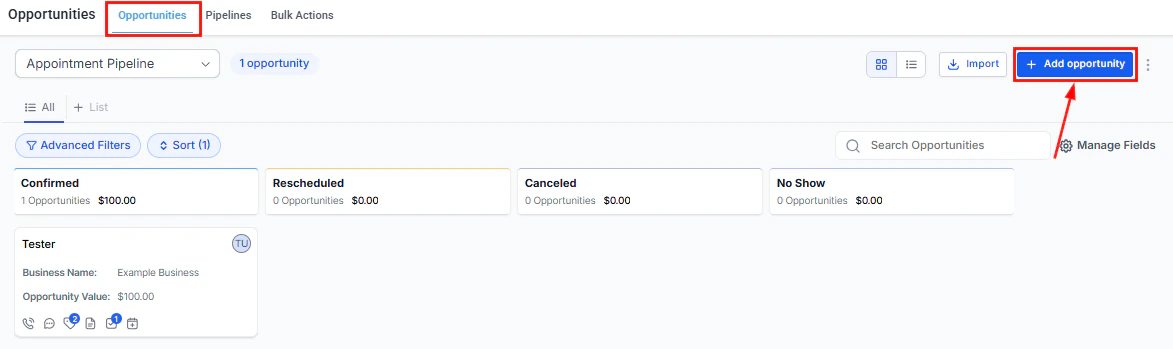
The opportunity creation form with the Followers field visible
- Open the opportunity detail panel (click the card on the board or the name in list view)
- Find the Followers field in the core information section
- Click the field and select one or more users from your account’s user list
- The selection saves automatically
Removing followers
To remove a follower from an opportunity:- Open the opportunity detail panel
- Locate the Followers field
- Click the X next to the user you want to remove
- The change saves immediately
Adding followers automatically with workflows
Manual follower management works well for individual deals, but workflows let you add followers automatically based on deal characteristics — saving time and ensuring the right people are always looped in.Workflow action: Add follower(s) to opportunity
1
Open Workflows
Navigate to Automations > Workflows and open or create the relevant workflow.
2
Add the action
Click + Add Action and search for Add Follower(s) to Opportunity. Select it.
3
Configure the action
- Give the action a descriptive name
- Select one or more users to add as followers when this action runs
4
Add conditions if needed
If you only want followers added for certain deals (e.g., value over $10,000), add a condition step before this action using the relevant filter.
5
Save and activate
Save the workflow and activate it.
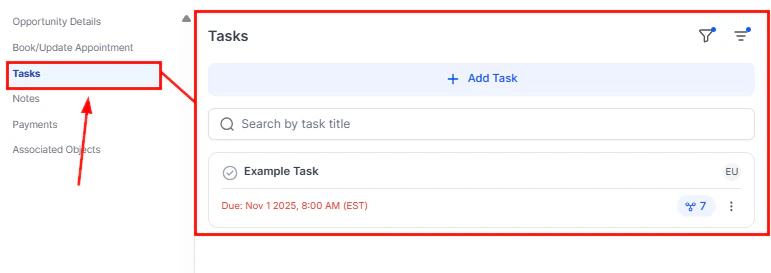
Tasks created on an opportunity, visible to both the owner and followers
Workflow action: Remove followers from opportunity
A corresponding Remove Followers from Opportunity action lets you remove followers automatically — for example, removing a product specialist as a follower once the deal leaves the technical evaluation stage.Follower limits and requirements
The Add Follower(s) workflow action requires that the workflow is triggered by an opportunity-based event, or that a Find Opportunity step precedes it. If no opportunity context exists in the workflow, the action does nothing.
Use cases
High-value deal visibility Automatically add the sales manager and a senior account executive as followers on any opportunity created with a value over $15,000. Both receive visibility into the deal’s progress without needing to search for it. Multi-department coordination When a deal enters the “Contract Sent” stage, add the legal contact and onboarding manager as followers. They gain early visibility and can start preparing before the deal officially closes. Manager review Add a team lead as a follower on every deal where the assigned owner has been inactive for 14+ days, triggered by a stale opportunities workflow. The team lead can then step in without a formal reassignment. Temporary collaboration Add a technical specialist as a follower when a “Technical Evaluation” tag is applied, then remove them automatically when the tag is removed. This keeps their view clean without permanent access to every deal.Followers on contact records
The followers feature also works on contact records, not just opportunities. Adding a follower to a contact gives them access to that contact’s profile, conversation history, and linked opportunities (subject to your account’s permission settings). This is useful for shared accounts, key clients, or contacts that multiple team members need to stay on top of.FAQs
How many followers can I add to an opportunity?
How many followers can I add to an opportunity?
Up to 10 followers per opportunity.
Can a follower change the owner of an opportunity?
Can a follower change the owner of an opportunity?
No. Followers can view and edit the opportunity record, but they cannot transfer ownership to a different user.
Do followers need special permissions to access the opportunity?
Do followers need special permissions to access the opportunity?
No additional permissions are needed beyond being added as a follower. Followers gain access to the specific record regardless of whether “Only Assigned Data” is enabled for their role.
Will a follower be added twice if the workflow runs multiple times?
Will a follower be added twice if the workflow runs multiple times?
No. The Add Follower(s) action checks whether the user is already a follower before adding them. Existing followers are not duplicated.
Can I see who is following an opportunity?
Can I see who is following an opportunity?
Yes. The Followers field in the opportunity detail panel lists all current followers by name.
Does being a follower send any notifications?
Does being a follower send any notifications?
Followers receive access to the record but notification behavior depends on your account’s notification settings. Check your notification preferences in your user profile for details on which activity generates alerts.