

Creating an opportunity
Click '+ Add Opportunity'
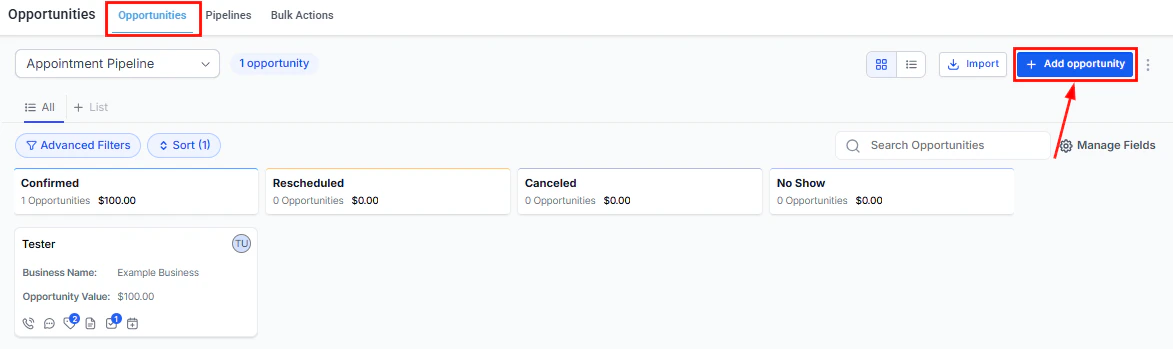
Click + Add Opportunity to open the opportunity creation form
Fill in the primary details
- Contact — the person or company associated with this deal
- Pipeline — which pipeline this opportunity belongs to
- Stage — the current stage in your sales process
- Opportunity value — the estimated deal value
- Close date — the expected close date
- Assigned to — the team member responsible
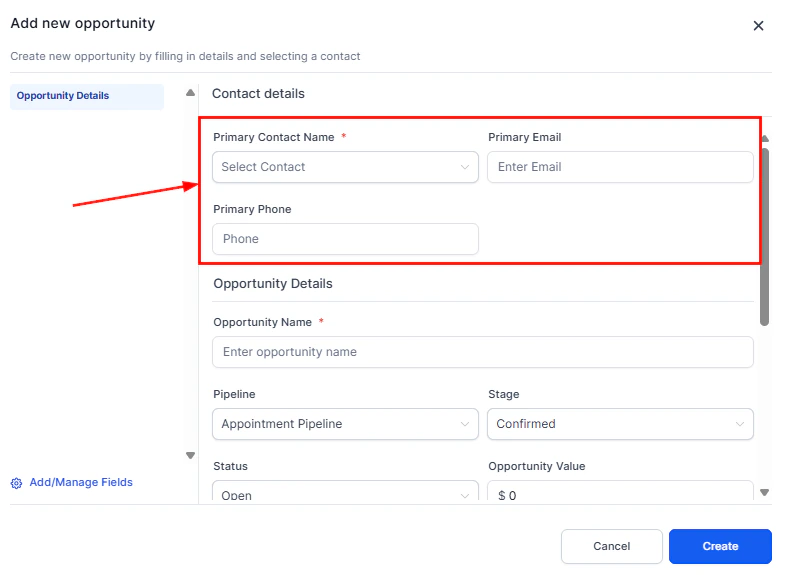
The primary opportunity fields — contact, pipeline, stage, value, and assigned user
Fill in secondary details
- Opportunity name — displayed on the card in the board view
- Source — where this lead came from
- Tags — apply relevant tags for segmentation
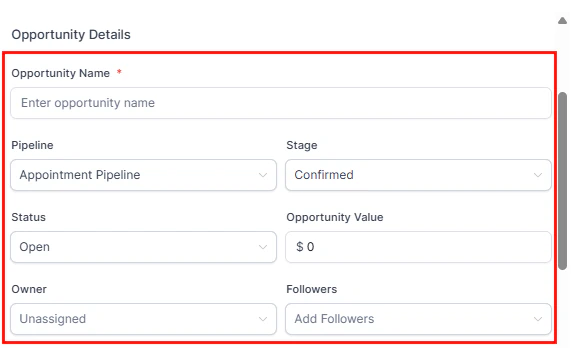
Secondary opportunity fields including name, source, and tags
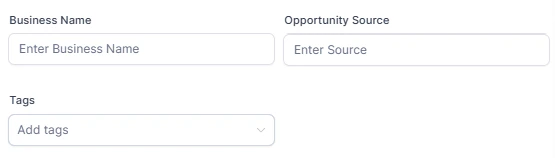
Apply tags to organize and segment this opportunity
Review and save
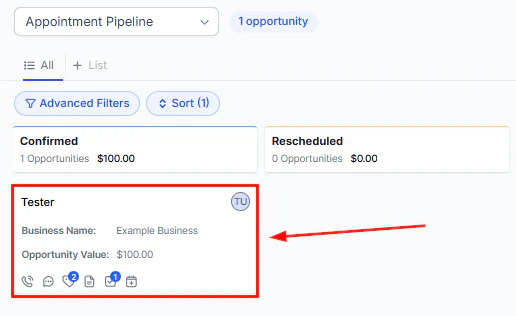
The opportunity card preview before saving
Adding appointments and tasks to an opportunity
You can link appointments and tasks directly to an opportunity: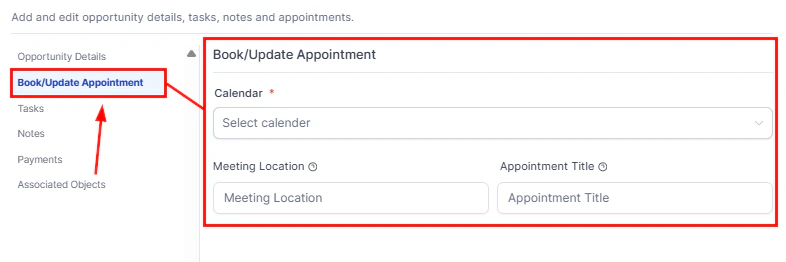
Add an appointment directly to an opportunity from its detail panel
- Open the opportunity detail panel
- Click + Add Appointment or + Add Task
- Fill in the details and save
Opportunity management view
The opportunity management view shows the full detail of an opportunity including all associated data.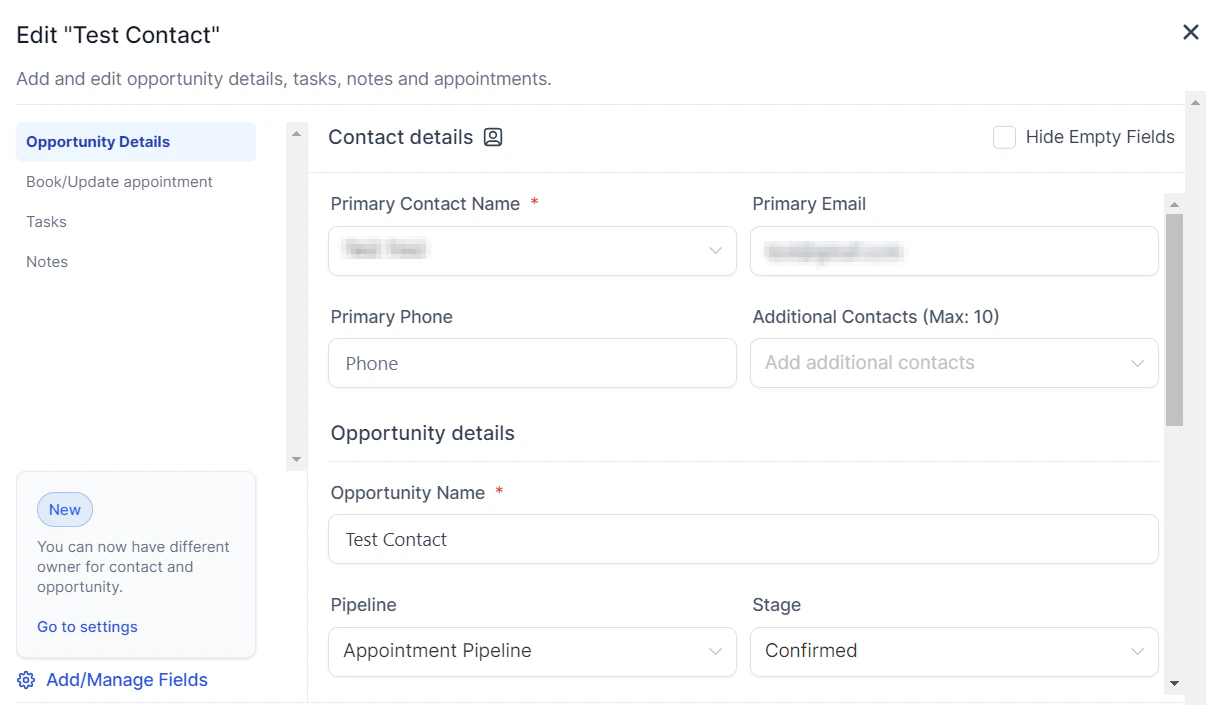
The opportunity management view with all linked data and activity

The Opportunities board with all opportunities visible across pipeline stages
Opportunity ID
Every opportunity has a unique Opportunity ID for tracking and reference.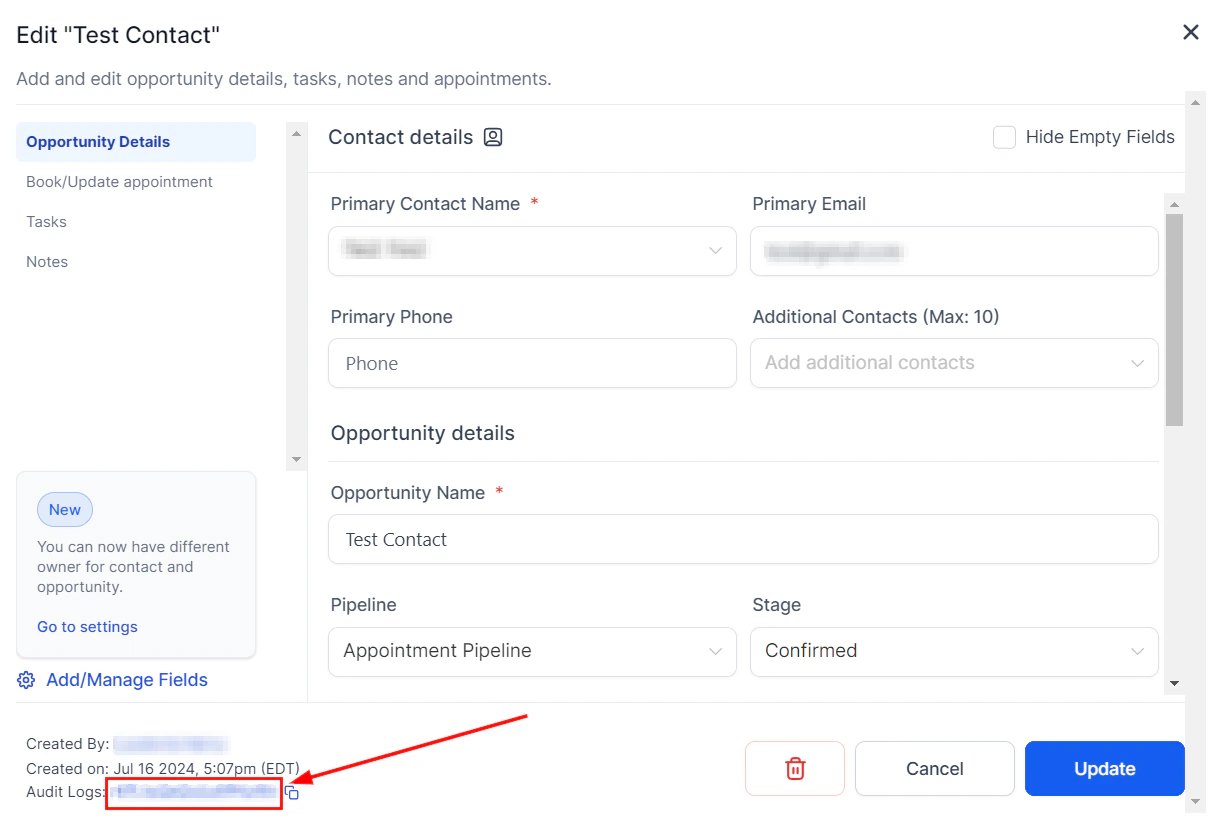
The Opportunity ID visible in the detail panel
Restoring deleted opportunities
To recover a deleted opportunity:Open Opportunity Settings
Go to Deleted Opportunities
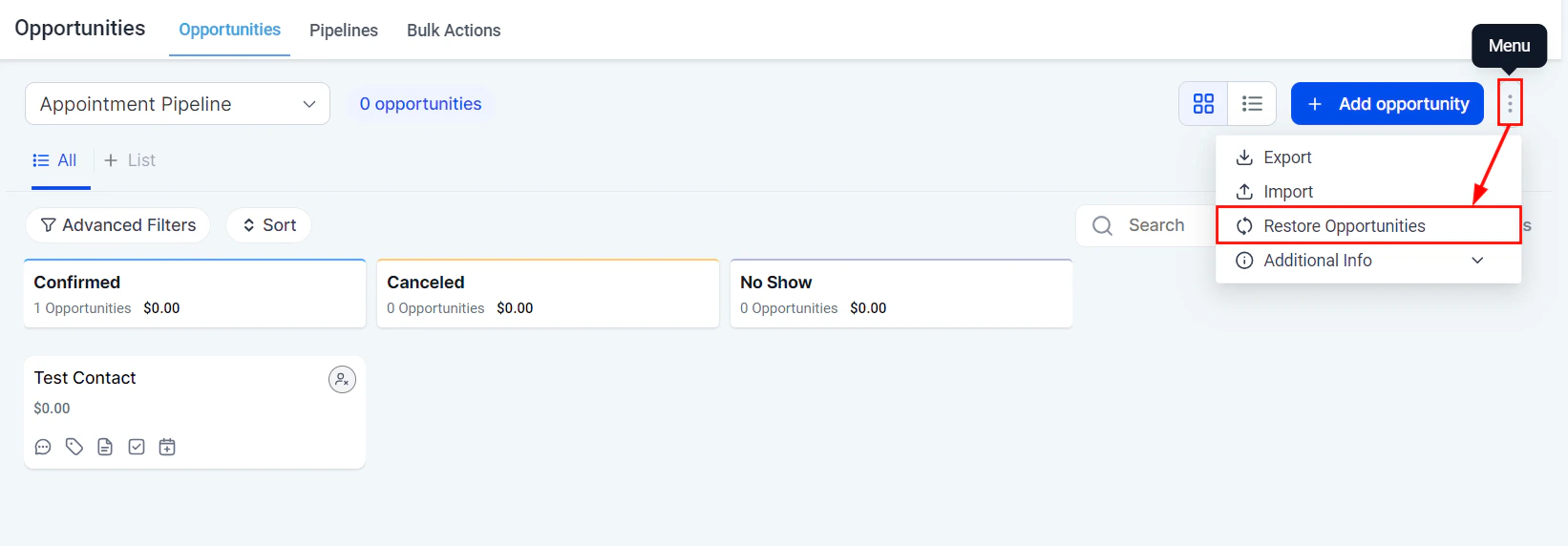
The Deleted Opportunities tab showing recoverable records
Select and restore
Audit logs
All changes to an opportunity are logged in the audit trail.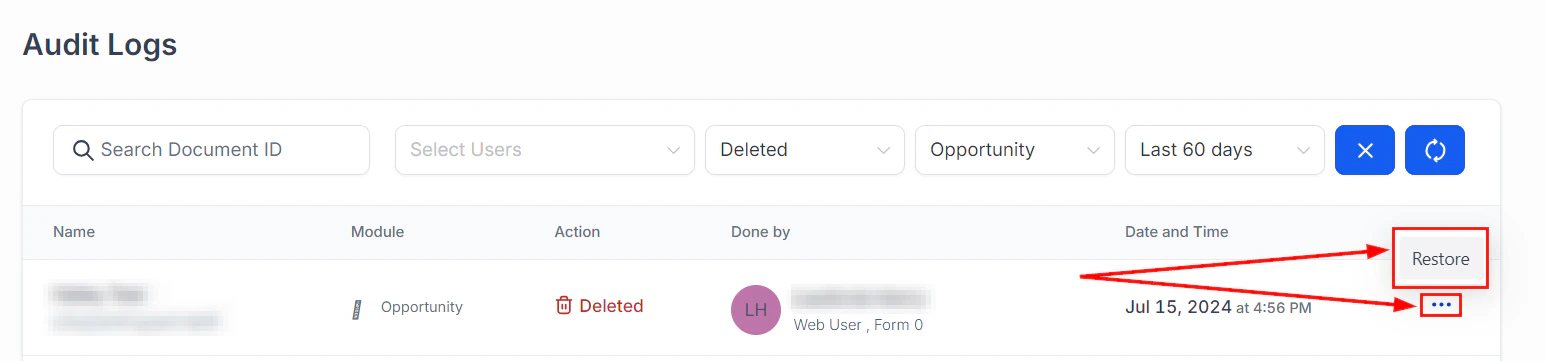
Audit logs showing a complete history of changes to the opportunity
List view
Switch to List View using the view toggle at the top of the Opportunities section.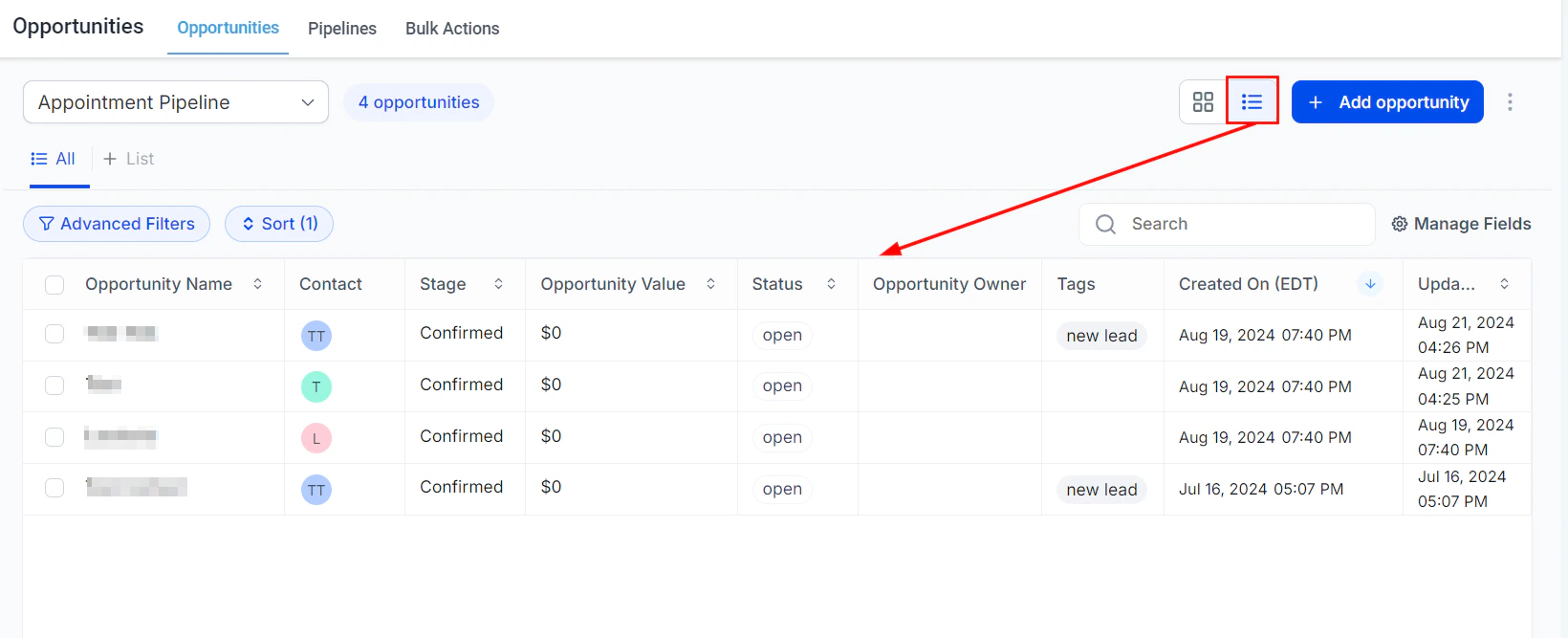
List view showing opportunities in a sortable table format
- Sort by any column (value, close date, stage, etc.)
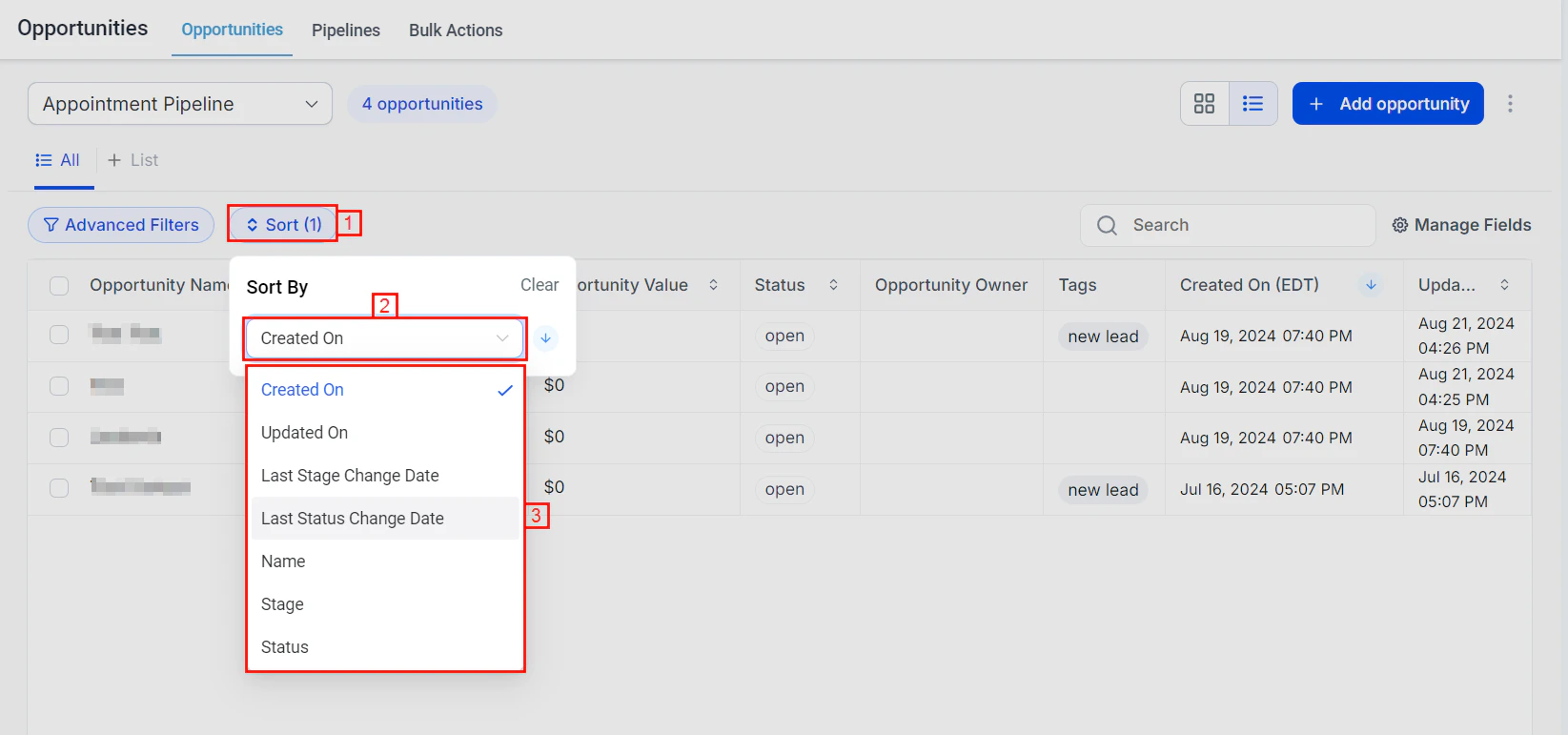
Sort opportunities by clicking any column header in list view
- Select and bulk-edit multiple opportunities
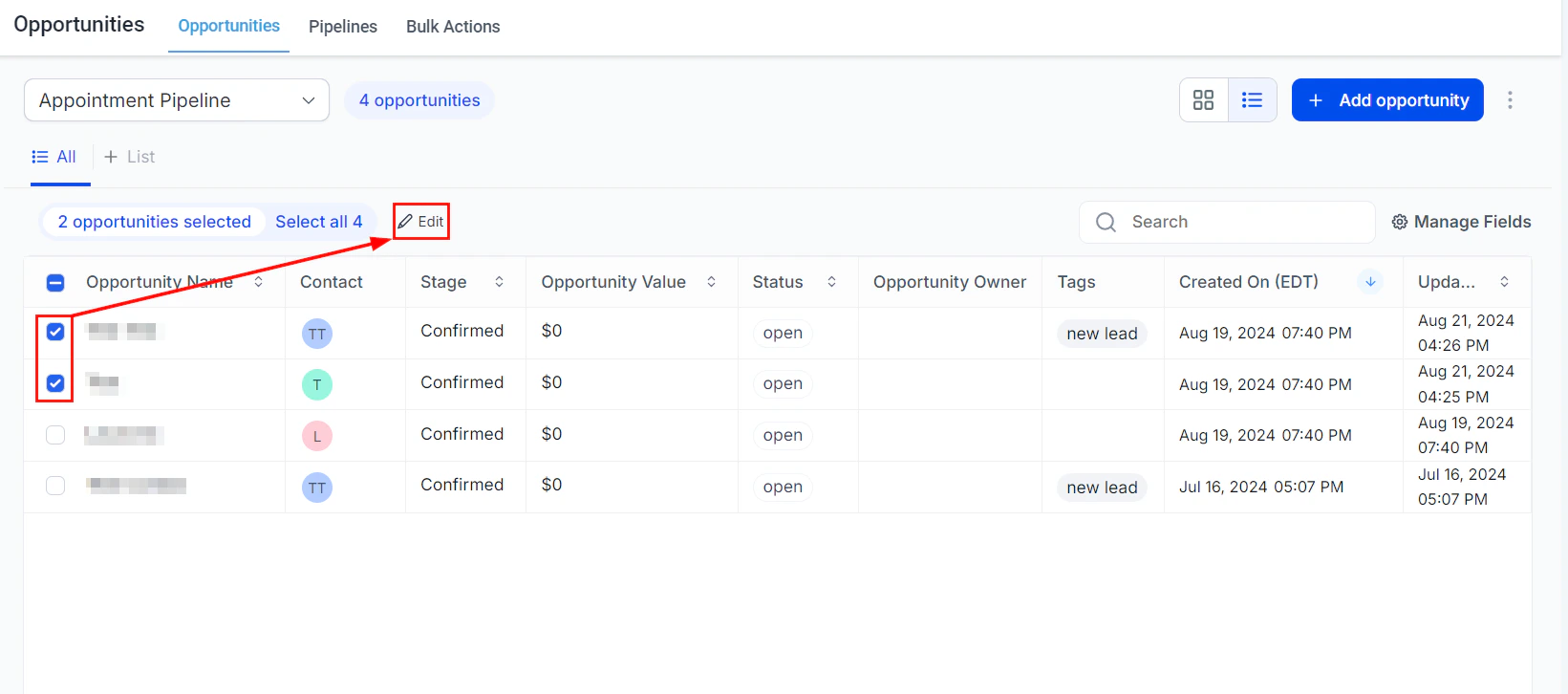
Select multiple opportunities for bulk editing in list view
- Export the filtered list as a CSV file
- Manage visible columns
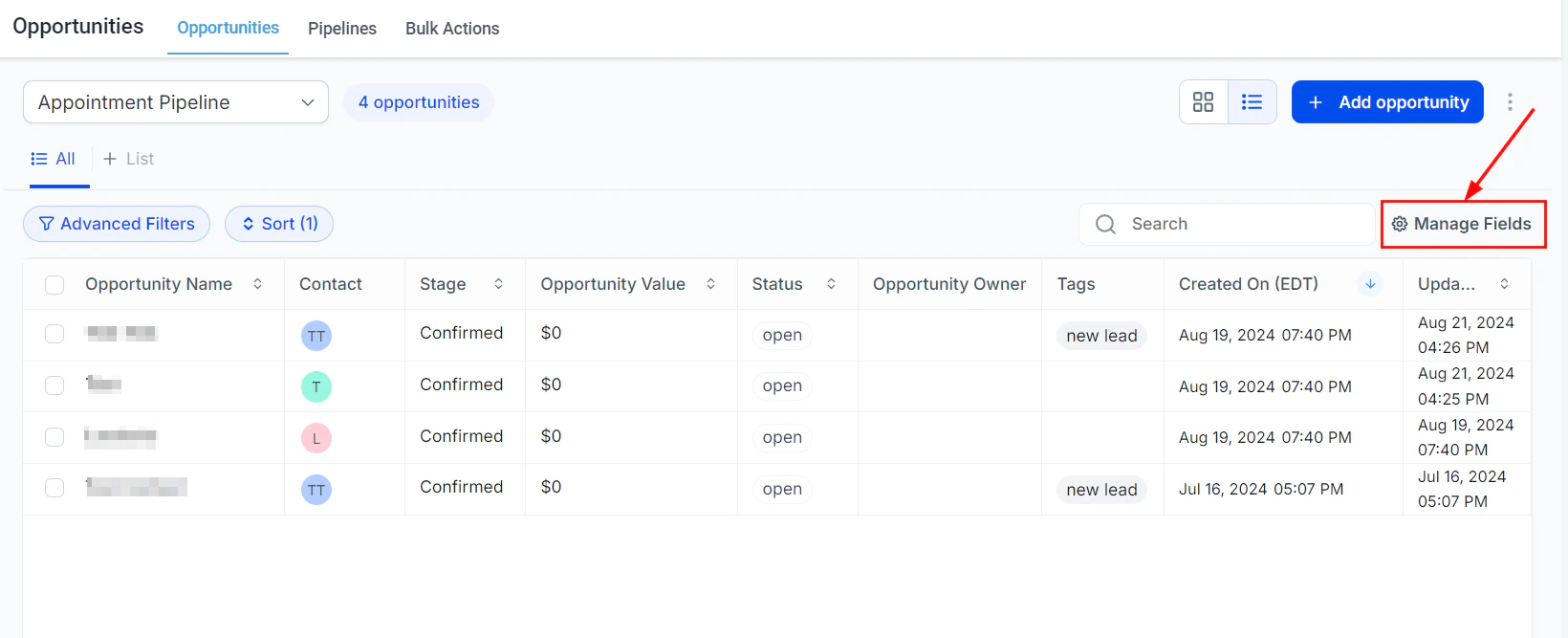
Manage which fields appear as columns in list view
Sorting and filtering opportunities
Use the filter toolbar to narrow down the opportunities visible on your board or list view:- Filter by pipeline
- Filter by stage
- Filter by assigned user
- Filter by date range (created, close date, last activity)
- Filter by opportunity value range
- Filter by tags (including smart tags)
- Filter by status (Open, Won, Lost, Abandoned)
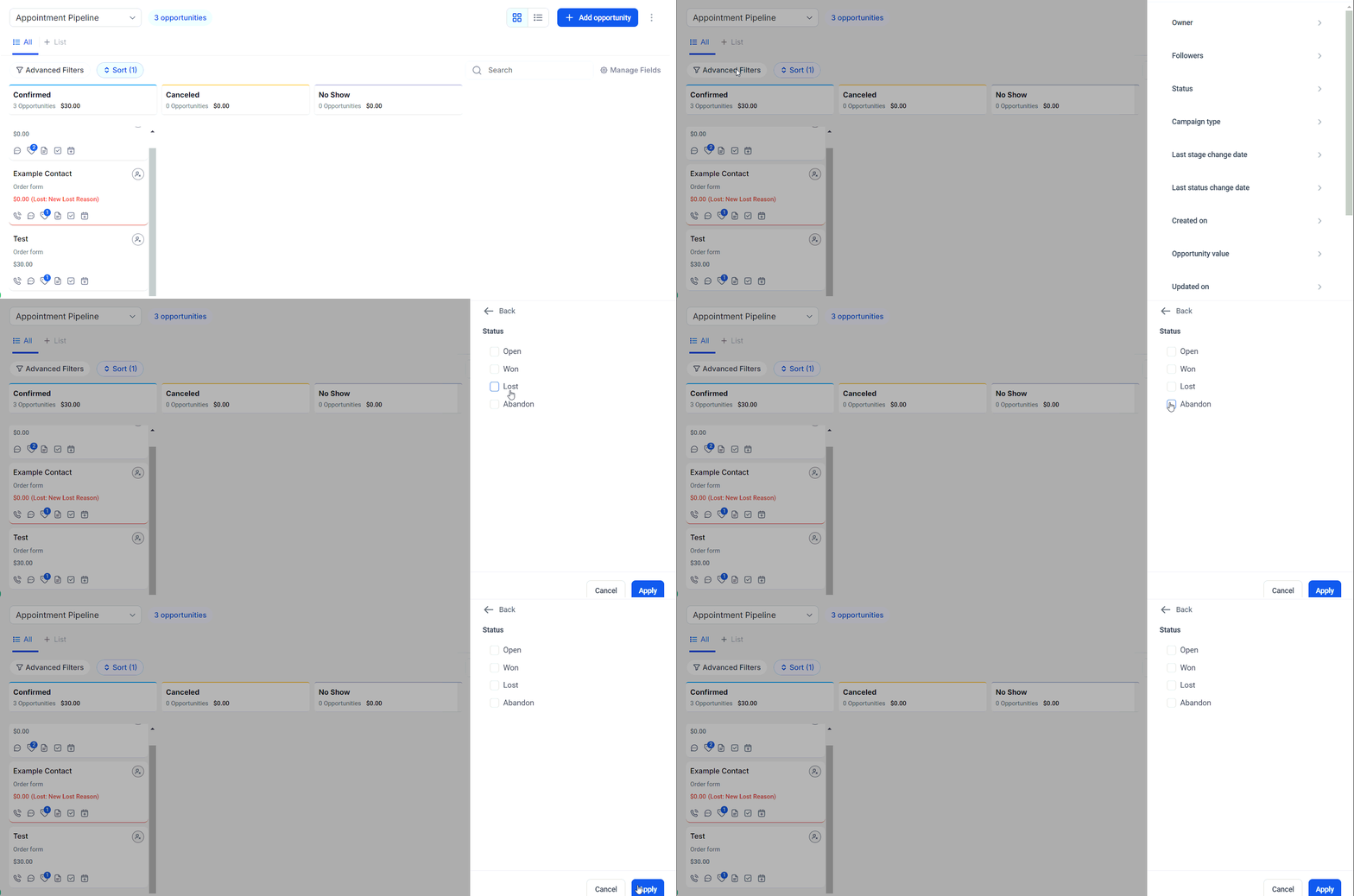
Applying filters to narrow down opportunities in the board view
Customizing opportunity cards
You can control which fields appear on opportunity cards in the board view:Open card customization
Select visible fields
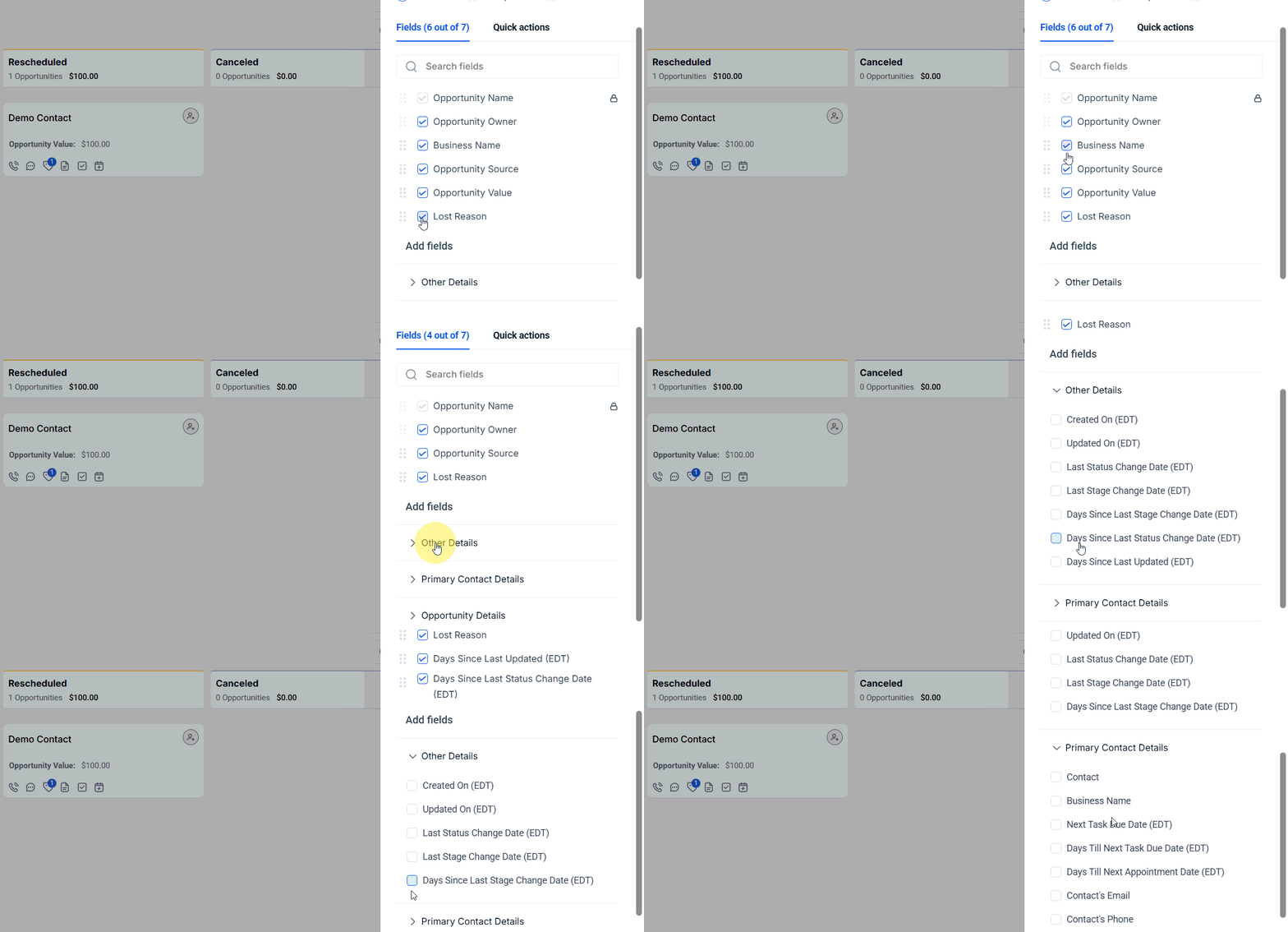
Selecting which fields appear on opportunity cards in the board view
Save
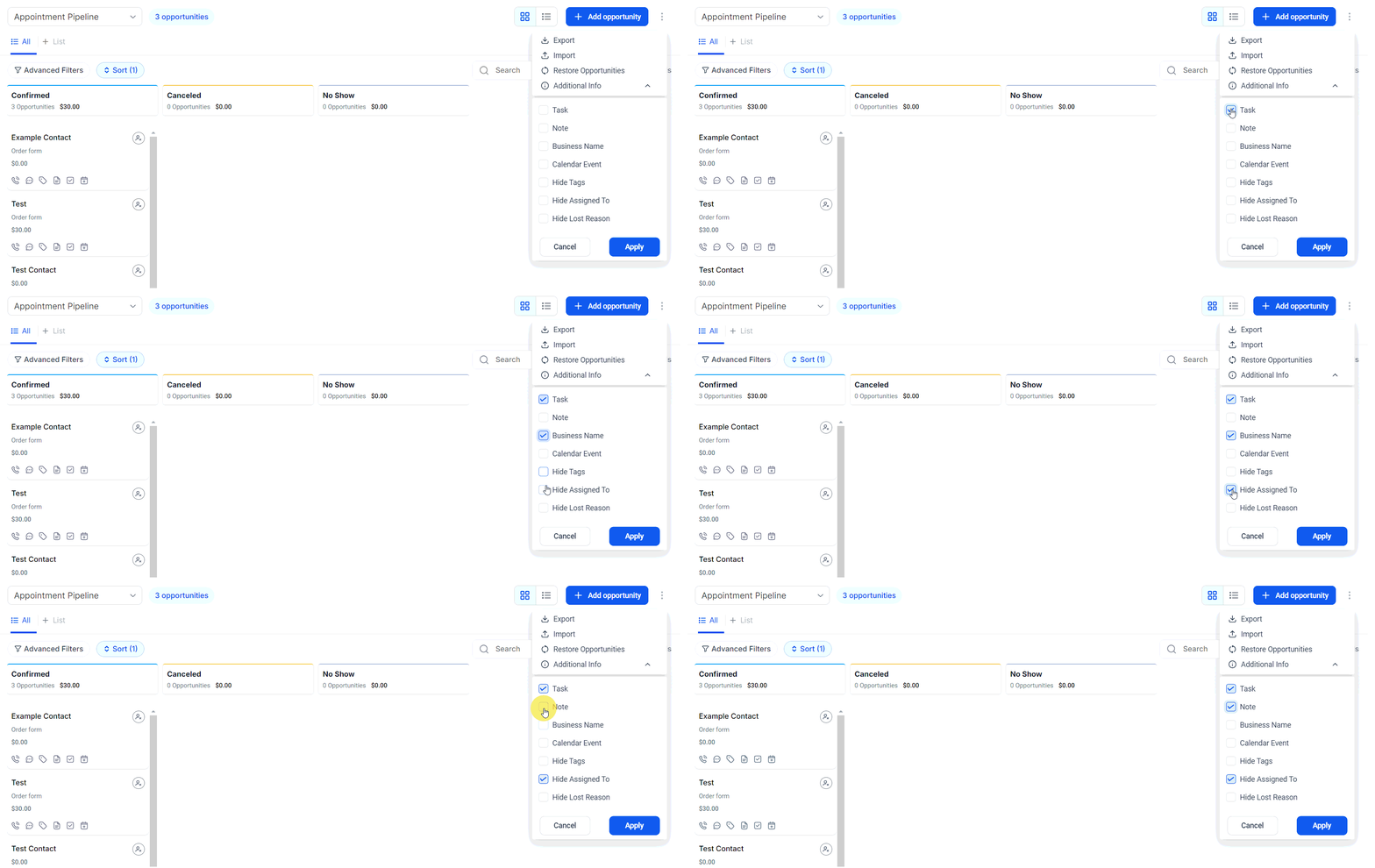
Enabling additional information display on an opportunity card
Sending an invoice or estimate from an opportunity
You can generate and send invoices or estimates directly from an opportunity record:Open the opportunity
Click 'Send Invoice' or 'Send Estimate'
Fill in the details
Send
Opportunity value tracking
The Opportunity Value field records the estimated monetary value of a deal. Values appear on opportunity cards (board view), in list view columns, and roll up into pipeline totals visible at the top of each stage column. Use value data to:- Prioritize high-value deals for follow-up
- Report on total pipeline value by stage
- Build dashboard widgets showing weighted or total pipeline revenue
Lost reasons
When marking an opportunity as lost, Hoop prompts you to select a Lost Reason. These reasons are customizable and help you track why deals are not closing — enabling you to identify patterns and improve your sales approach over time.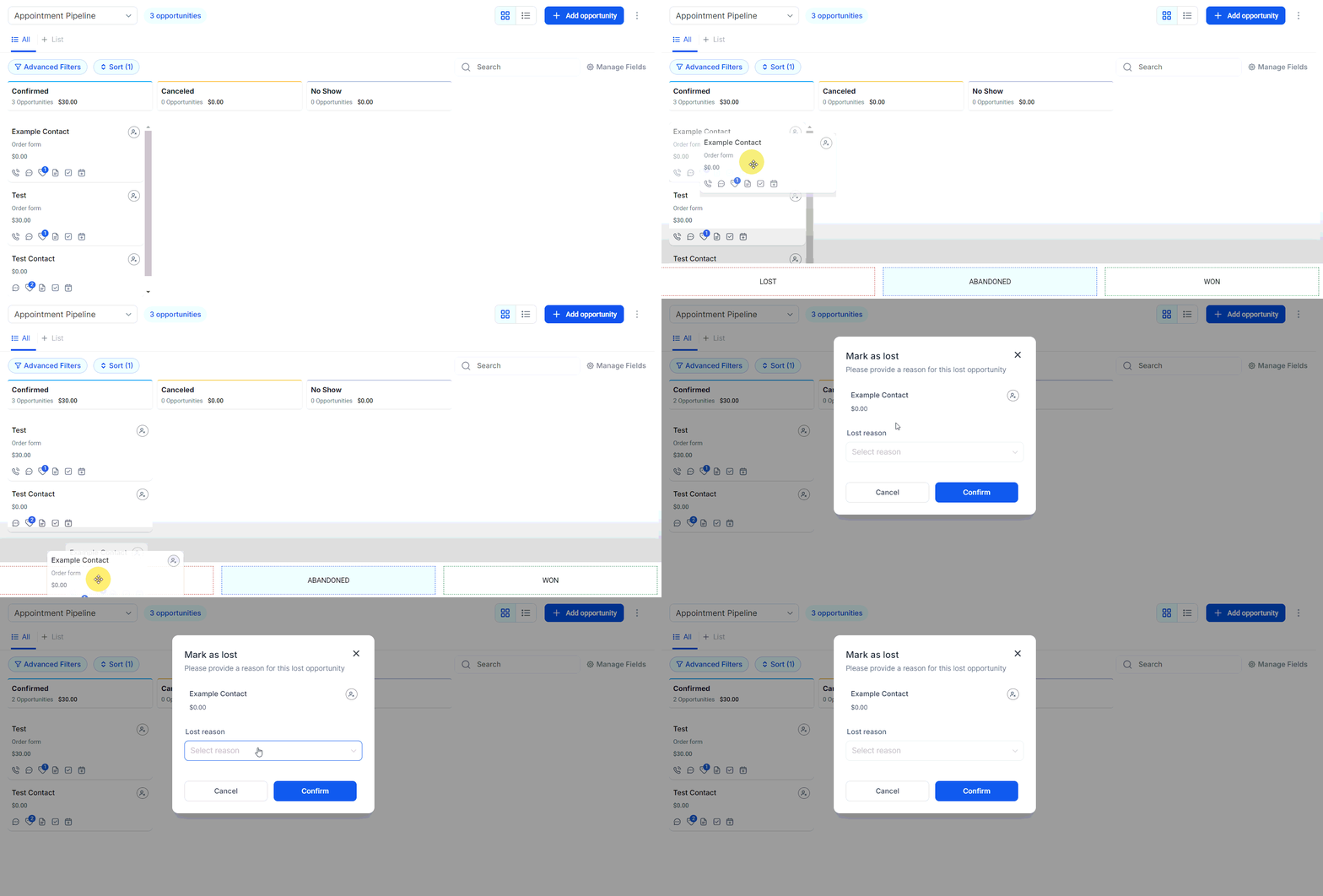
Drag an opportunity to the Lost stage to trigger the lost reason prompt
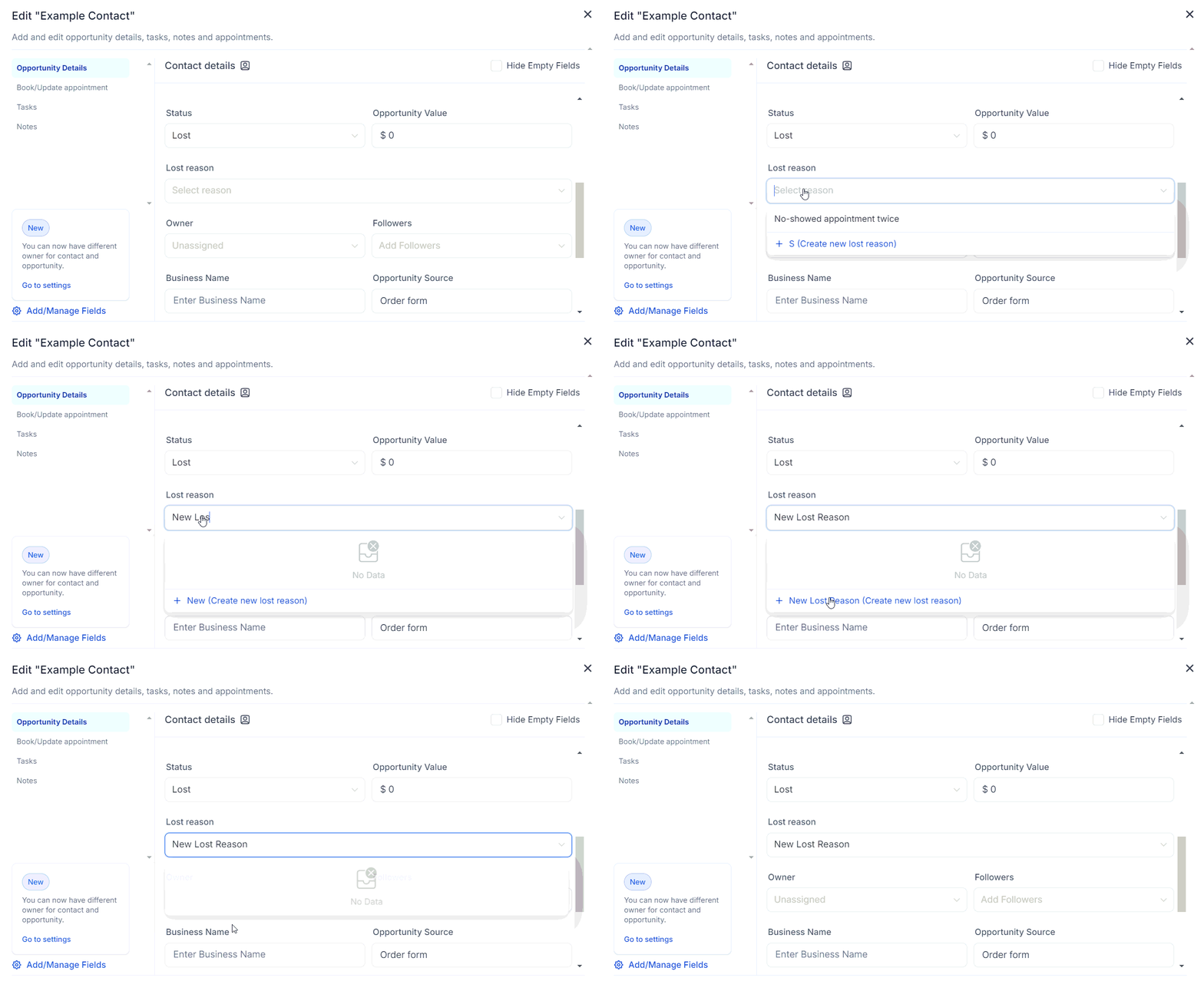
Select a lost reason when closing a deal as lost
Configuring lost reasons
Go to Opportunities > Opportunity Settings > Lost Reasons to add, edit, or remove the options that appear when closing a deal as lost.Decoupling owners for contacts and opportunities
By default, the owner assigned to an opportunity can be different from the owner of the associated contact. This decoupled ownership model allows:- A contact owner (e.g., the account manager) to maintain the overall relationship
- An opportunity owner (e.g., a sales rep) to manage a specific deal through the pipeline
- Your account manager differs from the salesperson working the deal
- Different team members handle different pipelines for the same contact
- A contact has multiple active opportunities assigned to different reps
Maximizing your sales pipeline
Best practices for pipeline health:- Set close dates on every opportunity so you can filter by urgency
- Use smart tags to automatically flag high-value or at-risk deals
- Track lost reasons consistently to spot trends
- Automate follow-ups using the Automations section to trigger actions based on stage changes
FAQs
What if my filters are not showing the expected results?
What if my filters are not showing the expected results?
Can I customize the fields displayed in the list view?
Can I customize the fields displayed in the list view?
Can I sort opportunities by multiple fields?
Can I sort opportunities by multiple fields?
Where can I find the Opportunity ID?
Where can I find the Opportunity ID?
What information is available in the audit logs?
What information is available in the audit logs?
How do I assign a lead to a team member?
How do I assign a lead to a team member?