Track pipeline value, conversion rates, stage distribution, and deal velocity using dashboards, funnel charts, and the opportunity reporting tools in HoopAI.
Opportunity reporting gives you the metrics you need to understand the health of your pipeline, identify where deals stall, and forecast revenue with confidence. The HoopAI platform provides several reporting tools for opportunities — from at-a-glance dashboard widgets to detailed filtered views you can export for deeper analysis.
The conversion rate measures how many opportunities result in a Won outcome as a percentage of all opportunities created.Formula: Won opportunities ÷ Total opportunities × 100For example, if you created 50 opportunities in a month and 10 were marked Won, your conversion rate is 20%.The Won stage is automatically included in conversion rate calculations. Use the date range filter on your dashboard to limit the calculation to a specific time period.
Stage-to-stage conversion measures the percentage of opportunities that advance from one stage to the next (rather than stalling or falling out of the pipeline). This identifies bottlenecks — stages where deals drop off at a disproportionate rate.If 100 deals enter your Proposal stage but only 40 advance to Negotiation, you have a 40% stage-to-stage conversion at that point. That is a signal to investigate: is the proposal the problem, is pricing an issue, or are deals simply not the right fit by that stage?
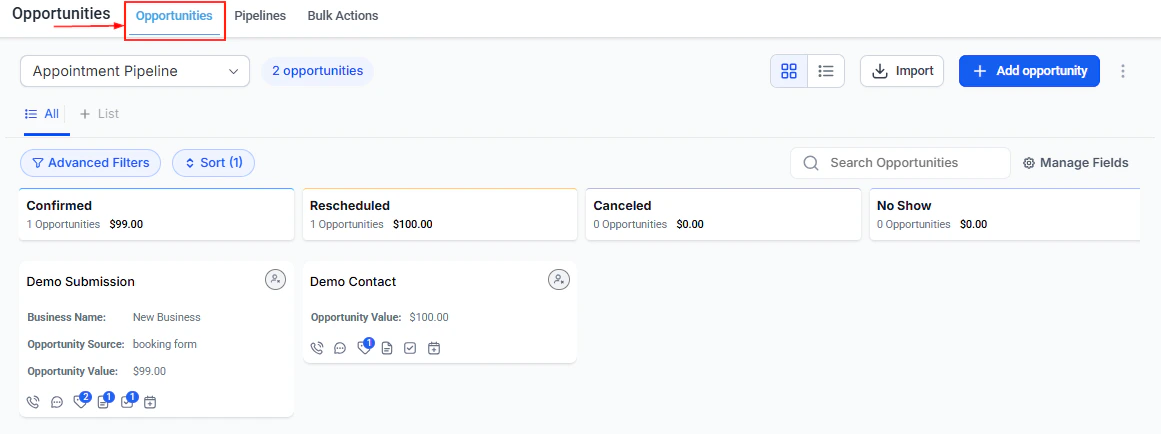
Deal velocity tracks how quickly opportunities move through your pipeline — the average number of days deals spend in each stage or from creation to close. Slow-moving deals are visible through the “days since stage change” field, which appears on opportunity cards and in list view.Use velocity data to:
Identify which stages cause the most delay
Set follow-up task triggers for deals that have been inactive for too long
Compare velocity across team members to surface coaching opportunities
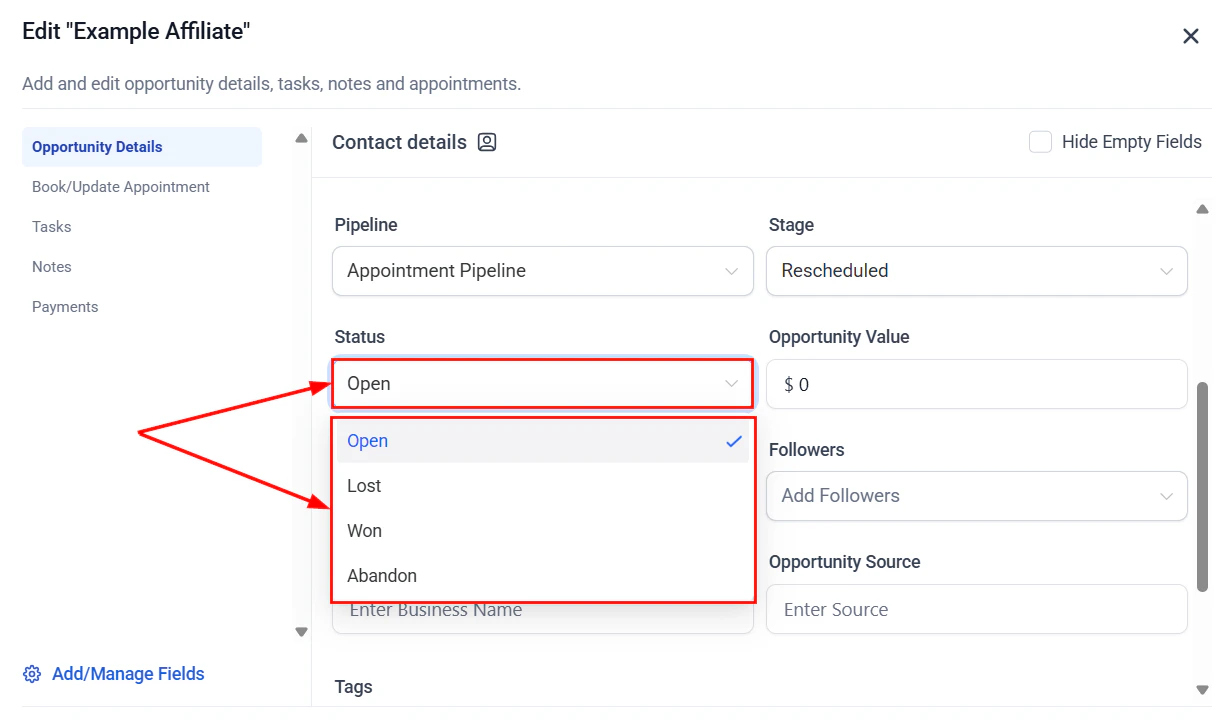
Opportunity status options used for tracking Won and Lost outcomes
Tracking the total value of Won and Lost opportunities over time reveals revenue trends and the cost of losing deals. A spike in Lost value in a given period warrants investigation — was it one large deal or many small ones? Were they lost to a competitor or for pricing reasons?
The funnel chart visualizes how opportunities flow sequentially through your pipeline stages — showing cumulative counts from each stage through to Won.How it works:Each bar in the funnel represents a stage. The value shown is the cumulative count of opportunities that reached that stage and every subsequent stage (including Won). This gives you a true funnel view — where did deals enter and how many made it all the way through?The conversion rate shown in the funnel widget is the percentage of opportunities that advanced from each stage to the next.Requirements to show a stage in the funnel:
The stage must have Visible in Funnel Chart enabled in Pipeline Settings
The widget requires Dashboard stats permission
Configuration:
The funnel widget includes a dropdown to switch between different pipelines. The date range is based on the last_status_change_date of opportunities rather than the created date — this reflects when deals actually moved through stages.
If you have a holding stage (like “Nurture” or “On Hold”) that is not part of the linear sales path, disable its funnel chart visibility in Pipeline Settings so it does not distort the sequential funnel visualization.
The stage distribution chart shows the current count of open opportunities in each stage. Unlike the funnel chart, it is not cumulative — it is a snapshot of where deals are right now.This chart is useful for monitoring live pipeline health: how many deals are in each stage at this moment, and is the distribution healthy or is everything piling up in one place?Won and Lost opportunities are displayed separately rather than alongside open stage counts.Requirements to show a stage in the distribution:
The stage must have Visible in Pie Chart enabled in Pipeline Settings
The widget requires Dashboard stats permission
The stage distribution widget also shows a per-stage conversion rate: the percentage of opportunities that have been converted to each specific stage out of all opportunities created.
Schedule a weekly pipeline review using the filters you use most often as saved presets. Look at deals by close date, value, and last activity in sequence to identify the right priorities for the week.
A structured review cadence:
Weekly — filter for deals closing this month + open status. Review velocity and follow-up tasks.
Monthly — review conversion rate trends, Won/Lost ratios, and which lost reasons dominate. Adjust process or messaging if patterns emerge.
Quarterly — review average deal value trends, stage-to-stage conversion, and compare performance across team members or lead sources.
The conversion rate is Won opportunities divided by total opportunities (all statuses) in the selected period, expressed as a percentage.
What date does the funnel widget use for filtering?
The funnel widget uses the last_status_change_date of opportunities — not the created date. This means the funnel reflects when deals actually moved through stages.
Can I filter dashboard widgets by assigned user?
Yes. When configuring an opportunity widget, you can restrict it to show data for a specific team member. This makes it easy to build individual or team performance dashboards.
How do I include or exclude a stage from the funnel chart?
In Pipeline Settings, enable or disable the Visible in Funnel Chart toggle for each stage. Stages marked invisible are excluded from the funnel visualization but are still available on the board and in filters.
Can I export opportunity data for external analysis?
Yes. Use list view with the relevant filters, then click the three-dot menu and select Export Opportunities. The CSV includes all fields including custom fields.
Do reports include Won and Lost opportunities?
Yes. All reporting widgets and exports support filtering by status, including Won and Lost. The funnel chart includes Won opportunities in its final cumulative count.