

Opening an opportunity
- Board view — click any opportunity card to open the detail panel as a side drawer
- List view — click the opportunity name in any row to open it
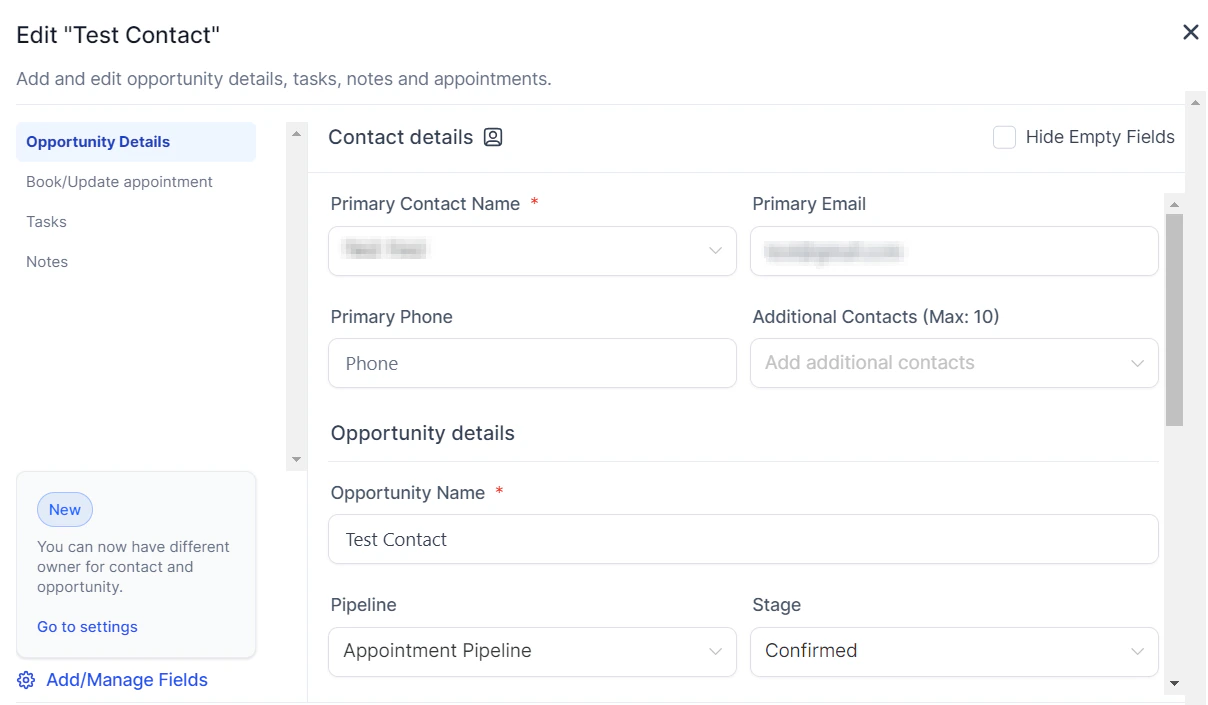
The opportunity detail panel showing core fields and deal information
Core fields
The top section of the detail panel contains the primary deal information. All fields can be edited by clicking them.Additional contacts
A single opportunity can be linked to up to 10 additional contacts beyond the primary contact. This is useful for deals with multiple stakeholders — for example, a B2B sale involving both a decision-maker and a procurement contact. To add additional contacts:- Open the opportunity detail panel
- Scroll to the Additional Contacts section
- Click + Add Contact and search for the contact record
Workflow automations associated with this opportunity operate on the primary contact’s details only. Additional contacts provide visibility but do not currently trigger separate automation actions.
Notes
The Notes section lets you record free-text context about the deal — conversation summaries, key objections, next steps, or any information your team needs.- Click + Add Note to create a new note
- Notes are timestamped and attributed to the user who wrote them
- Notes added on the opportunity also appear on the linked contact’s record, and vice versa
- Notes support basic formatting (bold, bullet points, links)
Tasks
The Tasks section lets you create and manage action items tied to this opportunity. To add a task:- Click + Add Task in the Tasks section
- Set the task title, due date, and assigned team member
- Optionally set a priority level
- Click Save
Appointments
You can view and create appointments linked to this opportunity directly from the detail panel.- Click + Add Appointment
- Select the calendar, date, and time
- Assign the appointment to a team member if needed
- Click Save
Products
If you are using HoopAI’s Products feature, you can add one or more products to an opportunity to itemize what the deal includes. This is separate from the opportunity value field and lets you track specific line items. To add a product:- Scroll to the Products section of the detail panel
- Click + Add Product
- Search for or select a product from your product catalog
- Confirm the quantity and price
Invoices and estimates
From the opportunity detail panel, you can generate and send invoices or estimates to the linked contact:- Click Send Invoice or Send Estimate in the detail panel actions
- Complete the form — line items, amounts, and due date
- Click Send
Activity timeline
The activity timeline at the bottom of the detail panel shows a chronological log of everything that has happened on this opportunity:- Stage changes (with timestamps and who moved the deal)
- Status changes
- Notes added
- Tasks created or completed
- Appointments booked
- Emails and SMS sent to the linked contact
- Workflow actions triggered by this opportunity
- Field edits
Audit logs
Every change made to an opportunity is recorded in the audit log. Unlike the activity timeline (which shows the full context), audit logs focus specifically on field-level edits — recording what changed, who changed it, and when. To access audit logs:- Open the opportunity detail panel
- Locate the Opportunity ID at the bottom left of the panel
- Click the Opportunity ID — this opens the audit log for that specific record
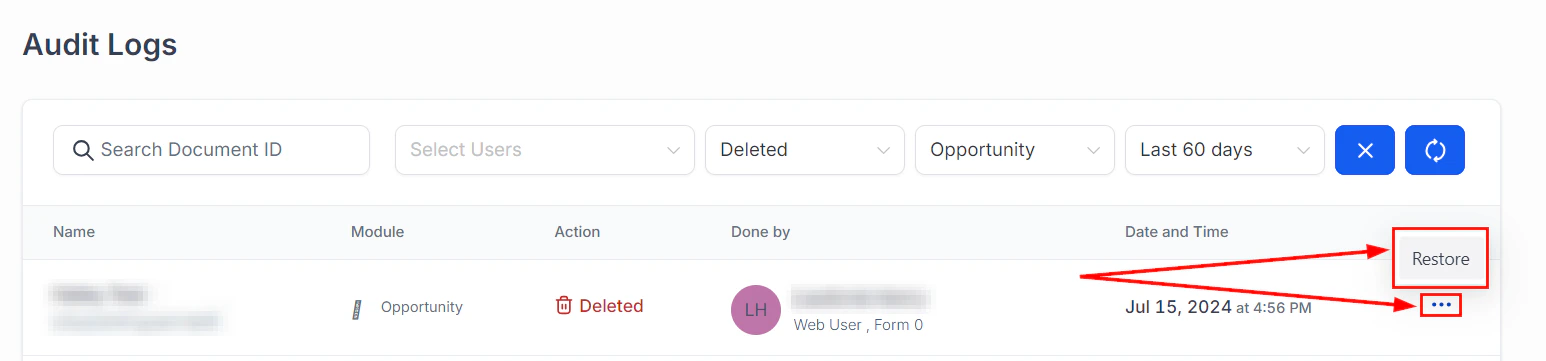
Audit log showing field-level changes on an opportunity record
Opportunity ID
Every opportunity has a unique Opportunity ID automatically assigned when the record is created. This ID is used for:- Referencing the opportunity in API calls
- Looking up a specific record in bulk import/export files
- Accessing the audit log directly
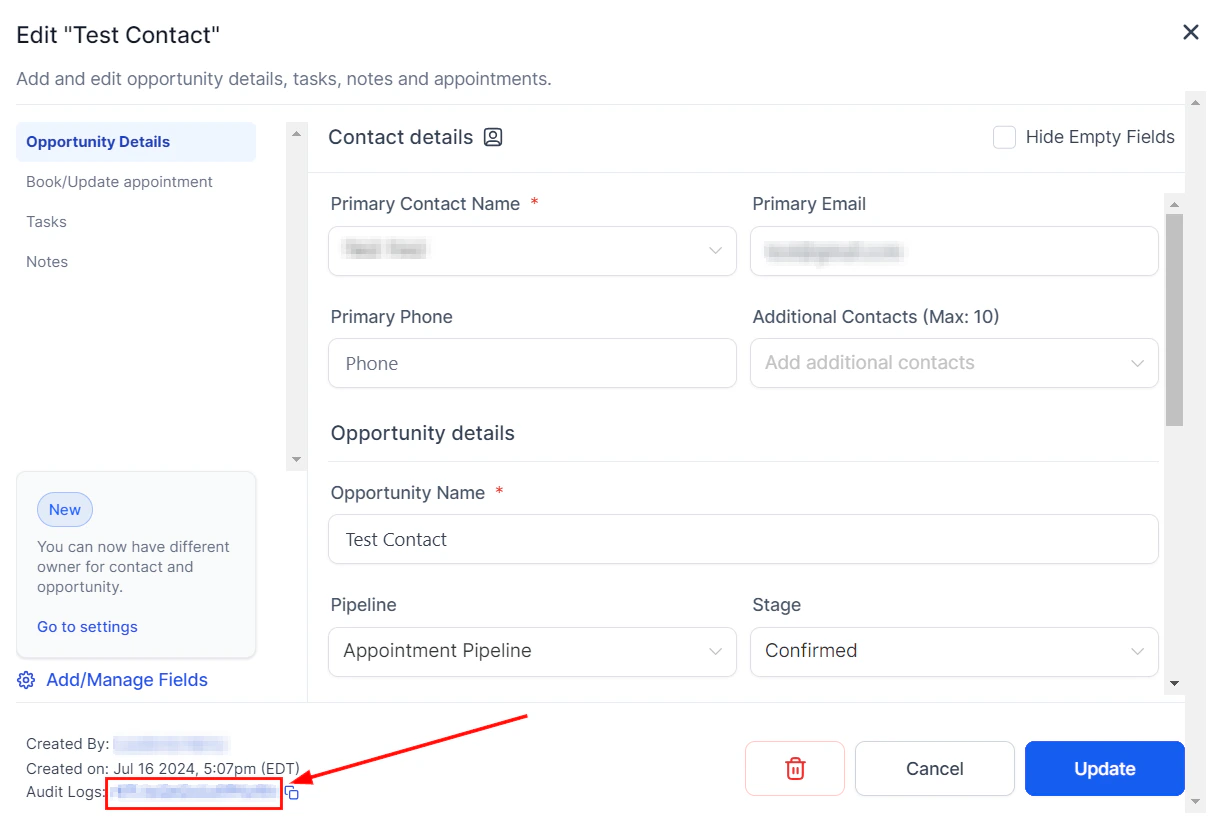
The Opportunity ID shown at the bottom of the detail panel
Custom fields
Custom fields you have configured for opportunities appear in their own section of the detail panel, organized into any groups you have set up. Click any field to edit it. If the Hide Empty Fields option is enabled, custom field sections with no values will be hidden automatically to keep the panel clean. Toggle this setting in the detail panel or in Opportunity Settings.FAQs
Can I link an opportunity to more than one contact?
Can I link an opportunity to more than one contact?
Yes. An opportunity has one primary contact plus up to 10 additional contacts. Workflow automations act on the primary contact only.
Do notes on an opportunity appear on the contact record too?
Do notes on an opportunity appear on the contact record too?
Yes. Notes are shared between the opportunity record and the linked contact’s record. Adding a note in either place makes it visible in both.
Can I change the primary contact on an opportunity?
Can I change the primary contact on an opportunity?
Yes. Open the opportunity detail panel, click the Contact field, and search for a different contact to reassign.
How long are audit logs retained?
How long are audit logs retained?
Audit logs are available for 60 days from the date of the change.
What is the difference between the activity timeline and the audit log?
What is the difference between the activity timeline and the audit log?
The activity timeline shows a full contextual history of all actions and interactions (notes, calls, stage changes, emails). The audit log records specific field-level edits — what value changed, who changed it, and when.
Can I add products to an opportunity?
Can I add products to an opportunity?
Yes, if the Products feature is enabled in your account. Add products from the Products section of the opportunity detail panel. Product line items are tracked separately from the opportunity value field.