

Accessing tasks
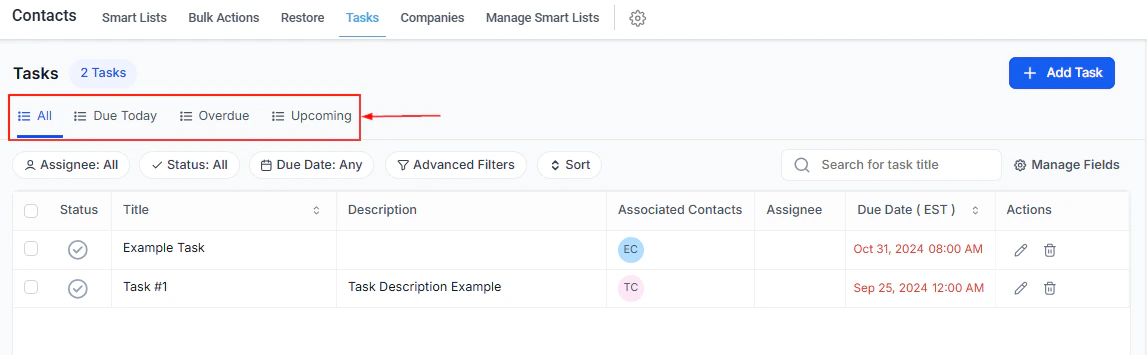
Navigate to Contacts > Tasks to see a full view of all tasks across your account.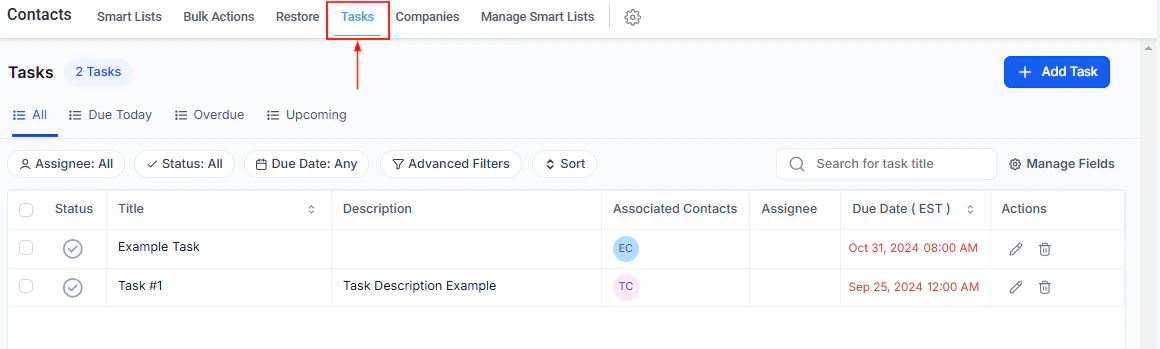
The Tasks tab showing all tasks with status, assignees, and due dates
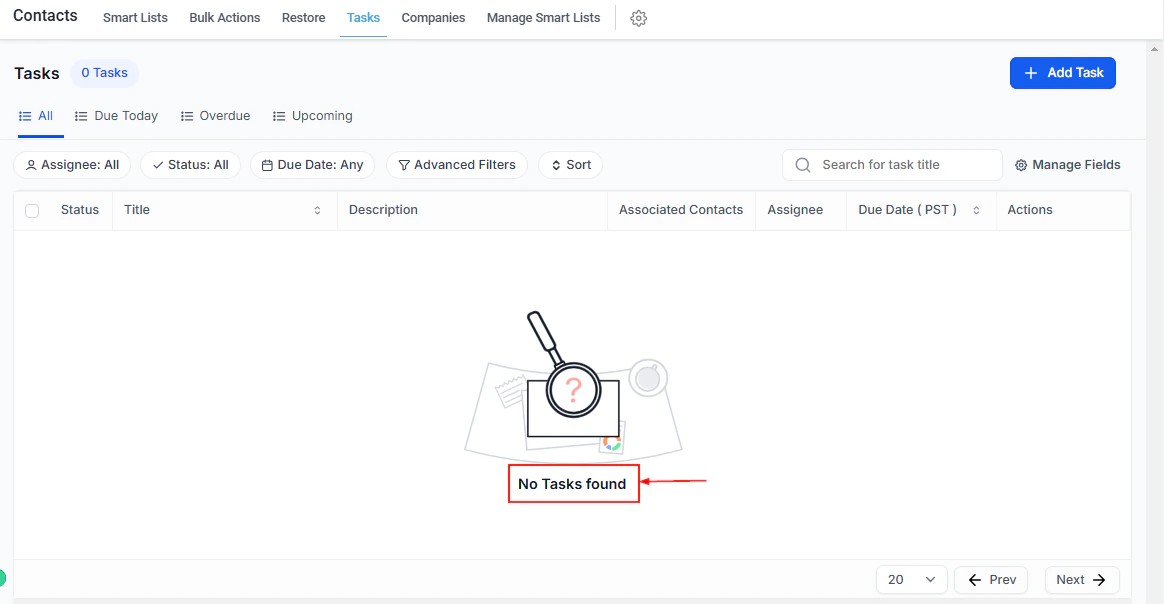
Tasks are organized with columns for status, title, assignee, and due date
Task categories
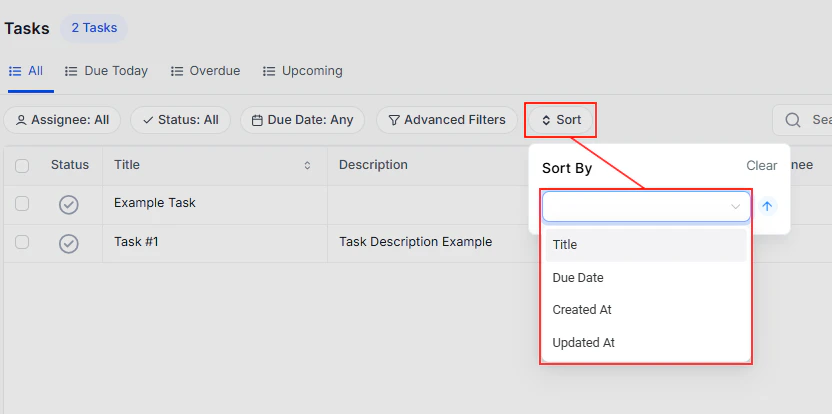
The task list is divided into four categories:- All — every task in the system
- Due Today — tasks due by end of the current day
- Overdue — tasks that have passed their due date without completion
- Upcoming — tasks with future due dates
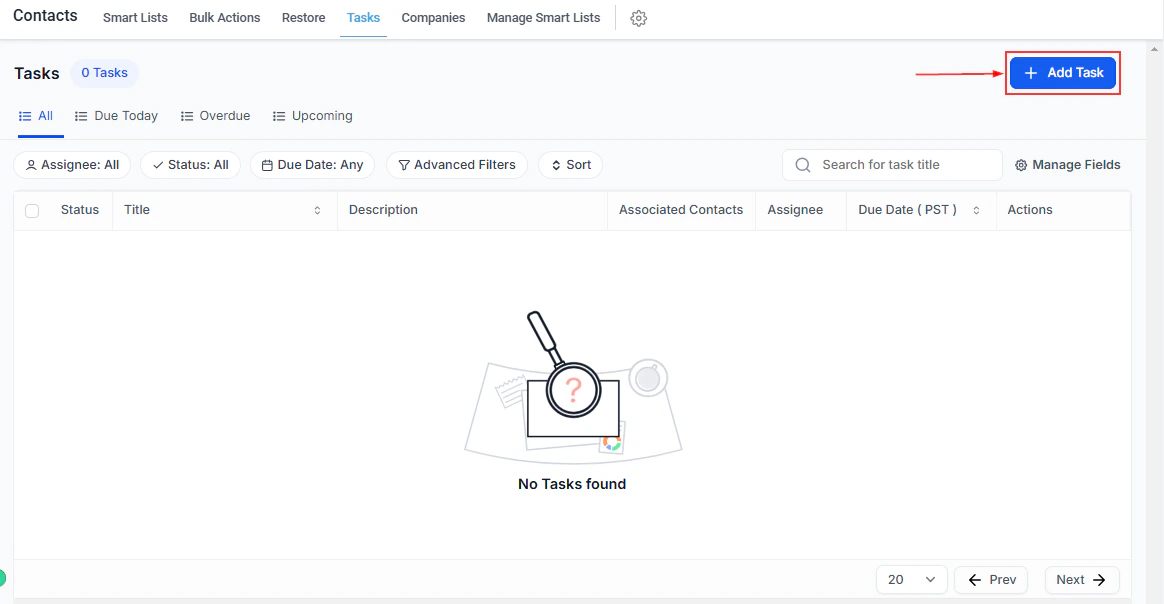
Task category tabs for All, Due Today, Overdue, and Upcoming
Creating a task
Open the task creation form
Enter a title
Add a description (optional)
Set a due date
Set up recurring tasks (optional)
- Repeats Every — define the recurrence frequency (e.g., daily, every two weeks, monthly)
- End Date — set when the recurrence stops
Link to a contact or other objects
Assign to a team member (optional)
Save the task
The task creation form with all fields filled in
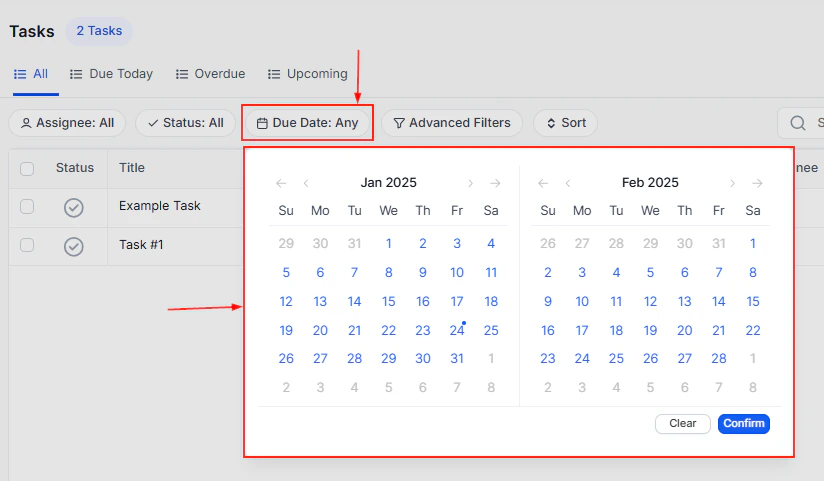
Filtering and sorting tasks
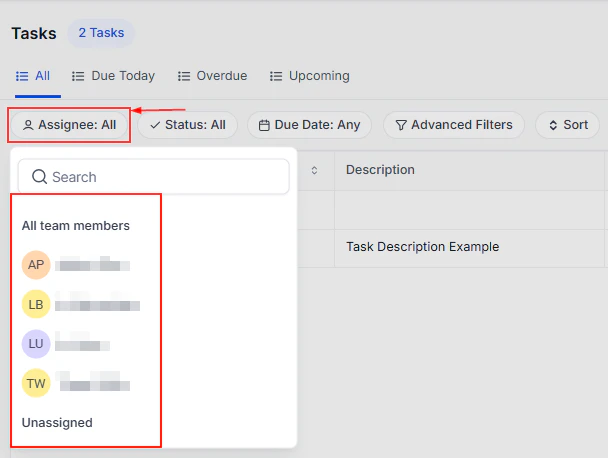
Filter by assignee
Filter by assignee
Assignee filter to narrow tasks by team member
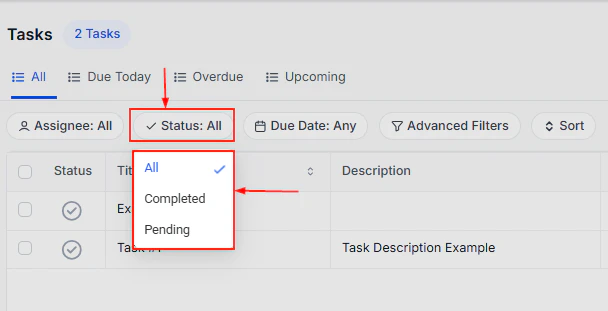
Filter by status
Filter by status
Assign a task
Assign a task
Assign a task to a specific team member
Mark as complete
Mark as complete
Click the checkmark to mark a task as complete
Delete a task
Delete a task
Delete a task using the delete icon in the Actions column
Viewing tasks on a contact record
Tasks linked to a specific contact are visible directly within that contact’s record.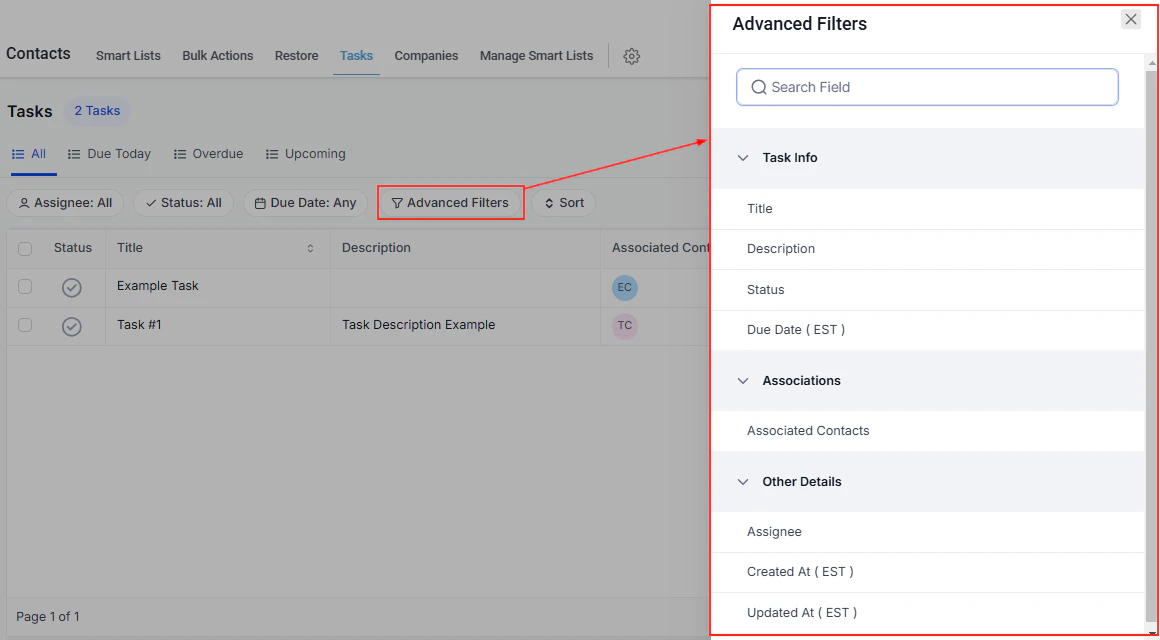
Tasks tab within a contact record showing all linked tasks
Task table columns
Multi-object tasks
A single task can be linked to multiple contacts, opportunities, companies, or custom objects — eliminating the need to create separate tasks for related records. To add multiple objects to a new or existing task:- Open the task creation or edit form
- Open the Associate To menu and select the object types to include
- Click + Add to select specific records (up to 10 per object type)
- Click Save