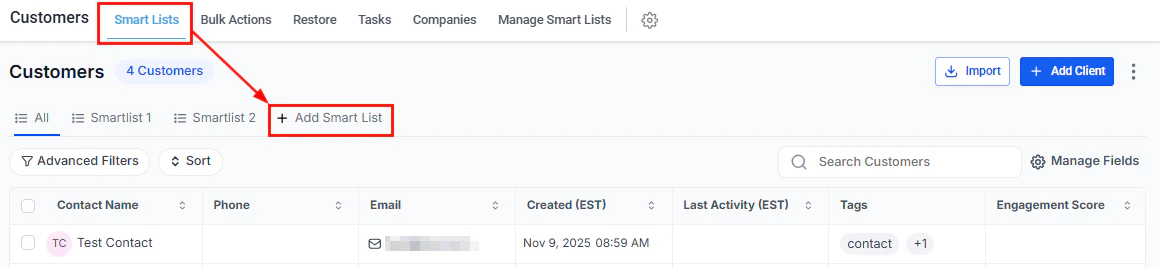
Creating a smart list
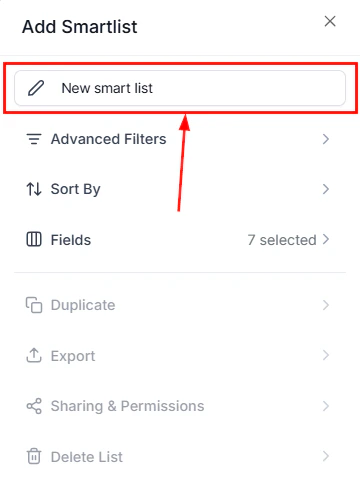
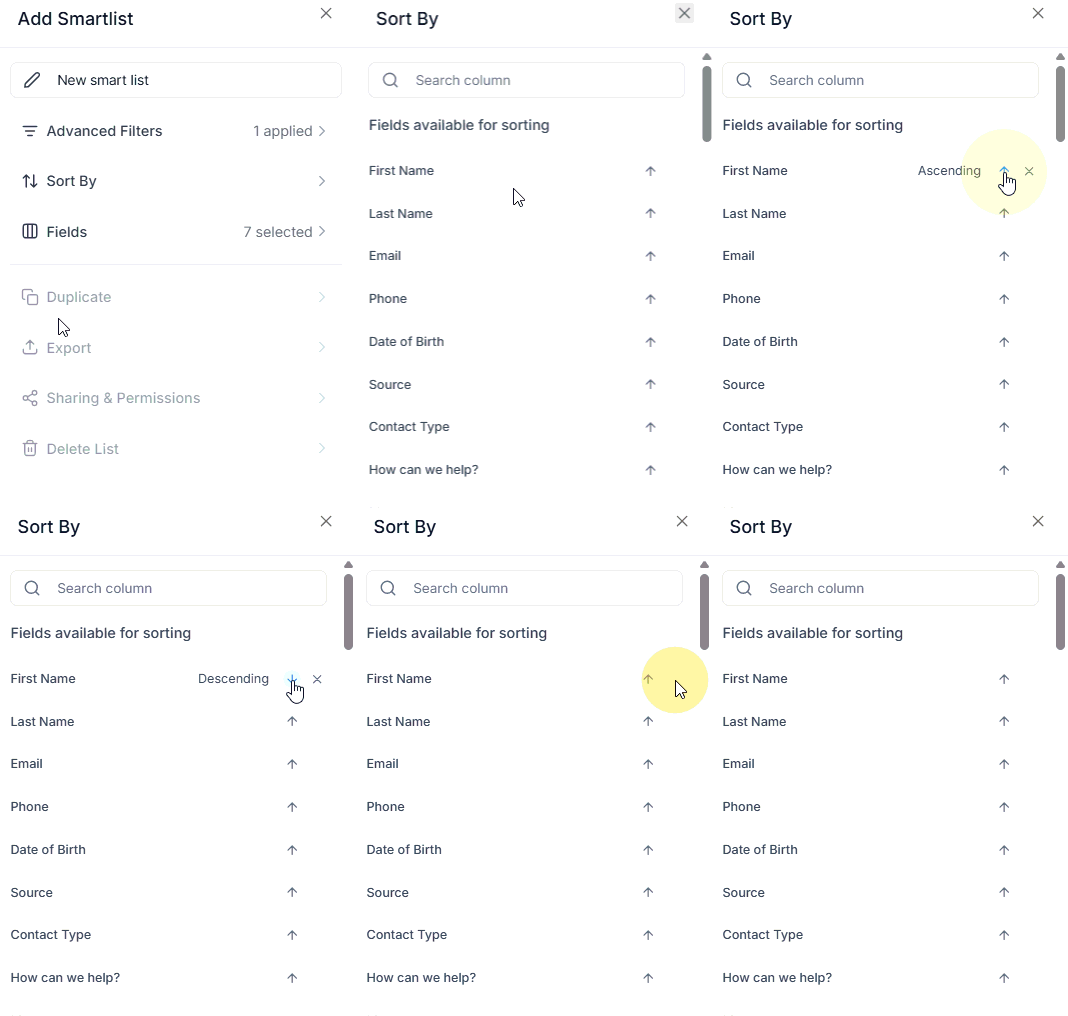
Name your smart list
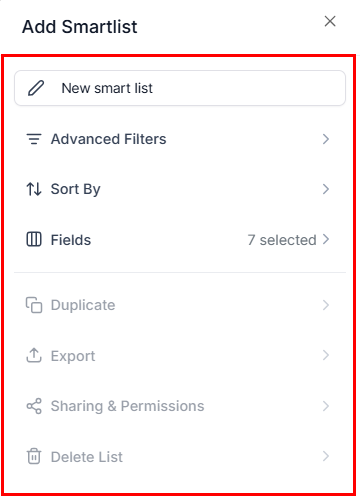
Click the name field at the top of the filter panel and enter a descriptive name.

Apply filters
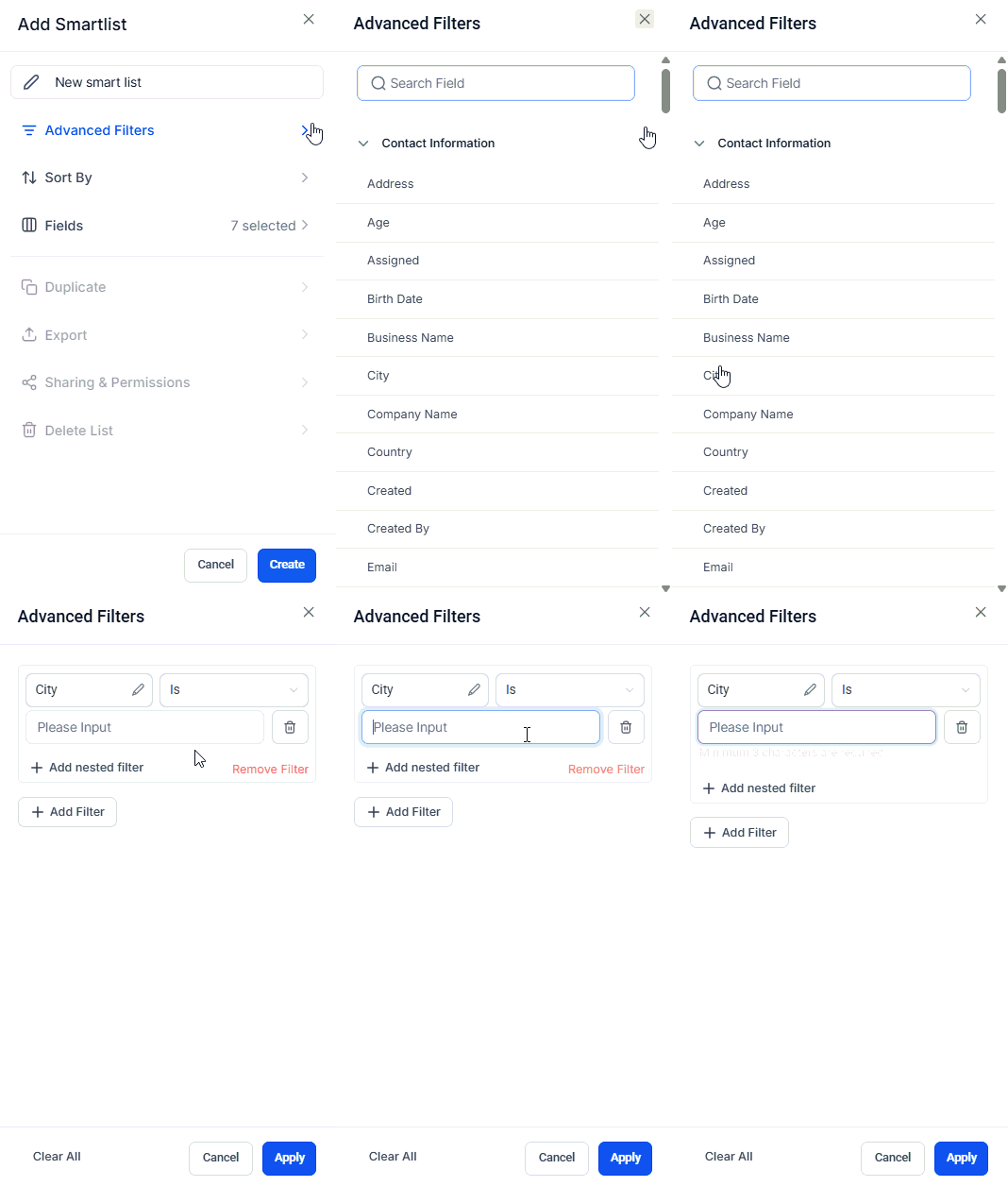
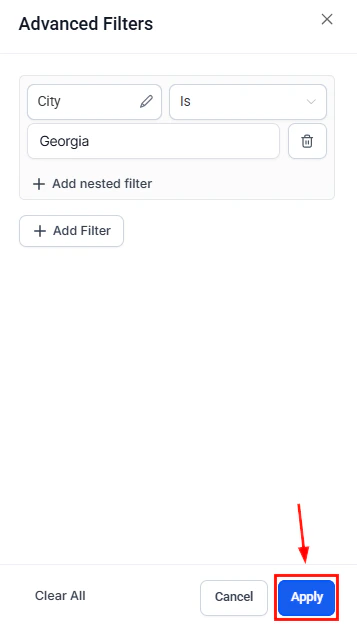
Click Advanced Filters to select filter criteria. Choose a field, then pick a condition:
Click Apply to confirm each filter.
- Is / Is Not — exact match
- More Than / Less Than — numerical comparison
- Contains — partial text match
- Is Empty / Is Not Empty — presence check
- Has Active Campaign — automation membership check


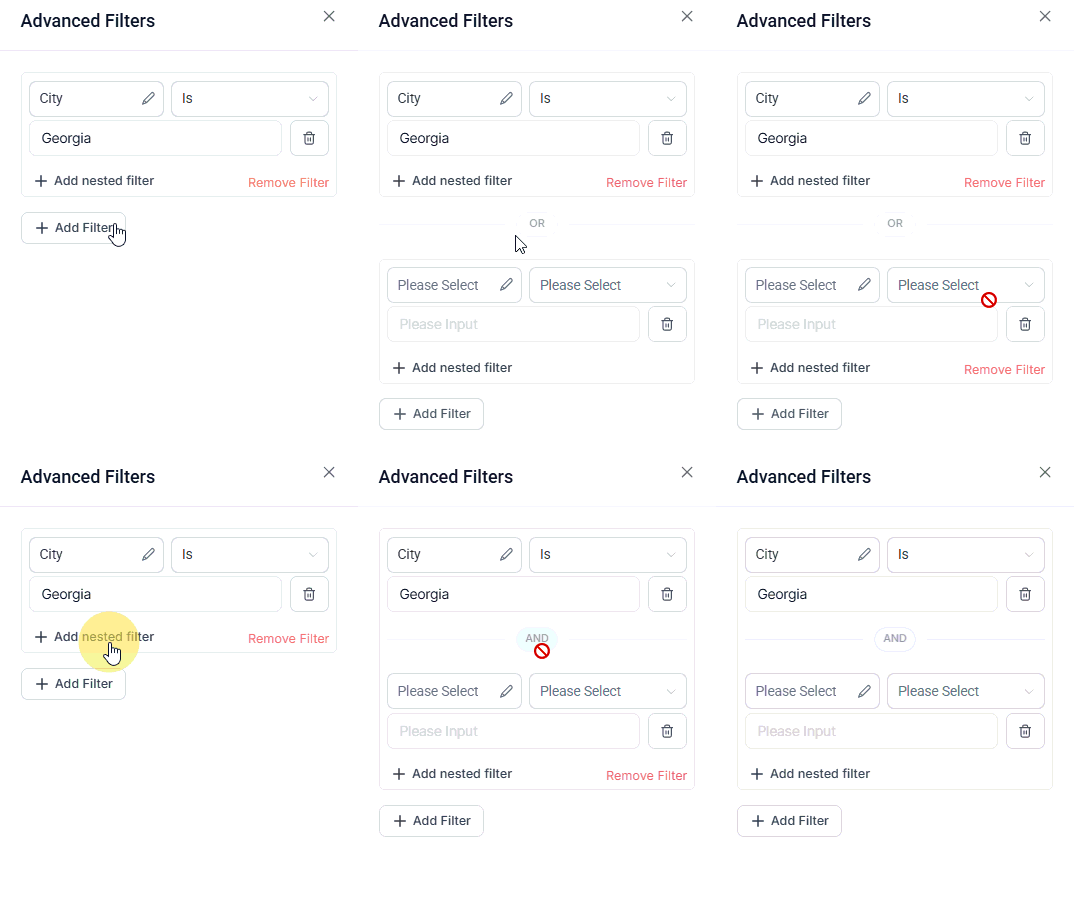
Combine filters
Use And to require all conditions, or Or to allow any condition. Add additional filter rows as needed.

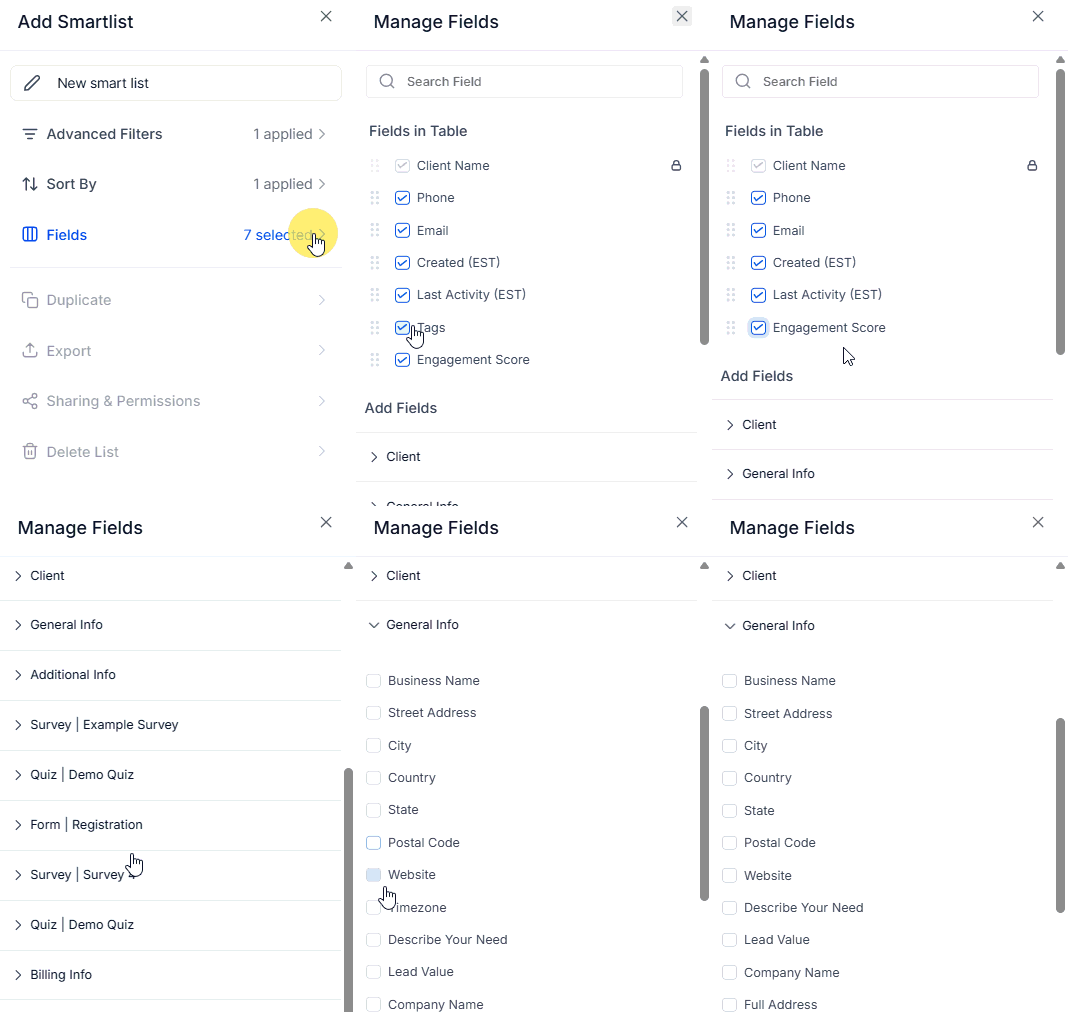
Choose visible columns
Click Fields to select which columns appear in the list. The contact name column is always first.

Editing a smart list
Modify filters
Click Clear All Filters to start fresh, or use the And / Or operators to add and adjust filters.

Managing smart lists
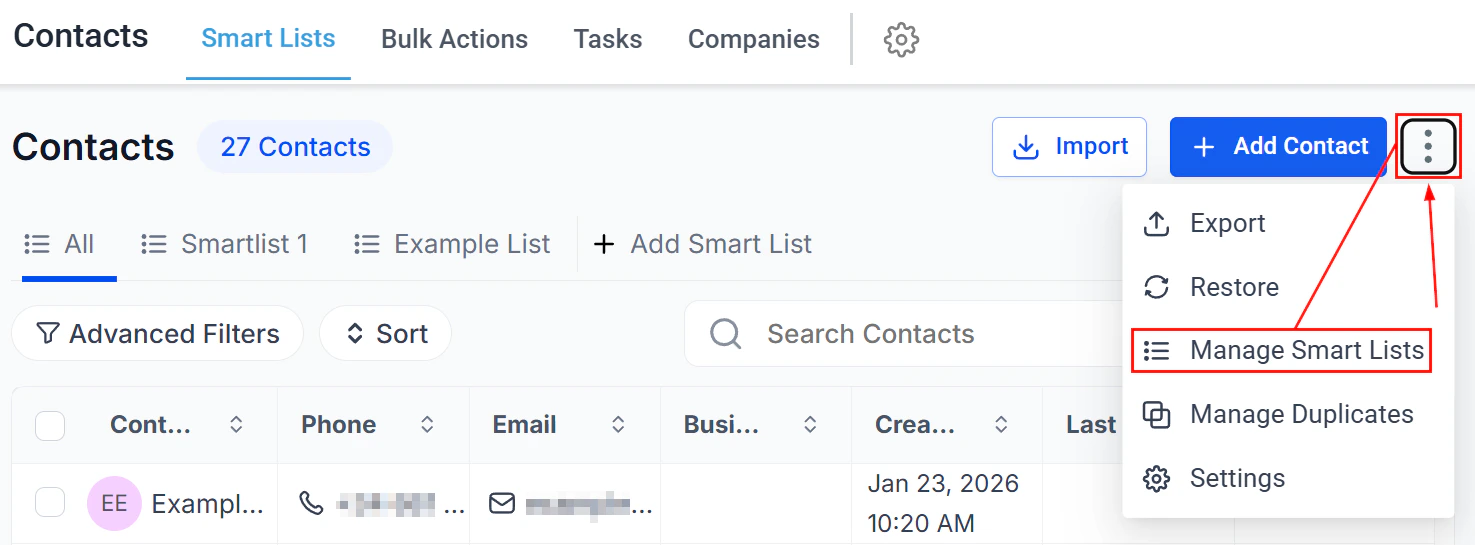
Access the management panel by clicking the three-dot icon in the Smart Lists tab and selecting Manage Smart Lists.
Drag and drop to reorder
Click and hold the drag handle icon on any card to reorder smart lists in the panel.

Duplicate a smart list
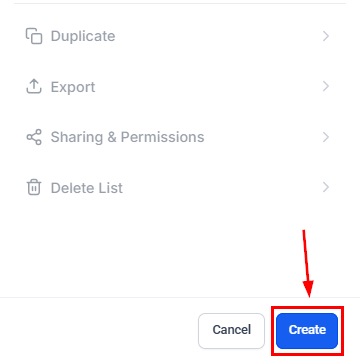
Click the Duplicate icon to copy a smart list and its filters to a new list.

Share smart lists
Share smart lists
Rename a smart list
Rename a smart list
Click the Edit (pencil) icon to rename the smart list.

Delete a smart list
Delete a smart list
Click the Delete (trash) icon to remove the smart list. Contacts remain in your account.
To delete a shared smart list, you must first revoke access for all other users.

Common use cases
Marketing segmentation
Create a list of customers who purchased within the last 6 months to target with a new product launch campaign.
Lead prioritization
Filter by lead score or recent activity to help your sales team focus on the highest-value prospects.
Event planning
Identify potential attendees by past attendance, location, or stated interests for targeted invitations.
Customer support
Surface contacts with multiple open support tickets so your team can proactively reach out.
Loyalty management
List contacts who have earned a threshold of loyalty points and send them exclusive offers.
Cross-sell and upsell
Find contacts who purchased a specific product and promote complementary or upgraded options.
Adding a contact photo
You can add or change a contact’s profile photo to replace the default initials bubble.Adding a photo to a new contact
Upload an image
In the contact creation form, click the pencil icon under Contact Image, then click Upload Image to select a file from your computer.
Editing an existing contact’s photo
Edit the photo
Hover over the contact’s image or initials circle, then click the pencil icon that appears.
.png?fit=max&auto=format&n=EQK5eX9kTD8NzWwA&q=85&s=878008bf159fcc4964d0c0d508b6e400)
.png?fit=max&auto=format&n=EQK5eX9kTD8NzWwA&q=85&s=e7fddd192d86dd299bb26a190e6a7e96)