

Accessing the Workflow builder
Navigate to Automations > Workflows to create or edit workflows. Click + New Workflow to start from scratch, or use a template if one matches your use case. Each workflow starts with a trigger — the event that starts the automation — followed by one or more actions that run in sequence.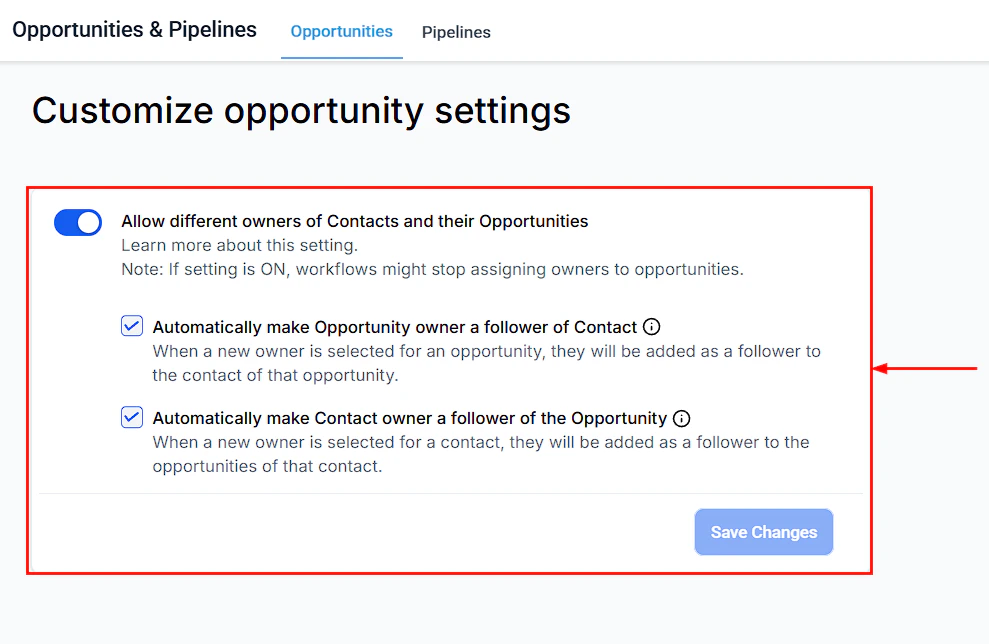
Opportunity Settings page where automation triggers are configured
Opportunity-based triggers
Opportunity created
Trigger: Fires when a new opportunity record is created, whether manually, via import, or by another automation. Use this trigger to:- Send an immediate introduction or welcome email to the new lead
- Create an initial follow-up task for the assigned owner
- Add the opportunity to a nurture sequence
- Notify the team when a new deal enters the pipeline
- Pipeline (limit to specific pipeline)
- Stage (only trigger for opportunities starting in a particular stage)
- Assigned user
- Lead value (trigger only for deals above a threshold)
- Tags
- Source
Opportunity status changed
Trigger: Fires when an opportunity’s status changes — from Open to Won, Lost, or Abandoned, or any combination. Use this trigger to:- Send a win notification to the team when a deal is marked Won
- Start a customer onboarding sequence immediately after a Won status
- Trigger a re-engagement sequence when a deal is marked Lost (after a delay)
- Notify the manager when a high-value deal is abandoned
- Remove the contact from a sales sequence when the deal closes
- Status (specify which status change to respond to: Won, Lost, Abandoned)
- Pipeline
- Lead value
- Lost reason (trigger specific workflows based on why the deal was lost)
- Tags
- Assigned user
Pipeline stage changed
Trigger: Fires when an opportunity moves from one pipeline stage to another, in either direction. This is one of the most powerful triggers because it lets you respond in real time to every meaningful step in your sales process.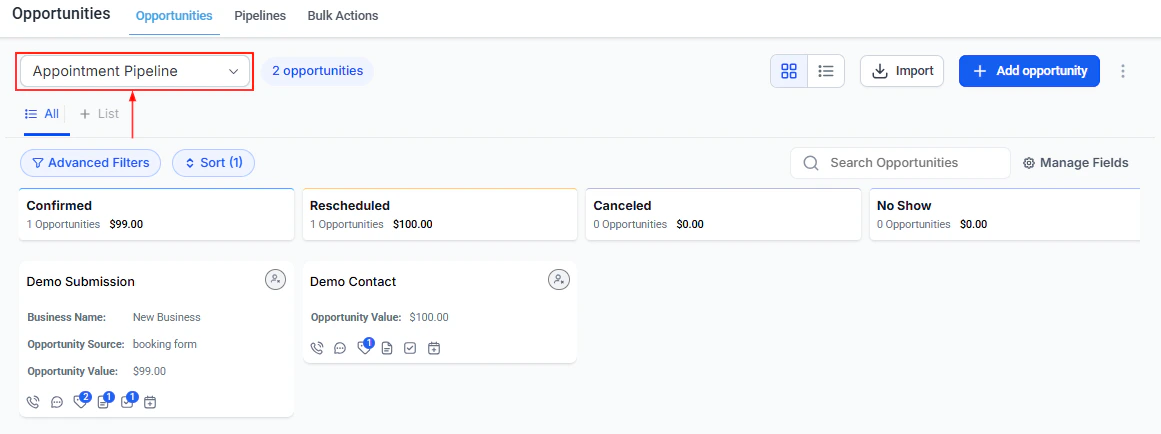
Opportunity pipeline stages that can trigger automations when deals move between them
- Send stage-specific content (proposal template, case studies, pricing sheet) when a deal enters a stage
- Create tasks for the next steps that should happen at each stage
- Notify team members when a deal advances to a stage they care about
- Update contact records based on pipeline progression
- Start or stop time-based follow-up sequences
- Pipeline (limit to a specific pipeline)
- Pipeline stage (specific stage transitions — which stage the opportunity moved into)
- Assigned user
- Lead value
- Tags
- Lost reason (when the stage change includes a move to Lost)
- Status
Both manual stage changes (drag-and-drop, dropdown in detail panel) and automated stage changes (from a workflow action) will trigger this workflow if the conditions match. Moving a deal backward through stages also triggers the workflow if it matches the configured stage condition.
Stale opportunities
Trigger: Fires when an opportunity has had no activity (no stage change, status change, or field edit) for a defined number of days. Use this trigger to:- Remind the assigned owner that a deal needs attention
- Escalate stale high-value deals to a manager
- Automatically close or abandon deals that have been inactive too long
- Re-engage the contact with an automated outreach attempt
- Pipeline
- Stage
- Assigned user
- Lead value
- Tags
Opportunity-based workflow actions
Once a trigger fires, you can take actions that operate on opportunity records.Create opportunity
Creates a new opportunity record with specified values. Use this in non-opportunity-triggered workflows (such as form submissions or tag additions) to automatically generate a deal when a contact enters your pipeline. Configurable fields:- Pipeline and stage
- Opportunity name (supports dynamic merge tags)
- Status
- Opportunity value (fixed amount or dynamic value from a contact field or form response)
- Source
- Assigned user
Update opportunity
Modifies fields on an existing opportunity. Requires the workflow to have opportunity context — either triggered by an opportunity event or preceded by a Find Opportunity step. Configurable fields:- Pipeline
- Stage (with optional allow-backward-movement toggle)
- Status (Open, Won, Lost)
- Opportunity value
- Opportunity name
- Source
Add follower(s) to opportunity
Adds one or more users as followers on the opportunity. Followers gain view and edit access to the record. Duplicate followers are not added. Maximum of 10 followers per opportunity.Remove followers from opportunity
Removes specified users from the follower list on the opportunity.Remove opportunity from pipeline
Removes the opportunity from the pipeline it is in. Use with caution — this does not delete the record but removes its pipeline association.IF/ELSE conditions
Not an opportunity-specific action, but essential for building branching logic. Use IF/ELSE steps after an opportunity trigger to fork the workflow based on opportunity field values — for example, routing high-value deals differently from low-value ones, or handling different lost reasons with separate follow-up paths.Building an opportunity workflow: step-by-step
1
Define the goal
Be specific about what you want the automation to do. “Follow up on stale deals” is a goal. “Create a task for the assigned rep after 14 days of no activity on any open deal in the Main Sales pipeline” is a workflow specification.
2
Create a new workflow
Go to Automations > Workflows and click + New Workflow.
3
Select the trigger
Choose the appropriate opportunity trigger: Opportunity Created, Opportunity Status Changed, Pipeline Stage Changed, or Stale Opportunities.
4
Configure trigger filters
Add filter conditions to limit the trigger to the right opportunities — specific pipeline, stage, value range, or status.
5
Add actions
Click + Add Action after the trigger and build your action sequence. Common patterns:
- Send email → Wait → Create task → Send SMS
- Add follower → Update opportunity field → Notify via internal notification
- IF/ELSE on value → branch to different action paths
6
Test the workflow
Use the test mode to trigger the workflow manually with a test opportunity and verify each action fires correctly.
7
Activate
Toggle the workflow to Active. It will now fire automatically whenever the trigger conditions are met.
Common automation examples
Multiple opportunities toggle in workflows
When a contact has more than one opportunity, workflow triggers need to know which opportunity to act on. The Multiple Opportunities toggle controls this behavior:- Off (default) — the workflow uses the most recently created or updated opportunity for the contact
- On — the workflow creates a separate execution for each matching opportunity
FAQs
Will moving a deal backward trigger the Pipeline Stage Changed workflow?
Will moving a deal backward trigger the Pipeline Stage Changed workflow?
Yes. Moving an opportunity backward through stages (from a later stage to an earlier one) will trigger the Pipeline Stage Changed workflow if the destination stage matches the workflow’s filter conditions.
Can I trigger a workflow from an automated stage change (not a manual one)?
Can I trigger a workflow from an automated stage change (not a manual one)?
Yes. If a workflow action changes an opportunity’s stage and another workflow is configured to trigger on that stage, the second workflow will fire. Be mindful of creating loops.
What happens if no opportunity context exists when the Update Opportunity action runs?
What happens if no opportunity context exists when the Update Opportunity action runs?
If the workflow was not triggered by an opportunity event and no Find Opportunity step precedes the action, the Update Opportunity action is skipped. Ensure opportunity context exists earlier in the workflow.
Can I use custom field values in opportunity trigger conditions?
Can I use custom field values in opportunity trigger conditions?
Yes. Custom fields on opportunity records are available as filter conditions in all opportunity-based triggers. You can trigger or branch workflows based on any custom field value.
Can I trigger automations from a lost reason?
Can I trigger automations from a lost reason?
Yes. The Opportunity Status Changed and Pipeline Stage Changed triggers both support a Lost Reason filter condition. Use this to trigger different follow-up sequences based on why specific deals were lost.
How do I stop a sequence when a deal is Won?
How do I stop a sequence when a deal is Won?
Add an Opportunity Status Changed trigger (status = Won) that removes the contact from any active nurture or follow-up sequences. Use the Remove from Workflow action to stop other running automations for that contact.