

Exporting from a smart list
The most common approach is to build a smart list with the exact filter criteria you need, then export the results.1
Build your smart list
Navigate to Contacts > Smart Lists and apply Advanced Filters to narrow your contacts to the set you want to export. For example:
- All contacts with the tag “newsletter-subscriber”
- All contacts in a specific pipeline stage
- All contacts added in the last 30 days
- All contacts in a particular city or state
2
Select contacts to export
To export all contacts in the list: click the checkbox in the column header to select all records on the page, then click Select all [N] contacts to extend the selection to the full filtered result set.To export a subset: manually check the boxes next to the contacts you want.
3
Click Export
In the bulk actions toolbar that appears, click the Export icon (a download arrow or a dedicated Export button).
4
Configure the export
A dialog appears where you can:
- Name the export — this label appears in the Bulk Actions history for easy identification
- Select fields to include — choose which contact fields to include in the CSV; standard fields (name, email, phone, tags, etc.) and custom fields are all available
5
Start the export
Click Export to begin. The system queues the export and processes it in the background.
6
Download the file
Navigate to Contacts > Bulk Actions and locate your export in the list. Once the status shows Completed, click Download to save the CSV file.
Exporting all contacts
To export your entire contact database:1
Navigate to Smart Lists
Go to Contacts > Smart Lists. Make sure no filters are active so all contacts are visible.
2
Select all contacts
Click the header checkbox to select all contacts on the page, then click Select all [N] contacts to include every contact in the account.
3
Export
Follow steps 3 through 6 from the smart list export instructions above.
Fields included in the export
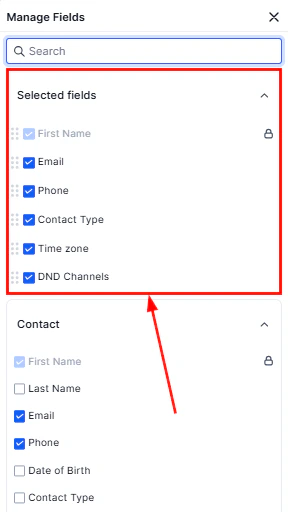
Selecting which contact fields to include in the CSV export
- First name, last name, full name
- Email address (primary and additional)
- Phone number (primary and additional)
- Tags
- Date of birth
- Address (street, city, state, zip, country)
- Company / business name
- Website
- Source
- Created date, last activity date
- Owner
- Contact score
- DND status per channel
Tracking and managing exports
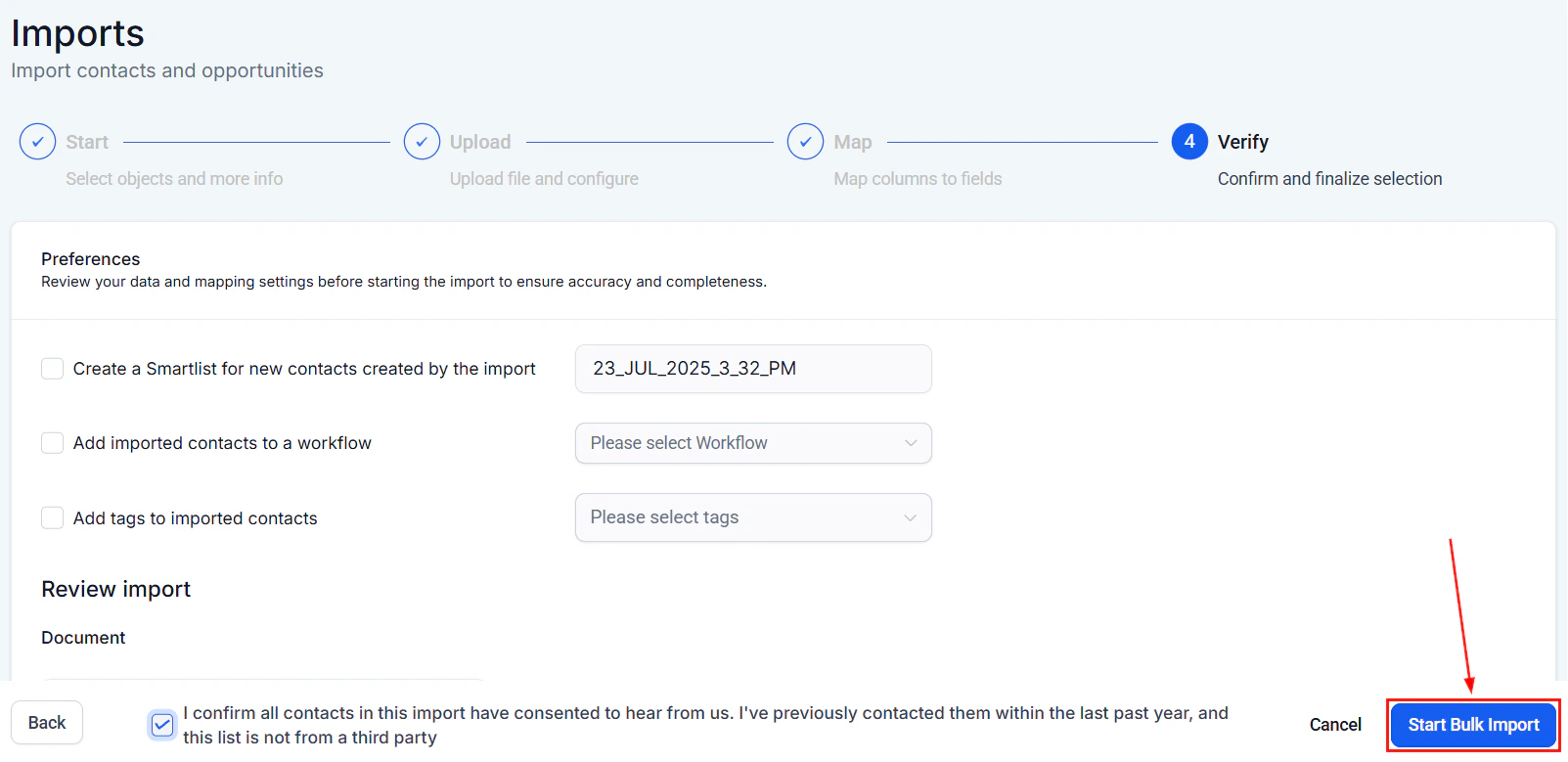
Bulk Actions tab showing export job history and download links
Re-downloading a previous export
Export files remain available in Bulk Actions for a period after creation. To re-download:- Go to Contacts > Bulk Actions
- Find the export in the list
- Click Download in the Actions column
Compliance considerations
When exporting contact data, ensure your use of that data complies with applicable privacy regulations:- Only export data you have a legitimate need for and a lawful basis to process
- Do not share exported contact lists with third parties without appropriate data processing agreements in place
- Store exported files securely and delete them when they are no longer needed
- Contacts who have requested deletion under GDPR or similar regulations should not be included in outbound marketing exports
Frequently asked questions
How many contacts can I export at once?
How many contacts can I export at once?
There is no hard limit on export size. Very large exports (hundreds of thousands of contacts) may take several minutes to process. Monitor the Bulk Actions tab for completion status.
Can I schedule recurring exports?
Can I schedule recurring exports?
Scheduled exports are not available directly in the UI. For automated, recurring exports, use the API or set up a workflow that triggers an export notification when new contacts meet your criteria.
Will the export include contacts marked as Do Not Contact?
Will the export include contacts marked as Do Not Contact?
Yes, DND status is a field you can include in the export. The export does not automatically exclude DNC contacts — you must apply a smart list filter to exclude them if needed.
Can I export opportunity data along with contacts?
Can I export opportunity data along with contacts?
The contact export includes fields from the contact record. To export opportunity data, use the Opportunities section export feature, which can include linked contact fields as columns.