

Opening a contact record
Navigate to Contacts > Smart Lists and click a contact’s name to open their record.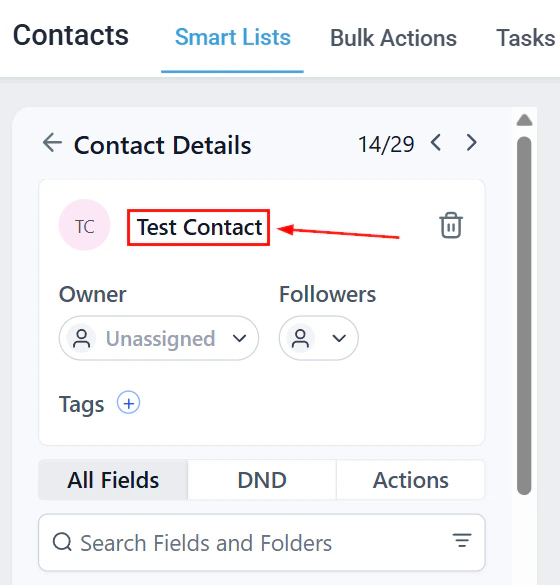
The contact details view with all panels and tabs
The left panel shows contact tabs and the right panel shows activity, tasks, and appointments
Contact header
The top of every contact record displays:- Contact name — shown in the upper left for quick confirmation
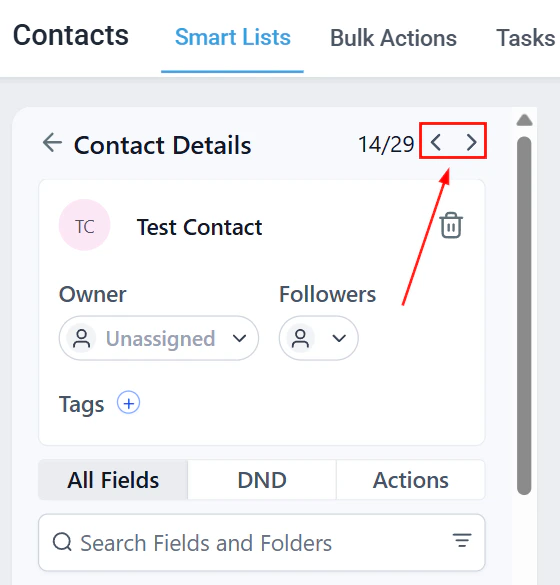
- Navigation arrows — click to cycle through contacts in the current list without returning to Smart Lists
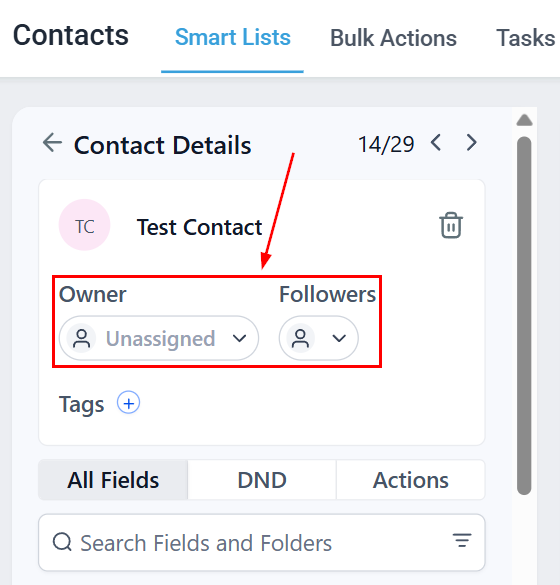
- Owner and followers — assign team members so they are notified when interactions occur
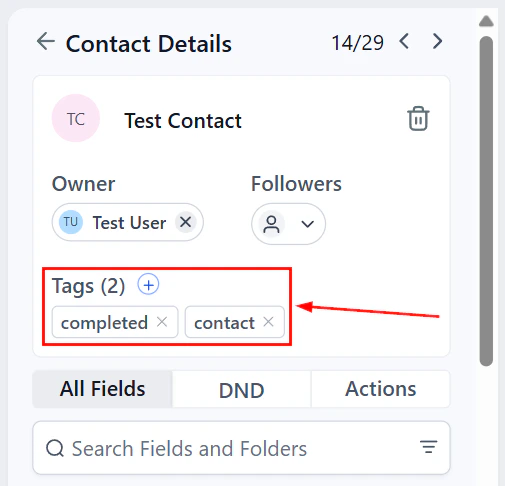
- Tags — add or remove tags directly from the header
Contact header with name, navigation arrows, owner assignment, and tags
Contact tabs
The left panel of a contact record contains several tabs.Contact Info tab
Contact Info tab
Contact Info tab showing the contact's key details
General Info tab
General Info tab
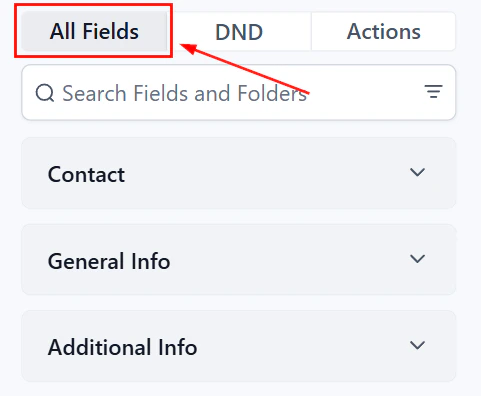
General Info tab with business and address fields
Additional Info tab
Additional Info tab
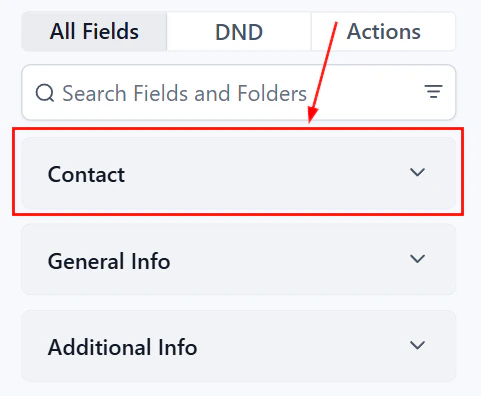
Additional Info tab with custom fields
Audit Logs
Audit Logs
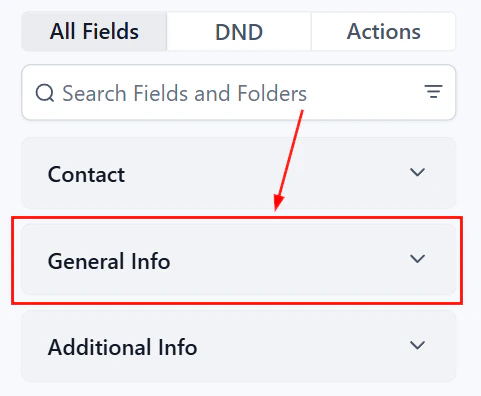
Audit Logs button showing the full activity history
Do Not Disturb (DND)
DND removes a contact from one or all communication channels. You can set DND per channel — SMS, Calls, Email, Facebook, GMB, and WhatsApp — once each channel is integrated.Actions panel
Below the tabs, the Actions panel provides quick access to opportunities, workflows, and client portal management.Opportunities
Opportunities
Workflows
Workflows
- Active — shows all running automations the contact is enrolled in; use this tab to add the contact to a new automation
- Past — shows all completed or stopped automations for historical context
Client portal
Client portal
- Course Offers — view subscribed offers; grant or revoke access using the dropdown or the x button
- Community Groups — assign the contact to available community groups or course offerings
Information panel (right side)
The right panel contains tabs for managing different aspects of the contact.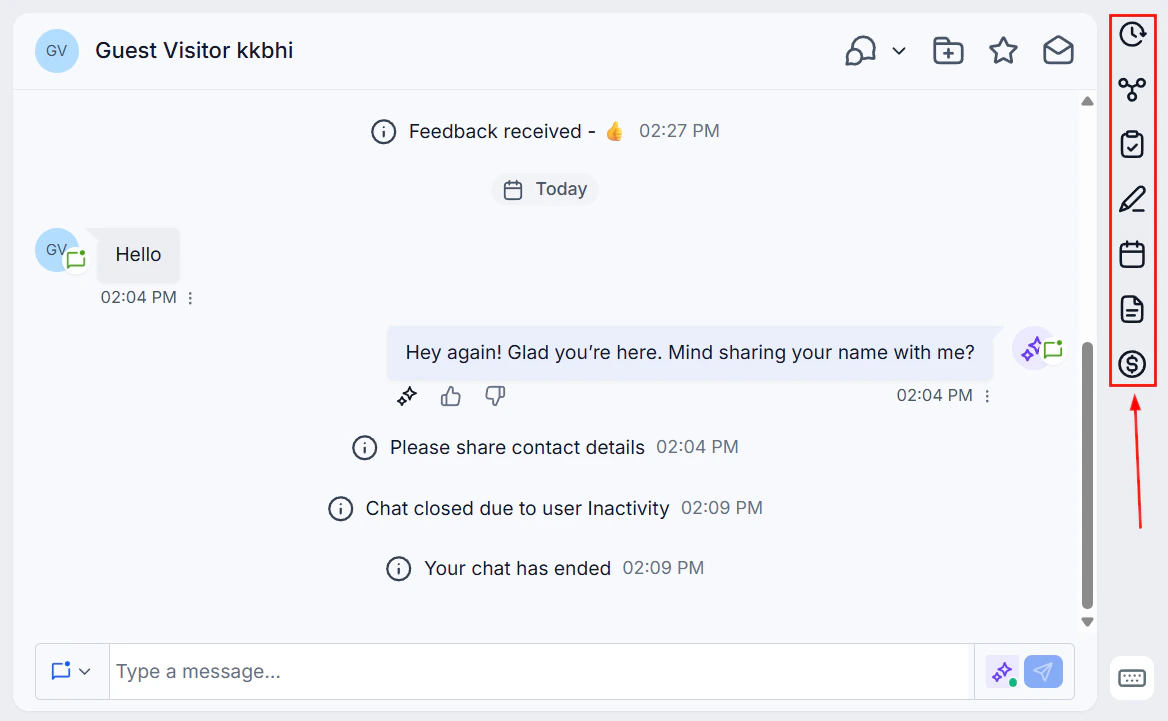
The right-side information panel showing the Activity tab timeline
Contact information panel with communication details and phone numbers
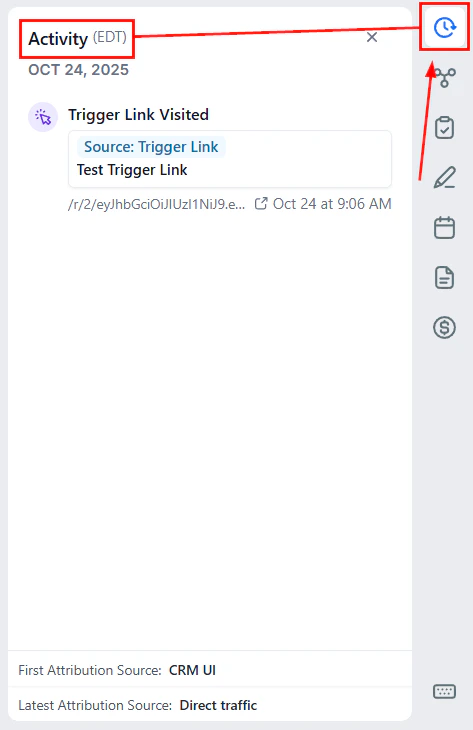
Activity tab
View a complete timeline of the contact’s interactions, including website visits, form submissions, calls, emails, and purchases.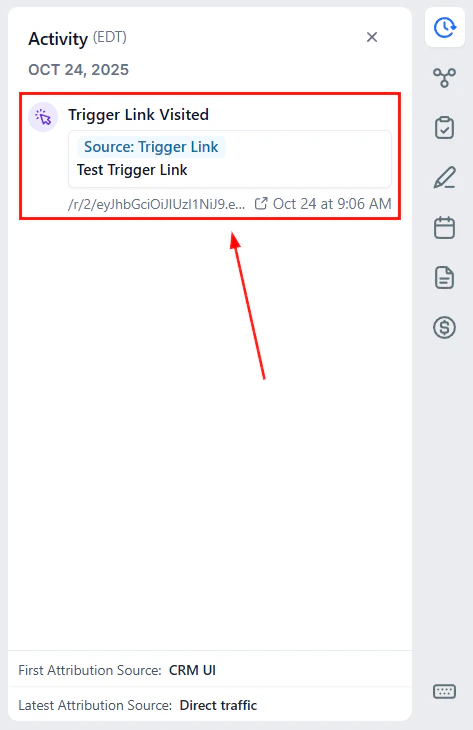
Activity tab showing a chronological timeline of contact interactions
Contact attribution
Within the Activity tab, attribution shows where a contact first and most recently interacted with your business:- First Interaction — the original source; remains constant unless contact data is reset
- Latest Interaction — updates with each new interaction
Associations tab
View and manage the relationships between the contact and other contacts, opportunities, companies, and custom objects.View existing associations
Add a new association
- Create New — opens a modal to create a new contact, opportunity, or custom object
- Add Existing — link an already existing object
Manage associations
Tasks tab
Create and manage tasks associated with the contact. Each task requires a title, due date, and an assigned user. Use the filter and search controls at the top to organize tasks. Click + Add to create a new task.Notes tab
Record additional information about the contact. Each note includes a timestamp and can be edited later.- Click + Add to create a note
- Use the search bar to find specific notes
- Sort notes to quickly locate relevant entries
Appointments tab
View, schedule, and manage appointments for the contact. Toggle between New and Previous appointments, or use the search bar to find a specific booking.Scheduling an appointment
Open the Appointments tab
Choose appointment type
Fill in appointment details
- Calendar — choose which calendar to book on
- Title and description — leave blank to use the calendar’s default
- Team member — select a specific user, or let the calendar assign one automatically
- Attendees — add other contacts as guests
- Time zone — ensure correct scheduling across time zones
- Date and time slot — unavailable times are automatically hidden
- Meeting location — specify a location or use the calendar’s default
- Status — set as confirmed or unconfirmed
Book the appointment
Editing an appointment
Click the three-dot icon on an appointment card, then click the pencil icon to open the full edit view.Canceling an appointment
Click the three-dot icon on the appointment card, then select Cancel. Confirm in the popup. The status changes to Cancelled and any workflows triggered by appointment cancellation will start.Documents tab
Access all documents associated with the contact, organized into three categories:Internal documents
Internal documents
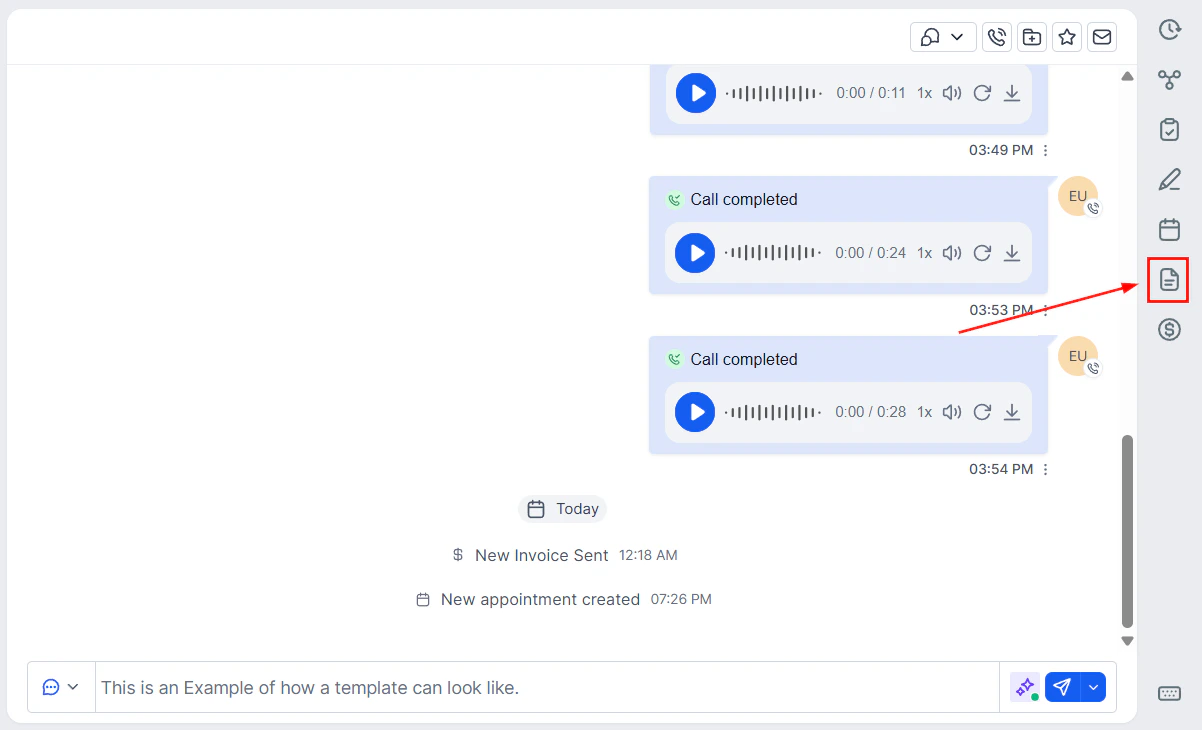
Internal documents section with uploaded files
Sent to contact
Sent to contact
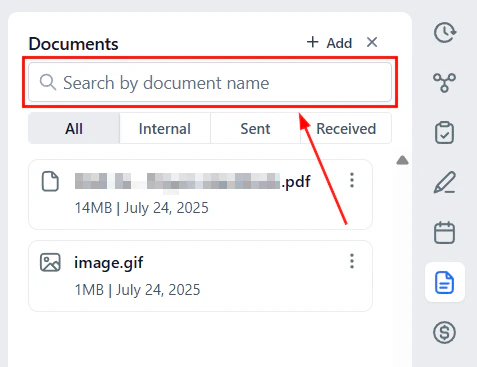
Documents sent to the contact
Received from contact
Received from contact
Payments tab
Manage all payment-related activity for the contact, including manual charges, subscriptions, invoices, and stored payment cards.Add cards on file
Add cards on file
Charge now (manual charge)
Charge now (manual charge)
Create subscription
Create subscription
Create invoice
Create invoice
Manage cards
Manage cards
Contact profile picture
Each contact can have a profile picture displayed on their record, in conversation threads, and on opportunity cards.Uploading a profile picture
- Open the contact record
- Click the avatar/photo area at the top of the contact header
- Upload an image from your computer or select one from the Media Library
- The image is cropped to a circle and saved immediately
Auto-fetching from social profiles
When a contact is created via a social integration (Facebook Lead Ads, Instagram DM, WhatsApp), the platform automatically pulls their social profile picture if available. This happens during:- Facebook Messenger conversations
- Instagram DM conversations
- WhatsApp message threads
Managing multiple phone numbers
Each contact supports up to 11 phone numbers (1 primary + 10 additional).Add a phone number
Set the primary number
Add labels
Delete a number
Managing multiple email addresses
Each contact supports up to 11 email addresses (1 primary + 10 additional).Add an email address
Set the primary email
Choose which email to send to
Managing followers
Followers have owner-level permissions to manage and edit contact data collaboratively.Enable restricted data visibility
Add followers to a contact