

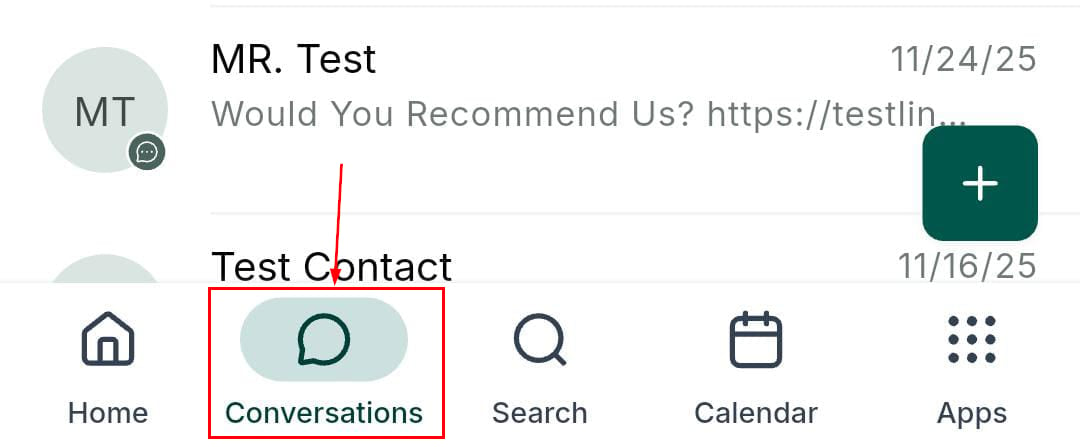
Conversations main view — your unified inbox on mobile
Searching conversations
Tap the search icon at the top of the Conversations screen to search by contact name, phone number, or email address.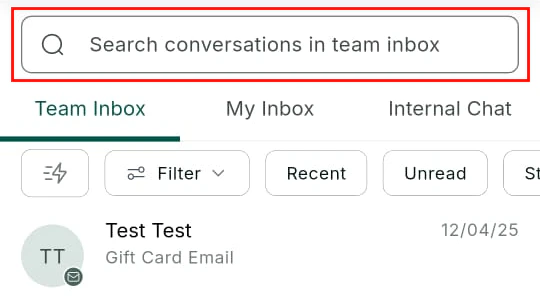
Search conversations by name, number, or email
Inbox selection
Tap the inbox selector to switch between:- Team inbox — all conversations shared across your team
- My inbox — conversations assigned to you personally
- Internal — messages between team members
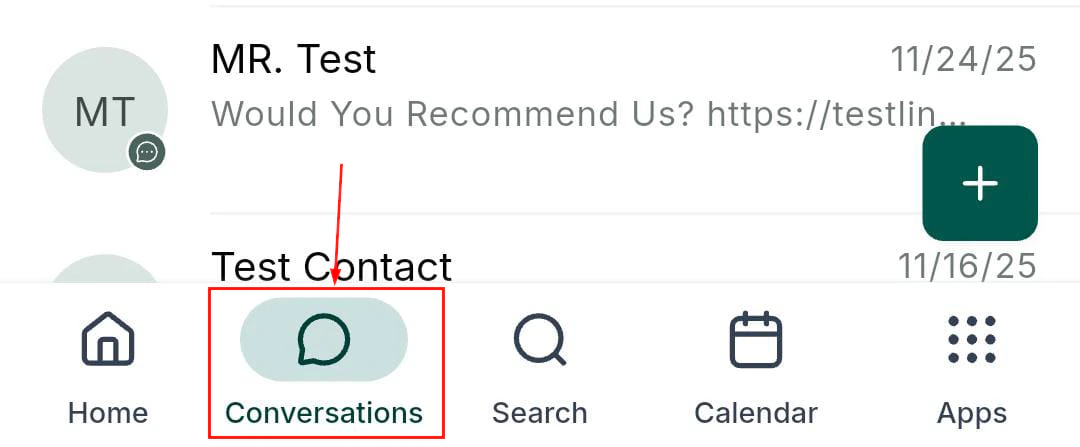
Inbox selector — switch between team, personal, and internal
Filtering conversations
Tap the filter icon to refine conversations by read status, channel type, assigned user, and tags.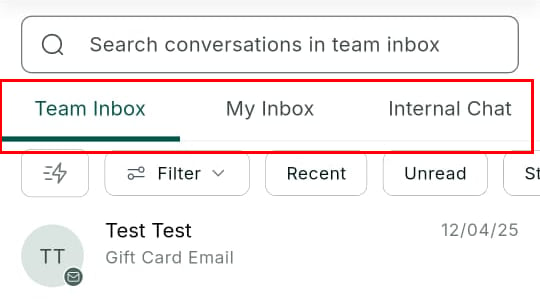
Conversation filter options
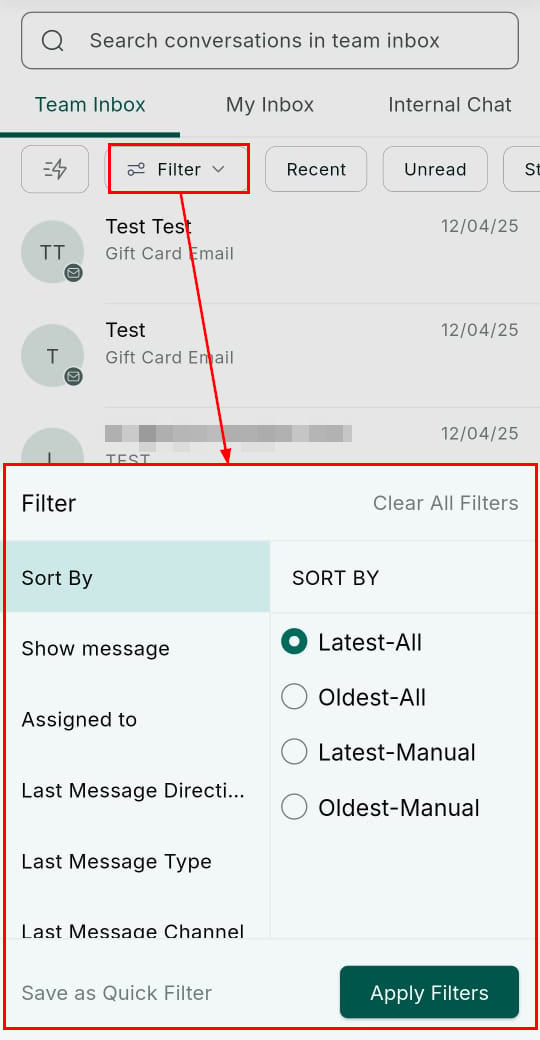
Additional filter controls
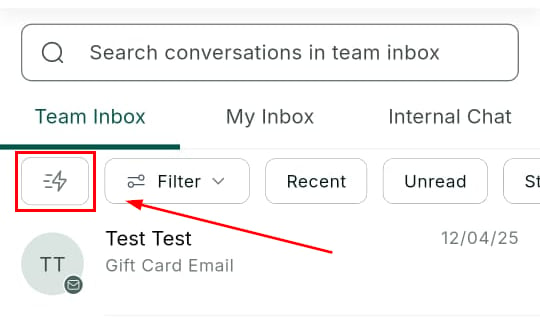
Quick filter bar for saved filters
Starting a new conversation
Tap the + icon to start a new outbound conversation.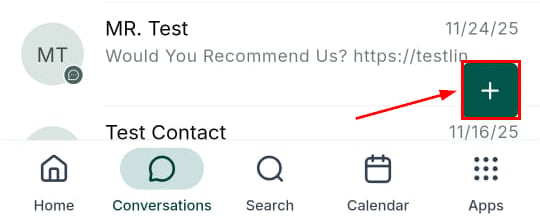
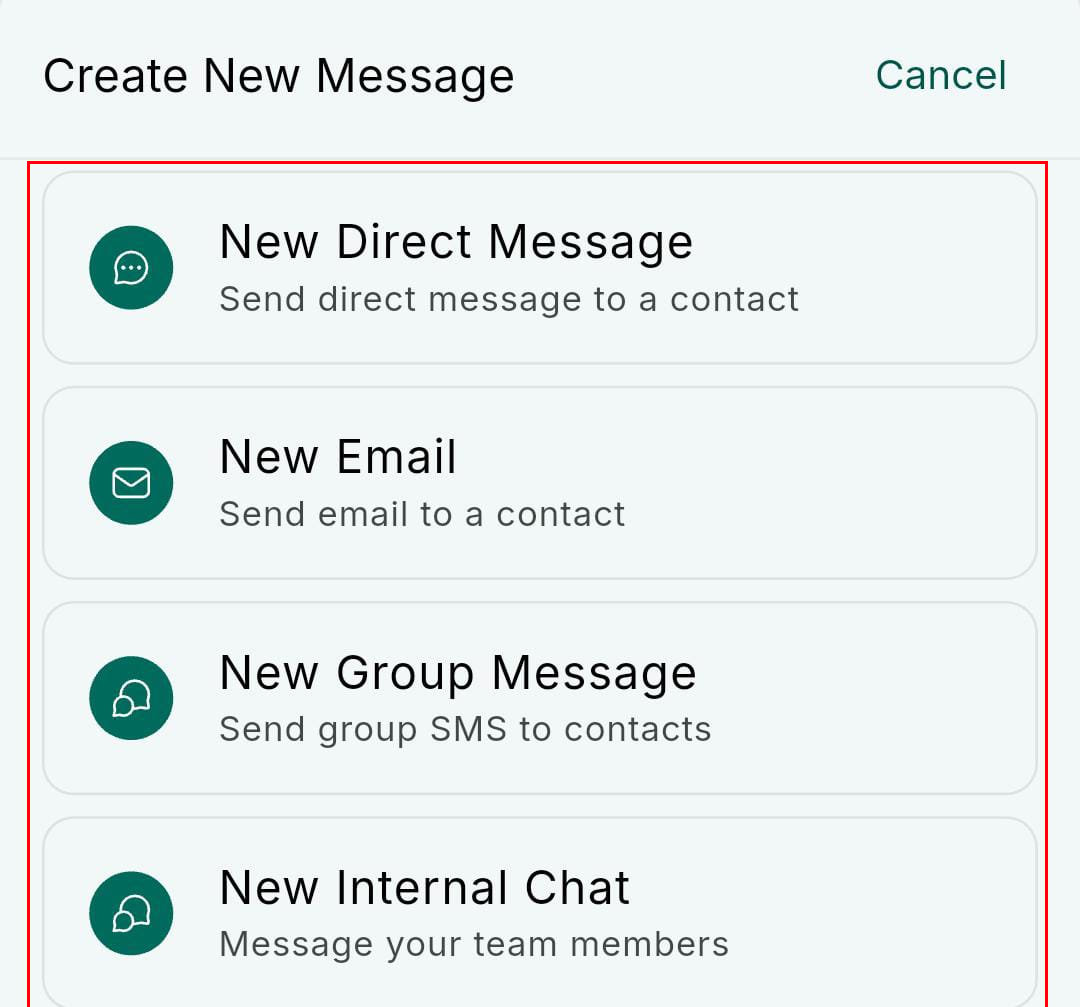
New conversation options — SMS, email, group chat, or internal
New message composition screen
- SMS — send a text message
- Email — compose an email
- Group chat — create a group SMS thread
- Internal notification — send an internal message to a team member
Conversation actions
Actions menu
From an open conversation, tap Actions to access: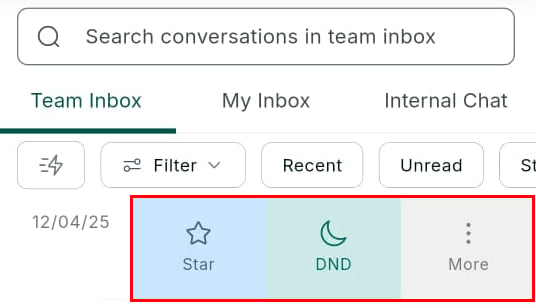
Conversation actions menu — schedule, create opportunity, review, and more
- Schedule an appointment
- Create an opportunity
- Send a review request
- View contact activity
- Add an internal comment
- Delete the conversation
More options
Tap the three-dot or More button in a conversation for additional management options: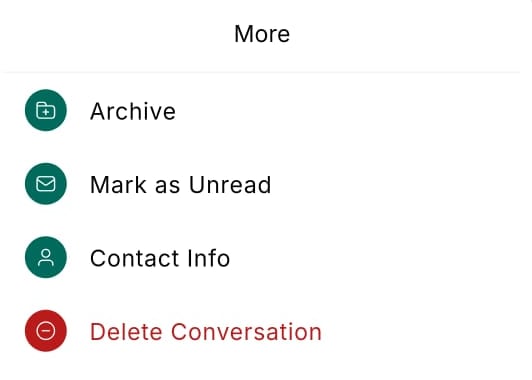
More options within a conversation
Bulk actions
Press and hold a conversation card to enter multi-select mode. Select additional conversations and use the action bar to bulk archive, mark as read/unread, assign, or delete.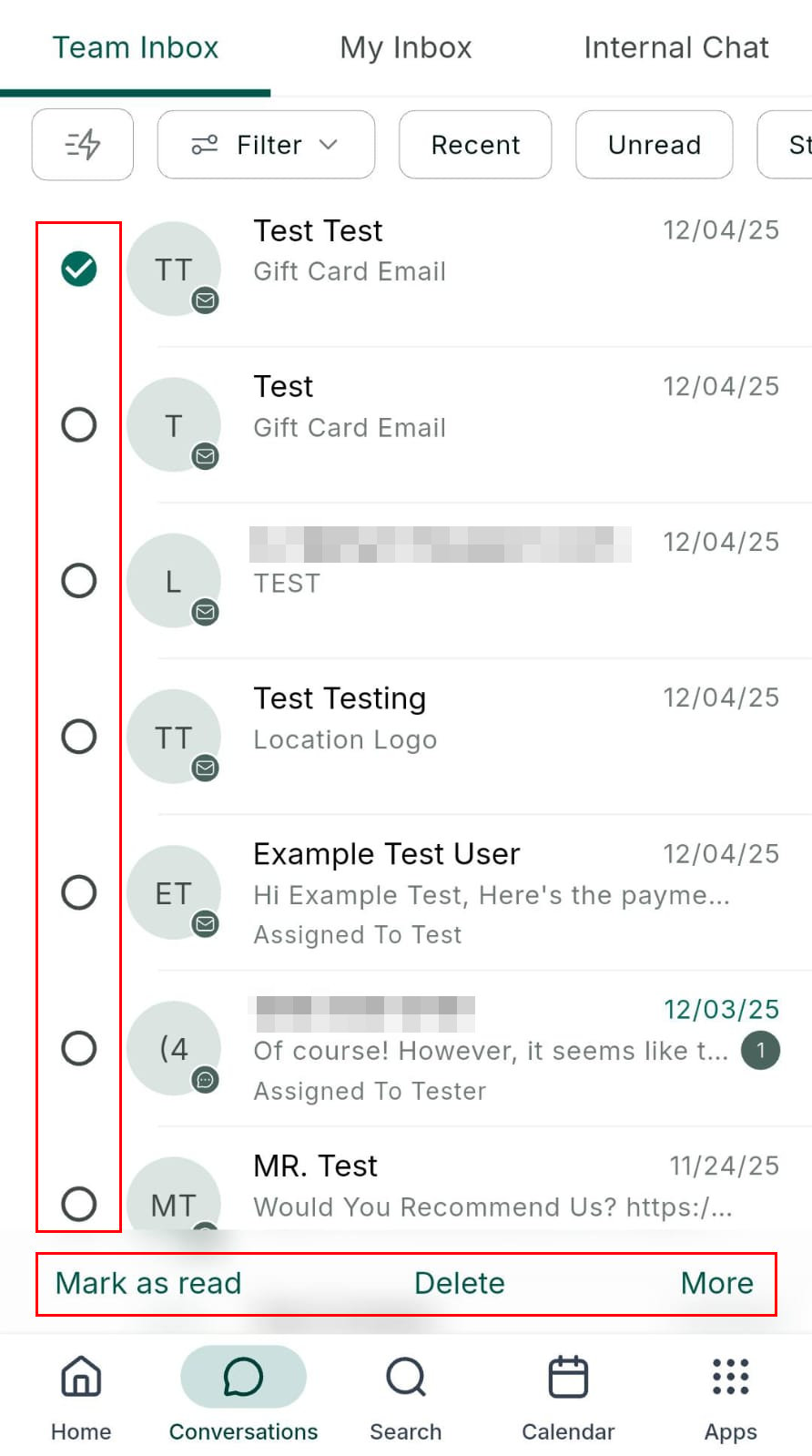
Bulk select mode — select multiple conversations for batch actions
Manage and star conversations
Use the manage option to star conversations for priority follow-up, enable Do Not Disturb (DND), or archive conversations you’ve resolved.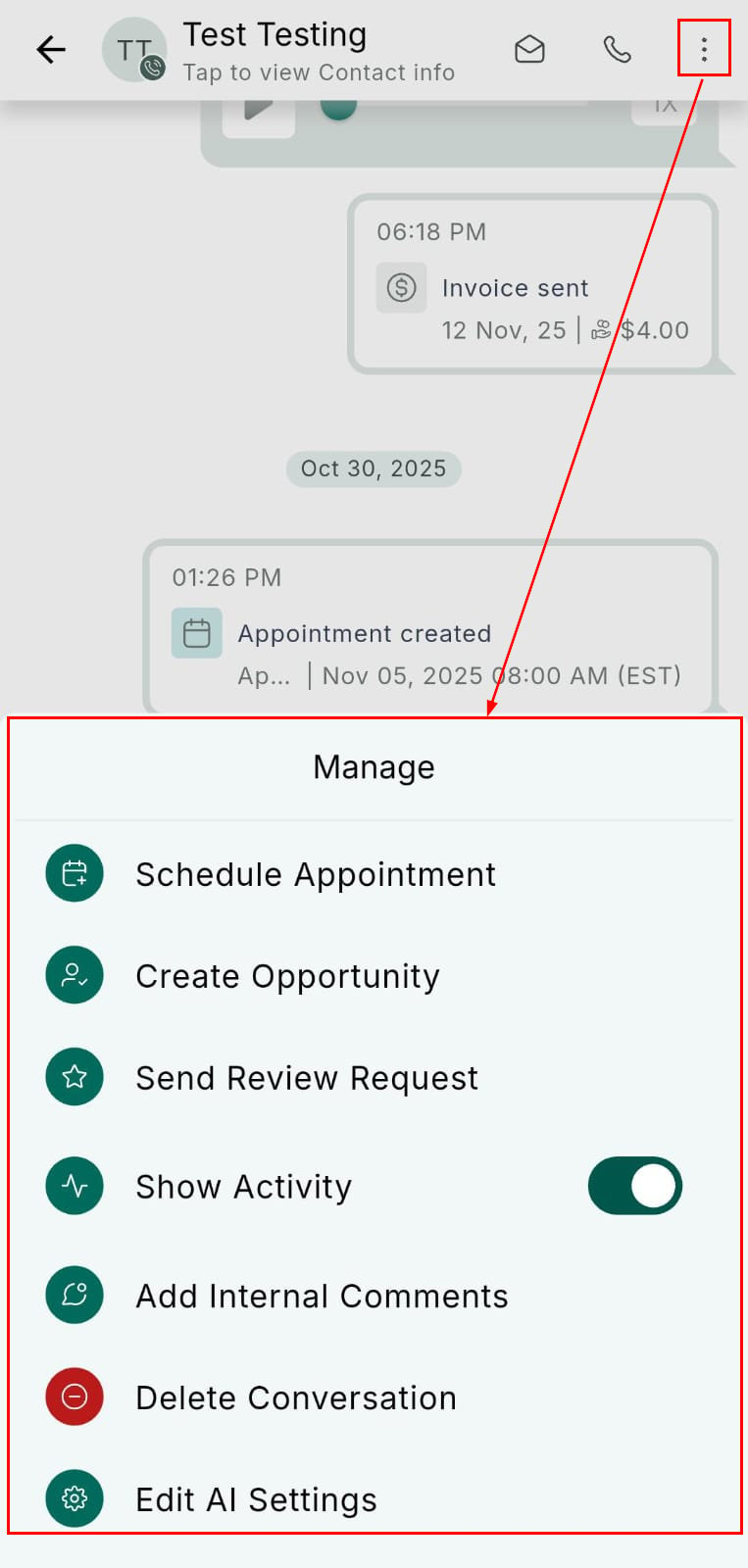
Manage conversation options — star, DND, archive
Sending messages
Tap the text box to open the message composer.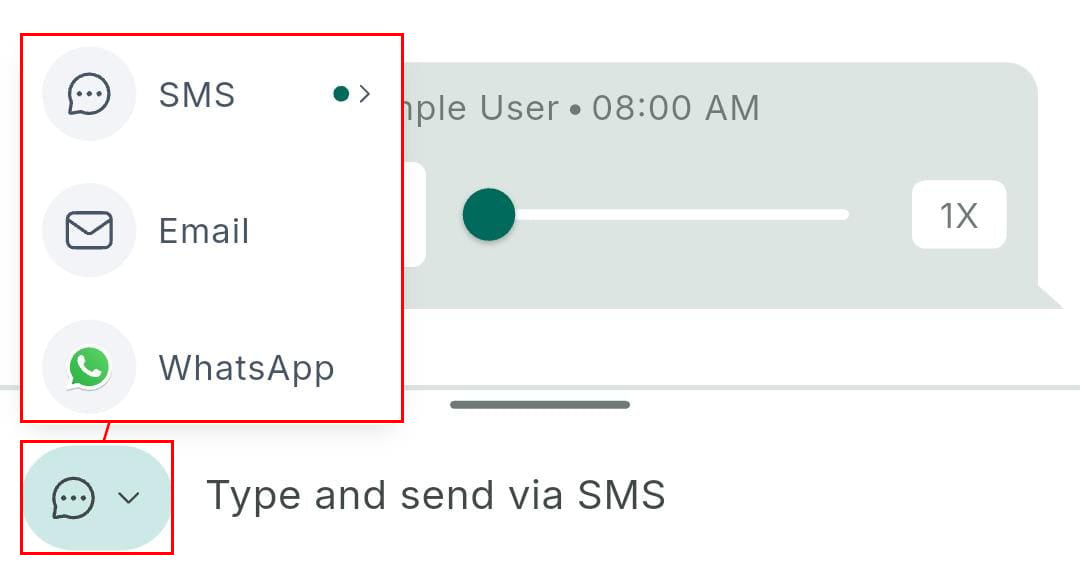
SMS message composer — attach media, schedule, or send instantly
- Attach media — tap the + icon to select files, take a photo, request payment, or insert custom values
- Schedule — tap the send options to schedule your message for a future time
- Send instantly — tap the send button to deliver immediately
- WhatsApp templates — in WhatsApp conversations, select a pre-approved interactive template
WhatsApp voice notes
In WhatsApp conversations, you can record and send voice notes directly from the mobile app.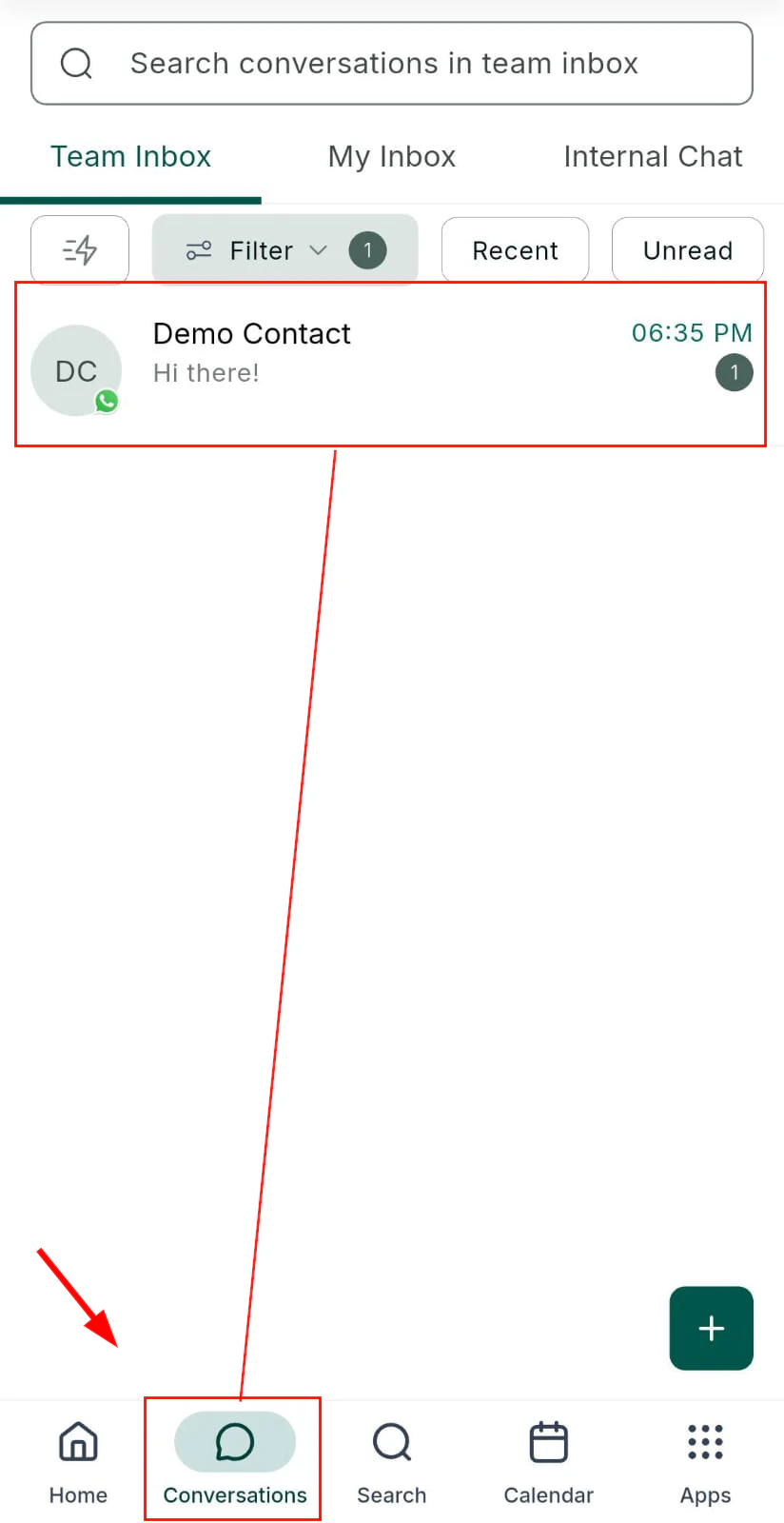
WhatsApp conversation with voice note recording
Open a WhatsApp conversation
Start recording
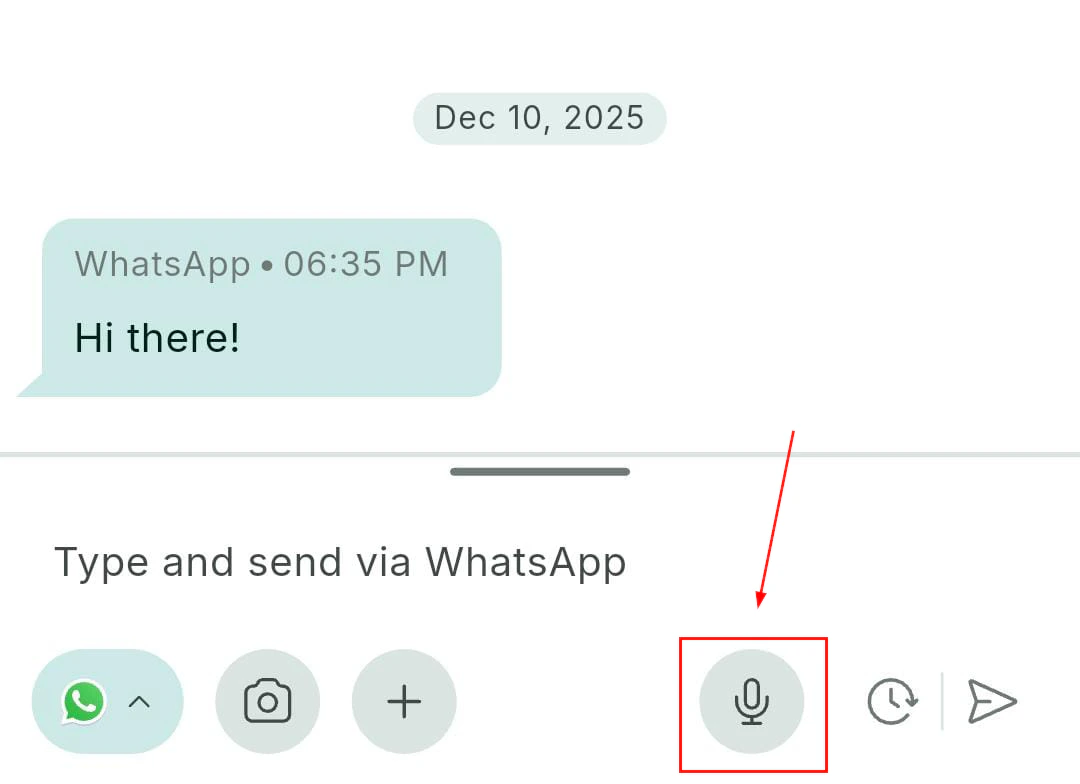
Recording in progress
Send the voice note
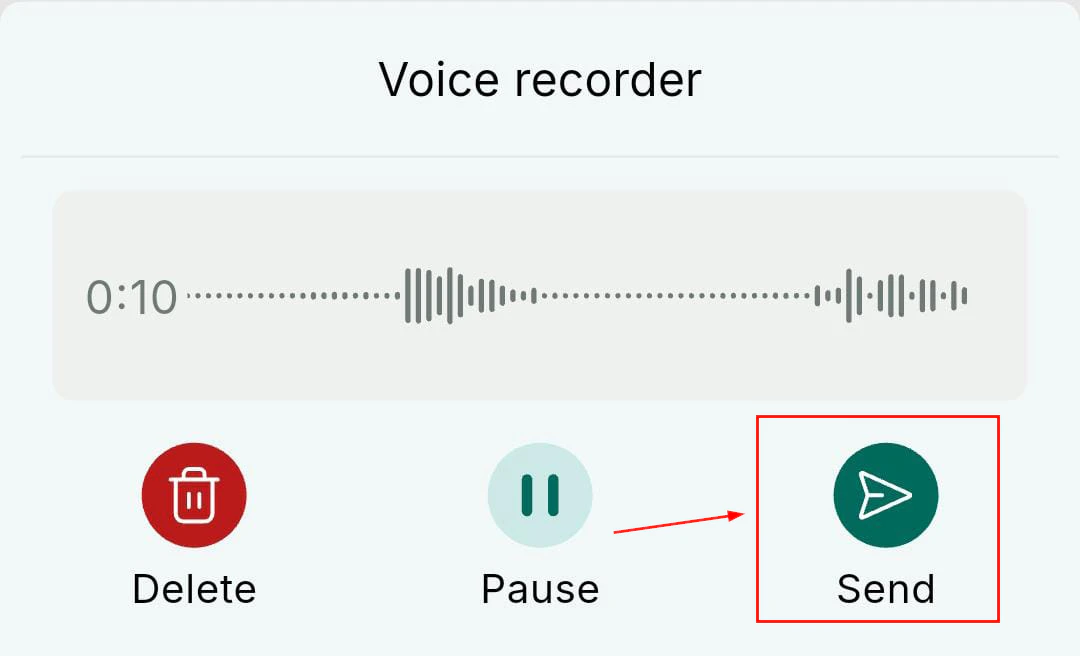
Send the recorded voice note
Email snippets
Access saved email snippets from the composition toolbar when writing an email. Select a snippet, edit it using the rich text editor (bold, italic, bullet lists, links), and send.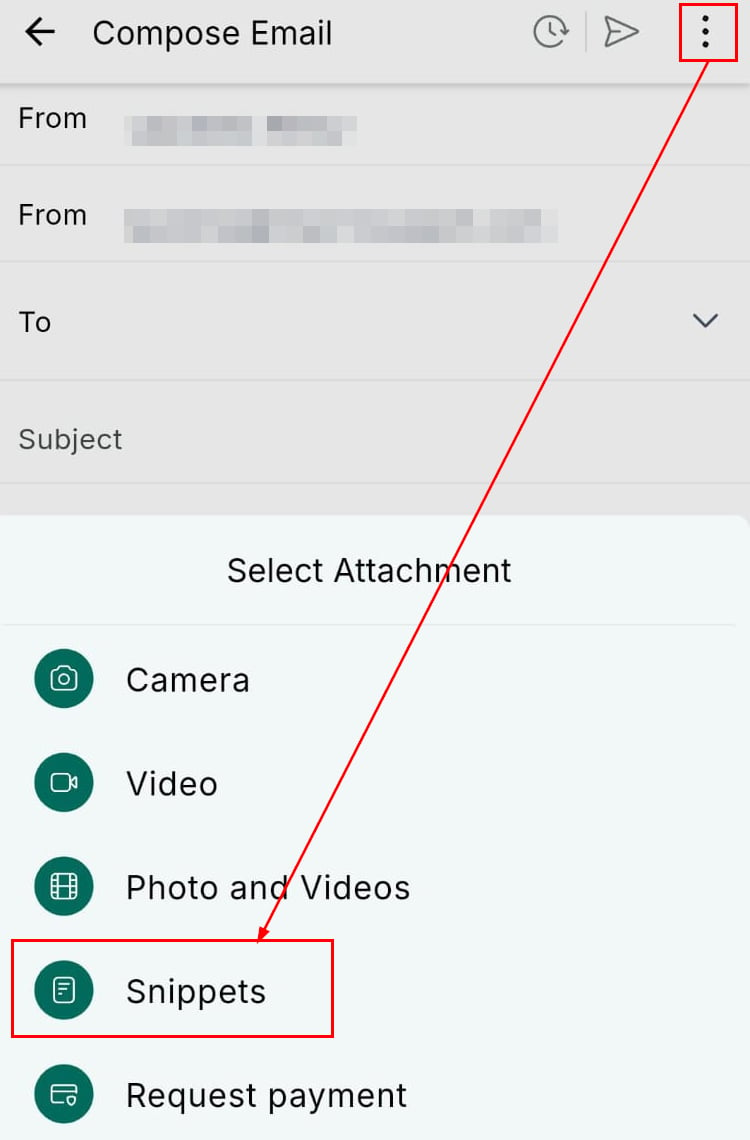
Email snippet selection screen
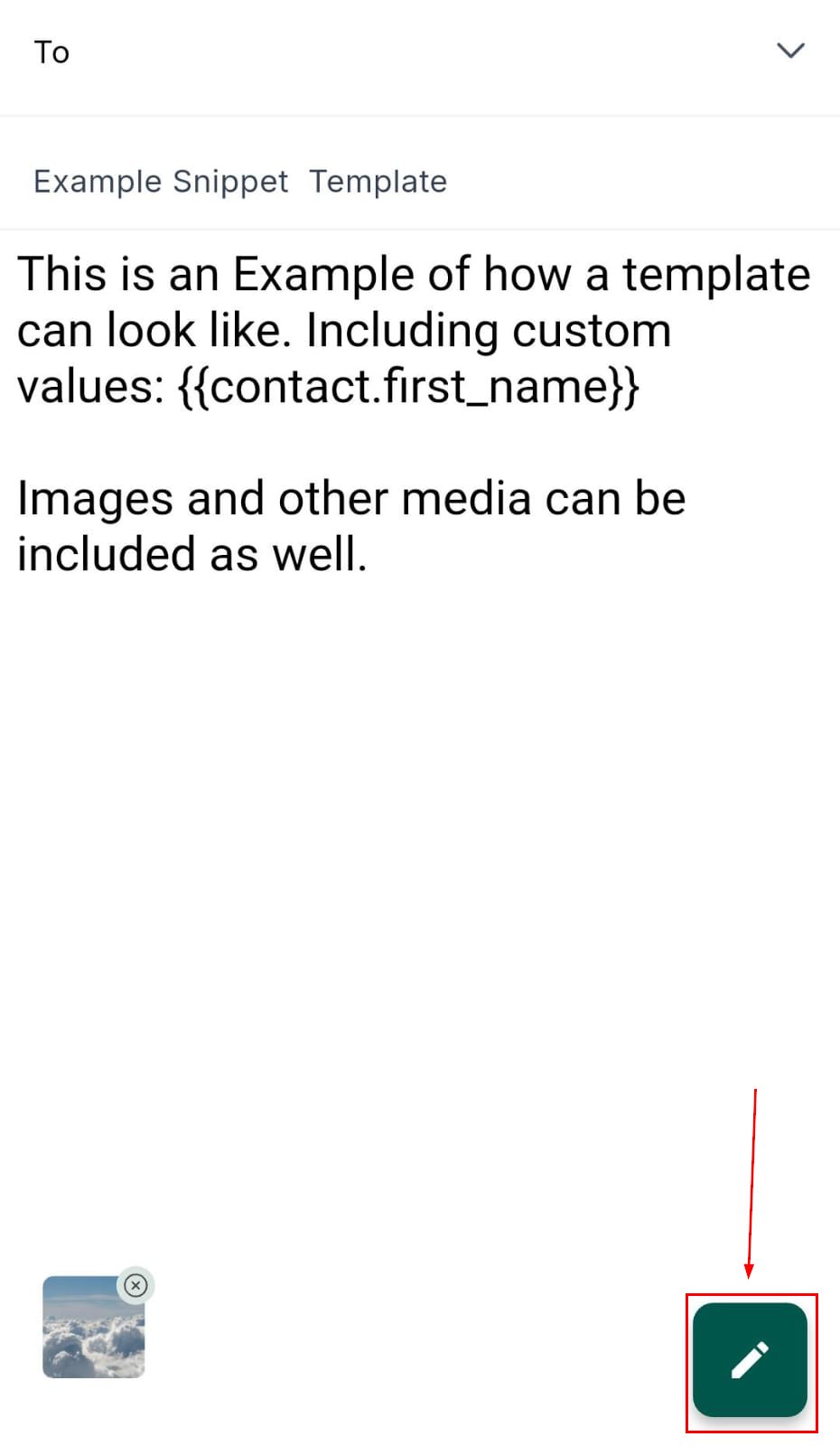
Editing an email snippet before sending
Conversation AI
Manage your Conversation AI agent directly from the mobile app. Toggle the AI on or off per conversation and monitor AI responses in real time.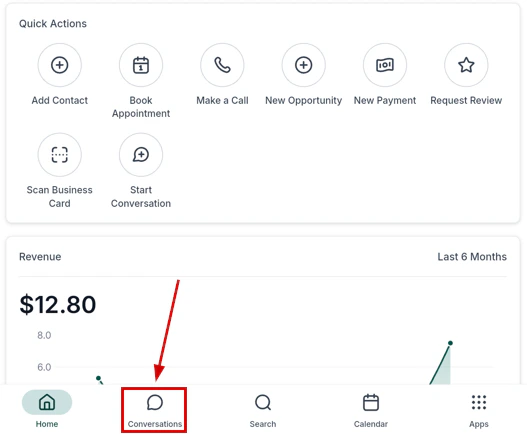
Conversation AI toggle within a conversation
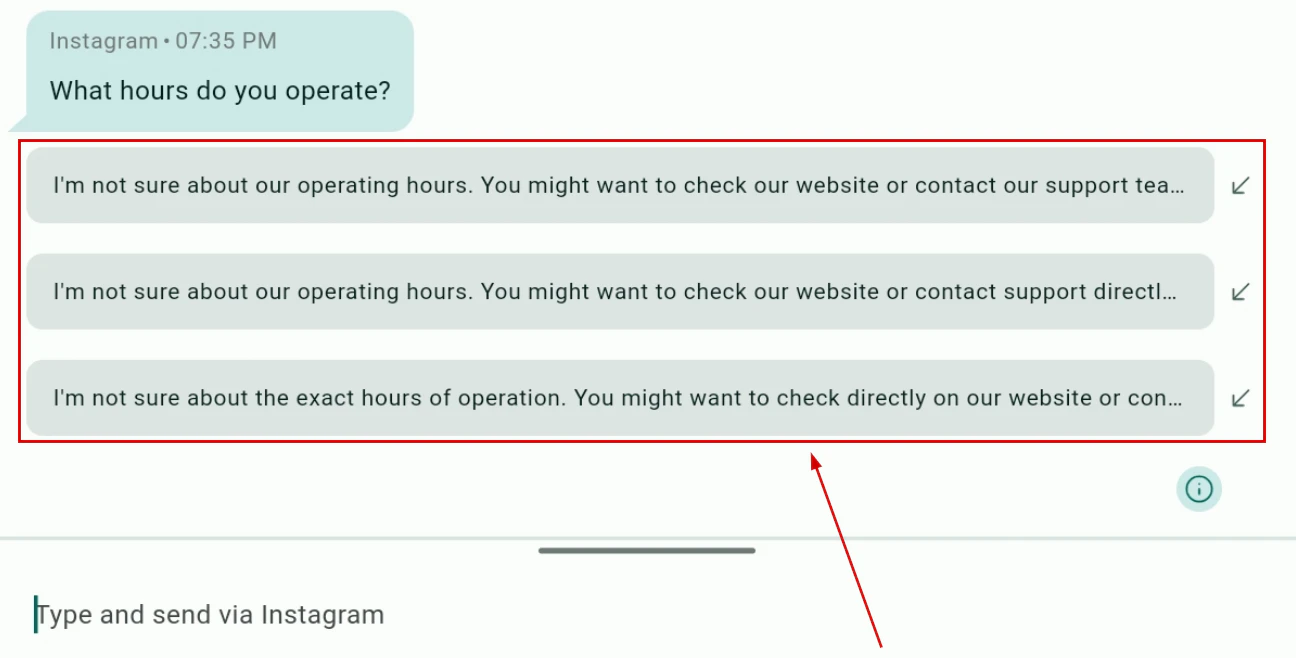
AI status and settings per conversation