

Enabling push notifications
The first time you open the HoopAI mobile app, your device will prompt you to allow notifications. Tap Allow to enable push notifications. If you tapped Don’t Allow by mistake, you can enable notifications manually:- iOS: Go to Settings > Notifications > Lead Connector and toggle Allow Notifications on. The app is listed as Lead Connector in your device settings.
- Android: Go to Settings > Apps > Lead Connector > Notifications and enable all notification categories.
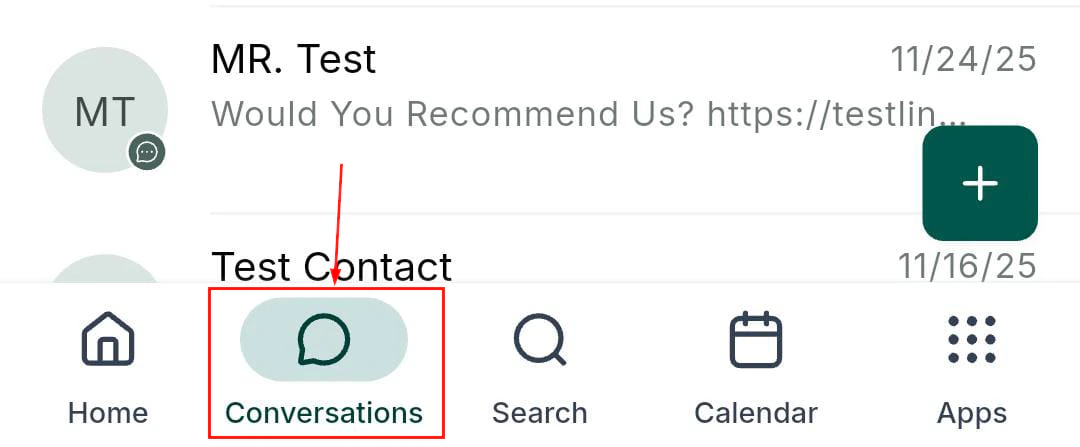
Enabling push notifications for the mobile app
Notification preferences in the app
You can control which types of notifications you receive directly from within the HoopAI platform. Navigate to My Profile > Notifications on the desktop platform (or in the app settings) to configure your preferences. Available notification delivery channels include:- Mobile app (push) — real-time push notifications to your phone
- Web app — in-browser badge and alert
- Desktop — native OS notification on macOS or Windows
- Email — email digest or immediate email alert
- SMS — text message alert to your number
Notification types
Conversations
- New inbound message — fires when a contact sends you an SMS, email, Facebook message, WhatsApp, or live chat message
- New internal message — fires when a team member sends you an internal note or mentions you in a conversation
- Unread conversation — reminder when a conversation remains unread after a set period
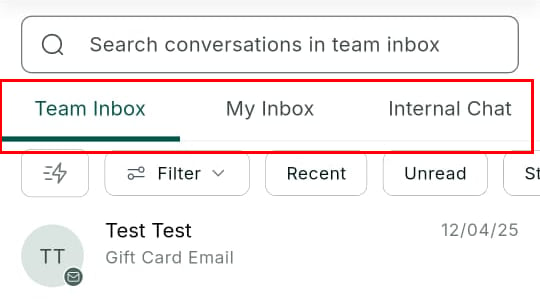
Conversation notifications in the mobile inbox
Calls
- Missed call — fires immediately when an inbound call is not answered
- New voicemail — fires when a contact leaves a voicemail on your connected number
- Inbound call — fires the moment a call arrives, prompting you to answer from the mobile app
Appointments
- Appointment booked — fires when a new appointment is scheduled on any of your calendars
- Appointment cancelled — fires when a contact cancels an existing booking
- Appointment reminder — sent at a configurable interval before the appointment starts
Opportunities
- Opportunity assigned — fires when an opportunity is assigned or reassigned to you
- Stage change — fires when a deal you own moves to a new pipeline stage
Reviews
- New Google review — fires when a new review is posted to your connected Google Business Profile
- New Facebook review — fires when a new review is posted to your connected Facebook page
Tasks
- Task assigned — fires when a new task is assigned to you
- Task due soon — reminder fired at a configurable interval before a task’s due date
Managing notification sounds and badges
On iOS, you can configure alert style (banner, persistent, or none), badge counts, and sounds per notification type from Settings > Notifications > Lead Connector. On Android, you can create separate notification channels with different sounds and importance levels. The app badge on your home screen displays the count of unread conversations and unread notifications, helping you prioritize at a glance.
Notification badge and sound settings on mobile