

Media library
The Media Library is a centralized hub for all your media files — images, videos, and documents used across the platform in emails, funnels, social posts, and more.Accessing the media library
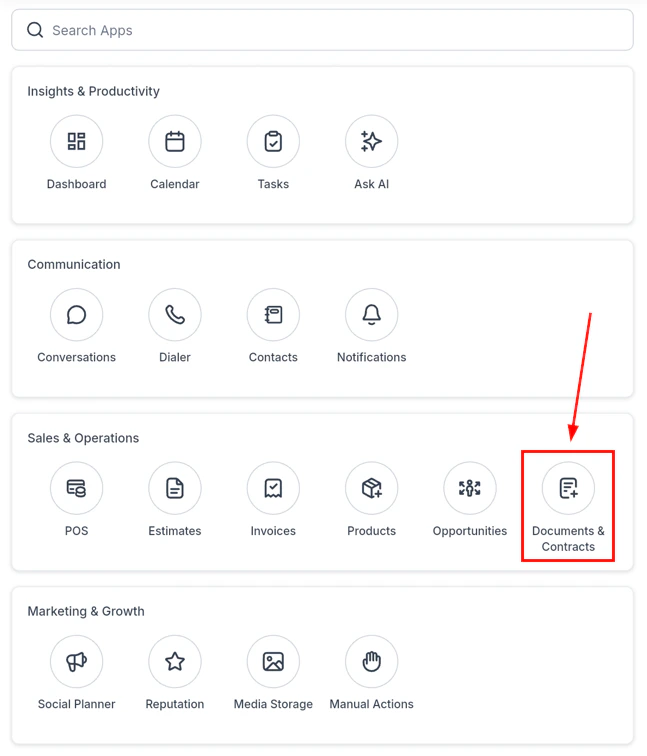
From the navigation, tap the apps section, then select Media Library.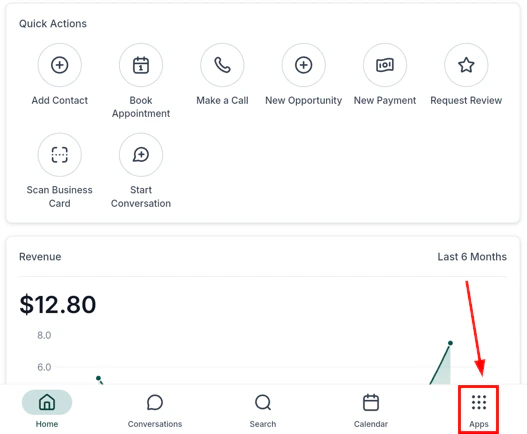
HoopAI mobile app — navigation to Media Library
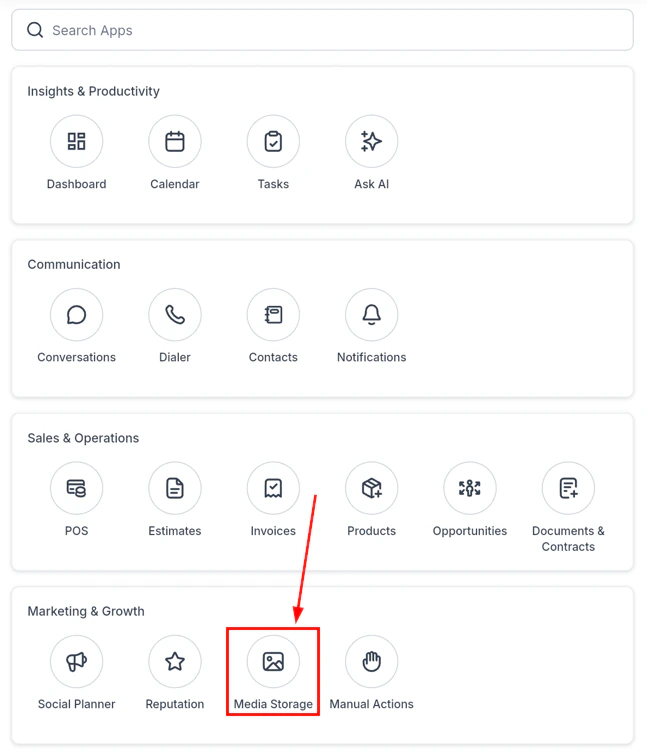
Media Library main view — browse all uploaded files
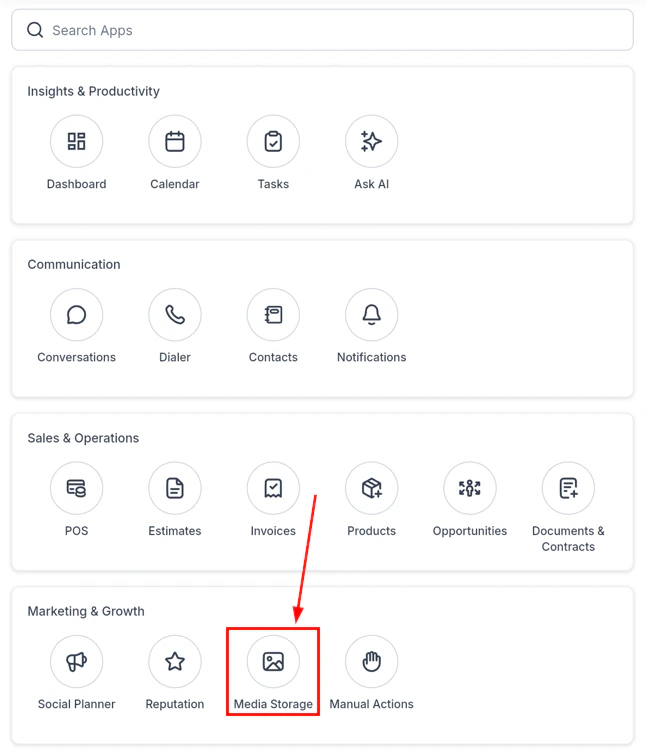
Media Library navigation inside the app
Uploading files
Tap the + or upload icon to add new files from:- Your device camera (capture a new photo or video)
- Photo library or gallery
- Files app (cloud storage, downloads)
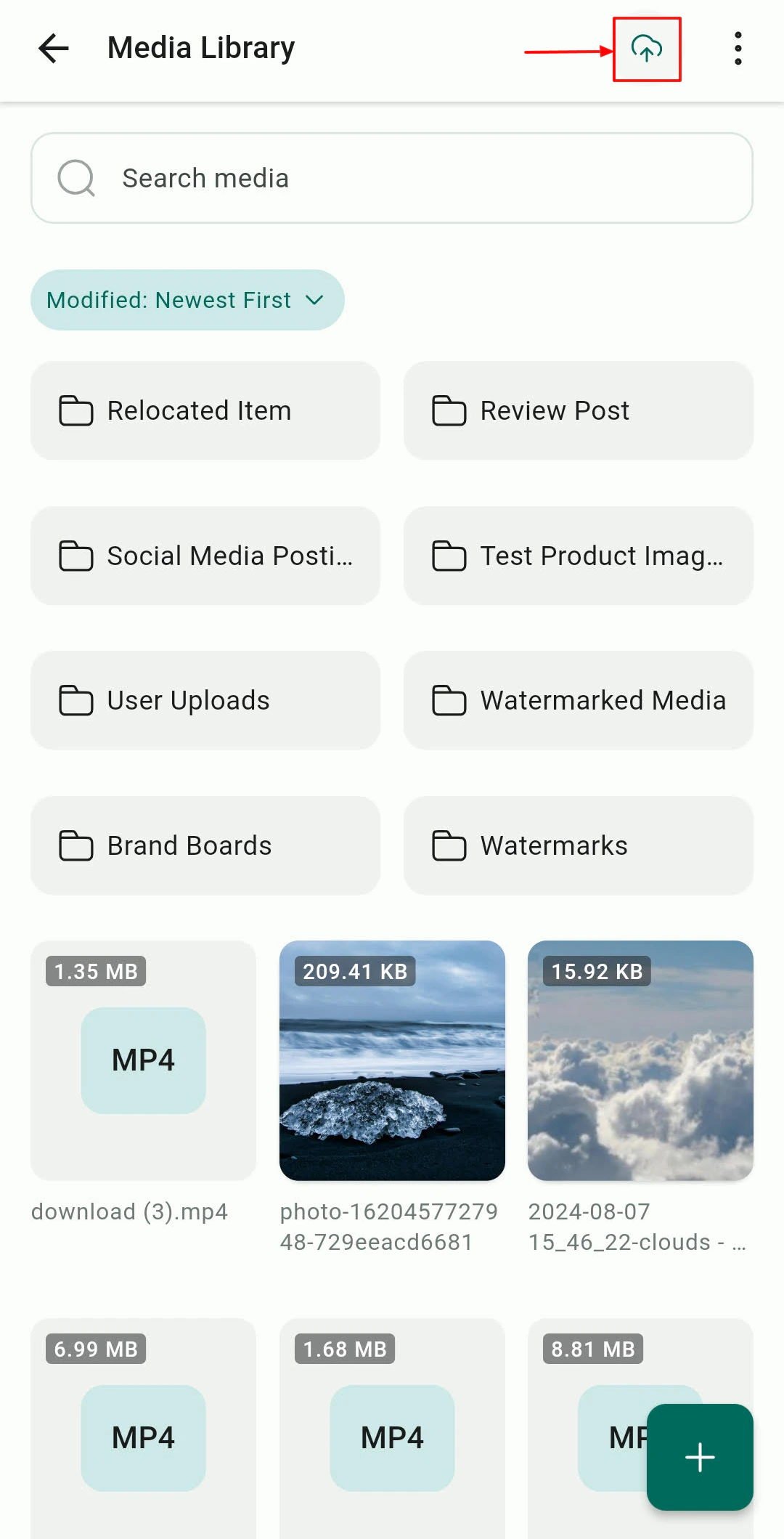
Upload options — camera, library, or files app
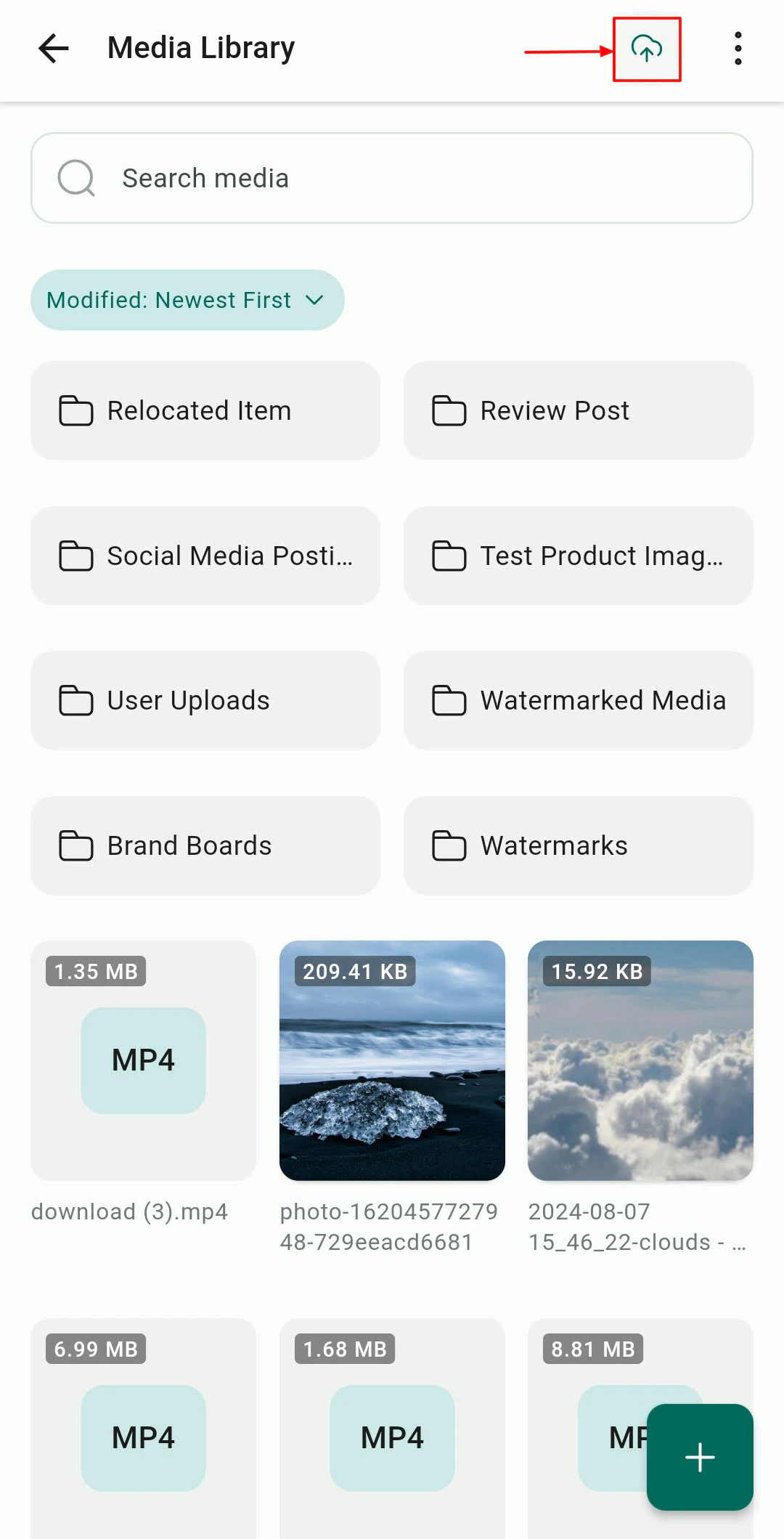
Upload media from your device gallery
Browsing and organizing files
What you can do in the media library: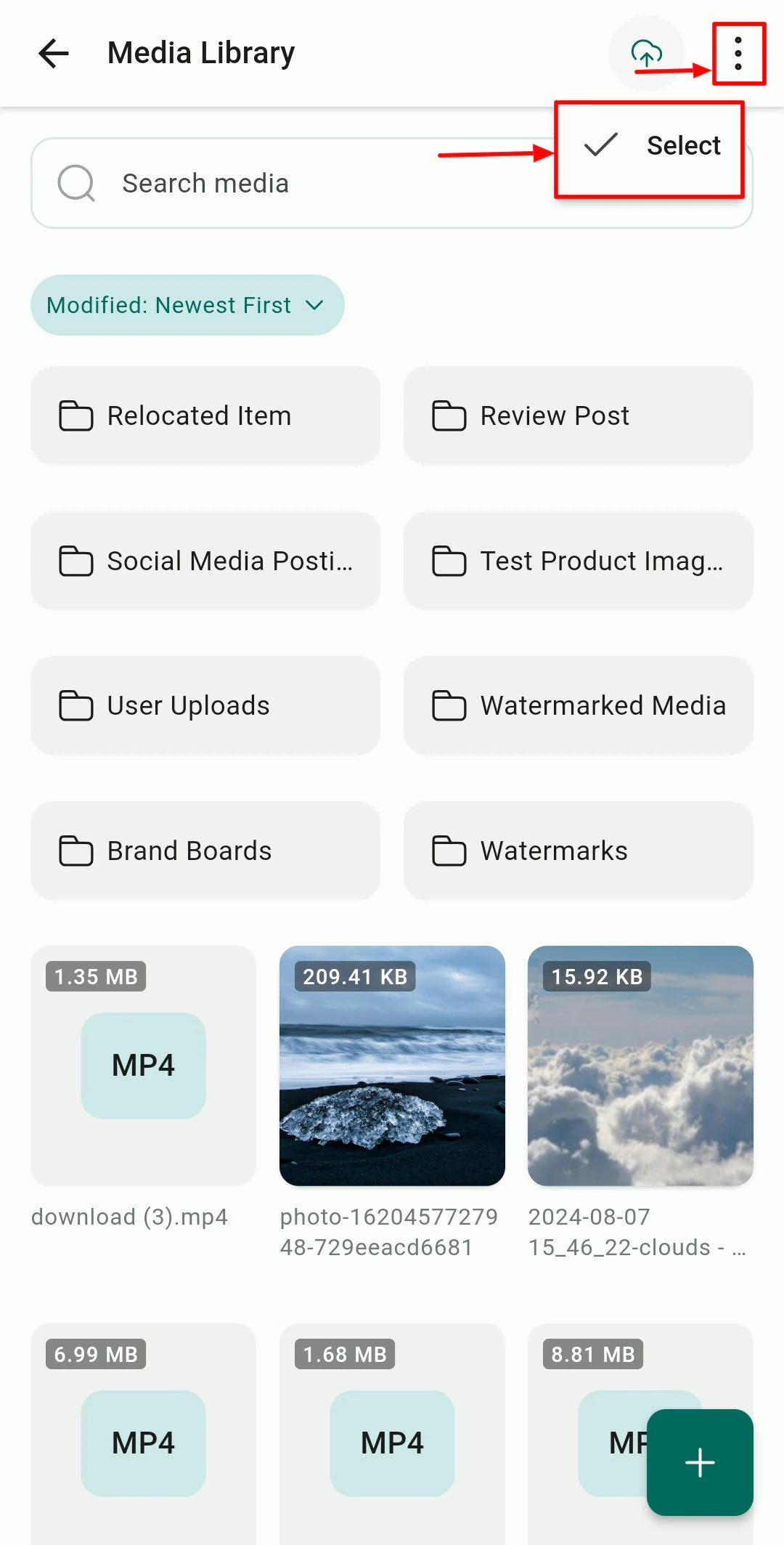
Media files organized by folder
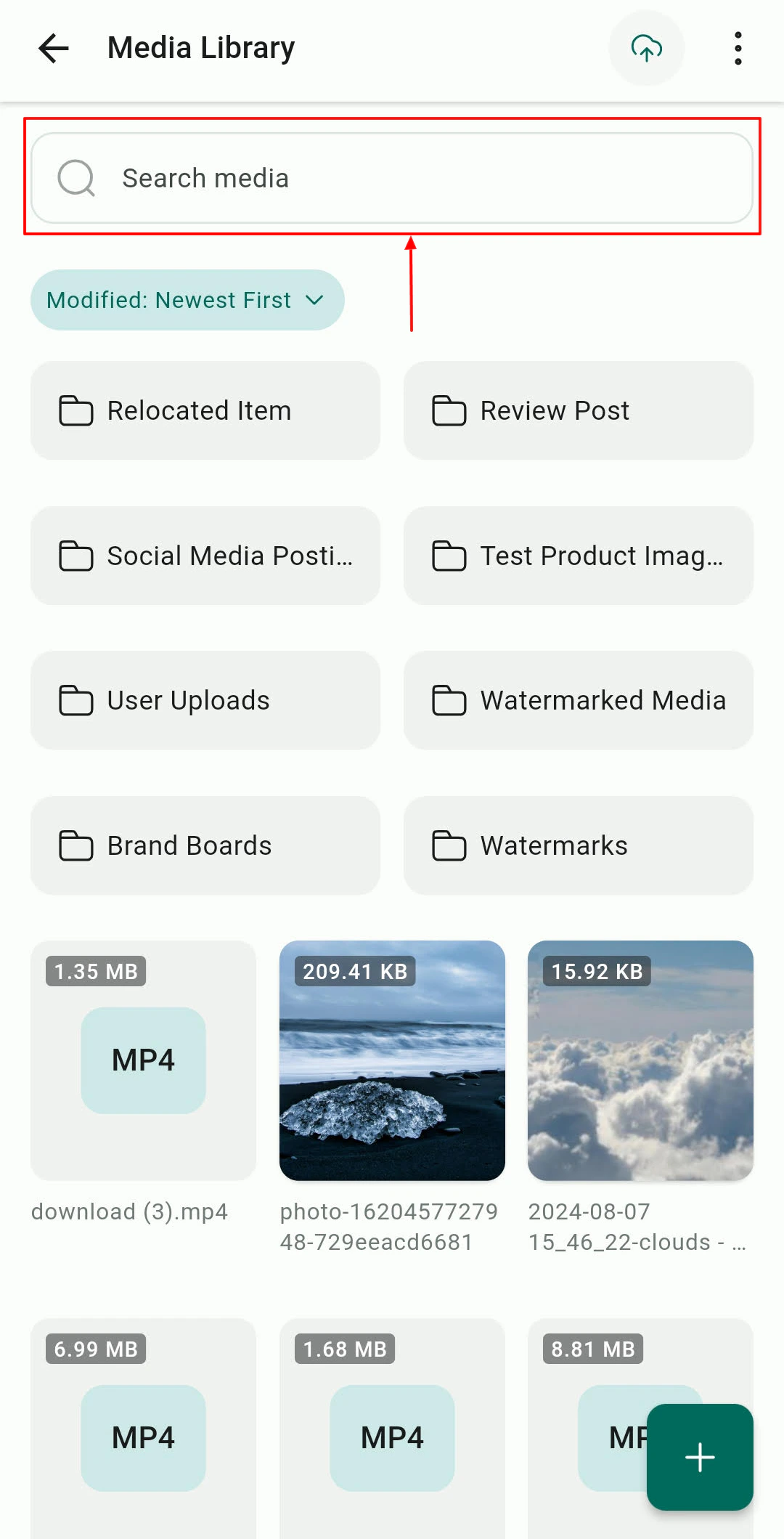
Camera capture for direct media upload
Browse
Search
Share links
Use in posts
Using media in social posts
When creating a social post in the Social Planner, tap the Media option to select images or videos directly from the Media Library without switching apps.Documents and files on contacts
Each contact record can have documents and files attached directly. Open, preview, and manage these from the mobile app without downloading to your device.Accessing contact documents
Open a contact’s profile and navigate to the Documents & Files section. Tap any document to open and preview it inline.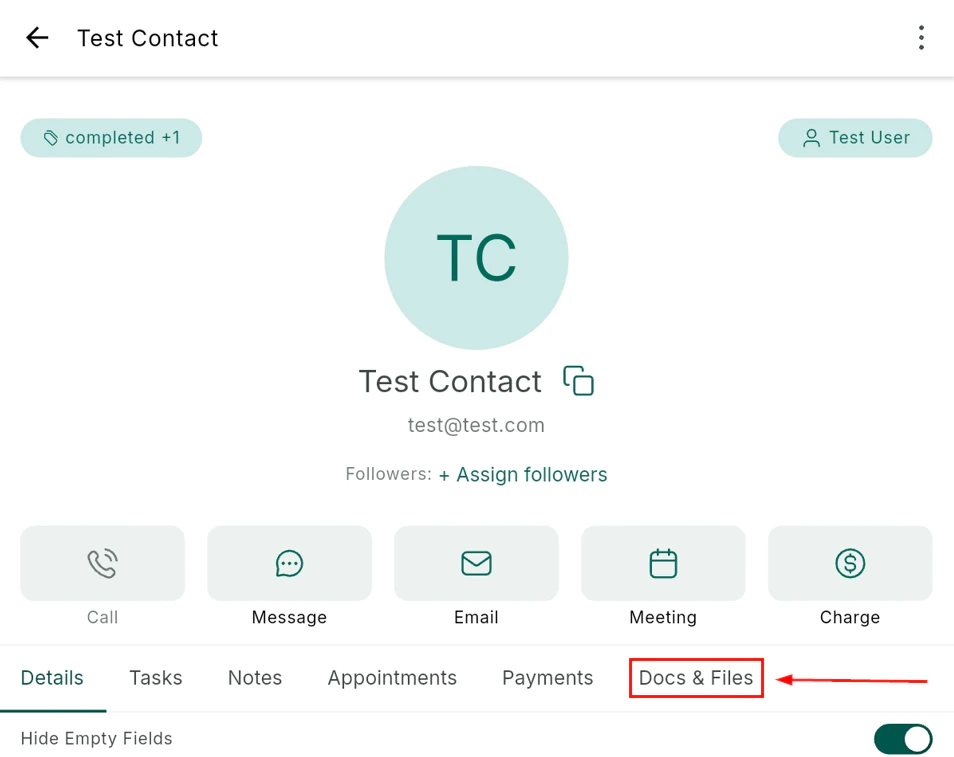
Contact documents and files section
Uploading files to a contact
From a contact’s Documents & Files section, tap the upload icon to add files from your device storage, camera, or cloud storage.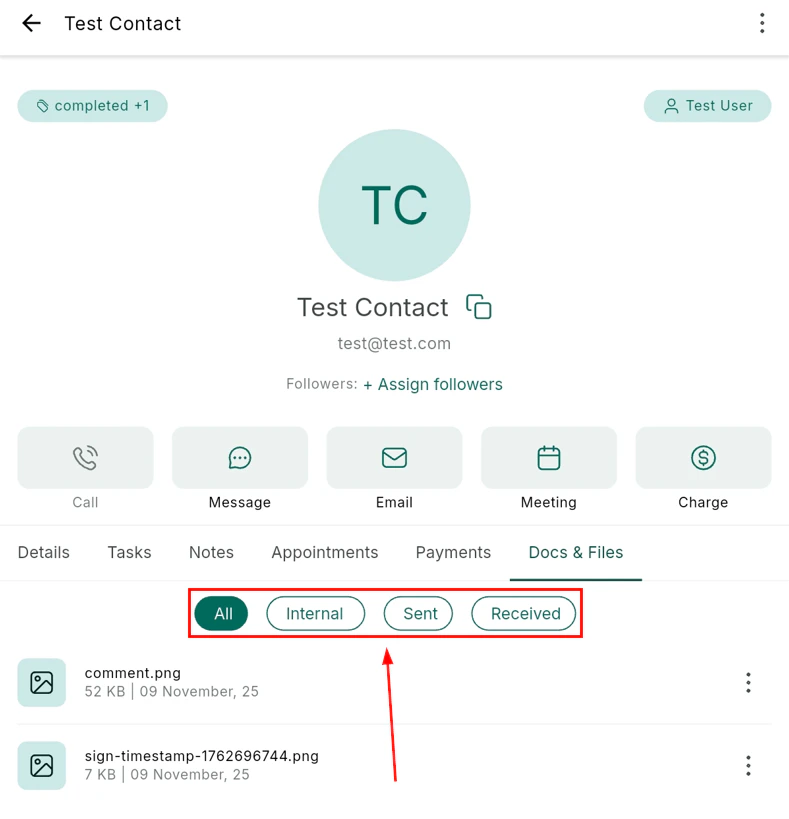
Upload a file to a contact record
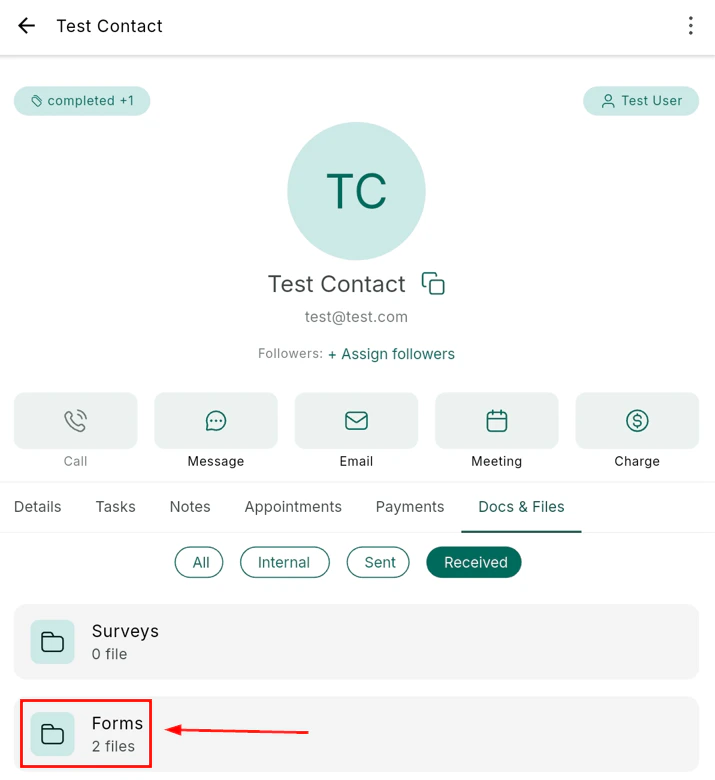
View files attached to a contact
Documents and contracts
For formal documents and contracts requiring signatures, navigate to the Documents section from within a contact profile or from the app’s main navigation.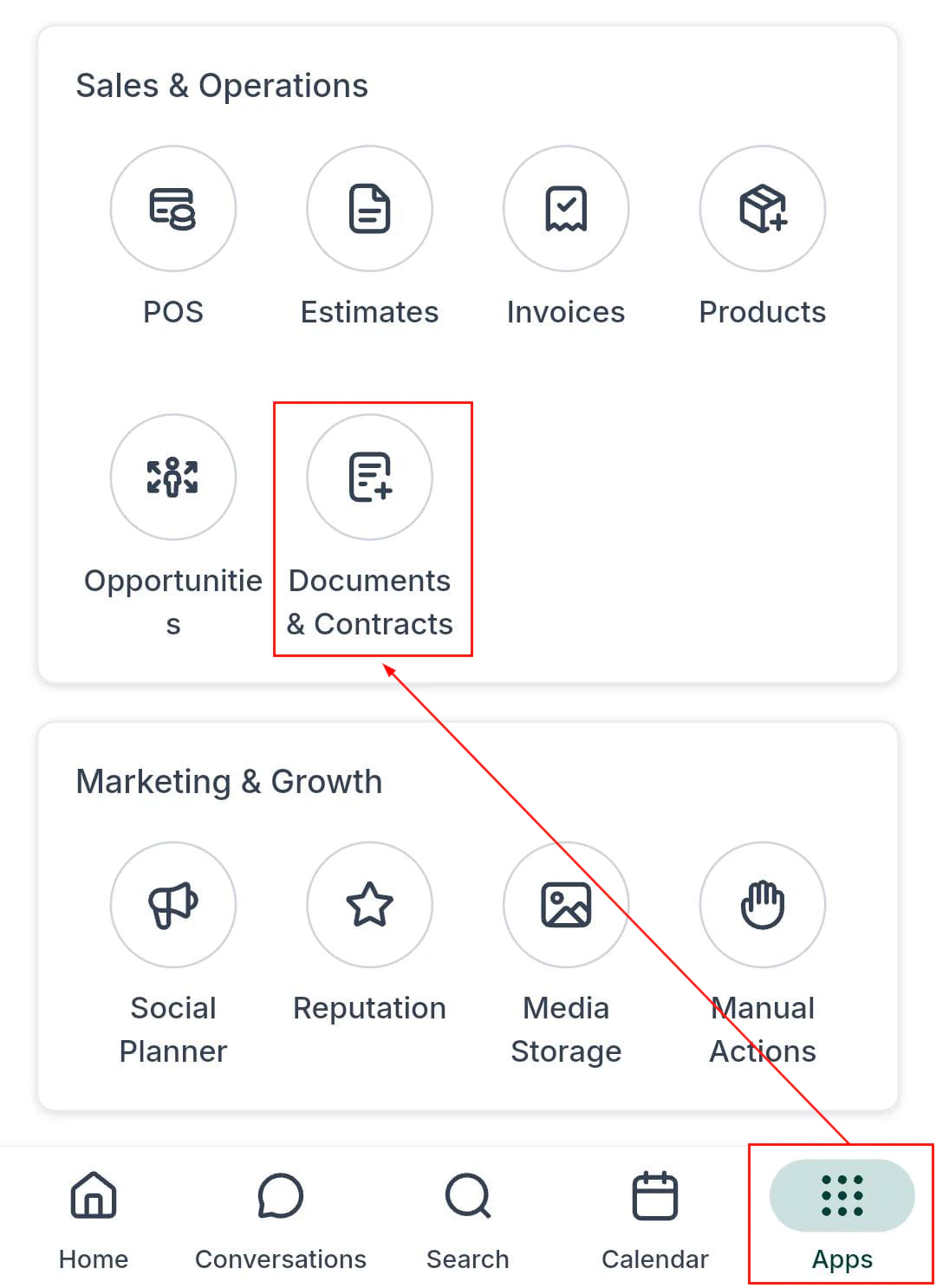
Documents section — all documents and contracts
Creating a document from a template
Open documents and tap Add New
Select a template
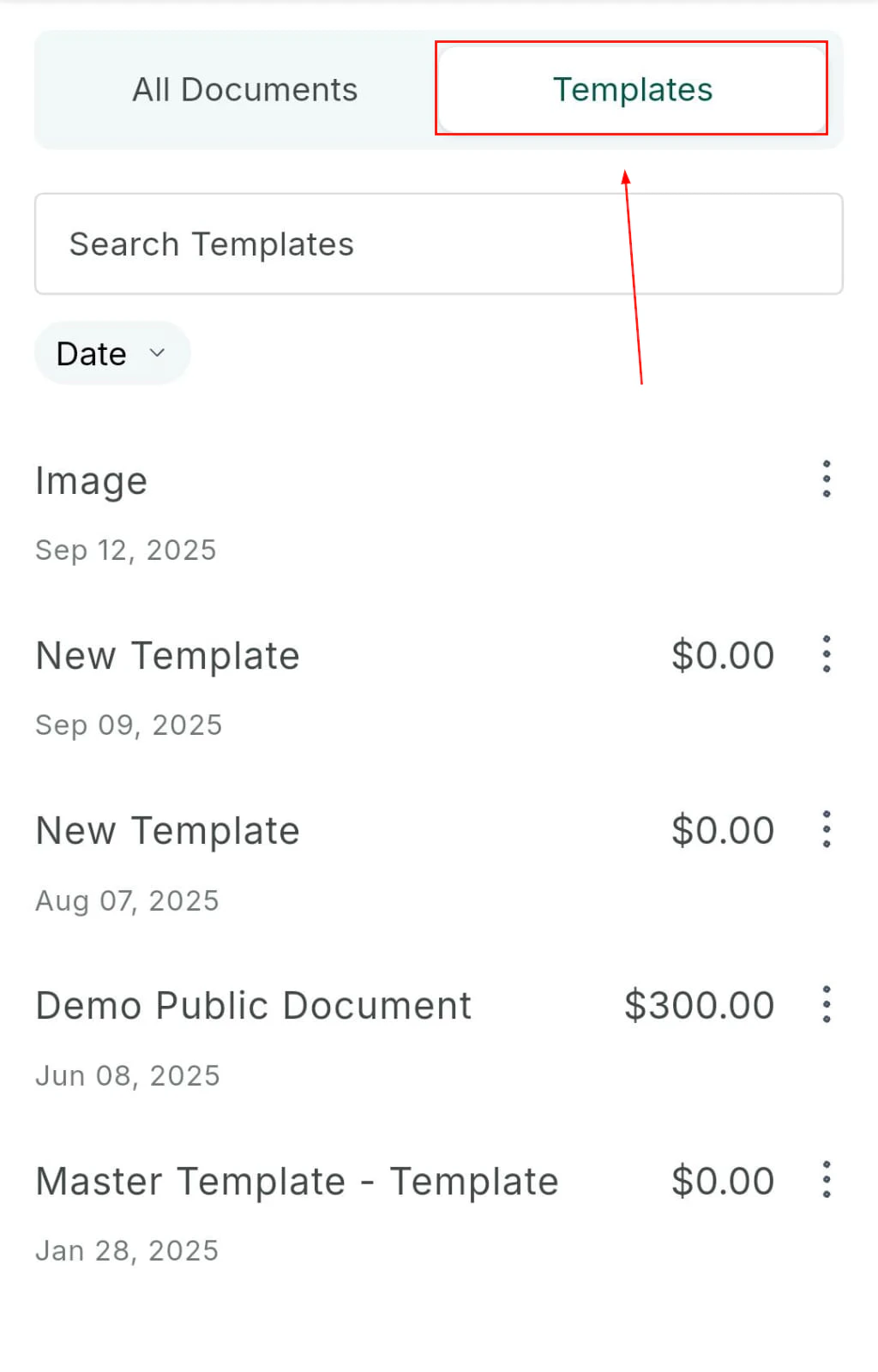
Select a document template
Name and review
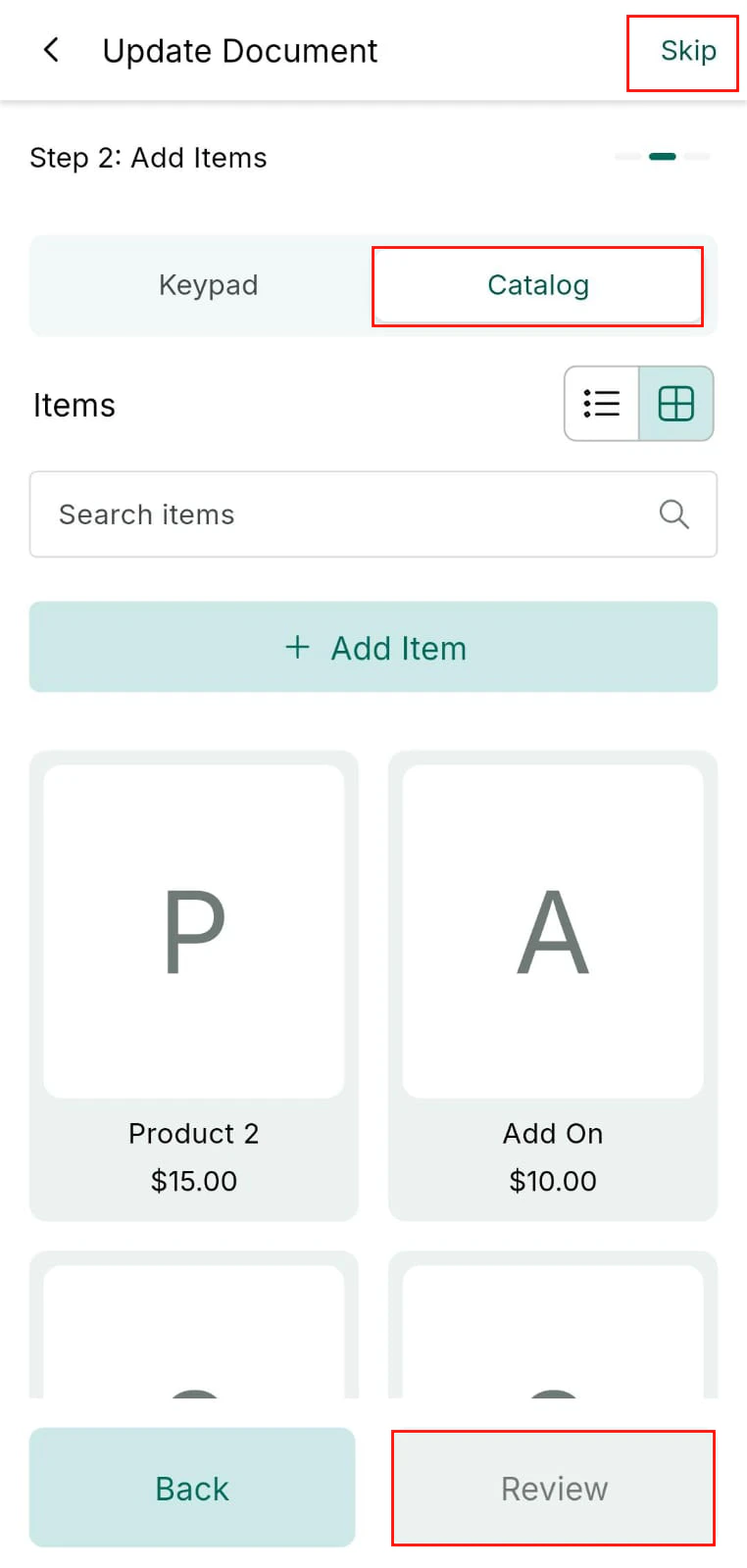
Review the document before sending
Send to the contact
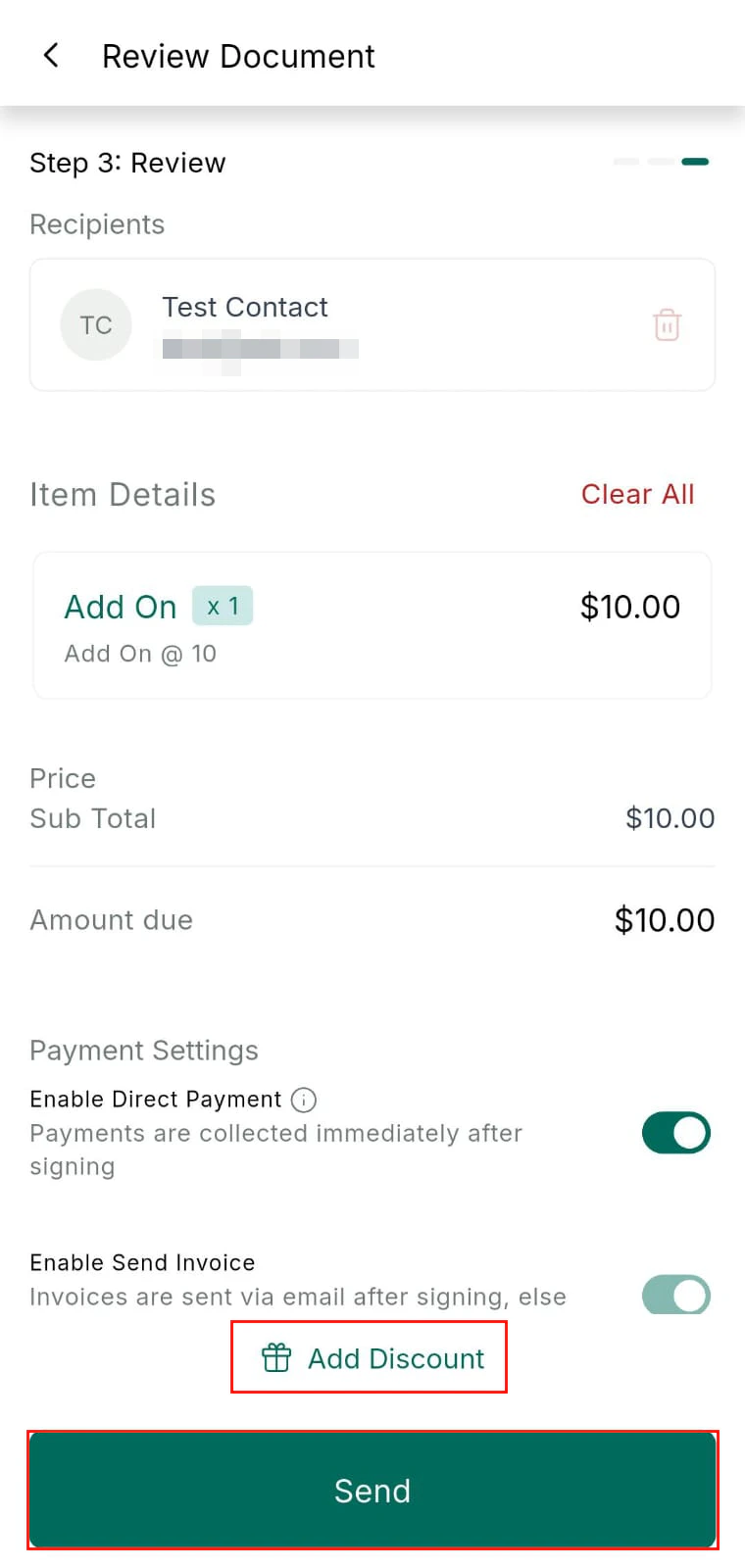
Send the document to the contact
Collecting in-person signatures
Collect an in-person digital signature — customer signs directly on the device screen
- Open the document or contract from a contact record
- Present your device to the signer
- The signer draws their signature directly on the screen
- The signed document is automatically saved and timestamped to the contact record
Conversation AI on mobile
The Conversation AI assistant can be enabled, paused, or monitored for individual contacts directly from the mobile app — giving you control without disabling AI globally.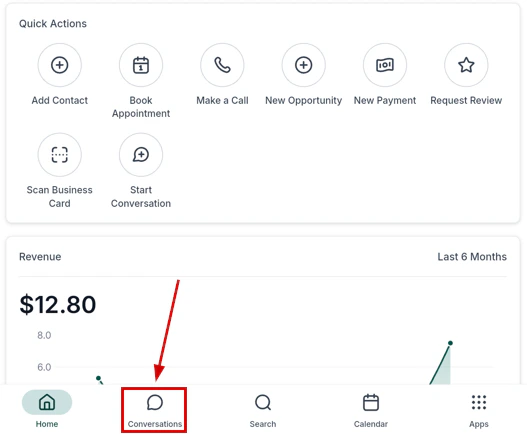
Conversation AI — toggle and status in a contact conversation
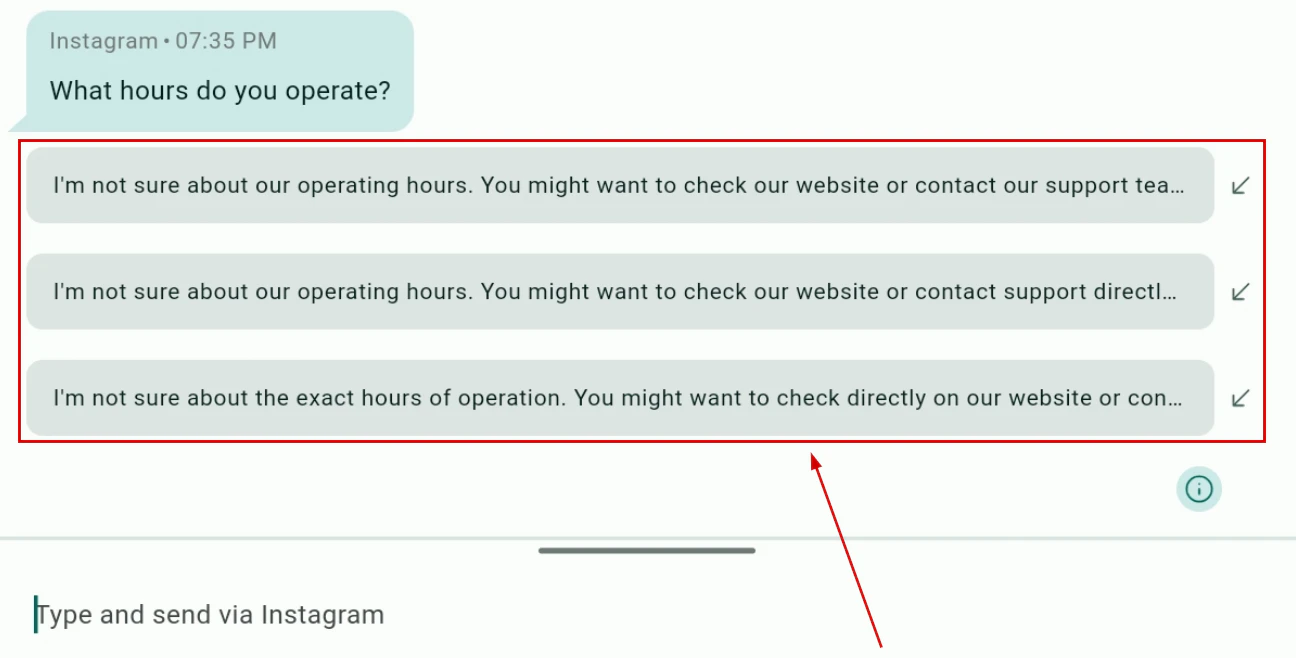
Conversation AI settings per conversation
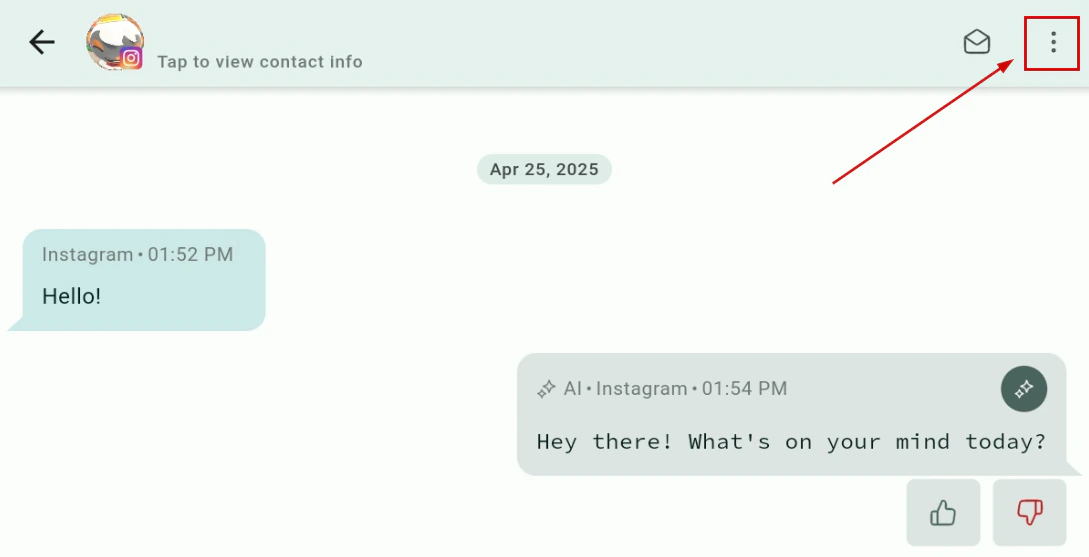
AI status indicator — on, paused, or off
Managing Conversation AI for a contact
Open the contact's conversation
Tap the AI icon
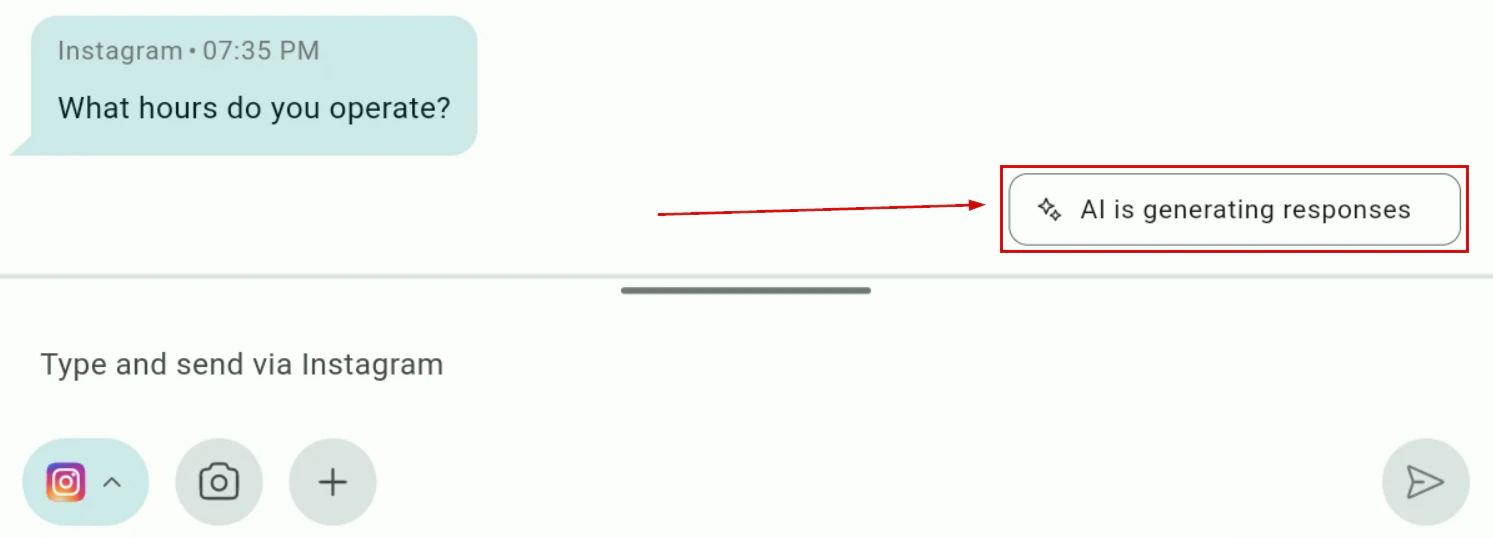
AI toggle button in the conversation toolbar
Toggle AI on or off
WhatsApp voice notes
In WhatsApp conversations, record and send voice notes directly from the mobile app.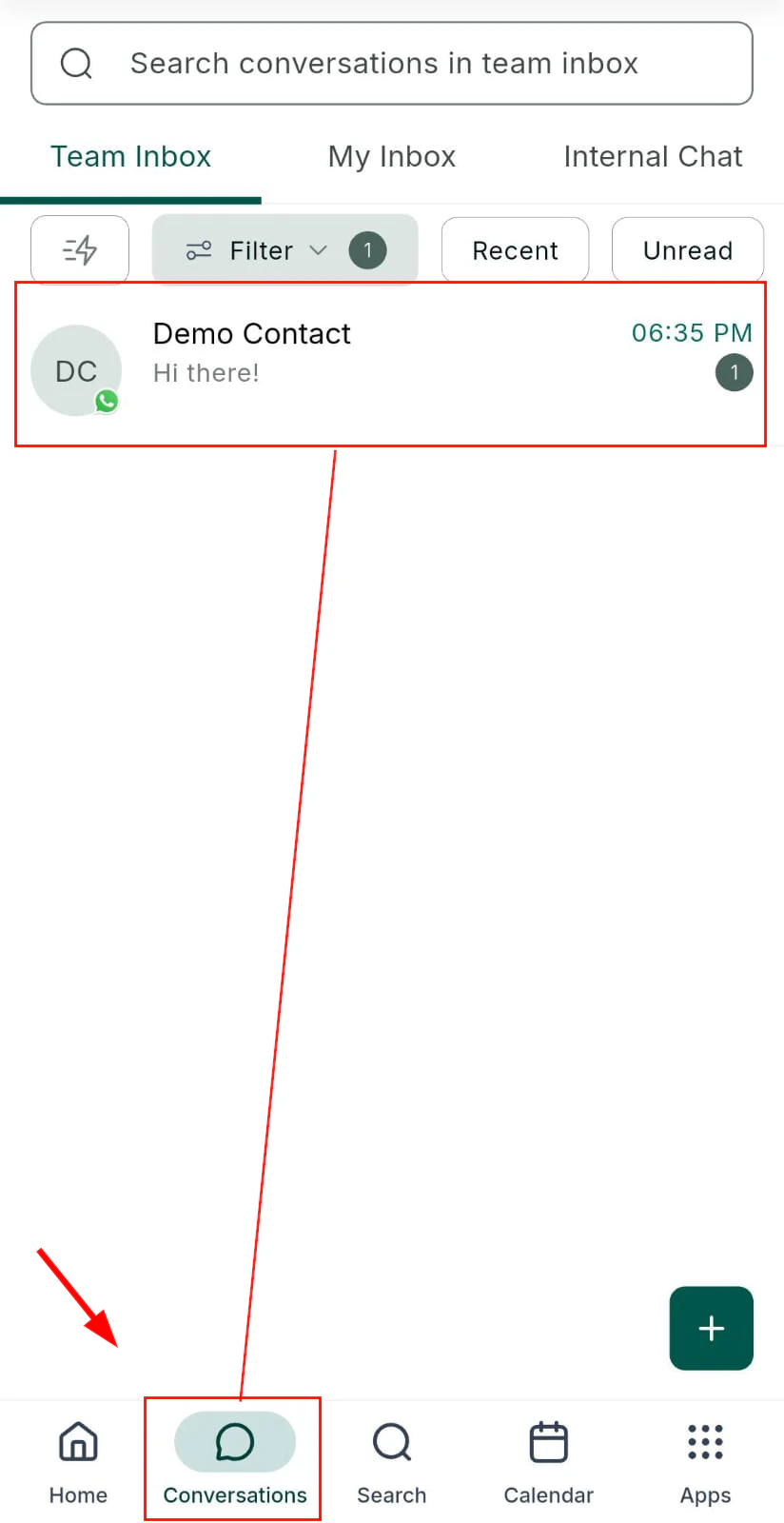
WhatsApp conversation — voice note option in the toolbar
Open a WhatsApp conversation
Start recording
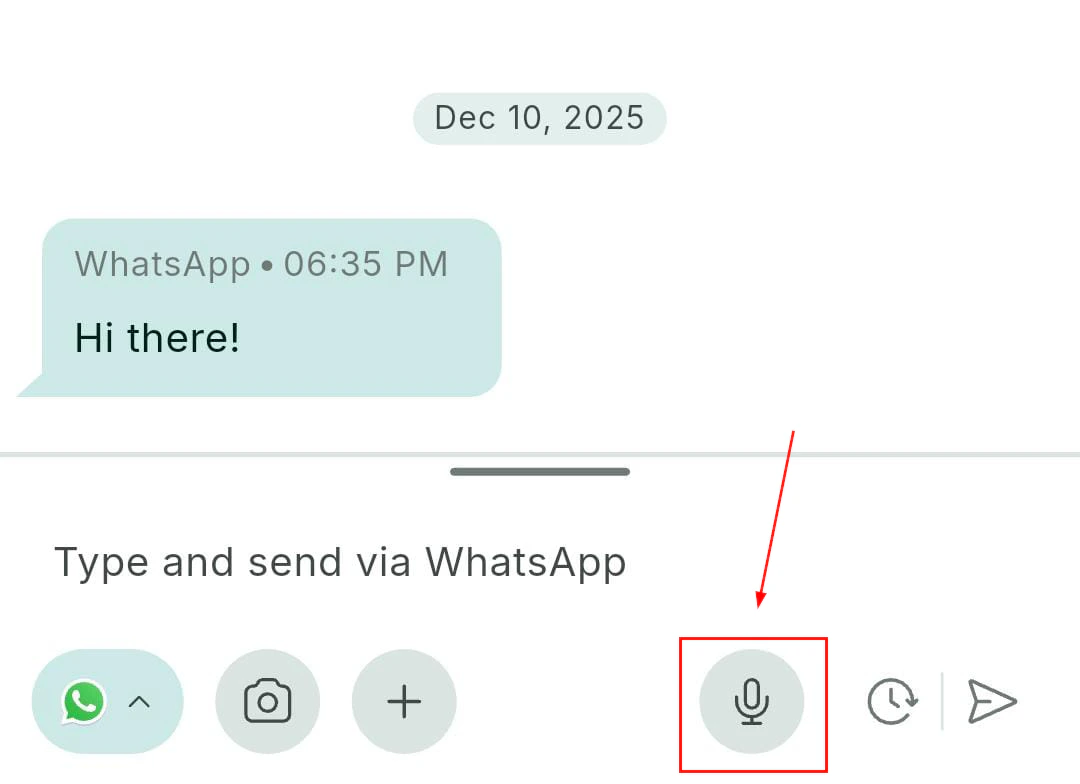
Recording a voice note — hold to record
Send the voice note
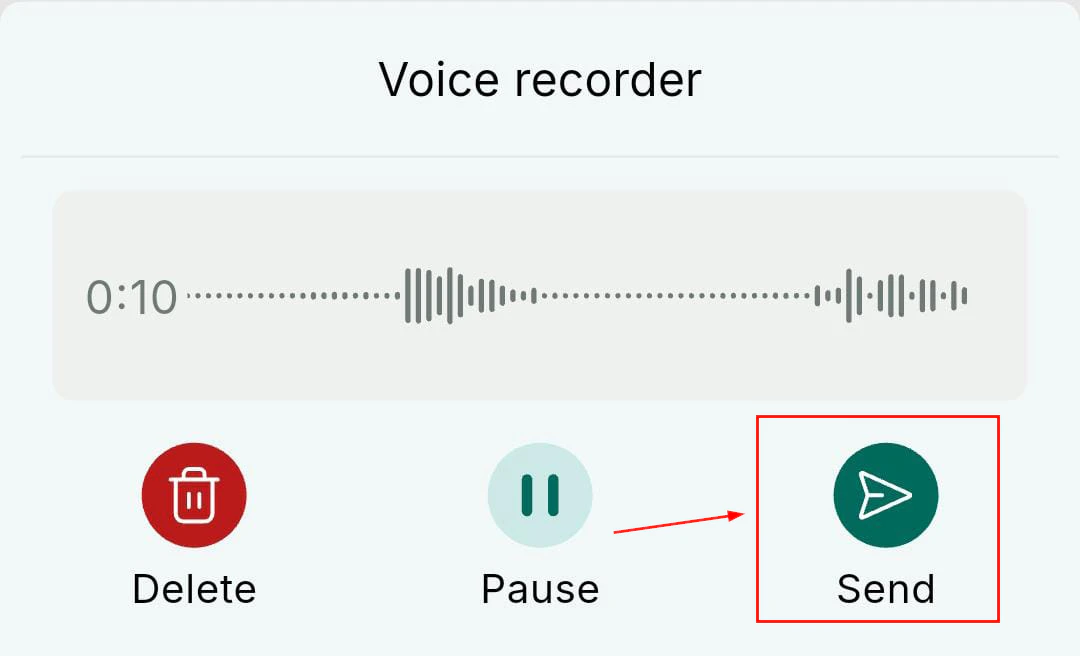
Send the recorded voice note