Schedule and publish social media posts across platforms from the HoopAI mobile app. Supports iOS, Android, and the mobile dashboard.
The Social Planner on mobile is a robust tool for managing and publishing posts directly from your device. With easy integration across multiple social media platforms, you can create consistent, well-planned content without ever sitting at your desk.
Access to the Social Planner may depend on your user permissions. Contact your account administrator if this feature is not visible.
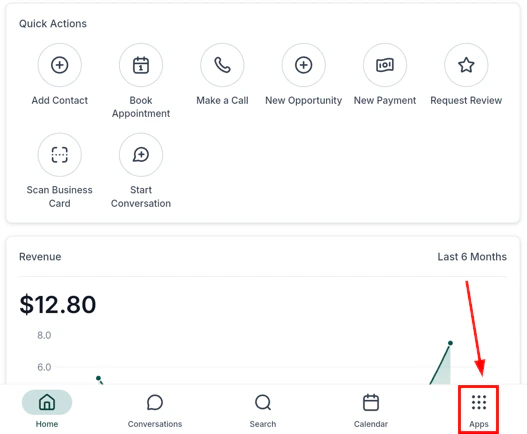
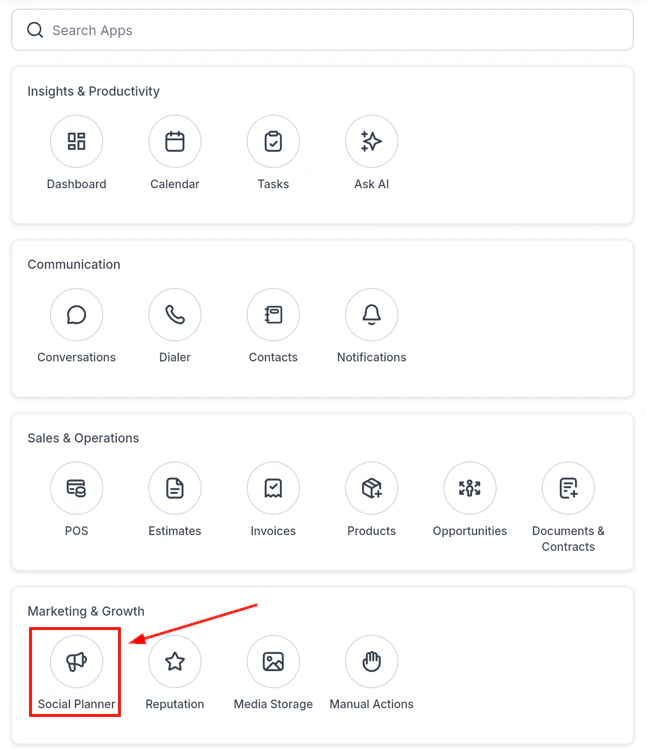
From the navigation, tap the apps section, then select Social Planner.
HoopAI mobile app navigation
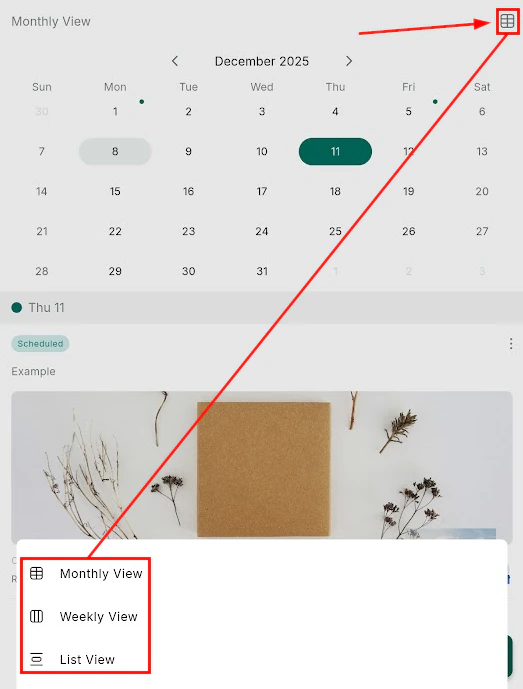
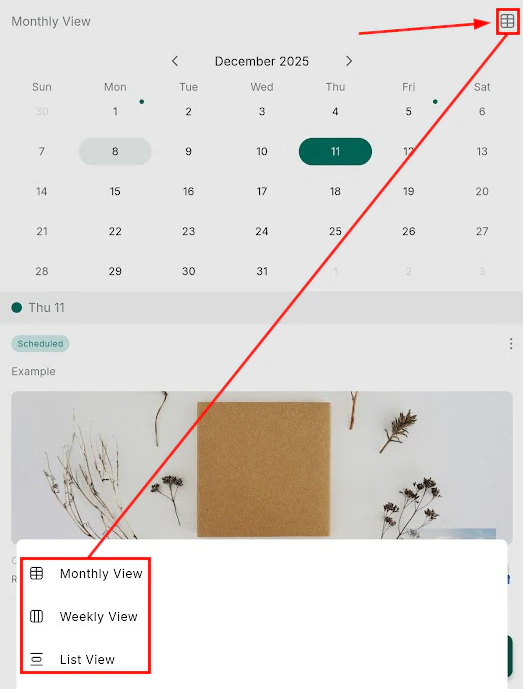
Social Planner main view — monthly calendar of scheduled posts
Tap the floating + button at the bottom-right of the Social Planner screen.
2
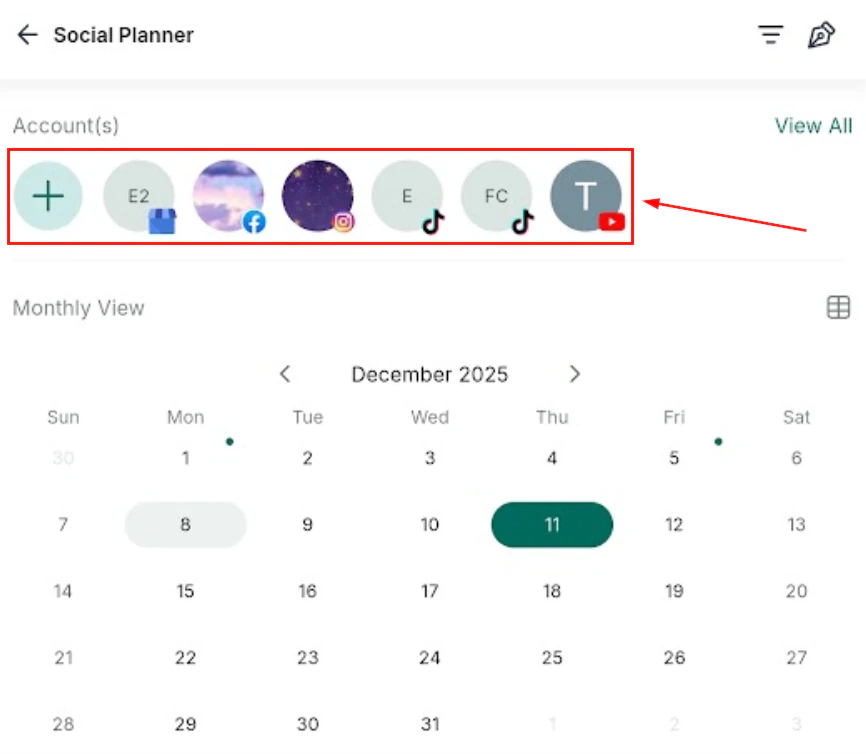
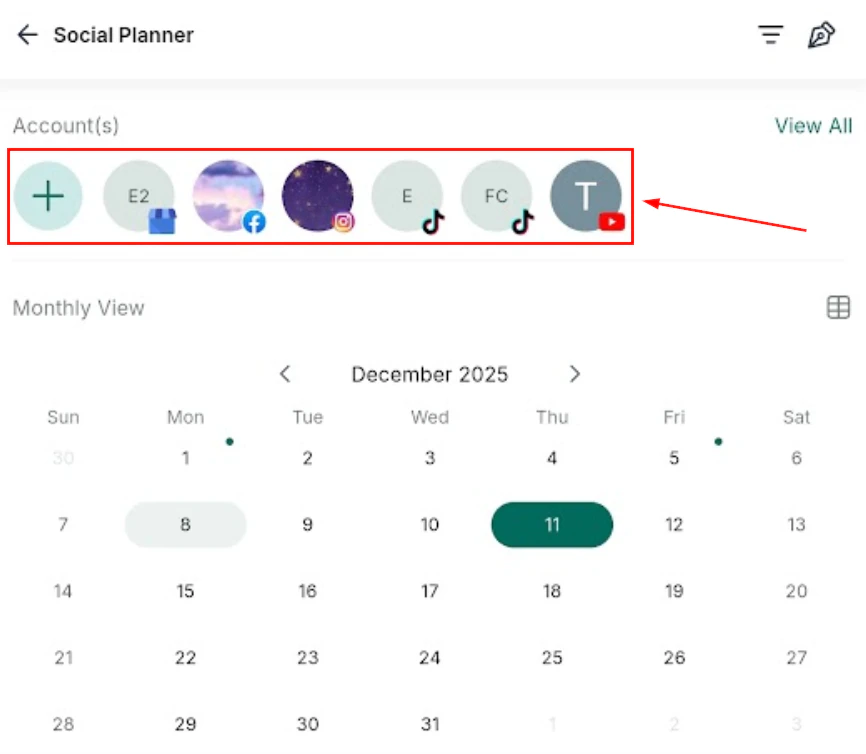
Select connected accounts
Choose which connected social accounts the post should publish to, then tap Create.
Select which social platforms to publish to
3
Compose your post
Write your post content in the blank canvas.
Post composition screen — write your caption
4
Write the caption
Write your post content. Use the new post canvas to create platform-optimized text.
New post creation — caption and content
5
Customize per platform
Toggle Customize Post to create platform-specific variations — for example, choosing between a feed post and a Reel for Instagram, or adjusting the copy for LinkedIn.
6
Add media
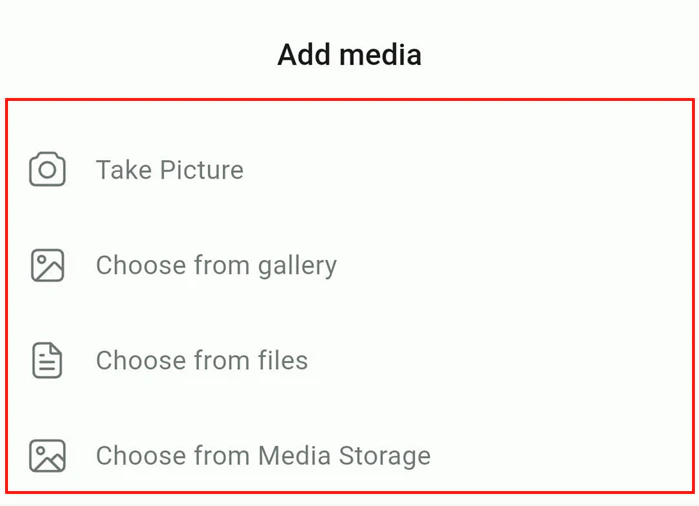
Tap the Media option to add files from your device camera, photo library, files app, or your Media Library.
Add media from your device or media library
7
Advanced settings
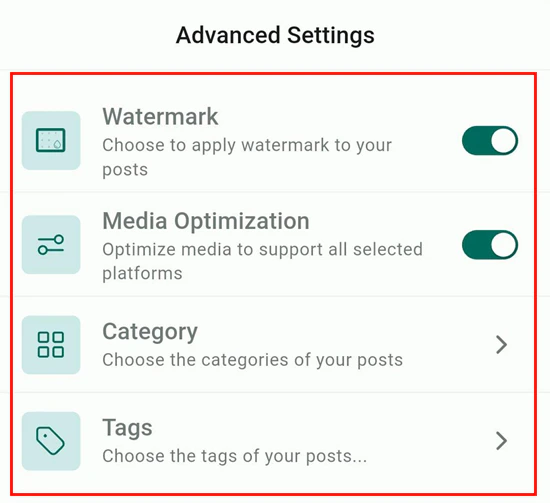
Tap Advanced Settings to apply your watermark, optimize media dimensions for each platform, and assign categories and tags for organization.
Advanced settings — watermark, dimensions, categories, and tags