Download the HoopAI mobile app on iOS or Android, enable 2FA, and start adding contacts with the business card scanner.
This guide covers everything you need to get the HoopAI mobile app running — from downloading and logging in to securing your account and adding your first contacts via business card scanner.
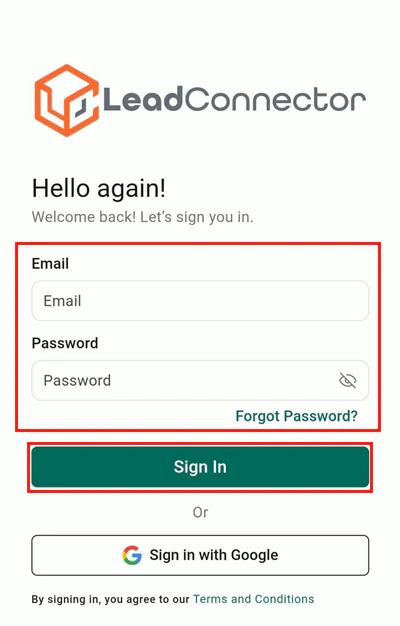
Search for Lead Connector in the App Store (iOS) or Google Play Store (Android) — that’s the name the HoopAI app is listed under. Install the latest version and log in with your HoopAI account credentials.
The app is listed as Lead Connector on both app stores. Once you log in with your HoopAI credentials, you have full access to your HoopAI account.
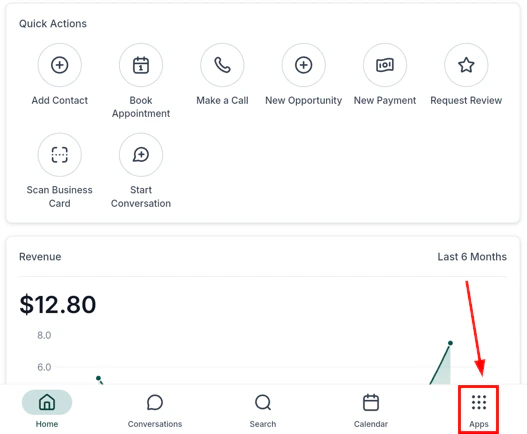
HoopAI mobile app — main navigation screen after login
If you manage multiple accounts, you can switch between them using the account selector in the app’s navigation menu.
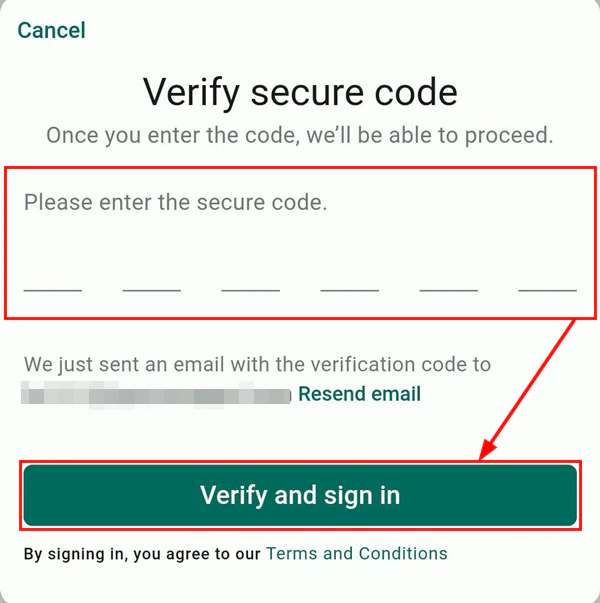
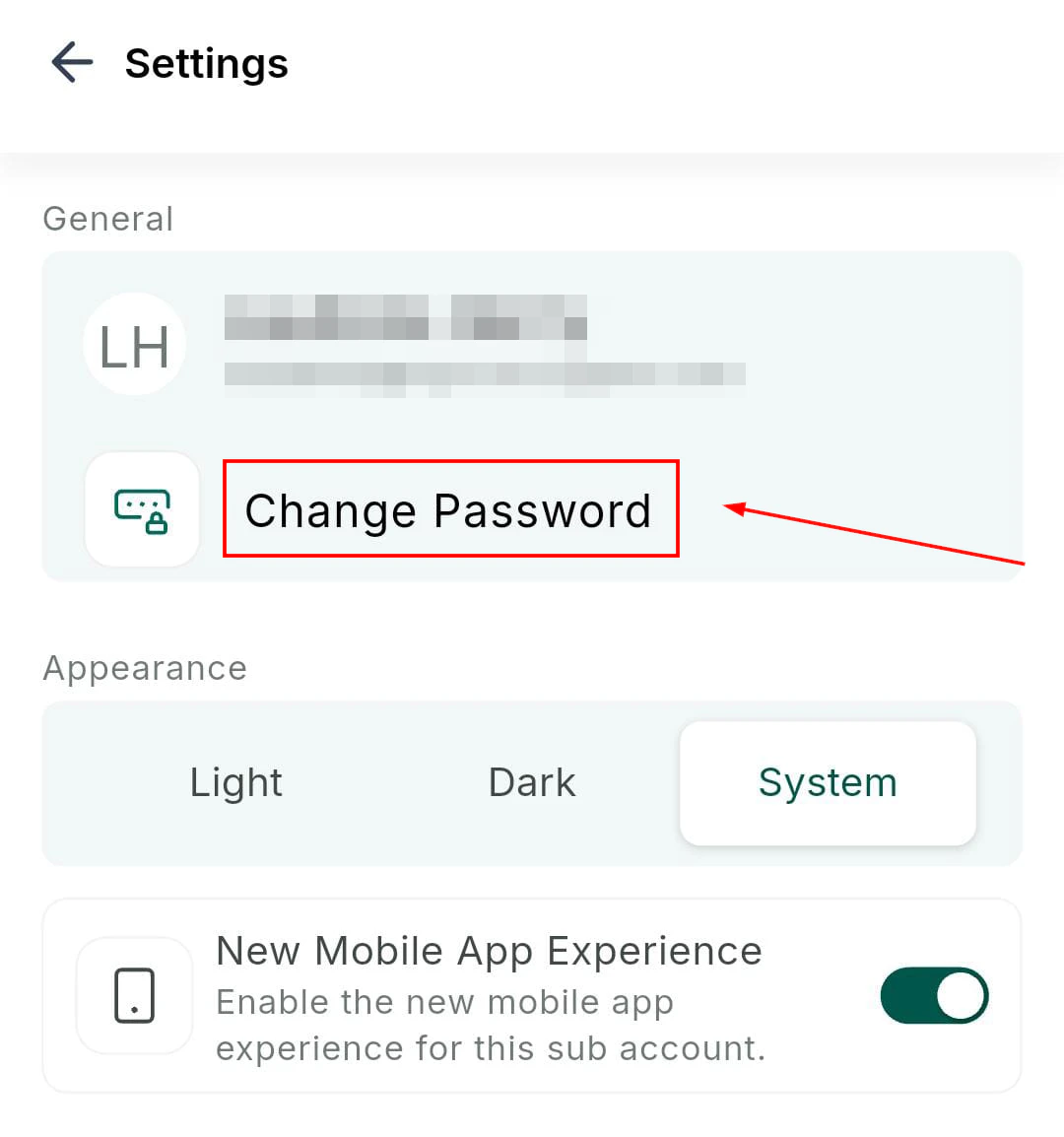
Enabling 2FA adds an extra layer of security to your account. After entering your password, you will be asked for a one-time verification code before being granted access.
2FA is available on iOS and Android devices running HoopAI mobile app version 3.88.1 or above.
The business card scanner uses your device camera to automatically extract contact information from a business card and create a new contact record — no manual typing required.
Business card scanner — scan a card to create a contact instantly
1
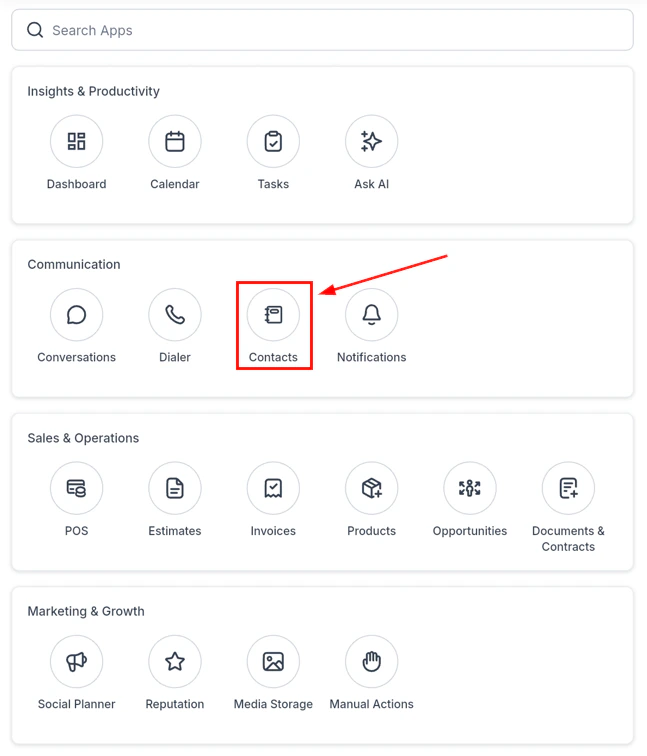
Open contacts
From the navigation, tap the Contacts icon (book icon).
Contacts list in the mobile app
2
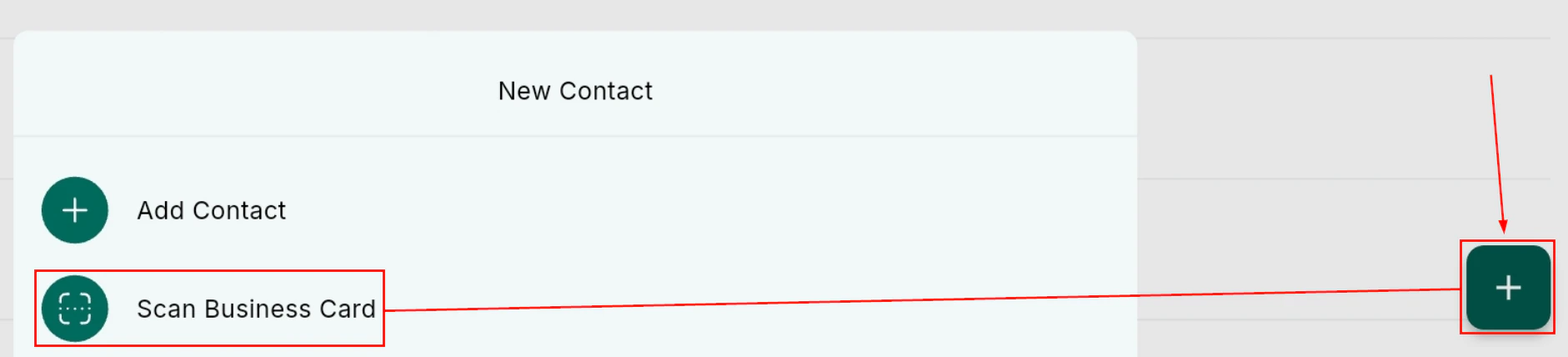
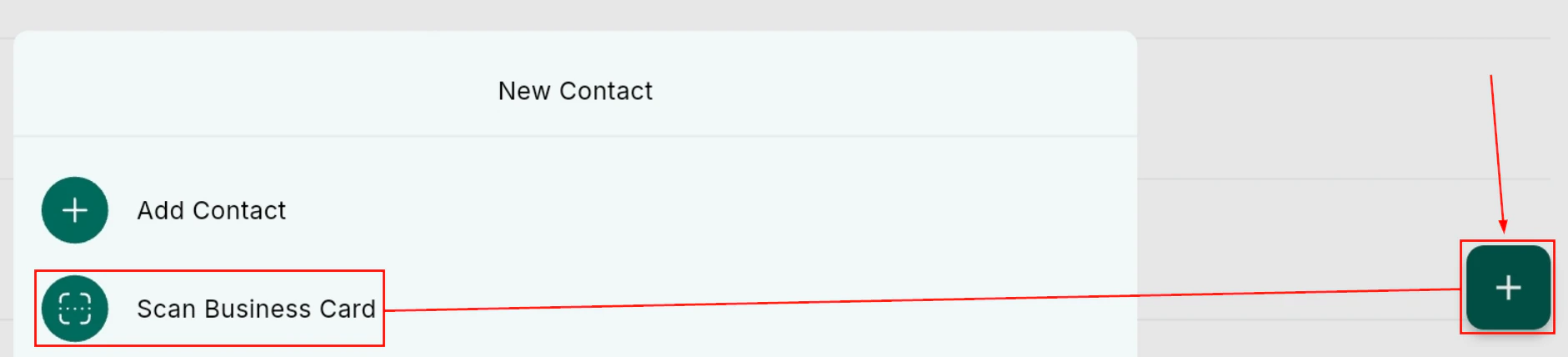
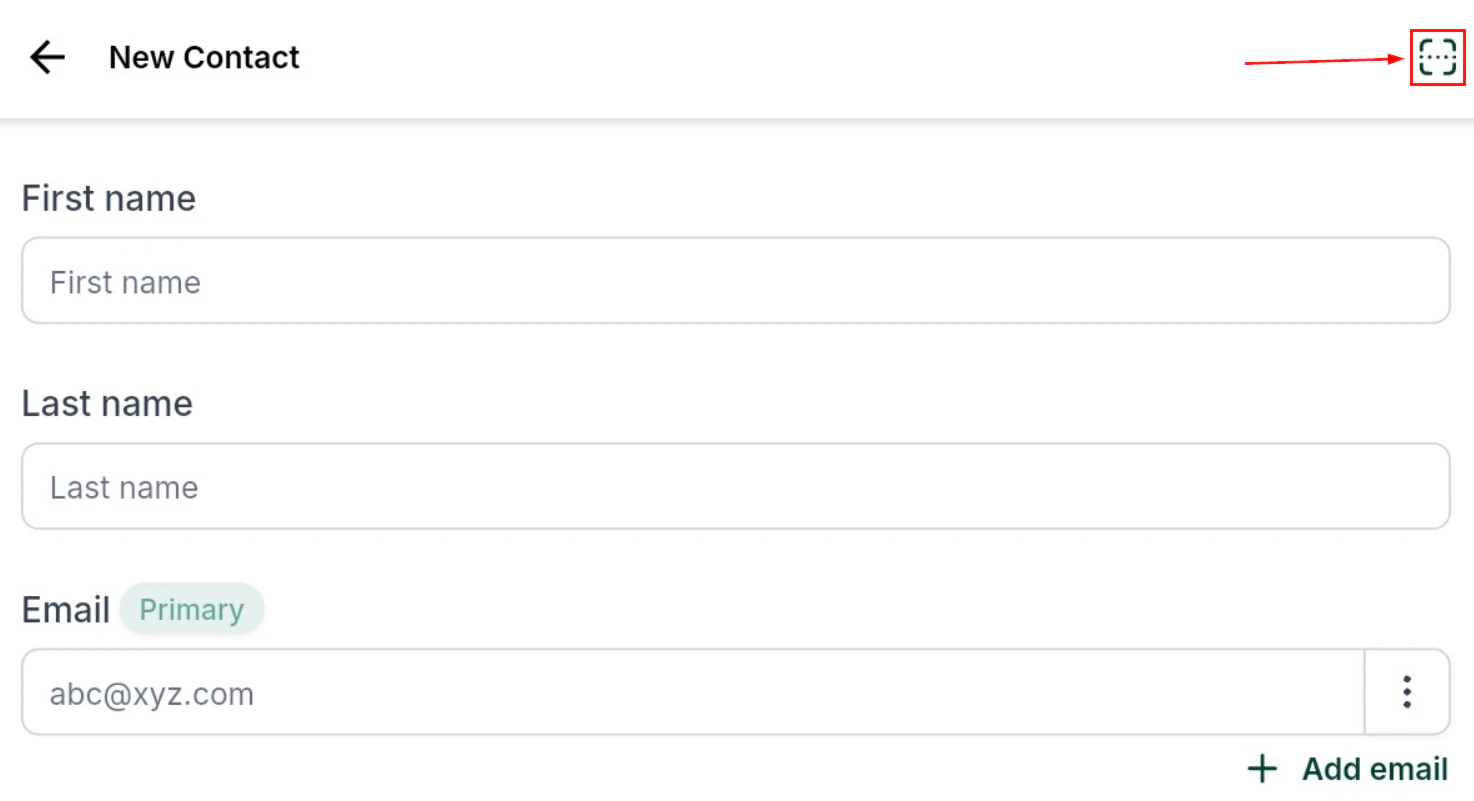
Tap the + icon and select scan
Tap the + icon and select Scan Business Card.
Scan business card option
3
Position the card
Hold the business card within the rectangular scanning frame. The app automatically extracts the contact details.
Card scanning preview
4
Review and edit
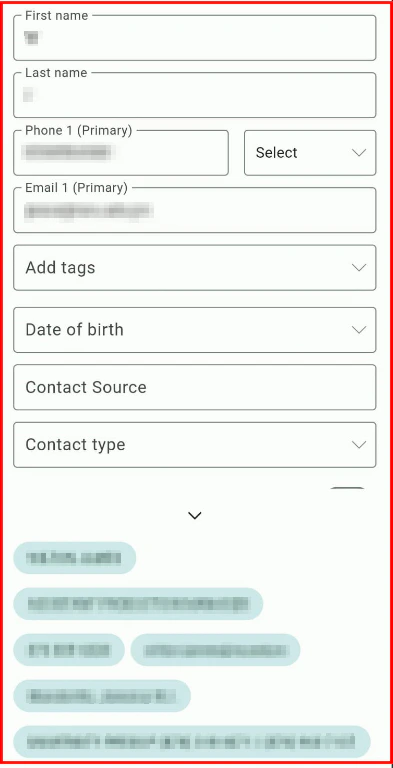
Review the extracted fields — name, phone, email, company — and make any corrections.
Scanned contact details filled in automatically
5
Save the contact
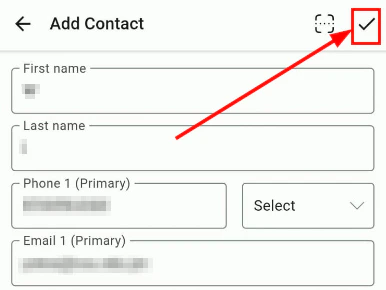
Tap Save to create the contact record instantly.
Save the scanned contact
The business card scanner requires HoopAI mobile app version 3.74 or later on iOS or Android.
Push notifications alert you to new messages, inbound calls, missed calls, voicemails, task reminders, and appointment reminders — even when the app is running in the background.
On first launch the app requests permission to send notifications. If you dismissed that prompt, go to your device’s system settings, find Lead Connector (the name the HoopAI app is listed under), and enable notifications manually. See App settings for step-by-step instructions for iOS and Android.
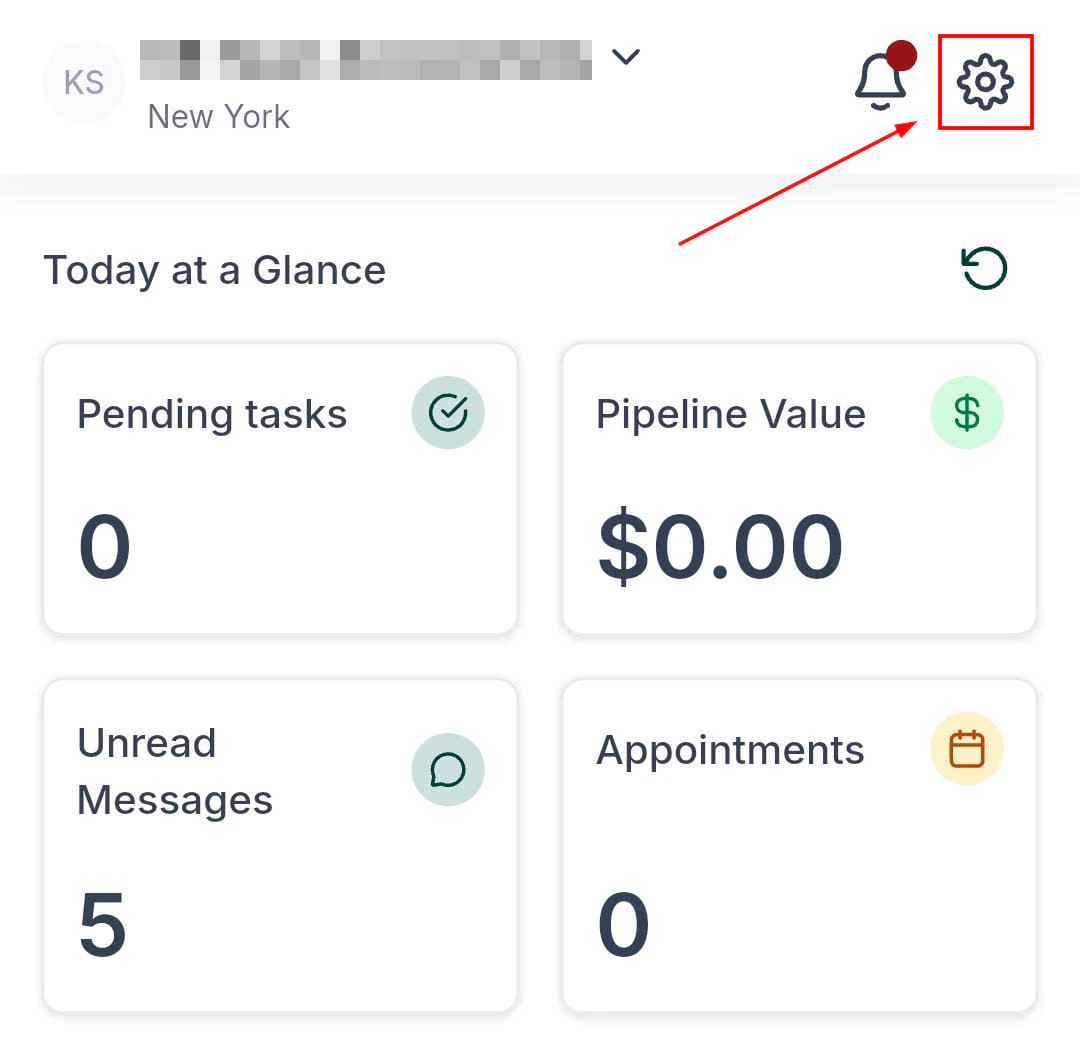
After your first successful password login, the app prompts you to enable Face ID (iOS) or fingerprint authentication (Android) for faster, more secure re-entry. If you skipped that prompt, you can enable biometrics from Settings inside the app. See App settings for details.
If you manage multiple accounts (locations), tap your account name at the top of the sidebar to open the account switcher. Select the account you want to work in — the entire app will reload with that account’s data.