

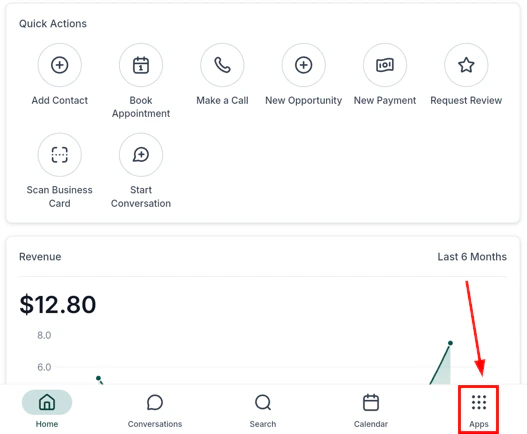
HoopAI mobile app — main navigation screen
Browsing contacts
The contacts list displays each contact’s name, phone number, and email at a glance.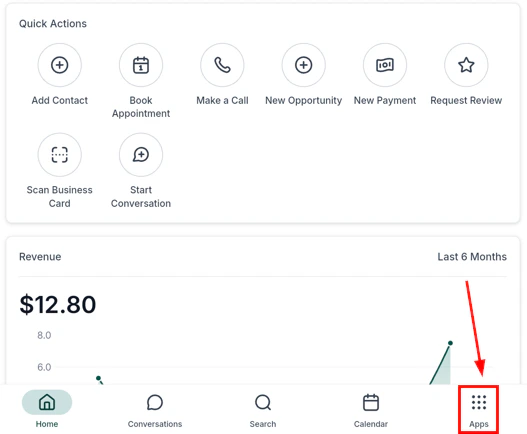
Contacts list — browse all your contacts
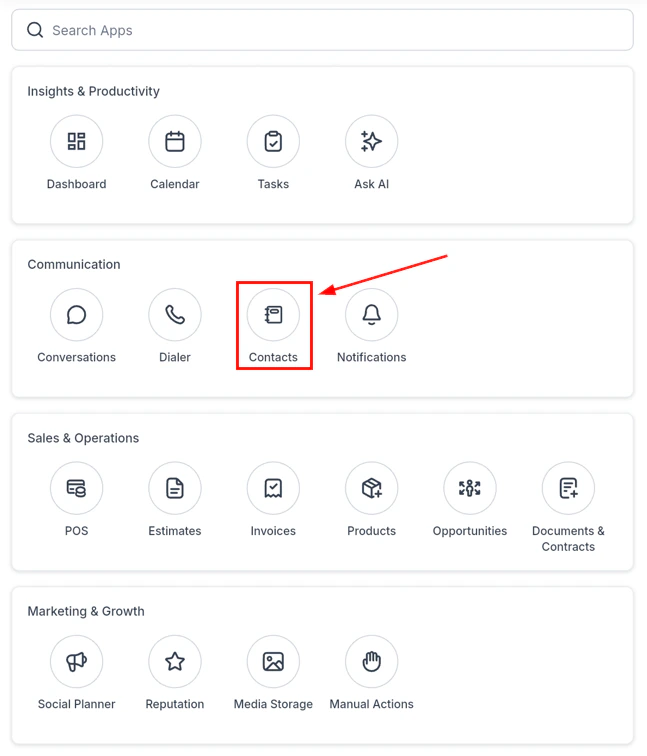
Search and filter contacts
- Tap a contact to open their full profile
- Long-press a contact tile to quickly copy or share contact details without opening the full record
Contact profile
The contact profile consolidates all key information on a single screen.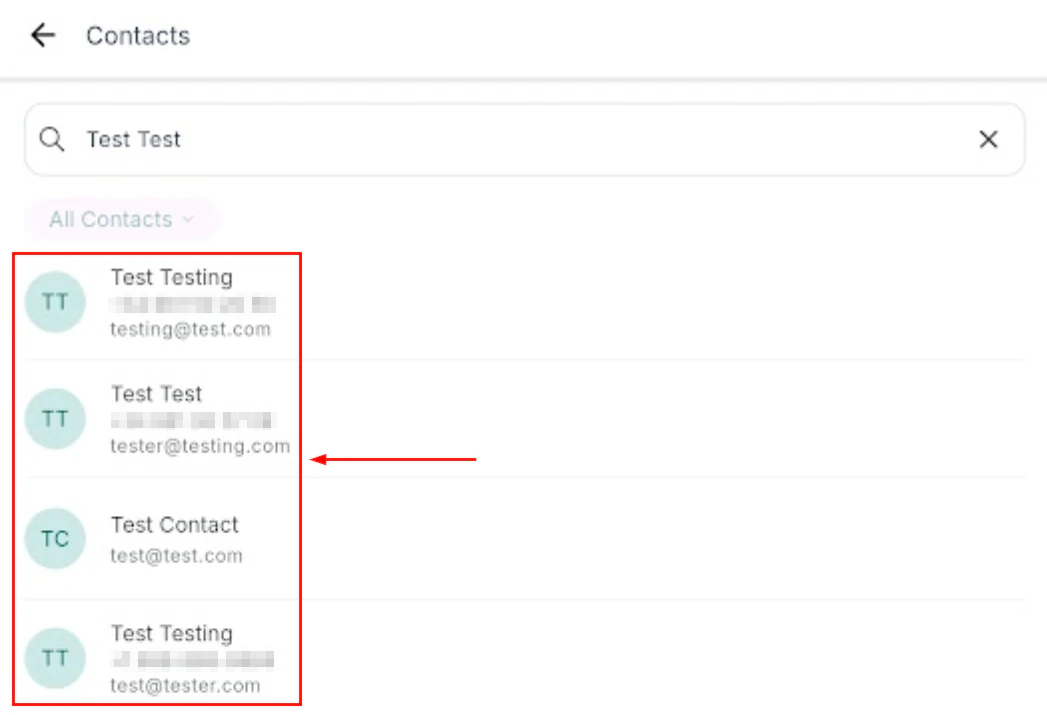
Contact profile — details, activity, notes, tasks, and more
- Details — name, phone, email, address, and all standard and custom fields
- Activity — a timeline of all interactions (calls, messages, emails, appointments)
- Notes — supports HTML content and hyperlinks for rich documentation
- Tasks — view and create tasks linked to the contact
- Opportunities — see all deals associated with the contact
- Payments — view invoices and payment history
- Documents & files — access and open attached documents without downloading
Contact actions
Tap the Actions button on a contact profile to access quick communication options: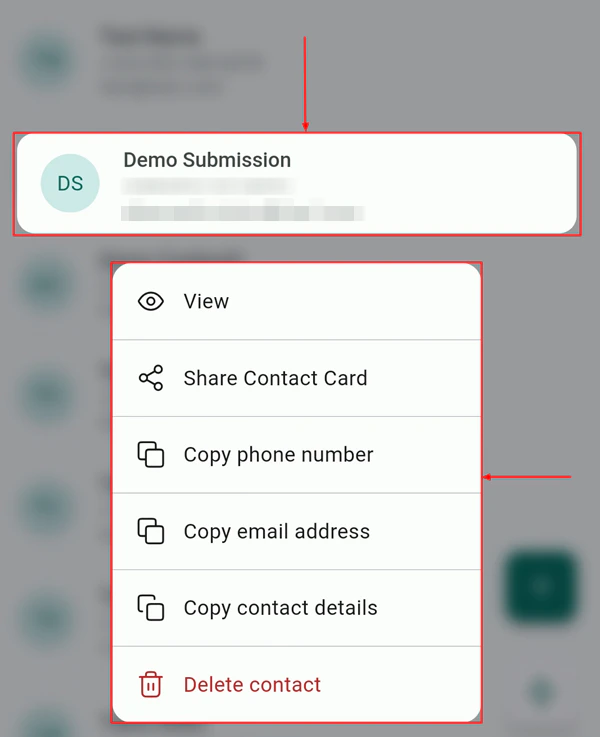
Contact actions — call, SMS, email, book, or charge
- Call — open the dialer and call the contact
- SMS — open a text message conversation
- Email — compose an email
- Book a meeting — open the appointment scheduler
- Charge — initiate a payment transaction
Charge a contact directly
Tap Charge from the contact actions to immediately open the POS or payment flow with that contact pre-loaded.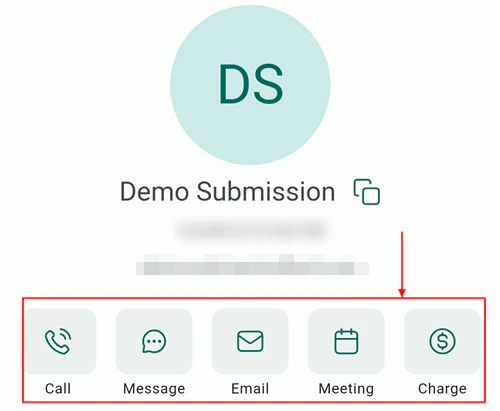
Charge a contact — initiate payment from the contact screen
View and manage tasks
Tap Tasks from the contact profile to view all tasks linked to the contact, and create new ones.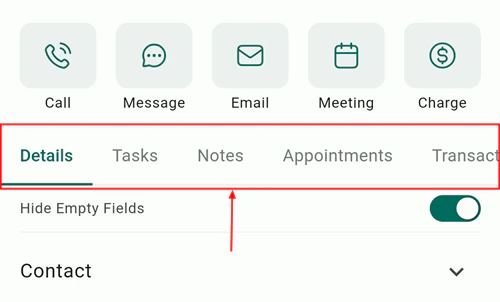
Contact tasks — view and create tasks
Three-dot menu
Tap the three-dot menu in the top-right corner of the contact profile for additional options: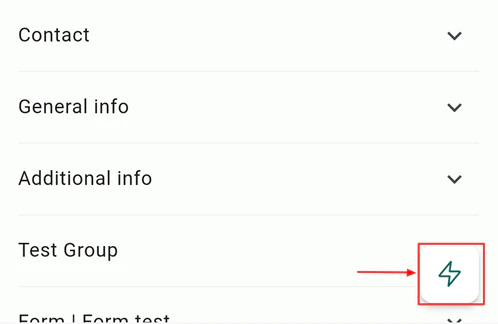
Three-dot menu — edit, assign owner, hide empty fields, share, delete
- Edit — update contact details
- Assign owner — assign the contact to a specific team member
- Hide empty fields — toggle to show only fields that have data entered
- Share contact — share the contact record via another app
- Delete — remove the contact
Assigning an owner
Tap Assign owner and select the team member responsible for this contact. The owner assignment syncs instantly with the desktop platform.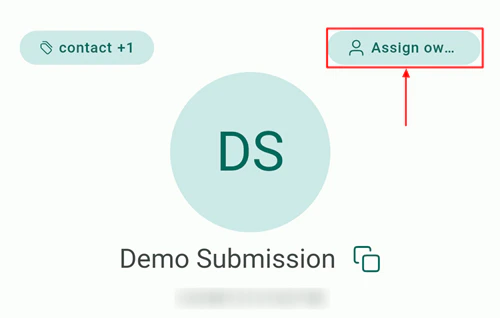
Assign a contact owner to a team member
Tags management
Add or remove tags directly from the contact profile. Tags help with segmentation, automation triggers, and smart lists.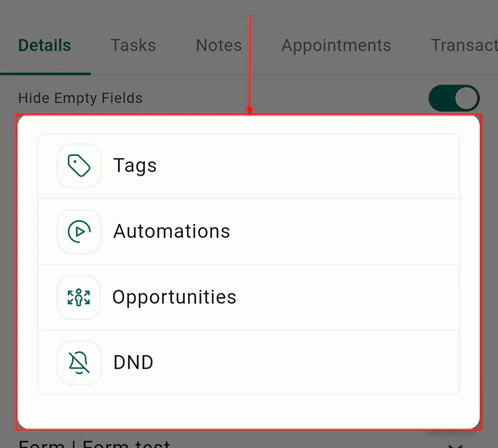
Add or remove tags on a contact
Business card scanner
Create new contacts by scanning a business card with your device camera. The scanner automatically extracts name, phone, email, and other fields — no manual typing required.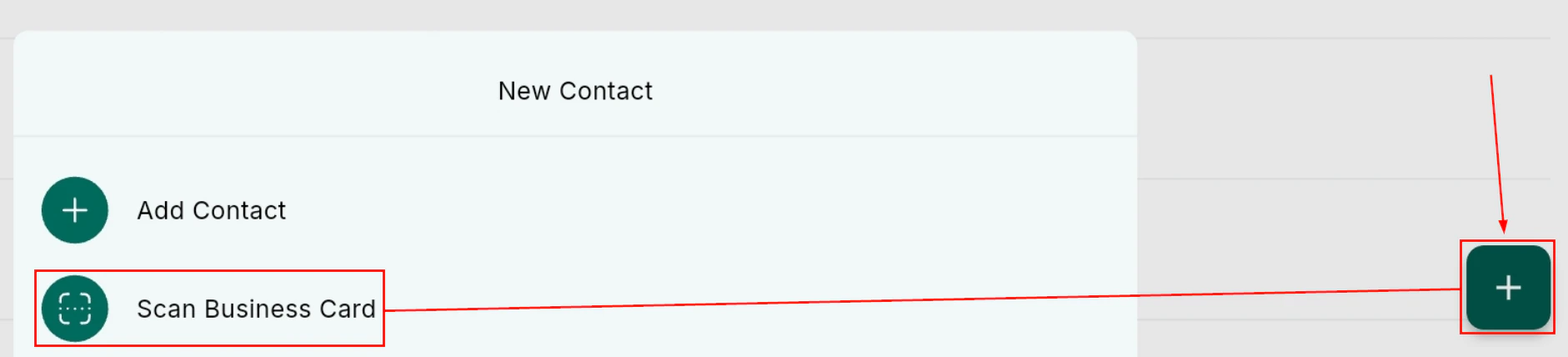
Business card scanner — point your camera at a card to capture details
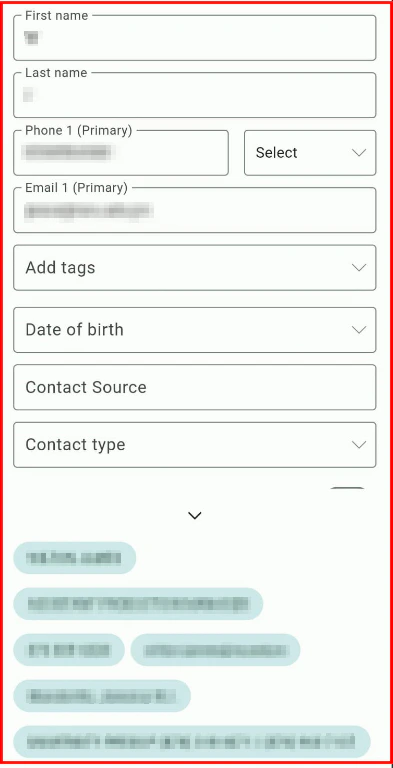
Scanned contact details auto-filled and ready to save
Documents and files
Access documents and files attached to a contact directly from the contact profile. You can open, preview, and upload files without leaving the mobile app.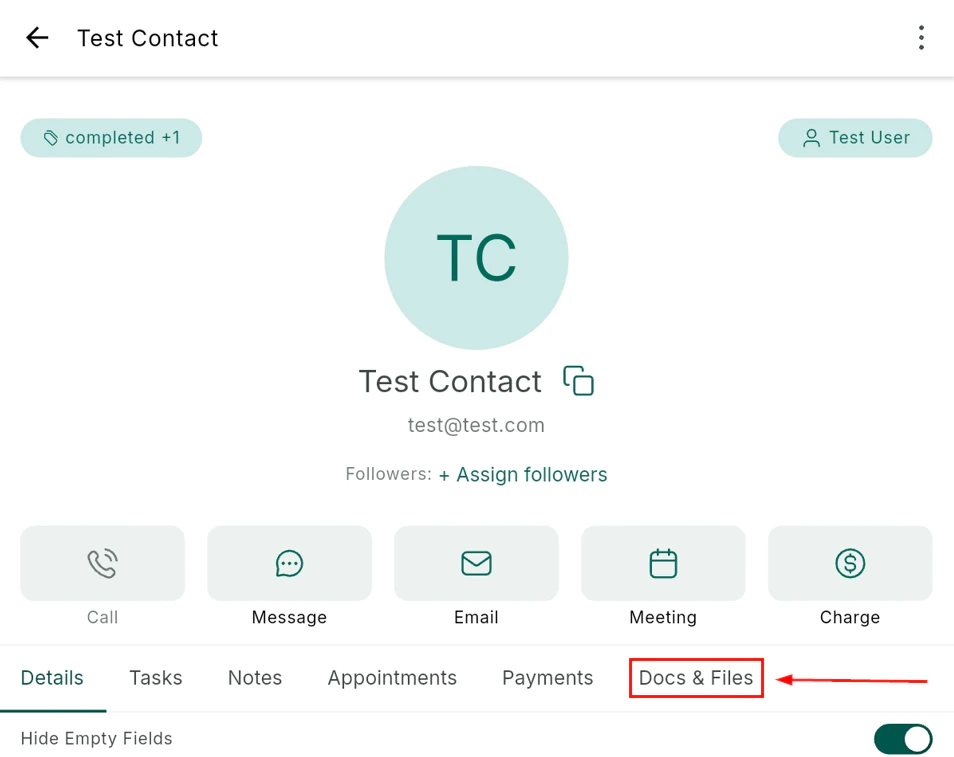
Documents and files section on a contact profile
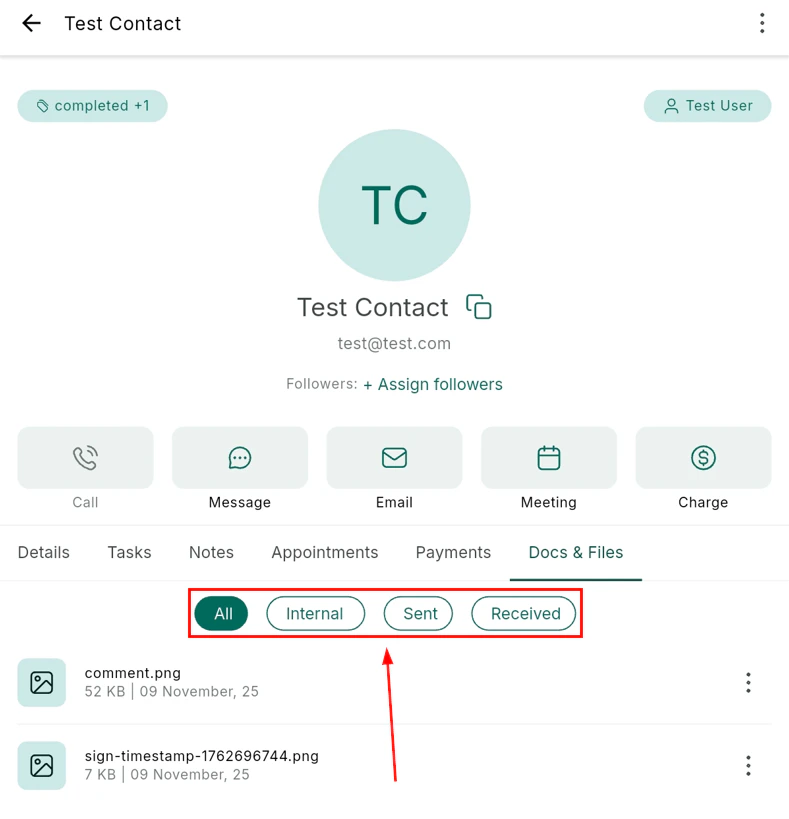
Upload a file to a contact record
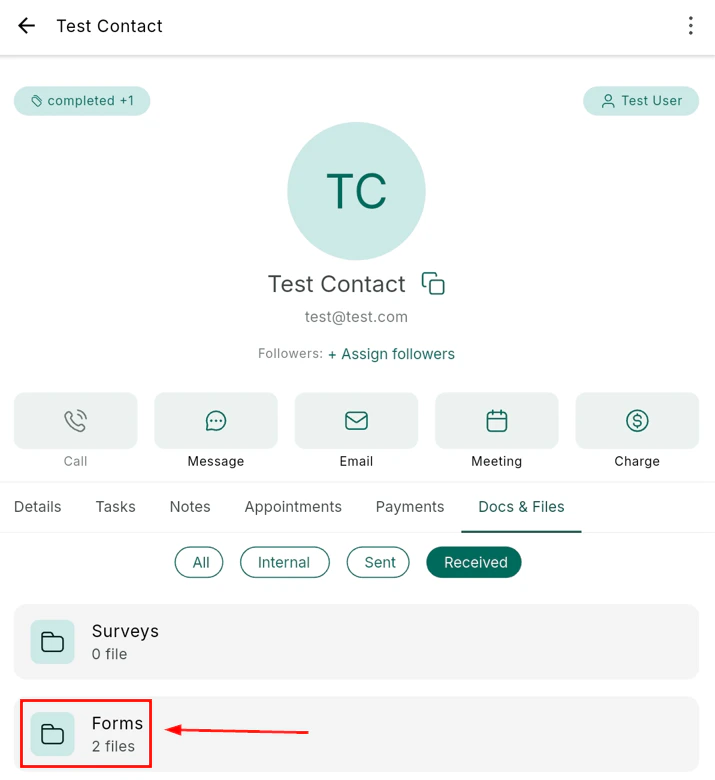
View an uploaded file on a contact
Frequently asked questions
Can I open contact documents without downloading them?
Can I open contact documents without downloading them?
Are custom fields available on mobile?
Are custom fields available on mobile?