

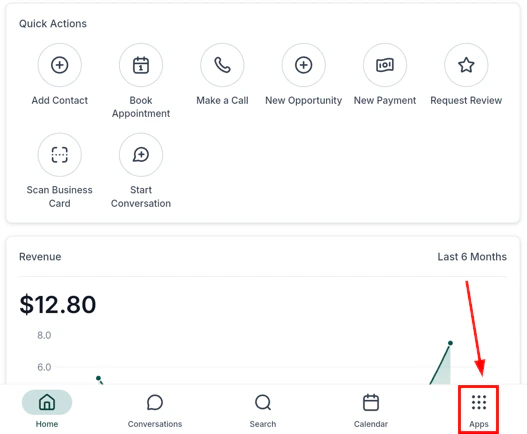
HoopAI mobile app — phone and dialer navigation
The dialer
The dialer has three tabs: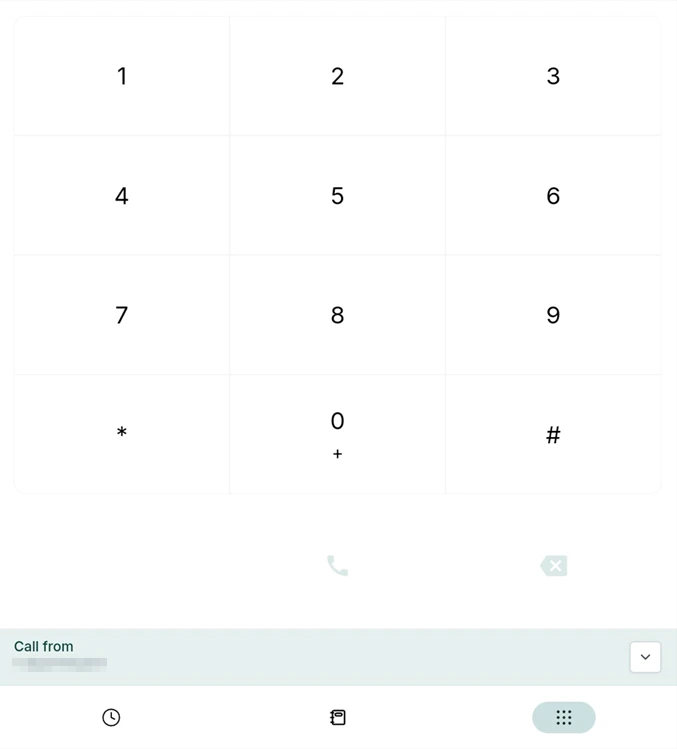
Phone dialer — enter a number or search contacts
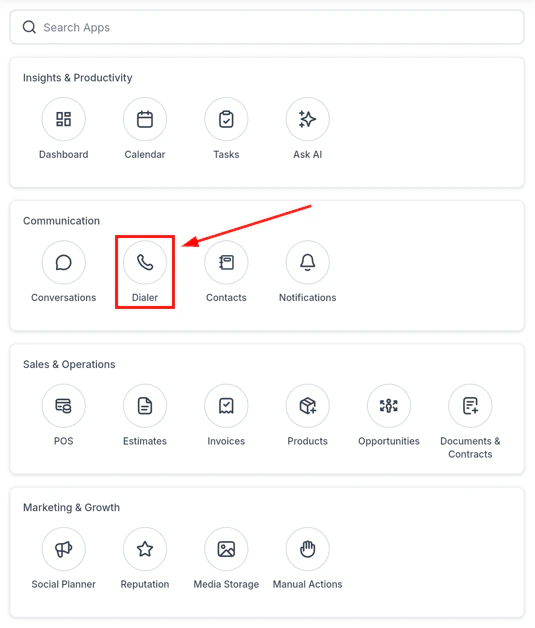
Dialer navigation tab layout
Dial pad
Enter a phone number manually using the keypad and tap the call button to dial. Use the dropdown to choose which of your account’s phone numbers will be used as the caller ID for outbound calls.Contacts tab
Tap the Book tab to search for contacts by name, phone number, or email. Contacts without a phone number appear greyed out and cannot be dialed.Recents tab
Tap the Recents tab to see a list of recent incoming and outgoing calls. Tap the information icon next to any contact to set DND, send a message, or call back.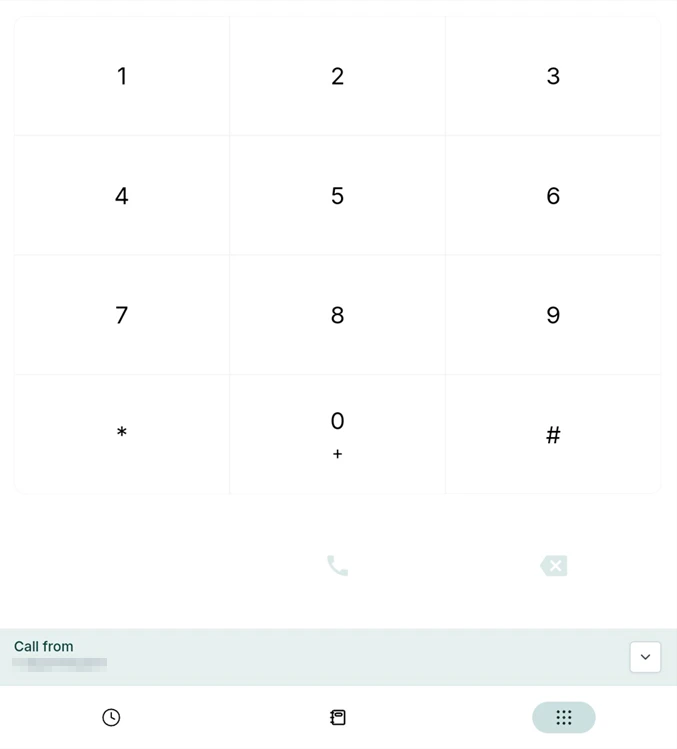
Dialer with contact search and recent calls
Local presence dialing
Local Presence Dialing automatically displays a phone number that matches — or closely aligns with — the recipient’s area code. This significantly increases answer rates and strengthens first impressions.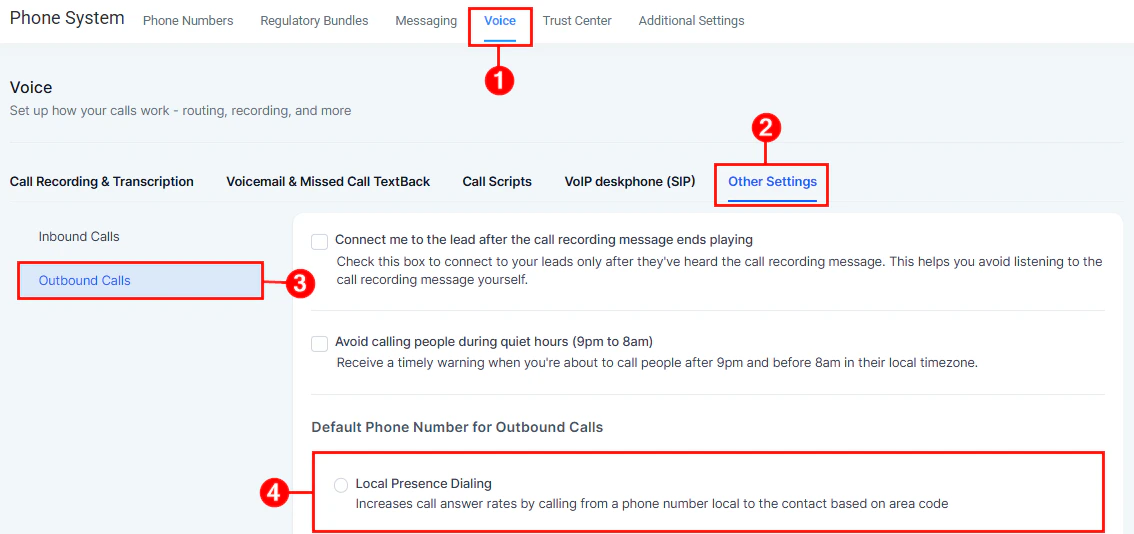
Local presence — outbound call configuration
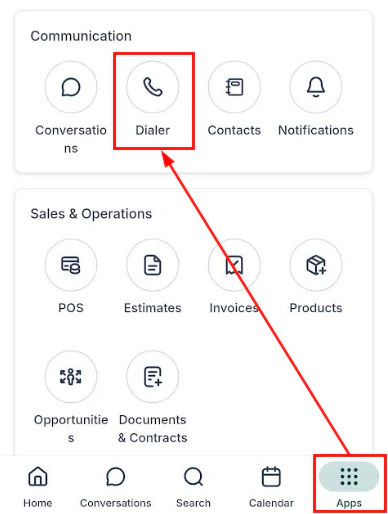
Local presence dialer — area code automatically matched
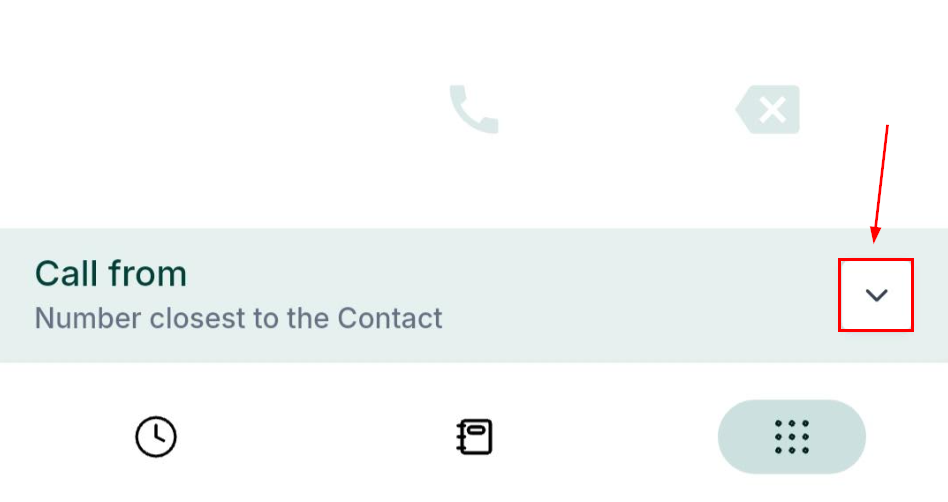
Dropdown to select local presence number
Call scripts
Call scripts display guided talking points during an active call — helping agents stay on message, handle objections, and follow a proven structure. Setup: Create call scripts first in Settings > Phone System > Call Scripts on the desktop platform.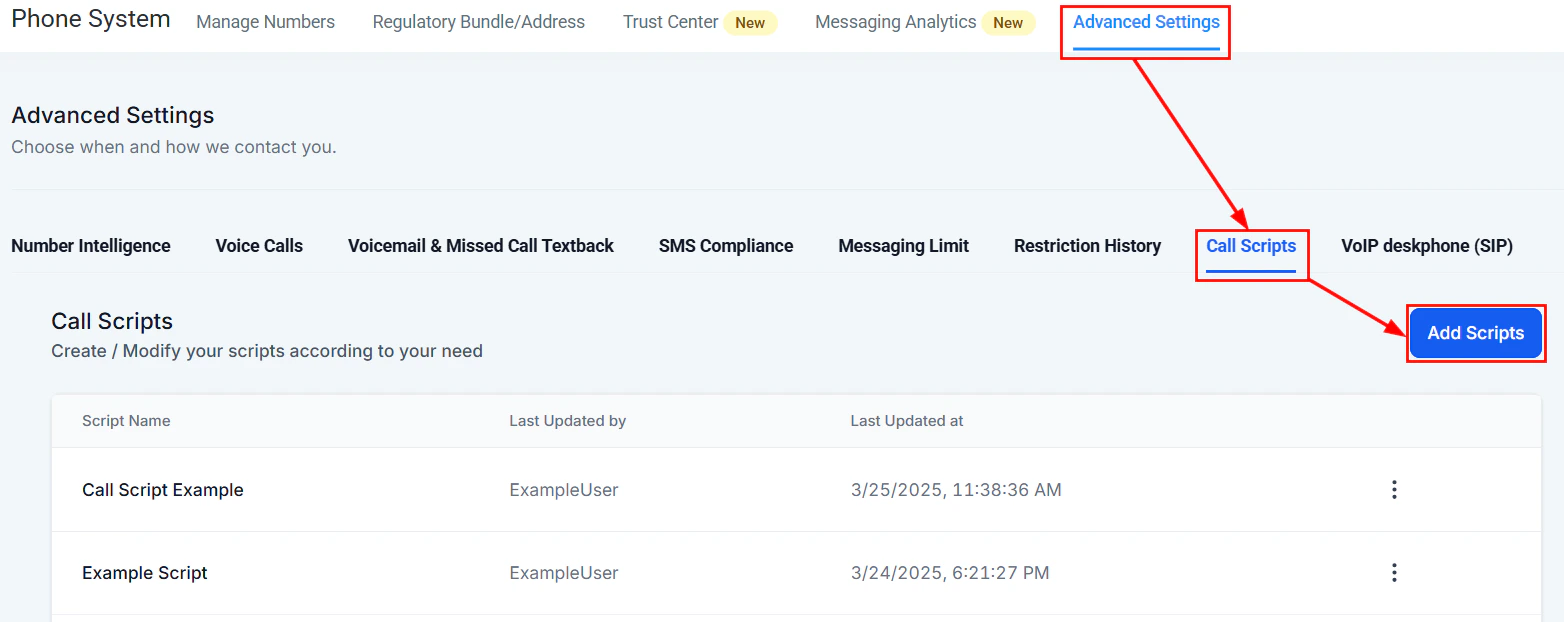
Call scripts overview — available scripts in the mobile app
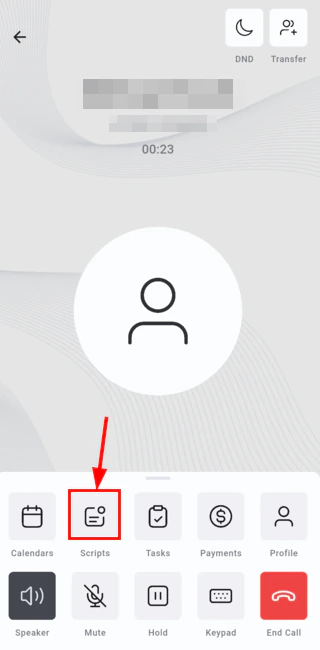
Script list — select the right script for each call
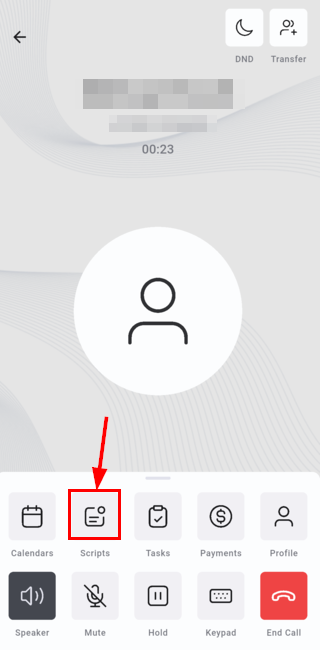
Call scripts in active use during a call
- Start a call with a contact
- Tap the Scripts icon in the call toolbar
- If multiple scripts exist, use the script switcher to select the correct one
- Follow along step by step
- Minimize the script when done to return to the full toolbar
During a call
While on an active call, the toolbar gives you quick access to: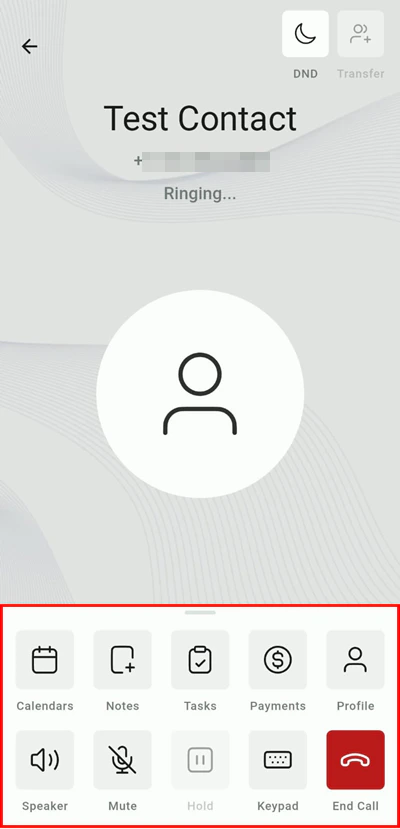
In-call toolbar — notes, calendar, tasks, tags, transfer, and more
Call details
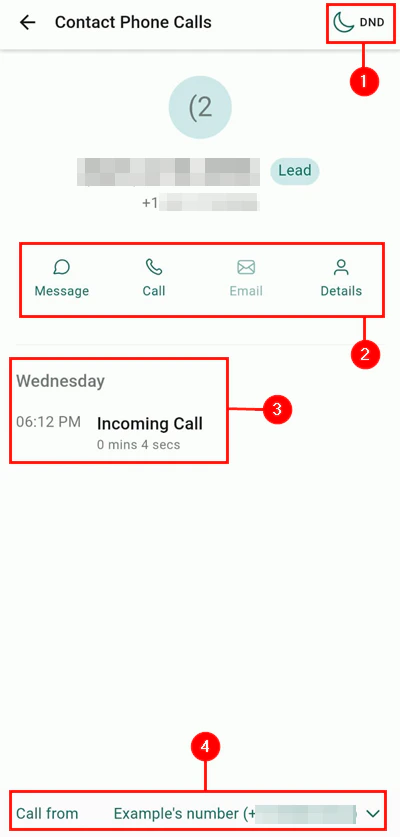
Call details — contact info during an active call
After a call
The Call End screen provides one-tap access to:- Notes and follow-up tasks
- Calendar scheduling
- Tags and contact profile
- DND and messaging
- Callback initiation
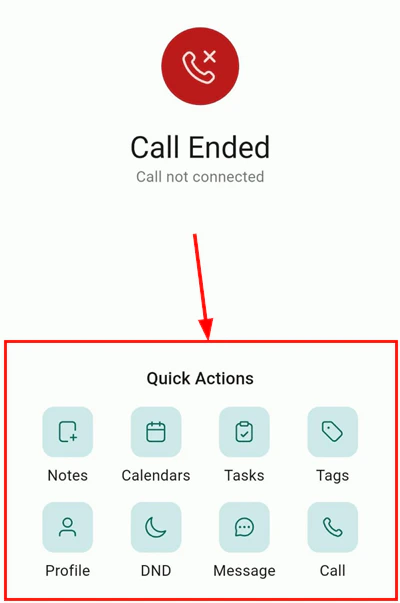
Post-call screen — notes, tasks, calendar, tags, and follow-up actions
Custom call dispositions
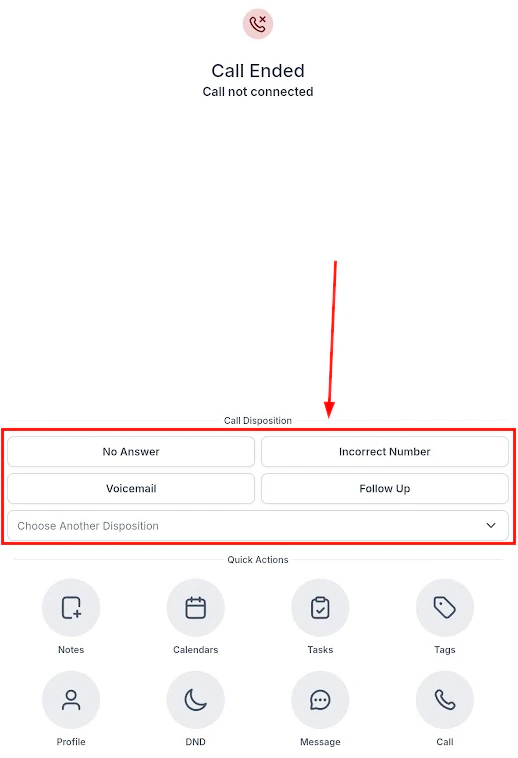
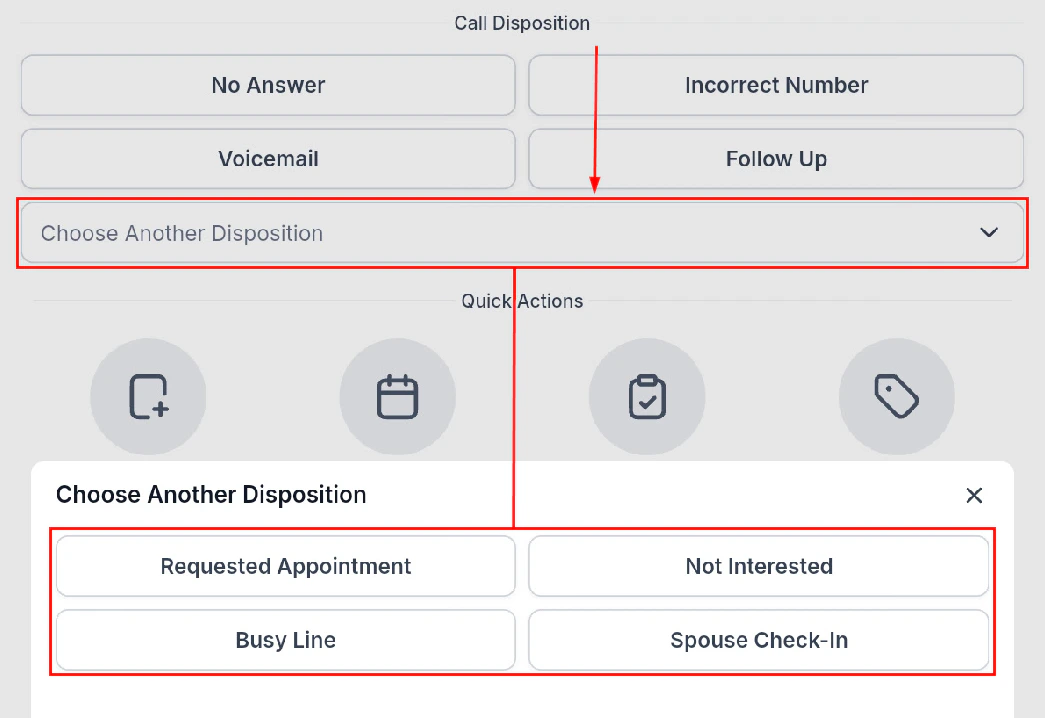
After ending a call, you may be prompted to select a call disposition — a label describing the outcome (e.g., “Left voicemail”, “Connected”, “Not interested”). Dispositions help trigger automations and maintain consistent call documentation across your team.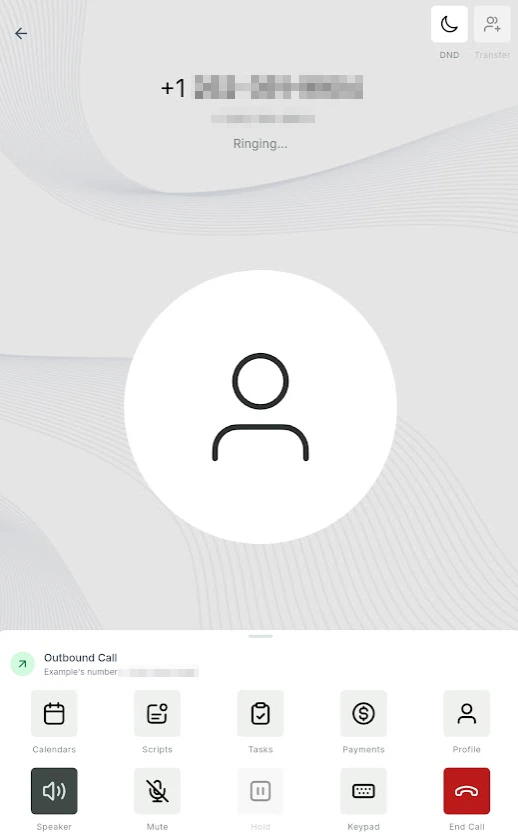
Select a call disposition after the call ends
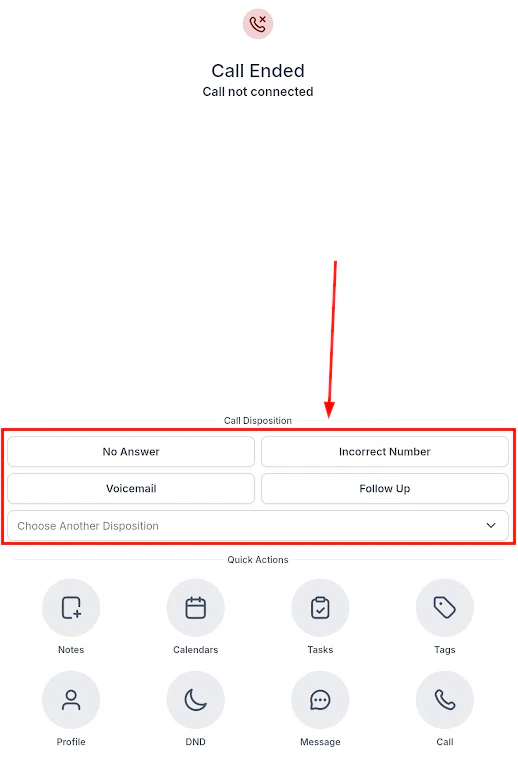
Disposition options available after a call
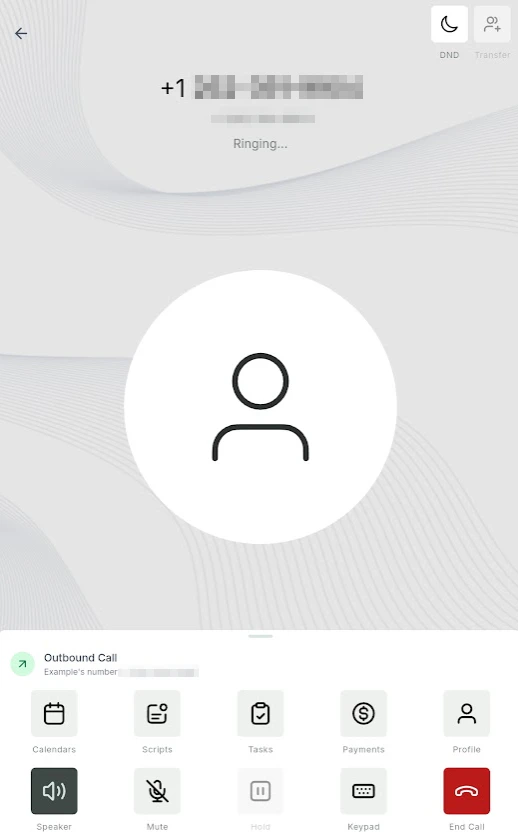
Selecting a disposition from the list
Disposition options dropdown
Save the selected call disposition
Inbound call transfers
When you receive an inbound call, you can transfer it to another team member mid-call.Answer the inbound call
Tap the Transfer button
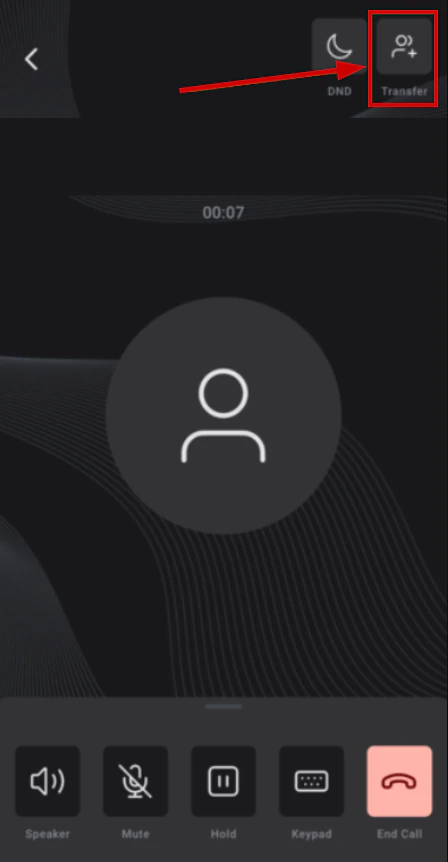
Inbound call transfer screen
Search for the recipient
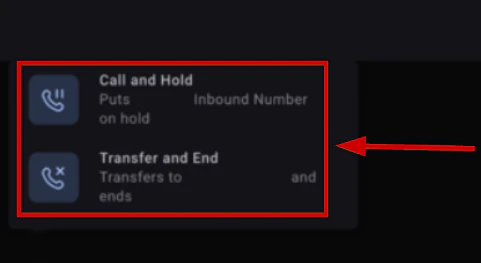
Select a team member to transfer to
Confirm the transfer
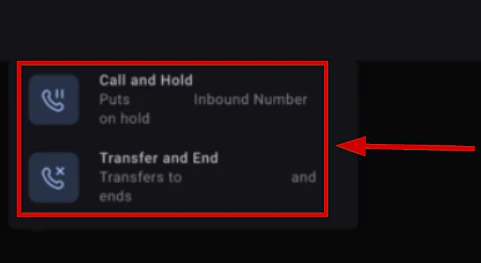
Confirm call transfer
Multi-location incoming calls
If your account spans multiple locations, the Multi-Location Incoming Calls feature ensures calls are received across all your accounts — so your team never misses a lead regardless of which account they are currently working in.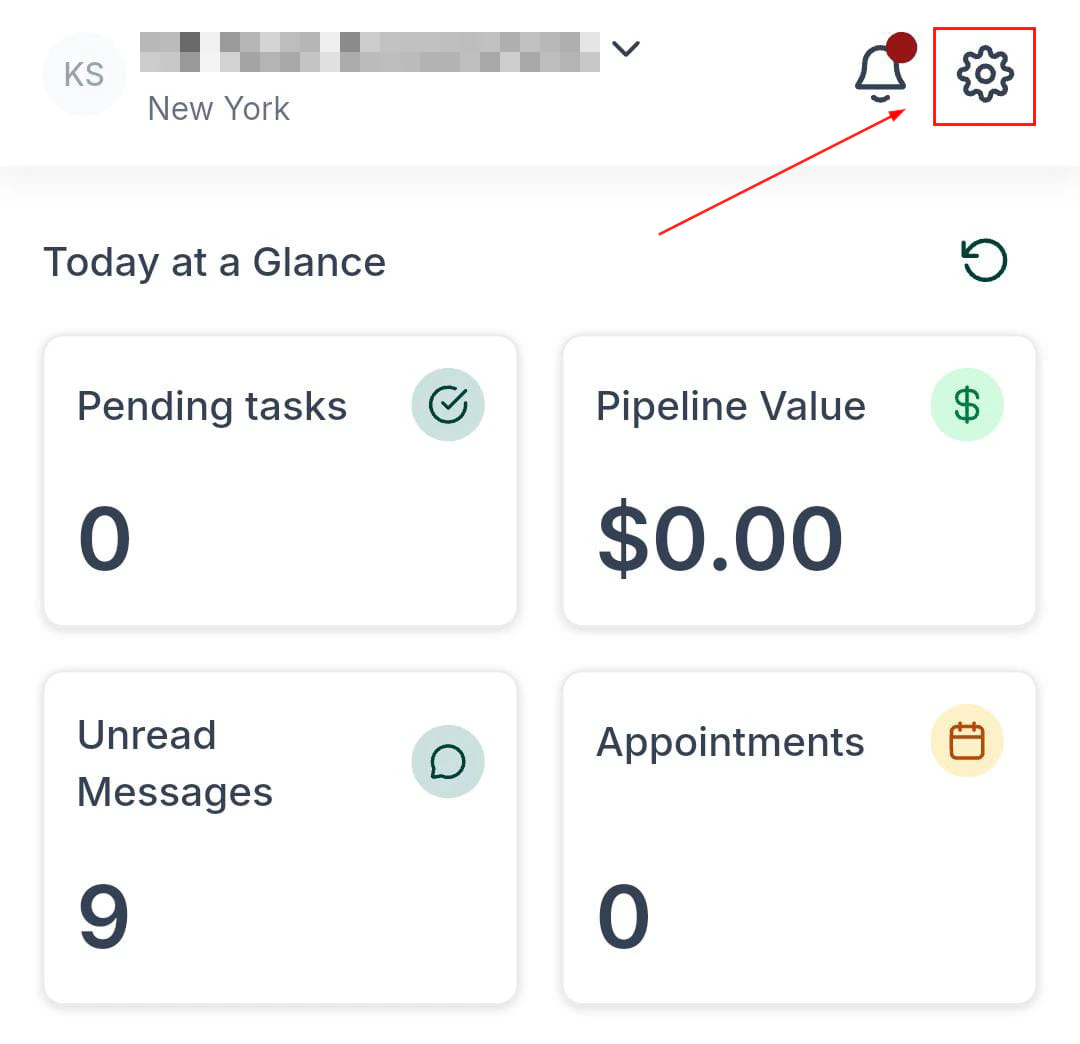
Multi-location incoming call settings
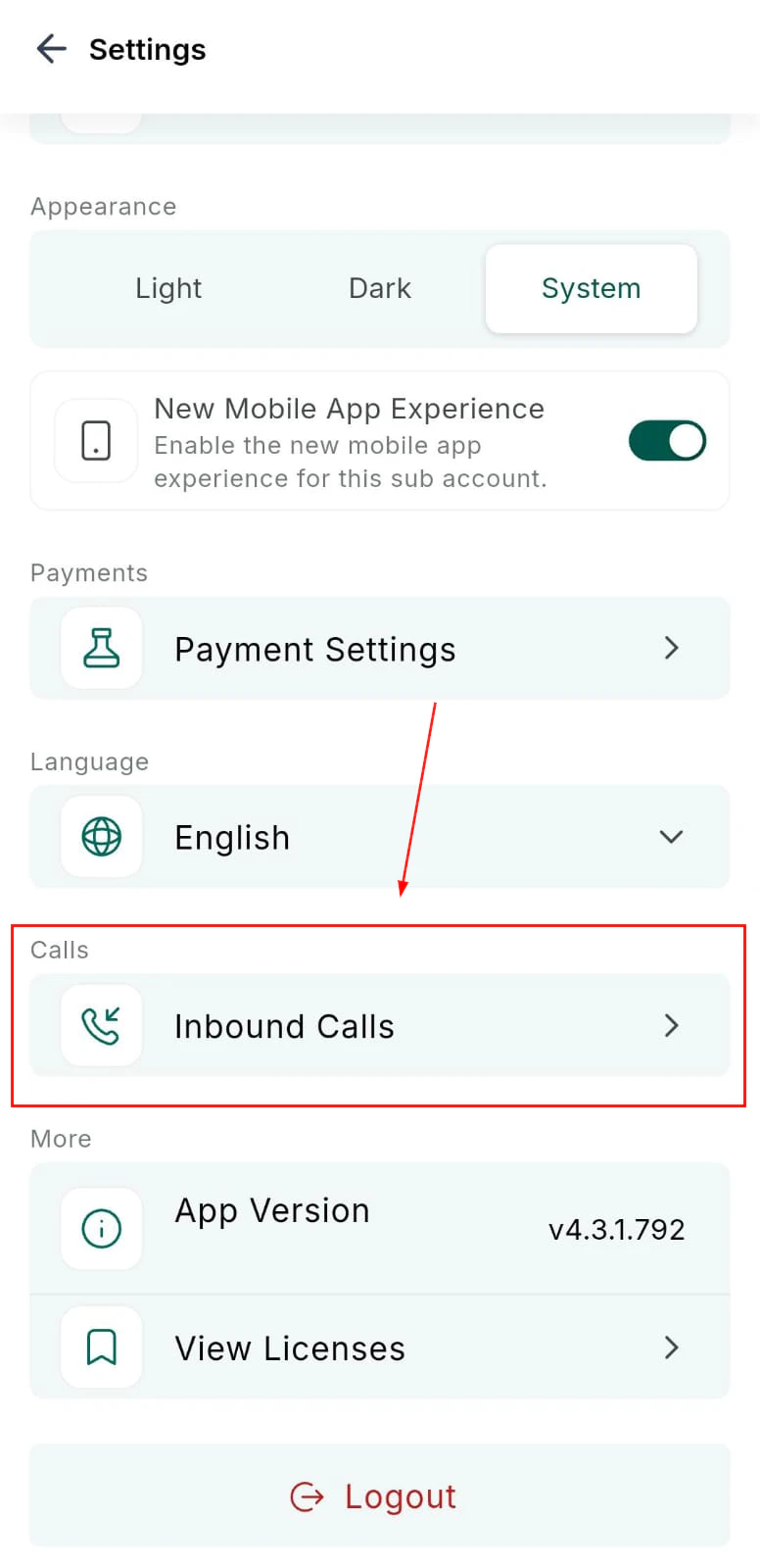
Multi-location inbound call configuration
Voicemail
Missed calls with voicemails appear as a notification and in the Conversations inbox. Tap a voicemail message to play it directly in the app.SIM-based calling from the mobile app
In addition to VoIP calling through the app, you can place calls using your device’s native SIM card:- SIM calling routes the call through your phone’s cellular network instead of the internet, which can improve call quality in areas with poor Wi-Fi or data connectivity
- When SIM calling is enabled, tapping the call button on a contact dials the number using your phone’s native dialer
- Call logging still occurs in the platform — the call is recorded on the contact’s activity timeline (note: call recording is not available for SIM-based calls)
- Open the HoopAI mobile app
- Go to Settings (gear icon)
- Under Phone Settings, toggle Use SIM for Outbound Calls on
- When you place a call, the app will use your SIM card instead of VoIP