

Downloading the app
The app is listed as Lead Connector in app stores on both platforms. Search for “Lead Connector” in your app store and install the free app. Log in with your HoopAI account credentials to access your data.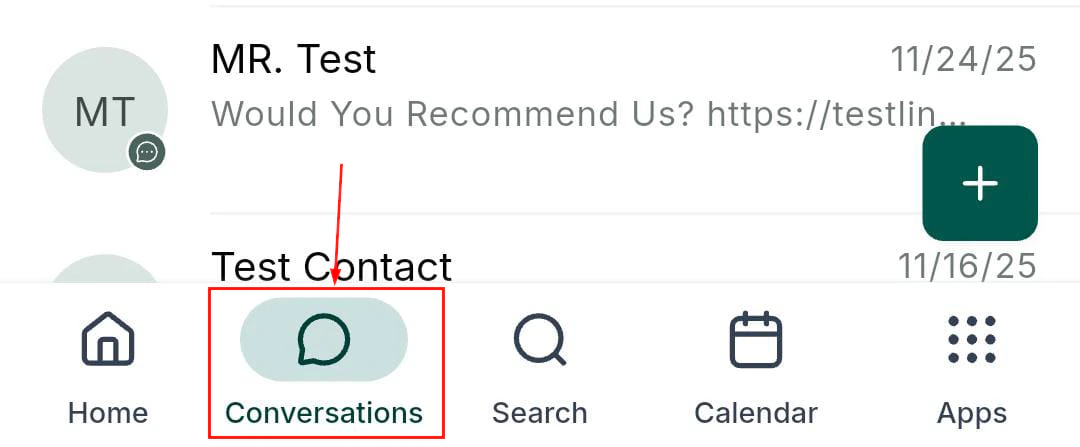
The HoopAI mobile app running on iOS and Android devices
Core features on both platforms
The following features work identically on iOS and Android:- Conversations inbox (SMS, email, WhatsApp, Facebook Messenger)
- Contact management and business card scanner
- Calendar and appointment management
- Opportunity pipeline view and stage management
- Phone and dialer (inbound and outbound calls, voicemail, call scripts)
- Point of Sale, invoices, estimates, and Tap to Pay
- Social planner post creation and scheduling
- Media library and file management
- Push notifications for messages, calls, appointments, and reviews
- Dark mode and biometric login (Face ID / Face Unlock / fingerprint)
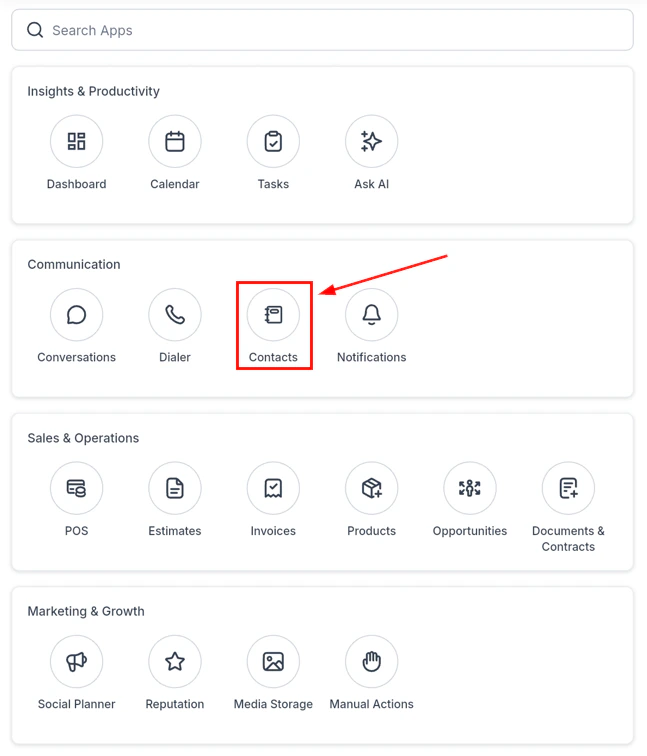
Core CRM features on both iOS and Android
Platform-specific differences
Call display: From and To numbers
On iOS, the call detail view includes a Details panel showing the From and To numbers — meaning you can see which phone number the incoming caller dialed and which number the call connected through. This is especially useful in multi-location or multi-number setups where different numbers are in use for different campaigns. On Android, the From/To numbers are not currently displayed in the call detail view. If you need to identify which number a call came through, check the conversation thread associated with the contact or review call logs on the desktop platform.Push notification reliability
iOS delivers push notifications via Apple Push Notification Service (APNs), which is tightly controlled and consistently reliable as long as notifications are permitted in device settings. On Android, notification reliability varies by device manufacturer. Some manufacturers — Samsung, Xiaomi, Huawei, OnePlus, and others — run aggressive battery optimization that can delay or suppress push notifications. To ensure reliable push notifications on Android:- Open Settings > Battery > App optimization (the exact label varies by manufacturer).
- Find Lead Connector (the name the HoopAI app is listed under) and set it to Unrestricted or No restrictions.
- Also disable battery optimization for the HoopAI app in Settings > Apps > Lead Connector > Battery.
Background sync
iOS limits background app refresh to preserve battery, but the process is well-managed by the OS and typically reliable. Go to Settings > General > Background App Refresh and ensure the HoopAI app is toggled on. It appears as Lead Connector in your device settings. On Android, background sync behavior depends heavily on the device manufacturer’s OS customizations. Follow the same unrestricted battery setting steps mentioned above to allow the app to sync contacts, conversations, and notifications in the background.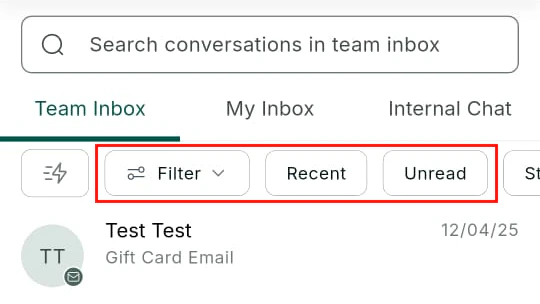
Filter and search capabilities on mobile
Tap to Pay
Tap to Pay (contactless payments using the device’s NFC chip) is available on:- iPhone (iPhone XS or later) — uses Apple’s Tap to Pay on iPhone feature
- Android — available on NFC-capable Android devices running Android 10 or later
Dark mode
Both iOS and Android follow the system dark mode setting. On iOS, you can set dark mode in Settings > Display and Brightness. On Android, the setting is typically in Settings > Display > Dark theme. The app also supports a manual override in App Settings > Appearance if you want the app in dark mode regardless of your system preference.Keeping the app updated
Enable automatic updates in your app store settings to stay current without manual intervention. The HoopAI platform releases mobile updates frequently, and many new features have a minimum version requirement.
Troubleshooting version mismatches
If a feature described in this documentation is not appearing in your app, check your installed version:- iOS: App Store > search Lead Connector > version number shown under the app name
- Android: Google Play Store > search Lead Connector > About this app > version