

Requirements
- HoopAI mobile app v3.74 or later (iOS or Android)
- Camera permission granted to the app
- An account with available scan credits (the first scans are included; additional scans are charged at $0.02 per scan)
Accessing the scanner
You can open the business card scanner from three locations within the app:- Contacts screen — tap the + icon and select Scan business card
- New contact screen — tap the scan icon in the top toolbar
- Quick actions (bolt icon) — tap the bolt icon on the home screen or bottom navigation and select Scan business card
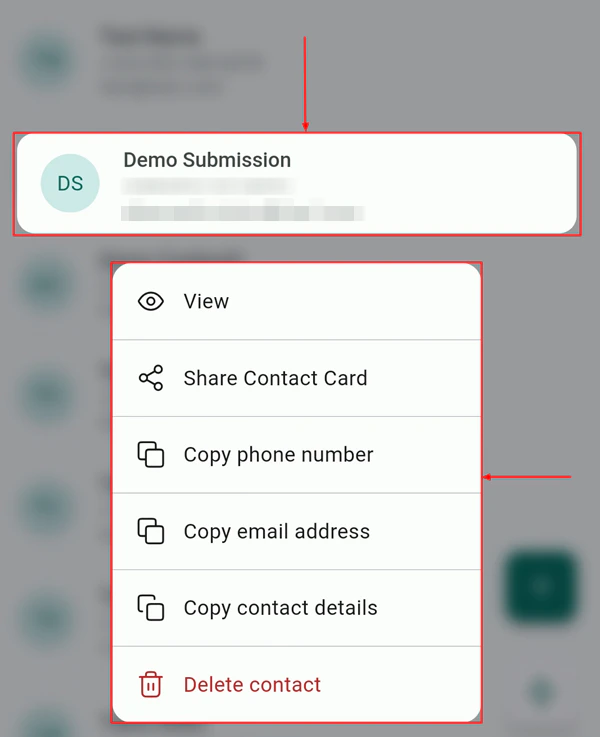
Quick actions menu with the Scan business card option
Scanning a business card
1
Open the scanner
Use any of the access points listed above to open the camera scanner view.
2
Position the card
Place the business card on a flat, high-contrast surface (a white card on a dark table works well). Hold your phone steady over the card and align it within the on-screen rectangular guide.
3
Wait for auto-capture
The scanner automatically detects the card edges and captures the image when it is steady and in focus. You do not need to tap a shutter button — capture is automatic.
4
Scan the back (optional)
After capturing the front, you will be prompted to scan the back of the card. This is recommended for cards that include additional contact details on the reverse side.
5
Review extracted details
The extracted information appears as editable chips at the bottom of the screen. Review each field — name, company, phone number, email, website — and make any corrections by tapping a chip and editing the text.
6
Map fields
Drag any chip to a different field if the scanner has placed information in the wrong spot. For example, if a job title was placed in the name field, drag it to the correct position.
7
Save the contact
Tap Save to create the contact in your CRM. The contact appears immediately in your Contacts list, ready for follow-up.
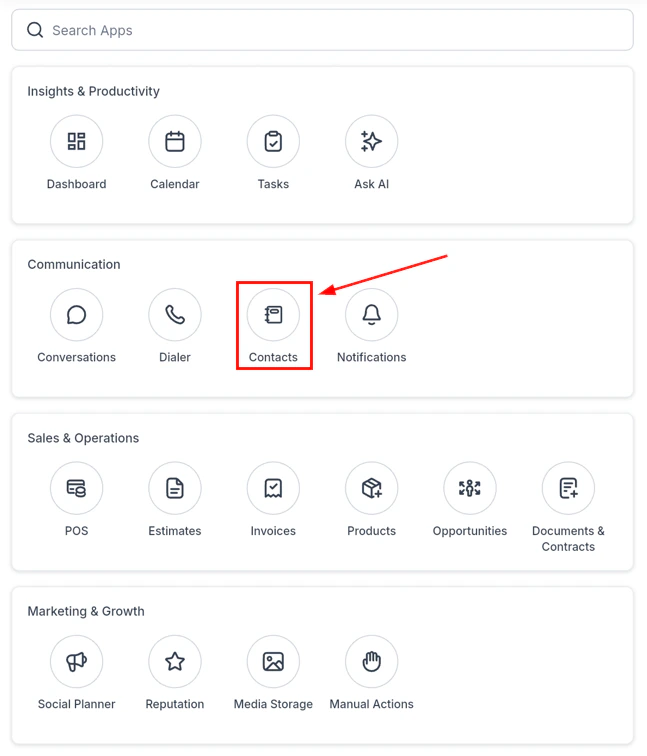
Reviewing extracted contact details after scanning
Tips for best scan results
- Place the card on a high-contrast background — a dark card on a light surface or a light card on a dark surface
- Ensure good lighting — natural daylight or overhead office light works best; avoid harsh shadows across the card
- Avoid glare — tilt the card slightly if you see reflections on glossy cards
- Hold your phone parallel to the card rather than at an angle
- For cards with very small print, hold the phone closer and let the camera auto-focus before capture
Privacy: scanned images are not stored
Once you save a contact, the scanned card image is automatically discarded. Only the parsed contact data (name, phone, email, etc.) is saved to your CRM. The image itself is never uploaded or retained on HoopAI servers.After scanning: next steps
Once the contact is saved, you can immediately:- Tap Call to place a call to their number
- Tap Send SMS to start a conversation
- Tap Add to pipeline to create an opportunity linked to the contact
- Tap Send review request to request a review via the quick actions menu
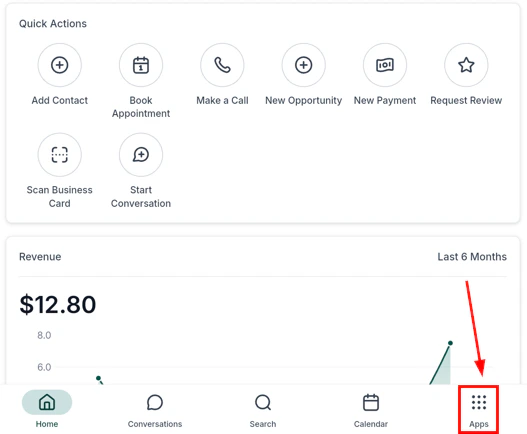
Contacts list with recently scanned contacts