

Home screen layout
The dashboard home screen is organized into three areas:- Widget row — a fixed set of summary cards at the top of the screen
- Pinned apps — up to four modules you pin for one-tap access
- Quick actions — a floating bolt icon for the most common actions (new call, new SMS, scan business card, send invoice)
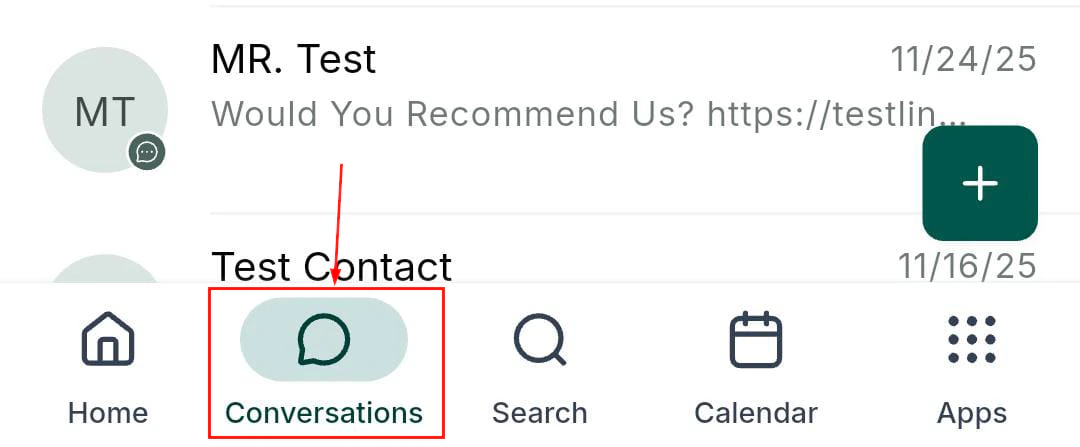
HoopAI mobile app home screen with widget row and pinned apps
Dashboard widgets
The widget row always shows the following metrics, updated in real time:
Tap any widget to jump directly to the corresponding section of the app. For example, tapping Unread messages opens your Conversations inbox with unread conversations pre-filtered.
Pinned apps
Beneath the widget row you can pin up to four modules for one-tap access. By default, the pinned apps are Conversations, Contacts, Calendars, and Opportunities. To customize:- Tap the Edit icon (pencil) in the top-right corner of the home screen.
- Drag and drop modules to change the pinned selection.
- Tap Save to apply your changes.
App drawer
Swipe up or tap All Apps to open the full app drawer. The drawer organizes every available module into four categories:- Insights and productivity — Dashboard, Reports, Tasks, Reviews
- Communication — Conversations, Phone, Social planner
- Sales and operations — Contacts, Opportunities, Calendars, Payments
- Marketing and growth — Automations, Media library, Email campaigns
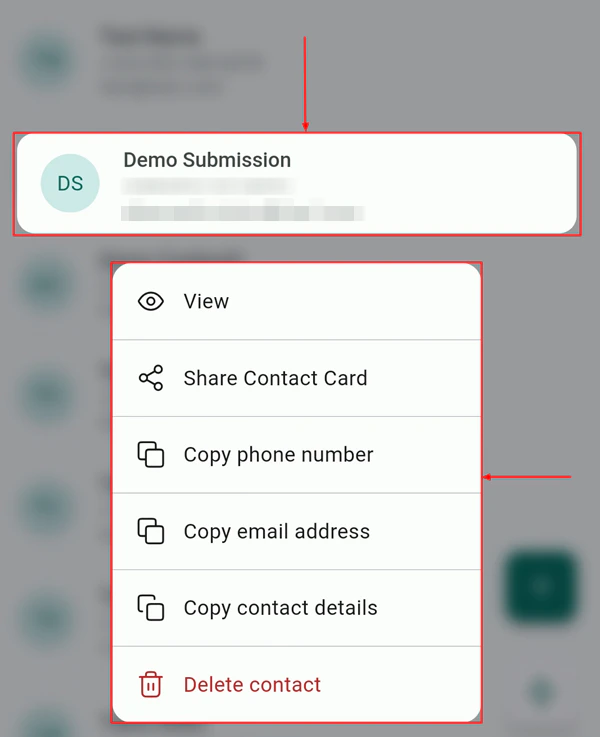
App drawer with categorized modules on the mobile app
Universal search
Tap the search icon at the top of the dashboard to open Universal Search. You can search across Conversations, Contacts, and Opportunities simultaneously. The system remembers your last five searches for quick re-access.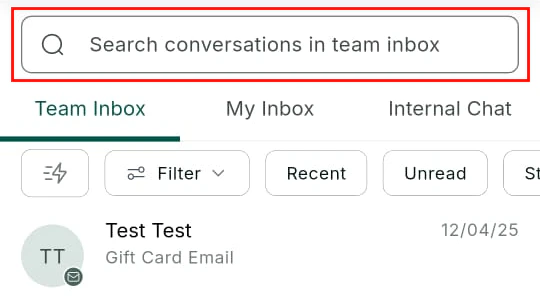
Universal search results in the mobile app
Ask AI assistant
The home screen includes an Ask AI button that opens a natural-language interface. You can type commands like:- “Draft a follow-up SMS for John Smith”
- “Create a new contact for Jane Doe at Acme Corp”
- “What appointments do I have tomorrow?”