

Accessing reviews on mobile
- Open the HoopAI mobile app and tap the App Drawer (swipe up or tap All Apps).
- Select Reviews under the Insights and Productivity category.
- The Reviews screen loads your connected Google Business Profile and Facebook page reviews in a unified feed.
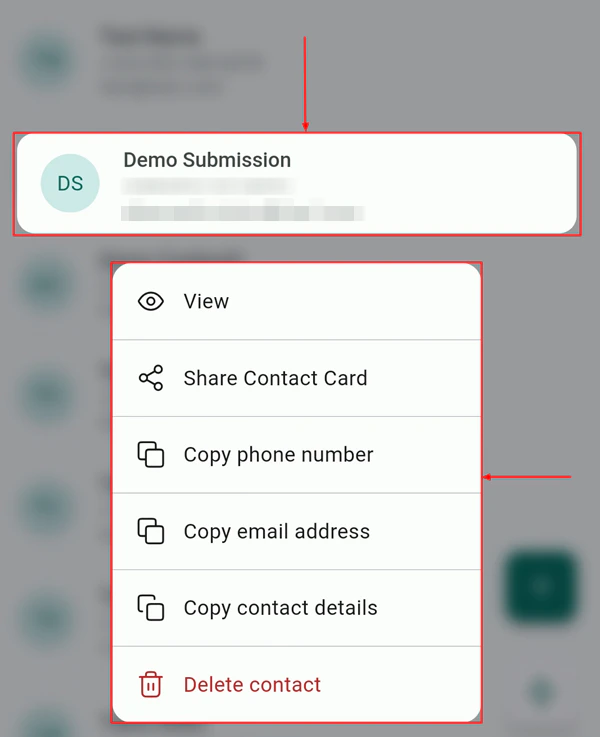
Accessing the Reviews module from the mobile app
Review feed
The review feed displays all incoming reviews in reverse chronological order. Each review card shows:- Star rating (1–5 stars)
- Platform — Google or Facebook icon
- Reviewer name and date
- Review text (if the reviewer left a comment)
- Response status — whether you have already replied
Responding to reviews
1
Open the review
Tap a review card in the feed to open it. You will see the full review text and, if applicable, any previous response from your business.
2
Tap Reply
Tap the Reply button beneath the review text to open the response composer.
3
Write your response
Type your response in the text field. Keep responses professional, thank the reviewer by name when appropriate, and address any specific feedback they mentioned.
4
Send
Tap Send. Your response is posted directly to Google or Facebook and appears publicly under the review.
Replying to a customer review from the mobile app
AI-assisted responses
The HoopAI platform includes a Reviews AI feature that can suggest responses or operate in Auto-Pilot mode. In the mobile app, when you open a review, you can tap Suggest reply to have the AI generate a contextually appropriate draft based on the review content and your business tone. Edit the draft as needed before sending. Reviews AI pricing is usage-based and managed from your account billing settings on the desktop platform.Sending a review request from mobile
You can send a review request to a contact directly from the mobile app without navigating to the desktop:- Open Contacts and find the contact.
- Tap the lightning bolt quick actions icon.
- Select Send review request.
- Choose the contact and confirm the send.
Filtering reviews
Use the filter controls at the top of the Reviews screen to view:- All reviews — every review across connected platforms
- Google only — reviews from your Google Business Profile
- Facebook only — reviews from your Facebook page
- Unanswered — reviews that have not yet received a response
- By star rating — filter to show only 1-star, 2-star, or 5-star reviews
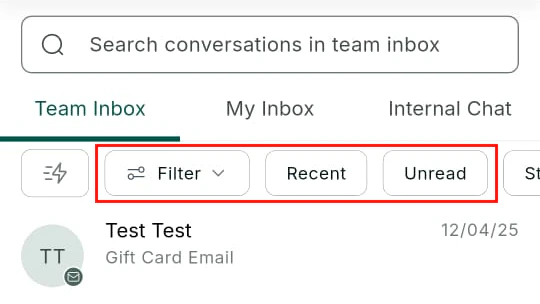
Filter controls for narrowing down reviews by platform and rating
Disputing inaccurate reviews
For Google reviews that violate Google’s content policies, you can initiate a dispute from the mobile app:- Open the review in question.
- Tap the three-dot menu in the top-right corner.
- Select Flag / Report review.
Enabling review notifications
To receive push notifications for new reviews:- Navigate to the desktop platform or mobile app settings.
- Go to My Profile > Notifications.
- Enable New Google review and New Facebook review under the Mobile App delivery channel.