

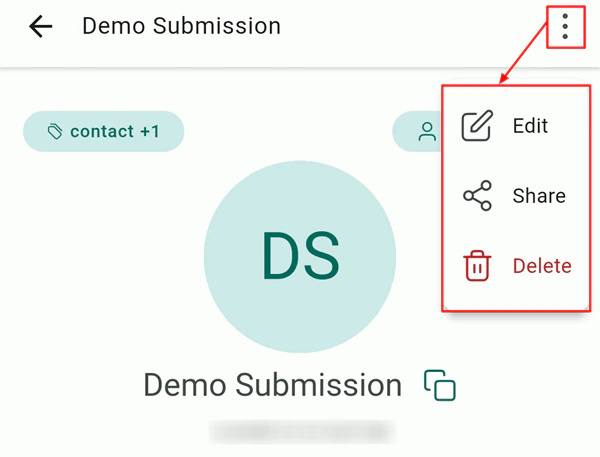
HoopAI mobile app settings screen
Push notifications
Push notifications keep you informed of new messages, inbound calls, and activity on your contacts — even when the app is in the background.Push notifications must be allowed at the operating-system level. If you do not see a permission prompt on first launch, go to your device’s system settings and enable notifications for the HoopAI app manually.
Enabling push notifications on iOS
- Open Settings on your iPhone or iPad.
- Scroll down and tap Lead Connector (the name the HoopAI app is listed under).
- Tap Notifications.
- Toggle Allow Notifications on.
- Choose your preferred alert style — Lock Screen, Notification Center, and Banners are all recommended.
Enabling push notifications on Android
- Open Settings on your Android device.
- Tap Apps (or Application Manager), then tap Lead Connector (the name the HoopAI app is listed under).
- Tap Notifications and toggle them on.
- You can also long-press the HoopAI app icon on your home screen and select App info > Notifications.
Notification types
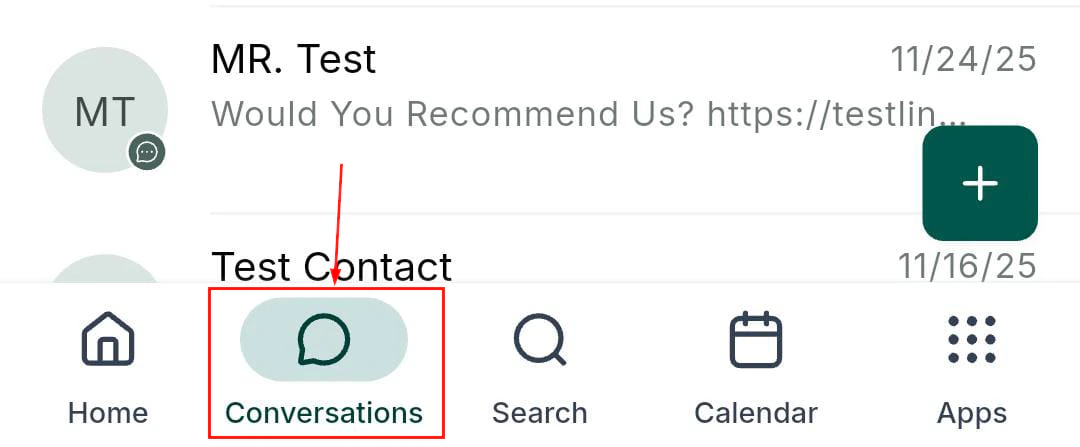
Push notification settings for the mobile app
Mobile dashboard
The mobile dashboard is the home screen of the app. It gives you a live snapshot of your business performance at a glance. From the navigation, tap the Home or Dashboard icon to open the dashboard view. The dashboard displays:- Conversation summary — number of open, unread, and starred conversations
- Appointment count — upcoming appointments for today and the next 7 days
- Pipeline snapshot — total open opportunities and their combined value
- Recent activity — a feed of the latest contact actions, messages, and calls
The metrics shown on the mobile dashboard reflect the same data as your desktop dashboard. Filters and date ranges set on desktop do not persist to the mobile view.
Biometric login
The HoopAI app supports biometric authentication (Face ID on iPhone, fingerprint on Android) as a faster, more secure way to log back in after the app locks.1
Log in with your password
Open the app and sign in with your email and password as normal.
2
Enable biometrics when prompted
After a successful login, the app may prompt you to enable Face ID or fingerprint. Tap Enable to activate it.
3
Use biometrics on subsequent logins
The next time the app locks or you open it from a cold start, use your registered face or fingerprint to authenticate instantly.
Biometric login uses your device’s native authentication — neither your fingerprint nor Face ID data ever leaves your device. If biometric authentication fails three times, the app falls back to your email and password.
App permissions
The HoopAI app requests several device permissions to power its features. You can review and adjust these at any time in your device’s system settings.Reviewing permissions on iOS
Open Settings > Privacy & Security and tap each category (Camera, Microphone, etc.) to see which apps have access. Tap Lead Connector (the name the HoopAI app is listed under) to change its permission level.Reviewing permissions on Android
Open Settings > Apps > Lead Connector > Permissions to see all requested permissions and toggle each on or off. The app is listed as Lead Connector in your device settings.Offline mode
The HoopAI mobile app requires an active internet connection (Wi-Fi or mobile data) to function. Core features — conversations, contacts, calling, and calendar — are not available offline. When connectivity is lost:- The app displays a “No connection” banner
- Existing data you have already loaded (contact profiles, conversation history) remains visible but read-only
- Any actions taken while offline (messages drafted, notes written) are queued and synced automatically once connection is restored
In-app settings overview
The Settings screen in the mobile app contains the following sections: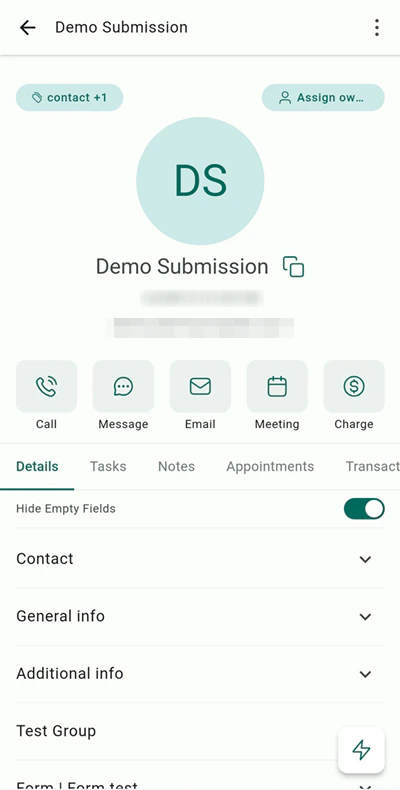
In-app settings overview
Frequently asked questions
Why am I not receiving push notifications?
Why am I not receiving push notifications?
Check two things: first, that notification permissions are granted for the HoopAI app in your device’s system settings; second, that your account has at least one active phone number or inbox assigned to you. Unassigned conversations do not trigger personal notifications.
Does the app support Face ID or Touch ID?
Does the app support Face ID or Touch ID?
Yes — biometric authentication is supported on both iOS (Face ID and Touch ID) and Android (fingerprint). Enable it after your first successful password login when prompted, or look for the biometrics option under in-app settings.
Can I use the app without an internet connection?
Can I use the app without an internet connection?
No — the app requires an active internet connection. Previously loaded contact and conversation data is visible read-only, but sending messages, making calls, and booking appointments all require connectivity.
What is the minimum iOS and Android version required?
What is the minimum iOS and Android version required?
The app supports iOS 15 and above, and Android 8.0 (Oreo) and above. Always install the latest version of the HoopAI app to access the newest features.
Why does the app show Lead Connector instead of HoopAI?
Why does the app show Lead Connector instead of HoopAI?
The HoopAI mobile app is listed as Lead Connector in the App Store and Google Play. Once logged in, you are accessing your HoopAI account.
How do I log out of the app?
How do I log out of the app?
Tap the menu icon, scroll to the bottom of the Settings screen, and tap Log Out. If you manage multiple accounts, logging out signs you out of all accounts on that device.