

Installing the app on iPad
Search for Lead Connector on the App Store on your iPad — that’s the name the HoopAI app is listed under — and install it exactly as you would on an iPhone. Log in with your HoopAI account credentials. The app automatically detects the screen size and adjusts its layout accordingly. For Android tablets, search for Lead Connector on the Google Play Store and install from there.iPad POS split-screen layout
The most significant tablet-specific enhancement is in the Point of Sale (POS) module. On an iPad or Android tablet, the POS splits into two panels displayed side by side:- Left panel — Console: Product catalog, search bar, and cart controls
- Right panel — Checkout: Cart summary, customer details, payment method, and the charge button
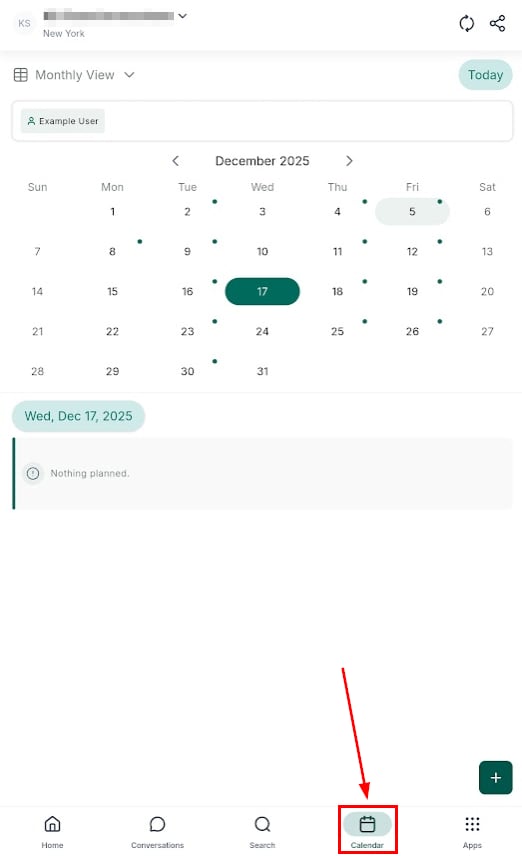
Split-screen POS layout on iPad
Switching orientation
The POS works in both landscape (horizontal) and portrait (vertical) orientations on iPad. The split-screen layout is maintained in both orientations:- Landscape: wide side-by-side panels, ideal for a table or desk setup
- Portrait: narrower panels stacked side by side, more compact and useful when holding the tablet
Navigation on iPad
On iPad, the app bottom navigation bar expands to take advantage of the wider screen. The navigation icons are spaced further apart and easier to tap than on a phone. The sidebar drawer (accessible by swiping from the left or tapping the menu icon) works the same as on iPhone.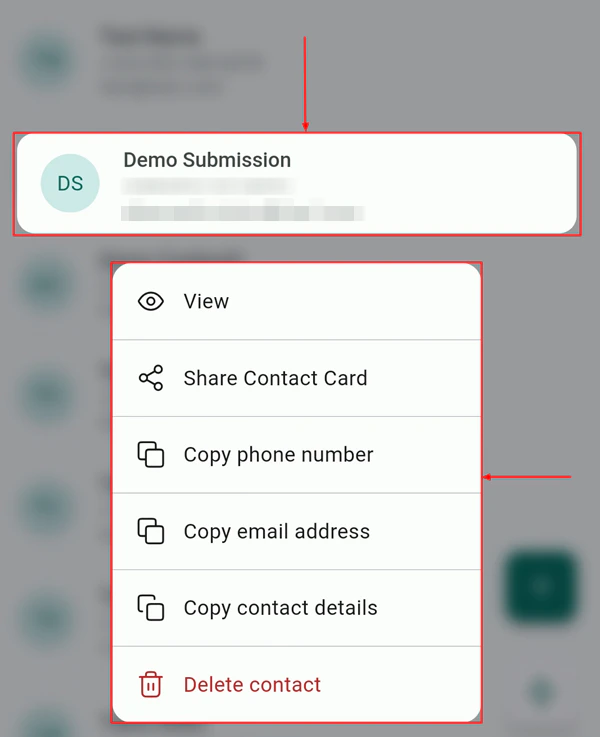
Navigation bar on iPad with expanded layout
Using the keyboard on iPad
When composing messages in the Conversations module on iPad, the on-screen keyboard leaves more of the conversation thread visible than on a phone. If you connect an external Bluetooth keyboard to your iPad, the app fully supports hardware keyboard input for composing messages, adding notes, and filling in contact fields.Multitasking and Split View (iPad)
On supported iPad models running iPadOS, you can run the HoopAI app alongside another app using iPadOS Split View or Slide Over. This allows you to, for example, view a contact’s record in HoopAI while referencing notes in another app side by side. To enter Split View:- Open the HoopAI app.
- Swipe up from the bottom to access the Dock.
- Drag another app from the Dock to the left or right edge of the screen.
HoopAI app in iPadOS Split View
Limitations on tablets
While the app runs well on tablets, the following desktop-only features are not available regardless of screen size:- Workflow builder
- Full website and funnel editor
- Custom dashboard widget builder
- Advanced email campaign editor
- Advanced reporting configuration