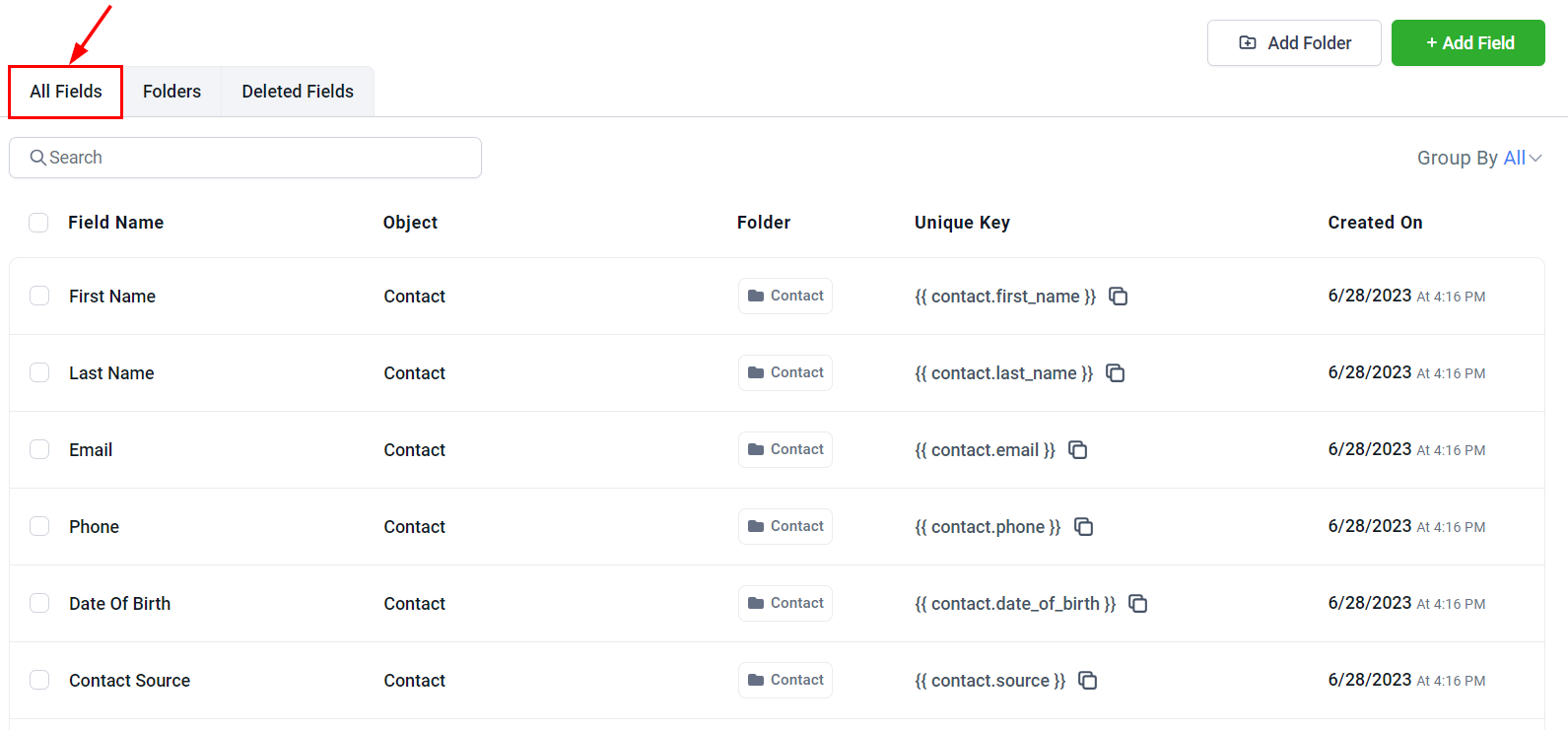
Custom fields are an essential tool for gathering specific customer information that goes beyond standard data points. They allow you to capture unique details that are important to your business — such as customer preferences, service history, referral sources, or any other relevant data that supports your marketing, sales, or customer service efforts. Navigate to Settings > Custom Fields to get started.
Custom Fields

Custom field types

The platform supports a wide range of field types to capture different kinds of data:
Field typeUse case
TextSingle-line text (e.g., job title, company name)
Large textMulti-line text for longer notes or descriptions
NumericalNumbers only (e.g., employee count, order quantity)
PhonePhone number with formatting
MonetaryCurrency values (e.g., deal size, budget)
CheckboxBoolean yes/no value
Single dropdownChoose one option from a predefined list
Multiple dropdownSelect multiple options from a list
RadioSingle-choice from displayed radio buttons
DateDate picker
Date & timeDate and time picker
File uploadAllow file attachments

Creating a custom field

1

Navigate to Custom Fields

Go to Settings > Custom Fields.
2

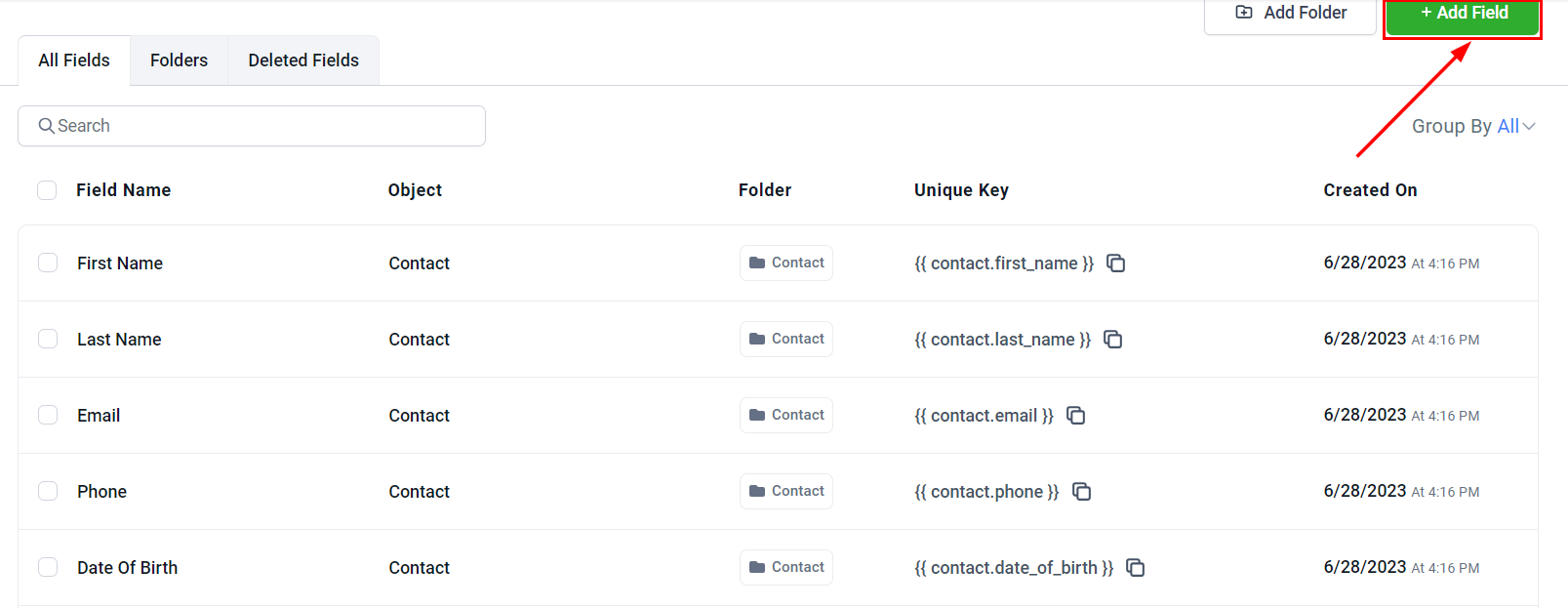
Click Add Field

Click the Add Field button.
Add Field
3

Choose the object

Select which object the field belongs to — Contact, Opportunity, or a custom object you have created.
4

Select the field type

Choose the field type that matches the data you want to capture.
5

Configure the field

  • Field name — the label users see (e.g., “Budget Range”)
  • Field key — auto-generated identifier used in automations and custom values
  • Placeholder text — hint text shown inside the field
  • Default value — pre-filled value when creating new records
  • Required — make the field mandatory when creating records
  • Options (for dropdowns/radio) — add your list options
6

Save the field

Click Save. The field is now available across the platform wherever that object type appears.

Managing custom fields

Search and filter

Use the search bar at the top of the Custom Fields page to quickly find specific fields by name. Filter by object type (Contact, Opportunity, etc.) to see only relevant fields.

Field actions

Each field has action options:
  • Edit — modify the field name, options, or settings
  • Delete — permanently remove the field (this also removes all stored data for that field)
  • Reorder — drag fields to change the display order on forms and record pages
Deleting a custom field permanently removes all data stored in that field across all contacts or records. This action cannot be undone.

Grouping fields

Organize fields into groups for cleaner presentation on contact and opportunity detail pages. Create a group, then assign fields to it.

Using custom fields

Once created, custom fields appear in:
  • Contact detail pages — visible and editable in the contact record
  • Opportunity records — visible on pipeline cards and opportunity detail views
  • Forms and surveys — add them as fields on any form or survey
  • Automations and workflows — use field values as trigger conditions or in dynamic message content
  • Filters and smart lists — filter contacts by custom field values to build targeted lists
  • Custom reports — include custom field data in report columns

Searchable fields for objects

You can configure which custom fields are searchable for custom objects, making it easier to look up records by specific field values. Go to Settings > Custom Fields and configure Searchable Fields for the relevant object.
Last modified on March 4, 2026