Update your personal account details, email signature, password, 2FA, Gmail sync, notification preferences, and availability in the HoopAI Platform.
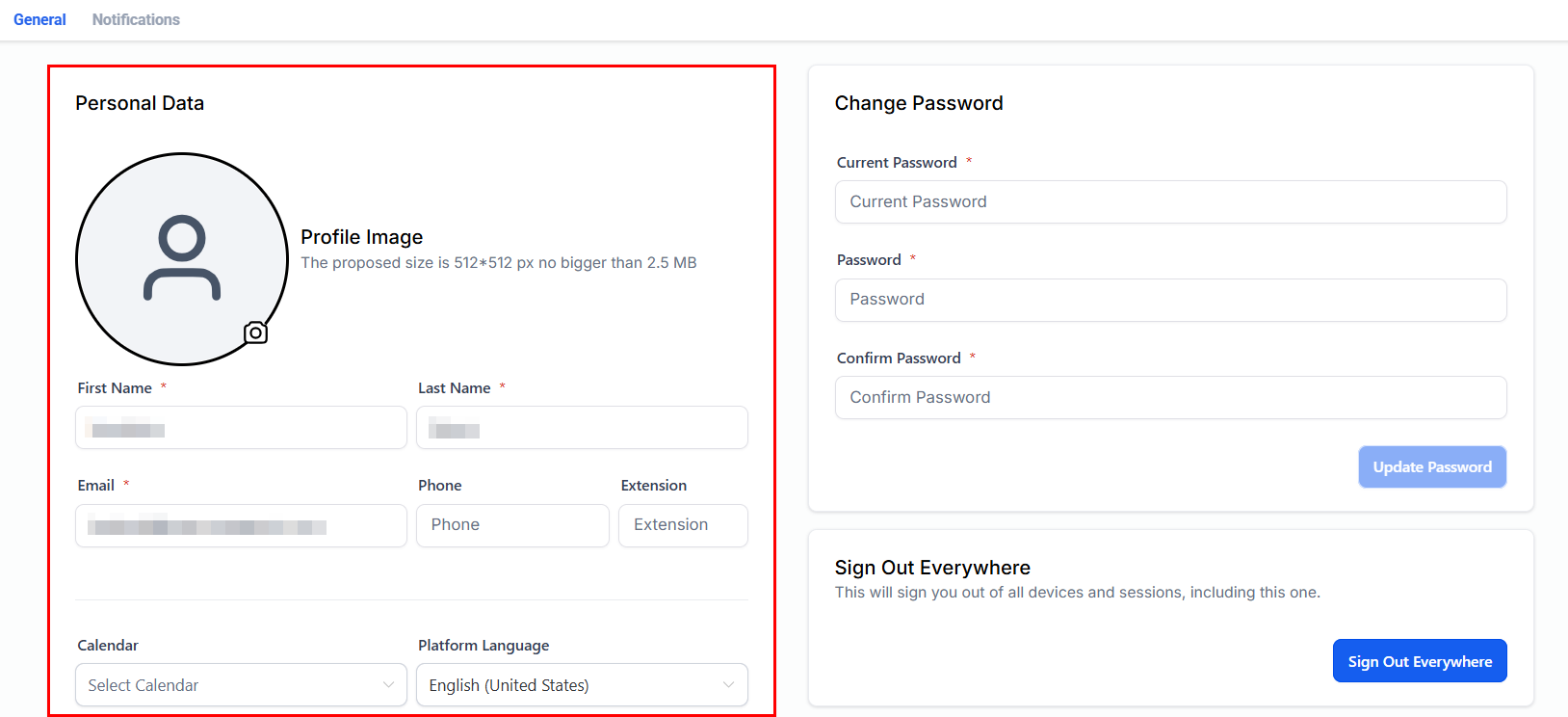
The My Profile section allows you to customize and manage your personal account settings. Here you can update your profile information, create an email signature, change your password, manage email two-way sync, designate your primary calendar, and set your availability status.Navigate to Settings > My Profile to get started.
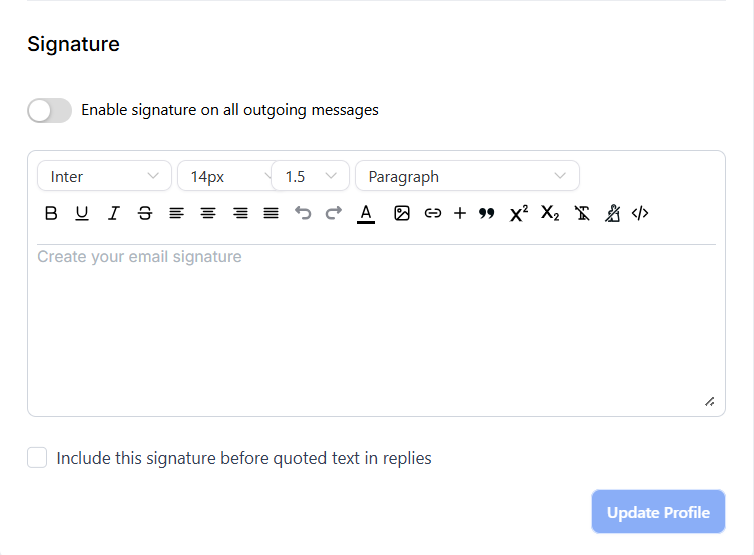
Create a professional email signature that automatically appears at the bottom of emails you send from the platform.
Email signature editor
The signature editor supports rich text formatting, links, and images. You can use custom values (e.g., {{user.full_name}}) to make your signature dynamic.
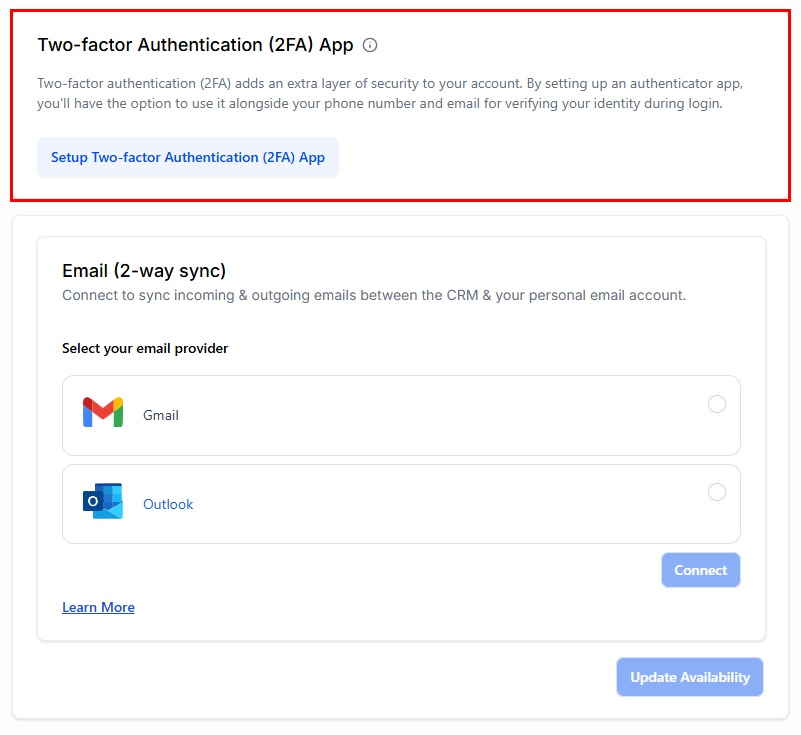
Connecting your Gmail or Outlook account enables two-way email synchronization — emails sent from the platform appear in your external inbox, and replies sync back into the platform automatically.
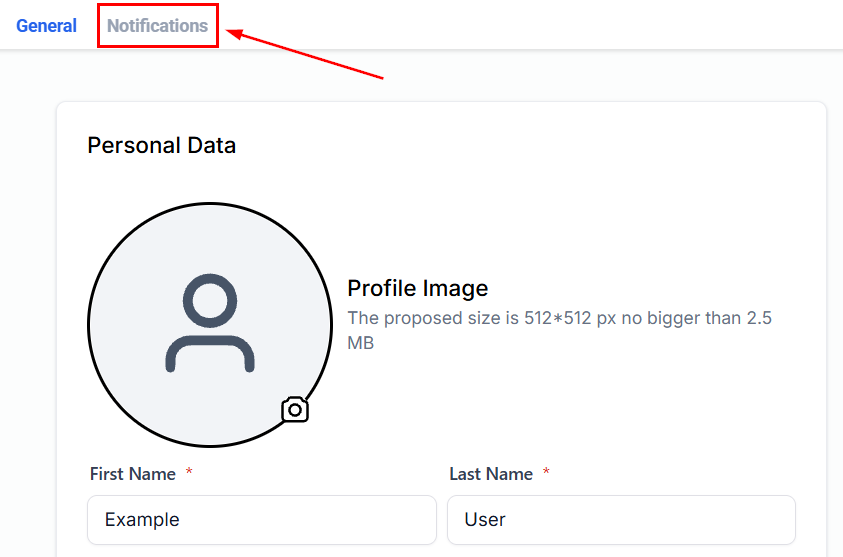
Configure alerts for new incoming messages, mentions, and conversation assignments. Options include in-app notifications, email notifications, and desktop push notifications for each event type.
Task notifications
Receive reminders for upcoming tasks and when tasks are assigned to you or completed by others.
Appointment notifications
Get notified when appointments are booked, rescheduled, or cancelled for calendars assigned to you.
Pipeline notifications
Set alerts for when opportunities are moved, won, or lost in pipelines you own or follow.
System and account notifications
Control notifications for account-level events such as workflow completions, campaign results, and billing updates.
To reduce notification noise, disable email notifications for high-volume events (like every new conversation message) and rely on in-app or desktop notifications instead.