Send payment request links directly to customers via text message and collect payments instantly from any phone.
Text-to-Pay lets you send a personalized payment request to a customer’s phone via SMS. The customer receives a short link, taps it, and is taken to a mobile-optimized checkout page where they can pay instantly — no app download or account required.This is ideal for service businesses, field teams, and any situation where you need to collect payment quickly from a customer who is not in front of a computer.
Text-to-Pay requires Stripe Connect to be active on your account. The customer’s phone number must also have SMS capabilities. Go to Payments → Payment Integrations to connect Stripe if you have not done so already.
The payment request flow from the Conversations tab
This is the fastest method when you are already in a conversation with the contact.
1
Open the conversation
Go to Conversations and open the contact’s SMS conversation thread.
2
Click the payment icon
In the message composer area, click the $ (dollar sign) icon.
3
Enter the amount or select products
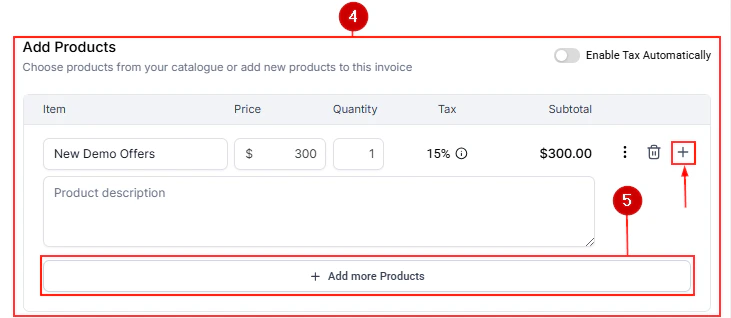
Either enter a custom dollar amount, or click Add Products to select items from your product catalog. The subtotal updates automatically as you add products.
4
Send the request
Click Send. The contact receives an SMS with a personalized payment link immediately.
This method sends an existing invoice as a Text-to-Pay link rather than as a traditional email invoice.
1
Open the invoice
Go to Payments → Invoices & Estimates and open the invoice you want to send.
2
Select Text2Pay as the delivery method
When clicking Send, look for the Text2Pay or Send via SMS option. Select it.
3
Confirm and send
The invoice is converted into a Text-to-Pay link and delivered to the customer’s phone as an SMS. The customer pays directly from the link — no separate invoice page is needed.
Using Text2Pay for invoices is particularly useful when your customers are more responsive to SMS than email. The open rate for SMS is significantly higher than email, which can accelerate payment collection.
They see a short message with your business name and the payment amount.
They tap the link and are taken to a mobile-optimized checkout page hosted on the HoopAI Platform.
The checkout page shows:
The line items or amount requested
Your business name and branding
Payment input fields for card details
Apple Pay and Google Pay buttons (where supported by the device)
After paying, the customer sees a confirmation screen and receives a receipt email automatically.
The link remains active until the underlying invoice is paid or voided — it is not single-use. If the customer closes the page before paying, they can open the same link again later.
Mobile-optimized checkout page with card and digital wallet payment options
The transaction appears in Payments → Transactions with the customer’s name, amount, and Stripe as the provider.
The associated invoice (if applicable) updates its status to Paid.
The contact activity timeline logs the payment event.
The “Payment Received” workflow trigger fires, allowing you to automatically send thank-you messages, update opportunity stages, apply tags, or trigger any other automated follow-up.
You can automate Text-to-Pay requests as part of a workflow sequence so payment requests are sent without any manual action.
1
Open Automation
Go to Automation → Workflows and open or create a workflow.
2
Add the Send Invoice action
Add a Send Invoice action step to your workflow.
3
Select SMS as the delivery method
In the action settings, choose SMS as the delivery channel. Select the invoice template you want to use.
4
Set the trigger
Configure the workflow trigger — for example:
After a form is submitted
When an appointment is completed
When a contact is added to a specific pipeline stage
On a scheduled date
5
Publish the workflow
Activate the workflow. From this point forward, whenever the trigger fires, the payment request is sent automatically to the contact via SMS.
Automating payment requests after an appointment or service completion is one of the most effective ways to increase on-time collection rates. The payment request arrives while the interaction is fresh in the customer’s mind.
Your Stripe account supports the customer’s currency.
The contact’s phone number is in a format that supports international SMS delivery.
Your SMS provider (Twilio or equivalent) is configured to send to the destination country.
The checkout page automatically adapts to display the correct currency symbol and format based on the configured invoice currency.
Check your Stripe account’s supported currencies and countries before sending Text-to-Pay requests to international customers. Stripe has different capabilities across regions.
Yes. Stripe Connect is required to use Text-to-Pay. The feature relies on Stripe’s payment processing infrastructure to securely handle card payments, Apple Pay, and Google Pay. If your account uses a different payment provider as its primary gateway, you will need to also connect Stripe to use Text-to-Pay.
Can I send a Text-to-Pay request to multiple contacts at once?
Not directly through the Text-to-Pay interface. Text-to-Pay is designed for one-on-one payment requests. To send a payment request to multiple contacts at once, create a Payment Link and include it in a bulk SMS campaign. Each recipient can pay through the same link.
What happens if the SMS is not delivered?
If the SMS fails to deliver, the underlying payment link is still created and active. You can resend the request from the contact’s conversation or copy the payment link and share it via another channel — for example, email or a follow-up phone call.
Can customers pay with cash via Text-to-Pay?
No. Text-to-Pay only supports digital payment methods processed through Stripe: credit and debit cards, Apple Pay, and Google Pay. For cash payments, record them manually in Payments → Transactions using the Record Payment option on the invoice.
Is the payment link single-use?
No. The link remains active until the invoice is paid or voided. If the customer opens the link but does not complete payment, they can return to the same link later and complete the transaction. This is by design — it reduces friction for customers who get interrupted during checkout.
Can I include multiple products in one Text-to-Pay request?
Yes. When creating the request, click Add Products to select multiple items from your product catalog. All items are included in a single payment request and displayed as line items on the checkout page. The customer pays the combined total in one transaction.
Does Text-to-Pay work internationally?
Yes, provided your Stripe account supports the customer’s currency and your SMS provider is configured to deliver to the destination country. The checkout page adapts to the invoice currency automatically. Review your Stripe account’s supported regions and your SMS provider’s international coverage before sending to overseas customers.
Can I customize the message in the Text-to-Pay SMS?
The default SMS message includes your business name and a payment link. You can customize the message text through workflow actions when automating Text-to-Pay, or by manually editing the message in the Conversations composer before sending. Keep the payment link intact when editing the message.