Coupons — discount codes and promo codes in HoopAI
Create percentage and fixed-amount coupon codes for order forms, checkout pages, and recurring subscriptions in HoopAI.
Coupons let you offer discounts on your products and services — whether as percentage-off promotions, fixed-amount discounts, or special pricing for subscription plans. You can create coupon codes for use in two-step order forms, one-page checkout, and recurring subscription billing.Navigate to Payments → Coupons to get started.
The Coupons dashboard showing active coupon codes, usage, and expiry dates
Go to Payments → Coupons and click + Create Coupon.
2
Name the coupon
Enter a coupon name for internal reference — used to identify the coupon in your dashboard and reports. Names do not need to be unique, but unique names are recommended for easier management.
3
Set the coupon code
Enter a coupon code that customers type at checkout (e.g., SAVE20, WELCOME10). Codes are case-insensitive and automatically converted to uppercase. Only alphanumeric characters are supported — no spaces or special characters.Click Generate to have the platform create a random 7-character alphanumeric code for you.
4
Choose the discount type
Select one of:
Percentage — deducts a percentage of the order total (e.g., 20%)
Fixed amount — deducts a flat dollar amount regardless of order size (e.g., $15 off)
The discount value must be greater than 0.
5
Set the validity period
Enter a Start Date — the date the coupon becomes active. Optionally set a Start Time for precision (e.g., active from 00:01 on a specific day).Set an End Date and End Time to create a time-limited promotion. After the end date, the code becomes invalid and customers see an error if they try to apply it.
6
Configure usage limits
Limit total uses — cap the total number of redemptions across all customers
Limit to one use per customer — prevent the same customer from using the code more than once
7
Restrict to specific products (optional)
By default, a coupon applies to any product. Enable Apply to specific products and select the products the discount is valid for.
8
Save
Click Create. The coupon is now active and ready to use.
Creating a coupon — set the code, discount type, validity period, and usage limits
Two-step order forms separate the contact information step from the payment step, giving you a chance to capture leads even if they don’t complete checkout. Coupons can be applied at the payment step.
1
Enable coupon field on the order form
In your order form builder (under Sites → Funnels or Sites → Order Forms), add the Coupon field to the payment step.
2
Customer applies the code
At checkout, the customer enters their coupon code in the field and clicks Apply. The discount is applied and the order total updates instantly.
3
Verify and complete purchase
The customer reviews the discounted total and completes their payment.
Include the coupon code directly in your marketing emails or SMS messages to reduce friction — customers can copy and paste it into the checkout field.
Subscription coupon — apply recurring discounts for once, multiple months, or forever billing cycles
Subscription coupons let you offer discounted pricing on recurring plans — useful for introductory offers, loyalty discounts, and win-back campaigns.
1
Ensure you have a recurring product
Go to Payments → Products and confirm the target product has a Recurring pricing type configured with the correct billing interval.
2
Create the coupon
Go to Payments → Coupons and click + Create Coupon. Fill in the name, code, discount type, and validity dates.
3
Enable recurring payment application
Toggle on Apply coupon to recurring payments. This ensures the discount applies automatically on each billing cycle — no manual intervention needed.
4
Set the duration
Choose how long the discount applies:
Once — discount applies only to the first billing cycle
Multiple months — enter the exact number of months the discount will apply
Forever — discount applies to every billing cycle indefinitely
5
Restrict to a specific subscription product (optional)
Enable Apply to specific products and select the subscription product from the dropdown to limit the coupon to that plan only.
6
Save and add to your funnel
Click Create. Then go to the funnel where your subscription is sold. In the funnel step settings, enable Enable Coupon Codes so customers can apply the code at checkout.
Subscription coupons require Stripe Connect. The coupon is applied at the Stripe subscription level and renews automatically for the configured duration.
After a subscription order is placed, you can verify the coupon was applied in two places:
Payments → Orders — click the three-dot menu next to the order and select View Order. The order details show the applied coupon.
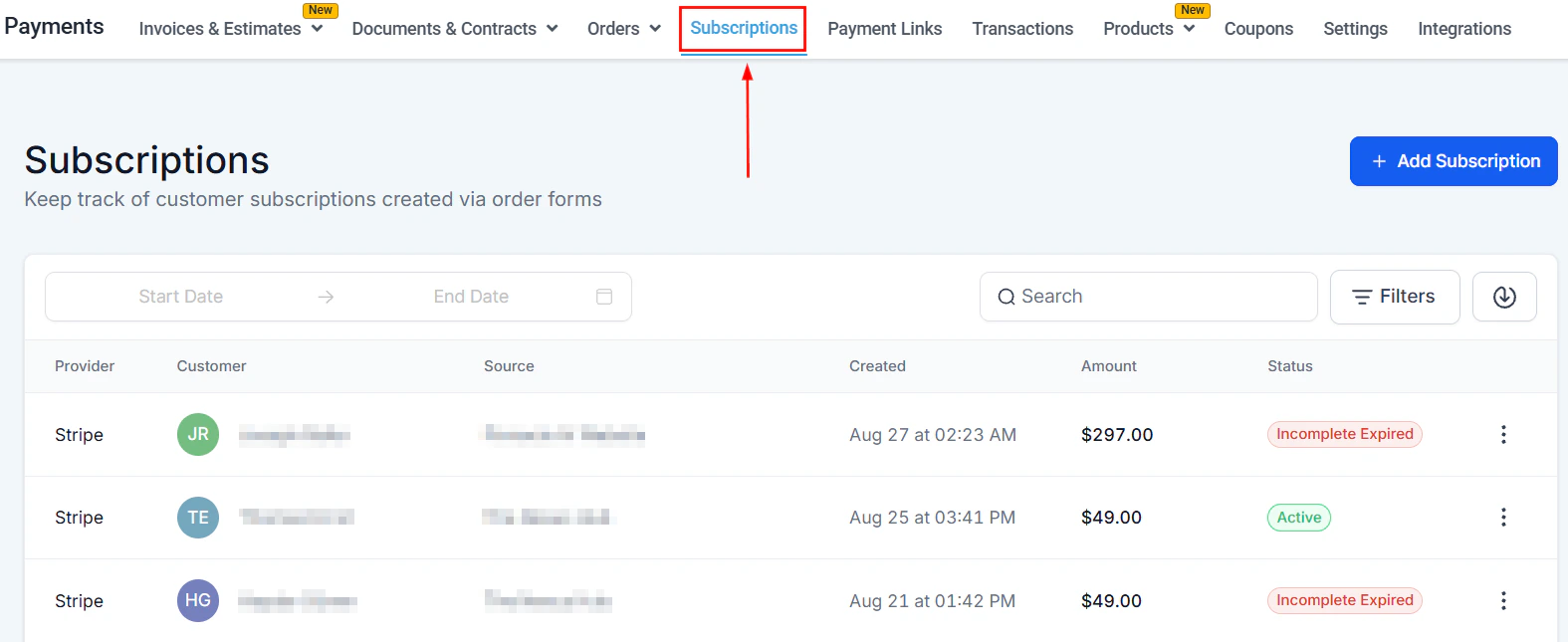
Payments → Subscriptions — click the three-dot menu next to the subscription and select View Subscription to see coupon details in the subscription record.
No. Only one coupon code can be applied per order at checkout.
Can I give a coupon to a specific contact only?
Set Limit total uses to 1 and share the code exclusively with that contact. Alternatively, create a unique code per customer for more control.
Can coupons be used with payment plans?
Yes. If you apply a coupon to an invoice or order that has a payment plan, the discount is reflected in the first installment or spread across all installments depending on configuration.
What happens when a coupon expires?
After the expiry date, the code becomes invalid. Customers who try to apply it will see an error message at checkout.
Can I track how many times a coupon has been used?
Yes. The coupons dashboard shows the total redemption count for each coupon. Click into the coupon for a detailed usage log.
Can I create a coupon that is only valid for new customers?
The platform does not have a native “new customers only” rule. To achieve this, create a single-use coupon (limit total uses to 1) or use unique per-customer codes, and distribute them only to new contacts through a targeted workflow or campaign.
Do coupon codes work on payment links?
Yes. When creating a payment link, enable the Allow coupon codes option in the Options panel. A coupon field will appear on the checkout page and customers can enter any valid, active coupon code.