

- All Documents & Contracts — your full document history with status tracking
- Templates — reusable document layouts you build once and send repeatedly
- Settings — default configurations for notifications, product invoicing, and signing behavior
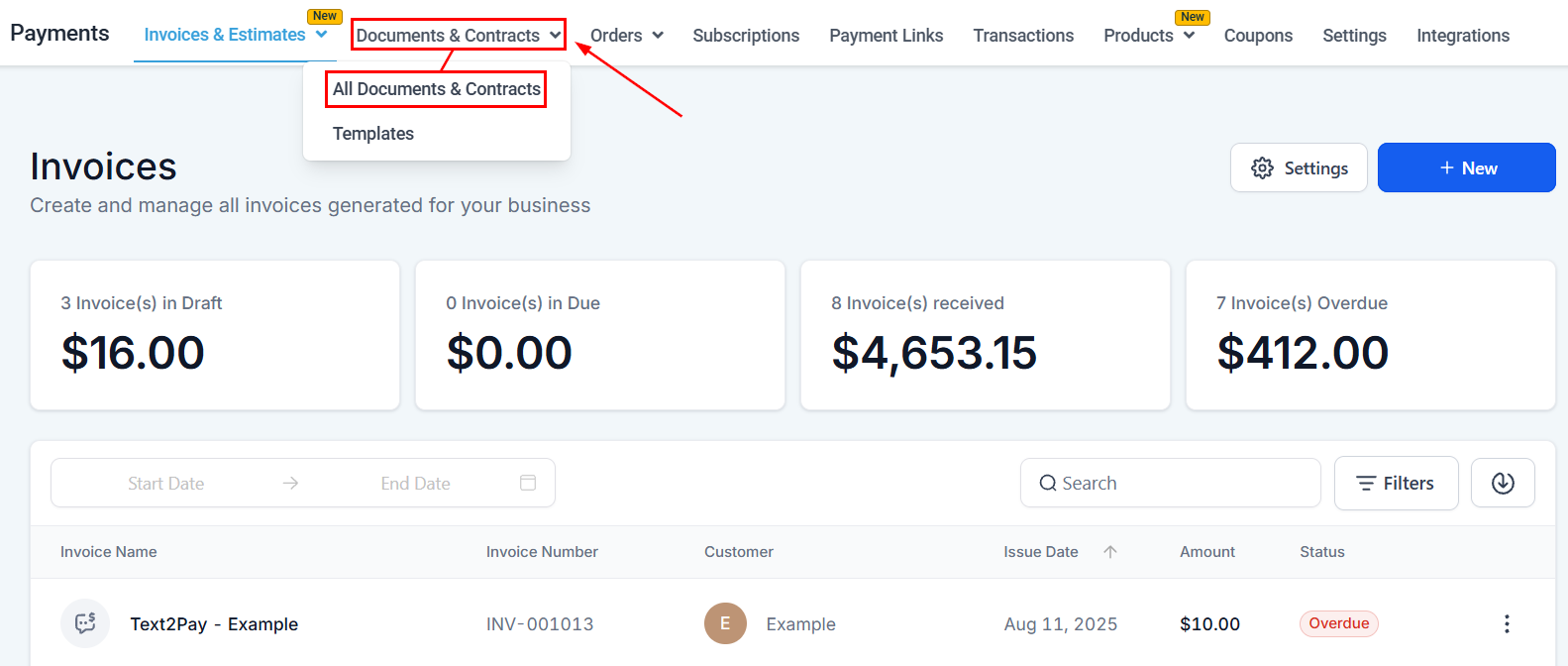
Documents & Contracts overview
Document statuses
The document builder
The builder uses a drag-and-drop canvas where you compose the document content and insert fillable elements.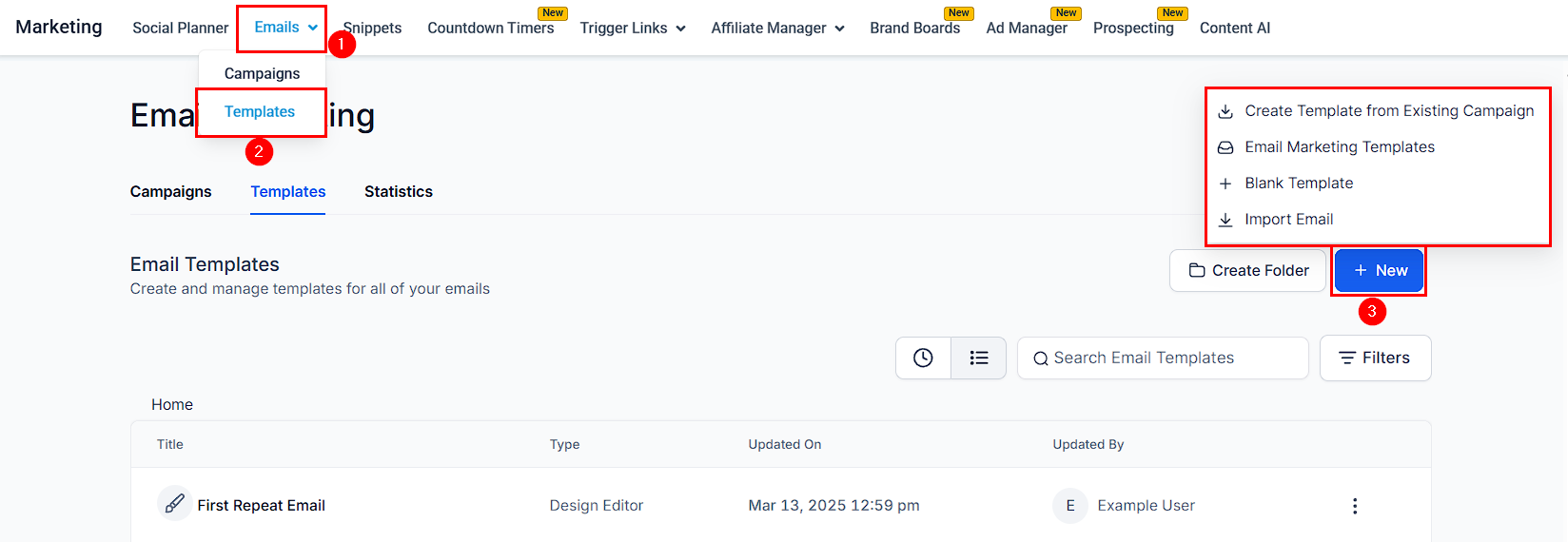
Document builder — drag-and-drop canvas with content elements, fillable fields, and product list
Content elements
Add text blocks, images, headings, and product lists to the body of your document using the left panel.Fillable elements
Insert fields that recipients must complete before signing:Product list
Add a product table to display itemized pricing, quantities, and totals. You can include recurring products (for subscription-based agreements) and add discount and tax lines.Creating a document or contract
Start a new document
Build your content
{{contact.name}}) to personalize the content automatically.Add fillable elements
Configure settings
- Subject line — customize the email subject sent to recipients
- Currency — choose the correct currency for any product amounts
- Expiry date — set a deadline after which the document can no longer be signed
- Notification preferences — who receives alerts on signing events
Save as a template or send
Sending documents
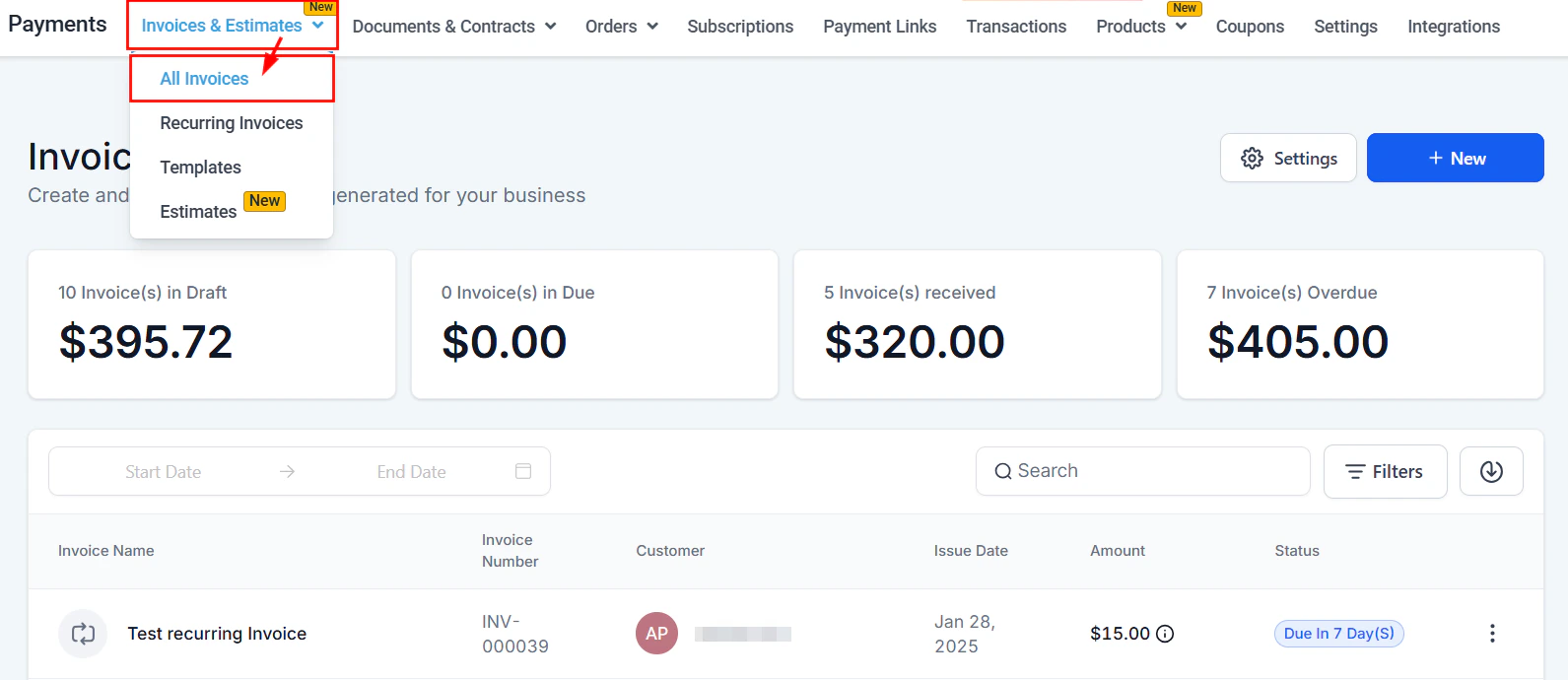
Sending a document — select recipients, assign signing order, and customize the email subject
Choose your recipient(s)
Customize the subject line
Send
Public documents
You can create a Public document — a shareable link that any recipient can open and sign without being addressed to a specific contact. This is useful for standard agreements, terms of service, and intake forms.E-signature workflow
The e-signature process covers the full journey from document creation to signed copy delivery — for both single-recipient and multi-signer scenarios.What the signer experiences
- Email invitation — the recipient receives an email with a unique link to their copy of the document.
- Document review — they open the link (no account or login required) and read the document.
- Fill required fields — they complete any text fields, checkboxes, or initials assigned to them.
- Sign — they draw or type their signature in the designated signature field.
- Submit — clicking Submit finalizes their portion. The signed document is timestamped and locked.
- Confirmation — a copy of the fully signed document is emailed to the signer and to your account.
Single recipient signing
The recipient opens the document link, fills in any required fields, draws or types their signature, and clicks Submit. The signed document is emailed to all parties and stored in your HoopAI Platform account.Multi-recipient signing
Add signers
Assign fields
Send
Initials
Use the Initials fillable element to collect a shorter acknowledgment on individual pages or clauses. Initials are separate from the main signature and are useful for multi-page contracts where page-by-page acknowledgment is needed.Collecting payment at signing
You can require payment as part of the signing process so that signature and payment happen in a single step.Add a product list
Enable payment collection
Set up a payment plan (optional)
Auto-creating an invoice after signing
Enable auto-invoice
Map products
Review
Templates
Templates save your document structure so you can send the same agreement to many contacts without rebuilding it each time.Save a document as a template
Use a template
Send templates automatically via workflows
Settings
Go to Documents & Contracts → Settings to configure:- Default email and SMS notifications — who is alerted when a document is sent, signed, or declined
- Branding — upload your logo and set brand colors for the signing experience
- Custom fields for signing — map CRM custom fields to document variables so they auto-populate
- Currency — set the default currency for document product amounts
- Uploading PDFs — upload an existing PDF and overlay fillable fields on top of it
Recurring products in documents
If your agreement includes a recurring product (e.g., a monthly retainer), add it to the product list in the document. When the document is signed and payment is collected, the recurring billing begins automatically.Uploading PDFs as documents
Instead of building from scratch, you can upload an existing PDF and overlay fillable fields on top of it.Upload the PDF
Add fillable fields
Assign fields to signers
Send as usual
Sharing documents via customized links
Get the shareable link
Embed or distribute
Document variables
Document variables are merge fields that automatically pull data from the contact’s CRM record into the document at the time of sending. This eliminates manual data entry and ensures accuracy. Common document variables include:{{contact.first_name}}/{{contact.last_name}}{{contact.email}}{{contact.phone}}{{contact.company}}{{contact.address}}- Custom contact fields you have created
- Opportunity custom fields
{} variable picker in the document builder’s text editor.
Adding custom fields for signing
You can map CRM custom fields to fillable elements in the document. When the document is opened, the field auto-populates with the contact’s stored data.Add a custom field element
Map to a CRM field
Assign to a signer
Setting the subject line
Customize the email subject line that recipients receive when the document is sent to them. In the document settings (gear icon in the builder), find the Email Subject field and type your custom subject. You can include document variables in the subject line for personalization.Currency settings for documents
Each document can have its own currency for product pricing. This is important when selling internationally. In the document builder, click the settings icon and select the Currency for this document. All product prices and totals in the product list will display in the selected currency.Expiry dates
Set a deadline after which the signing link becomes inactive. In the document settings, enable Set Expiry Date and choose the date. After this date, any attempt to open the signing link will display an expiry message.Product list in documents
Add an itemized product table to your documents and contracts to display pricing and terms clearly.Add the product list element
Add products
Include recurring products
Creating documents from templates
Templates let you send the same document structure to many contacts without rebuilding each time.Go to Templates
Select a template
Create a document from the template
Personalize and send
{{contact.first_name}} auto-fill when the document is sent to a specific contact. Adjust any details and click Send.Sending documents via SMS and workflows
Sending via SMS
You can share a document’s signing link via SMS:- Open the document and copy the Signing Link
- Paste it into an SMS message to the contact (manually or via a workflow)
- The recipient taps the link on their mobile device and signs in their browser
Sending via workflows
Automate document delivery using workflows:Create a workflow
Add the Send Document action
Configure recipient
Add follow-up actions
Tracking document activity
Monitor the full lifecycle of every document from the dashboard:Public document links
Public documents are shareable links that anyone can open and sign — no specific contact assignment needed.When to use public documents
- Standard terms of service or agreements
- Event waivers
- Intake forms for new clients
- Any document where you want a single URL for multiple signers
Creating a public document
- Build your document as usual
- When sending, select Public Document instead of assigning a specific contact
- Copy the public URL and share it on your website, in emails, or via SMS
- Each person who opens the link fills in their own details and signs independently
Decline documents feature
Recipients can decline to sign a document if they do not agree with the terms:- When viewing a document, the recipient clicks Decline (if the option is enabled)
- They can optionally provide a reason for declining
- The document status changes to Declined in your dashboard
- You receive a notification
- A workflow can be triggered on the “Document Declined” event to alert your team or start a follow-up sequence
Frequently asked questions
Can I upload an existing PDF and add signature fields?
Can I upload an existing PDF and add signature fields?
What currencies are supported?
What currencies are supported?
Can I add custom fields from my CRM to a document?
Can I add custom fields from my CRM to a document?
Can I set an expiry date on a document?
Can I set an expiry date on a document?
Can I create a document that anyone can sign without being addressed to a specific contact?
Can I create a document that anyone can sign without being addressed to a specific contact?
Can I use initials in addition to a full signature?
Can I use initials in addition to a full signature?
Can I send the same document template automatically via workflows?
Can I send the same document template automatically via workflows?
Does the platform support recurring products in documents?
Does the platform support recurring products in documents?
Does the signer need a HoopAI account to sign a document?
Does the signer need a HoopAI account to sign a document?
What happens after a document is signed?
What happens after a document is signed?
Can I void a document after it has been sent?
Can I void a document after it has been sent?
Are e-signatures legally binding?
Are e-signatures legally binding?