

Apple Pay and Google Pay require Stripe Connect to be active on your account. They are not available with NMI, Authorize.net, Square, Adyen, or PayPal integrations. Go to Payments → Payment Integrations to connect Stripe.
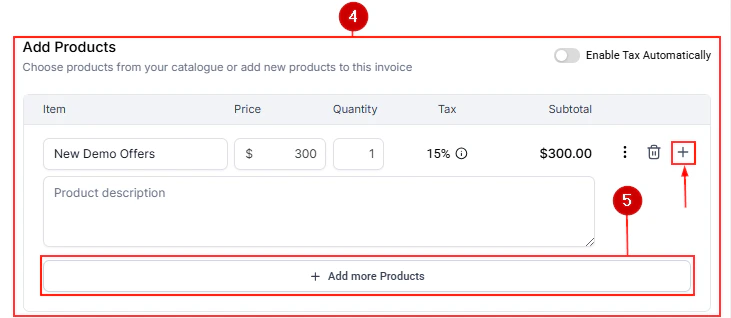
Invoice payment page with digital wallet options available
How digital wallets work
Digital wallets store payment credentials securely on the customer’s device or in the cloud. When a customer pays via Apple Pay or Google Pay:- The checkout page detects that the customer’s device and browser support a wallet payment.
- An Apple Pay or Google Pay button appears above the standard card form.
- The customer taps the button and authenticates with Face ID, Touch ID, or their device PIN — no card details are typed.
- The payment processes instantly through Stripe, the same as a standard card payment.
- The customer receives a receipt email and the transaction appears in your HoopAI Platform immediately.
Requirements
Apple Pay
Stripe automatically registers your checkout domain with Apple when you connect Stripe Connect. You do not need to manually verify your domain with Apple or make any changes in the Apple Developer portal.
Google Pay
Where Apple Pay and Google Pay work
Digital wallet payments are available on all Stripe-powered checkout surfaces in the HoopAI Platform:Payment links
Apple Pay and Google Pay buttons appear automatically on Stripe payment links when the customer’s device supports them.
Invoices
Customers viewing an invoice payment page on a supported device and browser see wallet options at the top of the checkout form.
Order forms
Order form checkouts in funnels and websites show wallet buttons automatically when Stripe is the active payment gateway.
Text-to-Pay (Text2Pay)
Payment links sent via SMS open in the device browser. Safari on iPhone shows Apple Pay; Chrome on Android shows Google Pay.
Where digital wallets are not available
Apple Pay and Google Pay do not appear on checkouts processed through:- PayPal — PayPal has its own wallet and checkout experience.
- NMI, Authorize.net — these gateways do not support Apple Pay or Google Pay in the HoopAI Platform.
- Square — Square has its own in-person wallet integrations but not Apple Pay / Google Pay online through the HoopAI Platform.
- Adyen — not supported via the HoopAI Platform integration.
Setup and configuration
No additional setup is required in the HoopAI Platform. When you connect Stripe:- Apple Pay domain verification is handled automatically by Stripe.
- Google Pay is enabled by default in Stripe for supported accounts.
- Both wallet buttons appear on checkout pages automatically when the conditions are met.
What the customer sees at checkout
When a customer visits a Stripe-powered checkout page on a supported device:- An Apple Pay button (on Safari / Apple devices) or Google Pay button (on Chrome / Android) appears prominently above the standard card form.
- The customer taps the button.
- A native payment sheet appears — on iPhone it shows Face ID / Touch ID confirmation; on Android it shows the Google Pay confirmation screen.
- The customer authenticates and the payment completes instantly.
- The checkout confirmation page displays and the customer receives a receipt email.
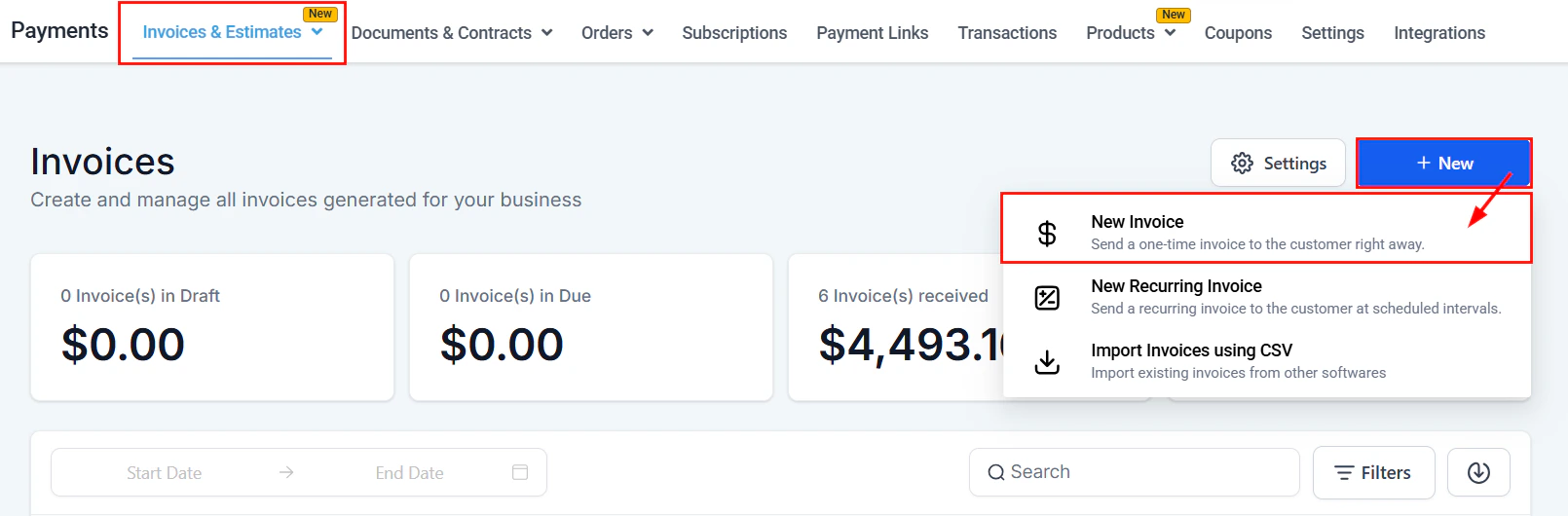
Transaction list showing completed payments in the Payments section
Receipts and transaction records
Payments made via Apple Pay or Google Pay are recorded in your transactions exactly like card payments:- The transaction appears in Payments → Transactions immediately.
- The customer receives the standard Stripe payment receipt email.
- The payment method is labeled according to the underlying card (e.g., Visa ending in 4242) — Apple Pay and Google Pay are tokenized card transactions, not a separate payment category.
- You can issue full or partial refunds through Payments → Transactions in exactly the same way as any card transaction.
Refunds
To refund an Apple Pay or Google Pay transaction:1
Go to transactions
Navigate to Payments → Transactions in the HoopAI Platform.
2
Find the transaction
Use the search bar or date filters to locate the transaction you want to refund.
3
Issue the refund
Click the three-dot menu on the transaction and select Refund. Choose a full or partial refund amount and confirm.
4
Customer notification
Stripe automatically notifies the customer of the refund. The refunded amount is returned to the card stored in their Apple Wallet or Google Pay, typically within 5–10 business days depending on the card issuer.
Apple Pay and Text-to-Pay
When you send a payment link to a customer via SMS using Text-to-Pay:- The link opens in the customer’s default mobile browser.
- On an iPhone, if the customer opens the link in Safari and has a card in Apple Wallet, the Apple Pay button appears automatically.
- On an Android device opening the link in Chrome, the Google Pay button appears if a card is saved in Google Pay.
- If the customer opens the link in a non-qualifying browser (e.g., an in-app browser), they may see only the standard card form.
Tap to Pay on iPhone
Tap to Pay on iPhone is a separate feature from Apple Pay in online checkouts. It is important to understand the distinction:
Both are powered by Stripe, but they serve different use cases. Tap to Pay on iPhone is for collecting in-person payments; Apple Pay in online checkouts is for remote or e-commerce payments.
Frequently asked questions
Do I need to do anything to enable Apple Pay?
Do I need to do anything to enable Apple Pay?
No. If you have Stripe Connect active and your checkout pages use HTTPS (which all HoopAI Platform pages do by default), Apple Pay is available automatically. Stripe handles the Apple Pay domain verification on your behalf — you do not need to take any action in the Apple Developer portal or in your HoopAI Platform settings.
Why is Apple Pay not showing up on my payment page?
Why is Apple Pay not showing up on my payment page?
Apple Pay will only appear when all of the following are true:
- The page is served over HTTPS.
- The customer is using Safari on an Apple device (iPhone, iPad, or Mac).
- The customer has at least one card saved in Apple Wallet.
- Stripe is connected to your HoopAI Platform and is in live mode. If any of these conditions are not met, Apple Pay will not display. For testing, ensure you are using a real Apple device in Safari — Apple Pay does not appear in desktop browsers other than Safari, or in browser developer tool mobile emulators.
Can I use Apple Pay for invoices?
Can I use Apple Pay for invoices?
Yes. Apple Pay and Google Pay appear as payment options on the invoice payment page when Stripe is connected and the customer is accessing the invoice on a supported device and browser. There is no additional configuration required on the invoice itself.
Does Google Pay work on iPhone?
Does Google Pay work on iPhone?
Yes, but only in the Chrome browser on iOS. When a customer opens a payment page in Chrome on iPhone and has Google Pay configured, the Google Pay button appears. However, if the same customer is using Safari on iPhone, Apple Pay will appear instead of Google Pay. Safari does not support Google Pay.
Are there additional fees for Apple Pay or Google Pay?
Are there additional fees for Apple Pay or Google Pay?
No. Apple Pay and Google Pay are tokenized card transactions processed through Stripe. Stripe charges the same processing fee as a standard card payment — typically 2.9% + $0.30 for US cards. There is no additional fee for accepting payments through a digital wallet.
Can I force Apple Pay as the only payment method?
Can I force Apple Pay as the only payment method?
No. Apple Pay is offered as an additional option alongside the standard card entry form — it cannot replace or disable the card form. This ensures customers who do not have Apple Pay configured can still complete their payment. You cannot configure a checkout page to show only Apple Pay.
Does Tap to Pay on iPhone use Apple Pay in online checkouts?
Does Tap to Pay on iPhone use Apple Pay in online checkouts?
No. Tap to Pay on iPhone is an in-person NFC payment acceptance feature available in the HoopAI mobile app. It is separate from Apple Pay in online checkouts. Tap to Pay on iPhone lets your customers tap their physical card or their own phone to your iPhone in person. Online Apple Pay is for remote checkouts on payment links, invoices, and order forms. Both features use Stripe but serve different use cases.
What if my customer is in a country where Apple Pay or Google Pay is not available?
What if my customer is in a country where Apple Pay or Google Pay is not available?
Apple Pay and Google Pay are available in most countries where Stripe operates. However, if a customer is in a country where their card network does not support the relevant wallet, the button will simply not appear for them. The standard card form is always available as a fallback, ensuring customers can still complete their payment regardless of their location.