Create, manage, pause, cancel, and modify recurring subscriptions in the HoopAI Platform.
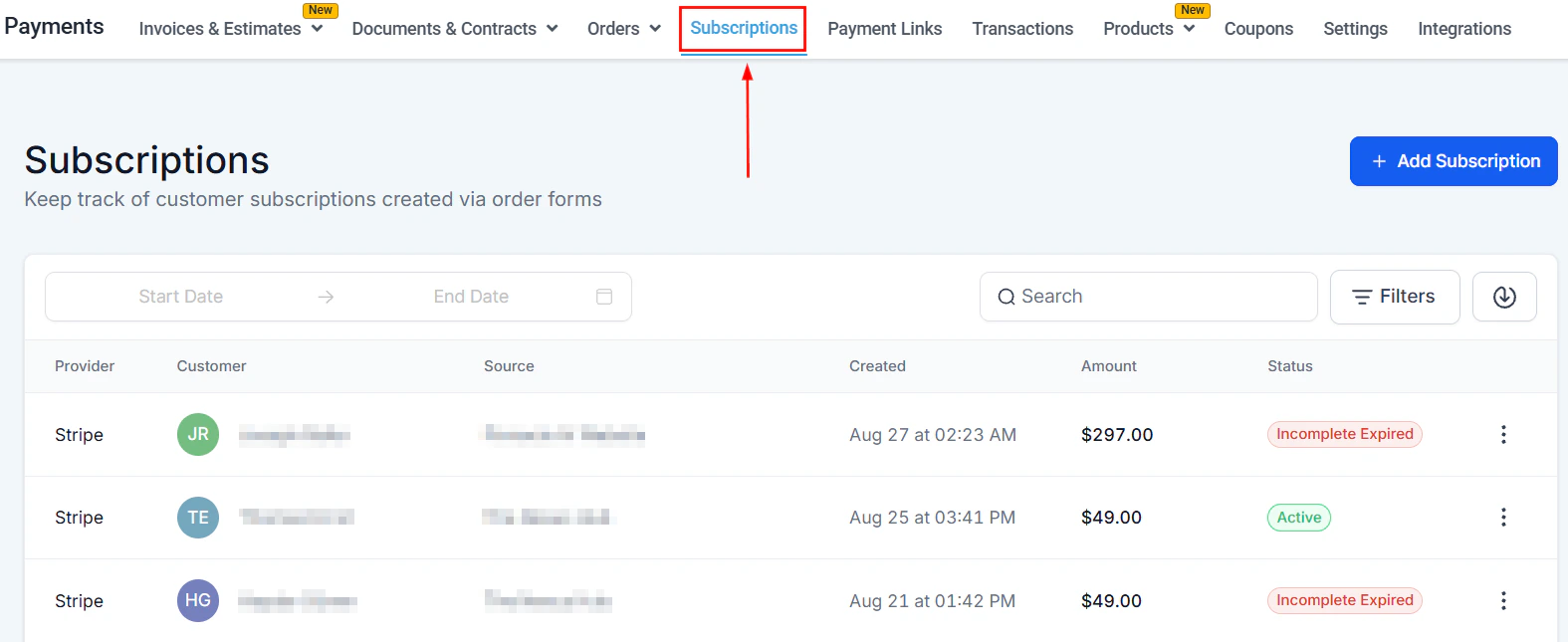
The Subscriptions section gives you a complete view of every active and historical recurring billing relationship in your account. You can create new subscriptions, adjust billing amounts, pause or cancel existing ones, and monitor subscription health — all without leaving the platform.Navigate to Payments → Subscriptions to get started.
The Subscriptions dashboard showing recurring billing status for all customers
Subscriptions require Stripe Connect to be active on your account. Connect Stripe at Payments → Payment Integrations.
Click the three-dot menu next to the subscription (or use the Actions menu in the detail view) and select Update Subscription.
2
Modify the end date
Adjust the End Date to change when billing stops.
3
Add or remove products
Click the plus icon to add a new product, or the trash icon to remove one. All products in a subscription must share the same billing frequency and currency.
4
Update quantities
Overwrite the quantity field to adjust the count for any item.
5
Save
Click Update Subscription in the upper-right corner. All changes are logged in the Subscription Details page for auditing.
Changes only affect future billing cycles. Past transactions remain unchanged. Only subscriptions with Active, Scheduled, or Trialing status can be modified.
Subscription charge refunds are handled through Payments → Transactions, not from the Subscriptions tab directly.
1
Find the charge in Transactions
Go to Payments → Transactions and search for the customer name or filter by date to locate the specific subscription charge to refund.
2
Open the refund dialog
Click the three-dot menu on the transaction and select Refund.
3
Choose full or partial refund
Leave the amount as-is for a full refund, or edit it for a partial refund.
4
Add a note and confirm
Optionally add an internal note explaining the reason for the refund, then click Confirm. The refund is processed through Stripe immediately.
Refunding a subscription charge does not automatically cancel the subscription. Cancel the subscription separately from the Subscriptions tab if you do not want future charges to occur.
Apply a coupon to give a subscriber a discounted rate — either for a fixed number of billing cycles, a set duration, or permanently.See Coupons for instructions on creating subscription-compatible coupon codes.
Customers can update their payment method and cancel their subscription through the customer portal (if enabled). Configure the portal at Sites → Client Portal.
What happens when a subscription payment fails?
The system retries the charge according to your retry settings. Both the customer and account user are notified by email. If all retries fail, the subscription status changes to Past due.
Can I offer a free trial on a subscription?
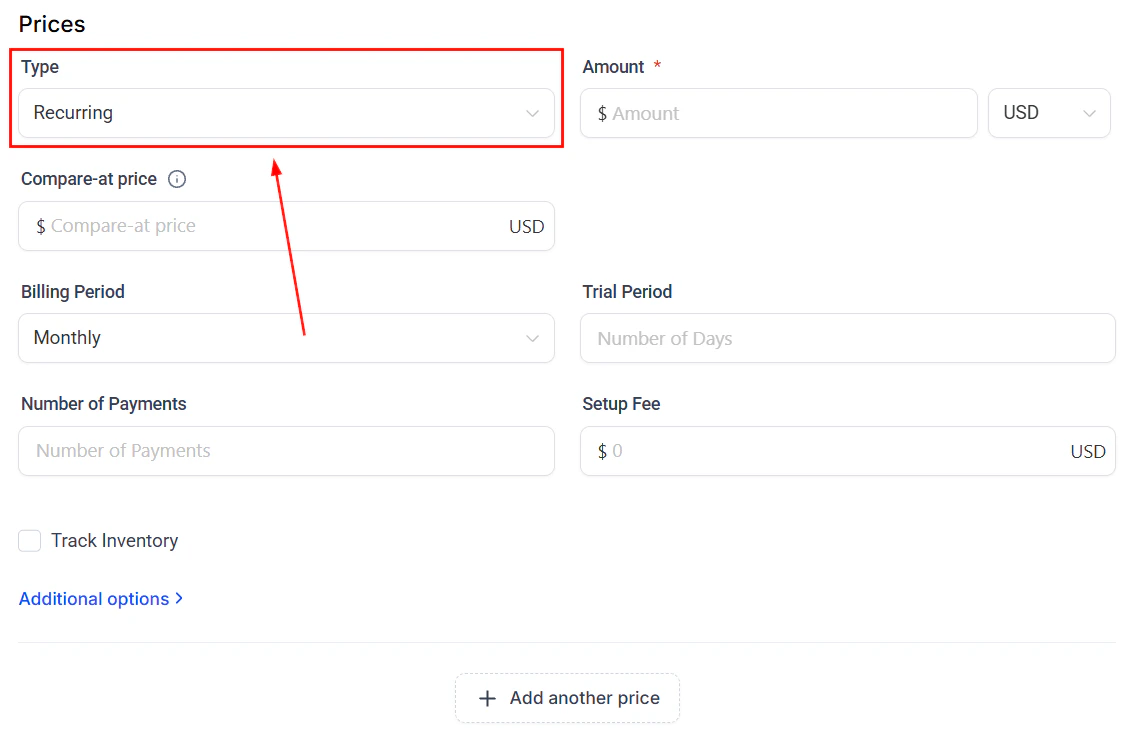
Yes. When creating a subscription or recurring product, enable the trial period and set the number of days. The first charge is deferred until the trial ends.
Can I upgrade or downgrade a customer's plan?
Yes. Use the Modify subscription option to change the product and price. Stripe handles proration automatically if you change mid-cycle.
Can I apply a discount after a subscription is already active?
Yes. Open the subscription, click Edit, and apply a coupon code to adjust the billing amount going forward.
How do I refund a subscription payment?
Go to Payments → Transactions, find the specific charge, click the three-dot menu, and select Refund. You can issue a full or partial refund. Note that refunding does not automatically cancel the subscription — cancel it separately if needed.
What subscription statuses are possible?
Subscriptions can be in one of these states: Trial (within a free trial period), Active (billing normally), Overdue (payment attempted but failed, still retrying), Unpaid (all retries exhausted, billing suspended), Canceled (ended permanently), Failed (initial payment failed), Incomplete (requires customer action to complete setup), or Expired (reached its end date).
Can I set an end date for a subscription?
Yes. Use Update Subscription and set an End Date. The subscription will automatically stop billing on that date without requiring manual cancellation.