View, manage, and fulfill e-commerce orders in the HoopAI Platform — including Shopify sync and abandoned checkout recovery.
The Orders section in the HoopAI Platform centralizes all e-commerce orders generated through your online stores, funnels, and order forms. You can fulfill orders, print shipping labels, sync Shopify orders, and recover abandoned checkouts — all from one place.Navigate to Payments → Orders to get started.
Orders dashboard showing all e-commerce orders with status and customer details
The orders dashboard shows all transactions placed through your HoopAI Platform stores and order forms. Key information displayed for each order:
Column
Description
Customer
Contact name — click to open the contact card
Source
The funnel or store page where the purchase was completed
Items
Total items in the order
Order date
Date and time placed (in your timezone)
Amount
Total order value
Status
Current order status (processing, completed, refunded, etc.)
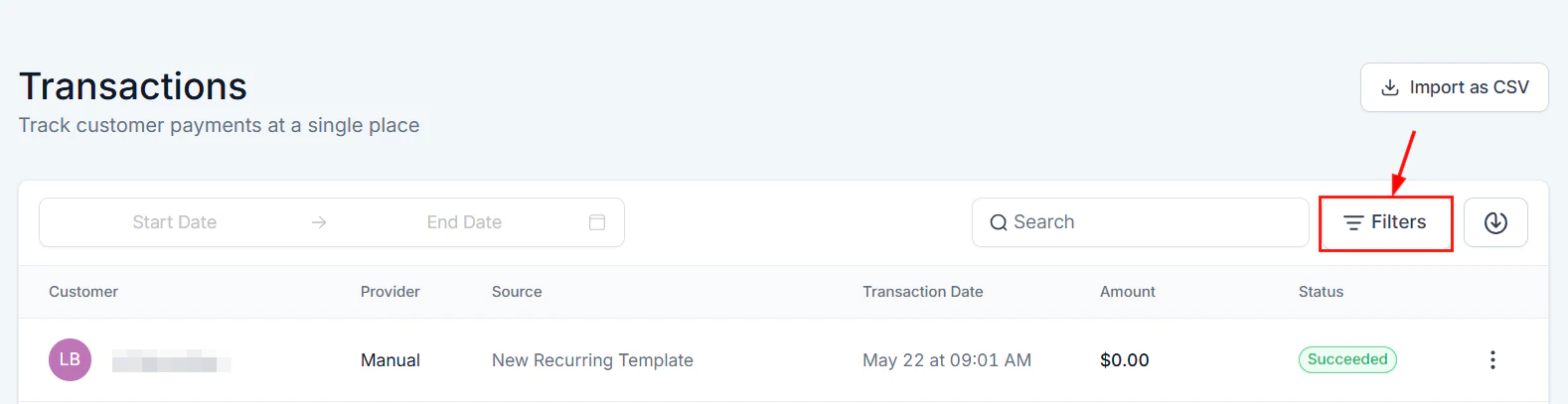
Use the Search bar to find an order by order ID, source, or customer name. Use the Filter button to filter by status, source, or payment details. Click the Export icon (downward arrow) to download orders as a CSV file.
Orders move through the following statuses as they are processed and shipped:
Status
Description
Pending
Order placed but payment has not yet cleared
Processing
Payment confirmed; order is being prepared
Partially fulfilled
Some items in a multi-item order have been shipped
Fulfilled
All items shipped and tracking information recorded
Completed
Order delivered or marked complete (also used for imported orders)
Cancelled
Order cancelled before fulfillment
Refunded
Payment fully reversed
Partially refunded
A portion of the order value has been refunded
Digital product orders skip the fulfillment step — they are marked Completed automatically as soon as payment is confirmed and the download link is delivered to the customer.
Fulfilling an order — enter tracking number, carrier, and notify the customer on shipment
When you do not have all items in stock, you can fulfill part of an order and send the rest later.
1
Select the items to fulfill now
In the Fulfill Items dialog, adjust the quantity of each item to reflect what you are shipping in this batch. Leave unreceived items at zero.
2
Save the partial fulfillment
Complete the tracking and carrier fields and click Save. The order is marked Partially Fulfilled.
3
Fulfill the remainder
When the remaining stock arrives, open the order details and click Fulfill Items again. Items already sent are subtracted from the list automatically. Complete the process for the remaining items.
Go to Payments → Orders, click the three-dot icon next to the order, and select View Order.
2
Print the packing slip
Click Print Packing Slips to download a PDF containing all items in the order. If the order has been partially fulfilled in the past, each fulfillment batch appears on a separate page.
In the Fulfill Items dialog, select the items and quantities you are fulfilling in this batch.
2
Print before saving
Click Print Packing Slips within the fulfillment dialog to generate a PDF for only the items in this batch. This is ideal for picking and packaging accuracy.
Print packing slips per fulfillment batch to avoid packaging errors when splitting orders across multiple shipments.
Abandoned checkout recovery — view incomplete cart sessions with recovery status and email delivery tracking
When a customer adds items to their cart but does not complete the purchase, the HoopAI Platform captures the incomplete checkout. You can follow up automatically to recover the sale.
1
View abandoned checkouts
Go to Payments → Orders and click Abandoned Cart from the dropdown to see all incomplete cart sessions.
2
Review abandoned sessions
The abandoned checkout dashboard shows:
Placed by — customer name or email if the name is unavailable
Date — when the cart was abandoned
Items — quantity of items in the cart
Amount — total value of the abandoned cart
Email status — whether an automated recovery email was sent
Recovery status — whether the customer completed the purchase after abandonment (marked “Recovered”)
3
Recover with automation
Configure automated abandoned cart emails under Payments → Payment Settings → Notifications, or set up a workflow in Automation → Workflows.
For abandoned checkout emails to work, the customer must have entered their email address before abandoning the cart. The checkout link sent in the recovery email remains functional across different browsers, devices, and sessions.
If a customer completes their purchase before the abandoned cart email sends, the system automatically cancels the email to avoid unnecessary reminders.
Orders: Go to Payments → Orders, click the three-dot icon on a Shopify order, and select View Order to see full order details and the associated transaction value.
Transactions: Go to Payments → Transactions, find the Shopify transaction, click the three-dot icon, and select View Transaction for the full transaction record.
If you have historical order data from another system, you can import it via CSV.
1
Prepare your CSV
Download the Sample CSV template from the import dialog to use as a formatting guide. Fill in your order data following the column structure provided.
2
Upload and preview
Go to Payments → Orders and click the Import as CSV option. Upload your CSV file and click Upload & Preview to review the data before importing.
3
Import
Once satisfied with the preview, click Import Orders to complete the process.
All imported orders are automatically marked as Completed and a linked transaction record is created. Imported orders can be edited after the import if needed.
Yes. When fulfilling, you can select specific items from a multi-item order to fulfill, leaving the rest as unfulfilled until they are ready to ship.
How do I issue a refund for an order?
Refunds are processed from Payments → Transactions. Locate the transaction tied to the order and use the refund option there.
Are digital product orders fulfilled automatically?
Yes. When a customer purchases a digital product (such as a downloadable file or course access), the HoopAI Platform marks the order as fulfilled and delivers the product automatically.
Can I see which orders came from a specific funnel or store?
Yes. Use the filter options in the Orders tab to filter by source, date range, status, or product.
Can I sync historical Shopify orders from before I connected the integration?
No. The Shopify integration syncs new orders going forward from the date of connection. Historical orders cannot be retroactively imported through the Shopify integration. Use the Import as CSV option if you need historical order data in the platform.
What information does a packing slip include?
Packing slips include the order ID, order date, store name, shipping and billing addresses, an itemized product list with variant names and quantities, product images, and your store’s sender address.
What is the difference between 'Fulfilled' and 'Completed'?
Fulfilled means all items have been shipped and tracking information has been entered. Completed is a broader final state that also covers digital product deliveries and imported historical orders that are marked complete automatically.
How do I cancel an order?
To cancel an order, open it from Payments → Orders, click the three-dot menu, and select Cancel Order. If a payment was already collected, process a refund from Payments → Transactions separately.
Can I notify customers when their order is shipped?
Yes. When fulfilling an order, toggle on Notify Customer in the Fulfill Items dialog. The customer receives an automated email with their order summary and the tracking link you entered.