Services V2 is the updated service management system inside the Calendars section of HoopAI. It gives service-based businesses a dedicated place to define every service they offer — haircuts, consultations, spa treatments, fitness sessions — and connect each one to staff members, physical resources, optional add-ons, and multiple locations. Clients see a polished booking menu, choose their service, and book directly. The Services V2 section is divided into five tabs: Services, Staff, Resources, Add-Ons, and Global Settings.
Services V2 works with the Service Booking calendar type. You must have at least one service calendar before you can use it. See Service calendars for setup steps. To list your services on Google for direct booking, also see Google Organic Booking and enable Version 2 of the Services feature from the Connections tab.

Services tab

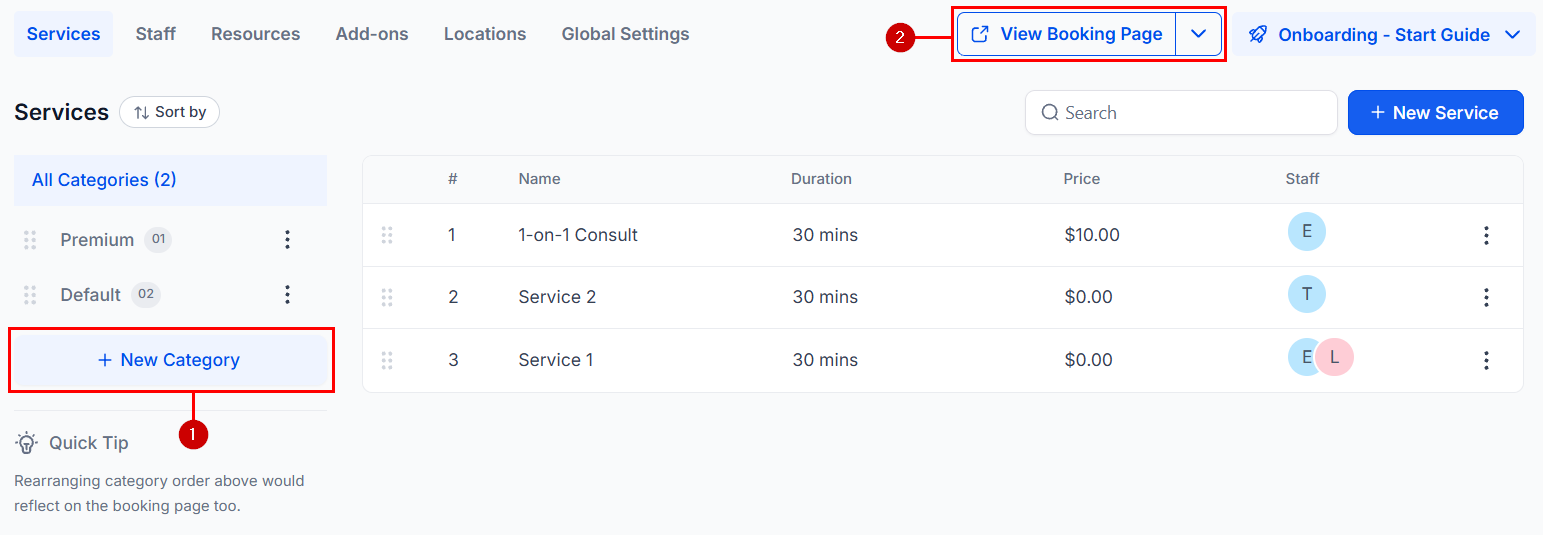
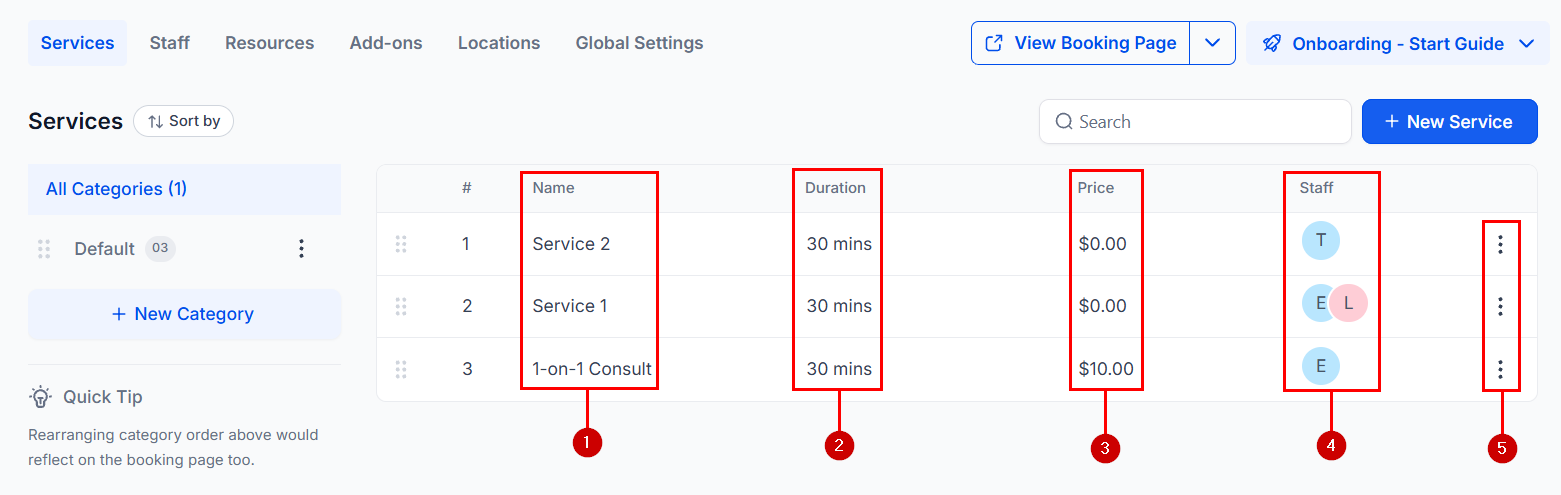
The Services tab is your central catalog. Each row in the list shows the service name, duration, price, icons of assigned staff members, and a three-dot action menu for editing, duplicating, deleting, or sharing the service.
Services V2 list
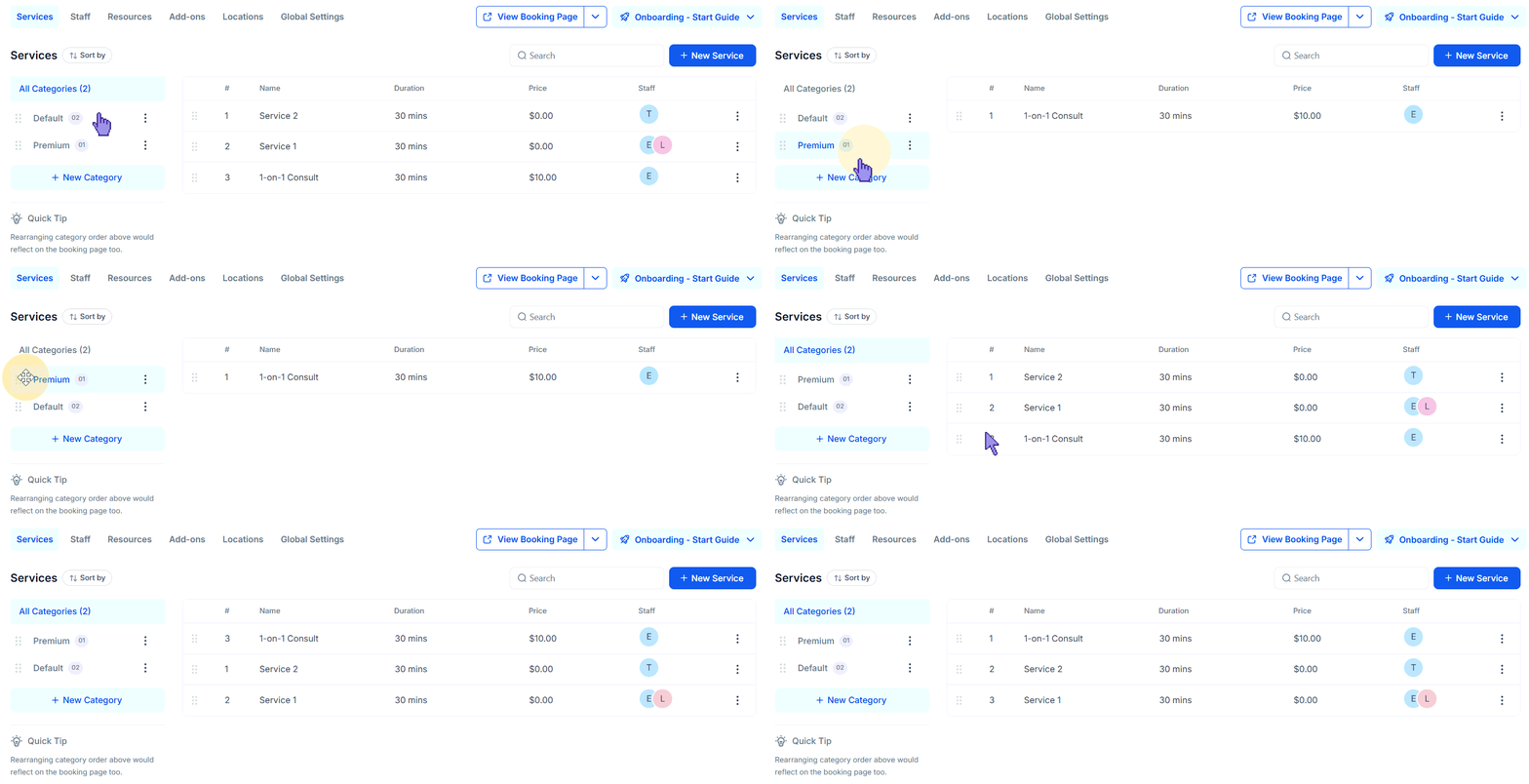
The left sidebar holds a Categories menu. Use it to group related services (for example, “Haircuts”, “Color”, “Treatments”) into sections on the booking page. Drag and drop categories to reorder them, and click + New Category to add one. A View Booking Page link lets you preview exactly what your clients see.
Services V2 categories GIF
Services V2 categories panel

Creating a service

1

Open the Services tab

In the left navigation go to Calendars, then click the Services tab at the top of the page.
2

Add a new service

Click + New Service in the top-right corner. The service creation form opens.
3

Fill in the service details

Enter the service name, description, duration, price, and an optional image. Duration determines the length of the blocked time slot on the calendar.
4

Assign a category

Select a category from the dropdown to group this service on the booking menu. Categories can be created ahead of time or on the fly.
5

Save the service

Click Save. The service appears immediately in the list and on the booking menu for its associated calendar.
To edit or duplicate a service, click the three-dot icon on any row and choose Edit, Duplicate, or Delete. Use Share to copy a direct booking link for that specific service.

Staff tab

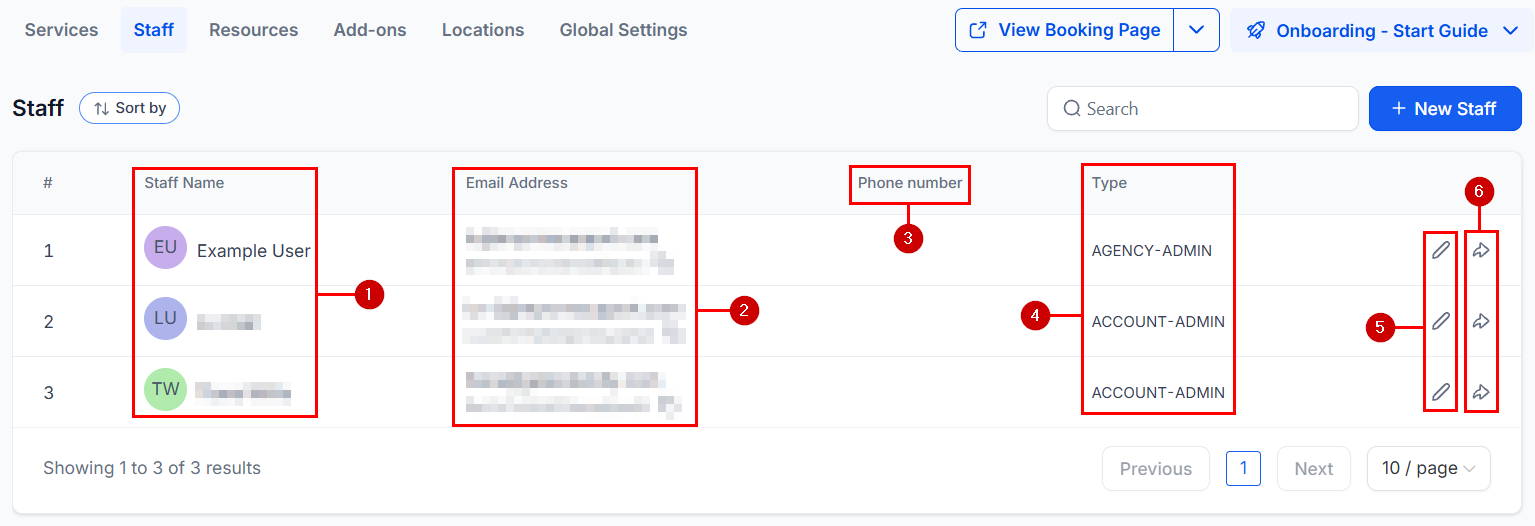
The Staff tab manages the team members who provide services. It shows each staff member’s name, email, phone number, access level (account user or admin), an edit button, and a share button for their personal calendar link.
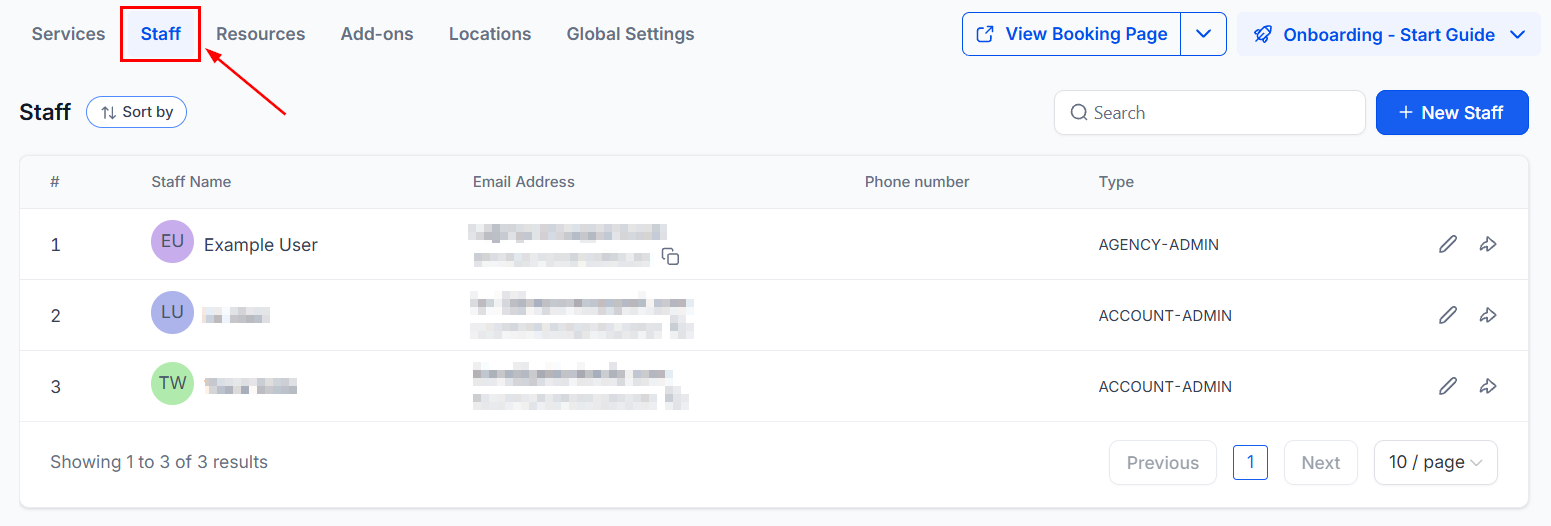
Services V2 staff tab
Services V2 staff list

Adding a new staff member

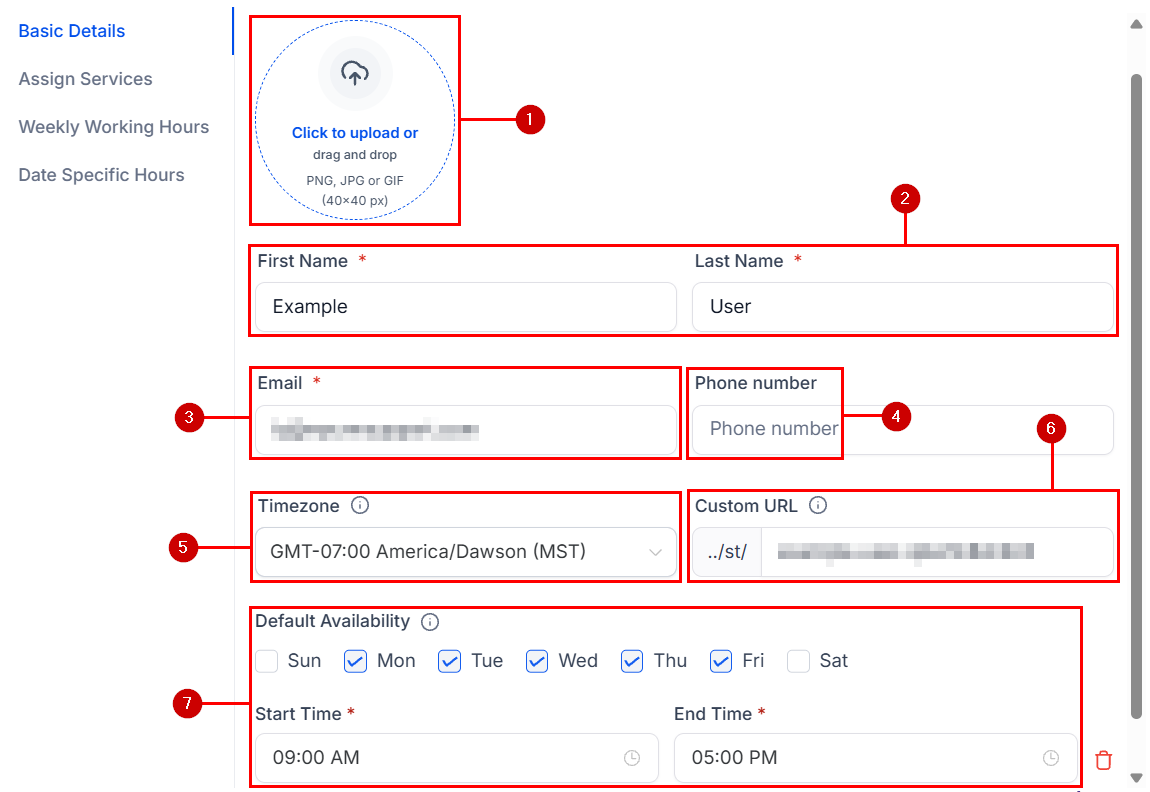
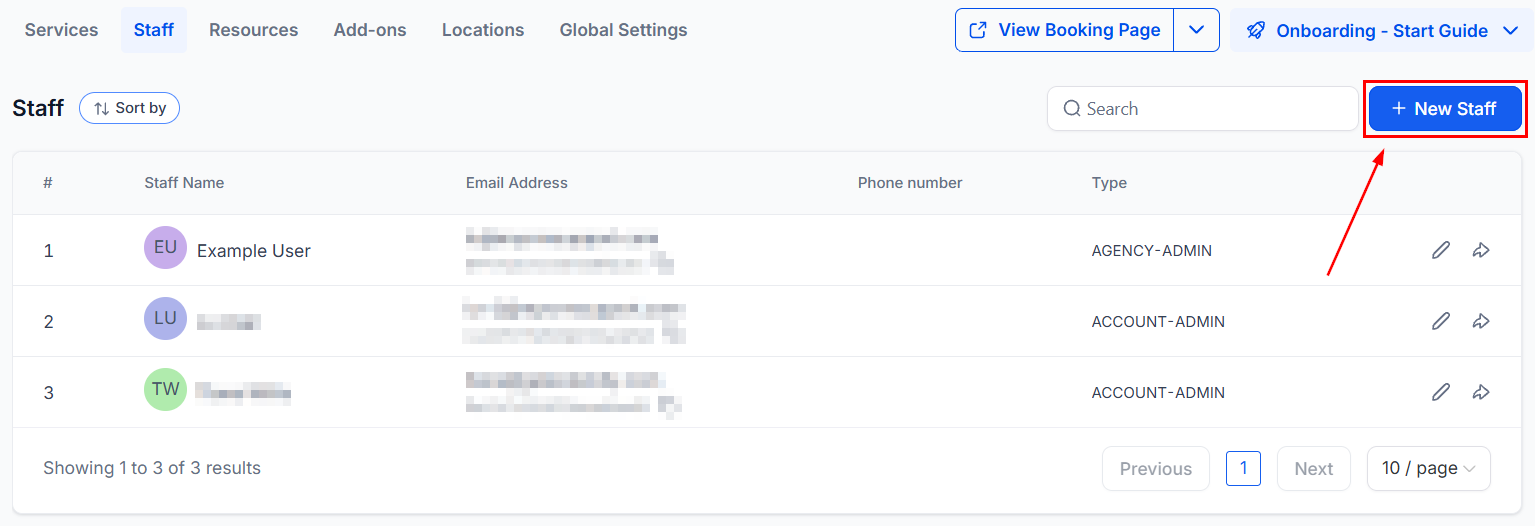
Click New Staff to add a team member. Fill in the following fields:
FieldNotes
Profile pictureShown on booking pages so clients can identify their provider
First and last nameDisplayed internally and on the booking interface
EmailMust be unique; used for login and notifications
Phone numberOptional; used for verification codes
TimezoneThe staff member’s working timezone
Custom URLA unique booking link for this staff member
Default availabilityBaseline schedule for the staff member
Add new staff member form

Managing an existing staff member

Click the pencil icon on a staff row to open the editing module.
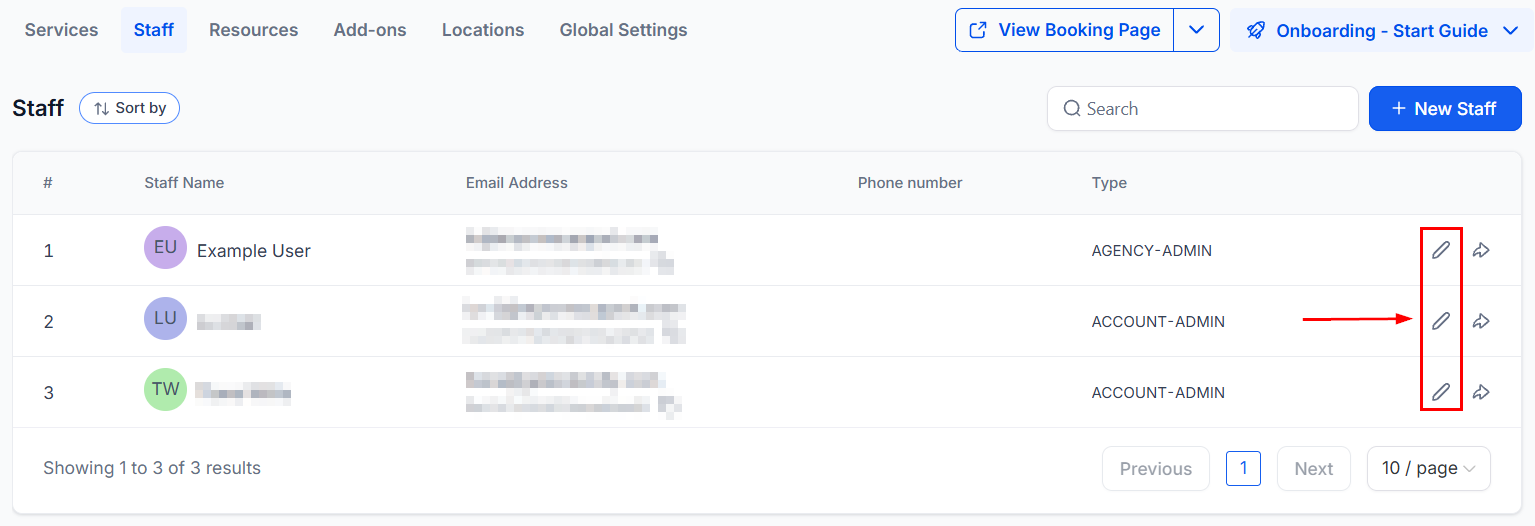
Staff edit icon
Basic details — Modify name, email, phone, timezone, custom URL, user icon (auto-generates a colored circle with initials if left blank), and default availability.
Staff basic details
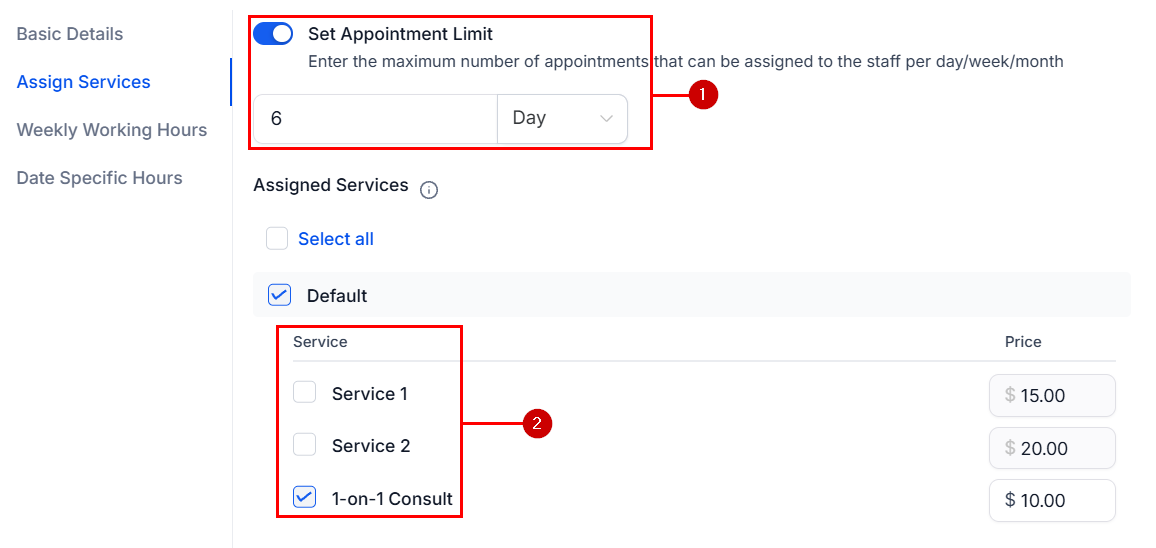
Assigned services — Control which services this staff member can accept and set daily, weekly, or monthly appointment limits.
Staff assigned services
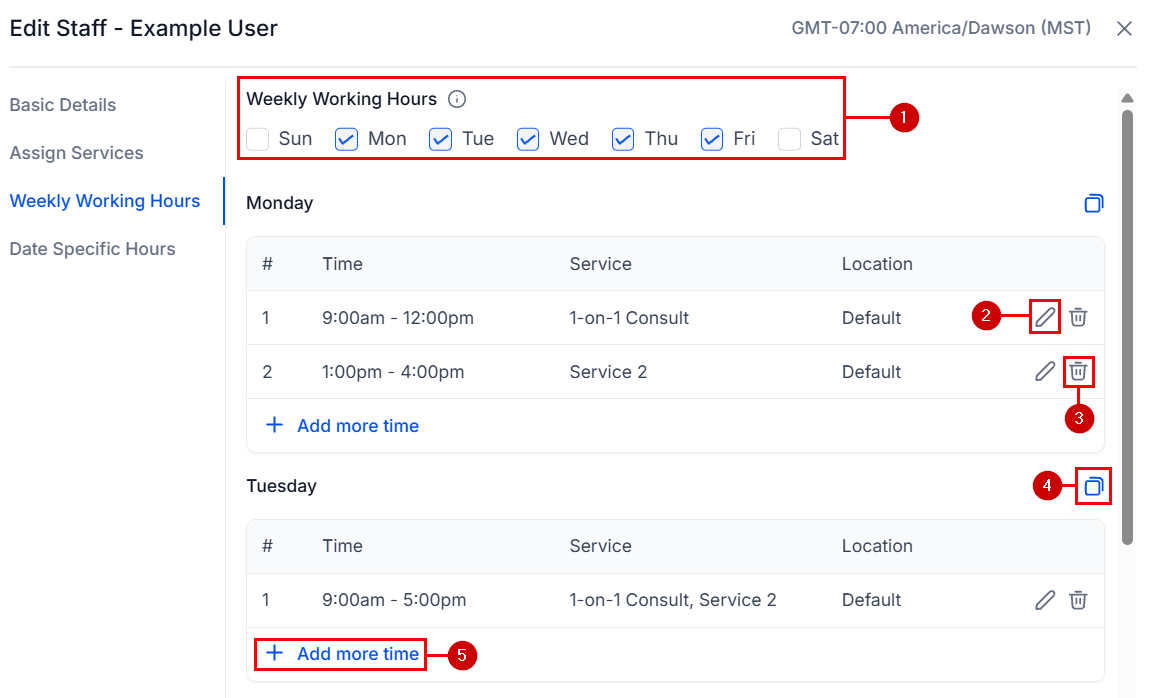
Weekly working hours — Configure working hours per day for each service. Select or deselect work days, edit start and end times, copy a schedule to other days, or add multiple time blocks when hours are split.
Staff weekly working hours
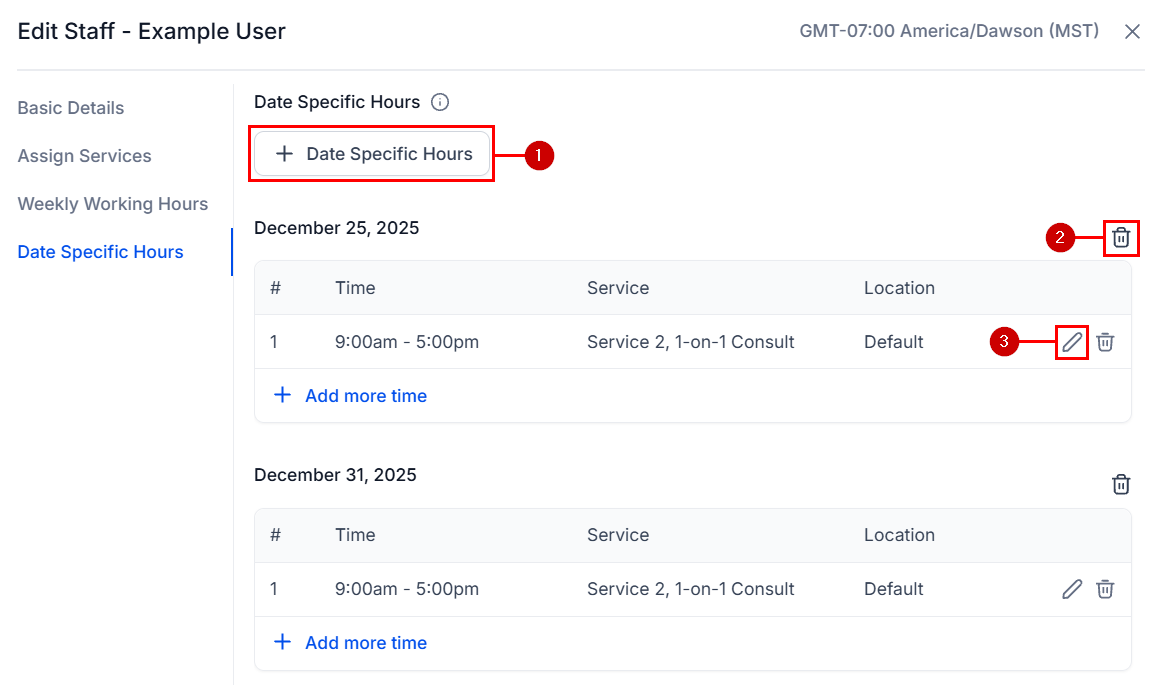
Date-specific hours — Override the regular schedule for specific dates such as holidays, training days, or limited availability periods.
1

Open date-specific hours

Click + Date Specific Hours at the bottom of the schedule section.
2

Select the date or dates

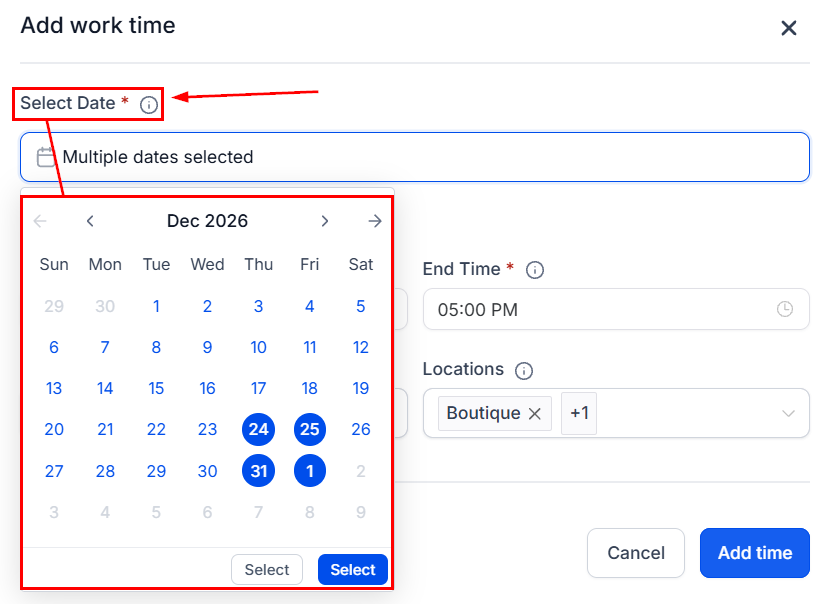
Pick the specific date or range of dates you want to modify.
Date picker
3

Set the availability

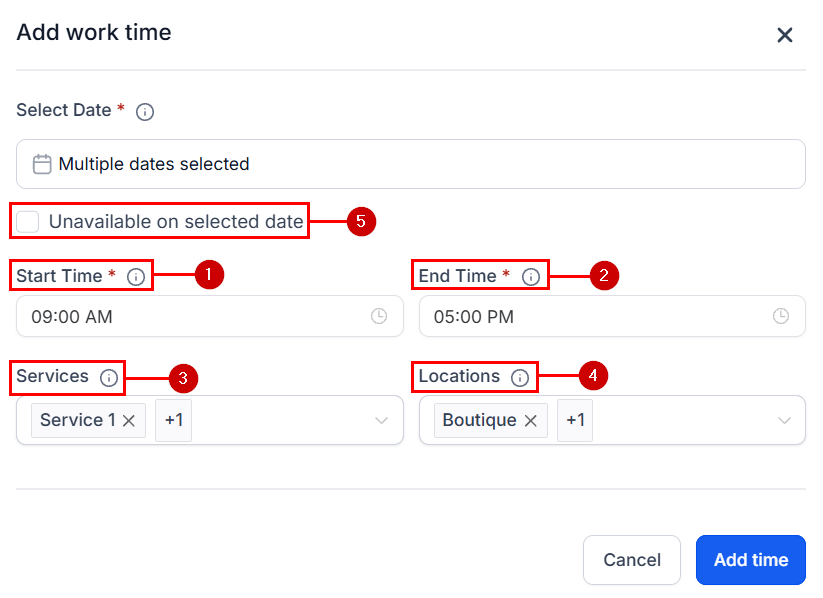
Define start and end times, specify which services and locations the override applies to, or mark the entire day as unavailable.
Date-specific hours configuration
4

Save and manage

Once saved, the entry appears in the list. You can add more date overrides, edit, or delete existing ones at any time.
Date-specific hours list
Managing staff directly inside HoopAI keeps everything connected — schedules, notifications, and customer-facing availability are all synchronized automatically.

Resources tab

Resources are the physical assets required to deliver a service: rooms, chairs, stations, equipment, or any other item that can only be used by one (or a limited number of) appointments at a time. When a service that requires a resource is booked, the resource is automatically reserved, preventing overbooking.
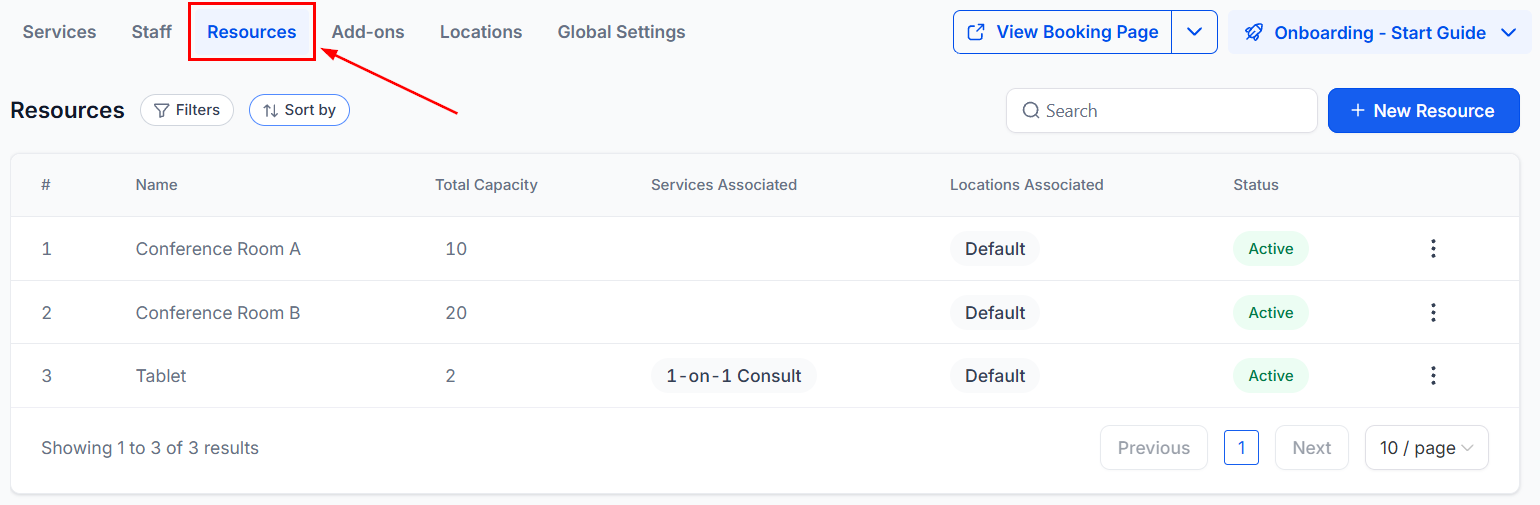
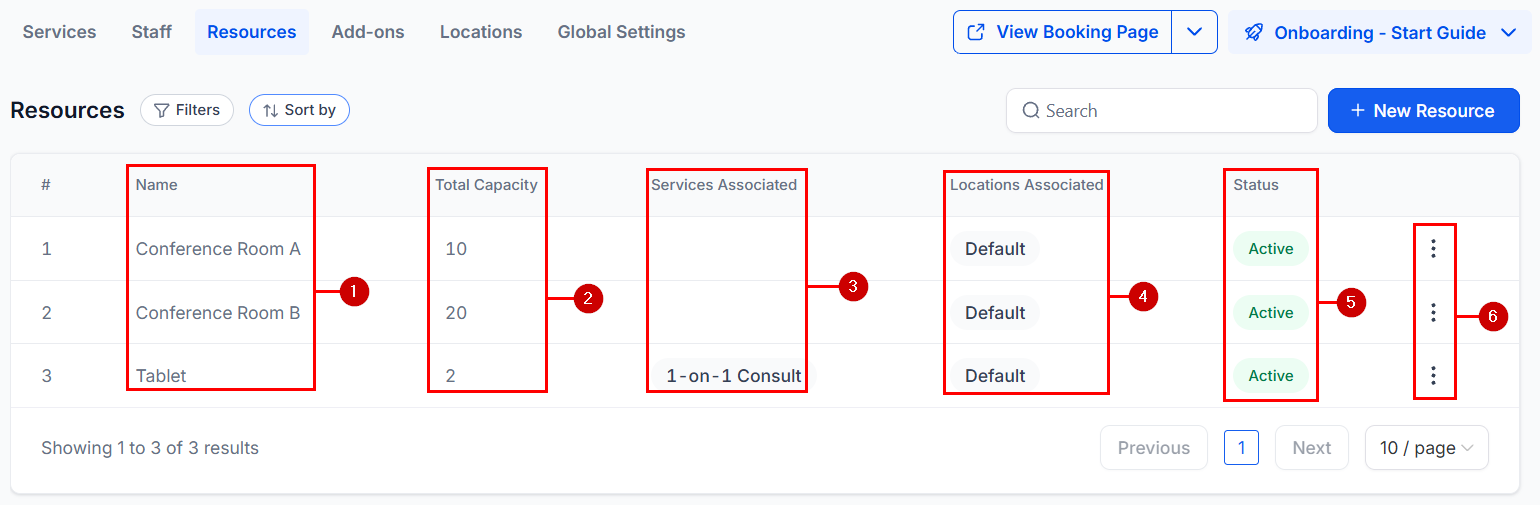
Services V2 resources tab
Each resource row shows:
ColumnDescription
NameIdentifier (e.g., “Conference Room A”)
Total capacityHow many simultaneous appointments the resource supports
Services associatedAll services that require this resource
Locations associatedWhich branch locations have this resource
StatusActive or inactive
Quick actionsThree-dot menu: edit, activate/deactivate, duplicate, delete
Services V2 resources list

Creating a resource

1

Click + New Resource

Opens the resource creation form.
2

Enter a name

Use a descriptive name. For multiple identical assets (e.g., three identical treatment rooms), create a separate resource for each so availability is tracked individually.
3

Select the associated service

Choose which service(s) require this resource from the dropdown.
4

Set the location

Select the location where this resource exists. Particularly important for multi-location businesses.
5

Define the capacity

Enter the number of simultaneous users or appointments the resource can support.
6

Create

Click Create to save the resource. It will now constrain booking availability for linked services.

Managing resources

Use the three-dot menu on any resource row to:
  • Edit — Open the same form used during creation.
  • Deactivate / Activate — Mark a resource unavailable (e.g., a room under maintenance) without deleting it.
  • Duplicate — Quickly create a copy of an existing resource configuration.
  • Delete — Permanently remove the resource.
Enable the Resources tab by going to Global Settings > In-App Settings and turning on Enable Resources. If you do not see the Resources tab, check this setting first.

Add-ons tab

Add-ons are supplementary services or products that clients can select alongside a primary service at booking time — for example, a deep conditioning treatment added to a haircut, or a video recording package added to a photo session.
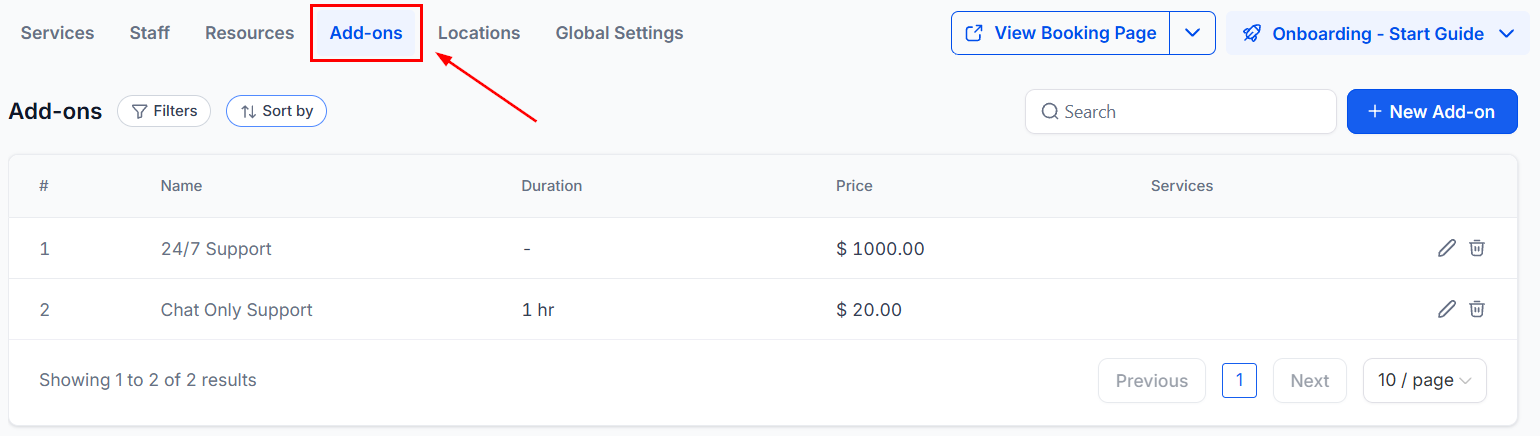
Services V2 add-ons tab
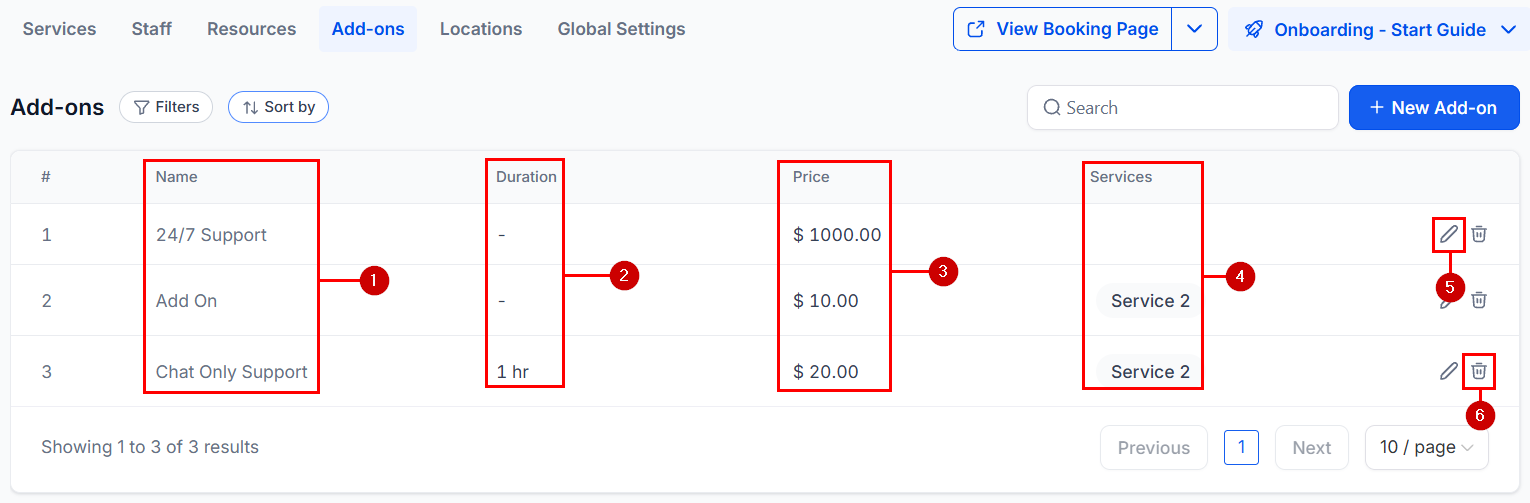
Each add-on row shows: name, duration (if it has its own time), price, which services it is available on, an edit button, and a delete button.
Services V2 add-ons list

Creating an add-on

1

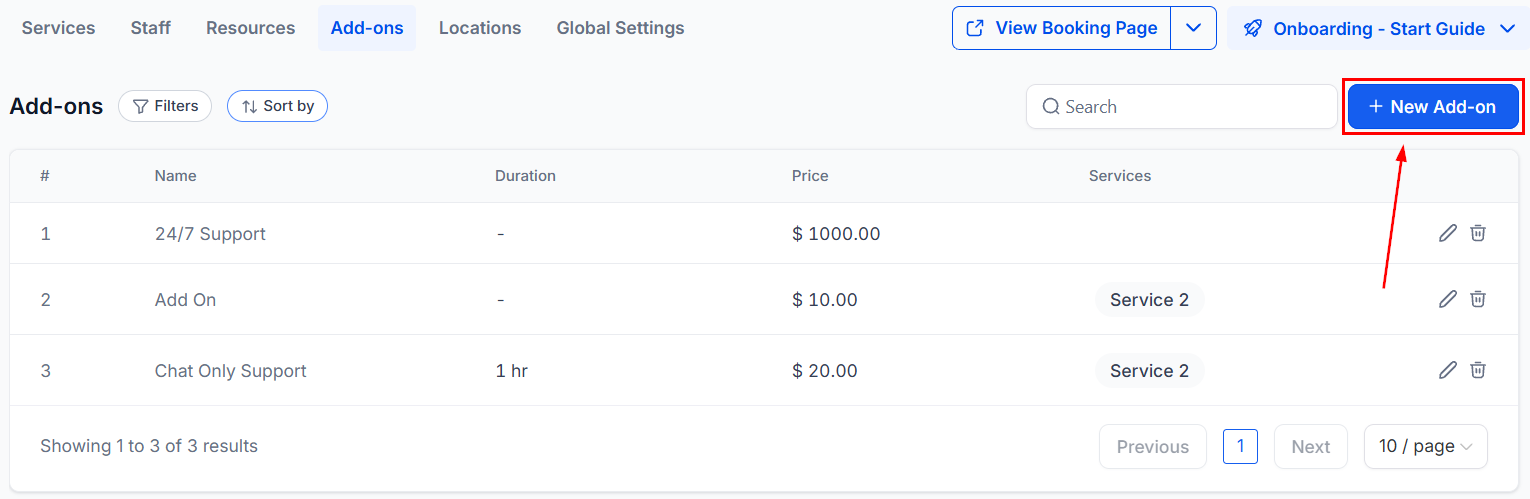
Click New Add-on

Opens the add-on creation form.
New add-on button
2

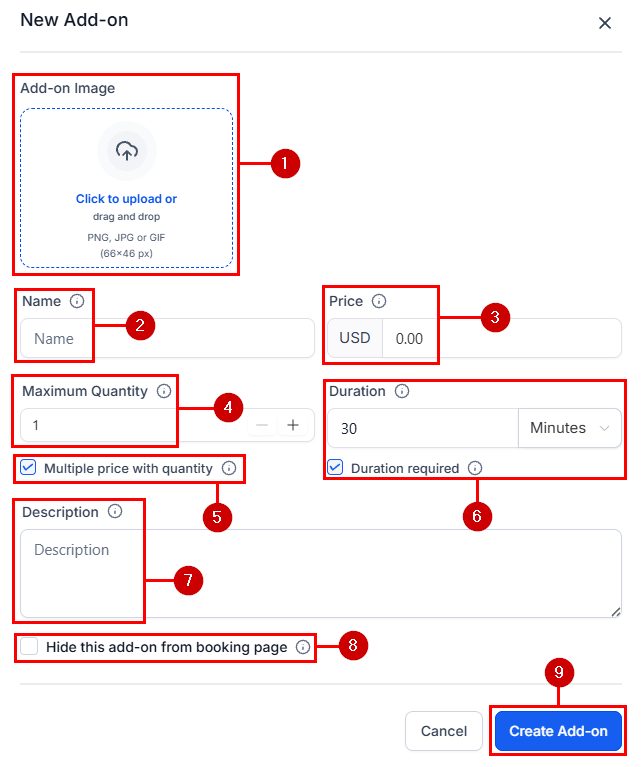
Configure the add-on

Fill in the fields described below.
Add-on configuration form
3

Save the add-on

Click Create Add-on to save.
4

Assign to services

After saving, open each service where you want the add-on to appear and assign it there. Add-ons do not appear on a service’s booking page until you link them to that service.
Add-on configuration fields:
Upload a visual representation displayed on the booking page alongside the add-on name.
The customer-facing name of the add-on (e.g., “Deep Conditioning”, “HD Brows”).
The cost of the add-on. Leave at 0 for complimentary add-ons.
Enable this if the add-on has its own time that should be added to the total service duration. For example, a 15-minute scalp massage added to a haircut extends the total appointment by 15 minutes.
The maximum number of units a client can select per appointment. Default is 1.
When enabled, the price multiplies by quantity at checkout. For example, a 20addonselectedatquantity2charges20 add-on selected at quantity 2 charges 40.
A short explanation of what the add-on includes, shown to clients during booking.
When enabled, the add-on is only visible to staff, not clients. Useful for internal upsells applied manually by team members.
Enable the Add-Ons tab by going to Global Settings > In-App Settings and turning on Enable Add-Ons.

Managing service appointments

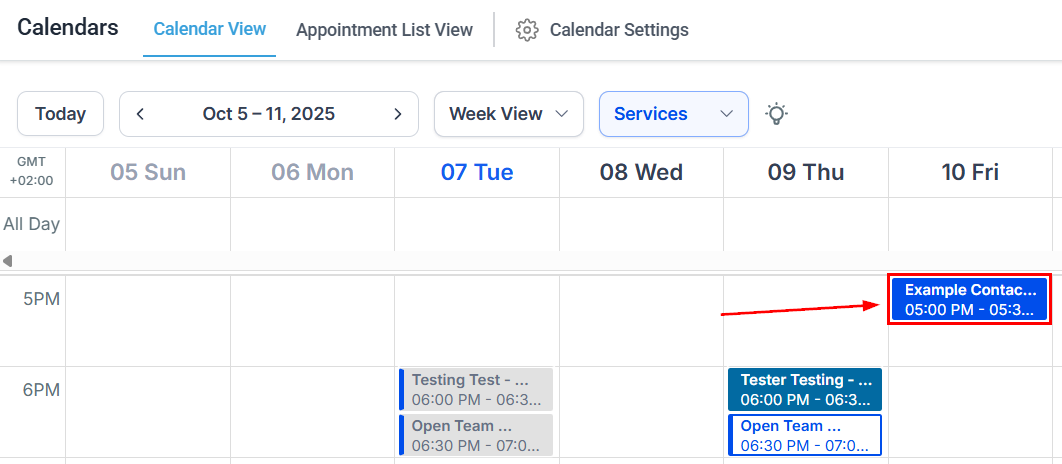
Service appointments appear in the main Calendars view alongside all other appointment types. Filter to see only service bookings by selecting Services from the view dropdown at the top of the calendar.
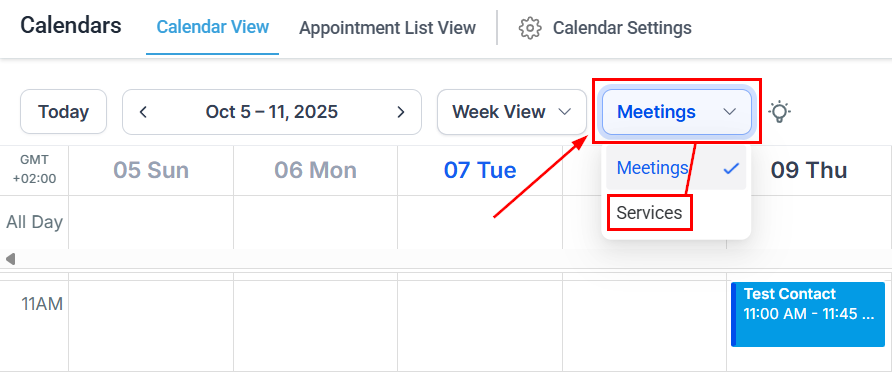
Calendar services view filter
Service appointments on calendar

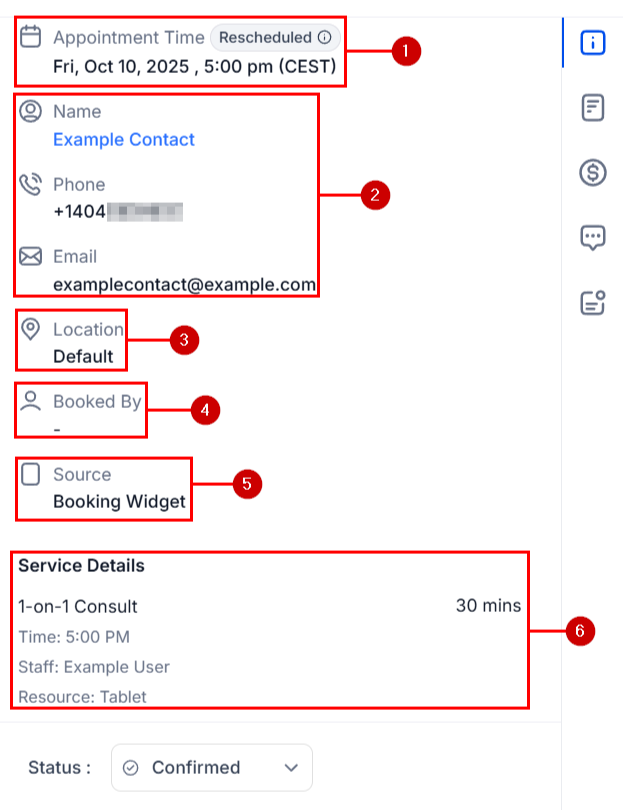
Viewing appointment details

Click any appointment to open the details panel on the right side. This panel shows:
  • Appointment time (day, date, timezone)
  • Contact information (clicking the contact name opens their contact card)
  • Location (shows “Default” for single-location businesses)
  • Booked by (contact, staff, automation, etc.)
  • Source (where the booking came from)
  • Service details: service name, duration, assigned staff, resources, and add-ons
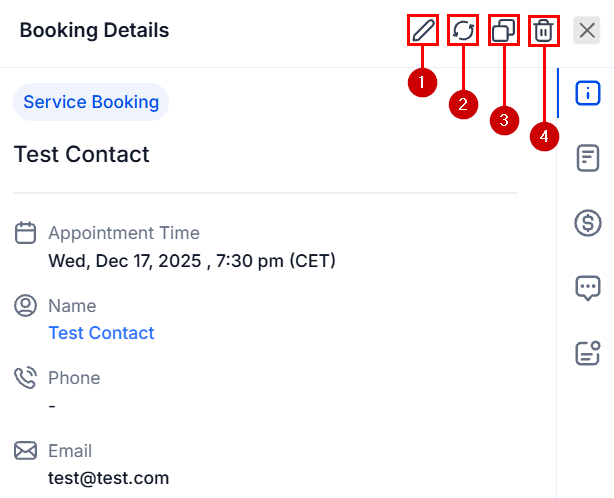
Appointment details panel
Appointment full details

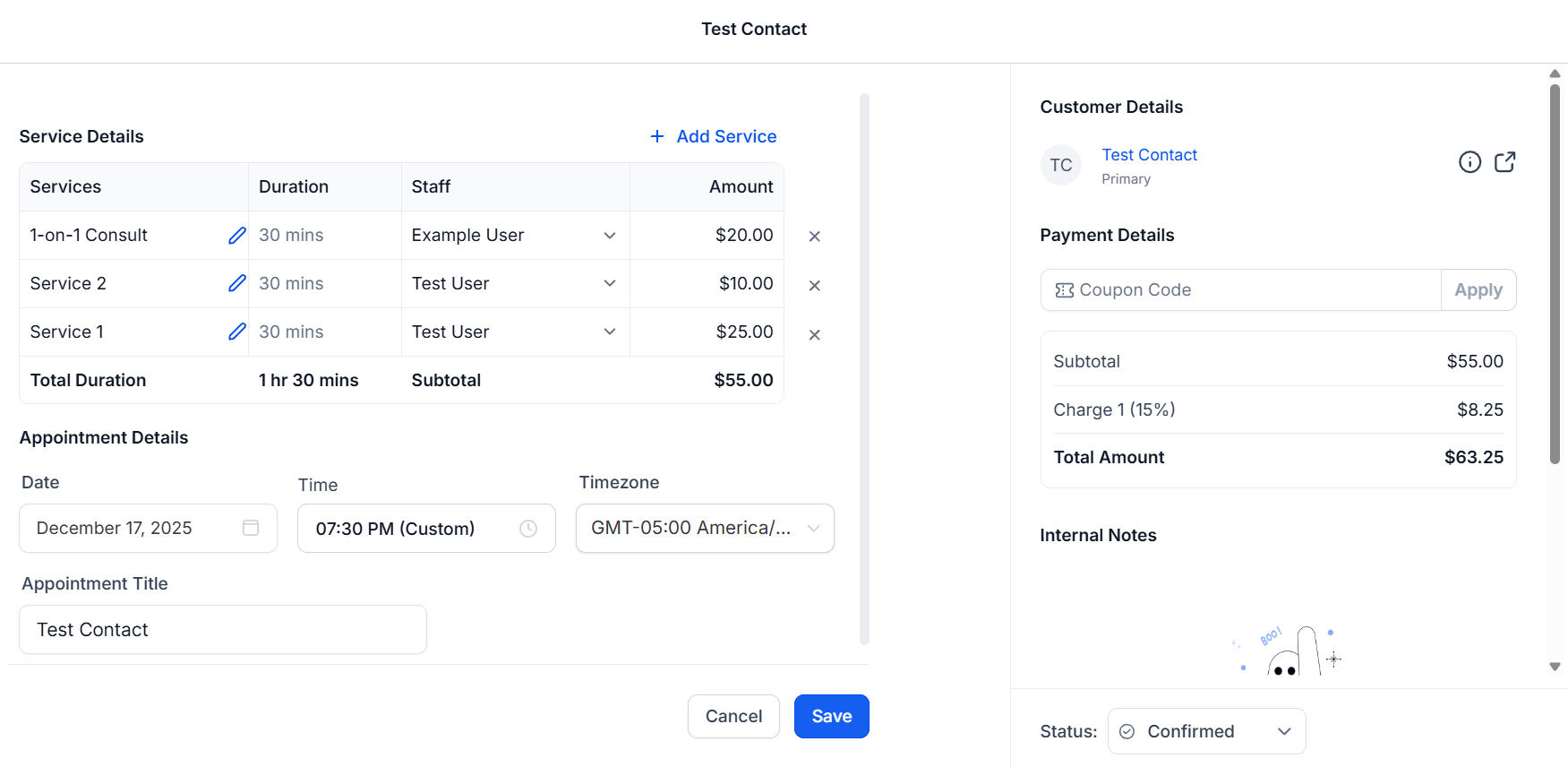
Editing an appointment

Click Edit in the appointment detail panel to open the edit module. From here you can:
  • Add or remove services and add-ons
  • Change the assigned staff member
  • Modify the service variant
  • Update the location
  • Change the appointment title, date, and time
  • Adjust the timezone
  • Update coupon codes
Appointment edit module

Rescheduling an appointment

Click Reschedule in the appointment detail panel to pick a new day and time for the booking.
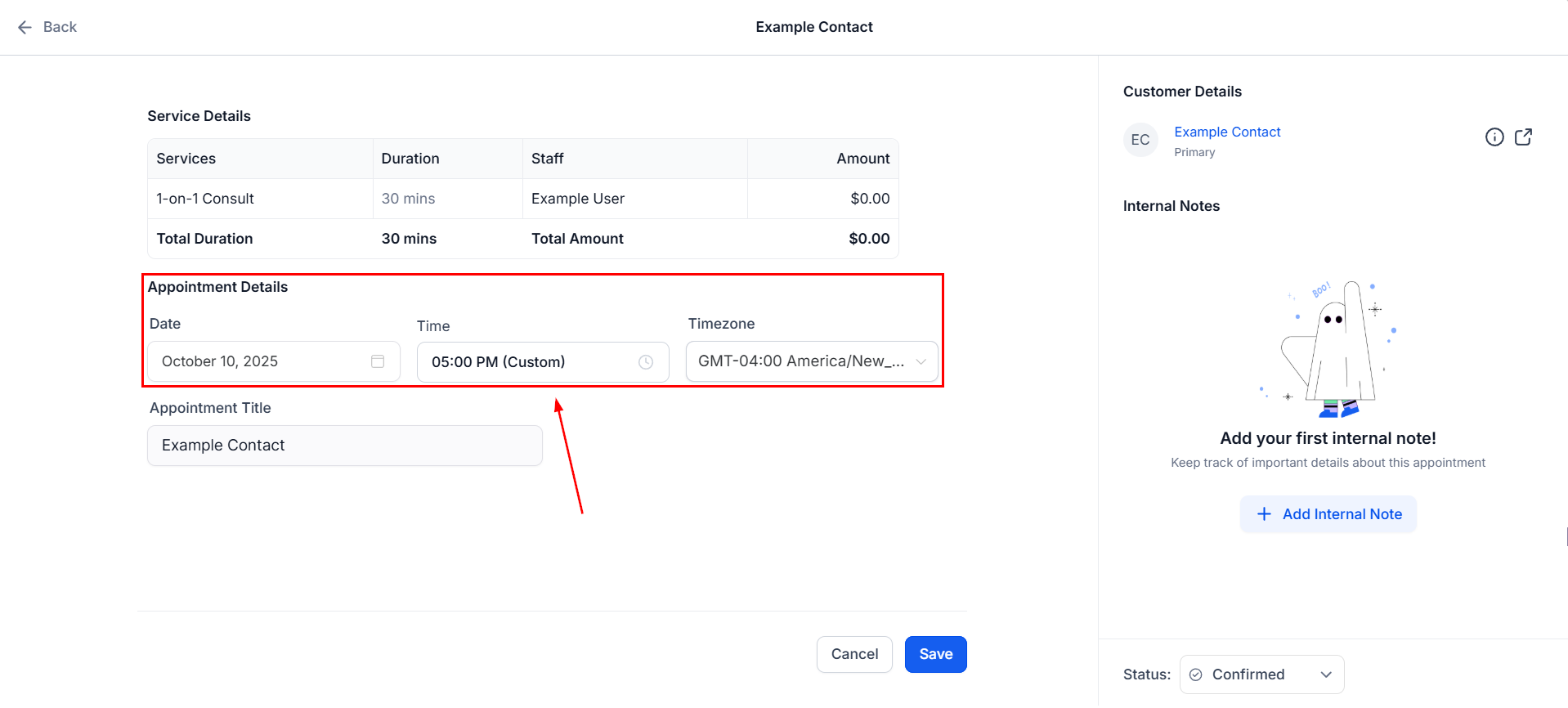
Reschedule appointment
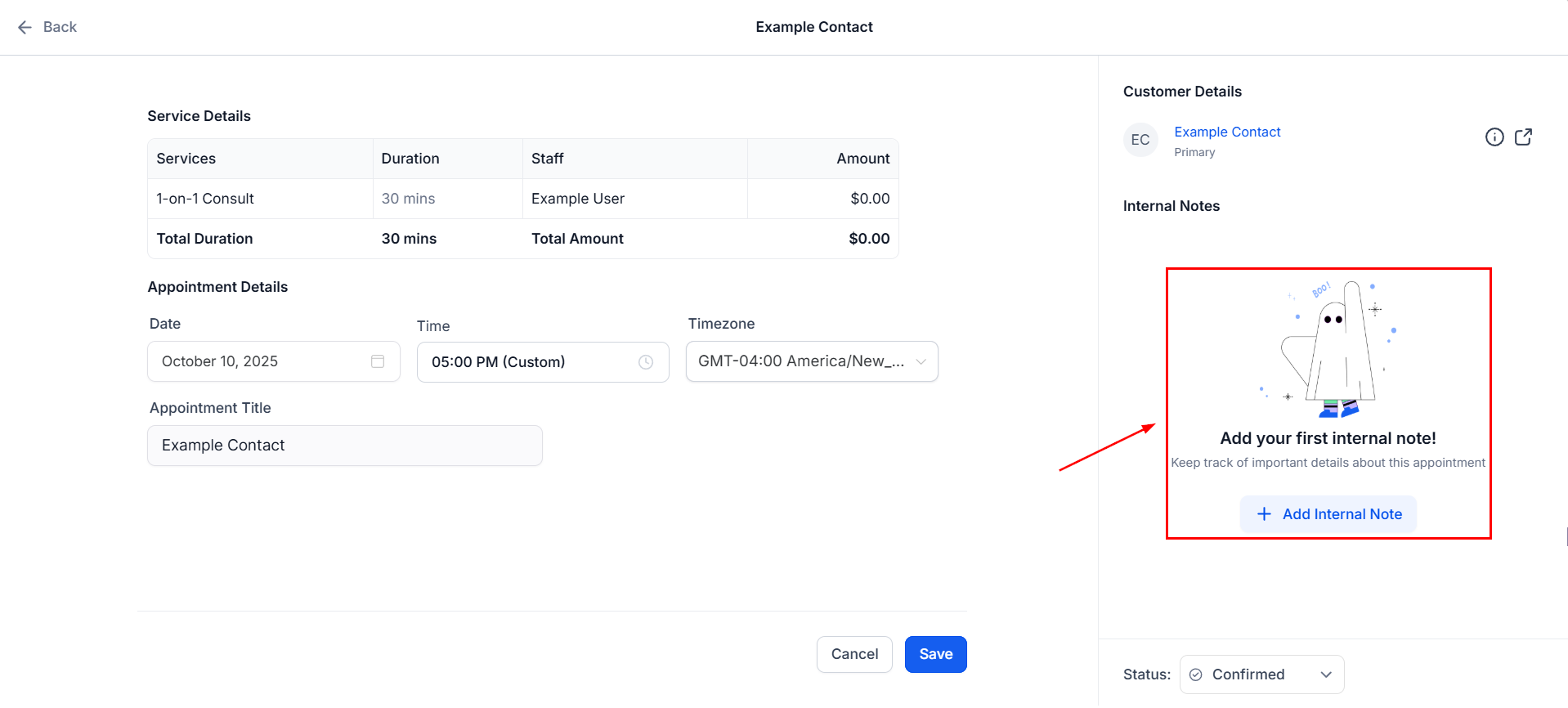
You can also view and add internal notes from this panel.
Appointment internal notes

Duplicating an appointment

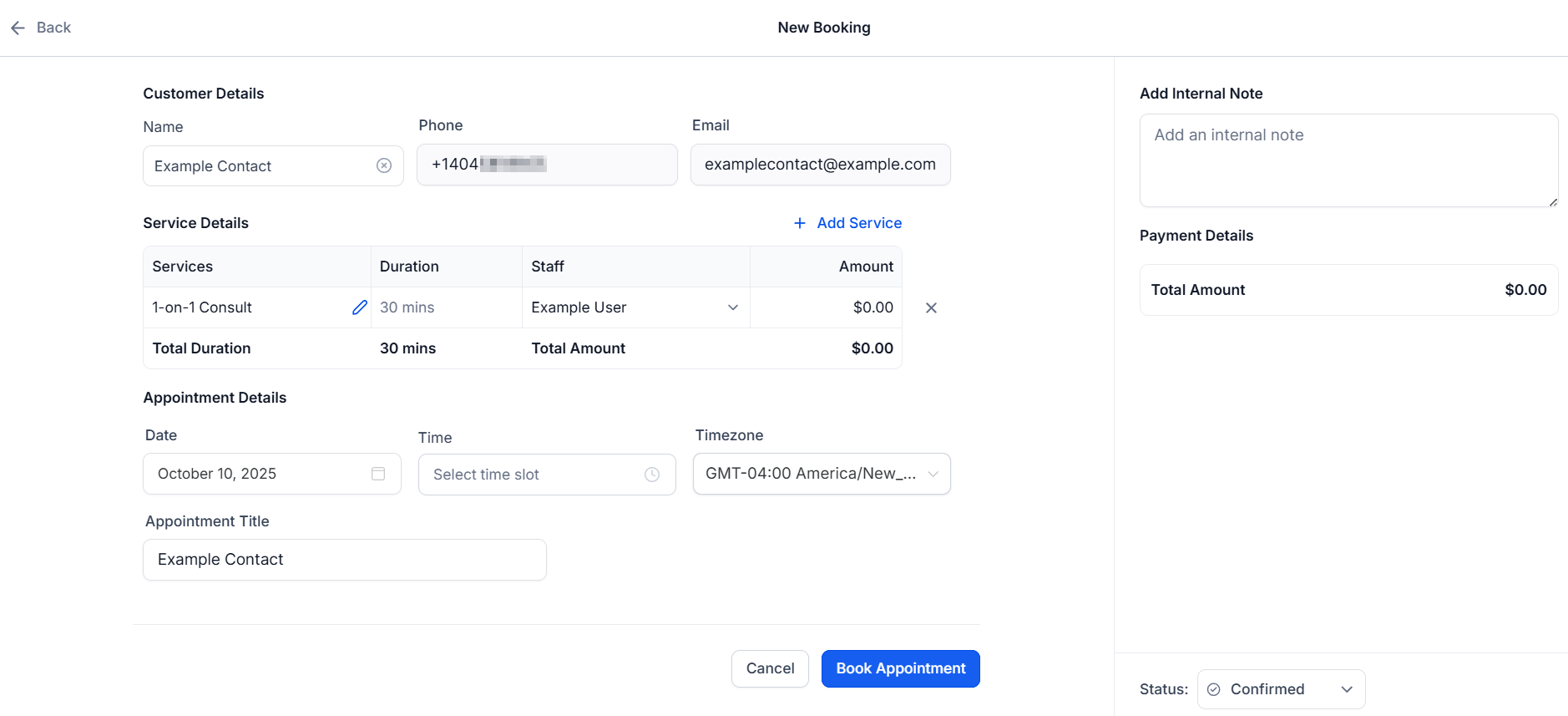
Click Duplicate to open a booking form pre-filled with the current appointment’s details. Modify the contact, services, add-ons, staff, or timing as needed, then click Book Appointment.
Duplicate appointment modal

Creating a new appointment manually

1

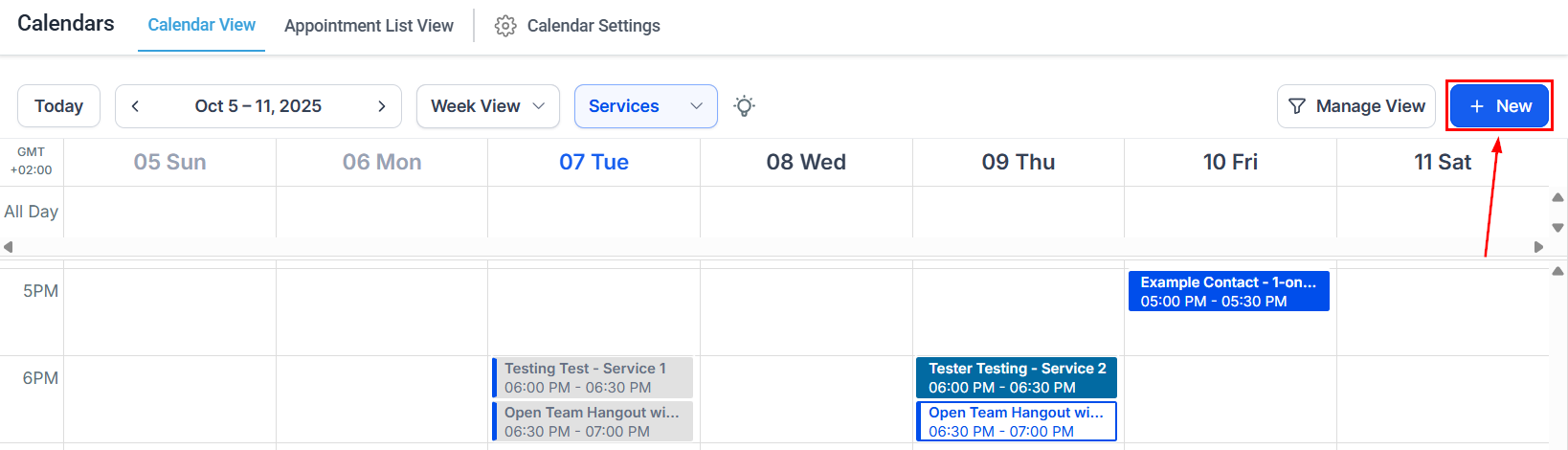
Click + New

Click the + New button in the top-right corner of the calendar view.
New appointment button
2

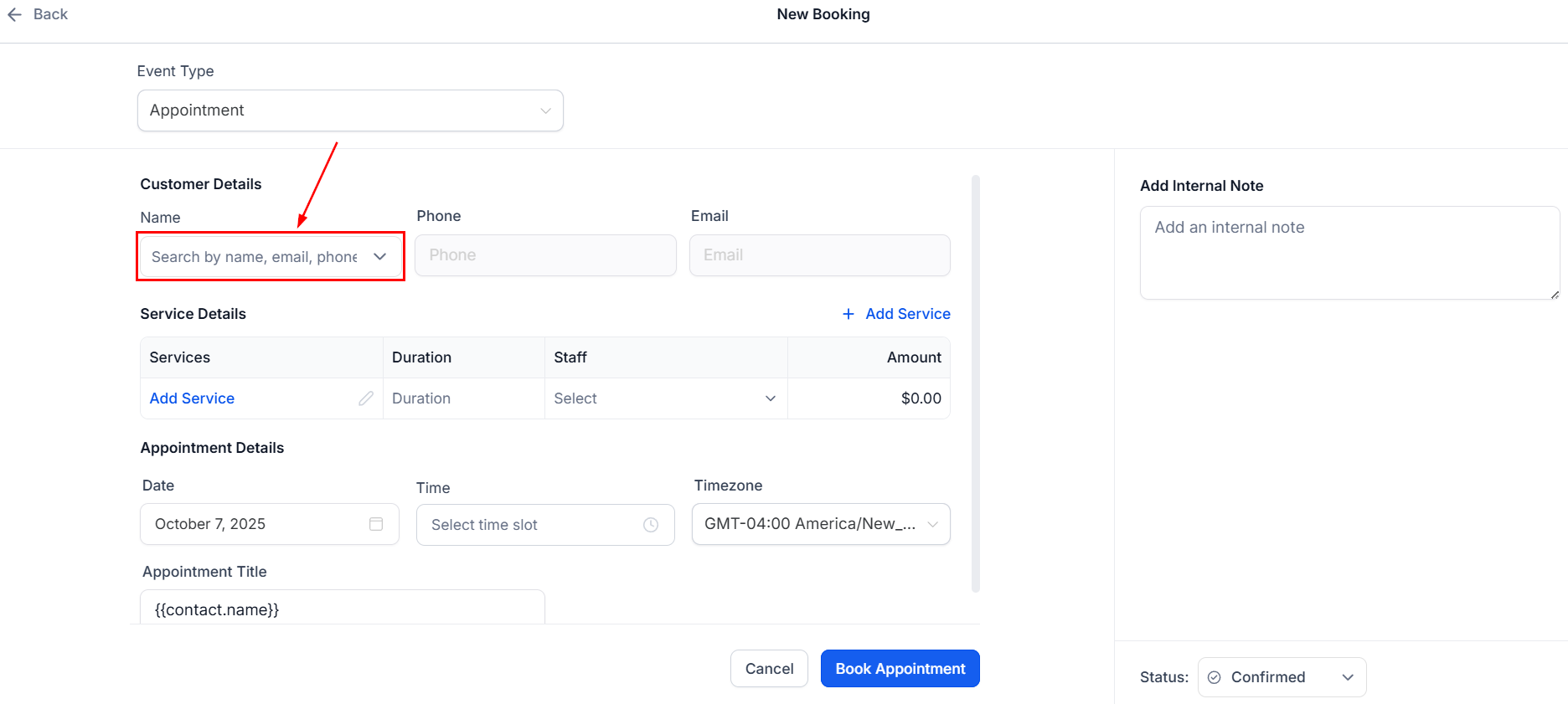
Select a contact

Choose a contact from the dropdown. The appointment will be linked to their record.
3

Add services

Click Add Service and select the services for this appointment.
New appointment modal
4

Add add-ons if needed

Click the pencil icon to include any relevant add-ons for the selected services.
5

Set date, time, and book

Select the appointment date and time slot, then click Book Appointment to save.

Global settings

The Global Settings tab controls configurations that apply across all your services. It is divided into six sections.
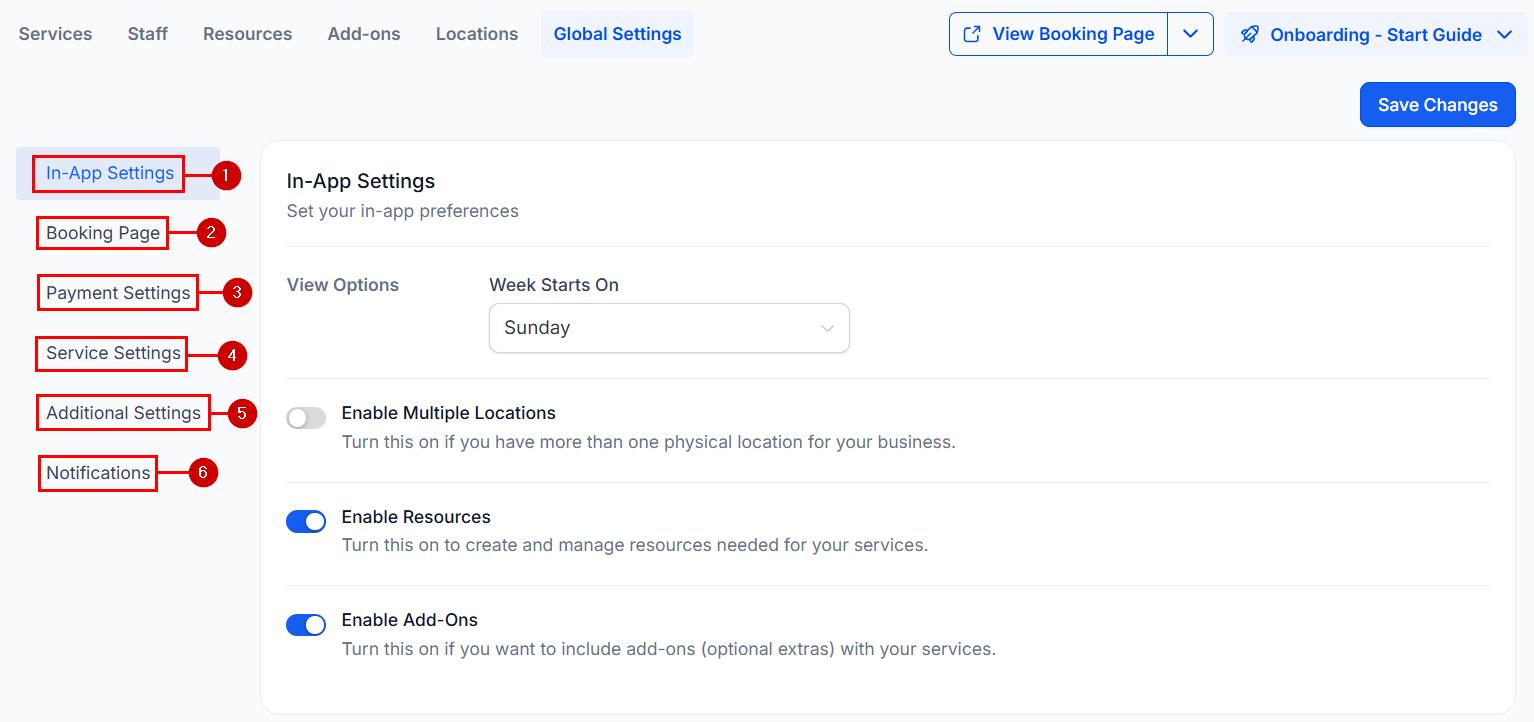
Services V2 global settings tab

In-app settings

Control your preferences for working inside HoopAI:
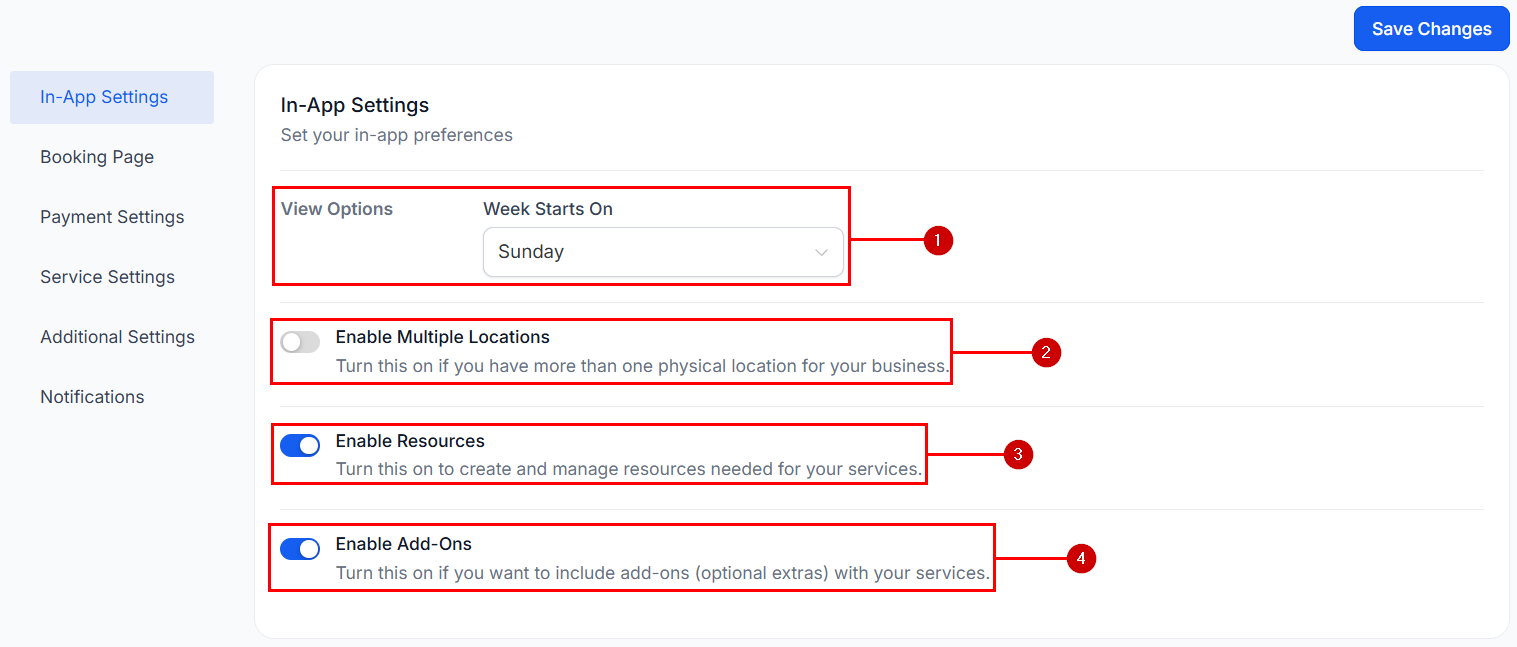
In-app settings
SettingDescription
View optionsSet which day of the week starts your calendar
Enable multiple locationsAdd and manage multiple service locations
Enable resourcesShow or hide the Resources tab
Enable add-onsShow or hide the Add-Ons tab

Booking page

Customize the client-facing booking experience:
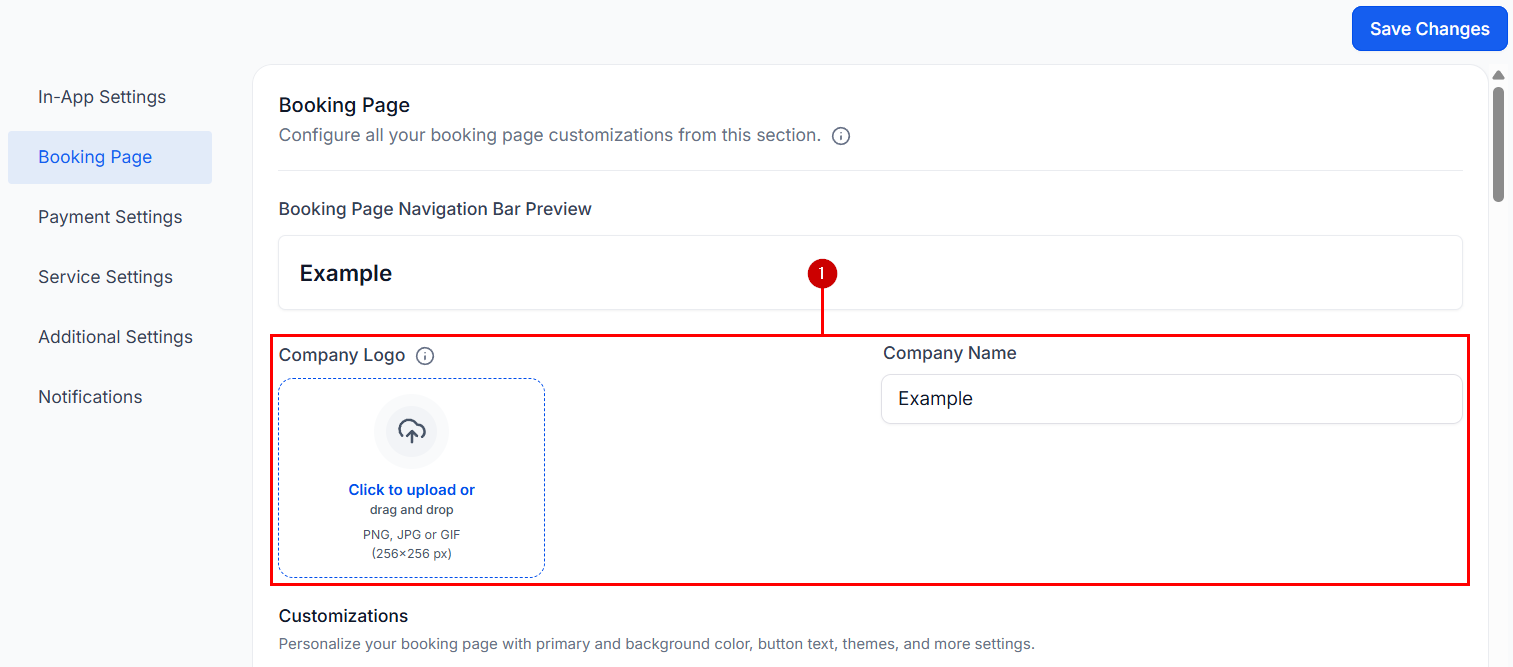
Booking page settings part 1
Booking page settings part 2
Booking page settings part 3
Key options include:
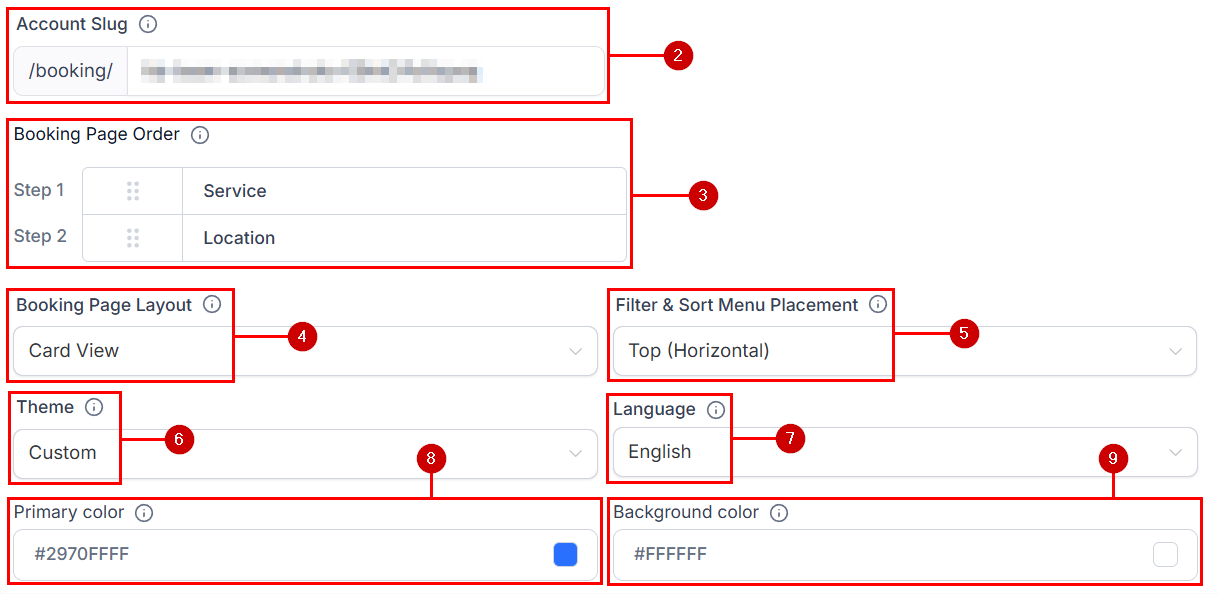
  • Company name and logo — Displayed at the top of the booking page
  • Account slug — Unique identifier used as the base for all your service URLs
  • Booking page order — Define whether clients choose a service or location first
  • Booking page layout — Card view, list view, or client-selectable
  • Filter and sort placement — Top or left of the booking page
  • Theme — Light, dark, or custom (with custom colors)
  • Language — Displayed language for the booking page
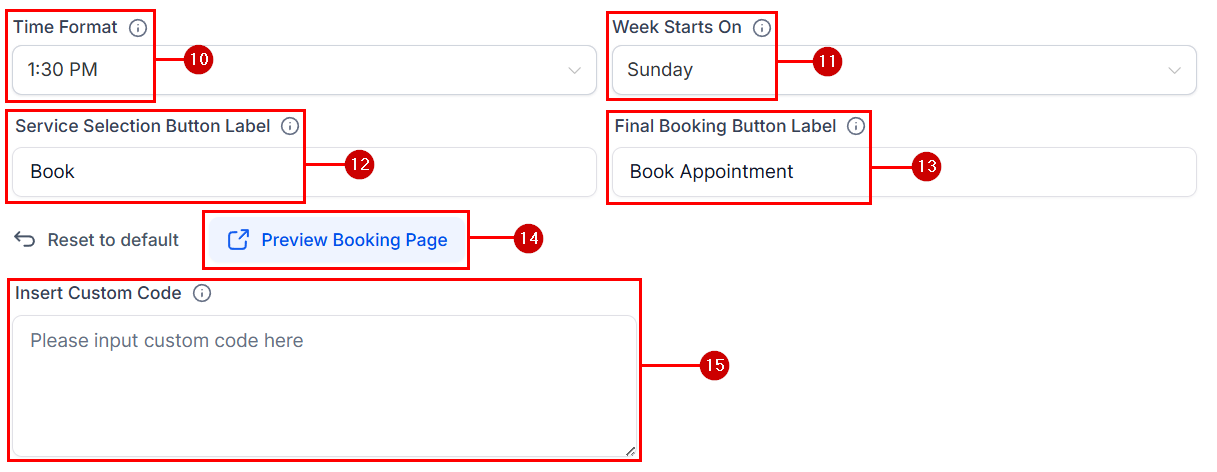
  • Time format — 12-hour or 24-hour
  • Service selection button label — Customize the text on the service select button
  • Final booking button label — Customize the text on the booking confirmation button
  • Insert custom code — Add custom CSS to further style the booking page
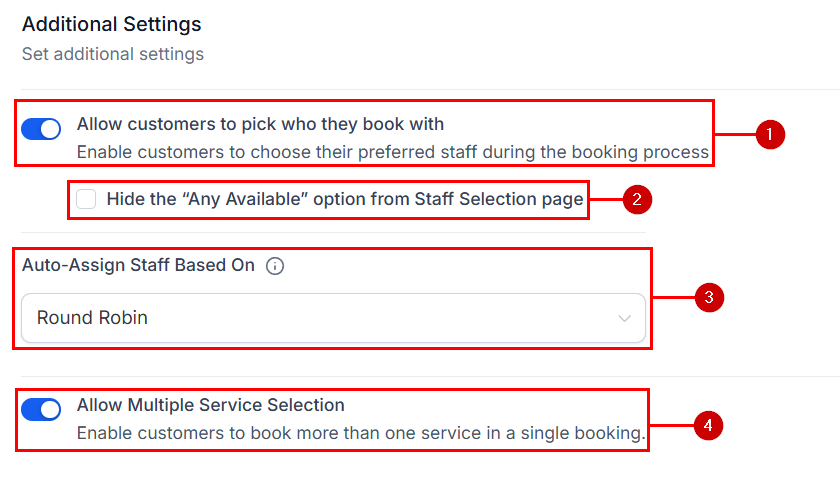
Additional settings:
Additional booking settings
SettingDescription
Staff selectionLet clients choose their preferred staff member
Any availableAllow random staff assignment when no preference is made
Auto-assign staff based onDefine the rule for automatic staff assignment
Multiple serviceAllow clients to book two or more services in a single booking
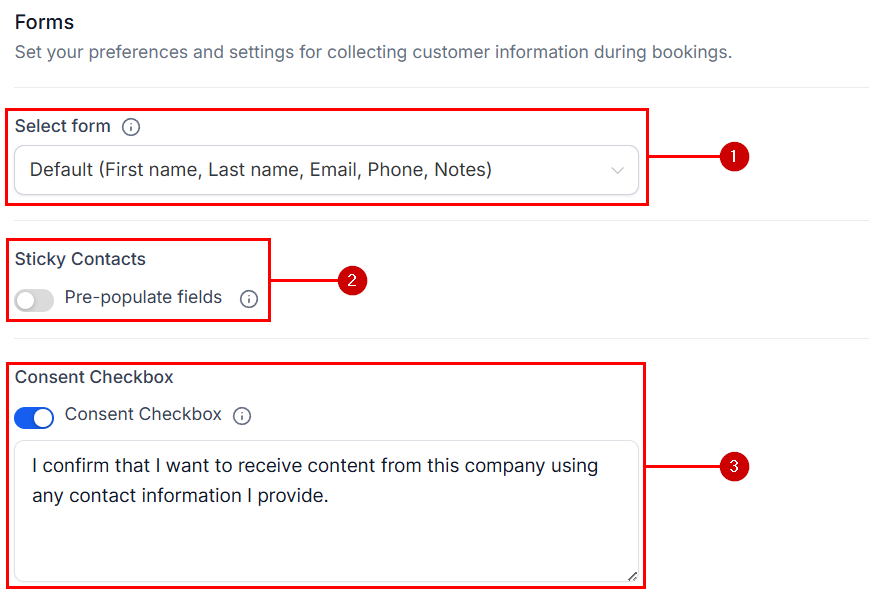
Forms:
Form settings
SettingDescription
Select formChoose a custom form to capture client data at booking
Sticky contactsPre-populate form fields using browser cookies for returning visitors
Consent checkboxRequire clients to consent to being contacted before confirming
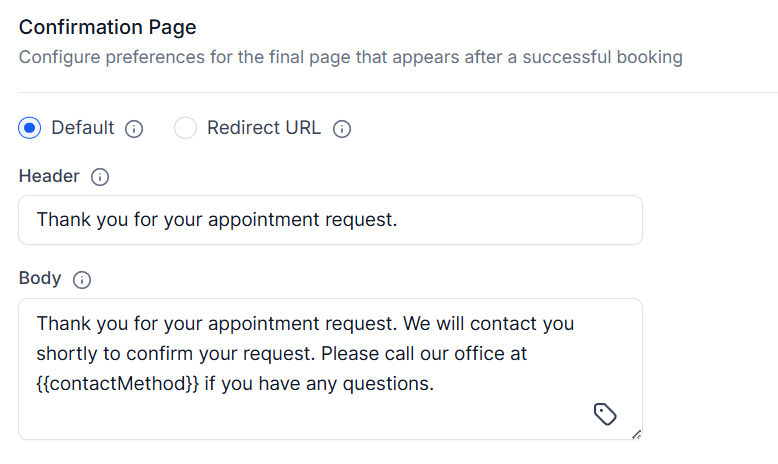
Confirmation page: Customize the page clients see after completing a booking.
Confirmation page settings

Payment settings

Configure how clients pay for services.
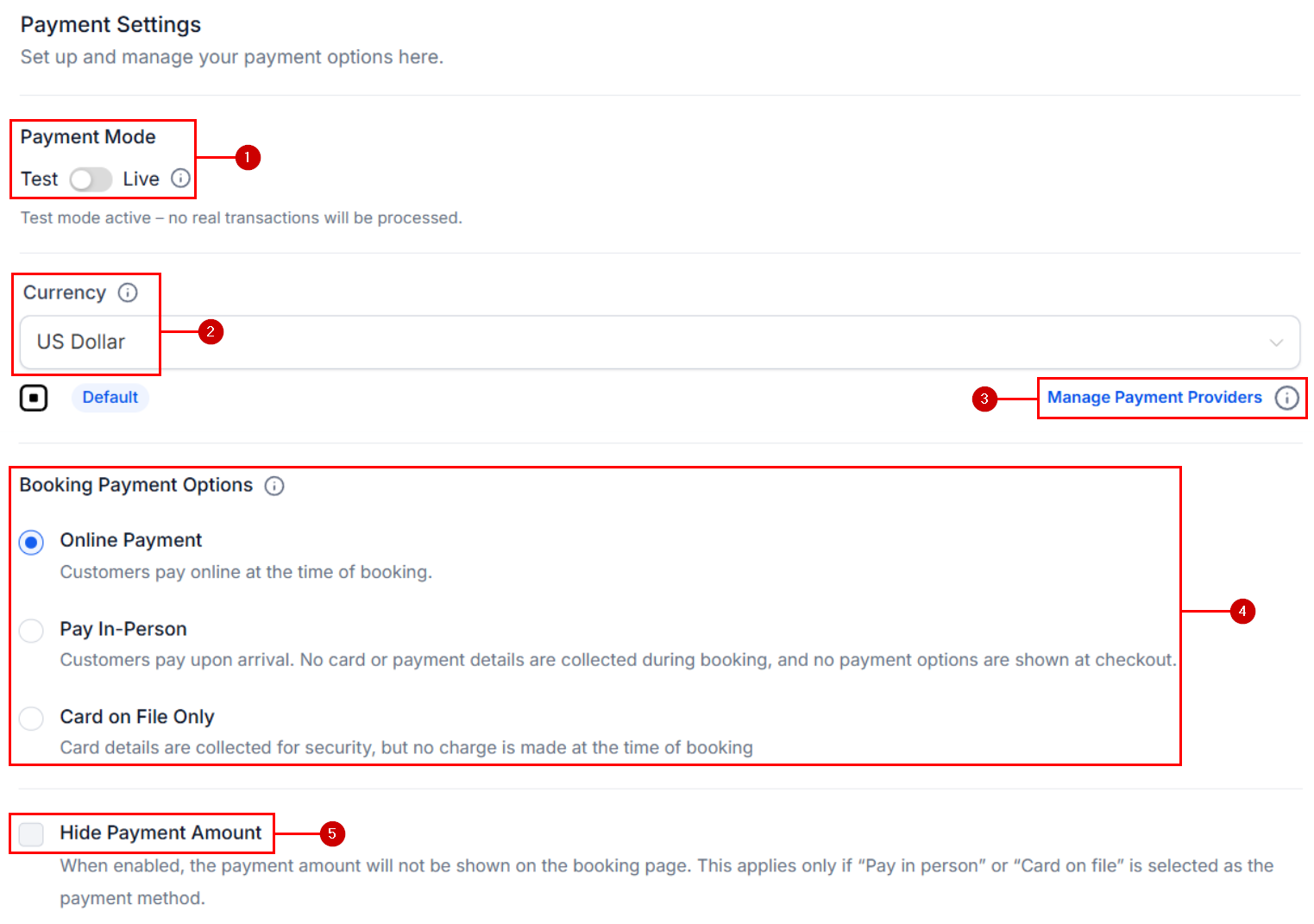
Payment settings
SettingDescription
Payment modeToggle between test mode (for setup) and live mode (real payments)
CurrencySet the currency displayed to clients during checkout
Manage payment providersSwitch or update your connected payment gateway
Booking payment optionsControl what payment methods appear during checkout
Hide payment amountHides the total when the client selects “Pay in person” or “Card on file”

Service settings

Define global rules that apply to all services.
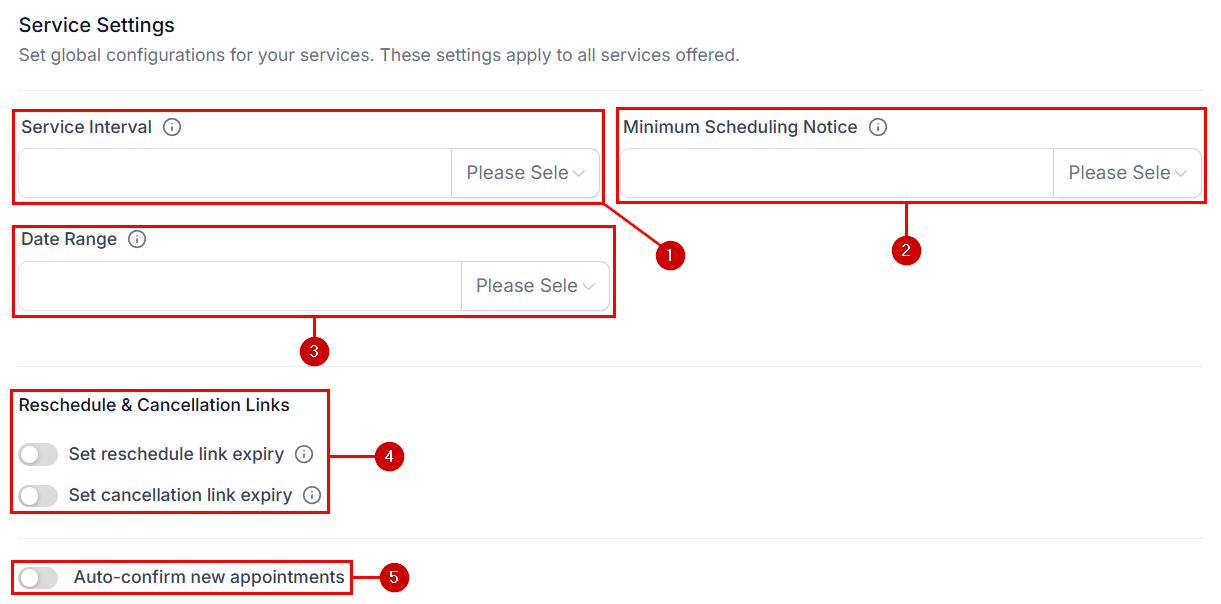
Service settings
SettingDescription
Service intervalFrequency of available booking slots (e.g., every 30 minutes)
Minimum scheduling noticeMinimum time required before a booking can be made
Date rangeHow far in advance clients can book
Reschedule and cancellation linksHow long before the appointment these links remain active
Auto-confirm new appointmentsAutomatically confirm new bookings, or leave them unconfirmed for manual review

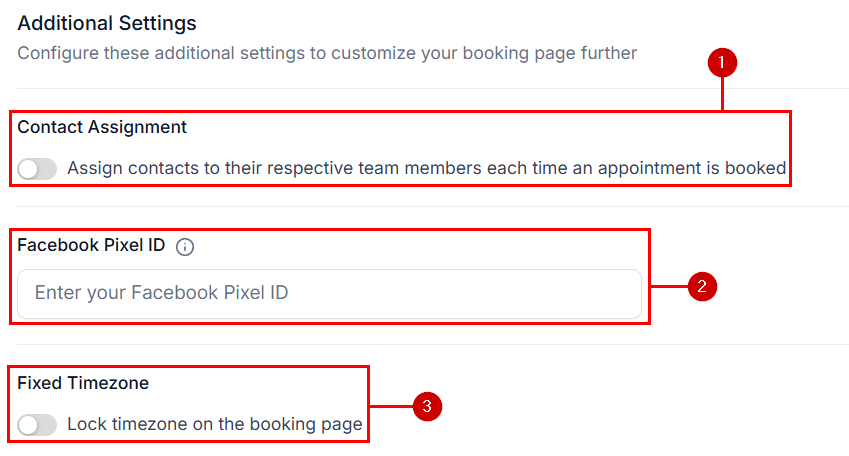
Additional settings

Additional settings
SettingDescription
Contact assignmentAutomatically assign the contact to the staff member who has the appointment
Facebook Pixel IDTrack booking page interactions with your Meta Pixel
Fixed timezoneShow all appointments in the business timezone only, regardless of client location

Notifications

Configure which actions trigger notifications and how they are delivered.
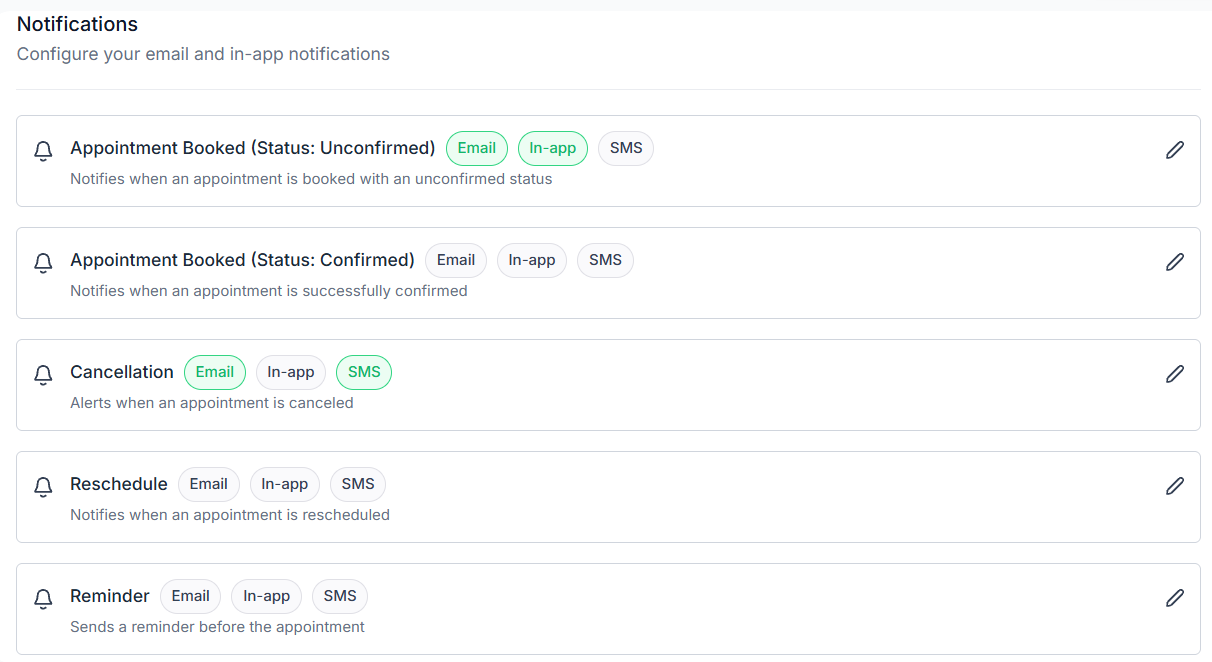
Notification settings
Enable, disable, or customize email, in-app, and SMS notifications for booking confirmations, reminders, cancellations, and rescheduling. Third-party calendar settings:
Third-party calendar settings
SettingDescription
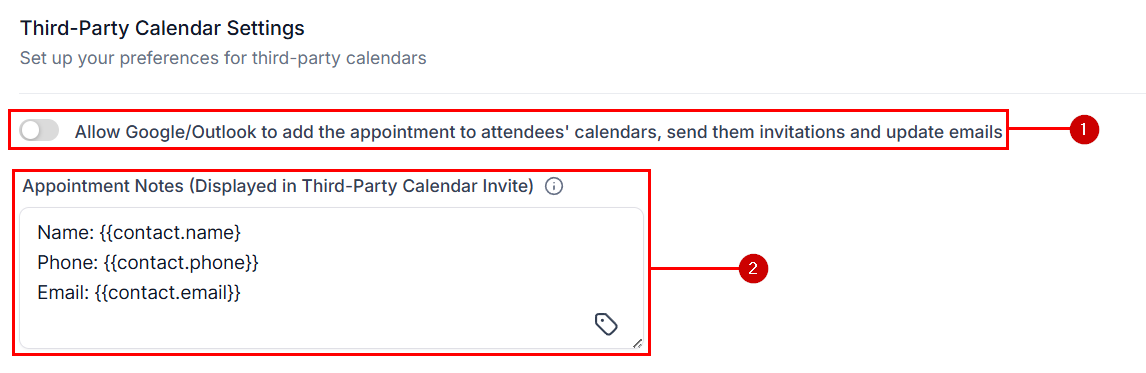
Google/Outlook attendee permissionsAllow third-party calendars to modify attendees and send invitations
Appointment notesCustomize the information included in calendar event notes

Google Organic Booking with Services V2

Google Organic Booking lets clients find and book your services directly from Google Search and Google Maps, without leaving the Google interface. Services V2 powers the service list that gets submitted to Google. Requirements:
  • An active and verified Google Business Profile connected to HoopAI Integrations
  • At least one Service calendar
1

Open Calendar Settings

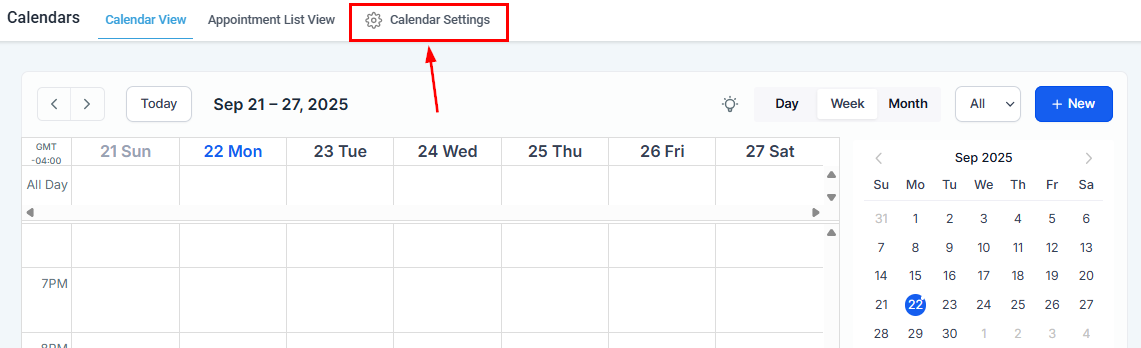
Navigate to Calendars > Calendar Settings, then go to the Connections tab.
Calendar Settings connections tab
2

Enable Google Organic Booking

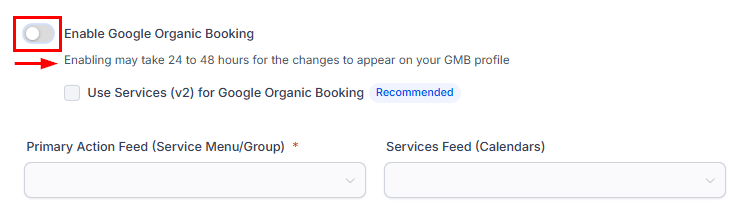
Toggle Enable Google Organic Booking on, then confirm on the pop-up.
Enable Google Organic Booking
3

Enable Services V2

Select the checkbox to enable Version 2 of the Services feature, which is required for Google Organic Booking.
4

Select your feeds

Choose a Group or Service from the Primary Action Feed dropdown, then select the calendars to include in the Services Feed.
5

Upload

Click Upload to submit your service data to Google. Initial verification typically takes 1–2 weeks.
For best results with Google Organic Booking: keep service descriptions concise and matching the service name; select only service menus or groups in the Primary Action Feed; and keep your service list up to date. When connected, your Google Business Profile will display a booking button.

Frequently asked questions

The original approach required configuring services inside each individual calendar’s settings. Services V2 introduces a centralized service catalog at the Calendars section level where you manage all services in one place and link them to multiple calendars. It adds categories, per-service staff and resource control, add-ons, location management, and comprehensive global settings that were not available in the original setup.
Yes. From the service editor, link the service to multiple service-type calendars. It will appear on the booking menu for each linked calendar. This is useful for multi-location businesses that share the same service offerings.
Both tabs must be explicitly enabled. Go to Global Settings > In-App Settings and turn on Enable Resources and/or Enable Add-Ons to make those tabs visible.
When a service is linked to a resource, HoopAI checks resource availability before showing a time slot to a client. If the resource is already reserved for that slot (by another booking of any service that uses the same resource), the slot will not be offered. This ensures physical assets are never double-booked.
Yes. When configuring an add-on, enable the Duration field and enter the add-on’s time. HoopAI will add that time to the primary service duration when calculating the total slot length. For example, a 60-minute haircut with a 15-minute scalp massage add-on will block 75 minutes on the calendar.
Yes. Go to Global Settings > Booking Page > Additional Settings and enable Multiple Service. Clients will then be able to add more than one service during a single booking session.
Disabling a service hides it from new bookings on the public booking menu. All existing appointments for that service remain intact and visible to staff and clients.
Initial verification of feeds and profiles typically takes 1–2 weeks. During this time, accuracy in service descriptions and correct link selections is important for a smooth verification process.
Last modified on March 4, 2026