

Two ways to create recurring appointments
The HoopAI platform supports recurring appointments through two methods: 1. Calendar-level recurring settings — You configure recurrence rules in the calendar’s availability settings. When a contact books through the public booking widget, the platform automatically creates the full series of appointments based on those rules. 2. In-app manual recurring appointments — A team member manually creates an appointment from the platform and applies a recurrence pattern to that specific booking. This gives more flexibility for individual clients who need a custom schedule.Setting up calendar-level recurring appointments
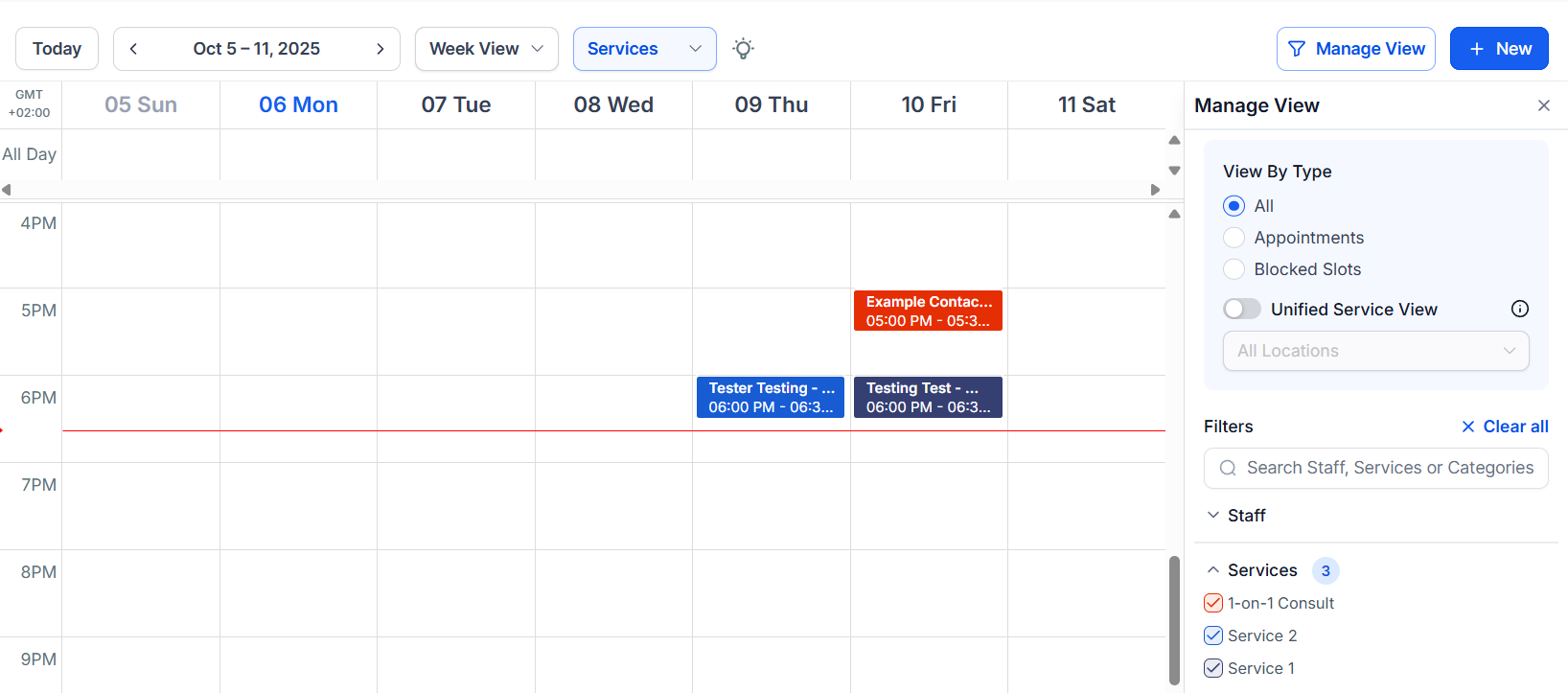
Recurring appointment settings in the availability tab
- Go to Calendars > Calendar Settings and click Edit on your calendar.
- Open the Availability tab.
- Toggle on Recurring Appointments to reveal the recurrence settings.
- Choose a frequency: Daily, Weekly, Monthly, or Custom.
- Set the number of times the appointment should repeat. The maximum is 24 recurrences per series.
- Configure how the system handles unavailable slots (see below).
- Save the calendar.
Frequency options
Handling unavailable slots
When the platform schedules future recurring appointments, some slots may be unavailable due to existing bookings or the calendar being closed. You can choose from these behaviours:- Skip unavailable slots — The system books only the available occurrences and skips any that conflict.
- Book next available slot — The system finds the next open slot if the target date or time is taken, ensuring the full number of requested appointments is eventually fulfilled.
- Book regardless — The system creates all occurrences even if some land on unavailable times. These may be created as unconfirmed and require manual review.
Creating manual recurring appointments in-app
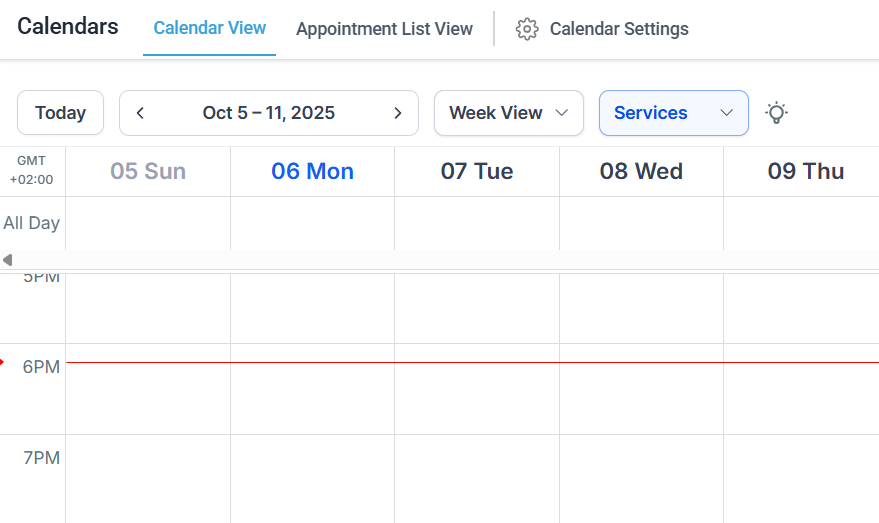
Calendar view with recurring appointment series
- Go to Calendars and click + New Appointment or open the Appointments list and click + Create.
- Fill in the contact, calendar, date, and time.
- Look for the Recurrence section within the appointment modal.
- Select the frequency and specify how many times the appointment should repeat.
- Review the generated schedule and click Save.
Managing a recurring series
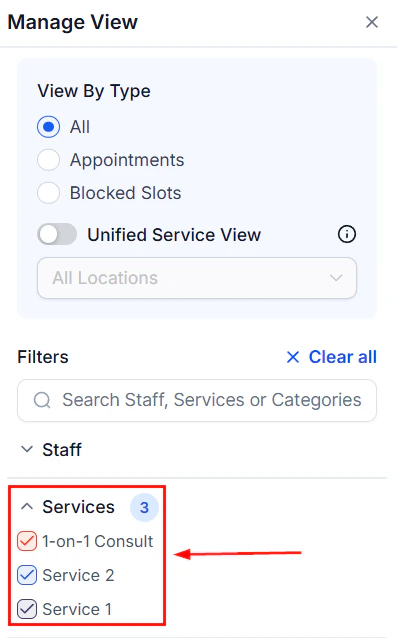
Appointment list showing recurring series
- All occurrences — Edits apply to every appointment in the series going forward, including those already scheduled.
- This and all future occurrences — Edits apply from the selected appointment onwards, leaving past appointments unchanged.
- This occurrence only — Edits apply only to the selected appointment without affecting the rest of the series.
Payments and recurring appointments
If the calendar has payment collection enabled, payment is collected for the first appointment in the series. Subsequent recurring appointments are not charged individually through the calendar payment flow. For clients who need to be billed per session, consider pairing the recurring appointments with an invoice or subscription workflow.Notifications for recurring appointments
Standard calendar notifications (confirmation, reminder, follow-up) fire for the first appointment in a calendar-level recurring series. They do not send automatically for subsequent occurrences. For manually created in-app recurring series, notifications also do not fire automatically for individual recurrences. To send reminders across an entire series, build a workflow using the Appointment Status trigger combined with recurring date conditions, or schedule workflow-based reminders manually.Cancelling a recurring series
- Via self-service cancellation link: Cancelling using the self-service link cancels the entire series at once.
- Via the appointment editor in-app: You can cancel all occurrences, this and all future occurrences, or just this one occurrence.