

Sharing your booking link
Every calendar in Hoop has a unique booking URL. Share this link anywhere — email signatures, SMS messages, social profiles, or your website. To copy your booking URL:- Go to Calendar Settings
- Click the share icon (arrow pointing right) on the calendar card
- Copy the Direct Link from the Share modal
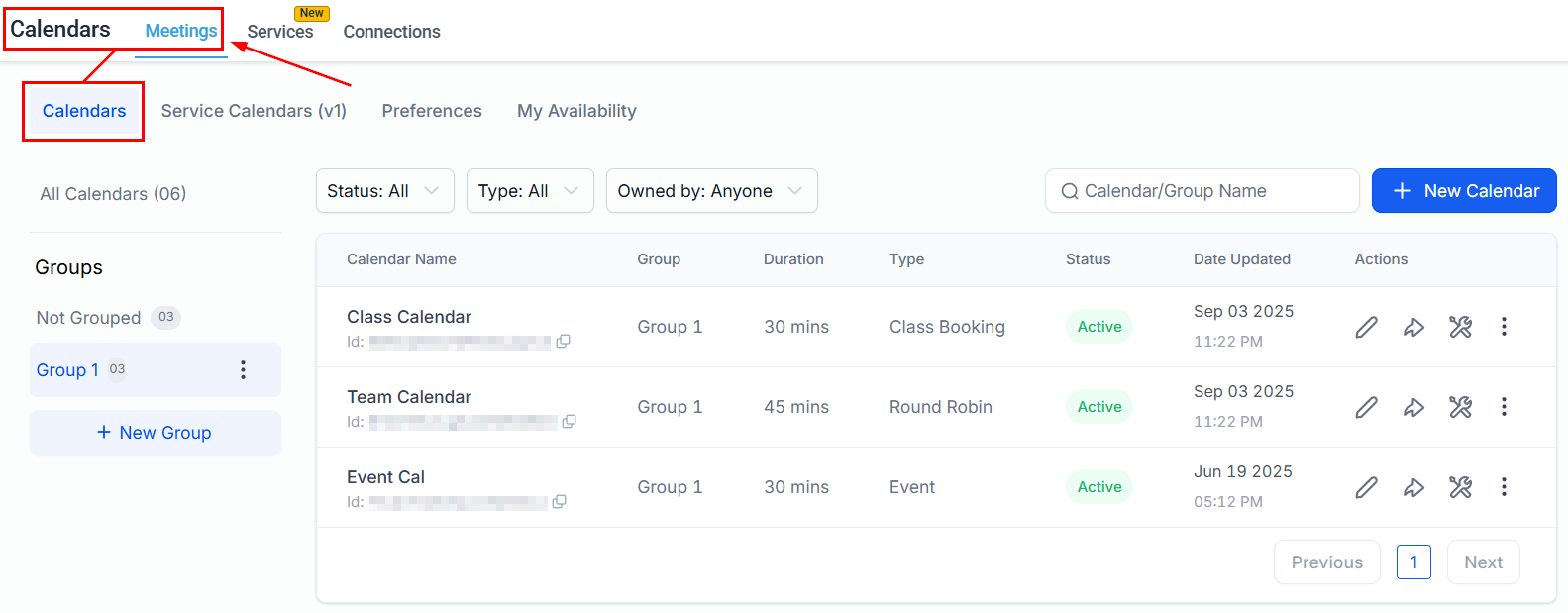
The Share modal showing the direct booking link for a calendar
Embedding your calendar on a website
Embed a booking widget directly in your website so visitors can book without leaving your page.Open the Share modal
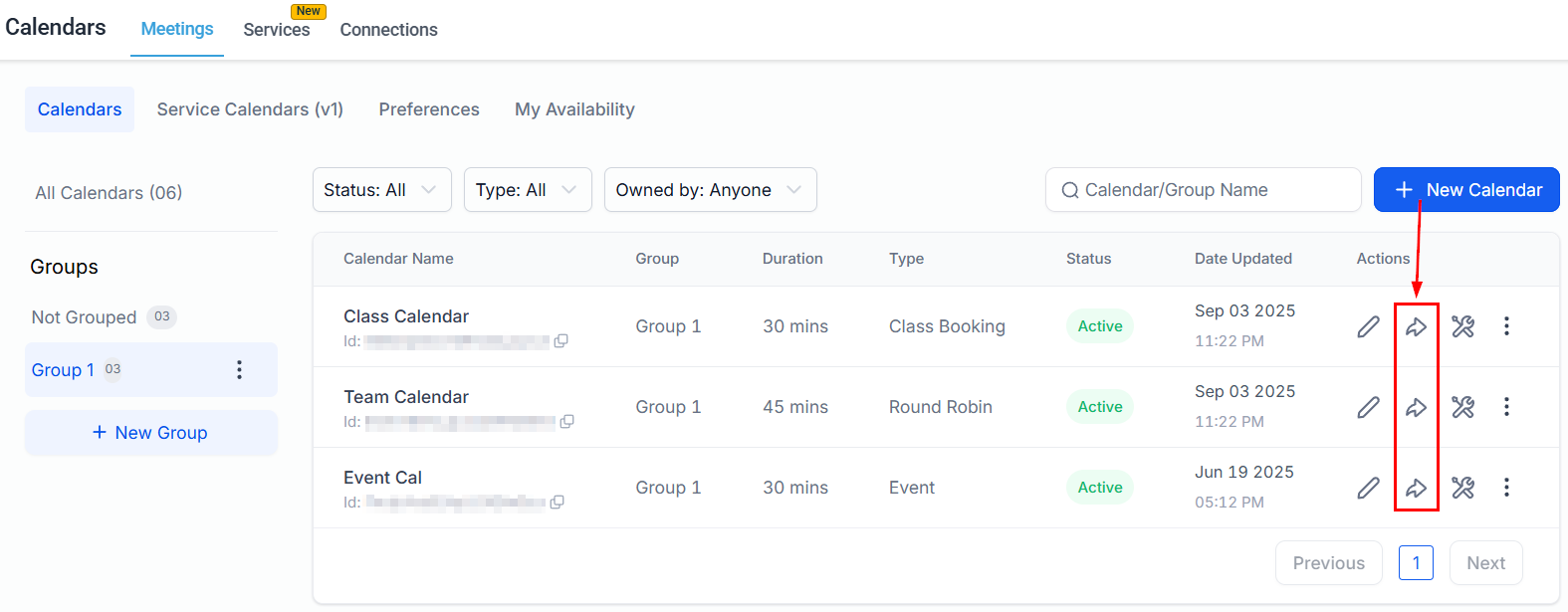
Click the share icon on the calendar card to open the Share modal
Copy the embed code
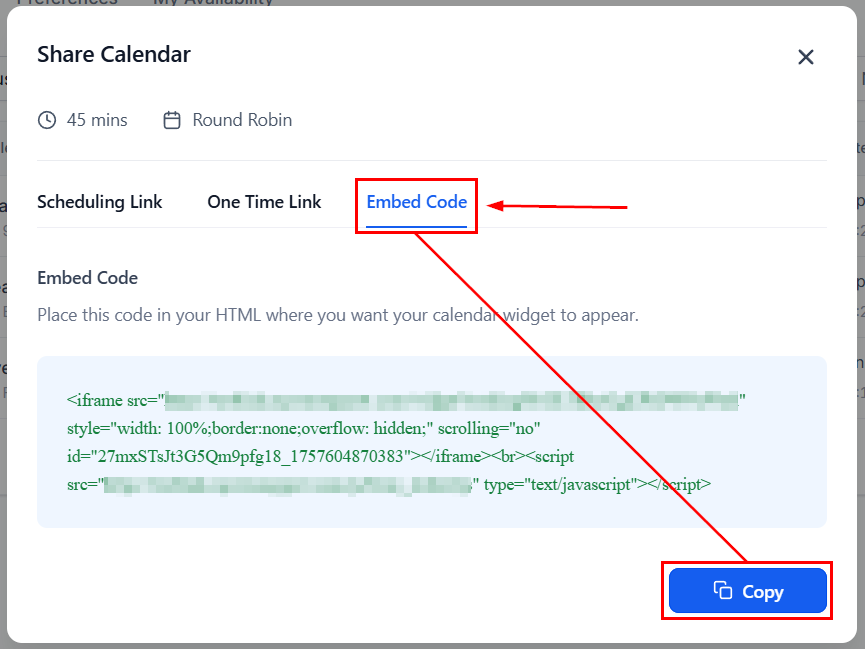
The Embed tab in the Share modal showing the iframe code
Paste into your website
Paste the iframe embed code into your website's HTML
Embedding in a Hoop funnel or website
To add your calendar to a Hoop-built funnel or website:Open your funnel or website in the builder
Add a custom code element
Paste the embed code
Publish
One-time booking links
One-time booking links expire after a single use — ideal for sending to a specific contact without making the link publicly reusable. Common use cases:- Sending a booking link to a VIP client without opening up your calendar to others
- Creating discovery call links that cannot be forwarded or reused
- Secure scheduling for sensitive appointments
Open the calendar settings
Navigate to the calendar and access the one-time booking link settings
Find One-Time Booking Links
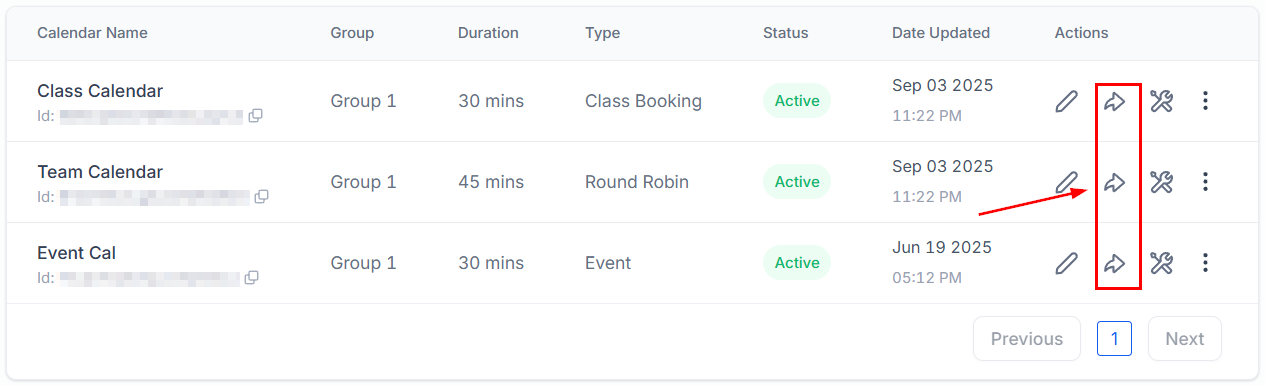
The One-Time Booking Links section in calendar settings
Create and copy the link
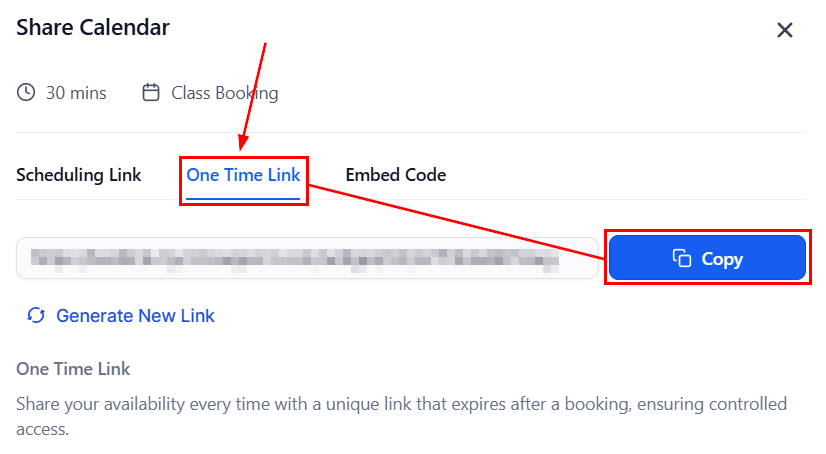
Copy the generated one-time booking link to share with a specific contact
Google organic booking
Google Organic Booking lets contacts book directly from your Google Business Profile — right from Google Search or Google Maps results.Open the calendar's settings
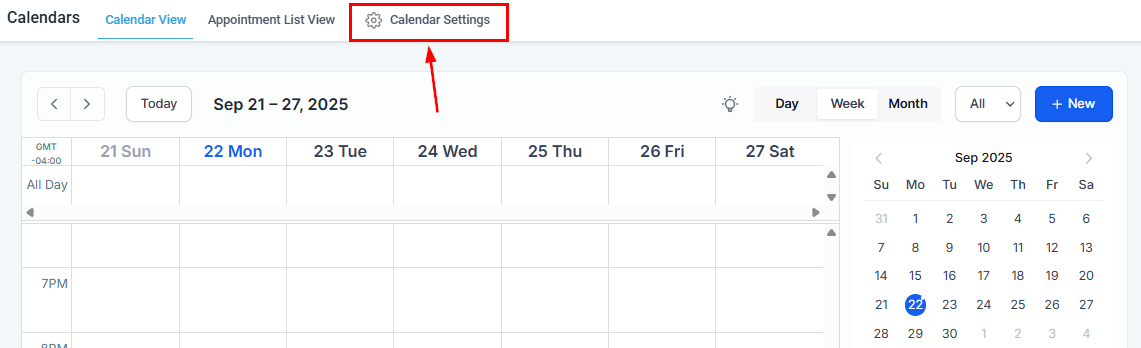
Open Calendar Settings and select the calendar for Google organic booking
Enable Google Organic Booking
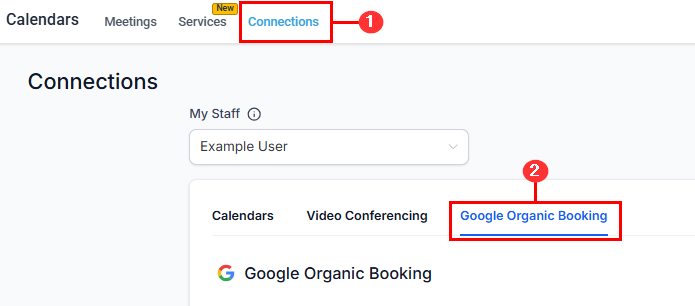
The Google Organic Booking toggle in Calendar Settings
Enable the booking option
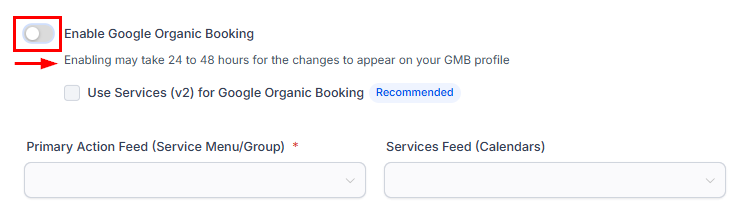
Enable the booking listing to make it visible on your Google Business Profile
Upload required assets
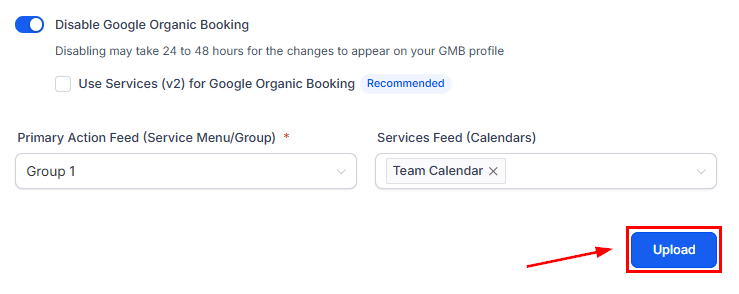
Upload required photos and assets for the Google Business Profile listing
Disabling Google organic booking
To remove your calendar from Google Business Profile:- Go to Calendar Settings for the calendar
- Find the Google Organic Booking section
- Toggle the setting off
- Save the changes
Calendar groups as booking pages
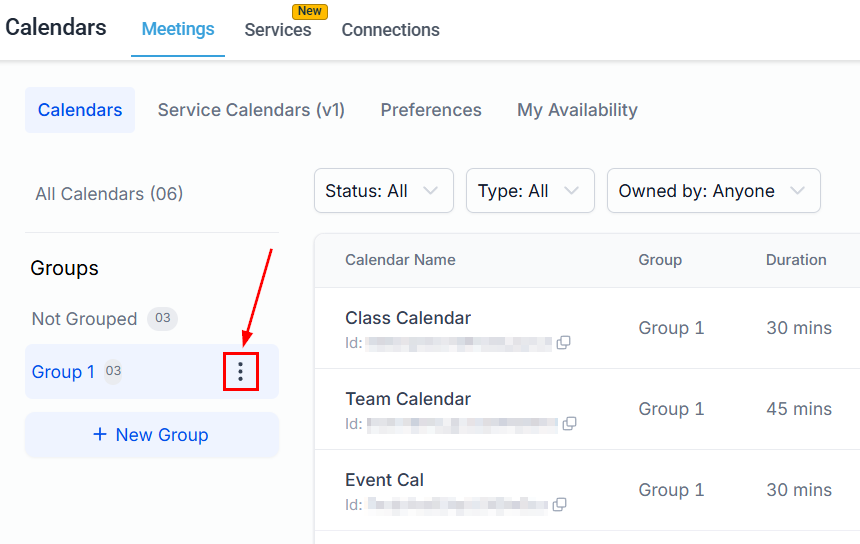
Calendar groups create a combined booking page that displays multiple calendars together. This is useful for teams, multi-service offerings, and multi-location businesses. To set up a calendar group:- Go to Calendar Settings > Groups
- Click + New Group and give it a name and URL slug
- Add calendars to the group via the calendar settings or the three-dot menu on each calendar card
- Share the group booking link — contacts can browse all calendars in the group and choose their preferred slot
Customizing your booking page
Each calendar’s booking widget can be customized to match your brand:- Color scheme — button color, date highlight color, time slot color, and action colors
- Background color — the backdrop behind the booking form
- Button text — replace “Book Now” with custom copy
- Calendar logo — displayed at the top of the booking widget
- Cover image — appears in group/Neo widget views
- Widget style — choose between Classic and Neo layouts
- Show/hide details — toggle calendar name, description, duration, and timezone display
Consent checkbox for compliance
Add a required consent checkbox to your booking form for SMS marketing and data privacy compliance. When enabled, contacts must check the box before completing their booking. To enable the consent checkbox:- Go to Calendar Settings > Advanced Settings > Forms & Payment
- Toggle on Consent Checkbox
- Customize the consent text (e.g., “I agree to receive SMS messages from [Business Name]”)
- Save the calendar
Add guests feature in bookings
The Add Guests feature lets contacts include additional attendees when booking an appointment. This is useful for group meetings, family appointments, or any scenario where multiple people need to attend. When guests are added:- Each guest receives their own confirmation and reminder notifications
- Guest names and email addresses are stored on the appointment record
- For class booking calendars with per-attendee pricing, the total is calculated based on the number of guests
- Go to Calendar Settings > Forms & Payment
- Toggle on Allow Guests
- Optionally enable Require Guests to make guest information mandatory
- Save
FAQs
Can I embed multiple calendars on the same page?
Can I embed multiple calendars on the same page?
Does the embedded calendar update automatically when I change availability?
Does the embedded calendar update automatically when I change availability?
Can I create one-time links in bulk?
Can I create one-time links in bulk?
What happens to a one-time link that has not been used?
What happens to a one-time link that has not been used?
How long does it take for Google Organic Booking to appear on my Business Profile?
How long does it take for Google Organic Booking to appear on my Business Profile?
Can I use a calendar group as an embed?
Can I use a calendar group as an embed?