

Calendar Connections showing available integration options
Google Calendar
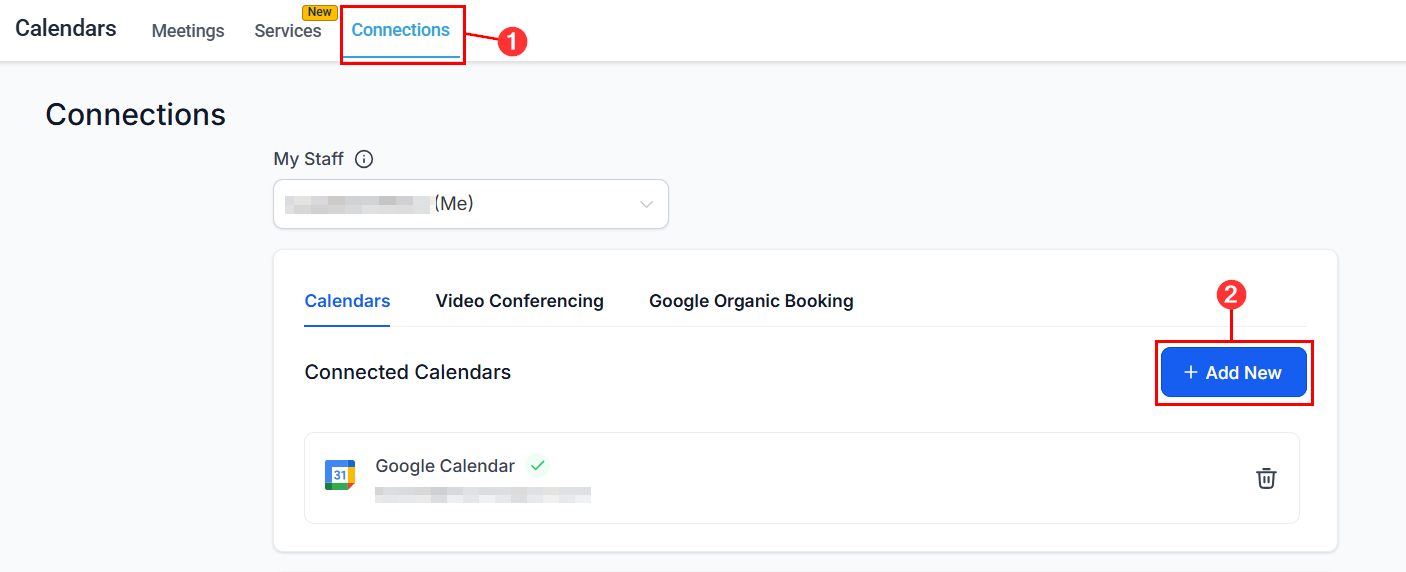
Connecting Google Calendar creates a bi-directional sync — appointments booked in Hoop appear in Google Calendar, and events added in Google Calendar block availability in Hoop.Open Calendar Connections
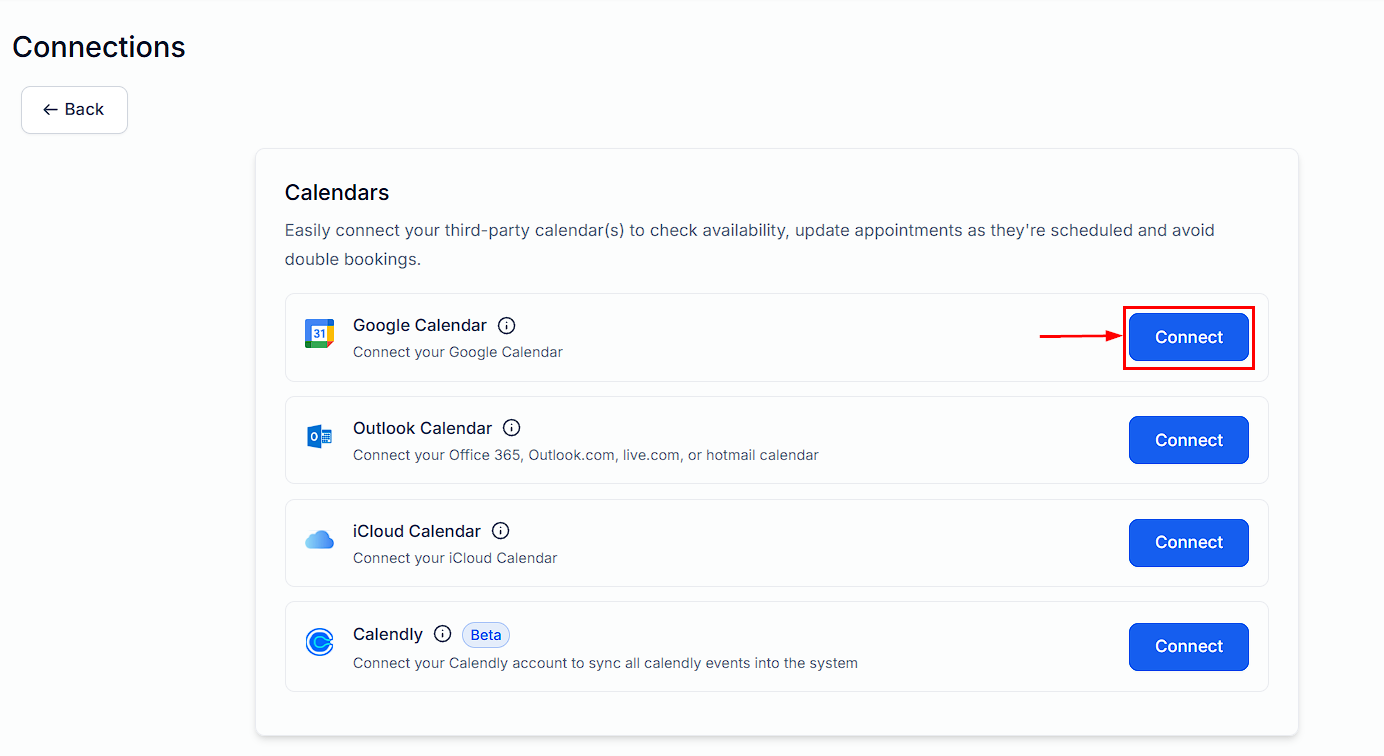
Click Connect Google Calendar
Add a new Google Calendar connection from the Connections tab
Authenticate with Google
Sign in to your Google account to authorize the Hoop connection
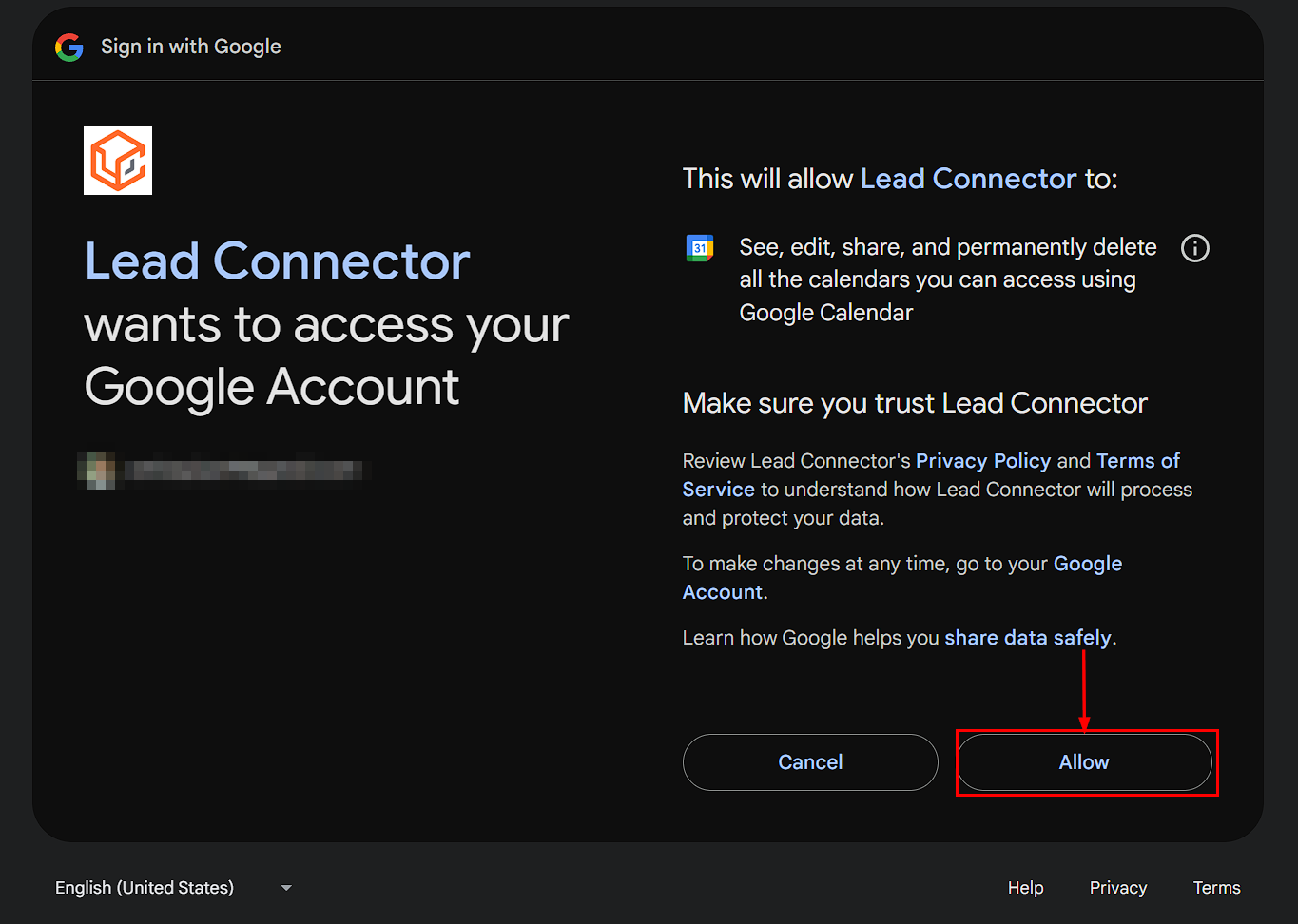
Grant Hoop permission to access your Google Calendar
Select the calendar to sync
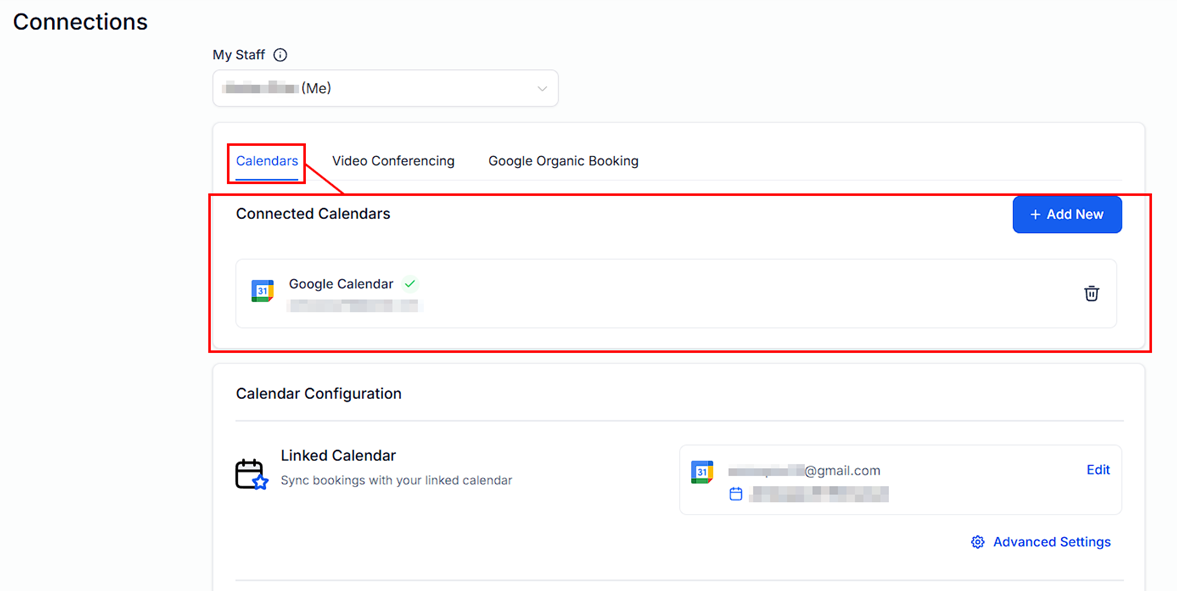
Choose which of your Google Calendars to sync appointments with
Configure sync settings and save
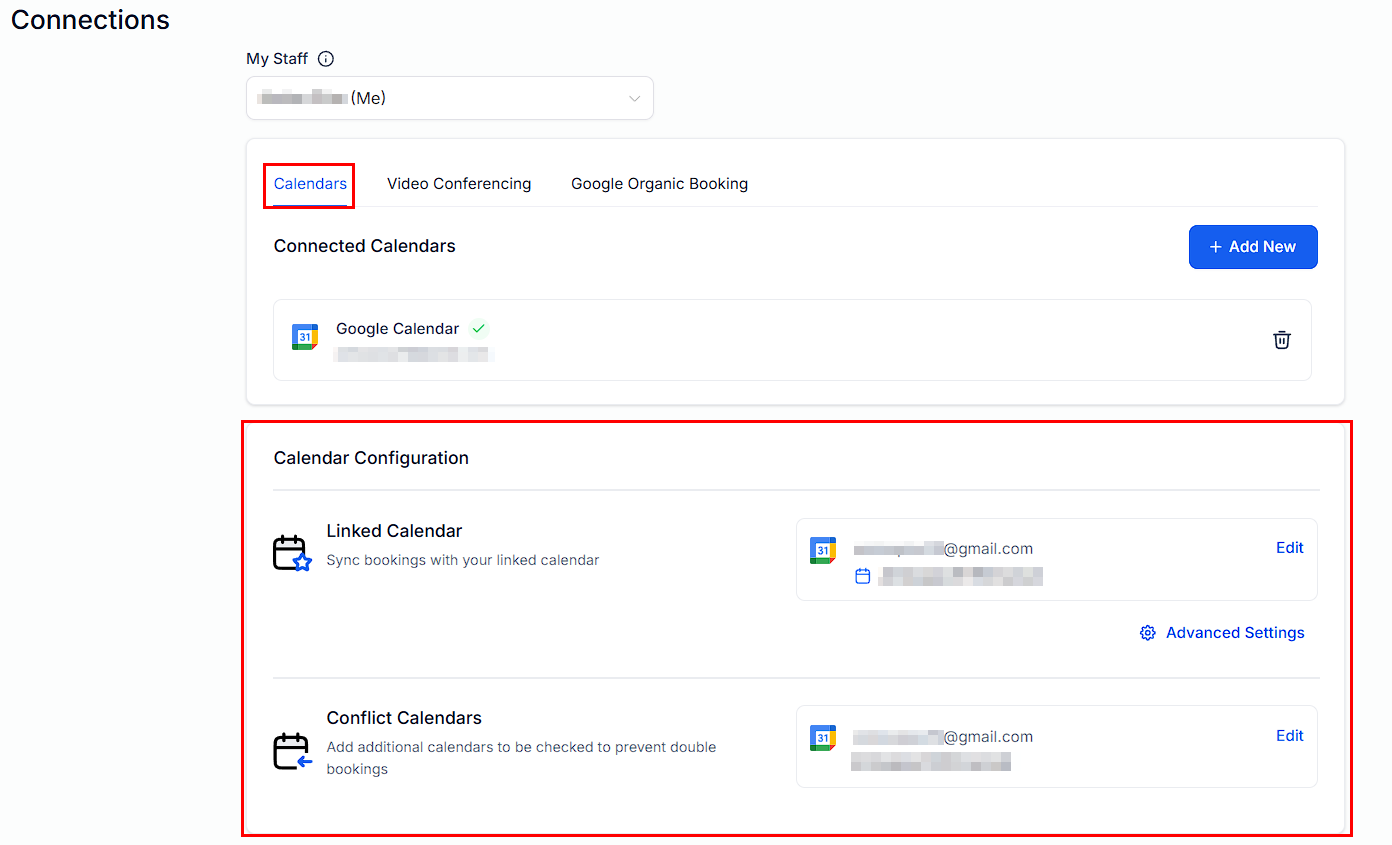
Configure sync settings before saving the Google Calendar connection
Zoom
The Zoom integration automatically generates a unique Zoom meeting link for every appointment booked, eliminating the need to manually create and share meeting links.Open Calendar Connections
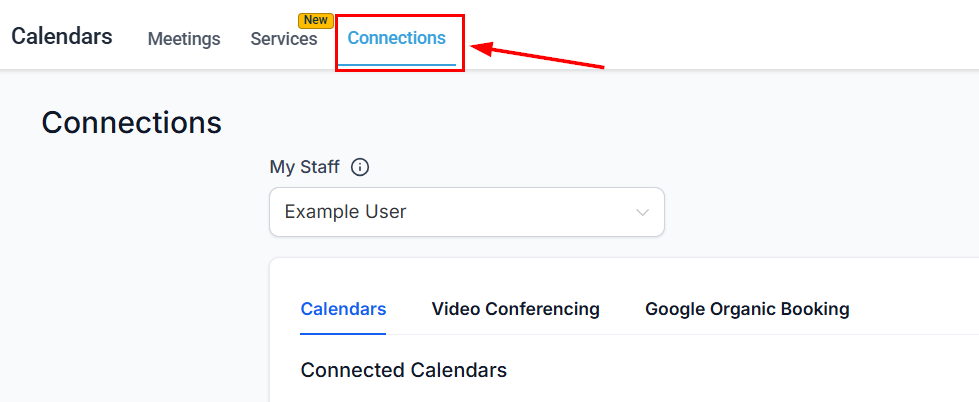
The Calendar Connections tab showing Zoom as an available option
Connect Zoom
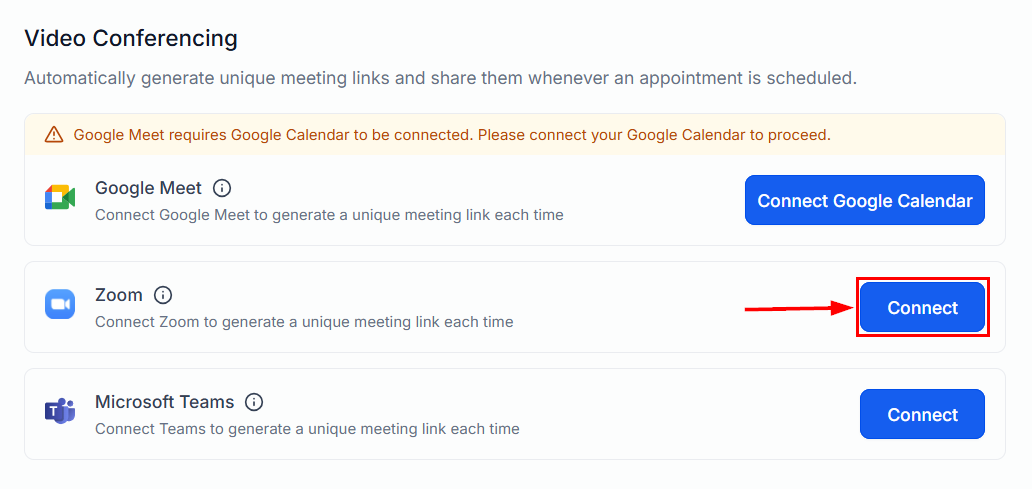
Click Connect to start the Zoom authorization flow
Authorize the integration
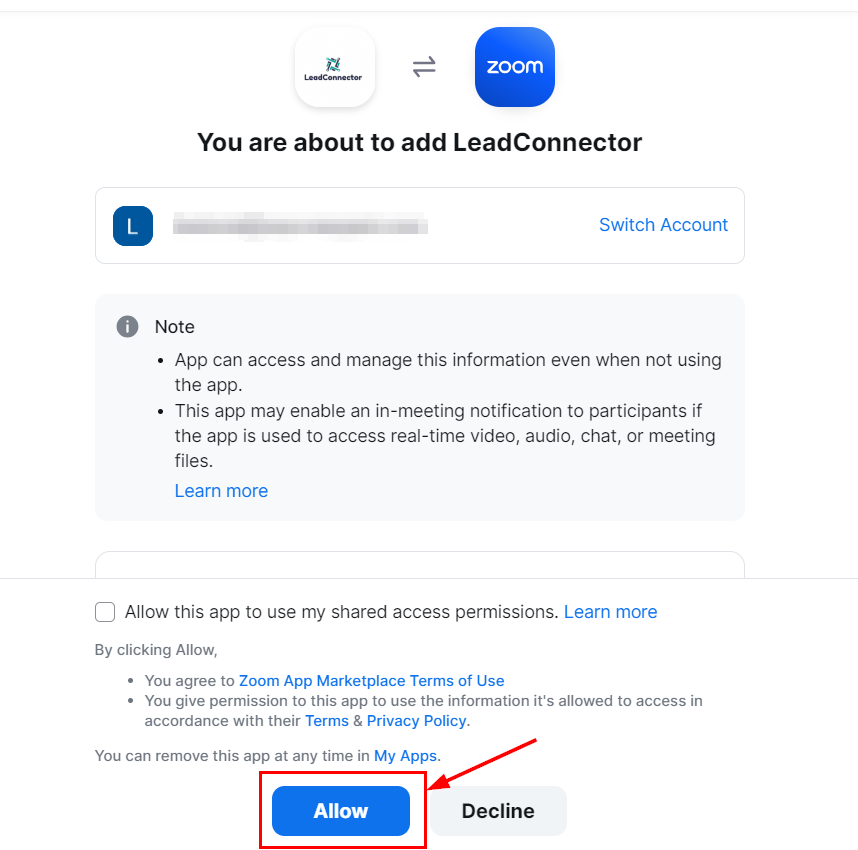
Review and Allow the Zoom permissions for Hoop
Confirm and save
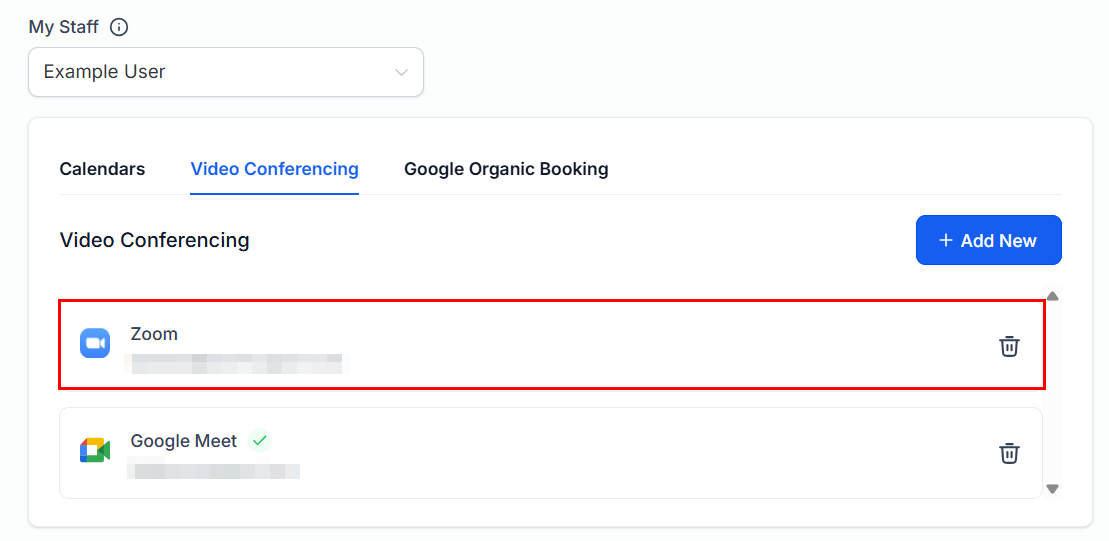
Zoom integration is now enabled — all new appointments will include a Zoom link
Microsoft Teams
The Microsoft Teams integration adds a Teams meeting link to every appointment confirmation, making virtual meetings seamless for organizations already using Microsoft 365.Open Calendar Connections
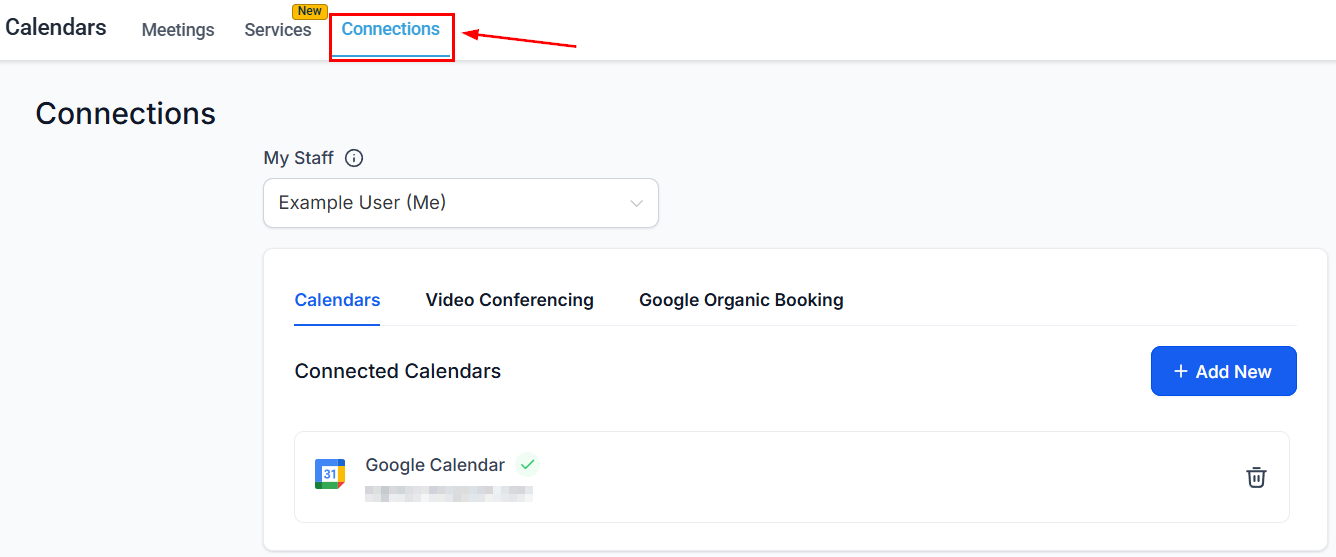
Open the Connections tab and select Microsoft Teams
Click Connect Microsoft Teams
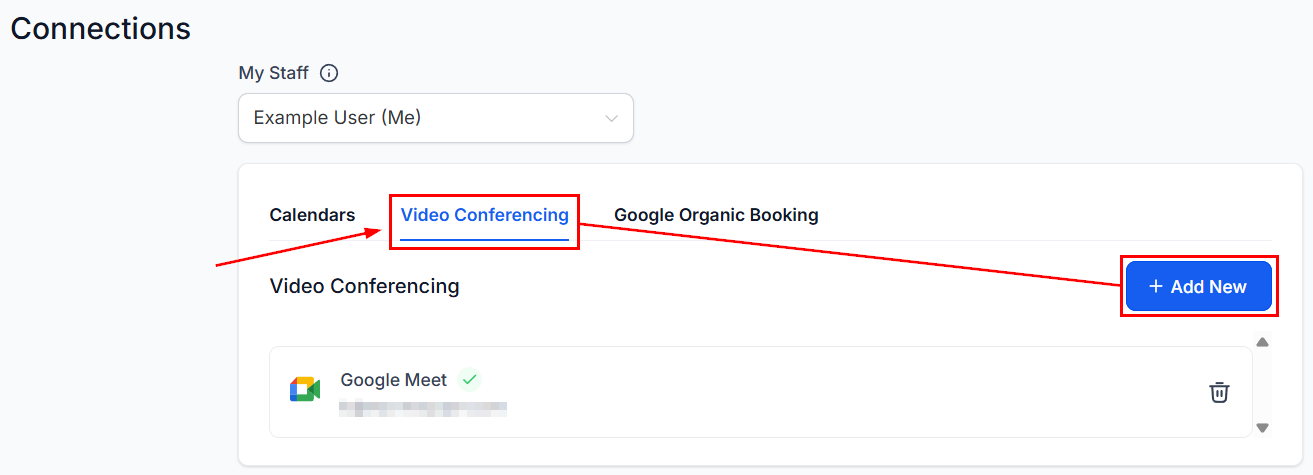
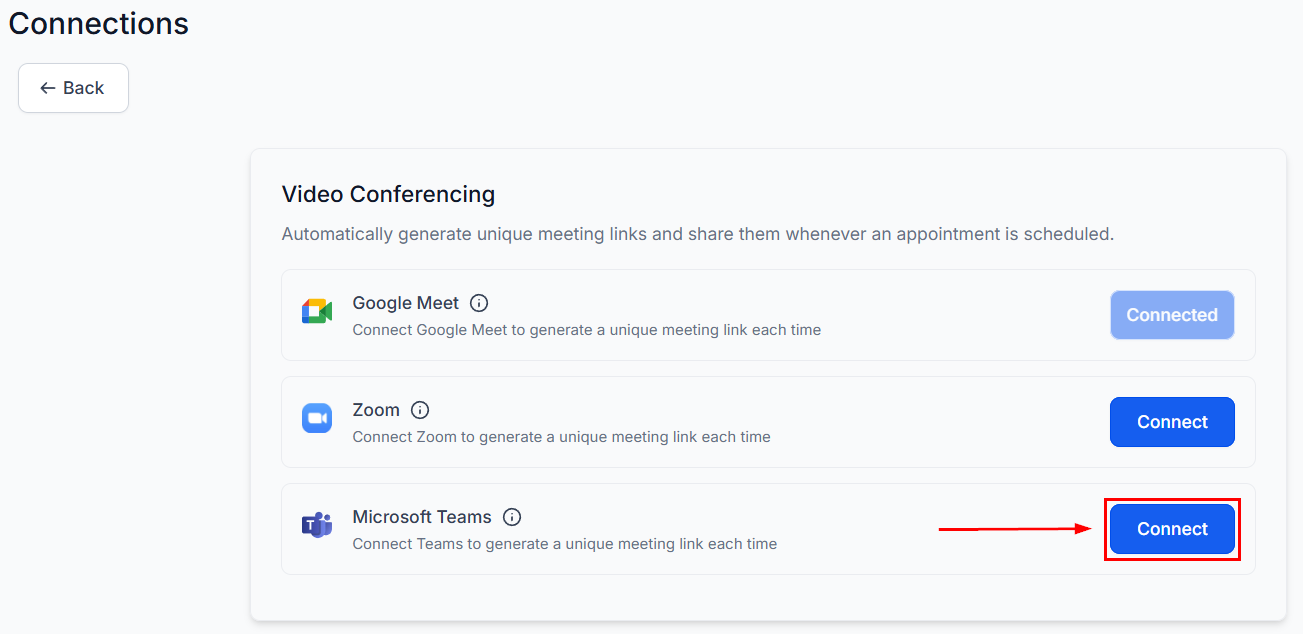
Click the Connect button to start the Microsoft Teams setup
Sign in with Microsoft
Sign in with your Microsoft account to authorize Teams
Grant permissions and save
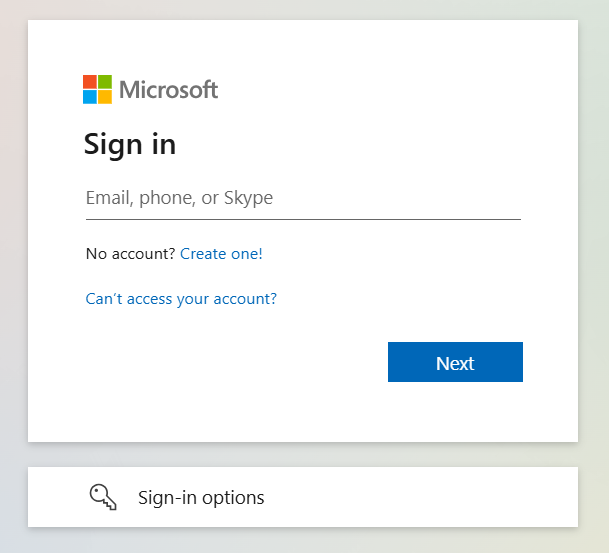
Complete the sign-in to activate the Teams integration
iCloud Calendar
The iCloud Calendar integration syncs Hoop appointments with Apple Calendar across all your Apple devices, ensuring your schedule stays up to date on iPhone, iPad, and Mac.Sign in to Apple ID
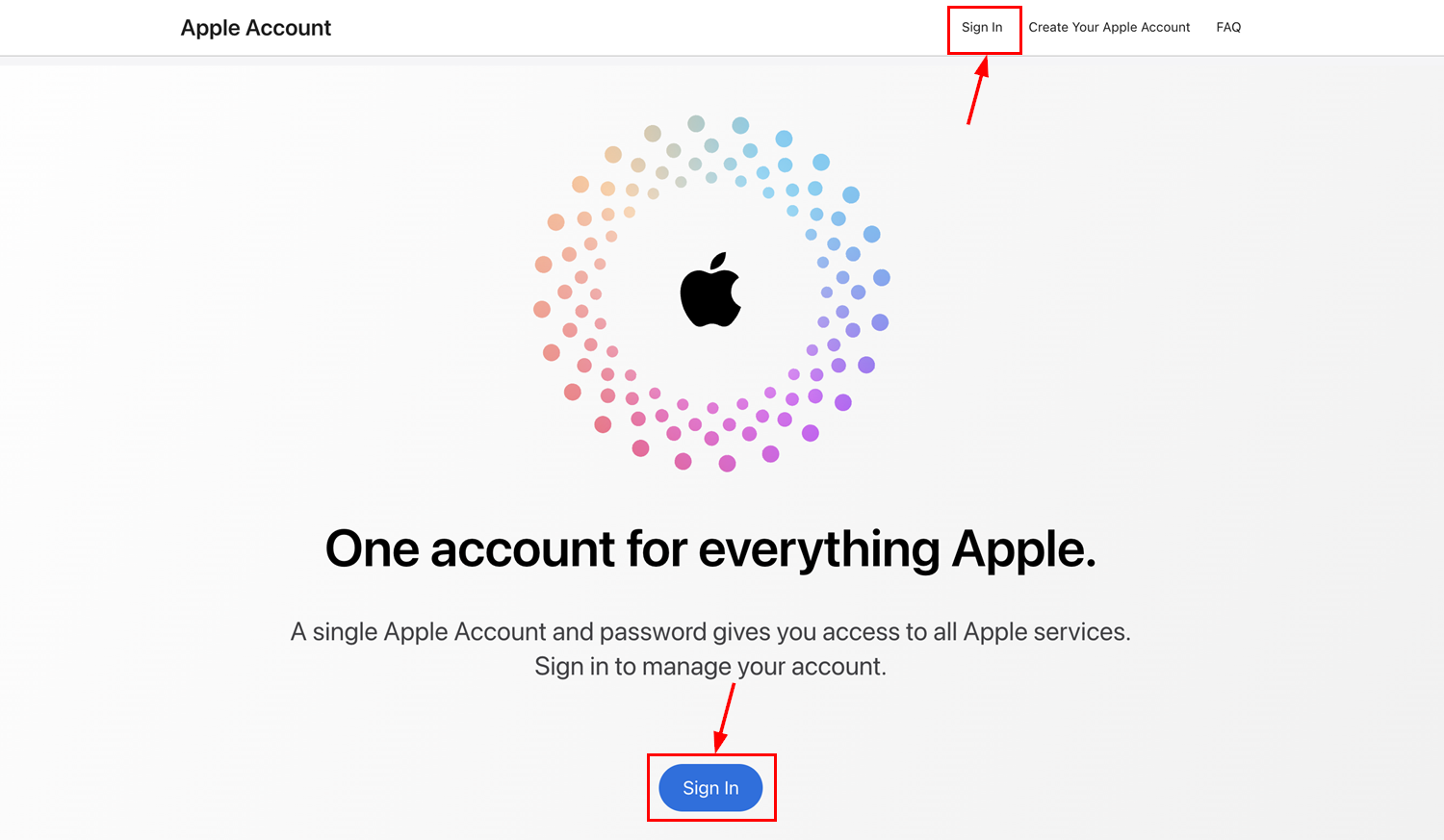
Sign in to your Apple ID at appleid.apple.com
Enter your Apple ID email
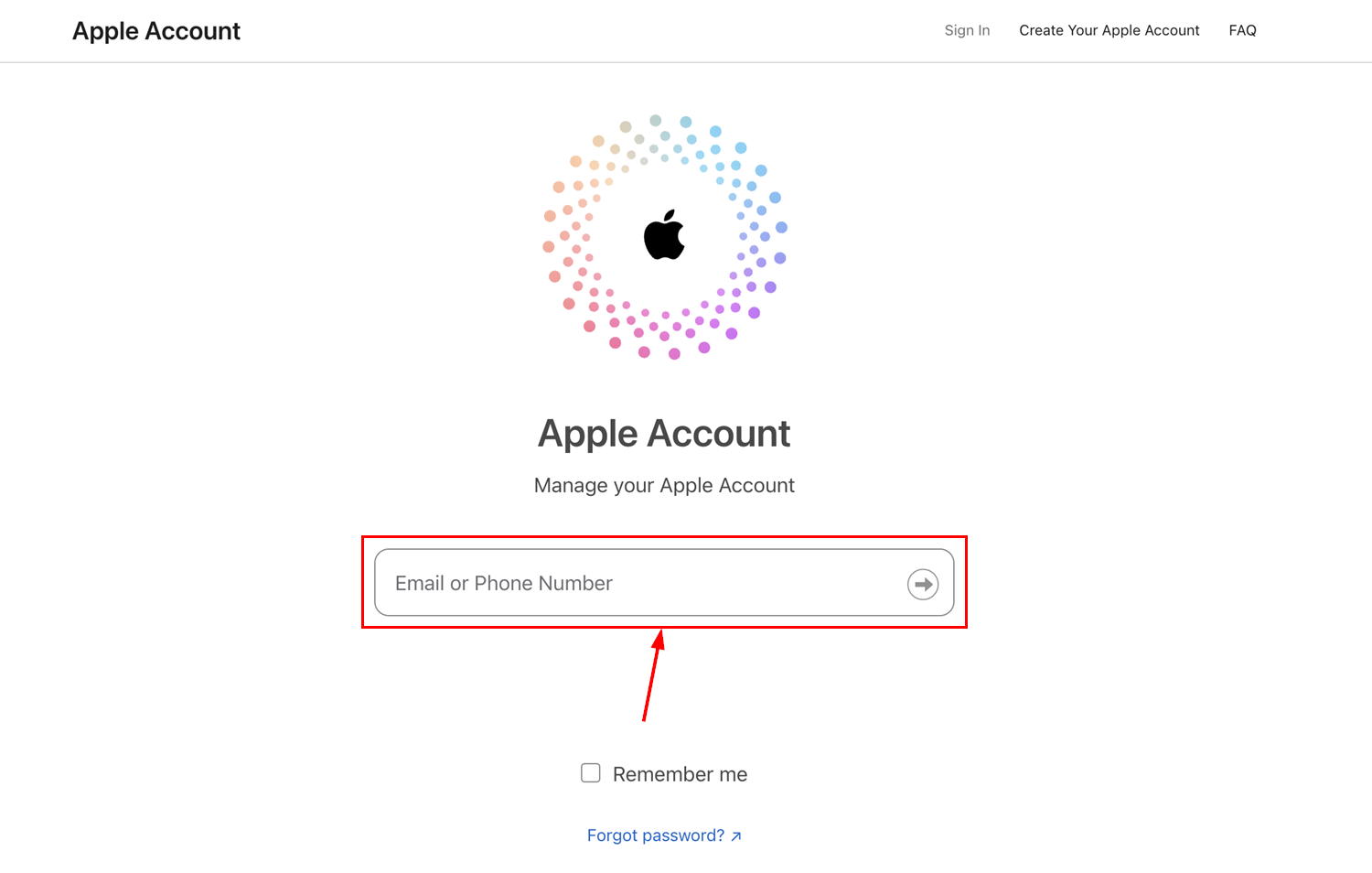
Enter your Apple ID email address to begin
Complete two-factor authentication
Enter the two-factor authentication code from your trusted device
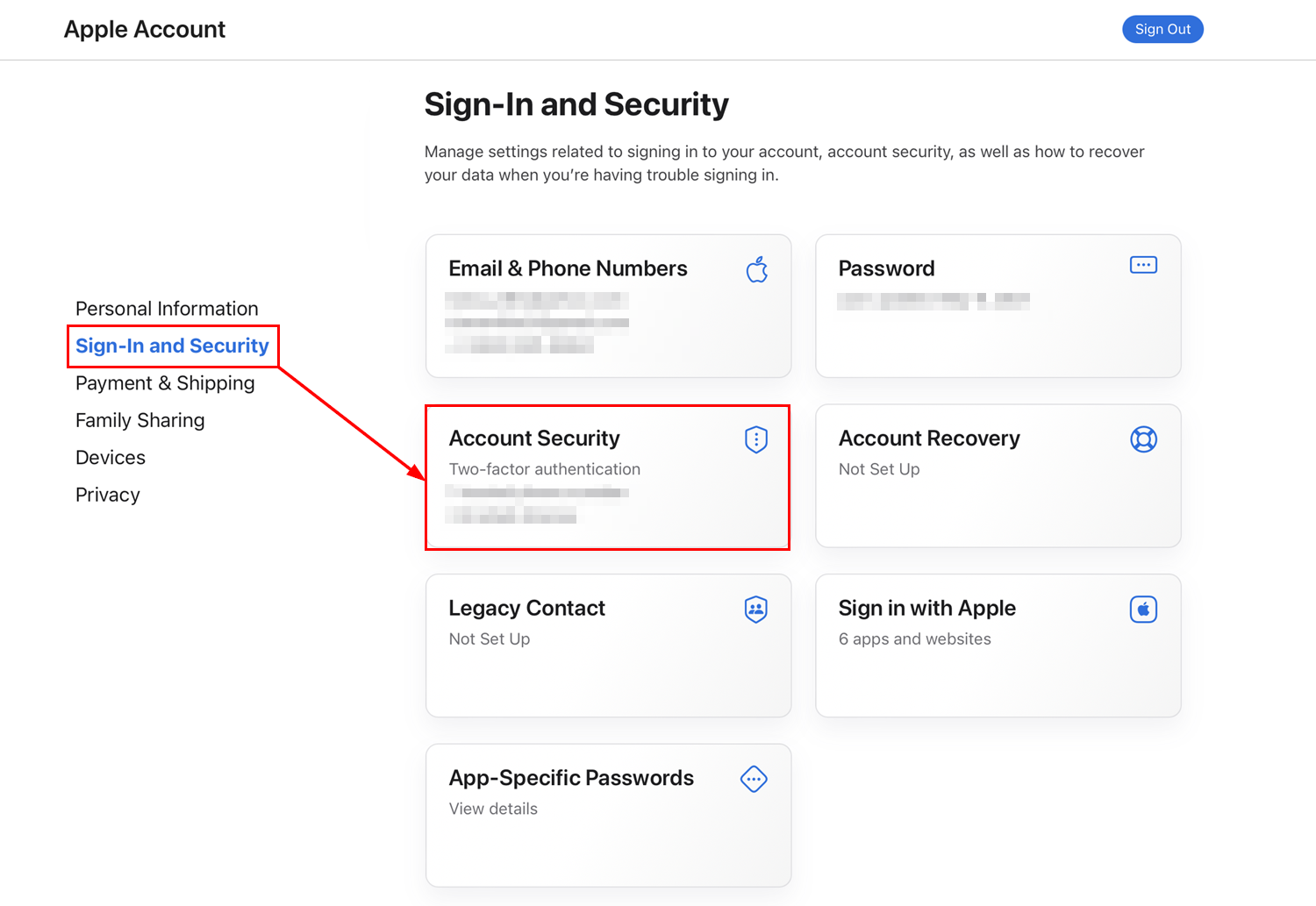
Navigate to app-specific passwords
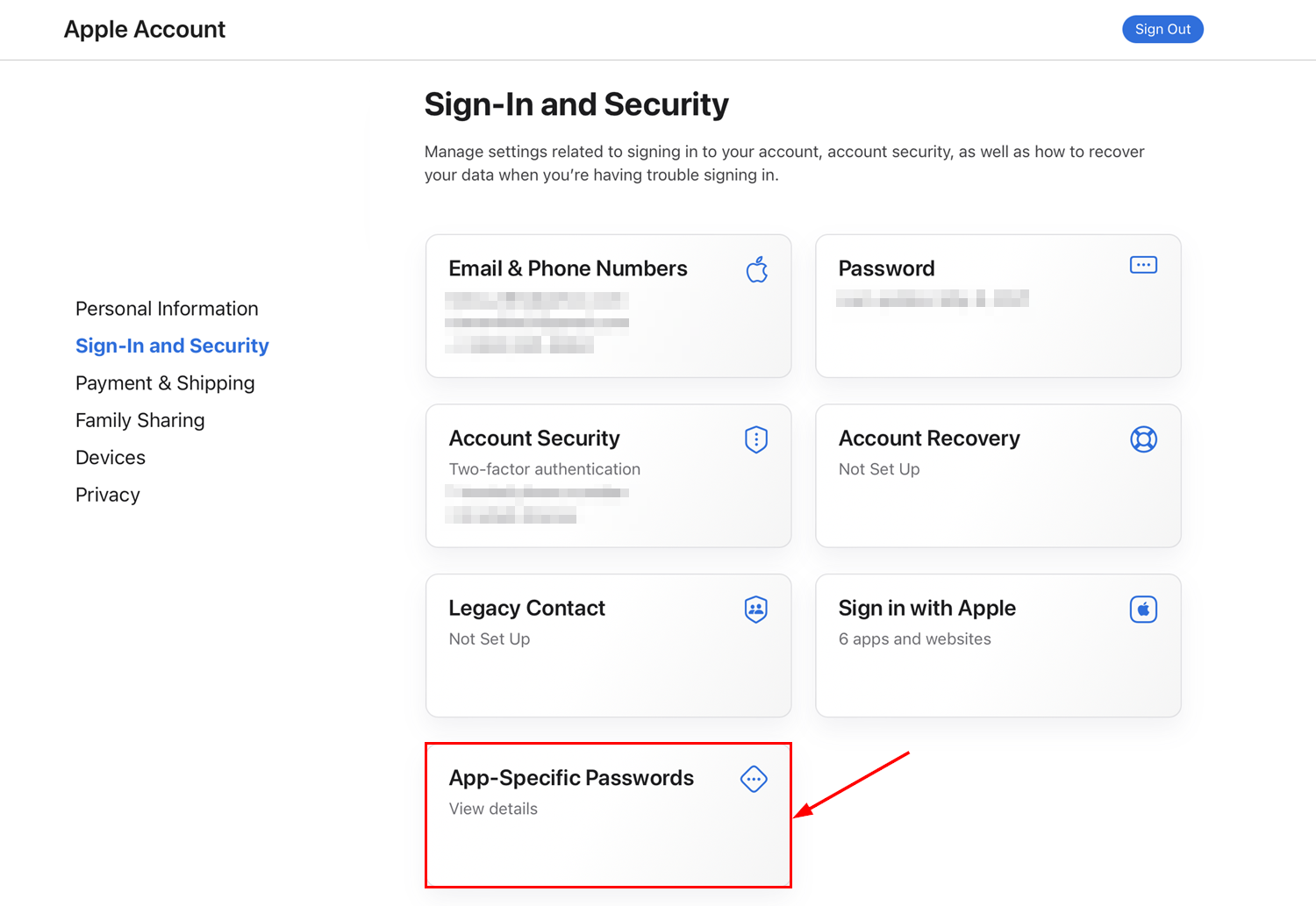
Navigate to App-Specific Passwords in your Apple ID security settings
Create the password
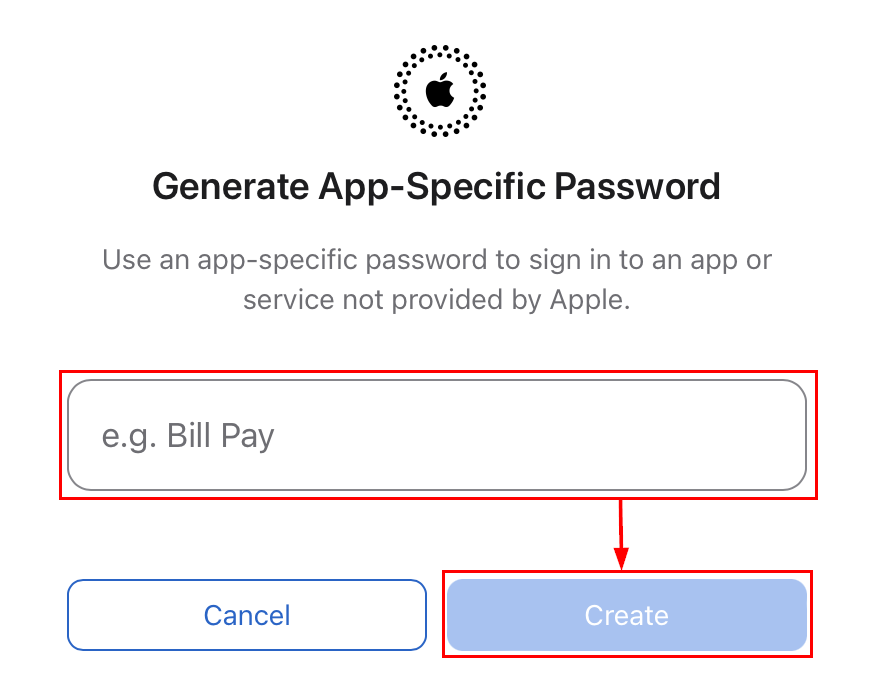
Create and copy the app-specific password for Hoop
Connect in Hoop
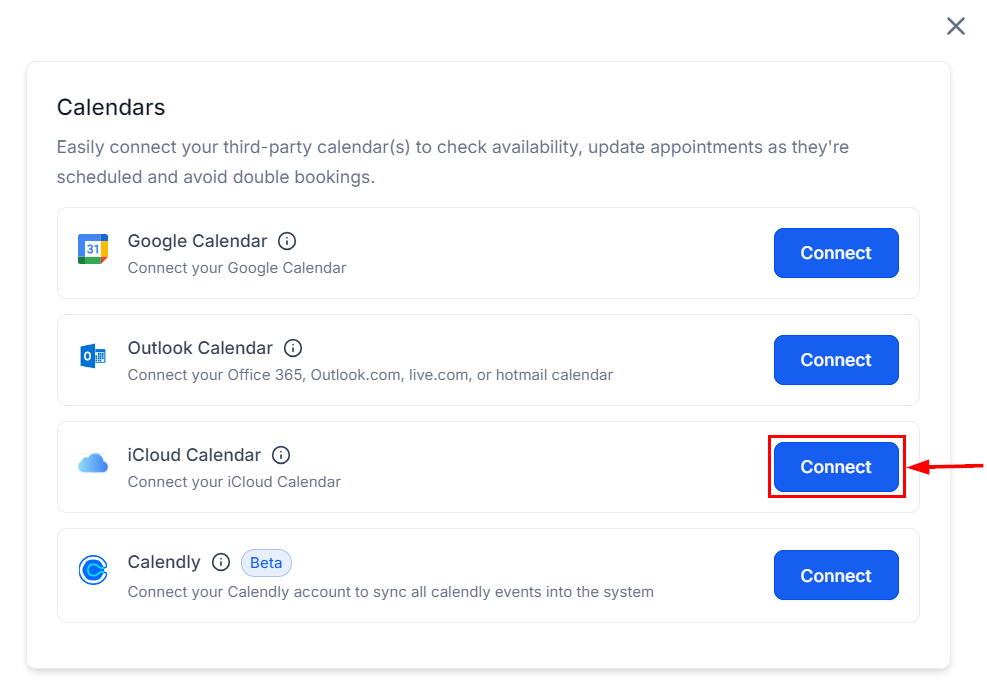
Enter your Apple ID and app-specific password in the Hoop connection form
Calendly
Importing from Calendly brings your existing Calendly event types into the HoopAI Platform, allowing you to consolidate scheduling in one place.Open Calendar Connections
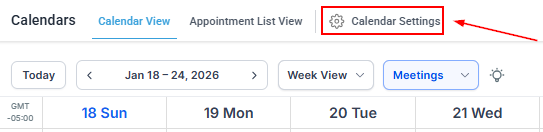
Open Calendar Settings and navigate to Calendar Connections
Add a new connection
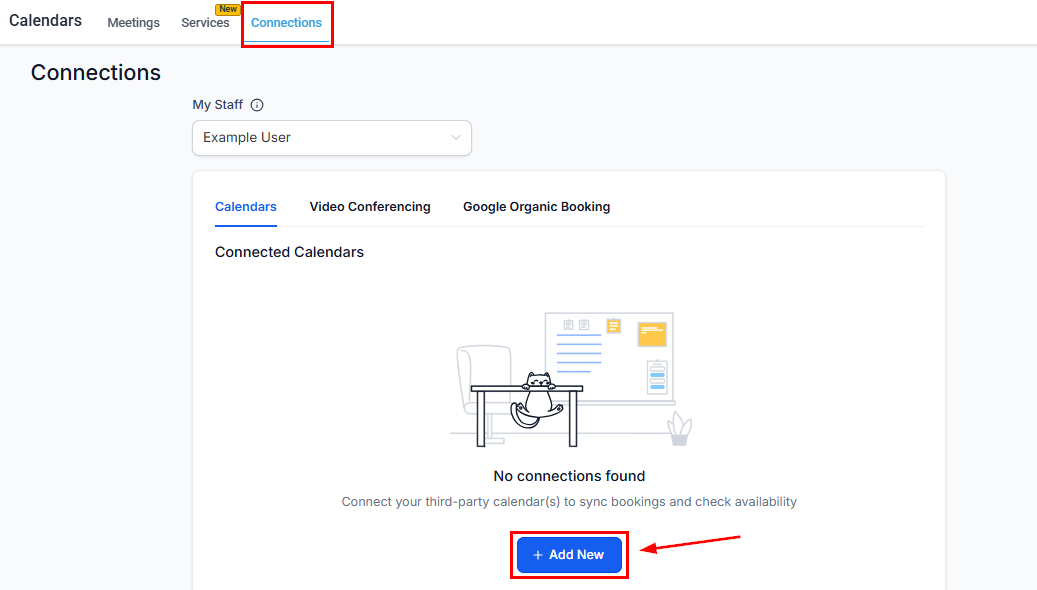
Click + Add New to see all available integrations
Select Calendly and connect
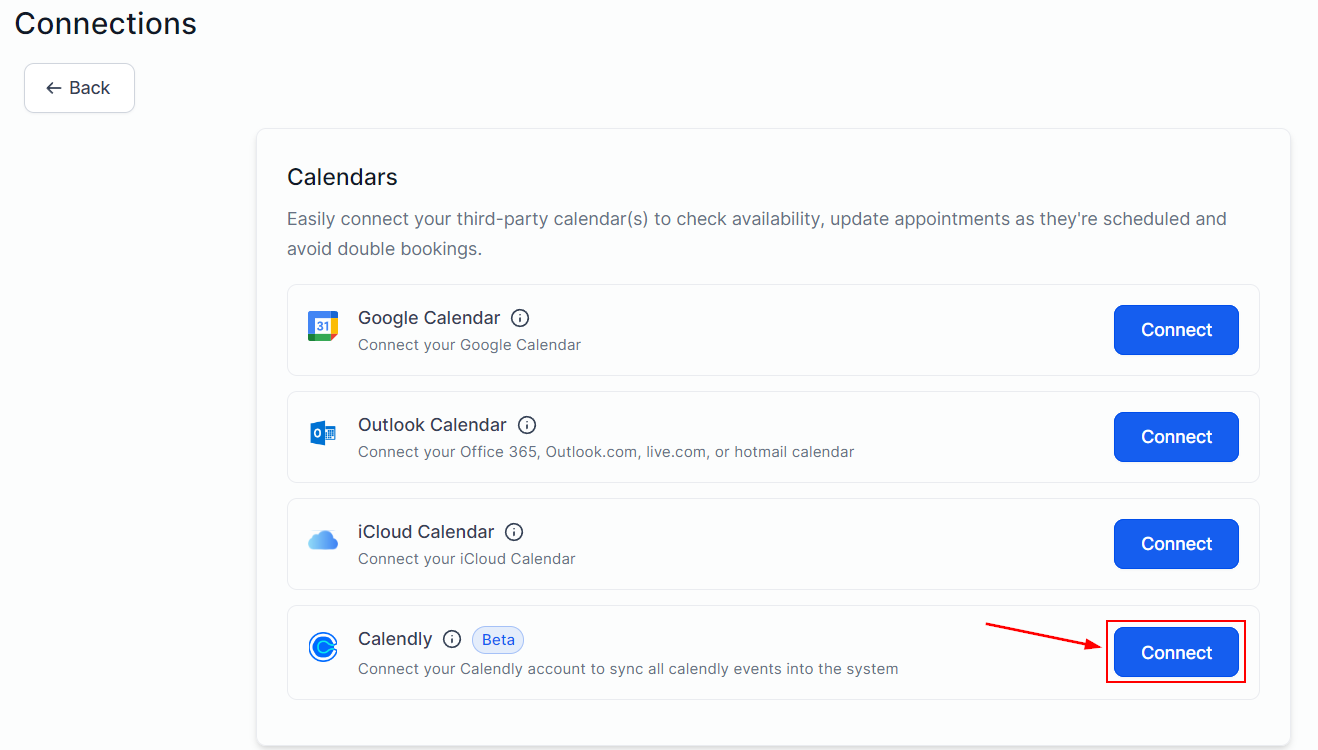
Select Calendly and click Connect to authorize the integration
Review imported events
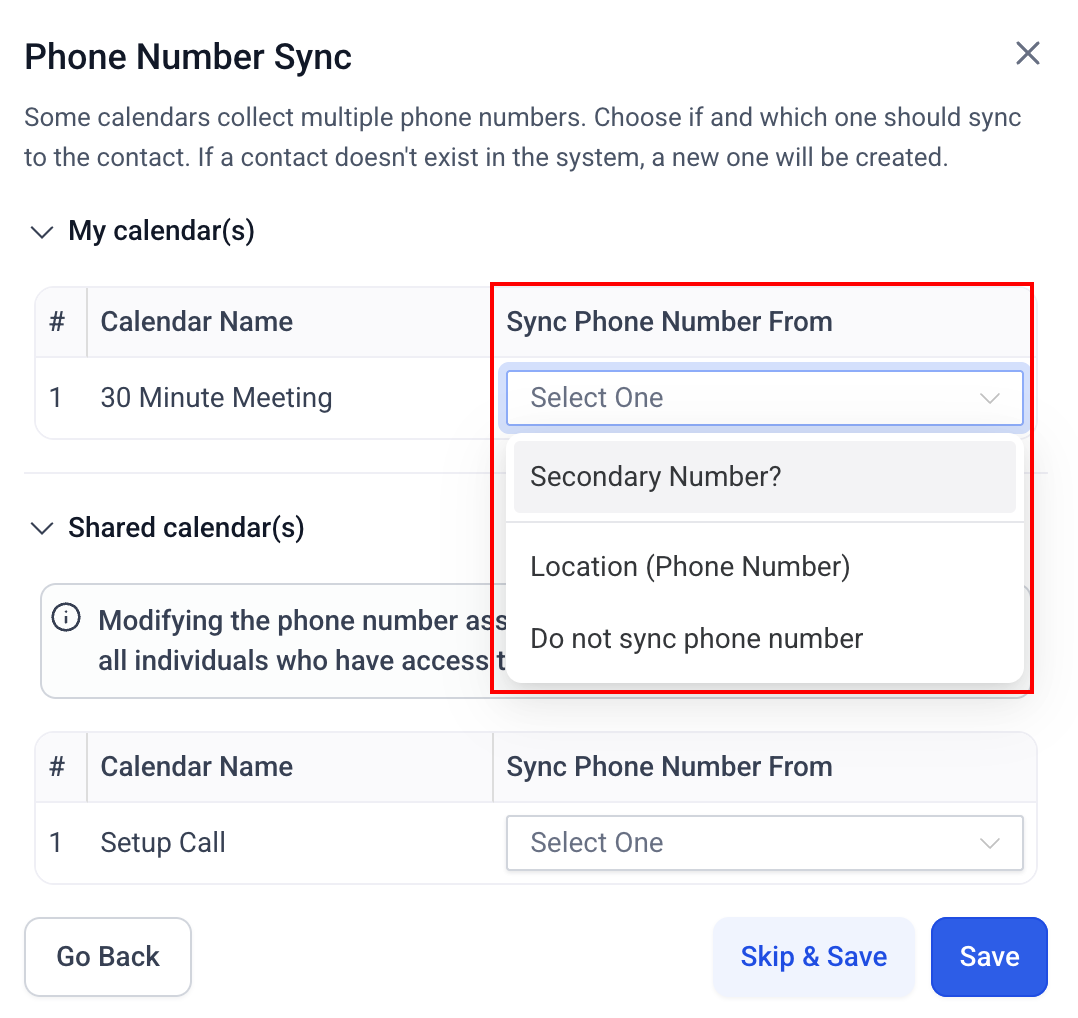
Review the number of Calendly events that will be synced
Disconnection notifications
When a calendar integration loses its connection — due to expired tokens, revoked permissions, or account changes — HoopAI sends an automatic notification to the account owner. This ensures you are aware of sync issues before they cause missed appointments or double bookings. Disconnection notifications are sent via email and appear as in-app alerts. To reconnect, go to Calendar Settings > Advanced Settings > Connections and re-authenticate the affected integration.Hiding third-party calendar details
By default, events synced from external calendars (Google, Outlook, iCloud) show their full details in Hoop — including event titles and descriptions. If you prefer to keep external calendar details private and only use them to block availability:- Open the calendar’s Advanced Settings > Connections
- Find the connected integration
- Enable Hide Third-Party Calendar Details
Managing integrations
To view all active calendar connections, go to Calendar Settings > Calendar Connections. From here you can:- View status — see which integrations are active, pending, or disconnected
- Reconfigure — update sync settings for an existing connection
- Disconnect — remove an integration at any time
What if my Google Calendar stops syncing?
What if my Google Calendar stops syncing?
Can I connect multiple Google accounts?
Can I connect multiple Google accounts?
Do video meeting links work for recurring appointments?
Do video meeting links work for recurring appointments?