

Supported payment gateways
Before enabling payments on a calendar, you must connect a payment gateway to your account. The platform supports:- Stripe
- PayPal
- Square
- Authorize.net
- NMI
- Razorpay
Enabling payments on a calendar
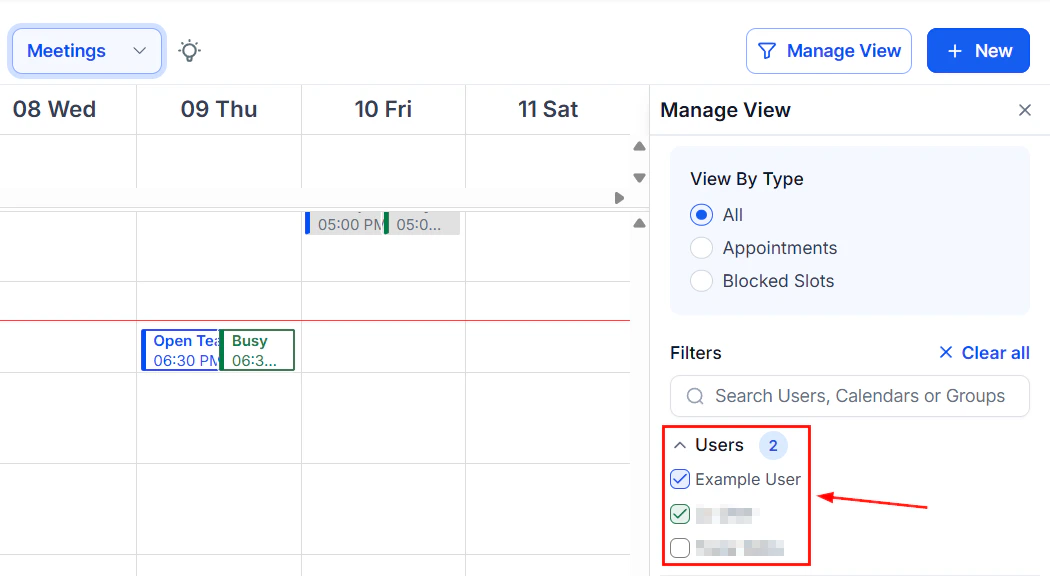
Forms and Payment tab with payment collection enabled
- Go to Calendars > Calendar Settings and click Edit on the calendar you want to configure.
- Open the Forms & Payment tab.
- Toggle on Accept Payments.
- Enter the Amount and select the Currency.
- Add a Description (for example, “Initial consultation fee” or “Yoga class booking”).
- Set Payment mode to Test while setting up, then switch to Live when you are ready to accept real payments.
- Click Save.
Per-attendee pricing for class bookings
On class booking calendars with the Add Guests feature enabled, you can charge based on the total number of attendees rather than a flat fee per booking. Enable Accept Payments for All Attendees in the Add Guests section of the Forms & Payment tab. The platform multiplies the per-person price by the number of attendees (including the primary booker and any added guests) and charges the total at checkout.Deposits and partial payments
The HoopAI platform supports collecting a partial payment (deposit) at the time of booking, with the remaining balance due later.Setting up deposit collection
1
Open Forms & Payment
Navigate to the calendar’s Advanced Settings > Forms & Payment tab.
2
Enable Accept Payments
Toggle on Accept Payments if not already enabled.
3
Select partial payment
Choose Partial Payment / Deposit as the payment type. Enter the deposit amount or percentage of the total price.
4
Save
Click Save. The booking widget will collect only the deposit amount at checkout.
- In person at the time of the appointment
- Via a separate invoice sent through the Payments section
- Through a follow-up payment link sent via SMS or email
Alternative approach
If partial payment is not available for your calendar type, you can:- Set the payment amount to equal your deposit amount and collect the remainder separately
- Use a Stripe payment intent workflow to handle staged payments outside the calendar booking flow
Tracking payments
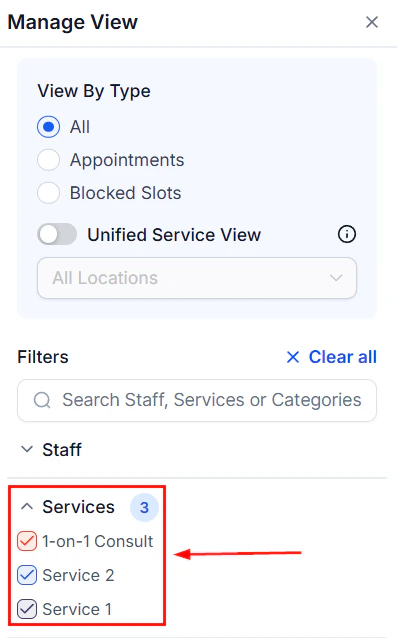
Appointment list for tracking payment status
- Total revenue collected
- Individual transaction history with dates, amounts, and contact names
- Per-attendee payment status on class bookings
Refunds
The platform does not process refunds automatically when an appointment is cancelled. To issue a refund:- Log in to your payment gateway dashboard (Stripe, PayPal, etc.).
- Find the original transaction.
- Issue a full or partial refund through the gateway’s interface.
Payments on recurring appointments
If a calendar has recurring appointments enabled, payment collection applies to the first appointment in the series only by default. You cannot charge separately for each recurrence through the standard calendar payment flow. For recurring billing, consider pairing the calendar with a subscription or invoice workflow in the Payments section.Test mode
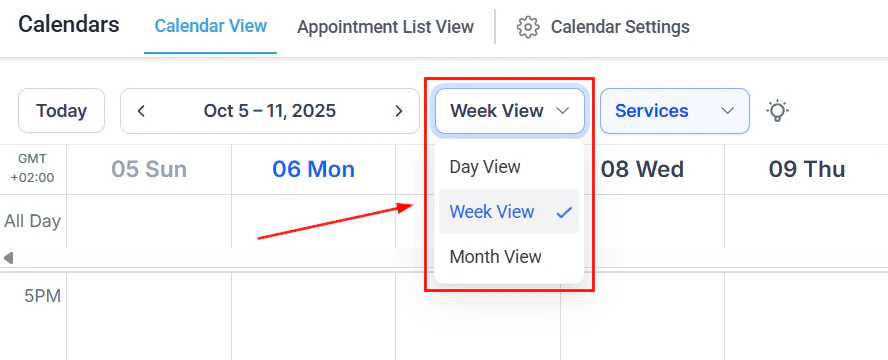
Calendar settings where payment mode is configured
- The payment step appears correctly in the booking widget
- A test appointment is created after simulated payment
- The confirmation notification is sent
- The test transaction appears in your gateway dashboard