

Marking an appointment as no-show
Appointment list with status dropdown for marking no-shows
- Go to Calendars > Appointments in the left navigation.
- Find the appointment in the list. Filter by date or calendar if needed.
- Click the appointment to open the detail drawer.
- In the Status field, select No-show from the status dropdown.
- The appointment is updated immediately. Any configured no-show notifications will fire at this point.
No-show vs cancelled
These two statuses are related but distinct:
Using the correct status keeps your reporting accurate and ensures the right automations fire. A contact who cancels 48 hours in advance should not be treated the same way as one who simply does not appear.
Automated no-show workflows
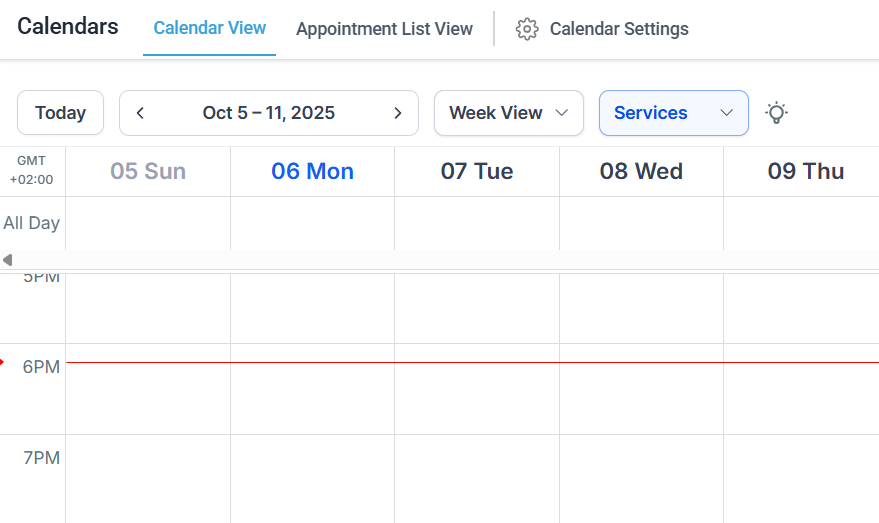
Calendar main view showing appointments and statuses
Basic no-show re-engagement workflow
- Go to Automations > Workflows and click + Create Workflow.
- Add a trigger: Appointment Status.
- In the trigger configuration, set the Filter by Appointment Status to No-show.
- Add a brief delay (for example, 30 minutes to 1 hour) to allow for any last-minute arrivals or status corrections.
- Add a Send Email or Send SMS action with a re-engagement message. Suggested content:
- Express that you missed them
- Offer a direct link to reschedule using
{{appointment.reschedule_link}} - Set a follow-up expiry or next step
- Optionally add an internal notification step to alert the assigned team member so they can follow up personally.
- Save and publish the workflow.
Escalation workflows
For high-value appointments, add an internal escalation step. After marking a contact as a no-show, the workflow can:- Send an internal SMS or email alert to the assigned user or a manager
- Create a task assigned to the team member to follow up by phone
- Add a tag to the contact (such as “No-show”) for segmentation in future campaigns
- Move the contact into a re-engagement pipeline stage in your CRM
Tracking no-show patterns
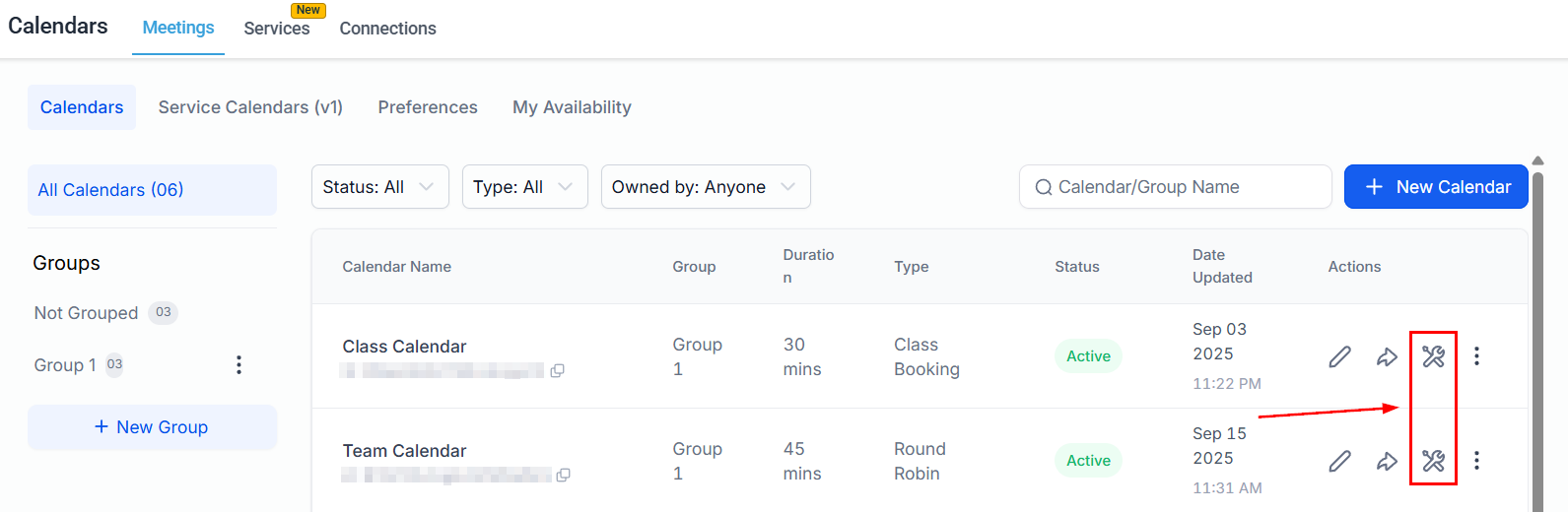
Troubleshooting tool for diagnosing attendance issues
- Go to Calendars > Appointments.
- Use the Status filter to select No-show.
- Filter by date range to see no-shows over a specific period.
- Export the list if you need to perform deeper analysis.
Reducing no-shows proactively
The best no-show strategy is prevention. Effective practices include:- Multiple reminders: Send a 24-hour email reminder followed by a 1-hour SMS. Contacts who receive both reminders are significantly more likely to attend or cancel proactively.
- Two-way SMS confirmation: Send a reminder asking the contact to reply to confirm attendance. Use a workflow to update appointment status to confirmed when they respond.
- Reschedule link in reminders: Including a reschedule link in reminder messages gives contacts an easy way to change times rather than simply ignoring the appointment.
- Waitlist thinking: In high-demand calendars, a prompt re-engagement workflow that catches a no-show quickly lets you offer the slot to another contact before the day ends.