

Enabling cancellation and rescheduling
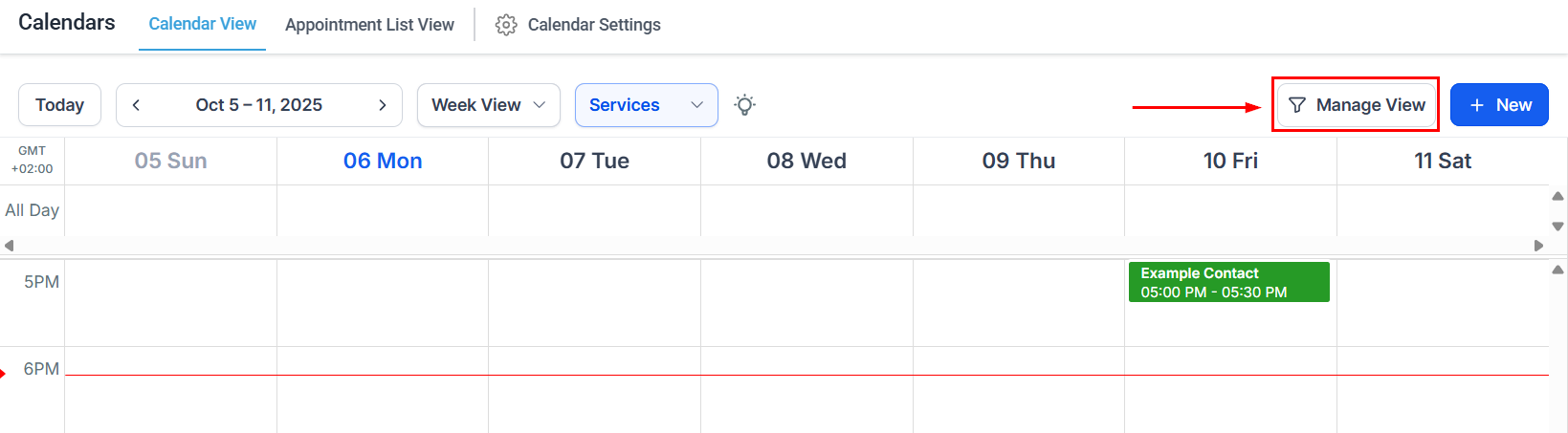
Confirmation settings with cancellation and rescheduling toggles
- Go to Calendars > Calendar Settings and click Edit on your calendar.
- Open the Notifications tab and scroll to the additional options section, or look for the Confirmation tab depending on your calendar type.
- Toggle on Allow Cancellation of Meeting and/or Allow Rescheduling of Meeting.
- Save your changes.
Setting expiration windows
You can limit how late a contact can cancel or reschedule by setting an expiration window. Once the window expires, the link no longer works and the contact cannot self-service their appointment change. To set an expiration:- After enabling cancellation or rescheduling, look for the expiration time field beneath each toggle.
- Enter a number and choose the unit (hours or days). For example, “24 hours” means the link stops working 24 hours before the appointment.
- Leave the field blank if you want the link to remain active until the moment of the appointment.
How self-service links work
When a contact clicks a cancellation or rescheduling link from their calendar invite:- Cancellation: The platform marks the appointment as cancelled and sends the cancellation notification to any configured recipients. Any payment collected is not automatically refunded — refunds must be processed manually through your payment gateway.
- Rescheduling: The contact is taken back to the booking page, where they can pick a new available date and time within the same calendar. The original appointment is cancelled and a new appointment is created at the selected time. Standard booking notifications fire for the new appointment.
Using links in workflows
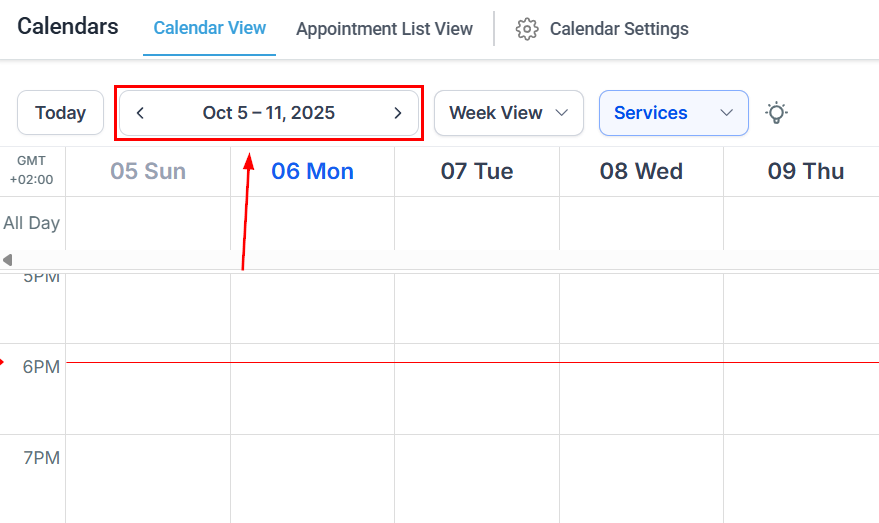
Notification settings where merge tags are used
{{appointment.cancellation_link}}— inserts the direct cancellation link{{appointment.reschedule_link}}— inserts the direct rescheduling link
Cancellations on recurring appointments
For recurring appointment series, cancellation behaviour depends on how the series was created:- Calendar-level recurring settings: Cancelling using the self-service link cancels the entire series, not just a single occurrence.
- Manually created recurring appointments (in-app): You can cancel all occurrences, only the selected occurrence, or all future occurrences from that point forward.
Handling rescheduled appointments in the CRM
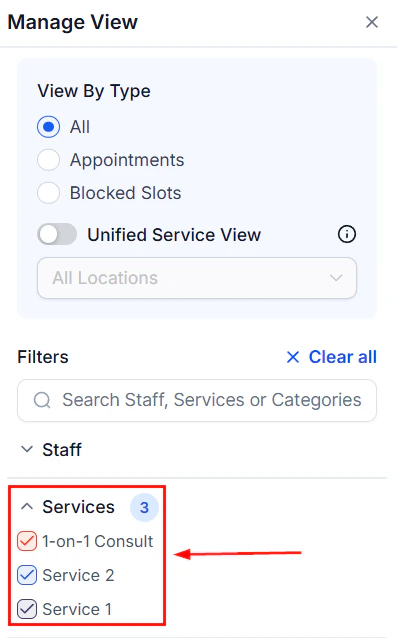
Appointment list showing rescheduled and cancelled records
Best practices
- Enable rescheduling but set a reasonable expiration window (24–48 hours) to avoid last-minute changes that are hard to fill.
- Include the reschedule link in your reminder notifications so contacts have easy access if they need to change their time.
- If you charge for appointments, decide on your refund policy and communicate it clearly on the booking page and in confirmation emails before a contact cancels.
- Use the no-show status (rather than cancellation) when a contact simply does not appear without cancelling in advance. This keeps your cancellation statistics accurate.