

Accessing workflow history
Open the Automation section and click on any workflow. The history tabs appear at the top of the workflow view, alongside the builder and settings tabs.Execution logs
The Execution Logs tab shows a detailed, chronological record of every action the platform has executed across all contacts enrolled in the workflow. Each row in the log corresponds to a single action execution.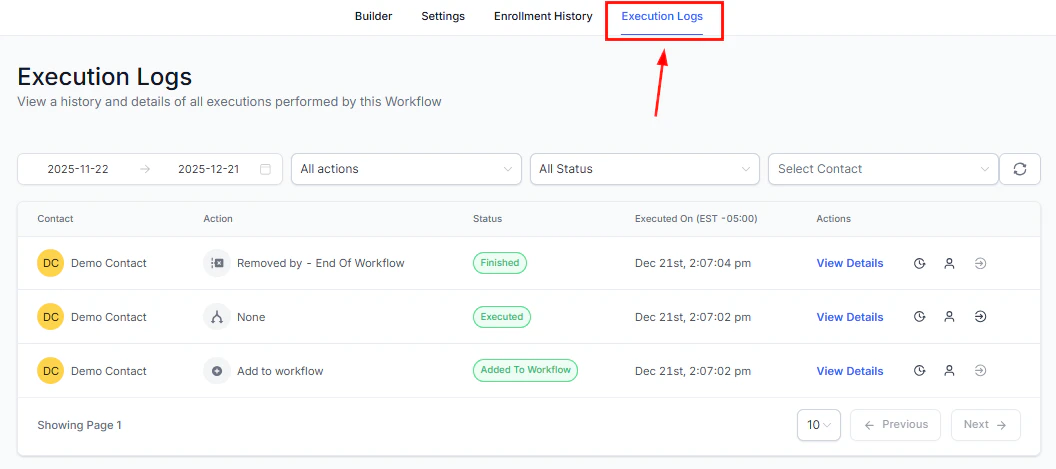
The Execution Logs tab showing a chronological record of workflow actions
What each log entry shows
The status column is color-coded. Completed actions appear normally, while errors and skipped steps are highlighted to draw attention. When an error occurs, the row includes a View Details button that explains the cause.
Filtering execution logs
Use the filter controls to narrow down the log:- Date range — filter by when actions executed. You can set a custom start and end time. The maximum range is 30 days.
- Action filter — view only a specific action from the workflow. Workflow-specific actions appear first in the dropdown for quick access.
- Status filter — show only completed, errored, skipped, or removed entries.
- Contact filter — search by contact name to view the full execution history for a single person.
Navigating from a log entry
Each log entry includes shortcut actions:- View execution details — opens a panel showing the full input and output for that specific action run
- View contact history — shows all action executions for that contact across every enrollment they have had in this workflow
- Highlight contact path — opens the workflow builder and visually highlights the exact path that contact followed through the branches and steps
- Go to action — opens the action’s configuration sidebar directly in the builder so you can make edits without navigating manually
Enrollment history
The Enrollment History tab shows when and how each contact entered the workflow — including the triggering event, the current step, and their status.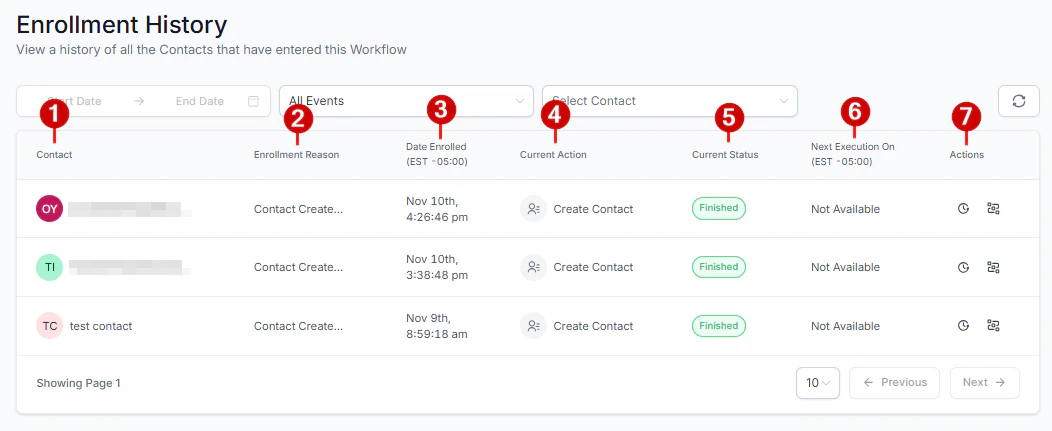
The Enrollment History tab with contact enrollment records, statuses, and actions
What each enrollment record shows
Contacts who have fully completed the workflow will not show a next scheduled action.
Actions available in enrollment history
From the Actions column in the enrollment history table, you can:- View execution history — see every step this contact has run through during this enrollment
- View contact path — visually highlight their path in the workflow builder
- Advance to next step — manually skip any remaining wait time and move the contact to the next action immediately
- Remove from workflow — unenroll the contact from the workflow at their current position
Enrollment statuses
Pagination
Both tabs support paginated results. You can configure how many rows to display at once — 10, 25, or 50 rows per page. This keeps large workflows with thousands of enrollments fast and navigable.Using history for troubleshooting
Workflow history is the first place to look when a workflow is not behaving as expected. Contact didn’t receive a message: Check the execution log for that contact. Look for the relevant action and inspect its status. If the status shows “skipped,” the contact may have been outside the time window or the action had a condition that wasn’t met. If the status shows “error,” open View Details for the specific error message. Contact went down the wrong branch: Use Highlight Contact Path to see exactly which If/Else branch the contact followed, then check the condition logic to understand why. Contact is stuck: Check the enrollment history to see which step they are currently on. If they are waiting at a Wait For Event action, you can advance them manually or verify that the expected event was triggered. Duplicate messages sent: Look for multiple enrollment records for the same contact. If re-entry is enabled and the trigger fired twice, the contact enrolled twice and received both message sequences. Adjust re-entry settings or add a filter to prevent this.FAQs
Why do some contacts not appear in enrollment history?
Why do some contacts not appear in enrollment history?
A contact only appears in enrollment history if they successfully triggered the workflow. If a trigger fired but the contact was filtered out by the trigger filter or a duplicate-entry check, they will not appear. Check the trigger filter settings and re-entry configuration.
Can I export execution logs?
Can I export execution logs?
Direct export from the workflow history tabs is not currently available. For audit and reporting purposes, use the CRM reporting tools or contact activity exports.
Does re-entry create separate enrollment records?
Does re-entry create separate enrollment records?
Yes. Each time a contact enrolls in a workflow, a new enrollment record is created. If a contact has enrolled three times, you will see three separate records in the enrollment history, each with its own execution log.