

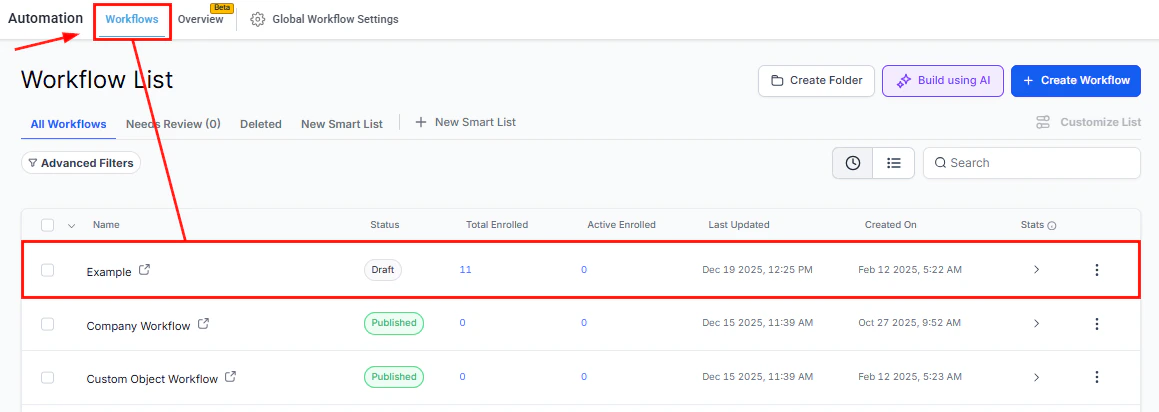
The Workflow List page showing workflow status, enrollment counts, and actions
Allow re-entry
The Allow Re-entry setting determines whether a contact can enter the same workflow more than once. Enabled (default for new workflows): A contact who has previously completed the workflow — or who was removed — can re-enter if the trigger fires again. This is the appropriate setting for recurring processes like appointment reminders, where every new appointment should trigger a fresh sequence. Disabled: A contact can only enroll in the workflow one time. If the trigger fires for a contact who has already completed or been removed from the workflow, they are not enrolled again. Use this for one-time onboarding sequences or single-use welcome flows where repeating the workflow would be confusing. Important exception: Workflows using appointment-based or invoice-based triggers always allow a contact to re-enter per individual appointment or invoice, regardless of the re-entry setting. This ensures every booking or transaction receives the correct automation, even if the same contact has multiple appointments.Allow multiple opportunities
When a workflow is triggered by opportunity events, this setting controls whether a contact who has multiple opportunities can enter the workflow separately for each one. Enabled: Each opportunity triggers its own independent enrollment. If a contact has three open deals, they receive three separate automation sequences — one for each deal. Disabled: The contact enters the workflow only once, regardless of how many opportunities they have. Subsequent opportunity events for the same contact are ignored.Stop on response
The Stop on Response setting automatically removes a contact from the workflow if they reply to any message sent by the workflow — email, SMS, or other communication channels. This is valuable for lead follow-up sequences where you want automation to take over until a human conversation begins. Once the contact replies, the automated follow-ups stop and your team can continue the conversation naturally without the contact also receiving templated messages at the same time. Recommended for: sales follow-up sequences, appointment reminder sequences, and any workflow where a human conversation should take priority over continued automation.Timezone settings
The Timezone setting determines which timezone is used to schedule communication actions within the workflow.- Account timezone — all contacts receive messages based on the timezone configured for your HoopAI account. This is simpler to manage but may result in messages being received at unusual hours for contacts in different regions.
- Contact timezone — messages are scheduled based on the individual timezone stored on each contact’s record. This delivers messages at locally appropriate times and is the recommended choice for audiences spread across multiple time zones.
Time window
The Time Window restricts when communication actions (email, SMS, calls) are allowed to execute. If an action is scheduled to run outside the defined window, it pauses and runs at the next available time within the window. Configuration options:- Start time and end time — set the hours during which messages can be sent (e.g., 9:00 AM to 6:00 PM)
- Active days — choose which days of the week the window is open
Sender details
The Sender Details section lets you configure default sender information for all communications within the workflow:- Sender name — the display name contacts will see on emails
- From email address — the email address used for outbound emails
- Phone number — the phone number used for outbound SMS messages
Mark as read
When Mark as Read is enabled, the HoopAI platform automatically marks conversations as read when the workflow interacts with them. This is useful for administrative or informational workflows that generate messages you do not need to manually review in the inbox.Trigger filters
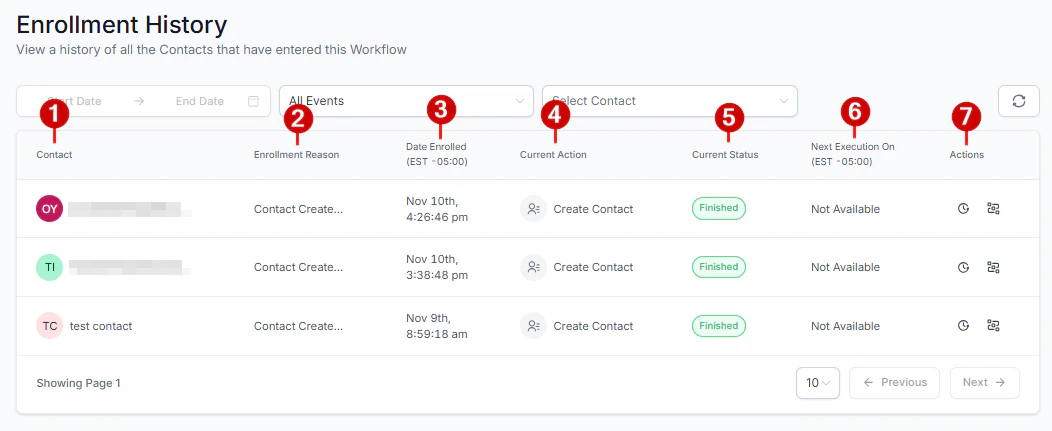
Enrollment History table showing contacts, enrollment reasons, statuses, and available actions
- Restrict enrollment to contacts with a specific tag
- Only enroll contacts in a particular pipeline stage
- Exclude contacts who already have a certain custom field value
- Limit enrollment to contacts from a specific lead source
FAQs
Does the time window affect wait actions?
Does the time window affect wait actions?
No. The time window only restricts outbound communication actions such as email and SMS. Wait action durations count down continuously regardless of the time window.
Can I set different sender details per action inside a workflow?
Can I set different sender details per action inside a workflow?
Yes. The workflow-level sender details serve as defaults. Any individual action can be configured with different sender details that override the workflow defaults for that specific step.
What happens to a contact who is removed mid-workflow and then re-enters?
What happens to a contact who is removed mid-workflow and then re-enters?
If re-entry is enabled, the contact starts from the beginning of the workflow. They do not resume from the step where they were removed.
Can I apply multiple trigger filters?
Can I apply multiple trigger filters?
Yes. You can add multiple filter conditions to a trigger and combine them with AND/OR logic, just like conditions in an If/Else action. All conditions must be satisfied (or at least one, depending on the logic) before the contact enrolls.