

Screenshot
How to Use Inbound Webhook
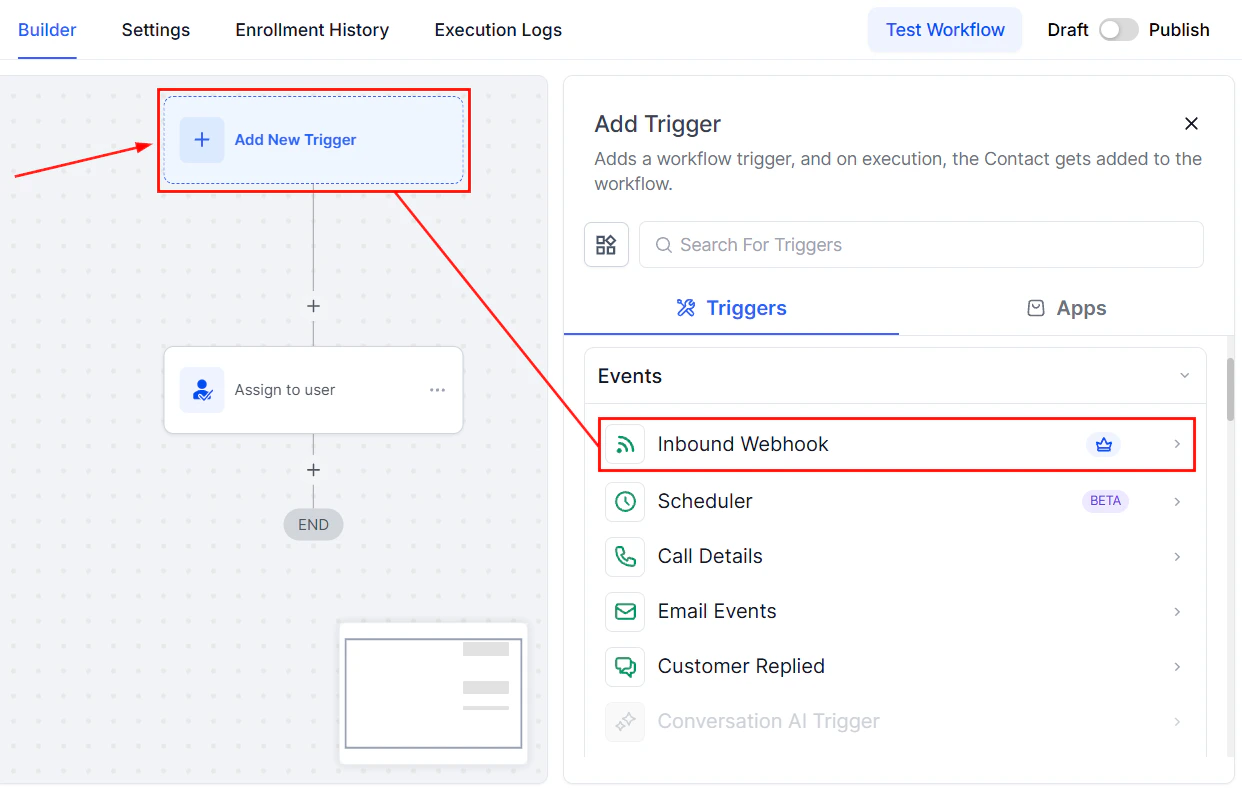
Using the Inbound Webhook Workflow Trigger might sound complicated, but it can be broken down into three simple steps:- Get the Webhook URL and Test.
- Choose and Save Data.
- Create or Update Contacts.
Get the Webhook URL and Test
First, you need to get the special address (URL) that will be your “mailbox” for incoming data. Add it to a third-party app like Make or Zapier. Then, you send data to this address using the right method (like mailing a letter with specific instructions).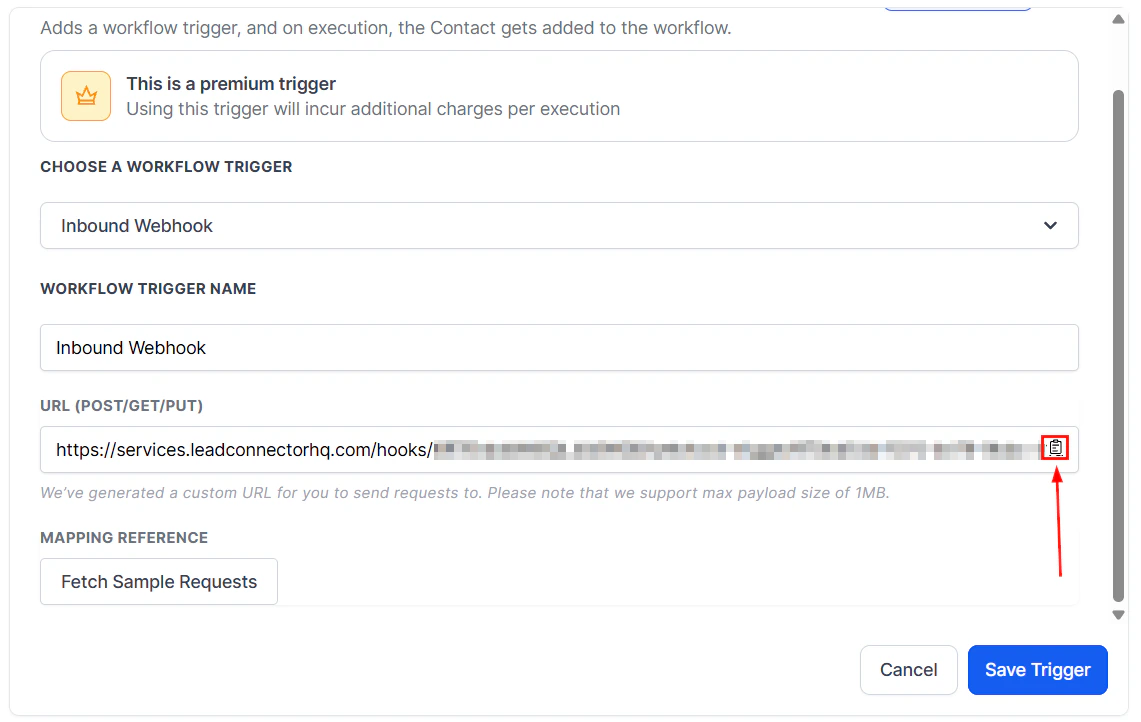
Screenshot
Choose and Save Data
Click the Fetch Sample Requests button to make sure it’s working and pick the information you want to work with and save it.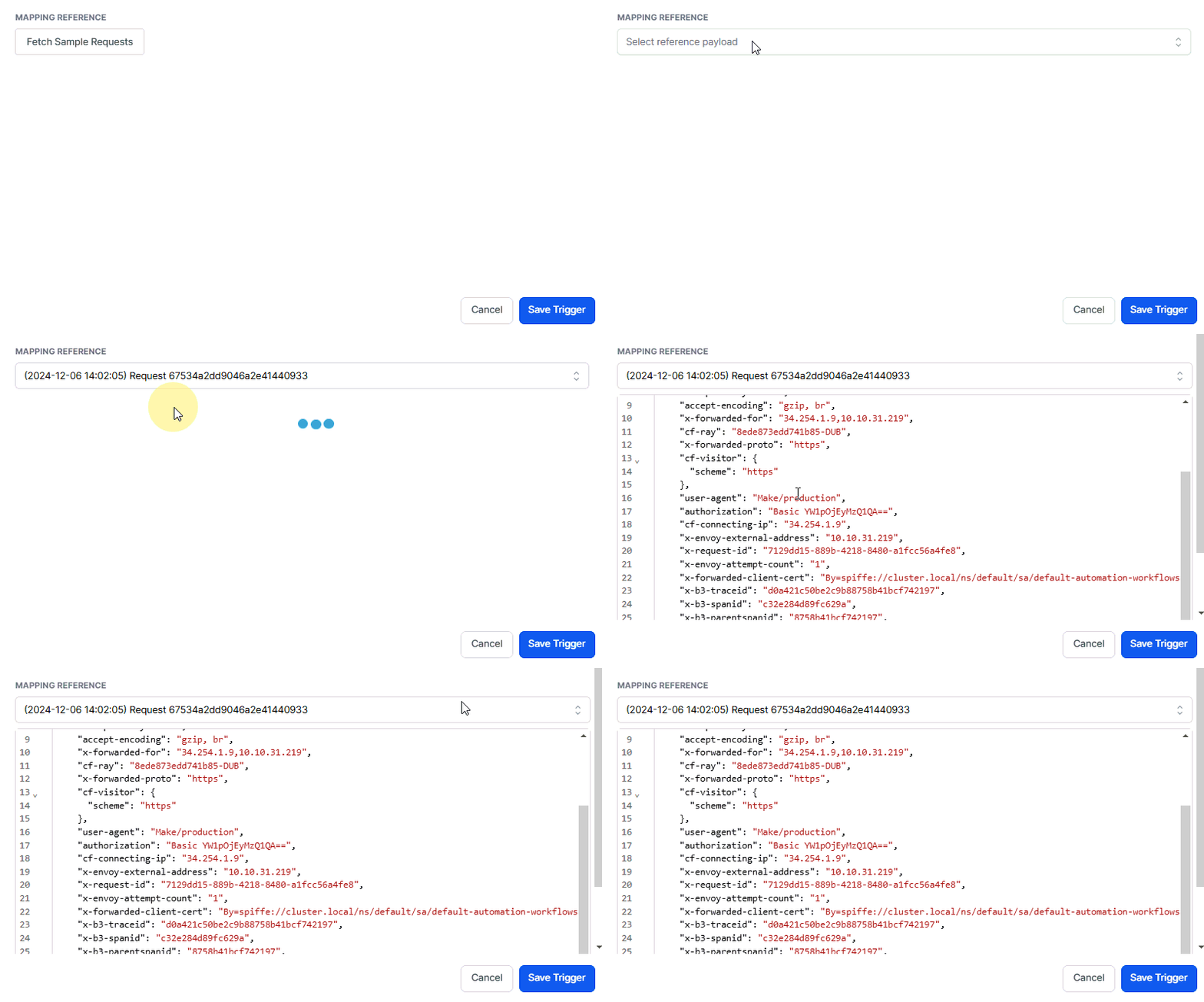
Screenshot
Create or Update Contacts
Finally, you get to use the information you received and put it to work in your CRM. You can make new contacts or update existing ones, just like adding people to your address book.Once you’ve done all this, you can use the information you received in lots of different ways, like sending emails or deciding what to do next.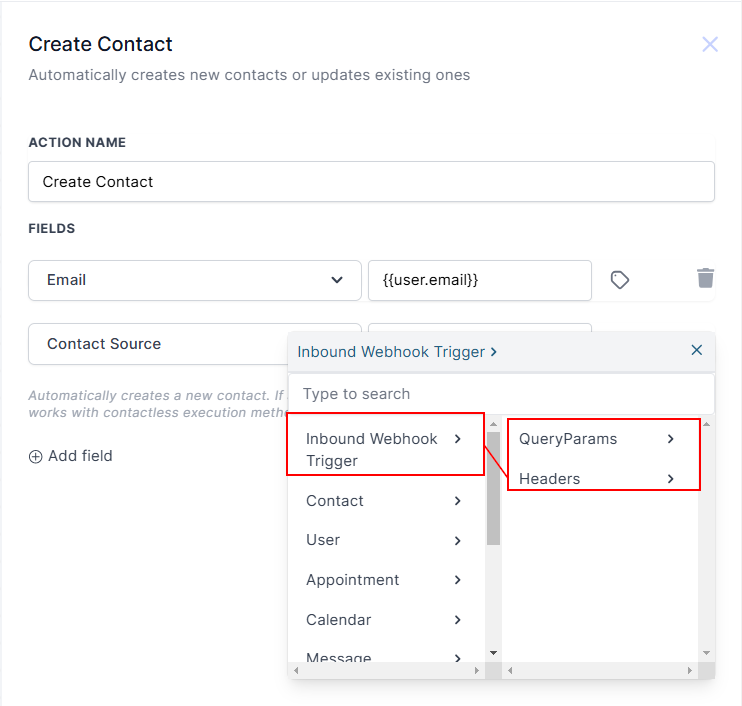
Screenshot
Running Without Contacts
This can work even if you don’t have contact information. You can send data and make things happen in your workflow without knowing who it’s for. You can also bring in contact information later if you need it.Why Are Inbound Webhooks Useful?
Inbound Webhooks simplify and automate how data flows into your CRM. Here are a few practical applications:- ****eCommerce Order Integration: ****Automatically send customer order details from your online store to your CRM, reducing manual data entry and errors.
- ****Customer Support: ****Streamline support by sending customer inquiries directly to your CRM, ensuring faster and more organized responses.
- ****Event Registration: ****Easily track attendees by automatically adding their registration details to your CRM.
- ****Lead Capture: ****Capture website form submissions and send them straight to your CRM for efficient follow-up by your sales team.
Important Notes
- Use the correct communication method, ensuring data is in JSON format with clear labels.
- Email or phone numbers are essential to create or update contacts.
- Avoid using complex data types like lists, as they are harder to process.
- Update your setup if your data format changes.
- To maintain security, change your webhook URL if it’s compromised.
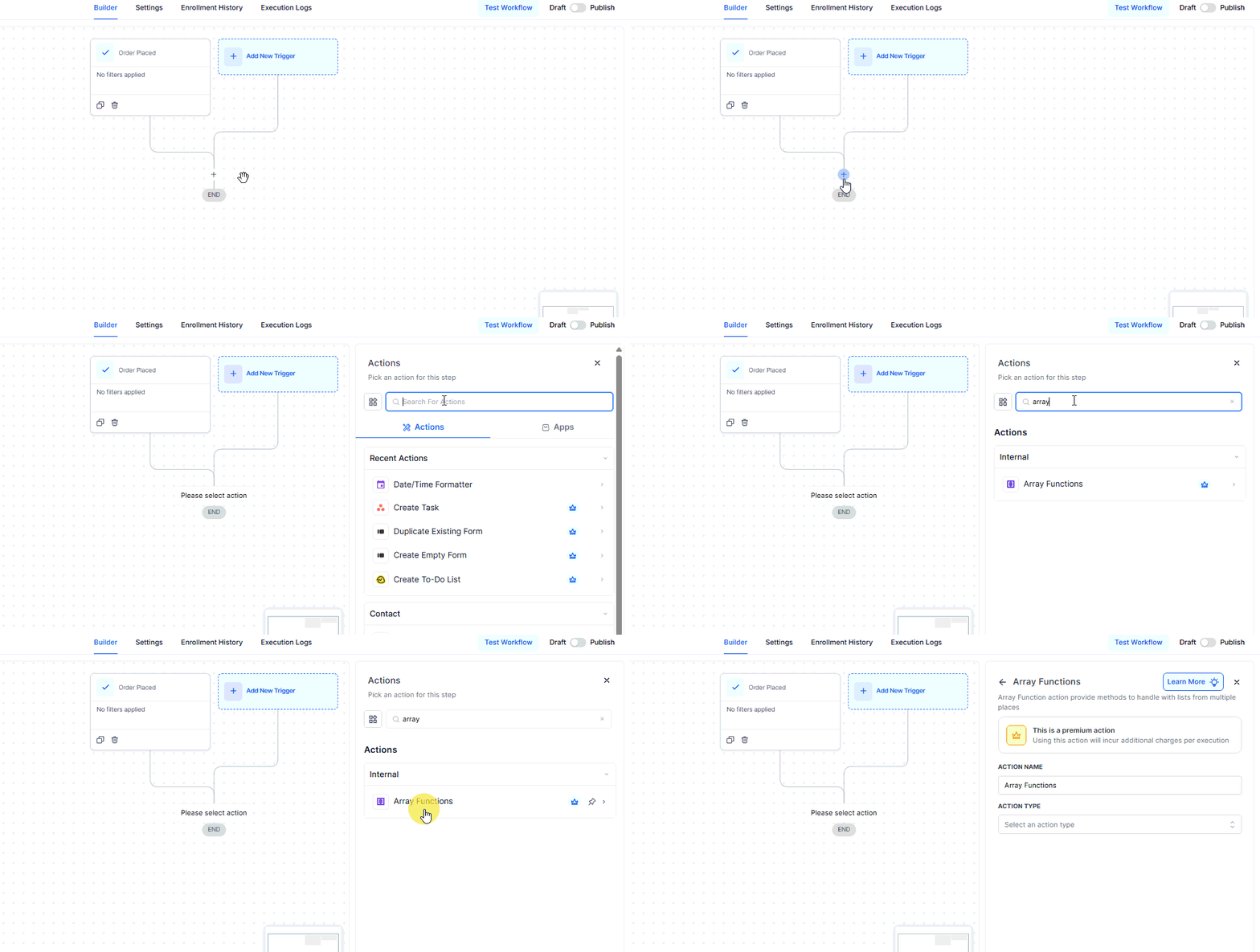
Screenshot
Select Action Type
Select ****“Find” ****as the action type to return objects that match the Key-Value.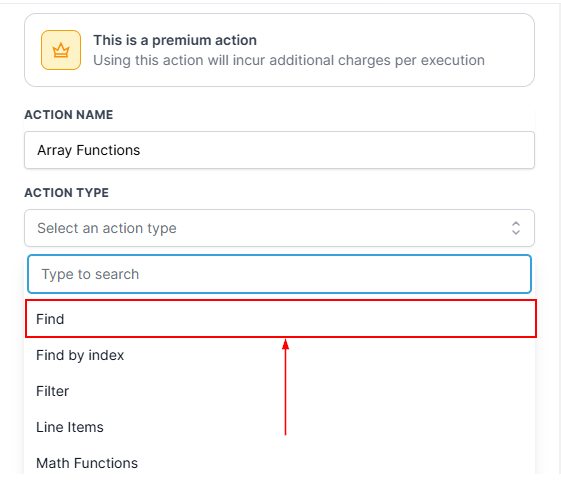
Screenshot
Select Field
All the fields with data type arrays available in the workflow are listed here. The list of available array data is collected from Shopify Triggers, Inbound Webhook Trigger, and Custom Webhook action response data. In the example below, we are using the Shopify Order Placed Trigger and checking if a product with product ID “zGhad23wfadfa” is part of the Shopify line items.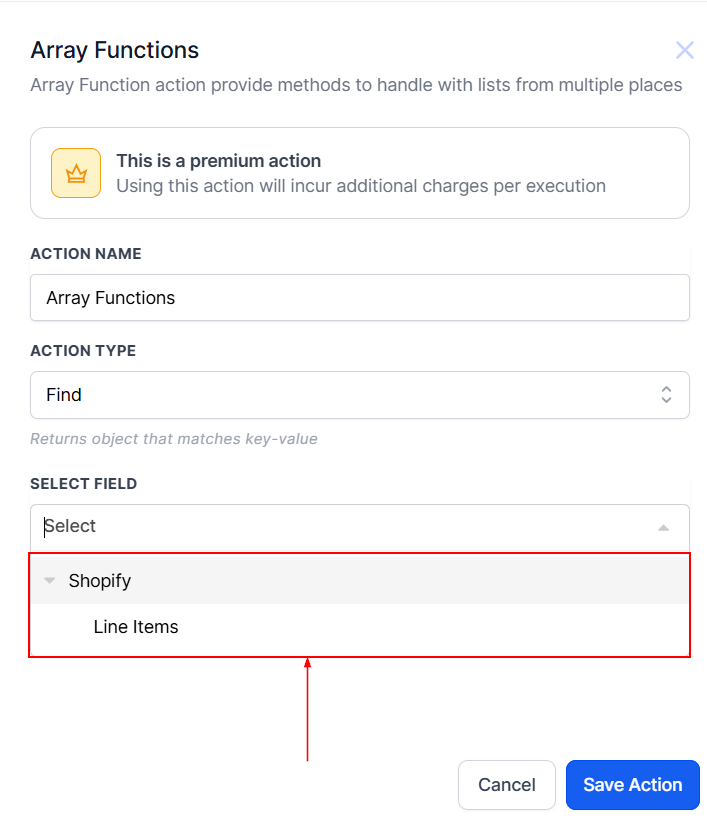
Screenshot
Filters
To find the matching object, input the Key and Value under Filters.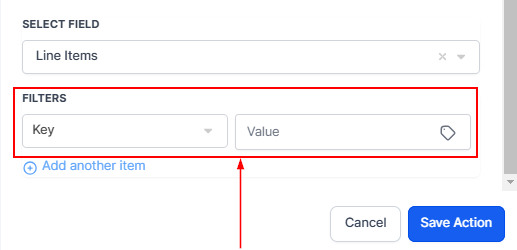
Screenshot
Select Key
Here is the list of key variables from the selected array field. In this example, the list of Shopify line items’ key variables is also included.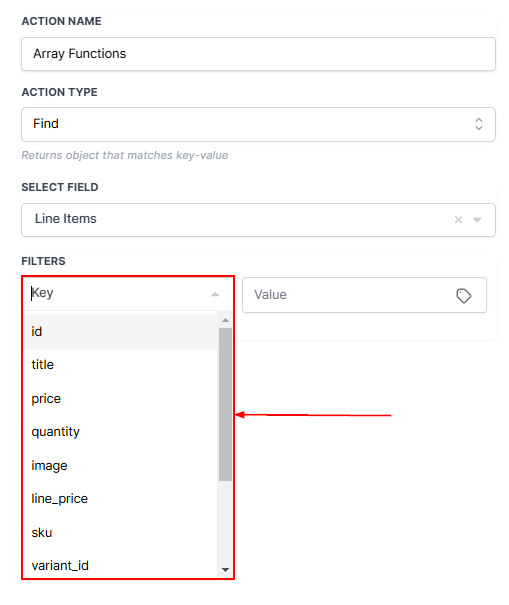
Screenshot
Select Value
Enter Value To Find The Match.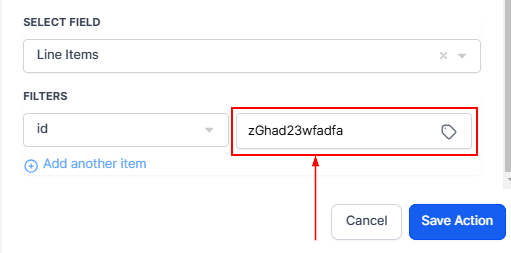
Screenshot
Add Another Item
Need to find objects that match multiple criteria? Add another key-value pair using the “Add Another Item” option.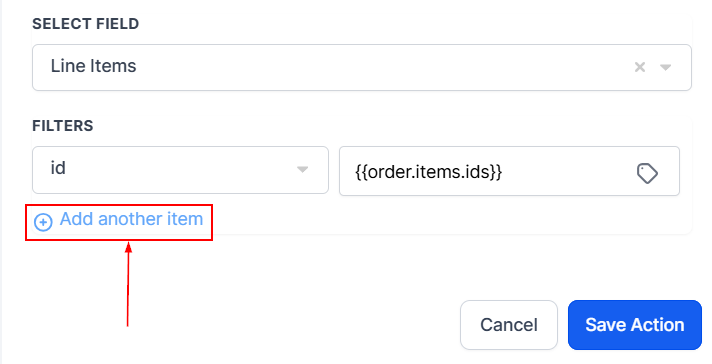
Screenshot
Screenshot
Using The Array Function In Shopify
With the returned object variables, you can now use the extracted data across various actions, such as creating a dynamic email or SMS content, setting conditions in If/Else branches, or triggering additional automation steps.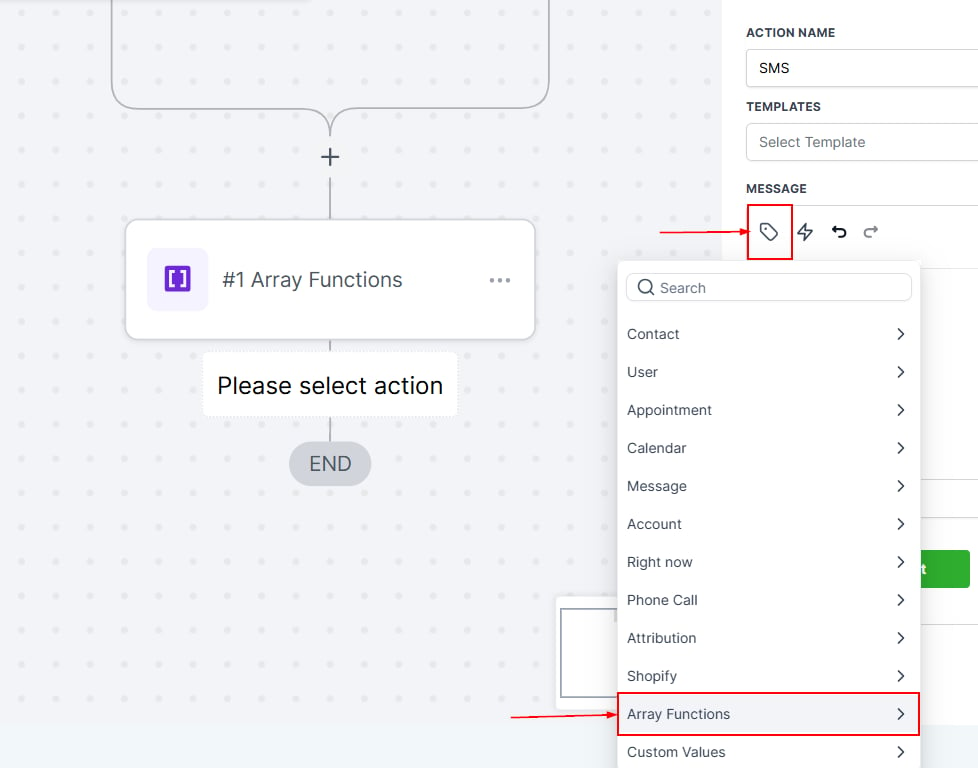
Screenshot
How to Get Started
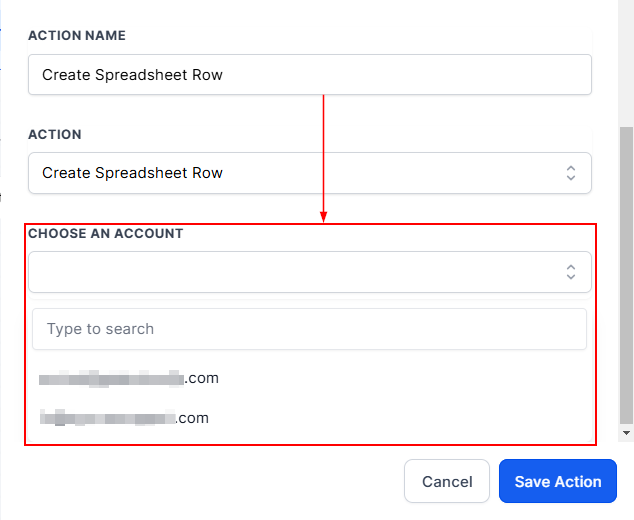
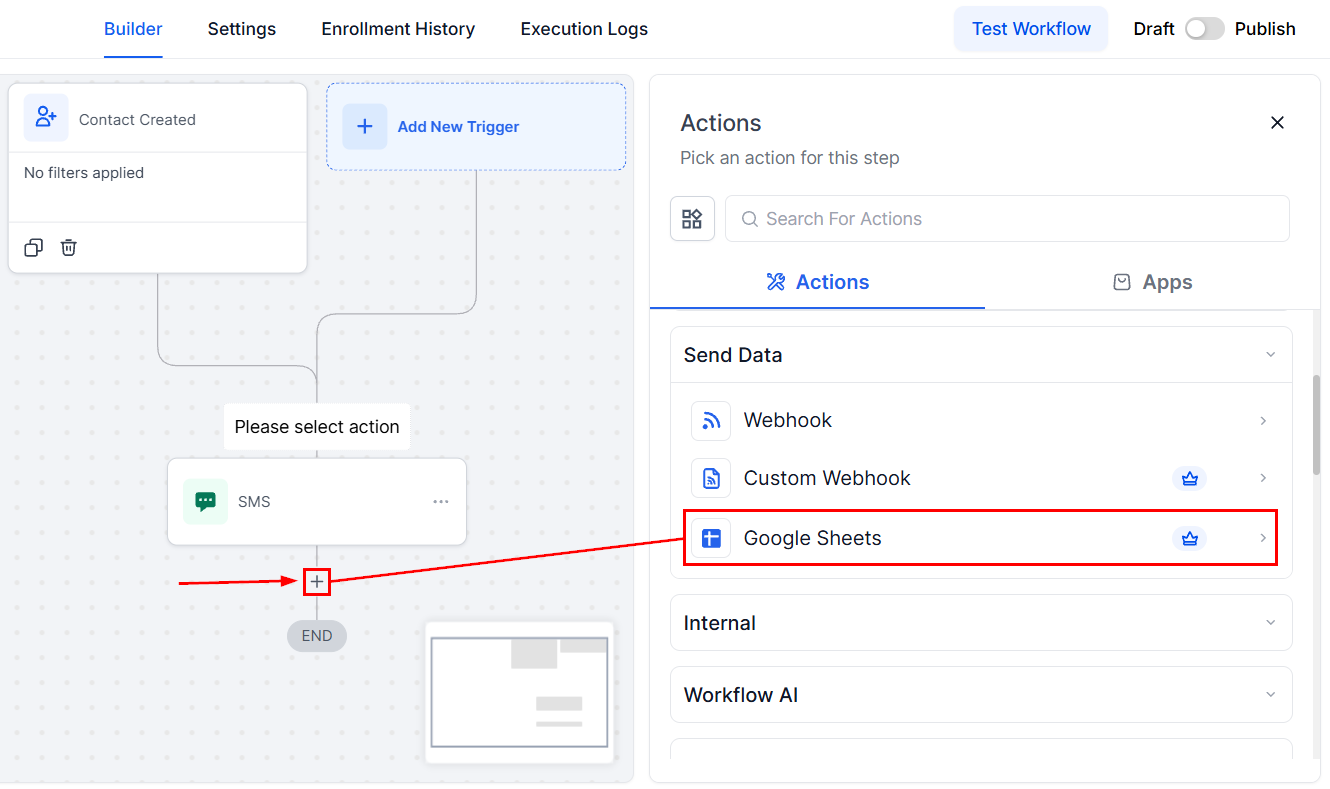
Connect your Google account to the CRM under the Settings >**** Integrations**** section. In your workflow, choose a suitable Trigger, then Click the “+” icon to search and add the Google Sheets Action.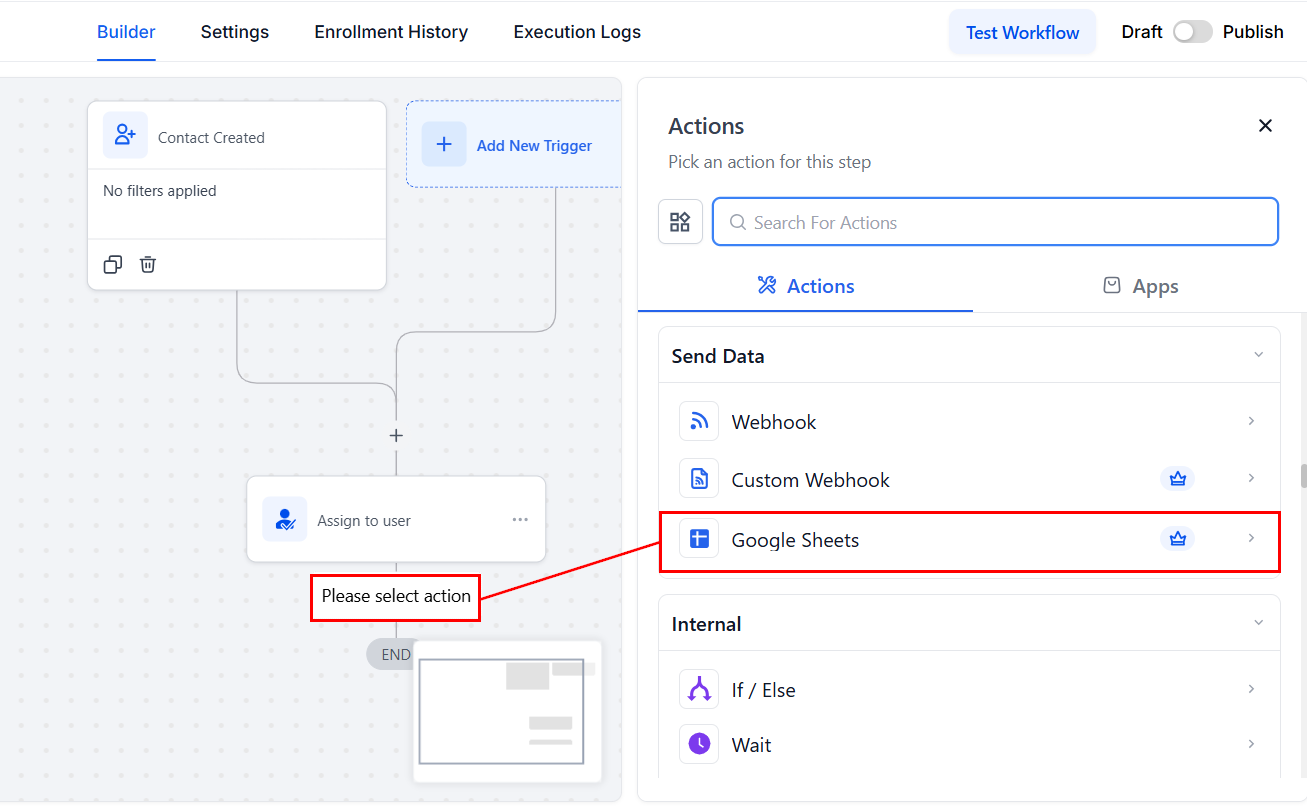
Screenshot
How To Use the Google Sheet Actions
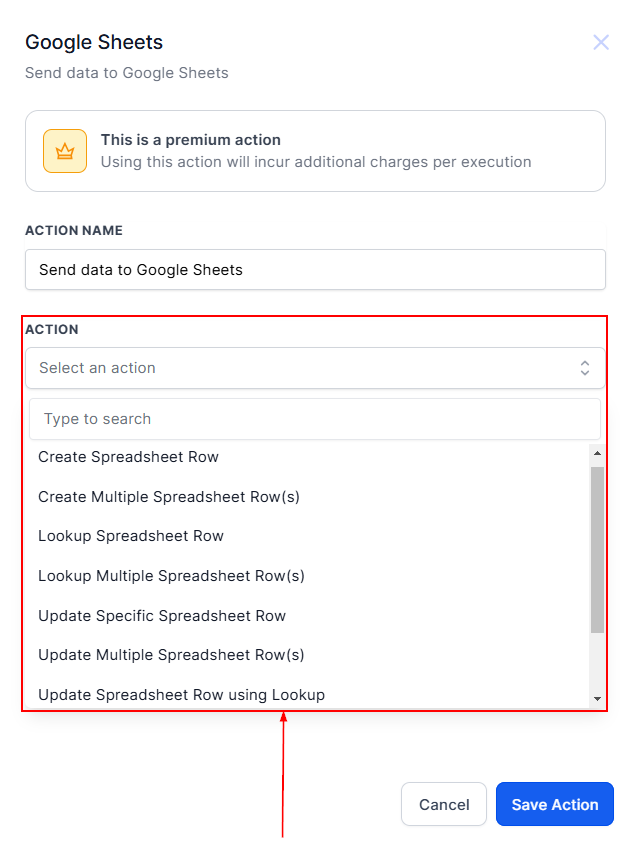
Here are the Workflow actions that are supported in Google Sheets.- Create Spreadsheet Row.
- Create Multiple Spreadsheet Rows.
- Lookup Spreadsheet Row.
- Lookup Multiple Spreadsheet Rows.
- Update Specific Spreadsheet Row.
- Update Multiple Spreadsheet Rows.
- Update Spreadsheet Row using Lookup.
- Delete Specific Spreadsheet Row.
- Delete Spreadsheet Row using Lookup.
Screenshot
Screenshot
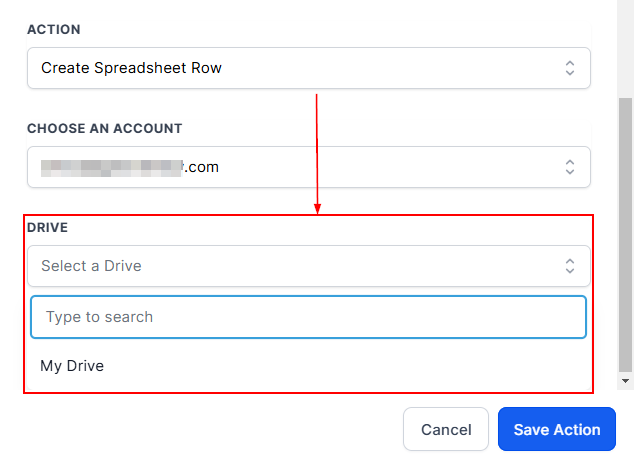
Screenshot
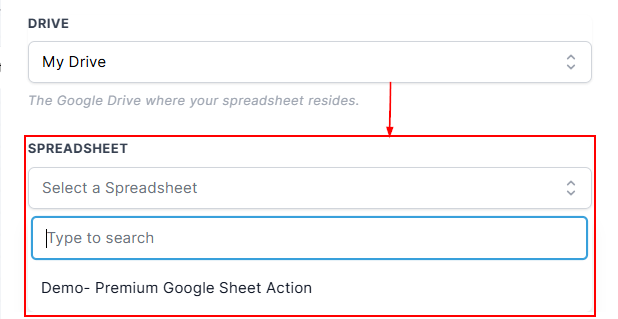
Screenshot
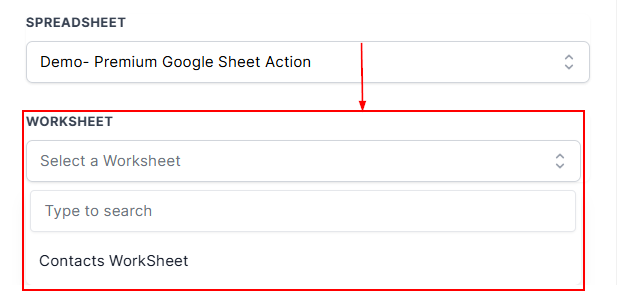
Screenshot
Create Spreadsheet Row
Within the ****Create Spreadsheet Row action, ****choose the columns where you want to add or update data. If you want your data to be flexible and adaptable, you can also use special names.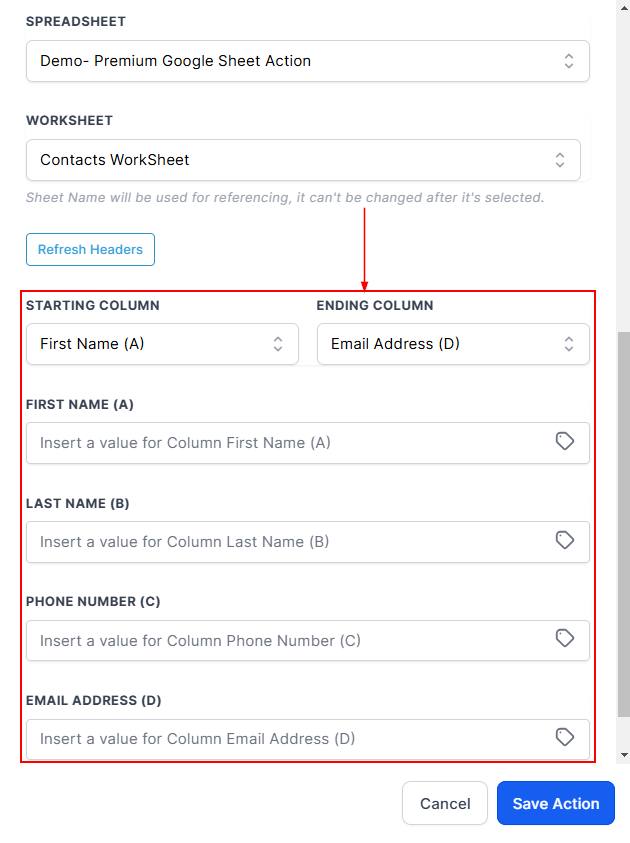
Screenshot
Create Multiple Spreadsheet Row (s)
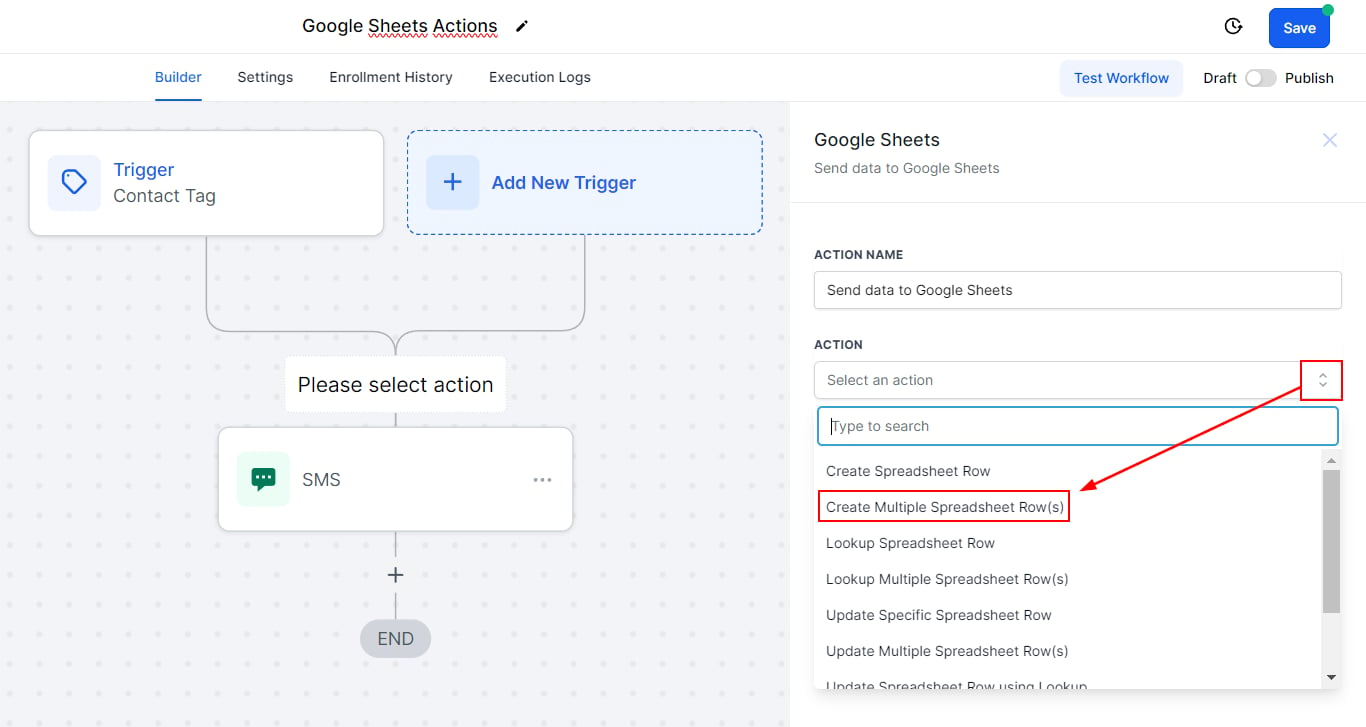
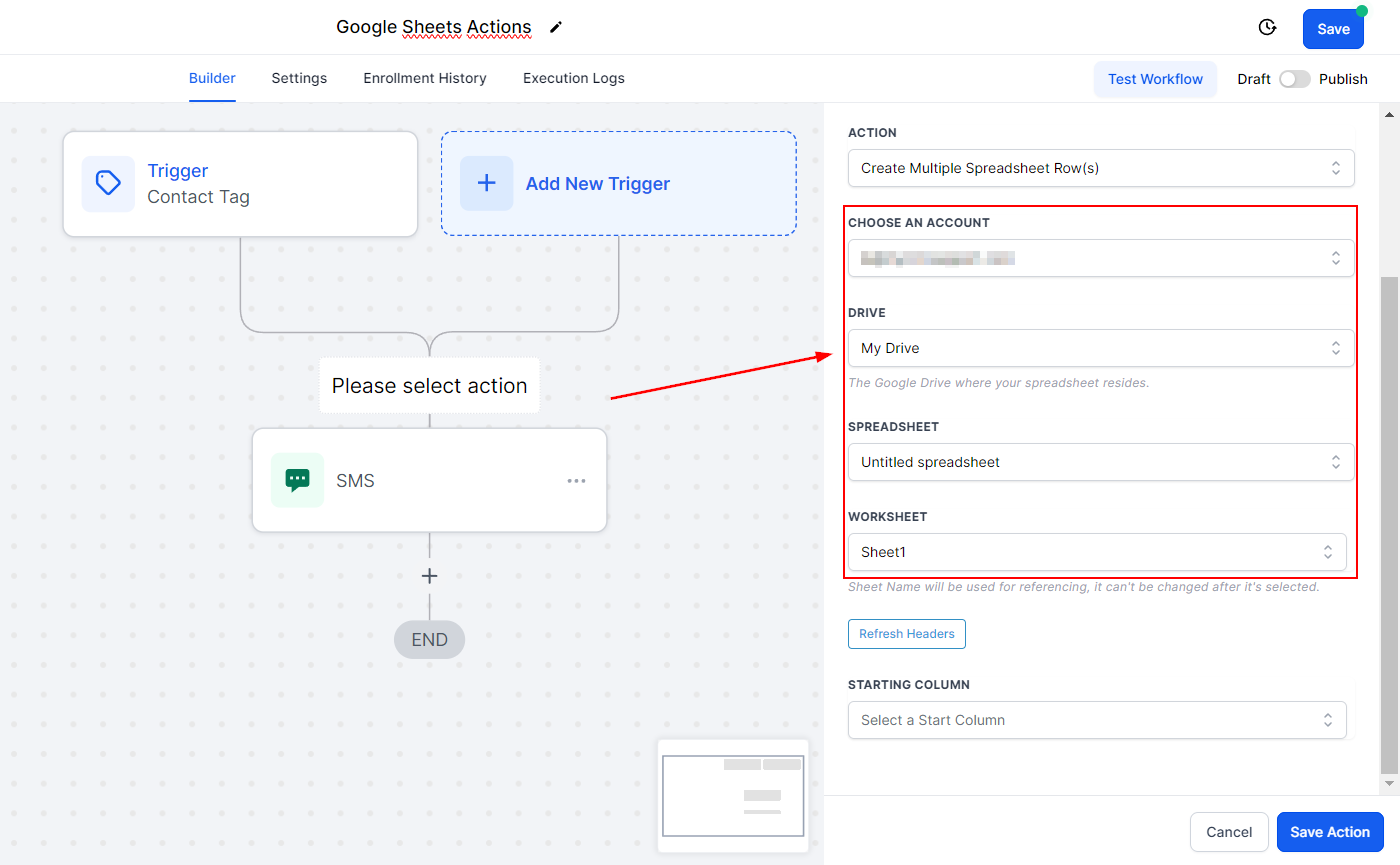
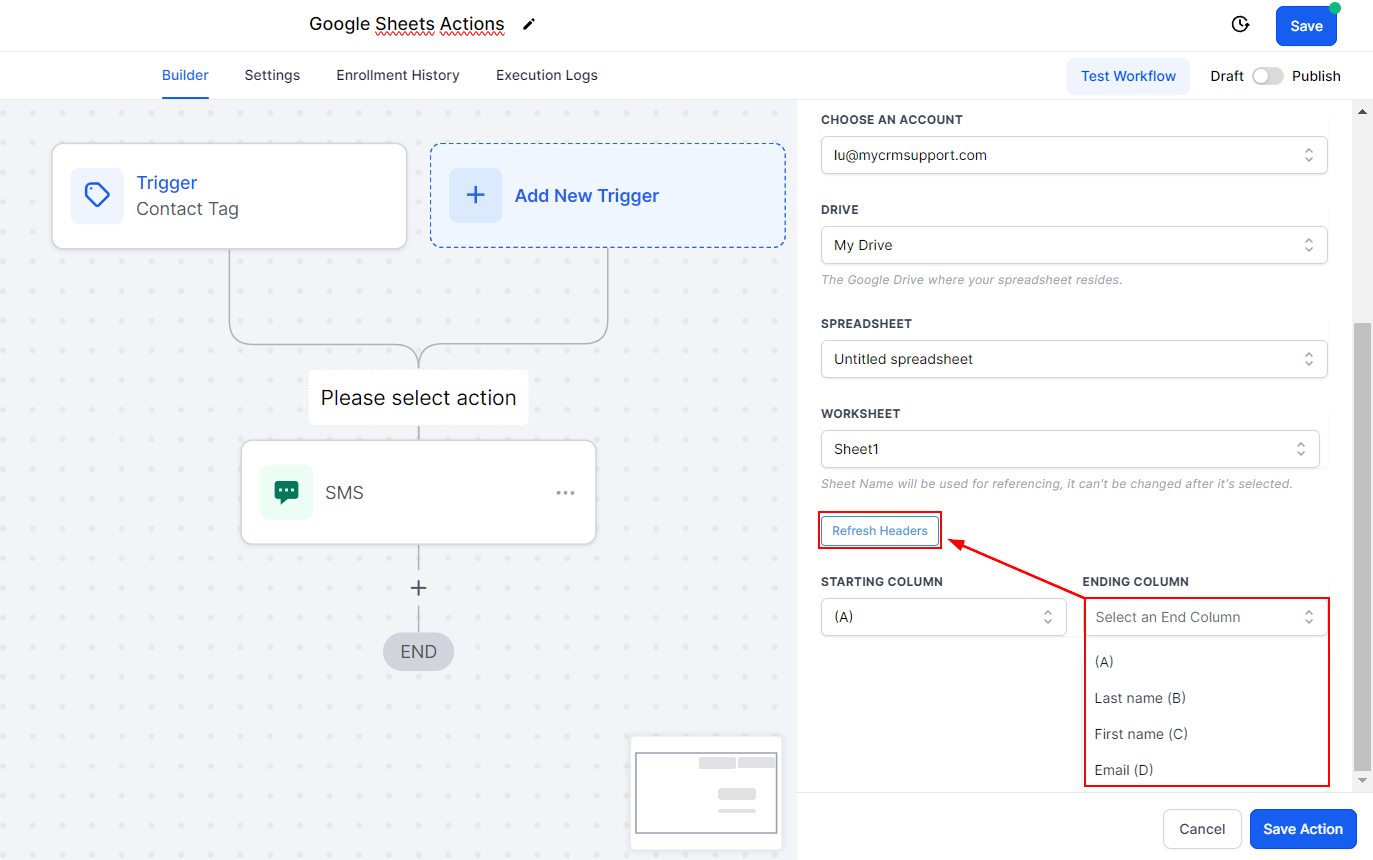
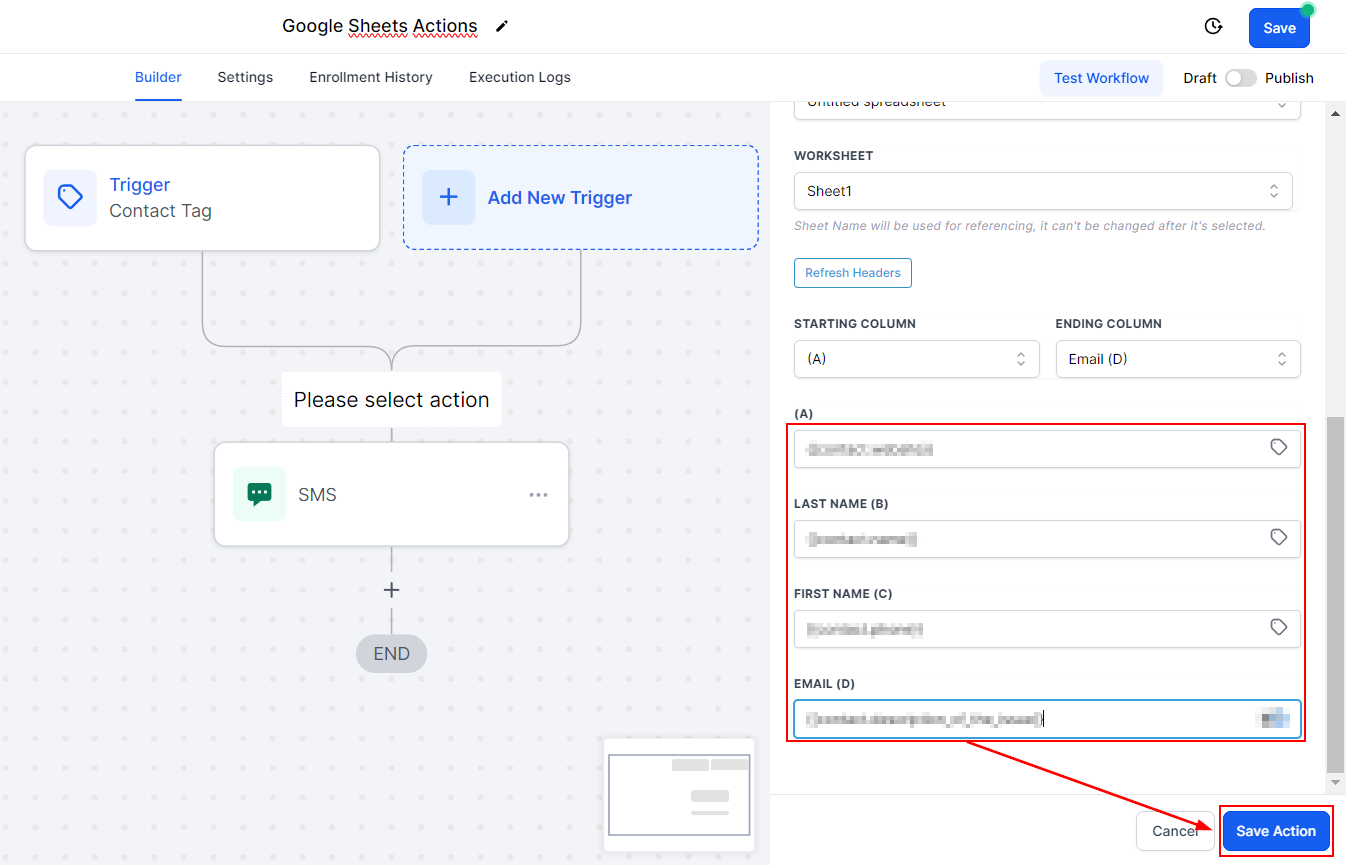
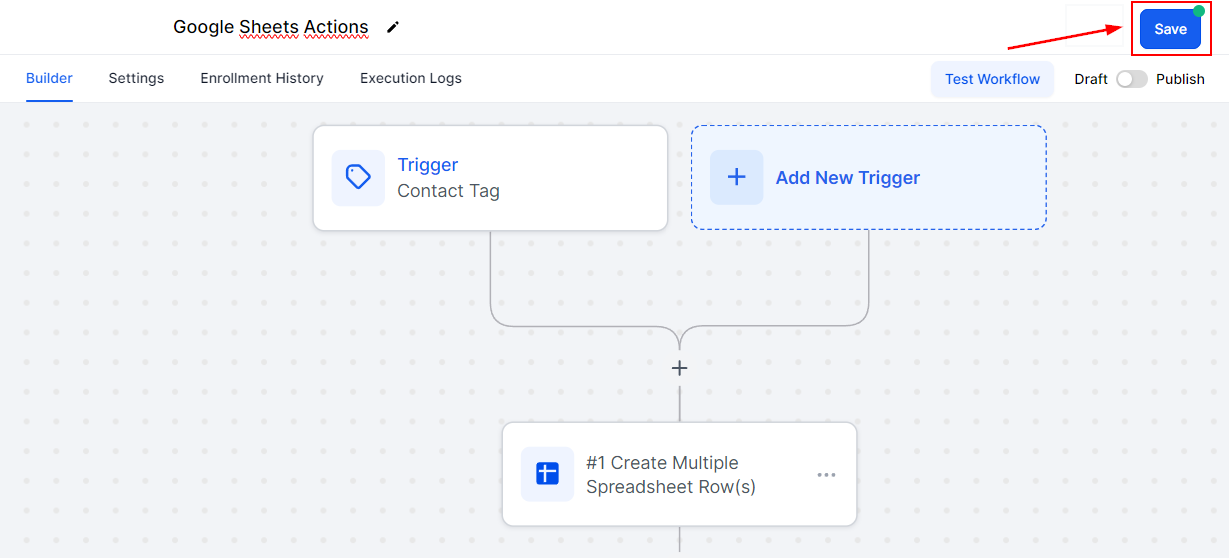
The Create Multiple Spreadsheet Rows action allows you to insert multiple rows into your Google Sheet at once. This is especially useful when dealing with bulk data, such as importing a list of contacts or records from another source. By specifying starting and ending columns, you ensure that only the relevant data fields are populated, reducing errors and maintaining a clean sheet structure.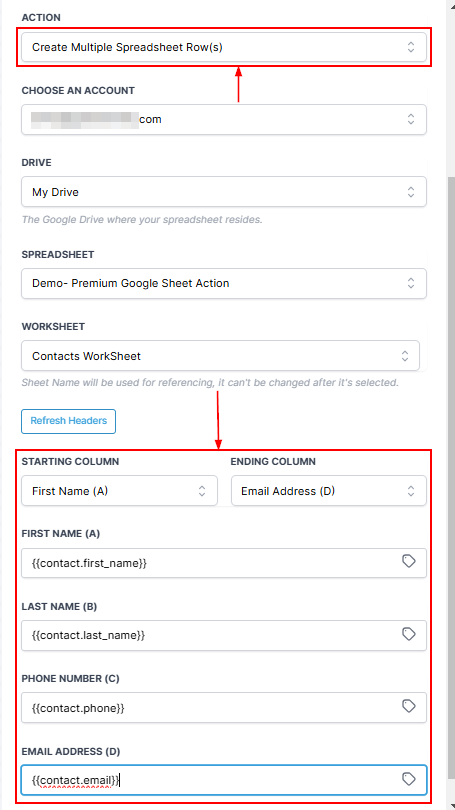
Screenshot
Lookup Spreadsheet Row
Here’s how to put this data detective to work.Choose a Worksheet
Select the part of your spreadsheet where you want to search for data. Think of it as telling the detective where to look.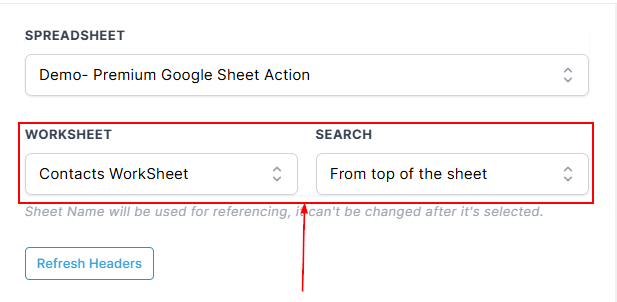
Screenshot
Select Search Order
Decide if you want to start searching from the top or the bottom of your spreadsheet.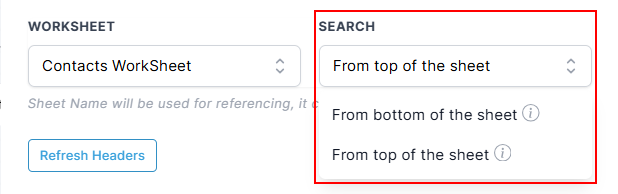
Screenshot
Pick a Column and Lookup Value
This is where you specify what to look for. Imagine you’re searching for a person’s name in a phone book (your spreadsheet). The column is like the section of the phone book, and the lookup value is the name you’re searching for.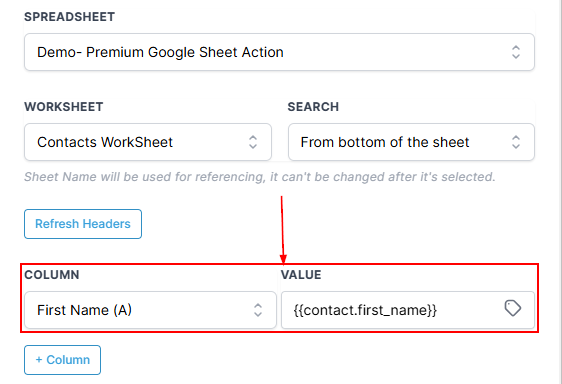
Screenshot
Extra Clues (Optional)
Sometimes, one clue isn’t enough. You can add an extra clue (another column and value) to help narrow down the search.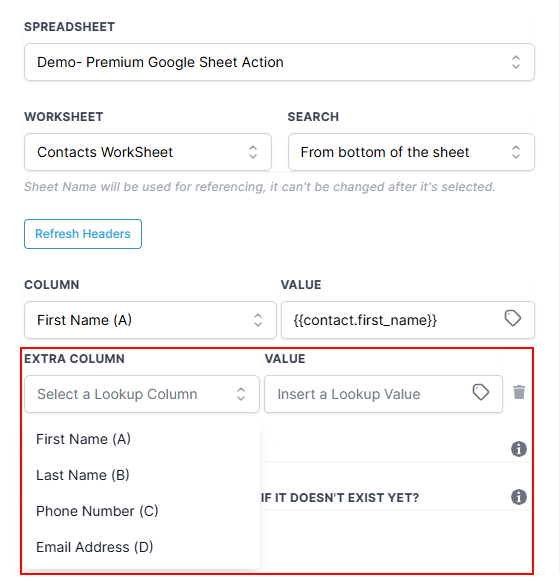
Screenshot
Create a Row if It Doesn’t Exist
If the action can’t find what you’re looking for, you can ask it to create a new row for you.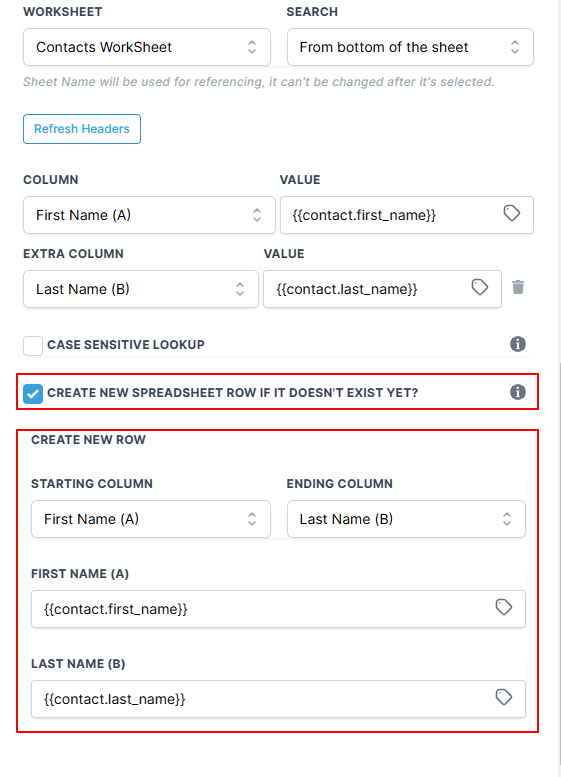
Screenshot
Custom Variables
The action is really smart. It not only finds what you want but also remembers it for you. You can use this information later in your work, just like you’d remember a phone number you found.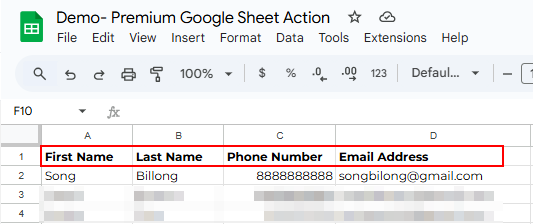
Screenshot
Some Tips
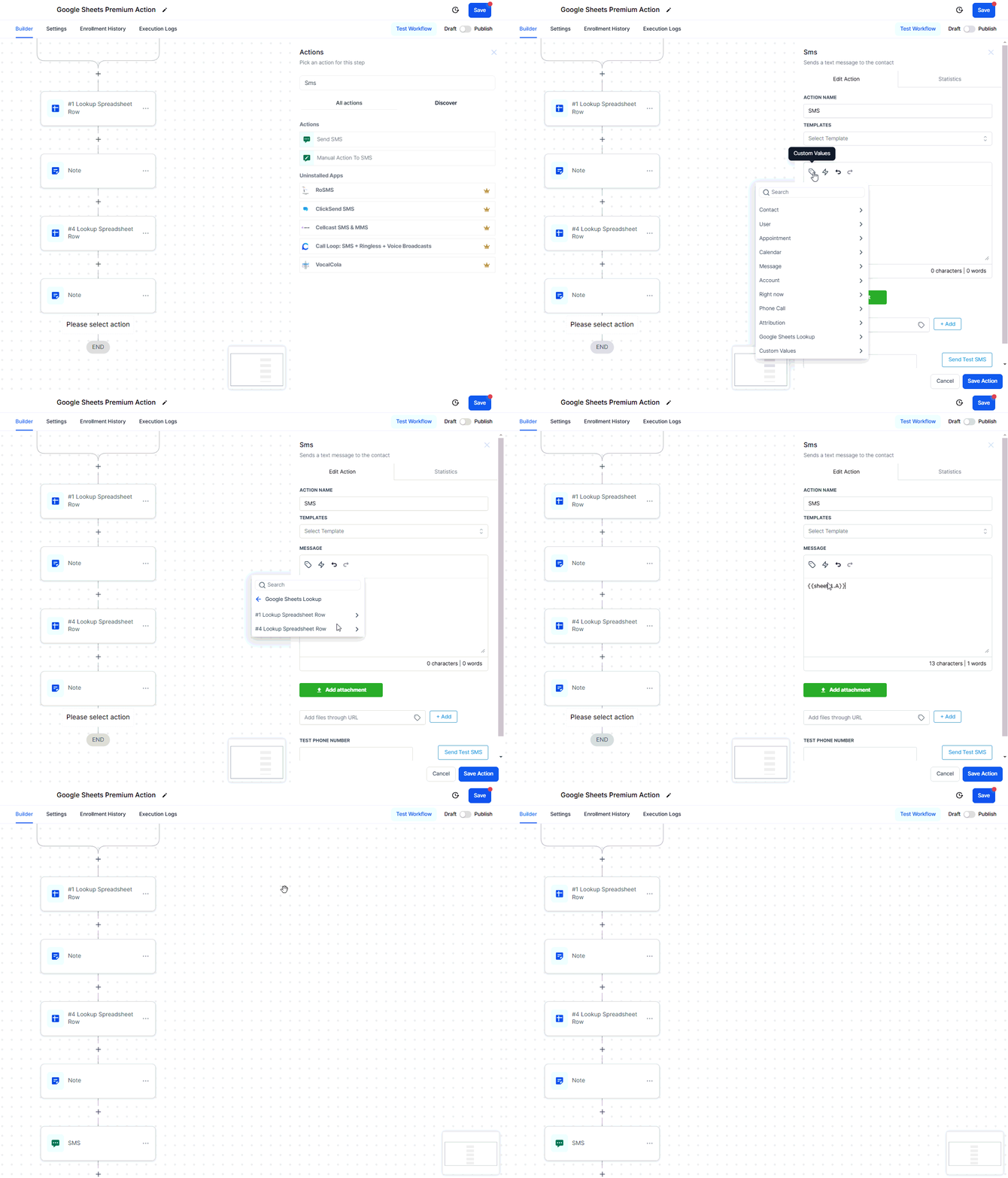
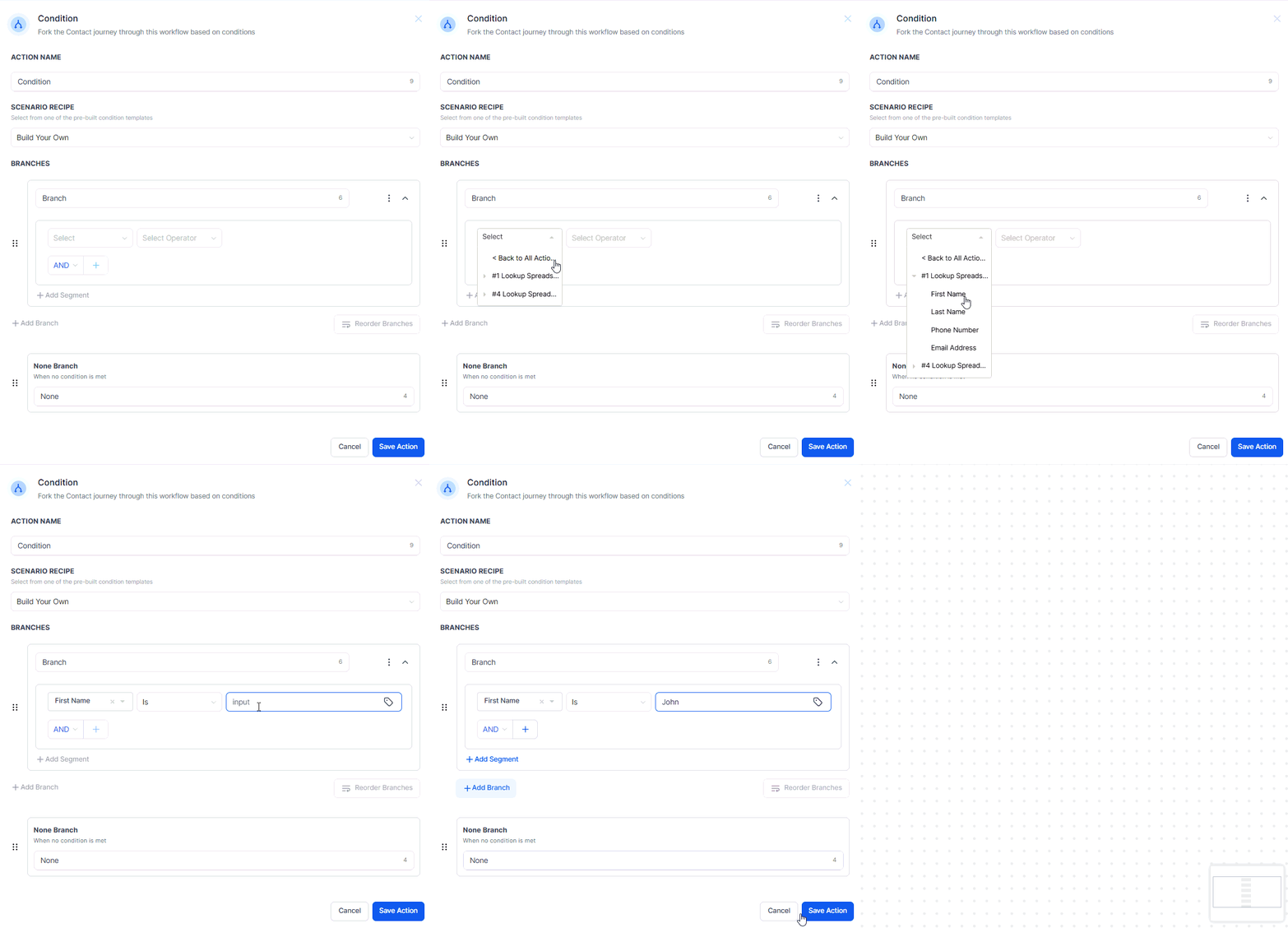
Each time you use the action, it gets a special index (a bit like a case number). This helps you keep track of different searches.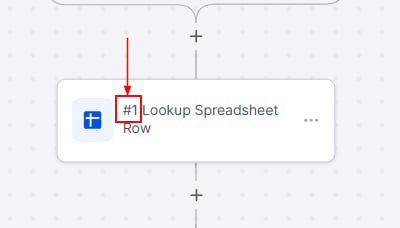
Screenshot
Screenshot
Screenshot
Lookup Multiple Spreadsheet Row (s)
The Lookup Multiple Spreadsheet Rows action allows you to search and retrieve multiple rows of data from your Google Sheets based on specific criteria. Unlike a standard lookup that returns only one row, this feature enables you to find and work with several rows at once, making it particularly useful for tasks like bulk updates, reporting, or filtering data for targeted actions.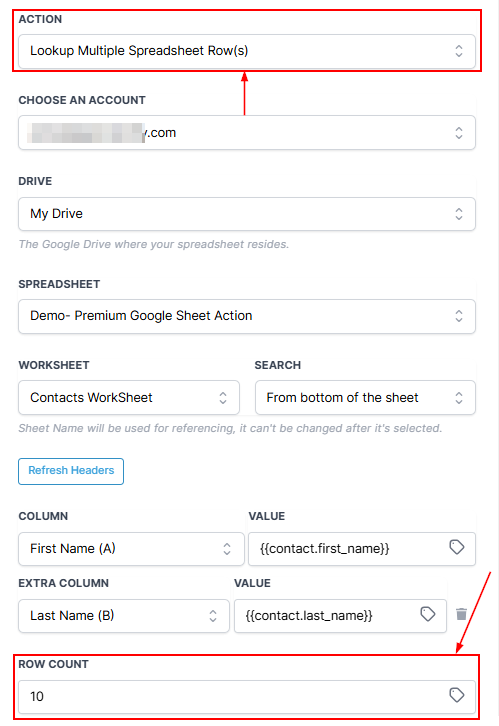
Screenshot
Update Specific Spreadsheet Row
Let’s say you want to change some information in a row. You can use this tool to do that too. Just tell it which row you want to edit, and it will make the changes for you. This is handy for keeping your data up to date without manually editing each row. You can add the number of rows or use a custom value.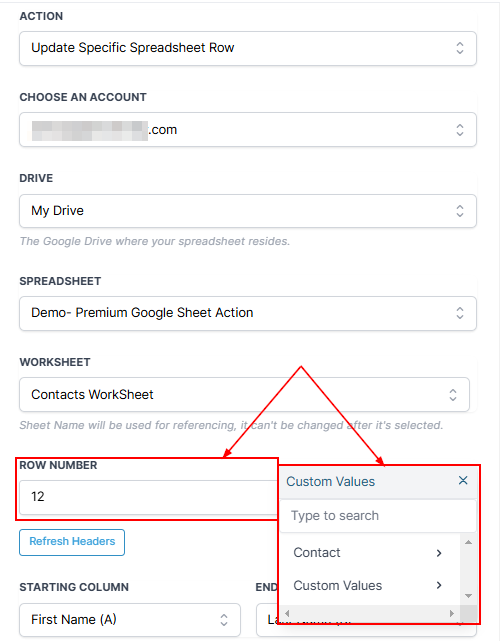
Screenshot
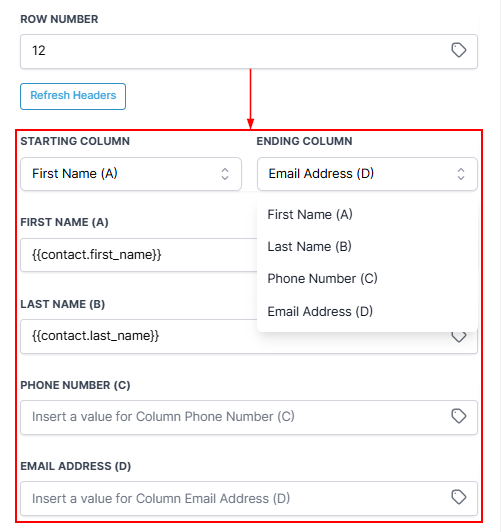
Screenshot
Update Multiple Spreadsheet Row (s)
You can add the Row number or a custom value, then add the columns you want to be updated.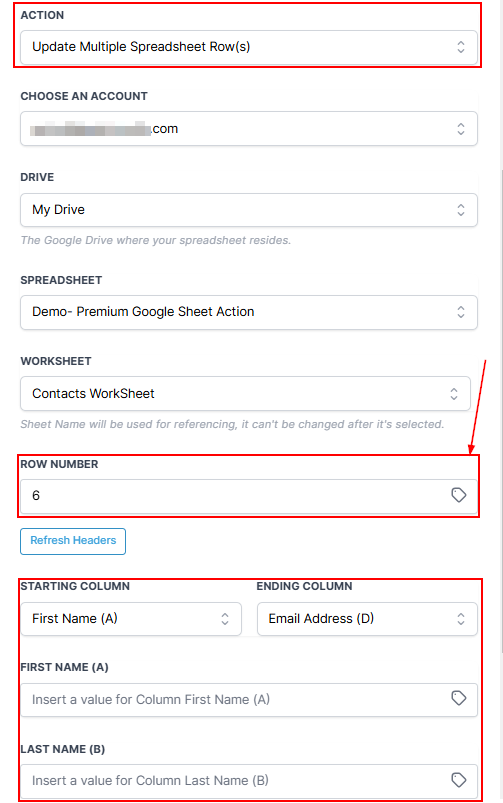
Screenshot
Update Spreadsheet Row using Lookup
Updating a row in a spreadsheet can be a bit like making corrections in a book. You want to find the right page (row) and then fix the errors (update data). With the “Update Spreadsheet Row using Lookup” action, it’s like having an editor for your spreadsheet. Here’s how it works:- Finding the Right Row: Before you can update anything, you need to find the row you want to work on. This is where the “Lookup” action comes in. Think of it as a magnifying glass that helps you pinpoint the exact location (row) in your spreadsheet based on a specific value (clue).
- The Update Mission: Once you’ve located the row you want to update using the “Lookup” action, it’s time to make changes. This is where the “Update using Lookup” action steps in. It’s like your editing pen for the spreadsheet. Please Note: To use the “Update using Lookup” action, you must first use the “Lookup” action. It’s like solving a mystery—you need to find the clues (row) before you can take action. So, the order matters: Lookup first, then Update using Lookup.
- Choosing the Right Lookup Action: When you use the “Update using Lookup” action, you’ll need to pick the specific “Lookup” action that you used earlier. It’s like telling your editor which magnifying glass to use for the corrections.
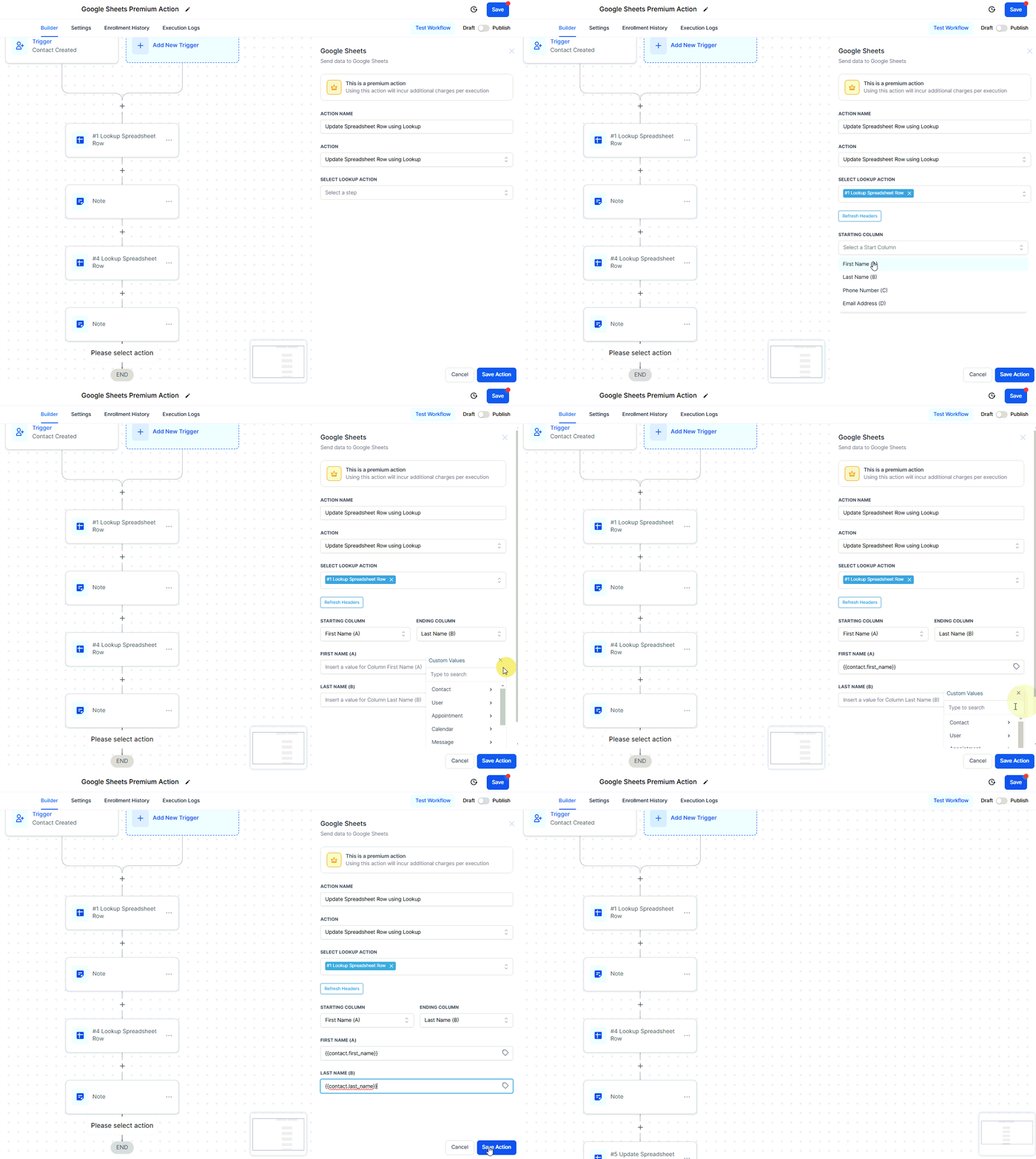
Screenshot
Selecting Columns to Update
Now, let’s say you found the row, but you only want to update certain parts of it (like fixing a few words in a book). You can choose the starting and ending columns for the updates. If you want to update the entire row, you can leave these blank.��NOTE: You can only select one “Lookup” action at a time when using the “Update using Lookup” action. If the “Lookup” action doesn’t find any rows (like not finding any clues in the mystery), the workflow will move on to the next step without making any updates.Delete Specific Spreadsheet Row
Sometimes, you need to get rid of some data. This tool can help with that as well. It can clear out all the information in a particular row, which is like erasing it. But remember, it doesn’t delete the row itself, just the stuff inside it.💡 Important Note: When you use the “Delete Specific Spreadsheet Row” action, it only clears the contents of the row; it doesn’t permanently remove the row itself. It’s like removing text from a page but leaving the page in the book.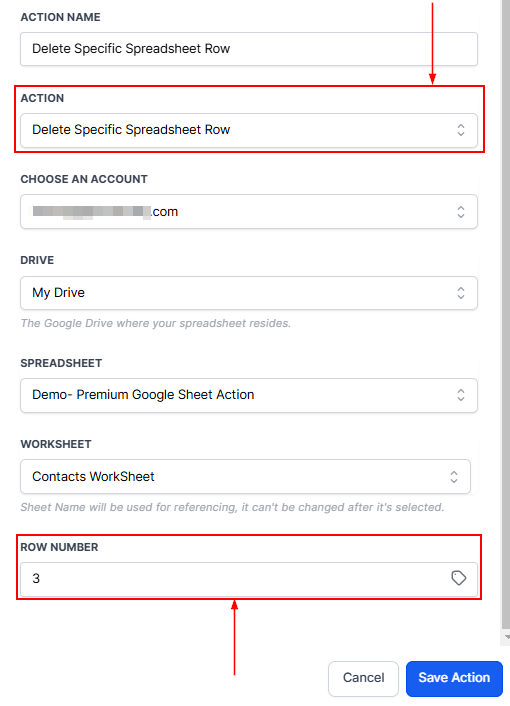
Screenshot
Delete Spreadsheet Row using Lookup
Once you’ve located the row you want to get rid of using the “Lookup” action, it’s time to clear it out. This is where the “Delete using Lookup” action steps in. It’s like the delete button for that specific row.📌NOTE: To use the “Delete using Lookup” action, you must first use the “Lookup” action. It’s like opening a drawer (Lookup) to see what’s inside before you can decide what to remove (Delete using Lookup). So, the order is crucial: Lookup first, then Delete using Lookup.****Selecting the Right Lookup Action: ****When you use the “Delete using Lookup” action, you’ll need to pick the specific “Lookup” action that you used earlier. It’s like telling the system which detective found the clue you’re acting on.Points to Remember
- When you use the “Delete using Lookup” action, it wipes out all the values in the row. It’s like clearing a whiteboard.
- However, it doesn’t permanently remove the row itself. The row is still there, but it’s empty.
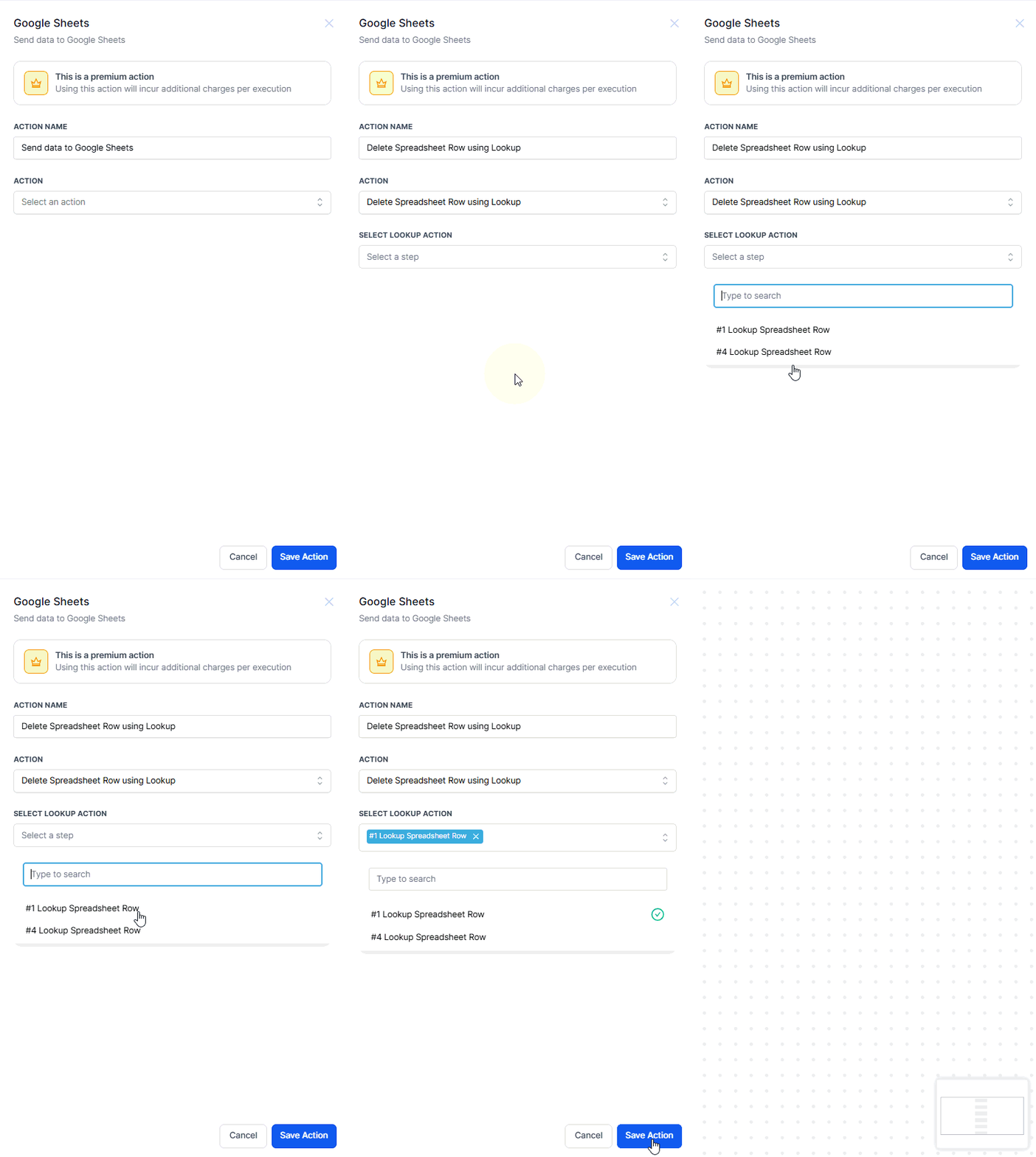
Screenshot
No Row, No Deletion
The workflow will continue without deleting anything if the “Lookup” action doesn’t find any rows (like when the detective can’t find any clues).The Google Sheets Premium Workflow Action is a powerful tool for anyone looking to optimize their data management processes. From creating rows to updating and deleting data, these actions offer precision and automation that save time and reduce manual errors. By integrating these tools into your workflows, you can focus more on strategic tasks and less on mundane data management.Can I update multiple rows at once?
Can I update multiple rows at once?
What happens if the Lookup action doesn’t find a match?
What happens if the Lookup action doesn’t find a match?
Does the ‘Delete Specific Spreadsheet Row’ action permanently remove rows?
Does the ‘Delete Specific Spreadsheet Row’ action permanently remove rows?
Can I use custom variables with these actions?
Can I use custom variables with these actions?
How do I ensure my actions are set up correctly?
How do I ensure my actions are set up correctly?
Google Sheets: create multiple rows
Google Sheets: create multiple rows
Using the Action
In the Workflow tab of your Automations section, select any existing workflow or create a new one.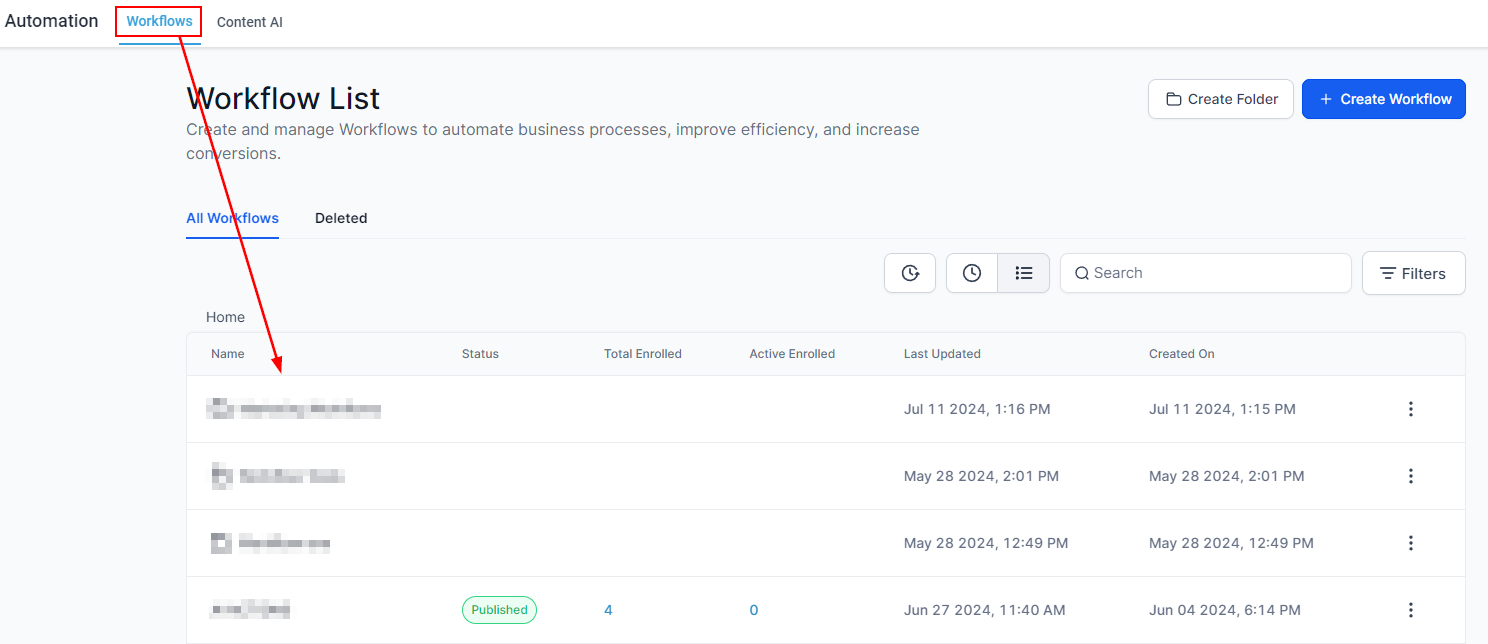
Screenshot
Screenshot
Screenshot
Screenshot
Screenshot
Screenshot
Screenshot
Setting Your Action
To get started, choose a suitable trigger, then select the Slack Action.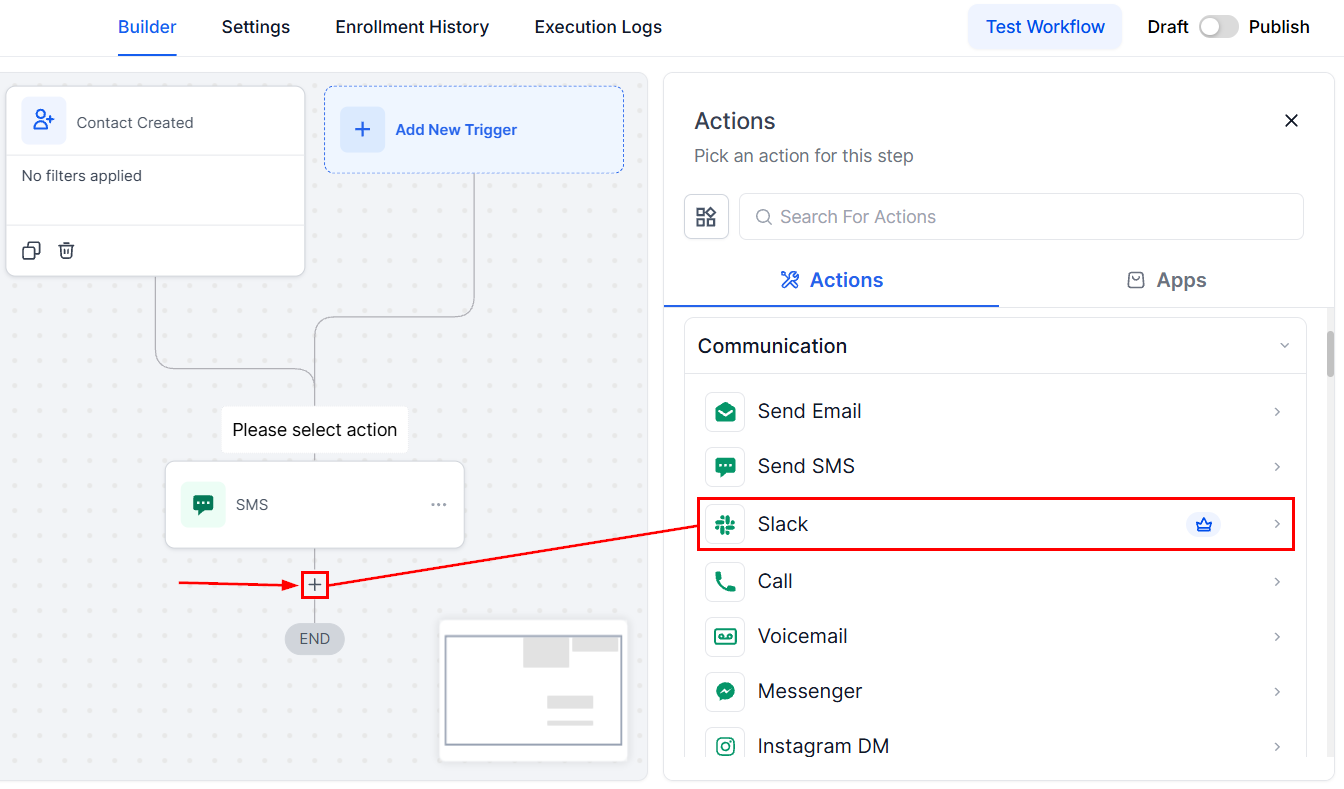
Screenshot
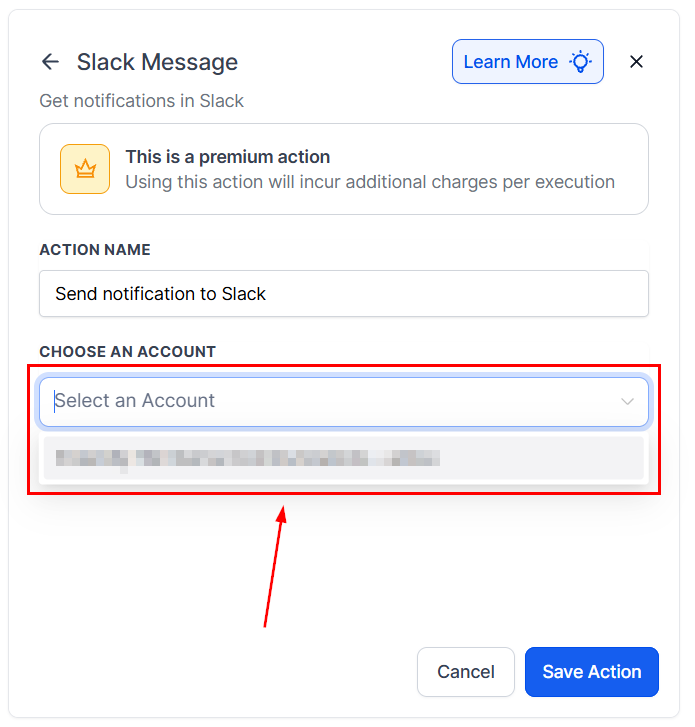
Screenshot
Slack Messaging Options
The Slack Messaging Options feature allows you to tailor your communication by selecting specific recipient types or channels based on your workflow needs. Here’s a breakdown of each option:****Send Direct Message to a User: ****Choose from four recipient types:- Assigned User: Send messages to the contact’s assigned user in your CRM.
- Custom Email: Use dynamic or predefined email addresses to locate and message Slack users.
- Internal User: Notify specific account users (e.g., send a “Won Opportunity” alert to the finance head).
- Slack User: Directly message any Slack user in your workspace.
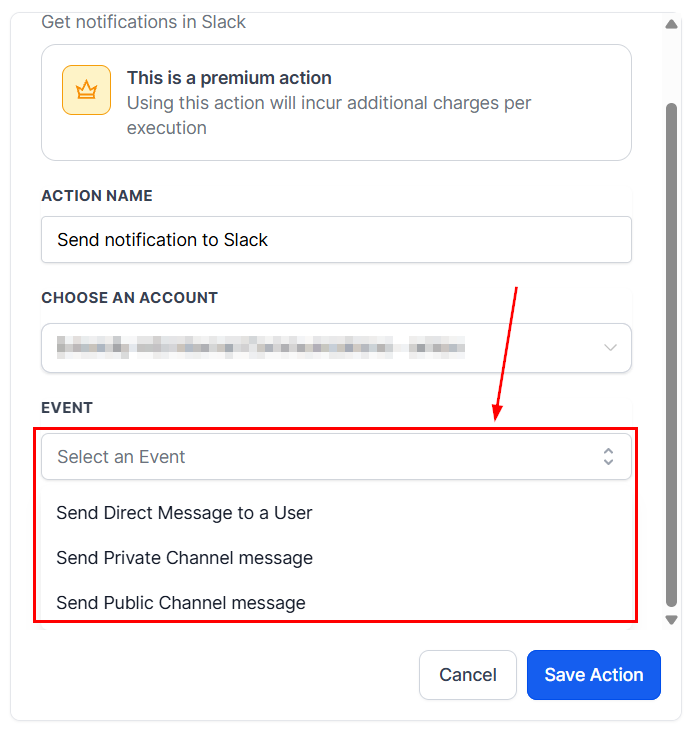
Screenshot
Using The Slack Message Action
In the workflow, pick one of the four user sources: Assigned User, Custom Email, Internal User, or Slack User. Then write your message in the provided field to send a direct message or a channel broadcast.Assigned User (of contact)
This is used to send out notifications for the assigned contact user. In this case, the User’s email (in Settings> My Staff > User Info) for the User Assigned to the contact is used to find the Slack user.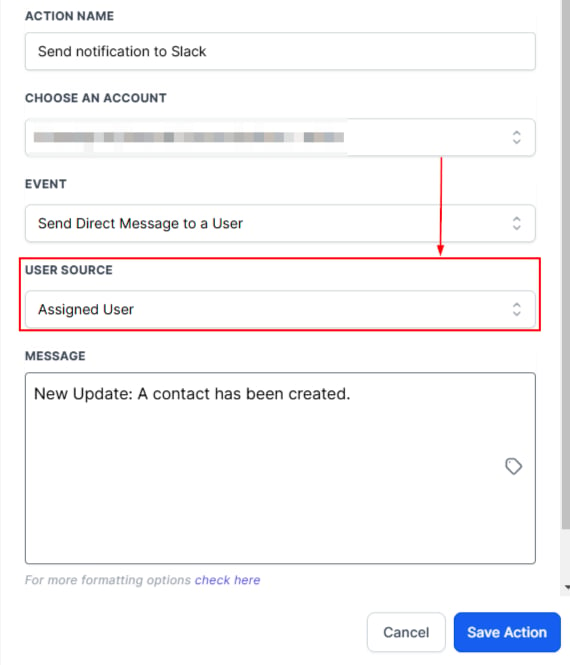
Screenshot
Custom Email
This is used for all the cases where you need a dynamic user to send notifications to. The custom email that is filled in is used to find the matching Slack user.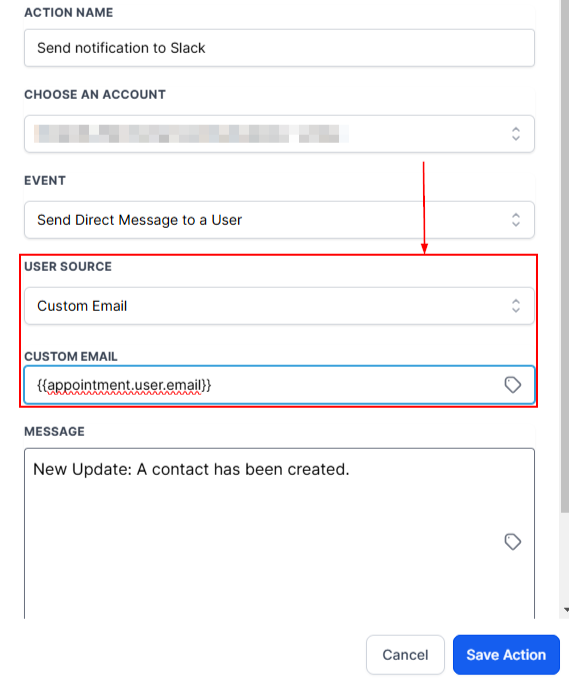
Screenshot
Internal User
This option allows you to send messages directly to an account user. It’s particularly useful for notifying specific individuals responsible for key areas of your business. For example, you can notify your finance head about a successfully closed deal. The system uses the selected Internal User’s email to identify and message the corresponding Slack user.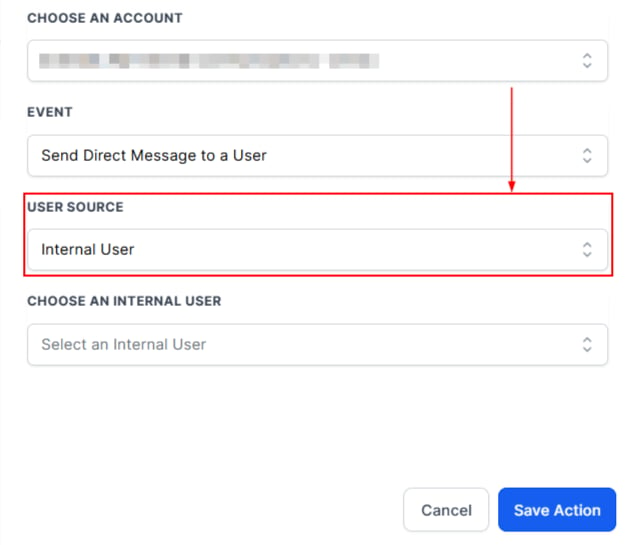
Screenshot
Sending a Message to a Slack User
This is as simple as it sounds. Send a direct message to any Slack user in your workspace.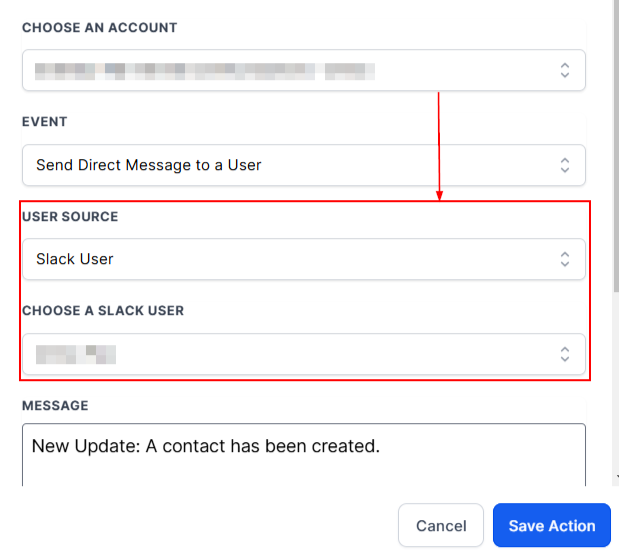
Screenshot
Message Content
Insert Message to send a Direct Message to a User. Remember to Save the Action.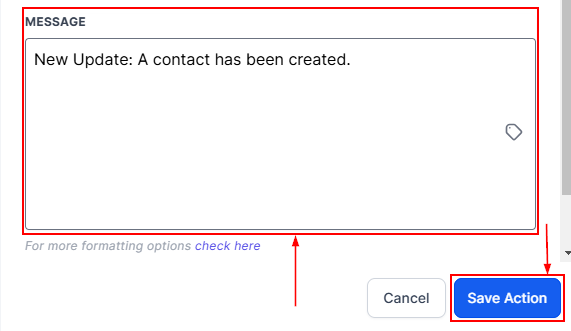
Screenshot
Use Cases
- Project Management: Notify teams about task updates or deadlines.
- Sales & Marketing: Share campaign progress or lead updates.
- Customer Support: Alert teams about customer inquiries or ticket escalations.
- IT & Development: Announce system bugs or outages for faster resolution.
- HR & Company-Wide Announcements: Send organizational updates to all staff.
Adding Custom Code
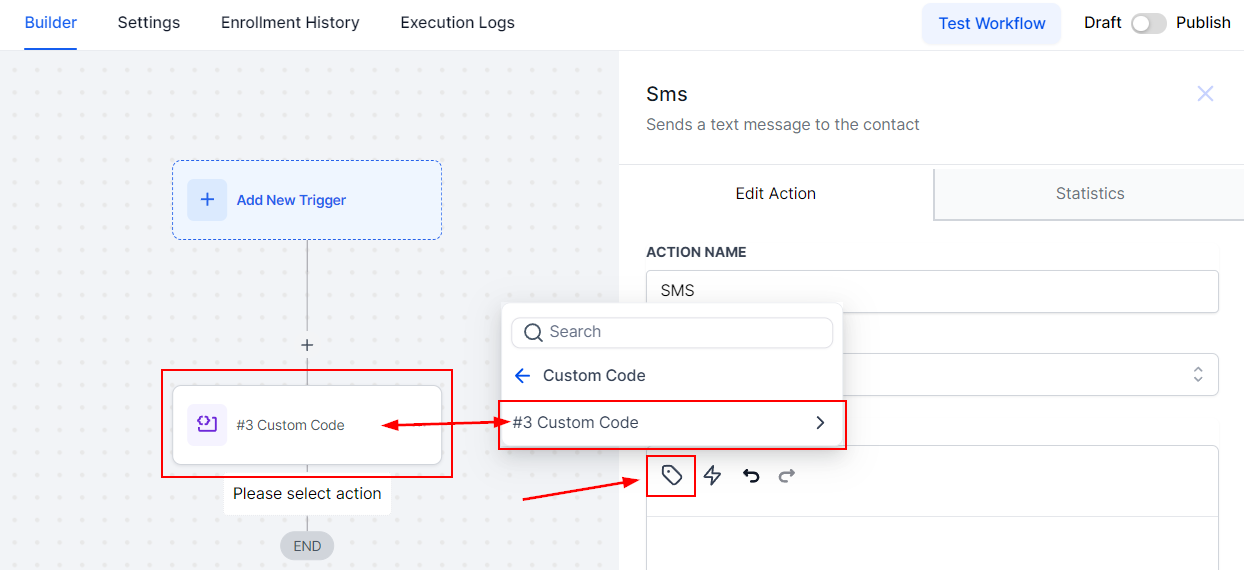
Click the ”+” button and add the action; it will be under your Internal Tools, but you can also look it up.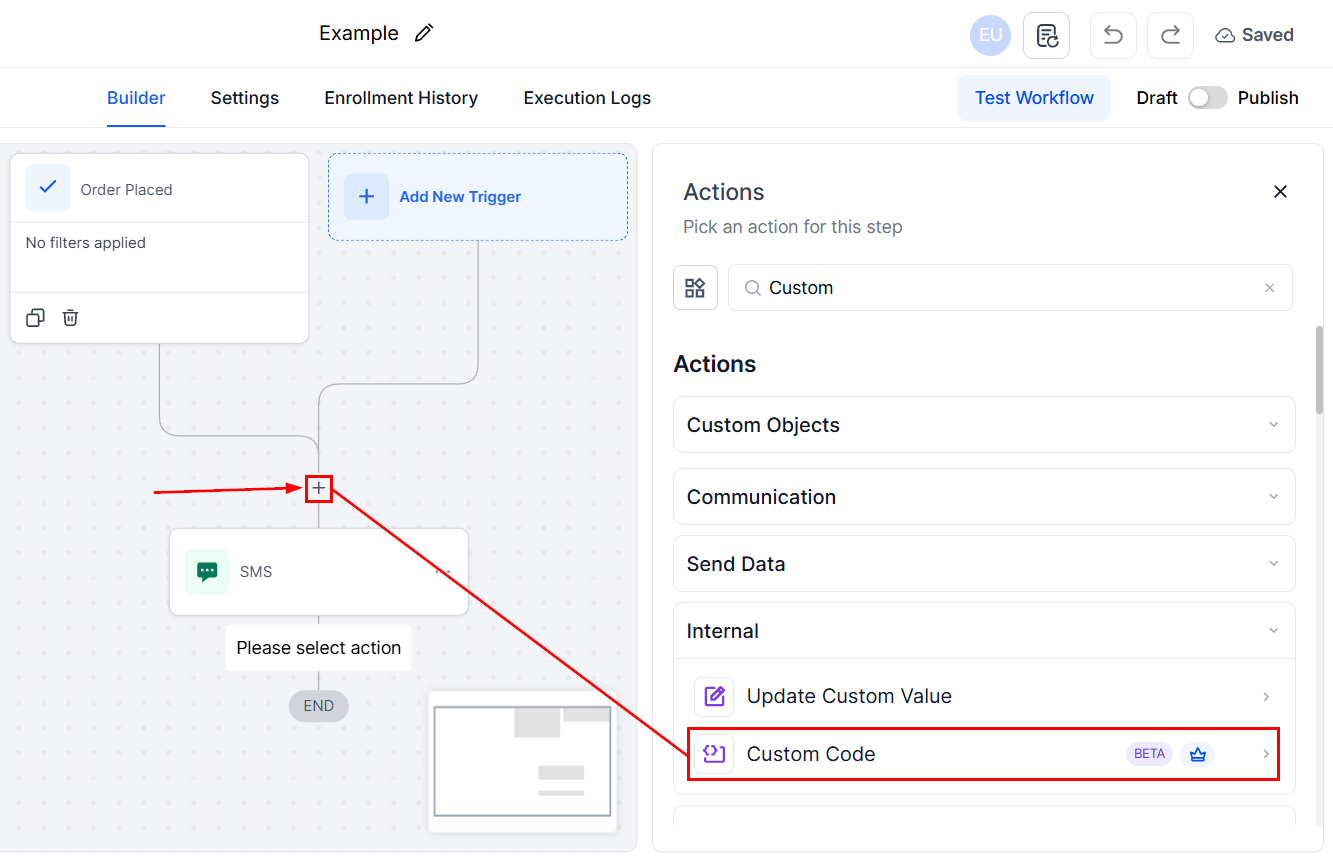
Screenshot
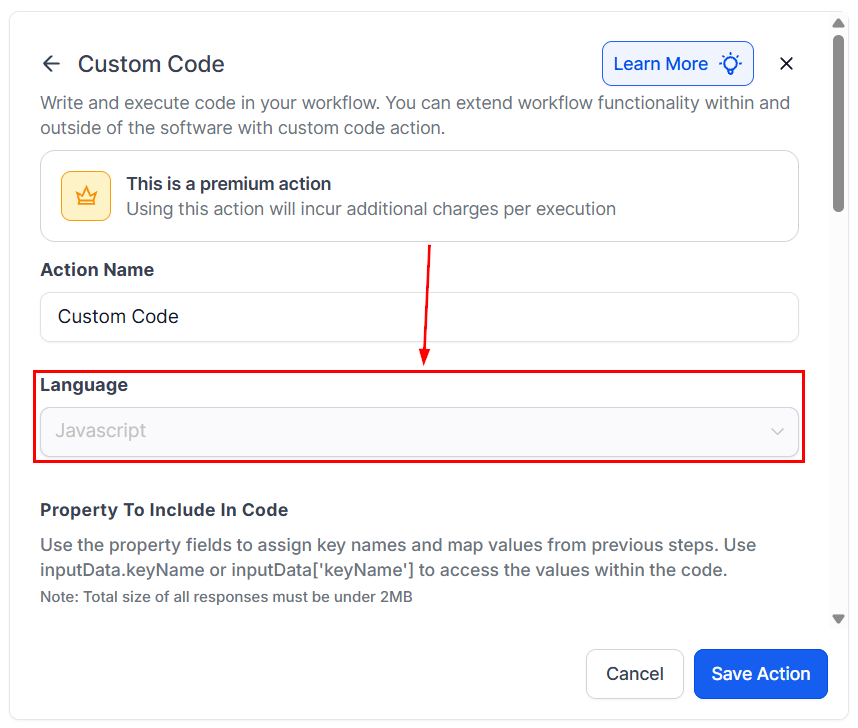
Screenshot
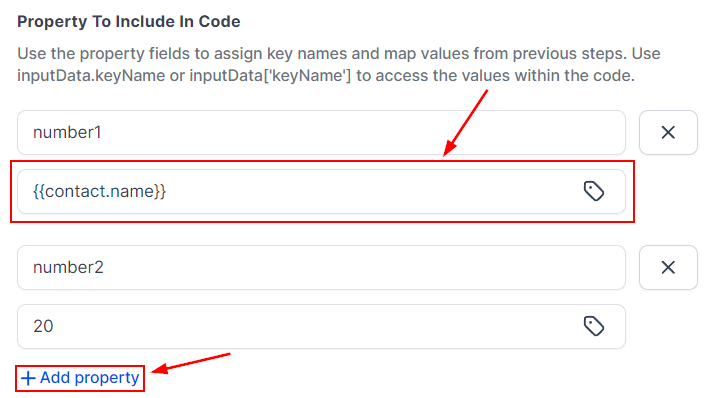
Screenshot
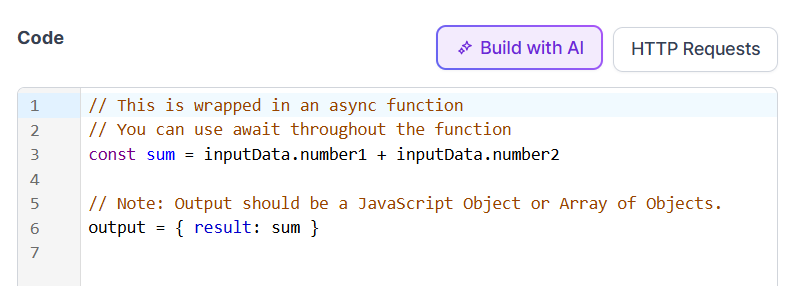
Screenshot
Adding HTTPS Requests
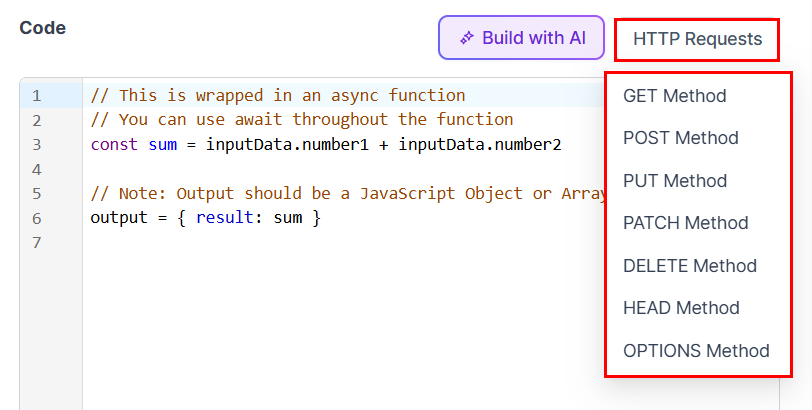
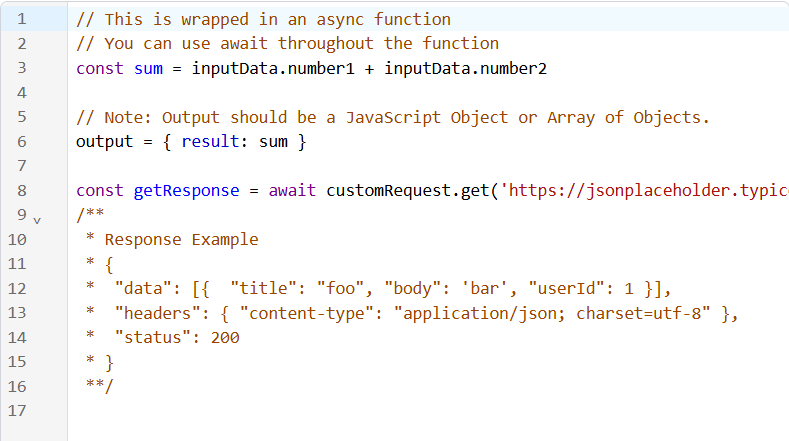
External HTTP Requests in Custom Code quickly add your preferred HTTP Method without the need to type in all that information. This option is available to you at the top of the code box.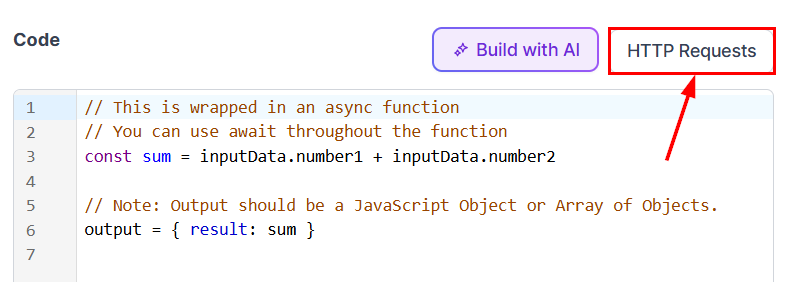
Screenshot
Screenshot
Screenshot
Build With AI
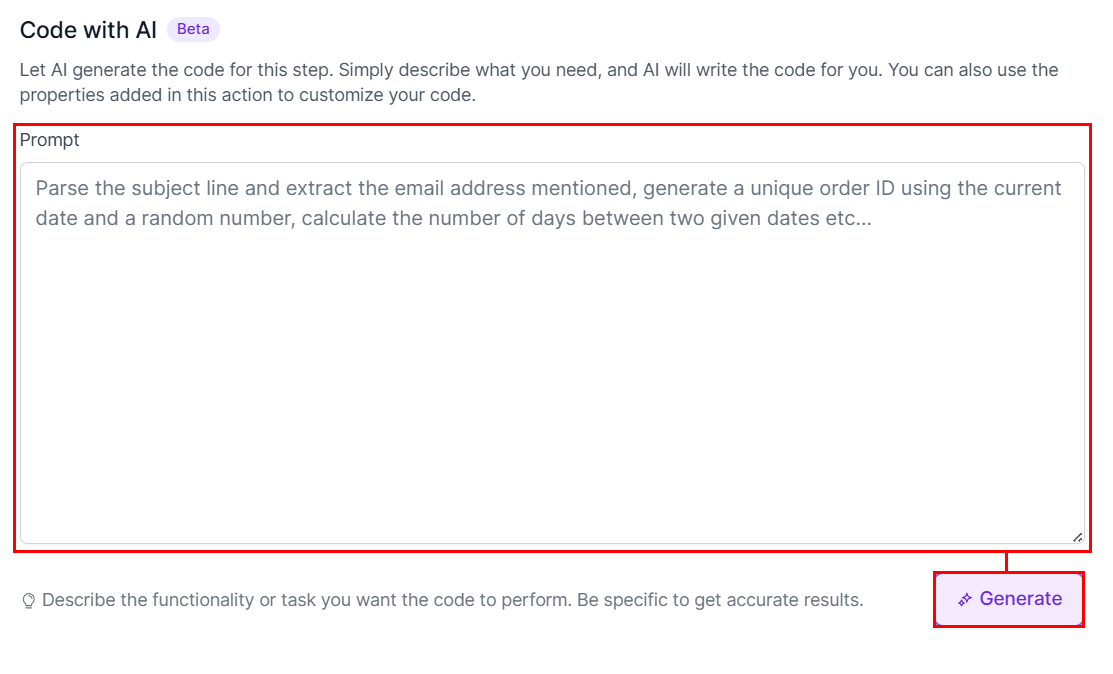
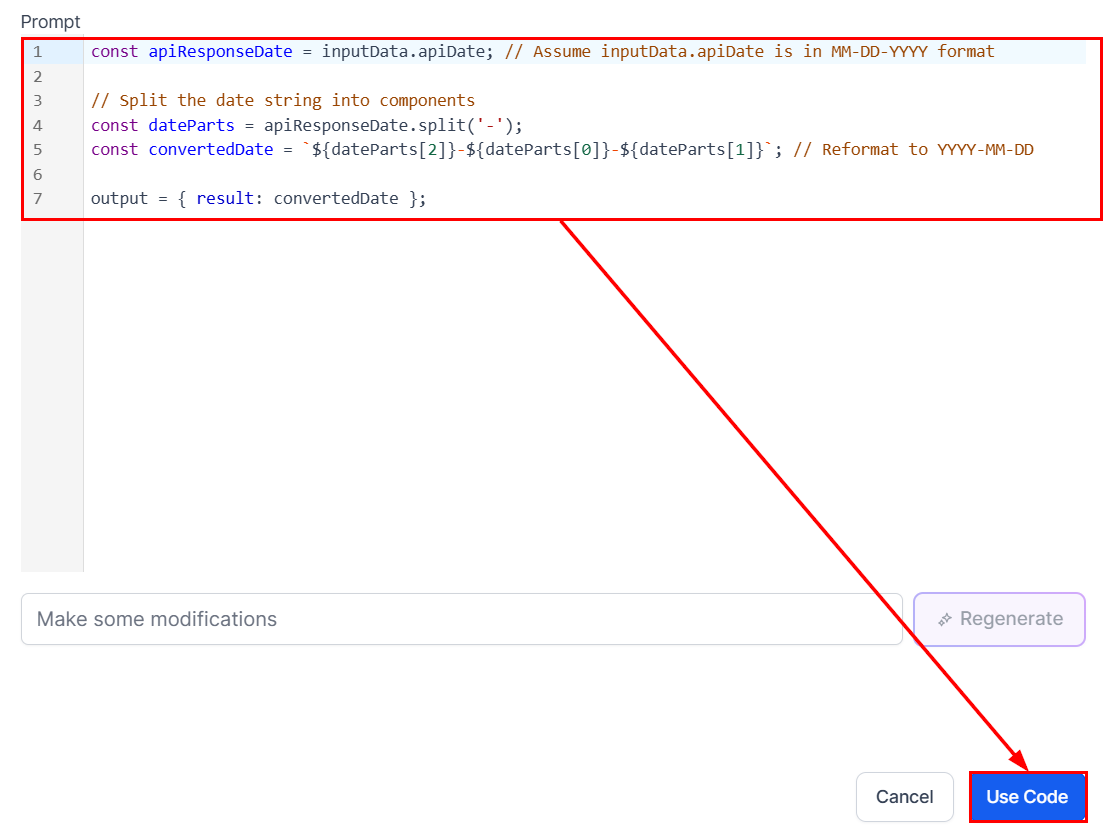
Alternatively, generate custom code snippets using AI by clicking the Build With AI button.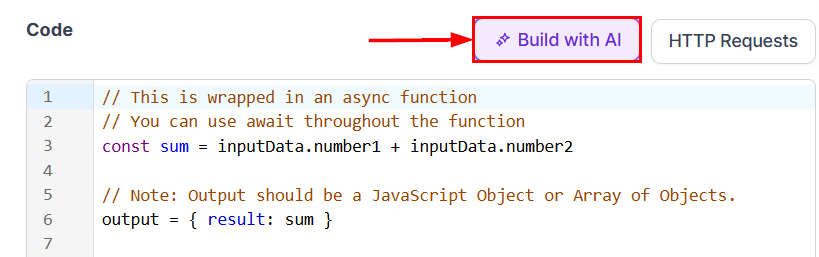
Screenshot
Screenshot
Screenshot

Screenshot
Testing Your Code
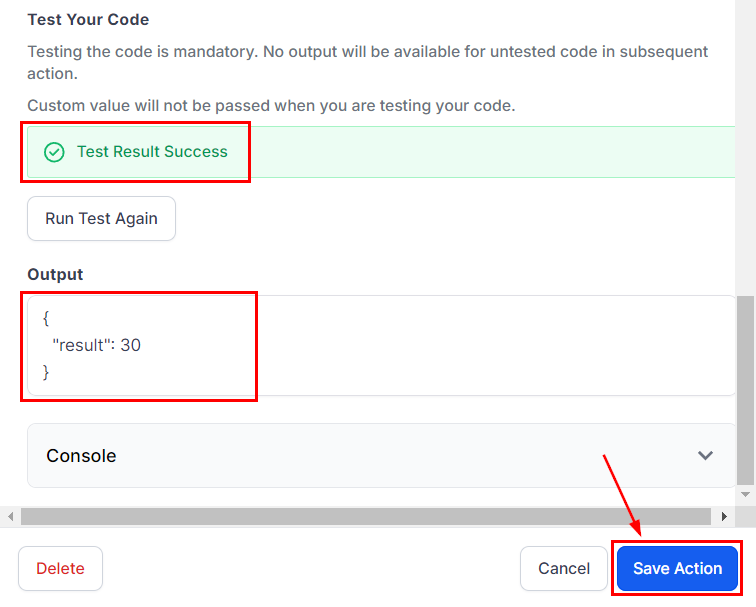
Once your code is complete, click the “Run Test” button, as this step is mandatory. If the code contains any errors, the test result will show as “Test Result Failed.” In this case, carefully review your code and correct any issues. The system will pinpoint the location of the error, making it easier for you to fix.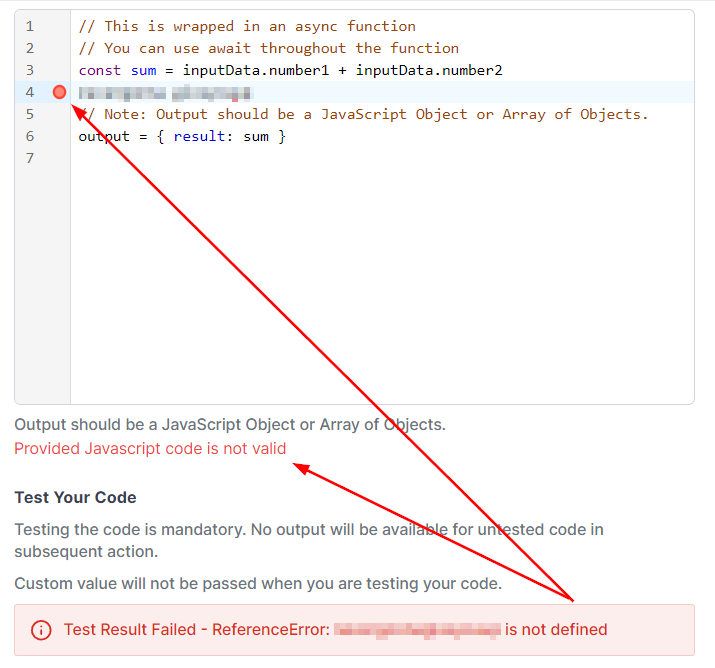
Screenshot
Screenshot
Screenshot
Important notes
- Custom values, except contact information, will not be passed when testing your code.
- Use the Property fields to assign key names and map values from previous steps.
Frequently Asked Questions
Do I need to be a programmer to use the Custom Code Action?
Do I need to be a programmer to use the Custom Code Action?
What happens if I encounter an error while testing the code?
What happens if I encounter an error while testing the code?
Can I use Custom Code to pull data from external sources?
Can I use Custom Code to pull data from external sources?
Are there any limitations to the Custom Code Action?
Are there any limitations to the Custom Code Action?
AI summarize text action
AI summarize text action
How It Works
Click the plus icon in your desired workflow builder, then locate and select the “AI Summarize” action from the list.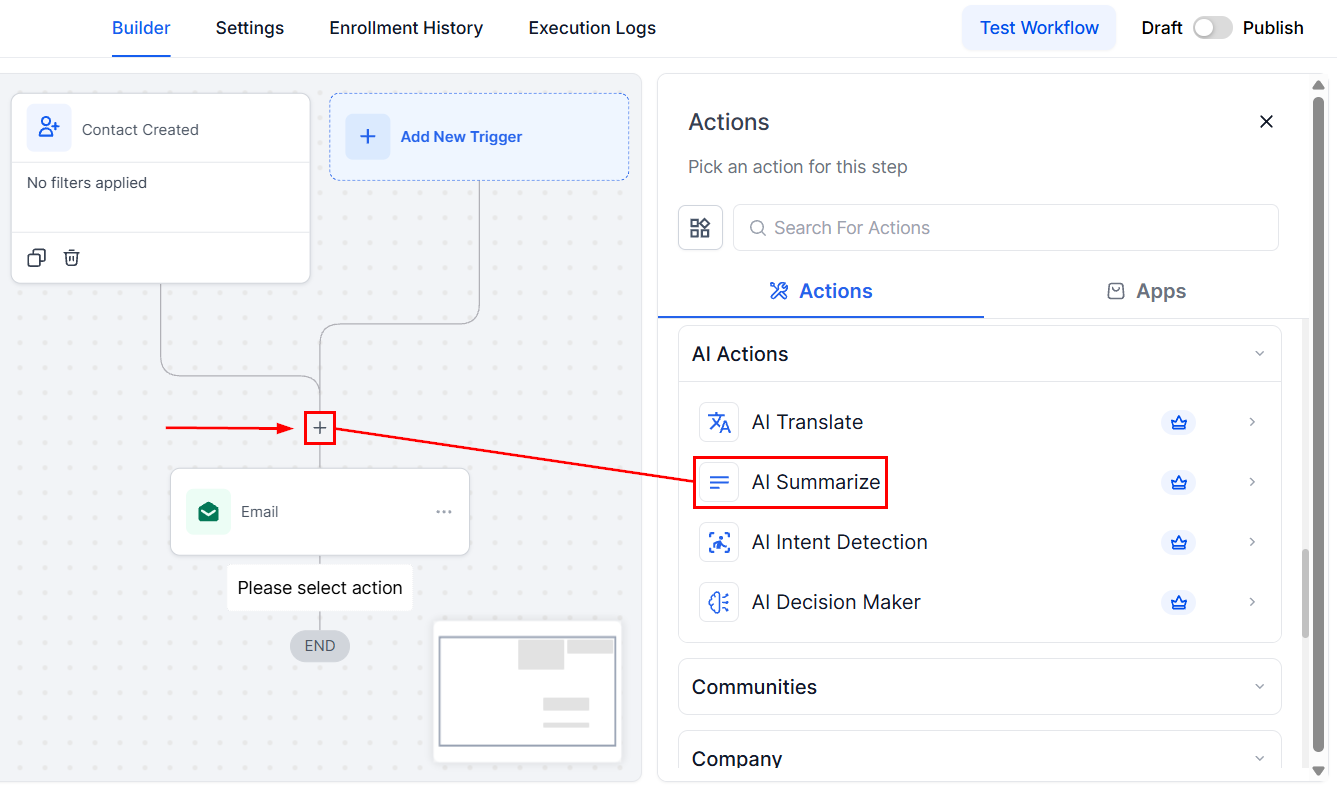
Screenshot
Action Name
Once selected, you will be able to update the action name, if required. This allows you to assign a clear and descriptive name to give context to the action’s purpose.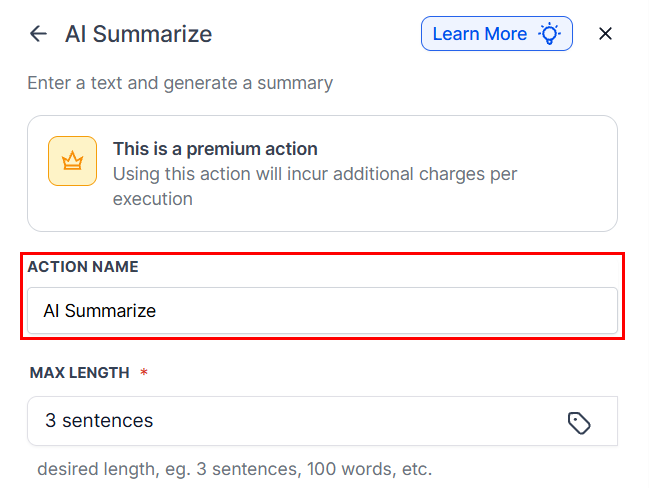
Screenshot
Max Length
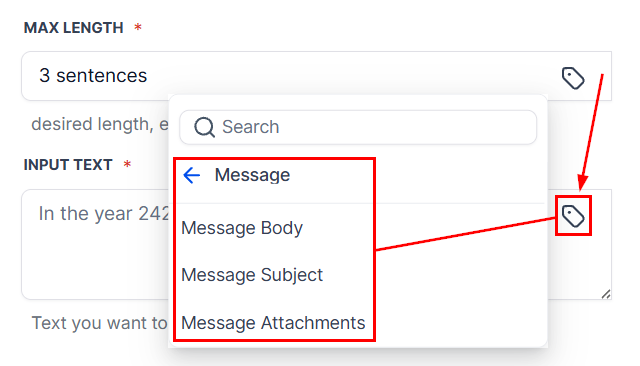
Enter the maximum length of the summarized message. For example, 1 paragraph, 2 sentences, or 3 words. Click the tag icon to utilize a custom value instead.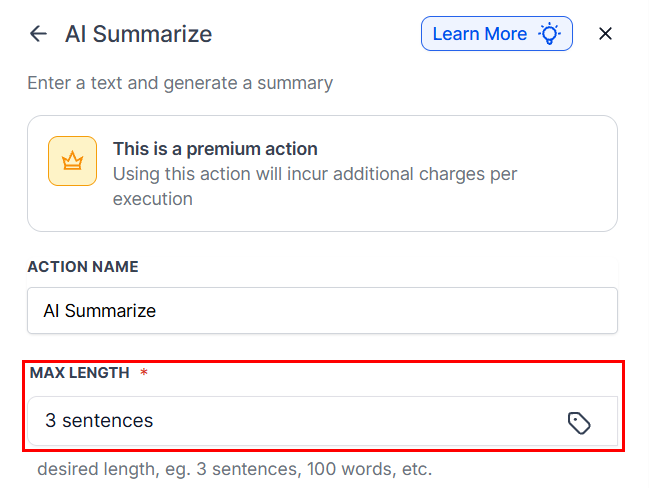
Screenshot
Input Text
Enter the text you want to summarize or use a custom value.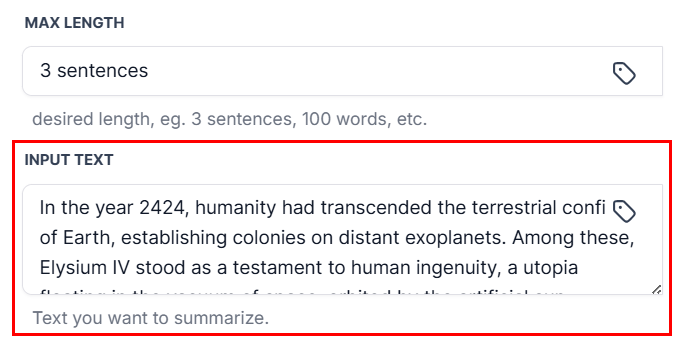
Screenshot
Screenshot
AI intent detection action
AI intent detection action
How It Works
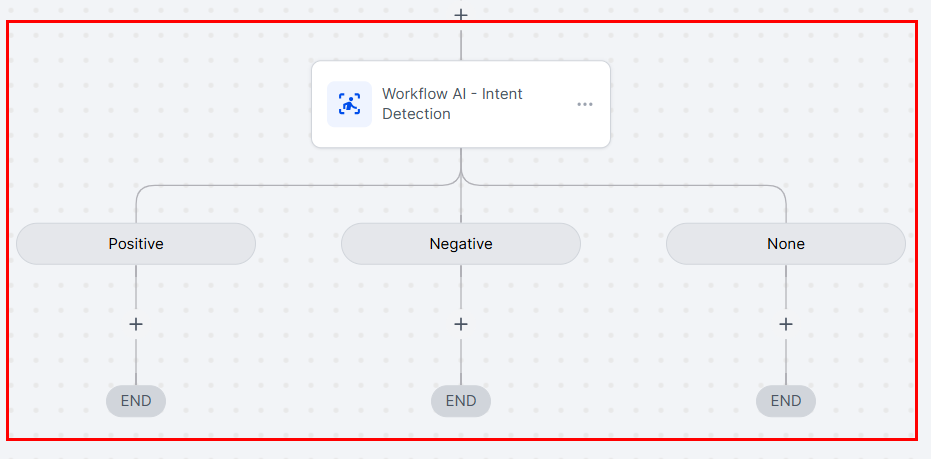
Begin by creating a new workflow or editing an existing one within the platform. Then, add a suitable trigger that captures the contact message or interaction you want to analyze.Insert Intent Detection Action
Navigate to the actions list and select the “Workflow AI - Intent Detection” action. This action will evaluate the message’s content.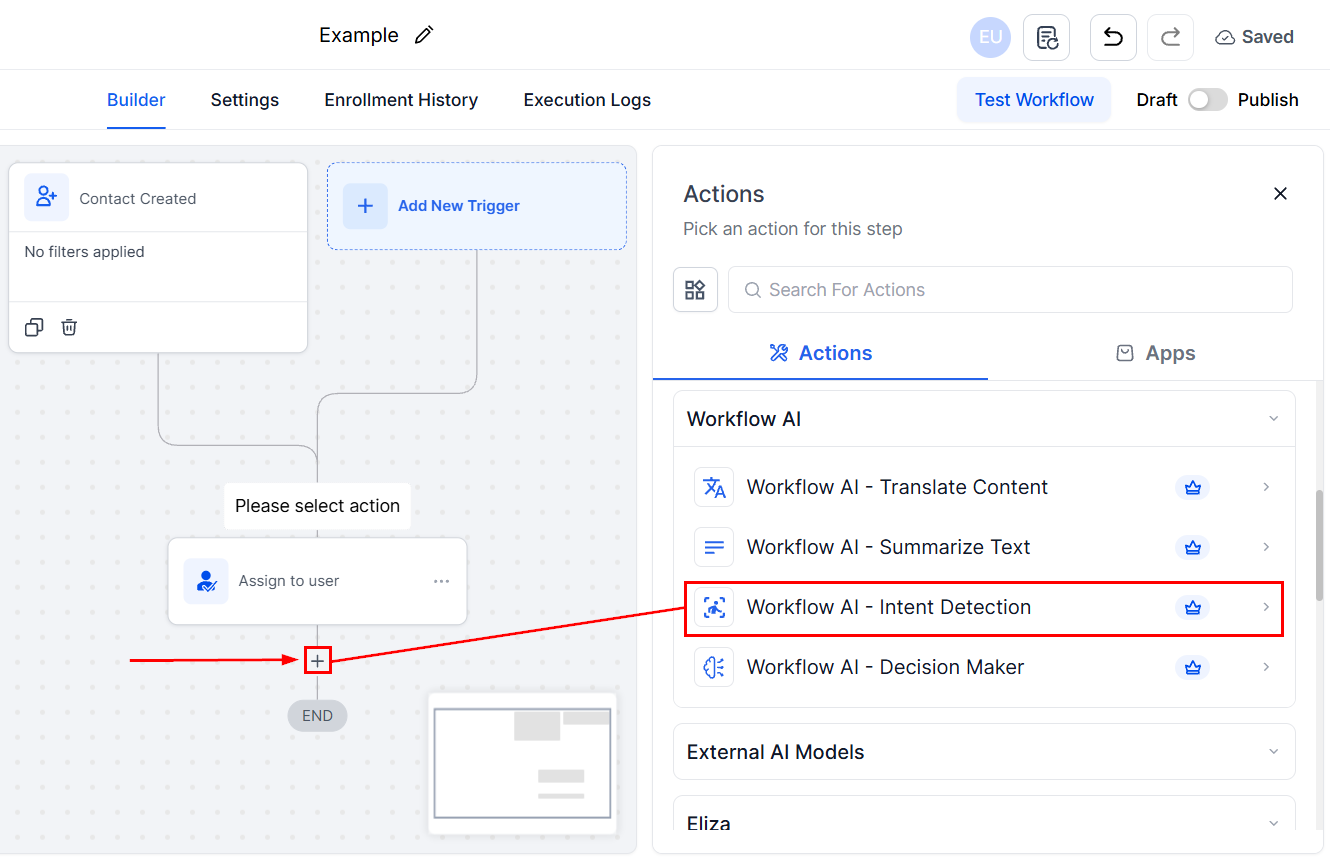
Screenshot
Action Name
Once selected, you will be able to update the action name, if required. This allows you to assign a clear and descriptive name to give context to the action’s purpose.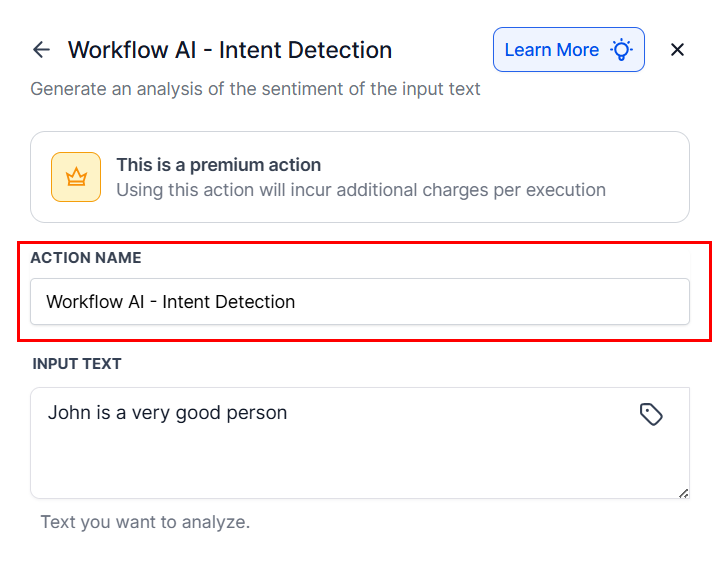
Screenshot
Input Text
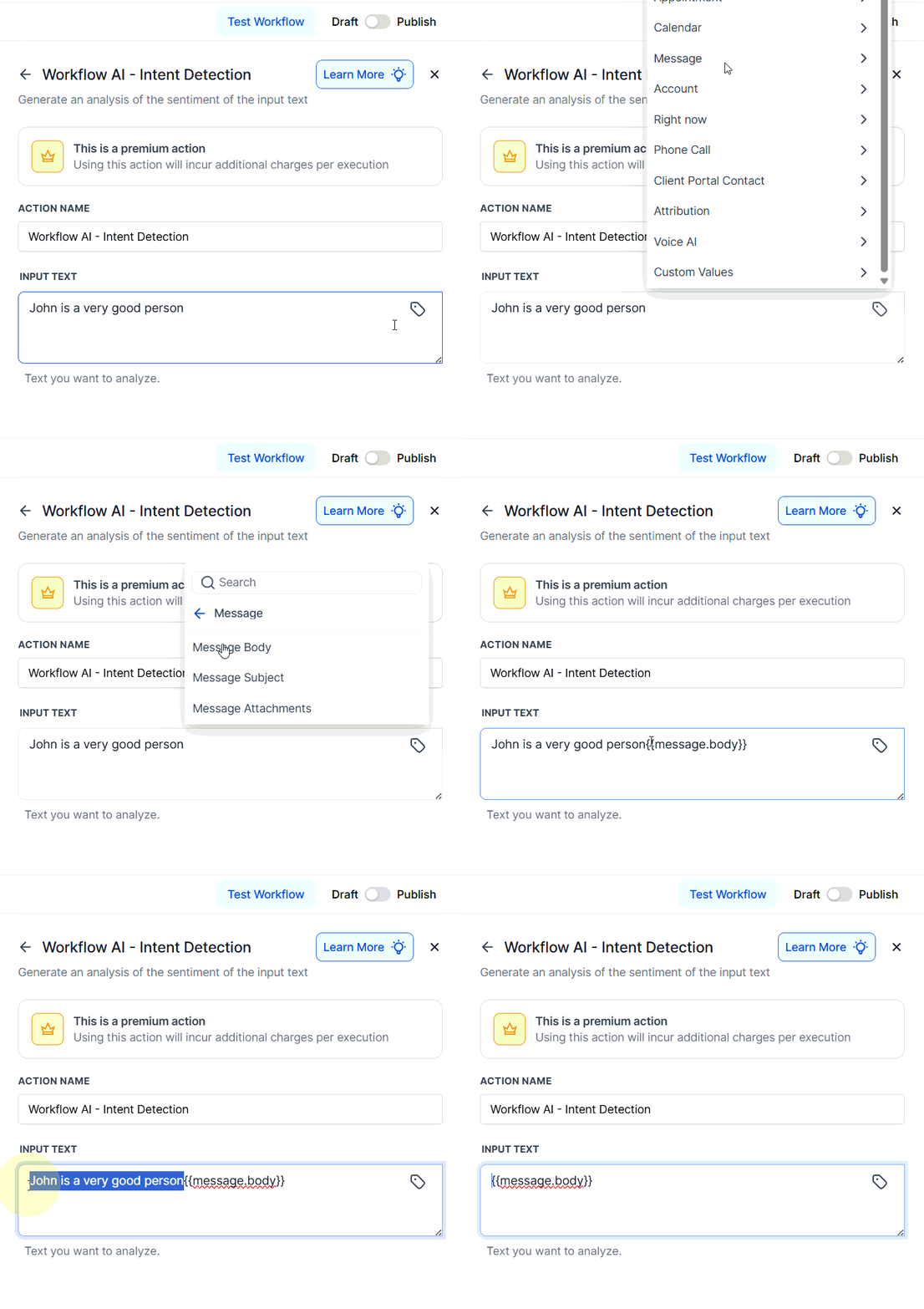
Specify the message source or input field that the intent detection will analyze.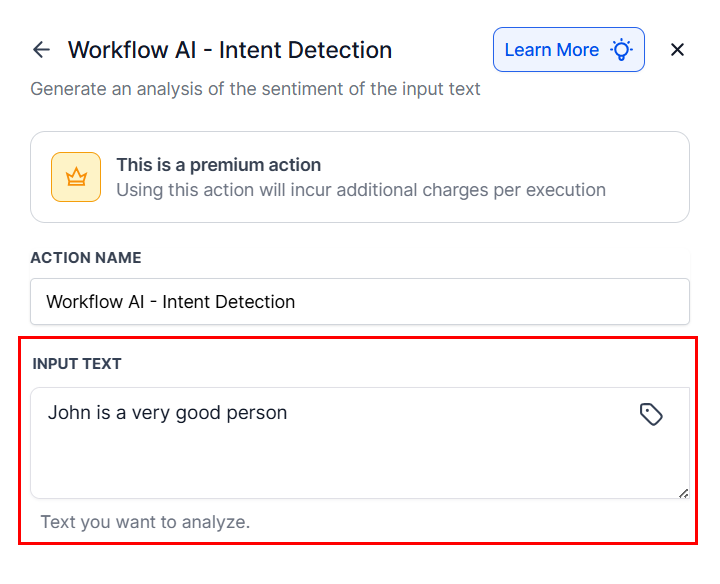
Screenshot
Screenshot
Screenshot
Practical Examples & Use Cases
- Lead Qualification: Automatically identify if a message indicates genuine interest or questions, enabling faster follow-up.
- Support Routing: Detect support-related queries to route contacts directly to a support team or chatbot, reducing wait times.
- Product Inquiries: Detect questions about products or services, enabling the system to respond with relevant information or offers.
- Customer Feedback: Identify positive or negative feedback to trigger appropriate outreach or escalation.
Validations & Constraints
- The feature requires a clear input message to analyze.
- Correct classification depends on the quality of training data and prompt setup.
- It recognizes predefined or custom intents—you should define or train these for optimal results by adding relevant filters to the trigger, such as the “Contains Phrase” filter for the Customer Replied Trigger.
- Misclassification can occur if the message is ambiguous or outside the scope of the training data.
- Ensure that the intent detection is tested thoroughly within your workflow to avoid misrouting.
AI translate content action
AI translate content action
How It Works
Add the Action
Within your workflow builder, click the plus icon to add a new action and select “Translate Content”.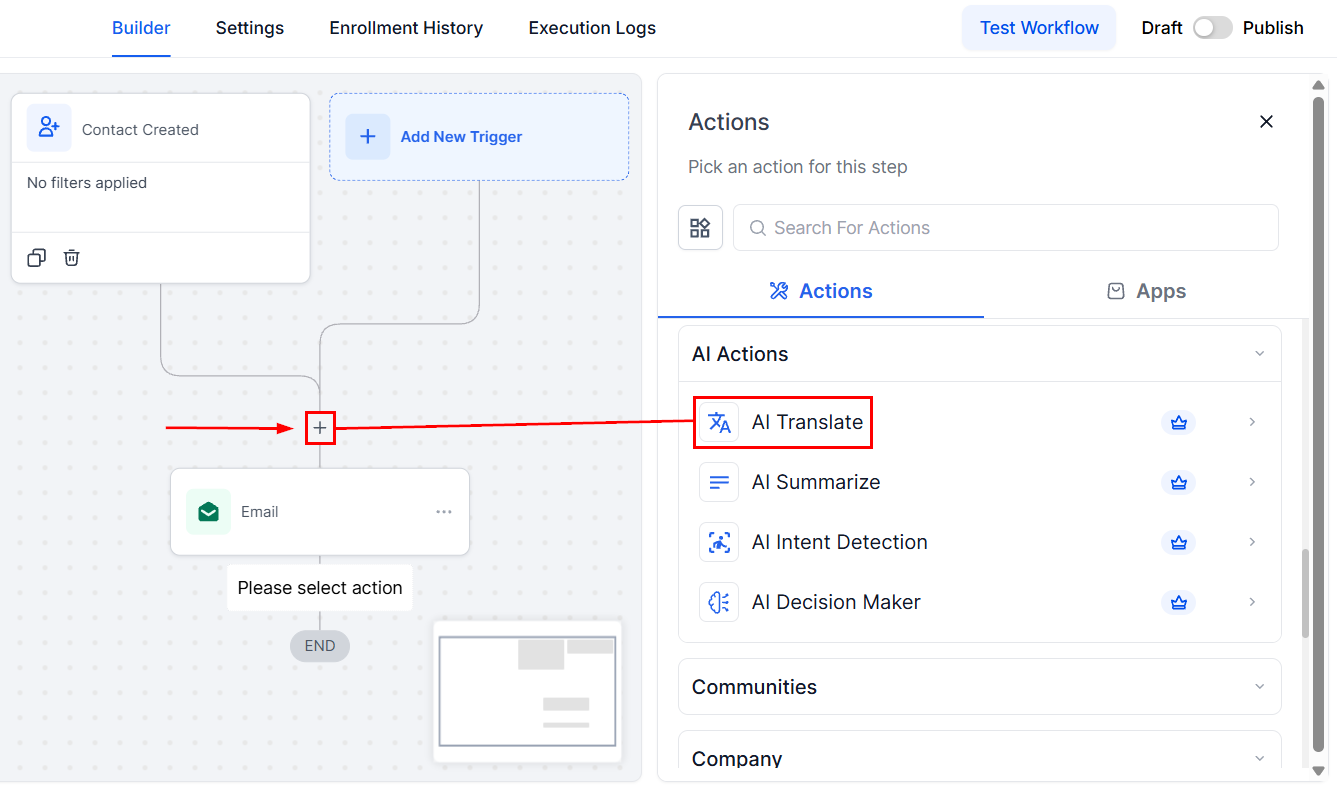
Screenshot
Action Name
Once selected, you will be able to update the action name, if required. This allows you to assign a clear and descriptive name to give context to the action’s purpose.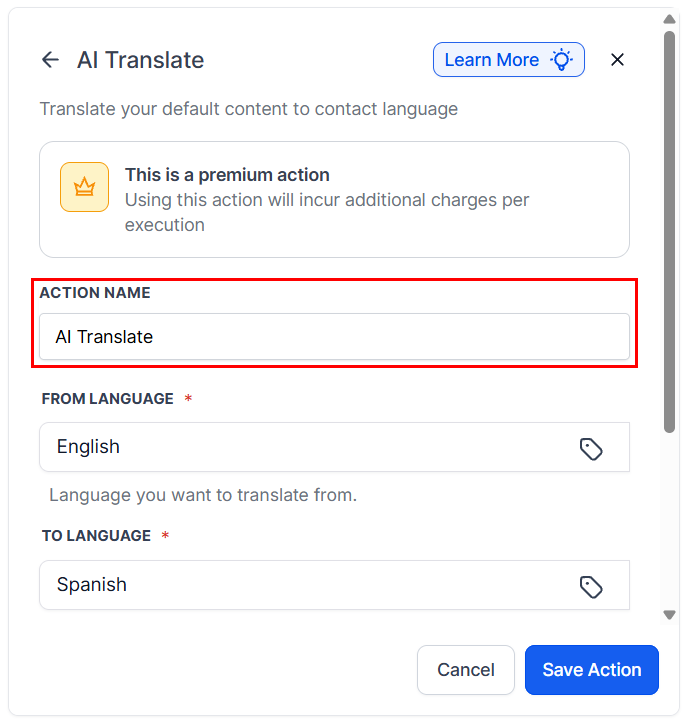
Screenshot
Select Source and Target Languages
Choose the language of the original content (1) and the language you want to translate into (2). You can utilize custom values to simplify this process.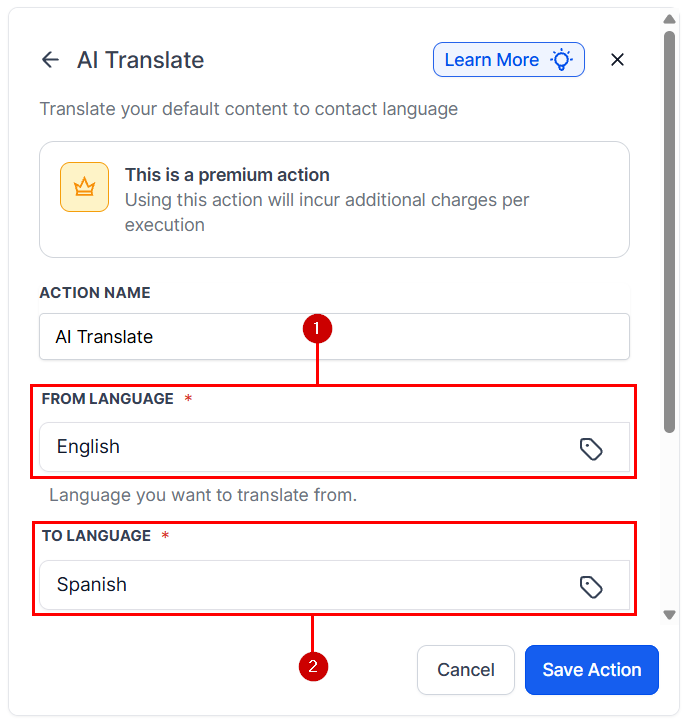
Screenshot
Input Content
Specify the text or content you want to translate. You can use static text or dynamic custom fields as the source.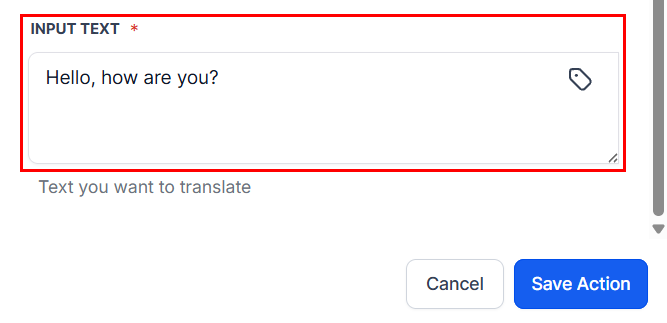
Screenshot
Validations & Constraints
- You must specify both source and target languages; otherwise, the action will not execute.
- Ensure that the content to be translated is available and correctly formatted.
- Due to translation limitations, complex or idiomatic content may not translate perfectly; review translations for accuracy when necessary.
Use Cases
- Multilingual Customer Support: Automatically translate customer inquiries received in one language to your team’s primary language, and reply using translated or original content, enhancing communication with international clients.
- Localized Marketing Campaigns: Translate promotional messages, email content, or social media posts into multiple languages to target diverse audiences without manual rewriting.
- Global Lead Engagement: When capturing leads from different regions, dynamically translate follow-up messages or instructions to ensure clarity and comfort for the recipient.
AI decision maker action
AI decision maker action
Key Benefits
- ****Reduced Workflow Maintenance: ****AI dynamically adapts to changes in contact data, minimizing the need to frequently update filters or logic rules.
- ****Scalable and Efficient: ****Whether you’re processing hundreds or thousands of contacts, the AI ensures smooth routing without compromising performance.
- ****Minimizes Human Error: ****Logic-based automation eliminates inconsistencies caused by manual routing or outdated rules.
- ****Natural Language Input: ****Use plain English instructions instead of complex logic blocks—no technical knowledge required.
How to Set Up The AI Decision Maker
Inside the workflow builder, set up a workflow trigger (e.g., “Contact Changed” or “Form Submitted”) before adding the AI action.Next, click the + icon where you want the decision to occur. From the right panel, scroll to AI Actions and select AI Decision Maker.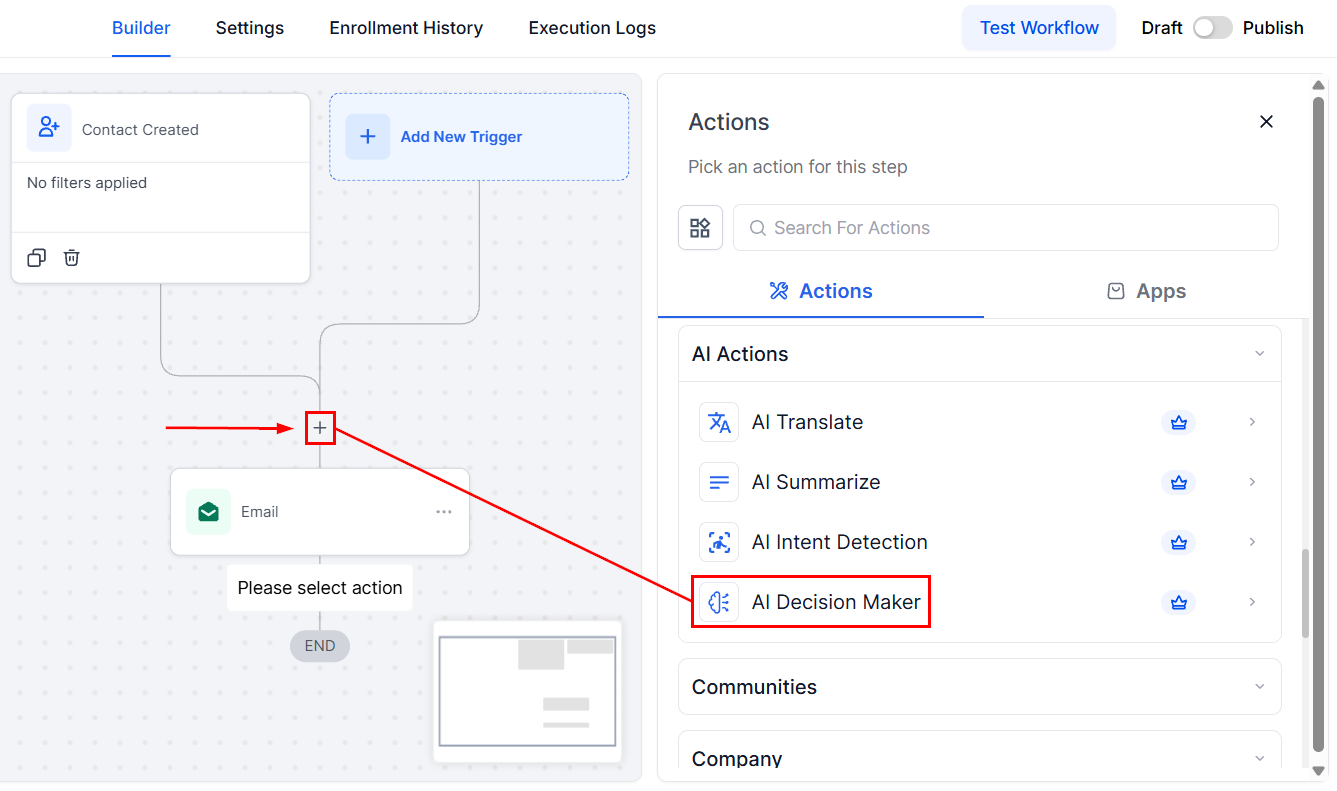
Screenshot
Name the Action
Provide a clear and descriptive name under Action Name to easily identify this step later, especially when using multiple branches or AI actions.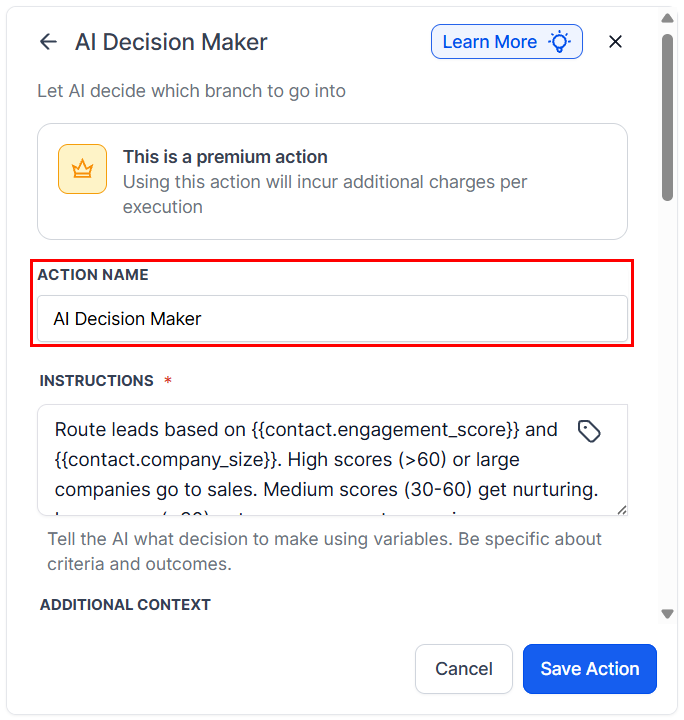
Screenshot
Write Clear Instructions for the AI
In the Instructions field, explain what the AI should consider when routing contacts. Be specific and use plain language.****Example: ****“Evaluate the contact’s engagement score and company size. If the score is above 60 or the company size is large, send to sales. If the score is between 30–60 and the company is small/medium, send to nurturing. If the score is below 30, send to re-engagement.”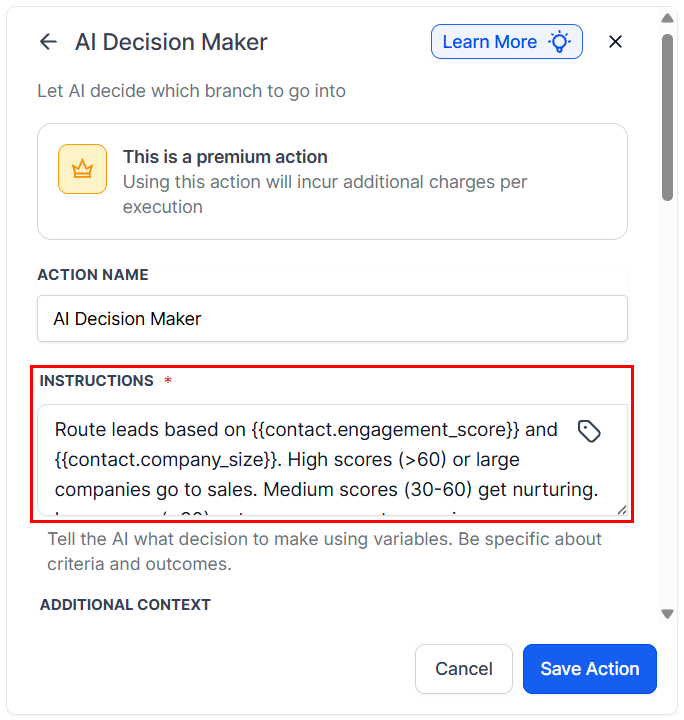
Screenshot
{{contact.engagement_score}}, {{contact.company_size}}, and {{contact.tags}}.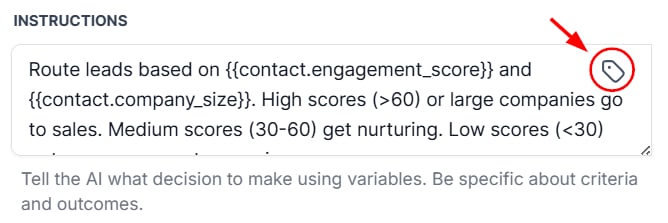
Screenshot
Add Business Context
In the Information field, provide background about your business to improve the AI’s decision-making accuracy. This could include your product range, customer segments, or sales capacity.****Example: ****“We provide services to companies with 10–500 employees. Small = 1–50, Medium = 51–200, Large = 200+. Our sales team can manage up to 20 leads per week. Engagement scores range from 0–100.”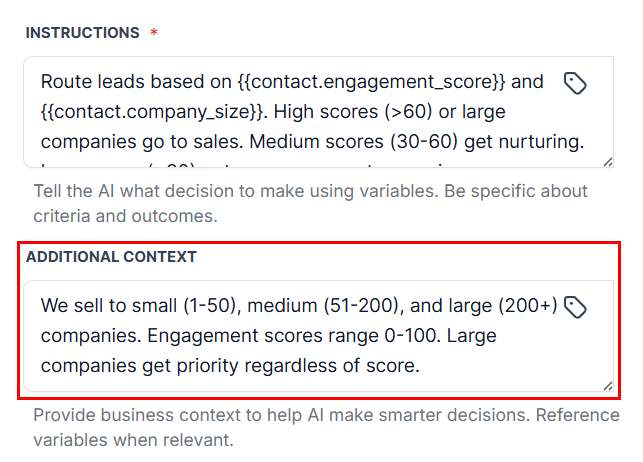
Screenshot
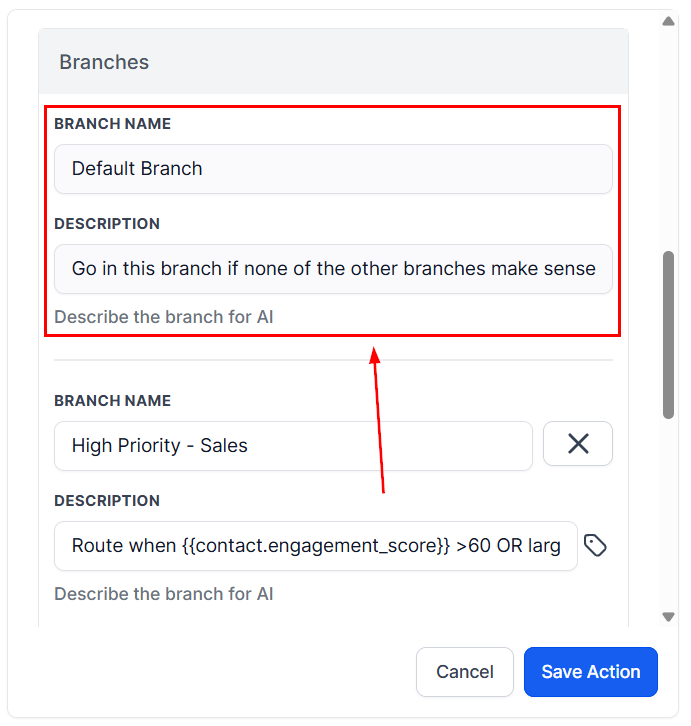
Default Branch (Mandatory)
The Default Branch is automatically included and serves as a fallback for any contact that doesn’t meet your defined rules.- Name: Fixed as “Default Branch”
- Description: Explains fallback criteria
Screenshot
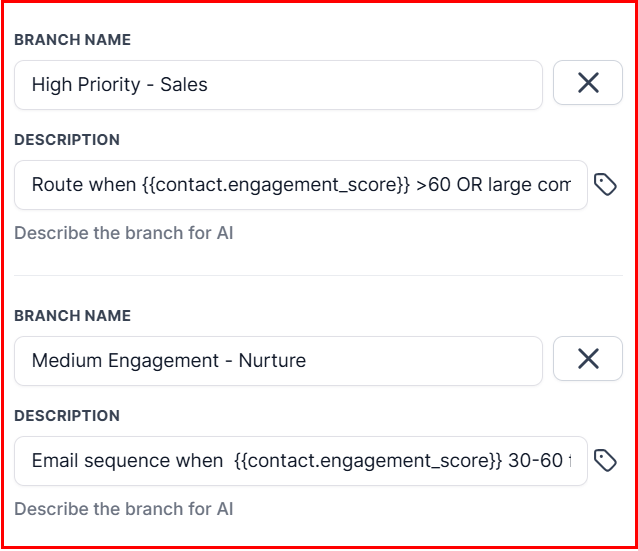
Add a Custom Branch
For each unique routing path, define a custom branch:- Branch Name: e.g., “Send Discount Offer.”
- Description: Define the qualifying conditions.**
Screenshot
Add Additional Branches
Click + New Branch to create more paths. These can be used for different audience segments or actions like sending product education, re-engagement content, or promotional offers—based on contact data or behavior.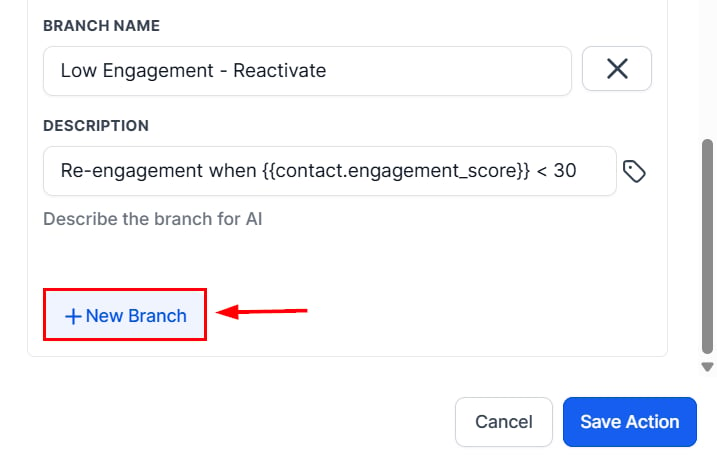
Screenshot
Save the Action
Once all branches and AI instructions are complete, click Save Action. Your AI Decision Maker is now active and ready to make smart routing choices within your workflow.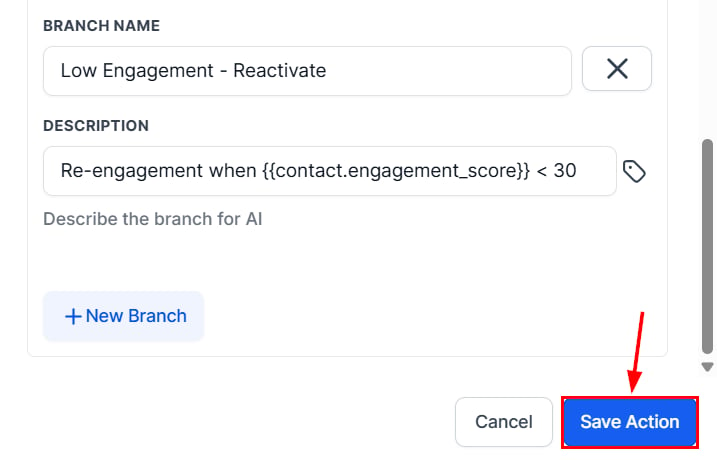
Screenshot
Frequently Asked Questions
How does the AI determine which branch to use?
How does the AI determine which branch to use?
What happens if a contact doesn’t match any rules?
What happens if a contact doesn’t match any rules?
Can I edit or delete the Default Branch?
Can I edit or delete the Default Branch?
How do I track which path a contact followed?
How do I track which path a contact followed?
Can I use data from forms or surveys?
Can I use data from forms or surveys?
Notion actions and triggers
Notion actions and triggers
Key Benefits
With this integration, you can:- Sync customer data into Notion databases automatically
- Create tasks, notes, or updates based on CRM events
- Build live, CRM-powered knowledge bases and content repositories
Triggers and Actions
Triggers (Notion → CRM)
These are events in Notion that trigger workflows within your CRM:Actions (CRM → Notion)
These are actions the CRM can execute within Notion through automated workflows:Getting Started with Notion Integration
Search in Workflows
Open your CRM workflow builder and search for any Notion actions or triggers you wish to add to your workflow.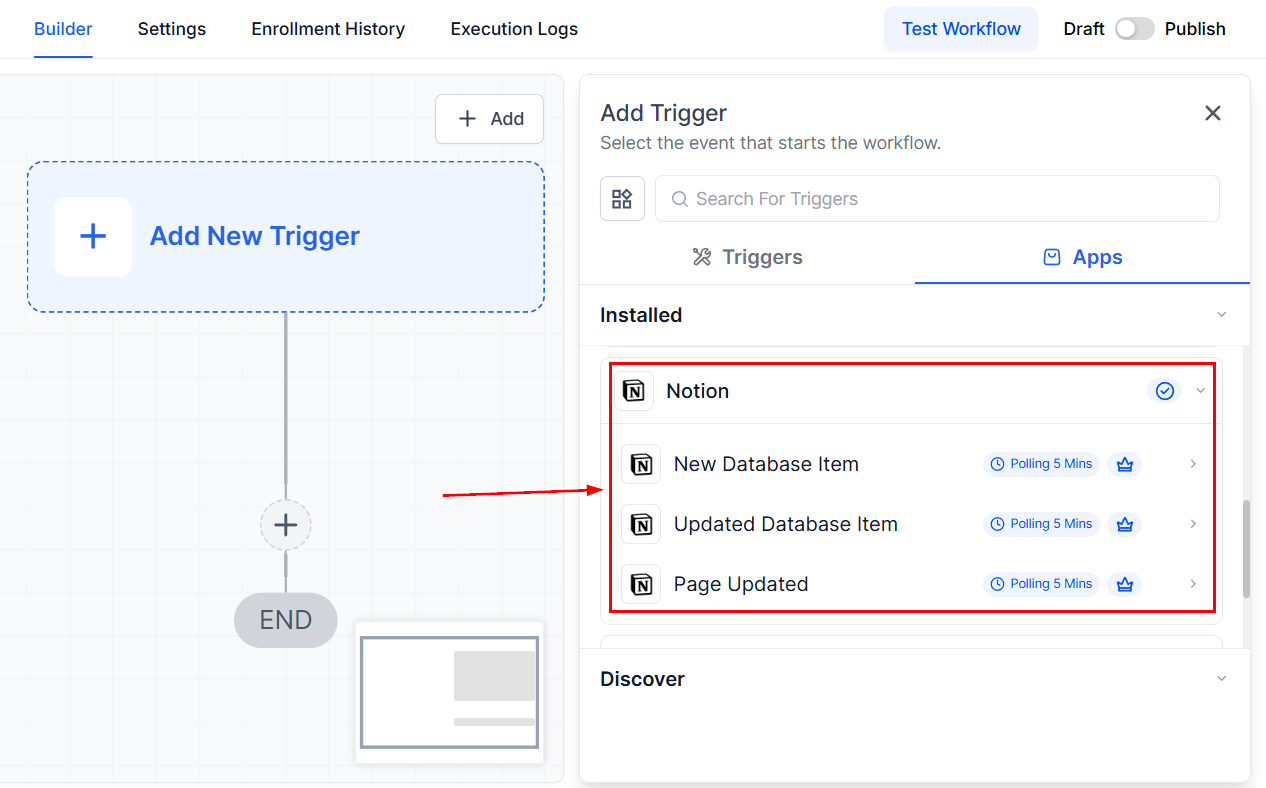
Screenshot
Connect Your Notion Account
If your Notion account is already connected, you’ll be able to configure options immediately. If not, simply click Connect Now and complete the authorization process via OAuth.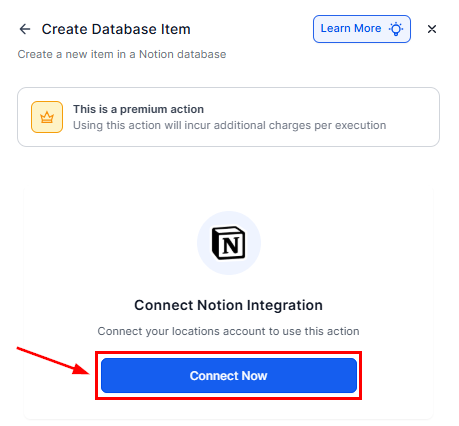
Screenshot
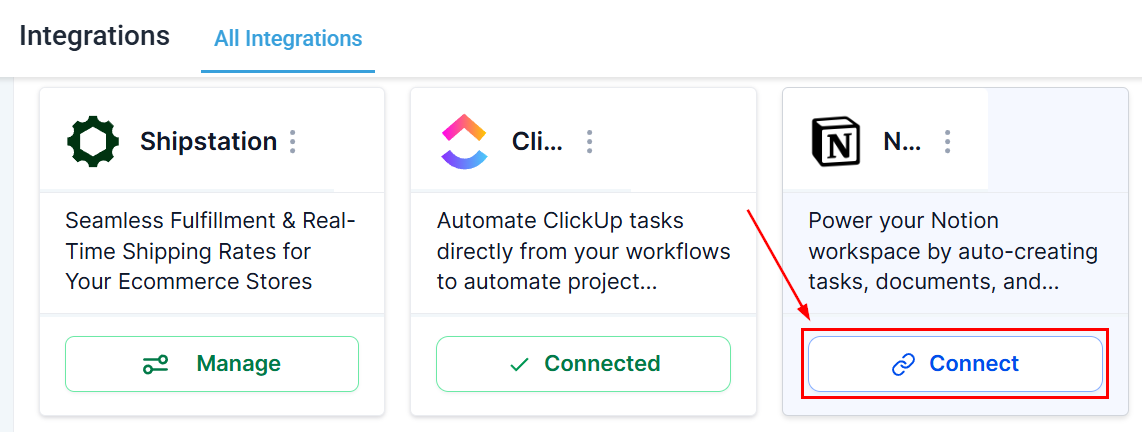
Screenshot
Common Use Cases
Use Case 1: Create Notion Docs from Form Submissions
Goal: Capture form submissions in Notion for project tracking or client onboarding.Workflow Setup:- Trigger: Form Submitted
- Filter: Form Name = “Onboarding Form”
- ****Actions: ****Create Database Item (Notion) and Add Comment (Notion)
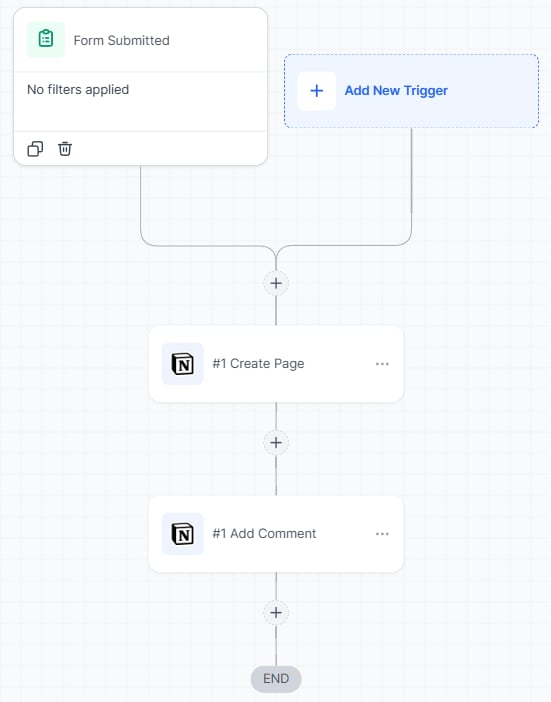
Screenshot
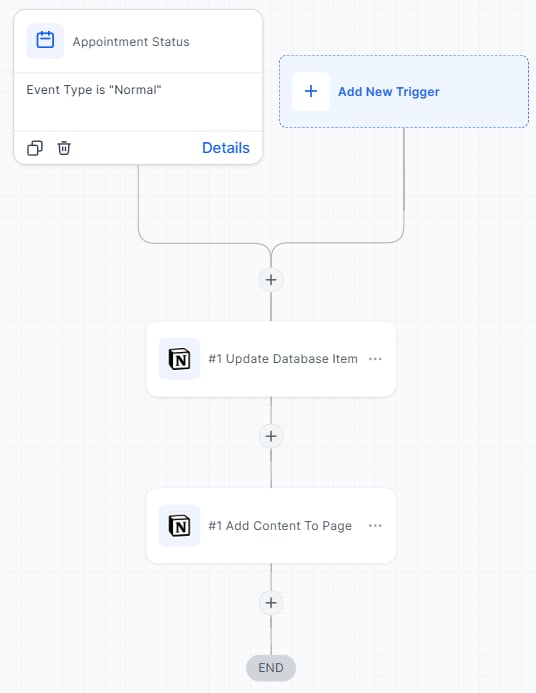
Use Case 2: Sync Appointment Outcomes to Notion Logs
Goal: Maintain a meeting log in Notion for better tracking.Workflow Setup:- Trigger: Appointment Status Changed
- Filter: Calendar = “Consultations”
- ****Actions: ****Update Database Item (Notion) and Add Content to Page (Notion)
Screenshot
Use Case 3: Auto-Generate Proposal Pages
Goal: Automatically generate personalized proposal pages when a sales opportunity advances.Workflow Setup:- Trigger: Pipeline Stage Changed
- Filter: Status = “Won”
- ****Actions: ****Create Page (Notion), Add Content to Page, and Add Comment
{{contact.name}}” is created with summary content and team mentions after a deal progresses to the “Proposal” stage.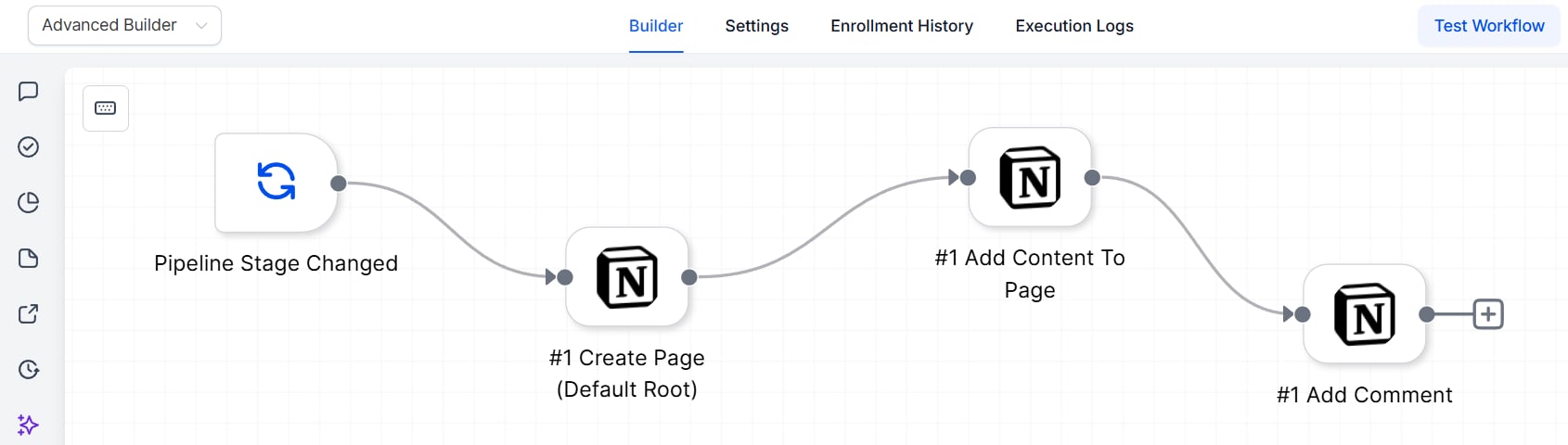
Screenshot
Frequently Asked Questions
Do I need a paid Notion plan to use this integration?
Do I need a paid Notion plan to use this integration?
Are there limits on the number of workflows with Notion?
Are there limits on the number of workflows with Notion?
Google Contacts actions and triggers
Google Contacts actions and triggers
Why It’s Valuable
This integration ensures that your team’s contact lists across Gmail and other Google services remain accurate, up to date, and easily manageable. The result is improved efficiency, reduced errors, and a more streamlined workflow.Available Triggers & Actions
Triggers
These are events in Google Contacts that can initiate a workflow in your CRM:Actions
These are actions your CRM can perform within Google Contacts:Getting Started with Google Contacts
Search in Workflows
In the workflow builder, search for Google Contacts triggers or actions (e.g., Find Contact, Create Contact).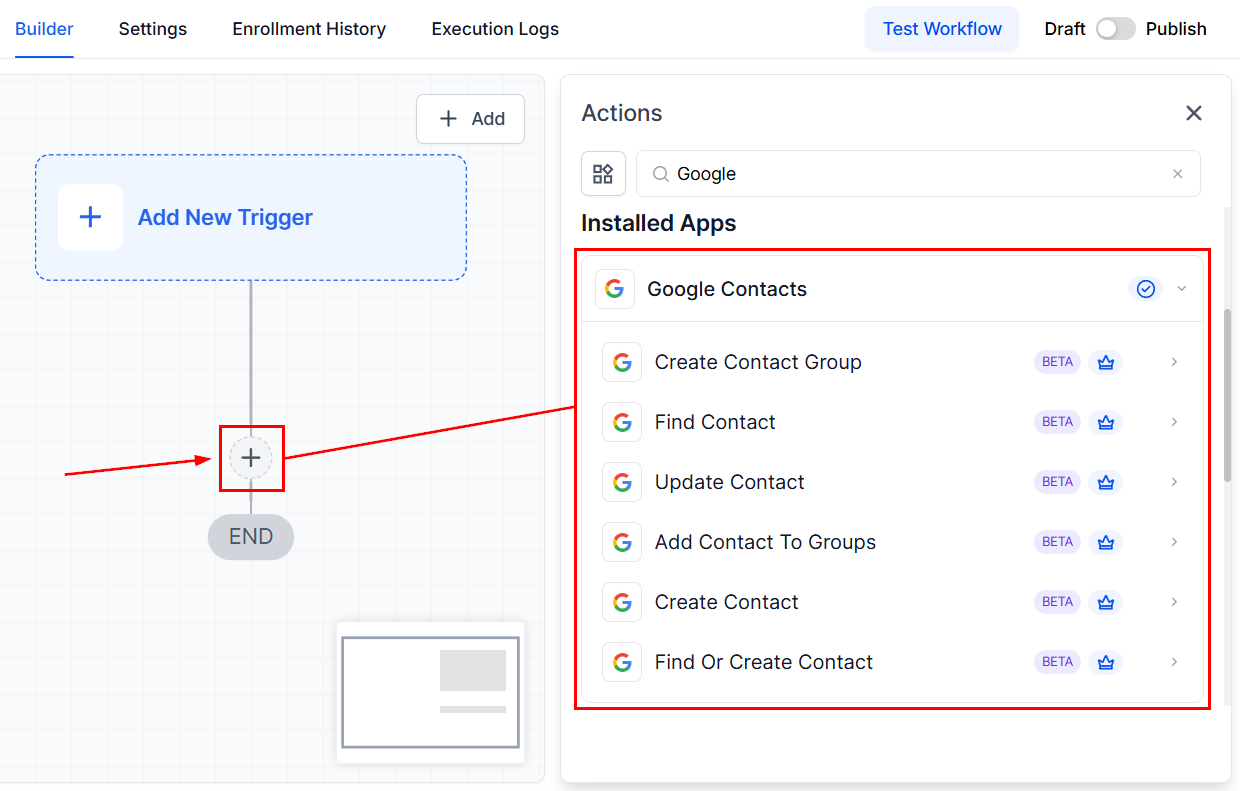
Screenshot
Connect Your Account
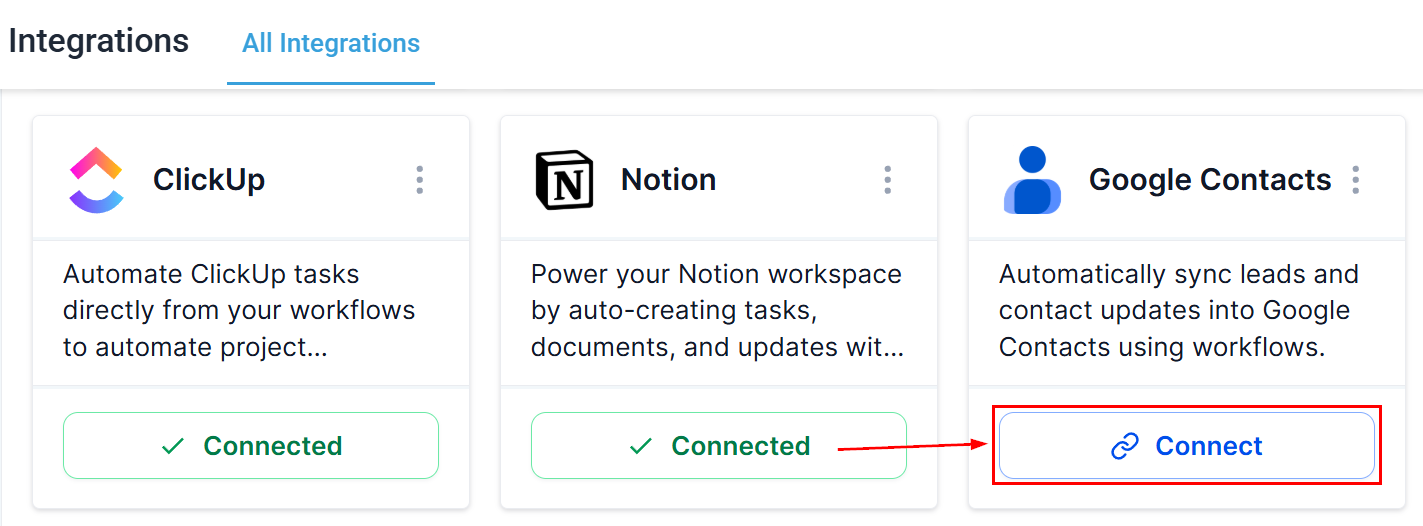
If Google Contacts is already connected, you’ll be able to configure fields right away. If not, click Connect Now and log in with your Google account.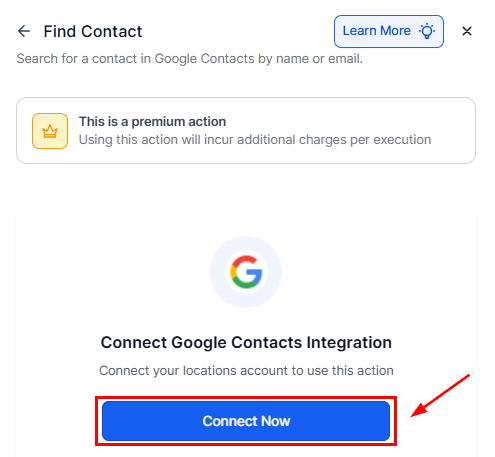
Screenshot
Screenshot
Common Use Cases
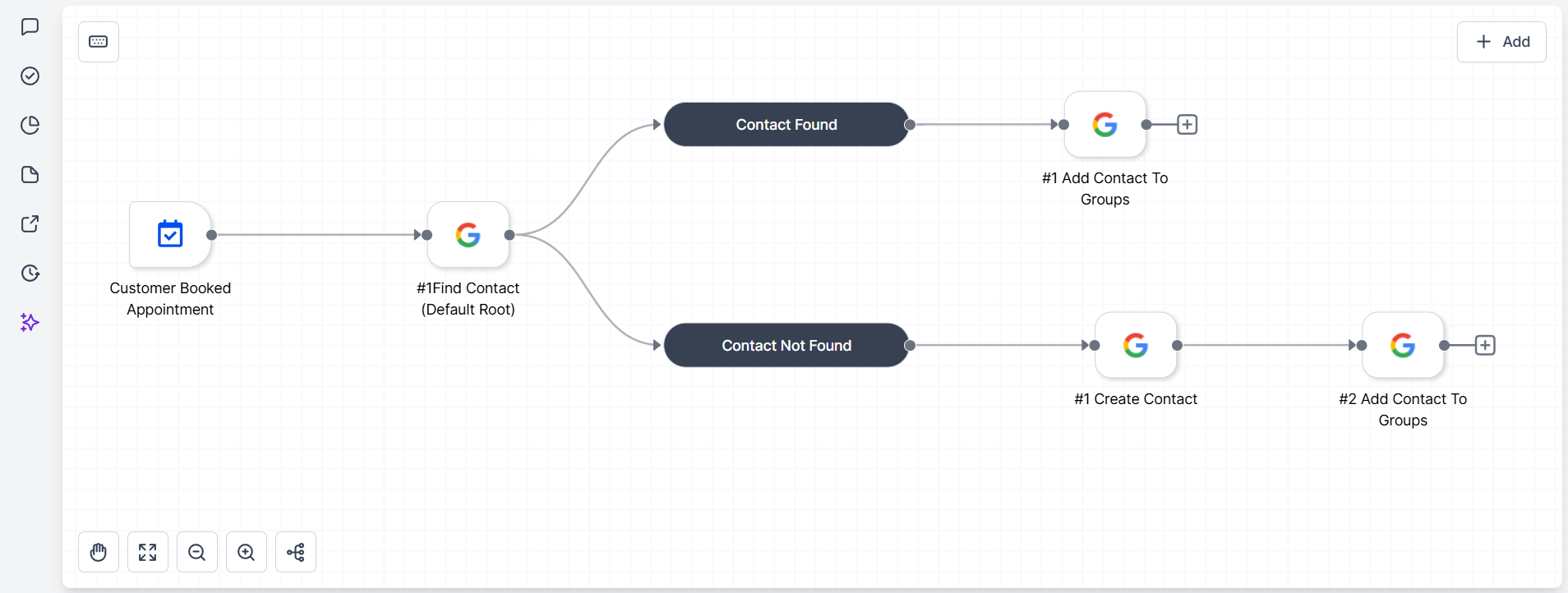
Save Contacts from Appointments
Use Case: Automatically add clients to Google Contacts when they book an appointment and organize them into groups (e.g., Consults, Demos).Workflow Example:- Trigger: Appointment Booked
- Filter: Calendar = Demo Calls
- Actions: Find or Create Contact (Google Contacts) and Add Contact to Groups → e.g., Demo Leads.
Screenshot
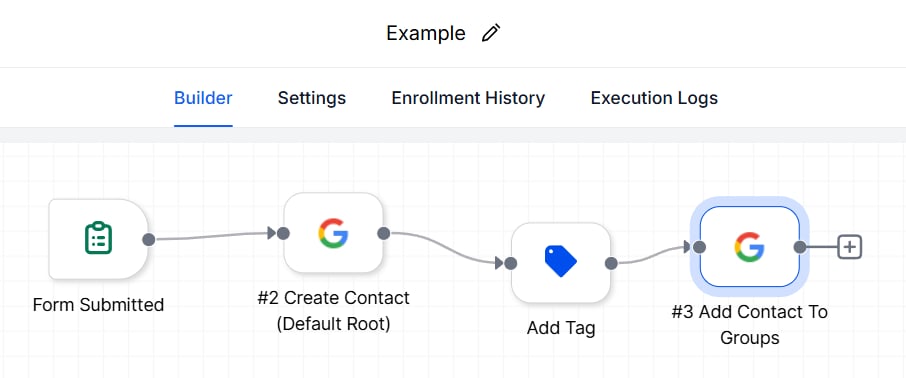
Turn Form Submissions into Google Contacts
Use Case: Capture lead data from form submissions and sync it into Google Contacts for smooth follow-ups.Workflow Example:- Trigger: Form Submitted
- Filter: Form Is = Website Lead Form
- Actions: Find or Create Contact and Update Contact (for resubmissions with new info).
Screenshot
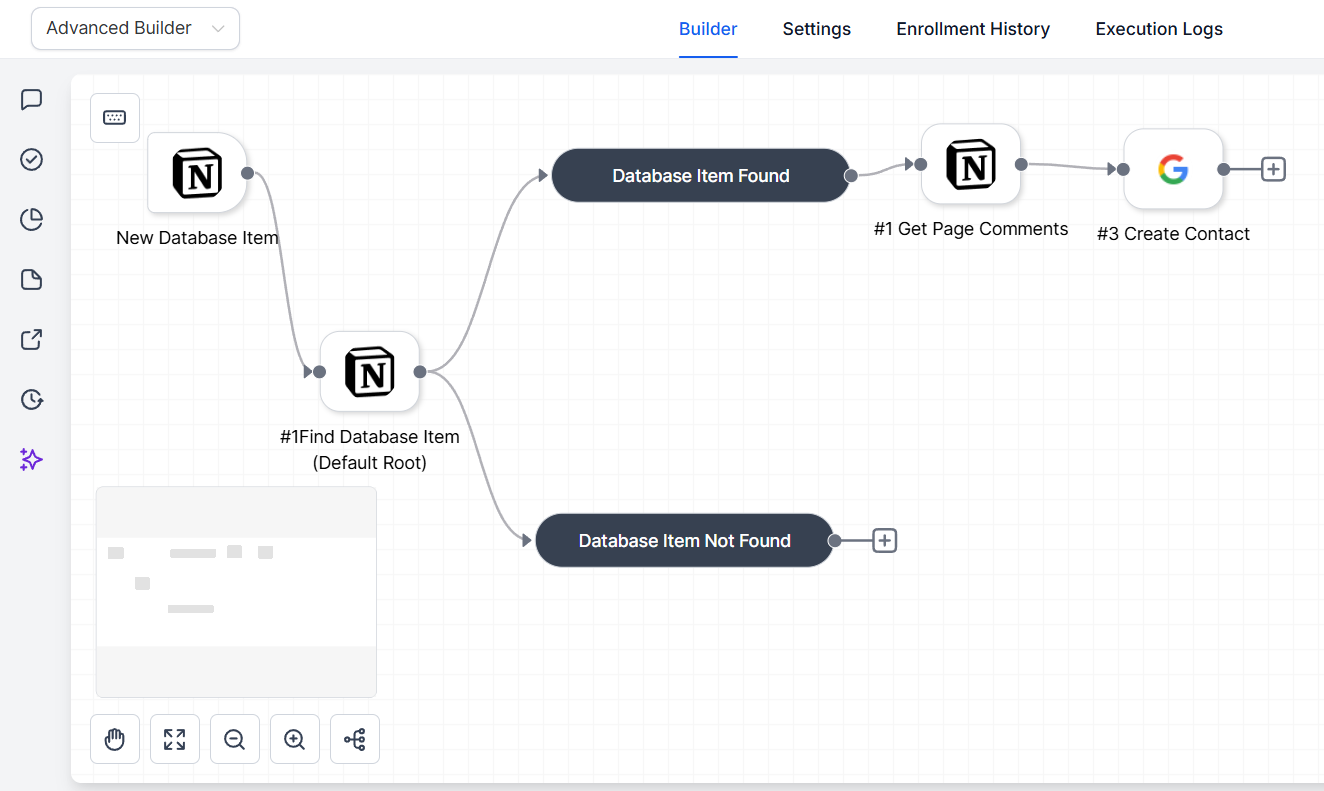
Create Google Contacts from Notion Records
Use Case: Automatically create Google Contacts from new records in Notion.Workflow Example:- Trigger: Notion – New Database Item
- Database: New Users Data
- Actions: Find Record in Database, Create Contact, and Add Contact to Groups
Screenshot
Frequently Asked Questions
Can I update contacts already in Google Contacts?
Can I update contacts already in Google Contacts?
Do I need a paid Google account for this to work?
Do I need a paid Google account for this to work?
ClickUp actions and triggers
ClickUp actions and triggers
Why It Matters
With this integration, you can:- Automatically transform CRM events (such as form submissions or appointment outcomes) into ClickUp tasks.
- Keep project management activities aligned with client interactions.
- Reduce manual task creation and project updates, saving valuable time.
Triggers and Actions
Triggers (ClickUp → CRM)
ClickUp triggers use webhooks through ClickUp’s API. When a condition is met (such as a new task creation or a status change), the event is instantly sent to your CRM to initiate workflows.Events in ClickUp that can initiate workflows:Actions (CRM → ClickUp)
Tasks your CRM can execute within ClickUp workflows:Getting Started
Search in Workflows
Open the workflow builder and search for any ClickUp actions or triggers you want to add.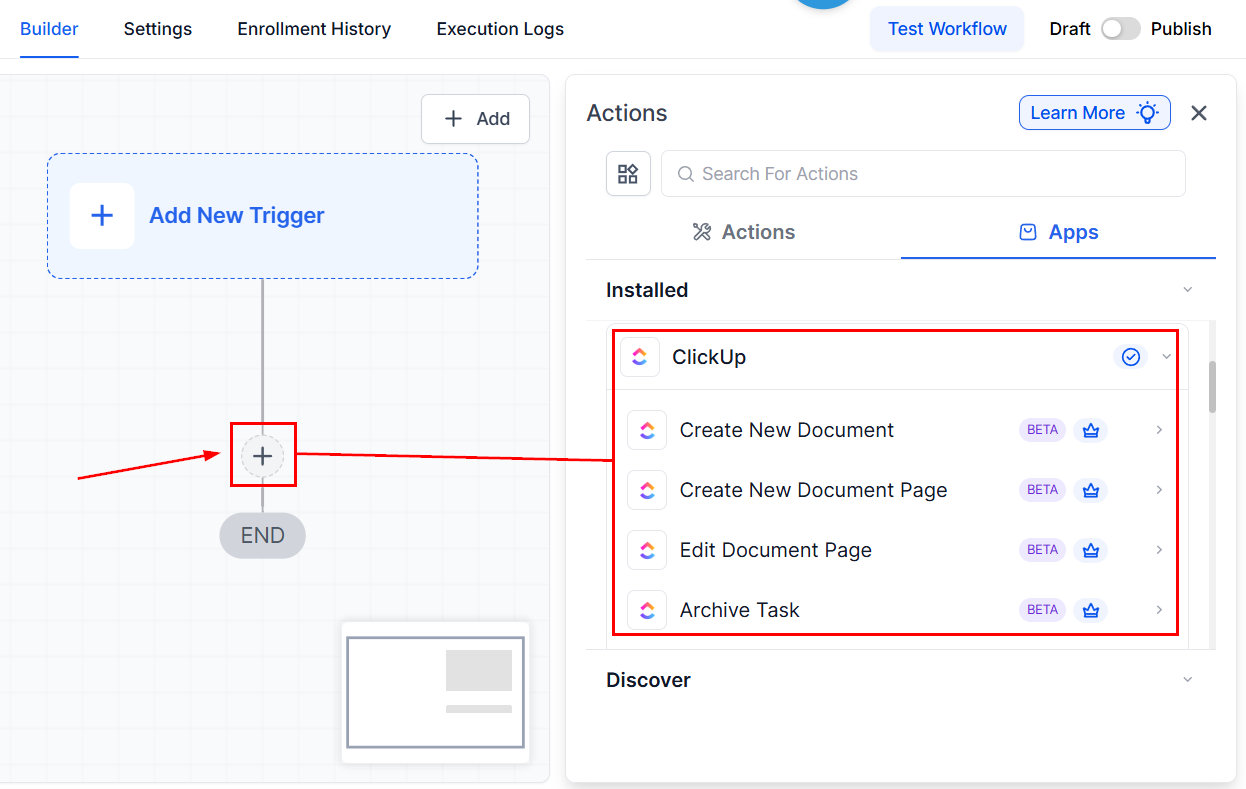
Screenshot
Connect Your Account
If your ClickUp account is already connected, configuration options will appear immediately.If not, click Connect Now and complete the authorization process.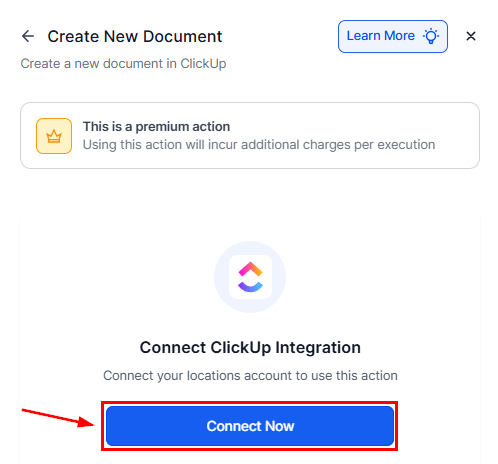
Screenshot
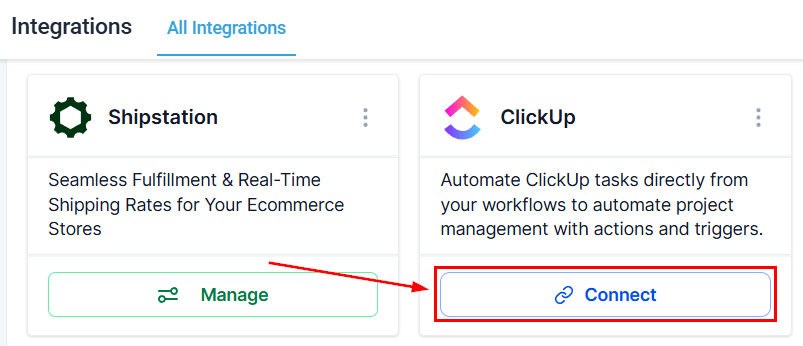
Screenshot
Common Use Cases
Create ClickUp Tasks from Form Submissions
Goal: Convert form submissions into actionable tasks.- Trigger: Form Submitted
- Filter: Form Is = Client Onboarding Form
- Actions: Create Task and Add Task Comment
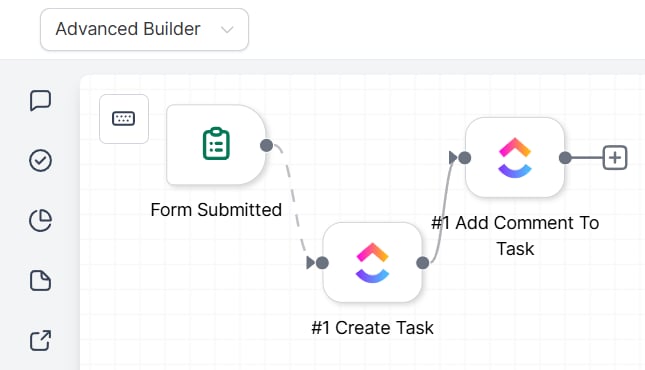
Screenshot
Auto-Generate Proposal Documents
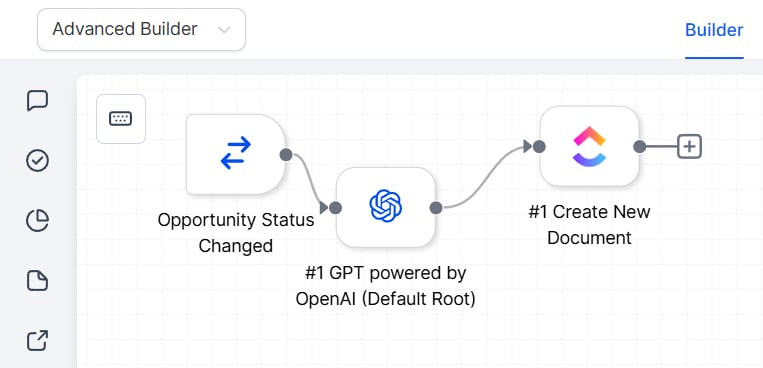
Goal: Generate AI-powered proposals or briefs when opportunities change stages.- Trigger: Opportunity Status Changed
- Filter: Stage = Proposal Request
- Actions: Generate Proposal Content (AI) and Create New Document in ClickUp.
Screenshot
Frequently Asked Questions
Do I need a paid ClickUp plan to use this integration?
Do I need a paid ClickUp plan to use this integration?
How many workflows can I build with ClickUp?
How many workflows can I build with ClickUp?
Airtable actions and triggers
Airtable actions and triggers
Why It Matters
With this integration, you can:- Automatically sync structured data into Airtable from CRM workflows.
- Create or update Airtable records based on specific events.
- Use Airtable as a dynamic project tracker that connects directly with automation and communication tools.
Triggers and Actions
Triggers (Airtable → CRM)
Events in Airtable that can initiate workflows:Actions (CRM → Airtable)
Tasks your CRM can perform within Airtable:Getting Started with Airtable
Search in Workflows
In the workflow builder, search for Airtable triggers or actions (e.g., Find Record, Create Record).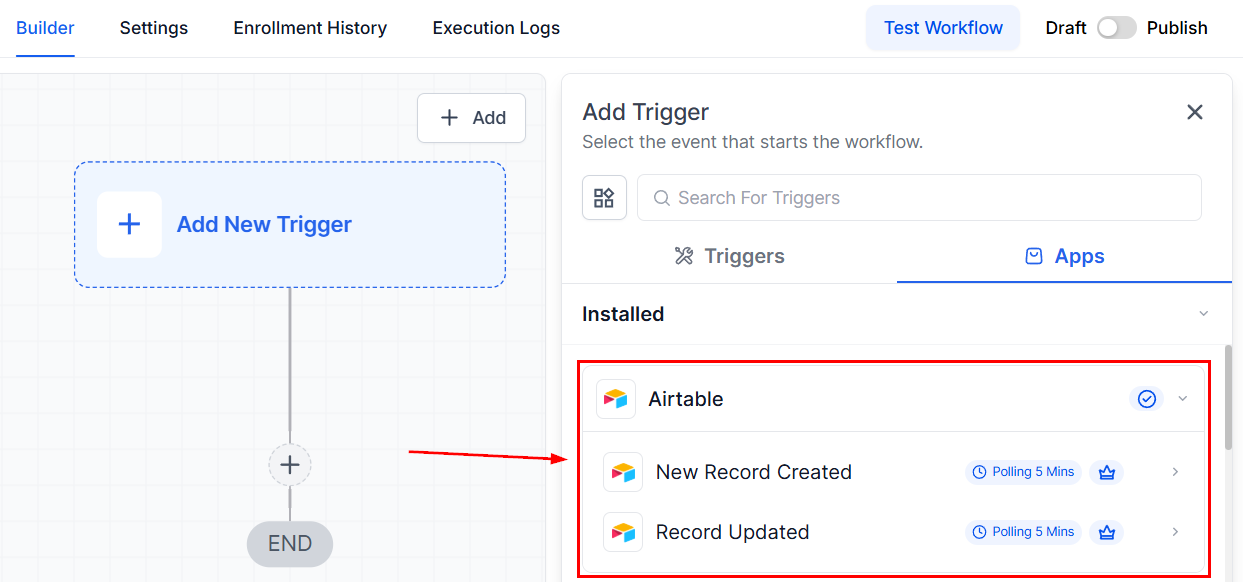
Screenshot
Connect Your Account
If your Airtable account is already connected, configuration options will appear immediately.If not, click Connect Now and log in with your Airtable API key or OAuth (depending on your setup).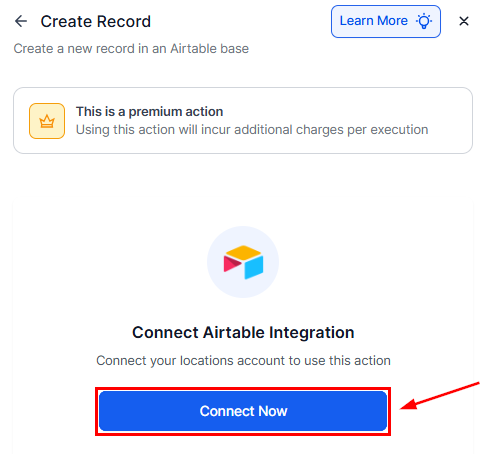
Screenshot
Screenshot
Common Use Cases
Send Internal Notifications
Goal: Alert teams when a new Airtable record is created or updated.Workflow Example:- Trigger: Airtable > New Record
- Actions: Find Record (Airtable) and Internal Notification (Email).
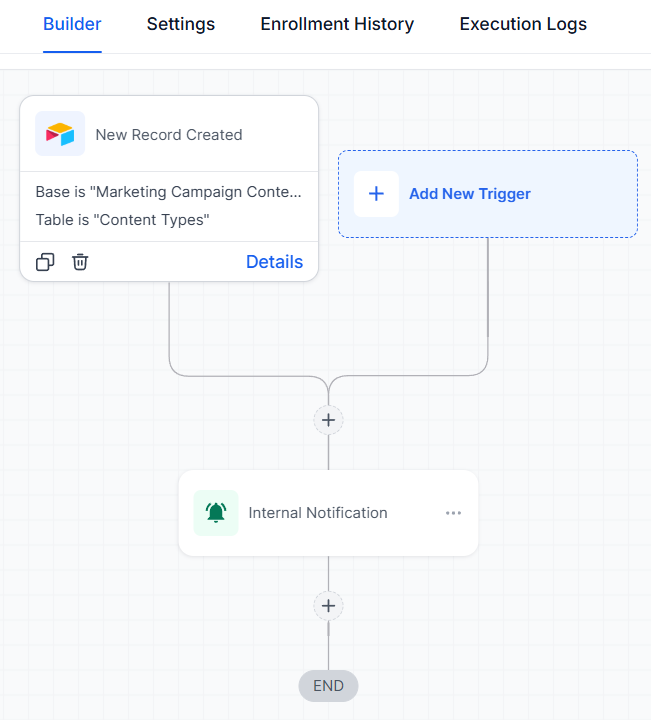
Screenshot
Update Data in Multiple Places
Goal: Keep Airtable aligned with CRM contacts and external lead sources.Workflow Example:- Triggers: Contact Created, Contact Updated, or Facebook Lead Form Submitted
- Actions: Find Record (Airtable). If found, Update Record. If not, Create Record
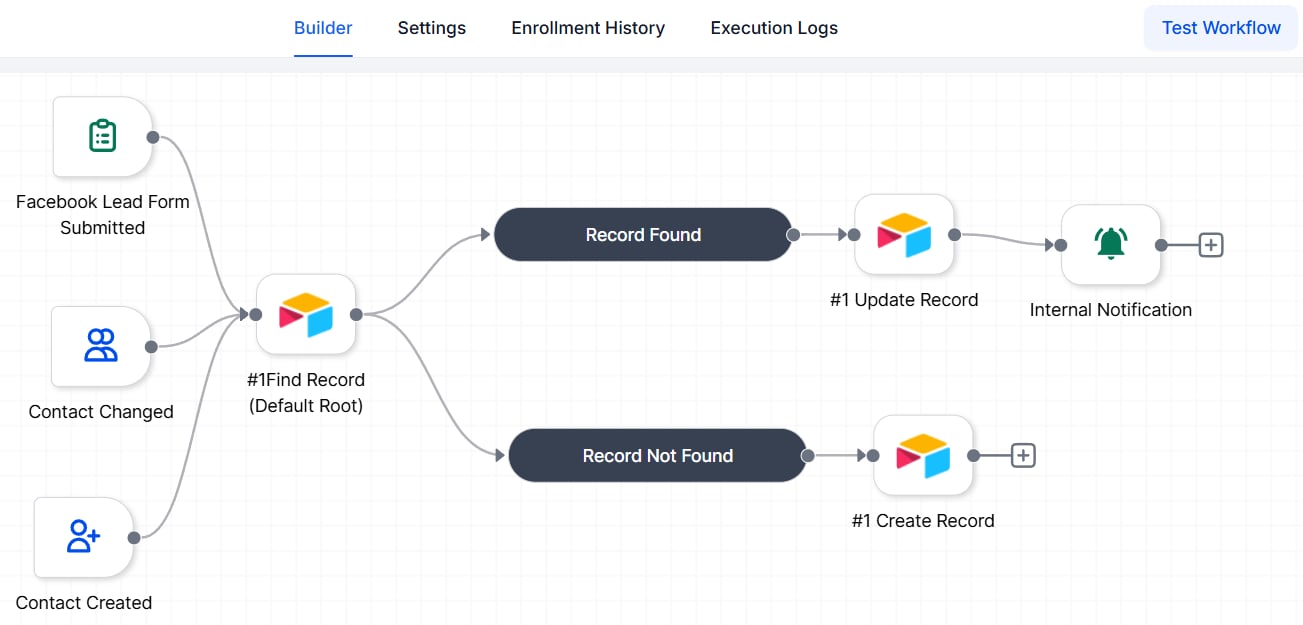
Screenshot
Use AI to Create Tasks and Save to ClickUp
Goal: Turn Airtable data into task descriptions using AI, then store them in ClickUp.Workflow Example:- Trigger: Airtable > New Record in Content Briefs table
- Actions: Find Record (Airtable), Generate Draft with AI, and Create Task in ClickUp
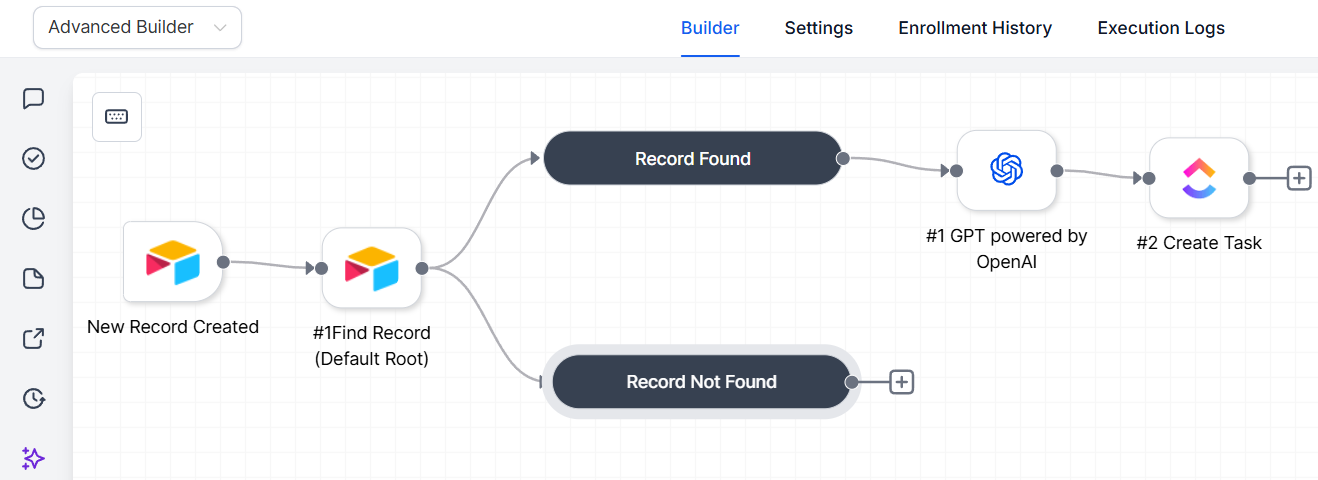
Screenshot
Frequently Asked Questions
Can I sync data in both directions between Airtable and my CRM?
Can I sync data in both directions between Airtable and my CRM?
How often does Airtable check for new records?
How often does Airtable check for new records?
Do I need a paid Airtable plan to use this integration?
Do I need a paid Airtable plan to use this integration?
What happens if the same record exists in both Airtable and the CRM?
What happens if the same record exists in both Airtable and the CRM?
Basecamp actions and triggers
Basecamp actions and triggers
Why It Matters
With this integration, teams can:- Automatically create to-dos, projects, and schedules in Basecamp based on workflow events.
- Keep project collaboration aligned with CRM updates and client activity.
- Reduce manual tasks and ensure timely communication across departments.
Triggers and Actions
Triggers (Basecamp → Workflows)
These Basecamp events can initiate automations:Actions (Workflows → Basecamp)
These actions can be executed inside Basecamp:Getting Started
Search in Workflows
Open your workflow builder and search for any Basecamp triggers or actions you want to use.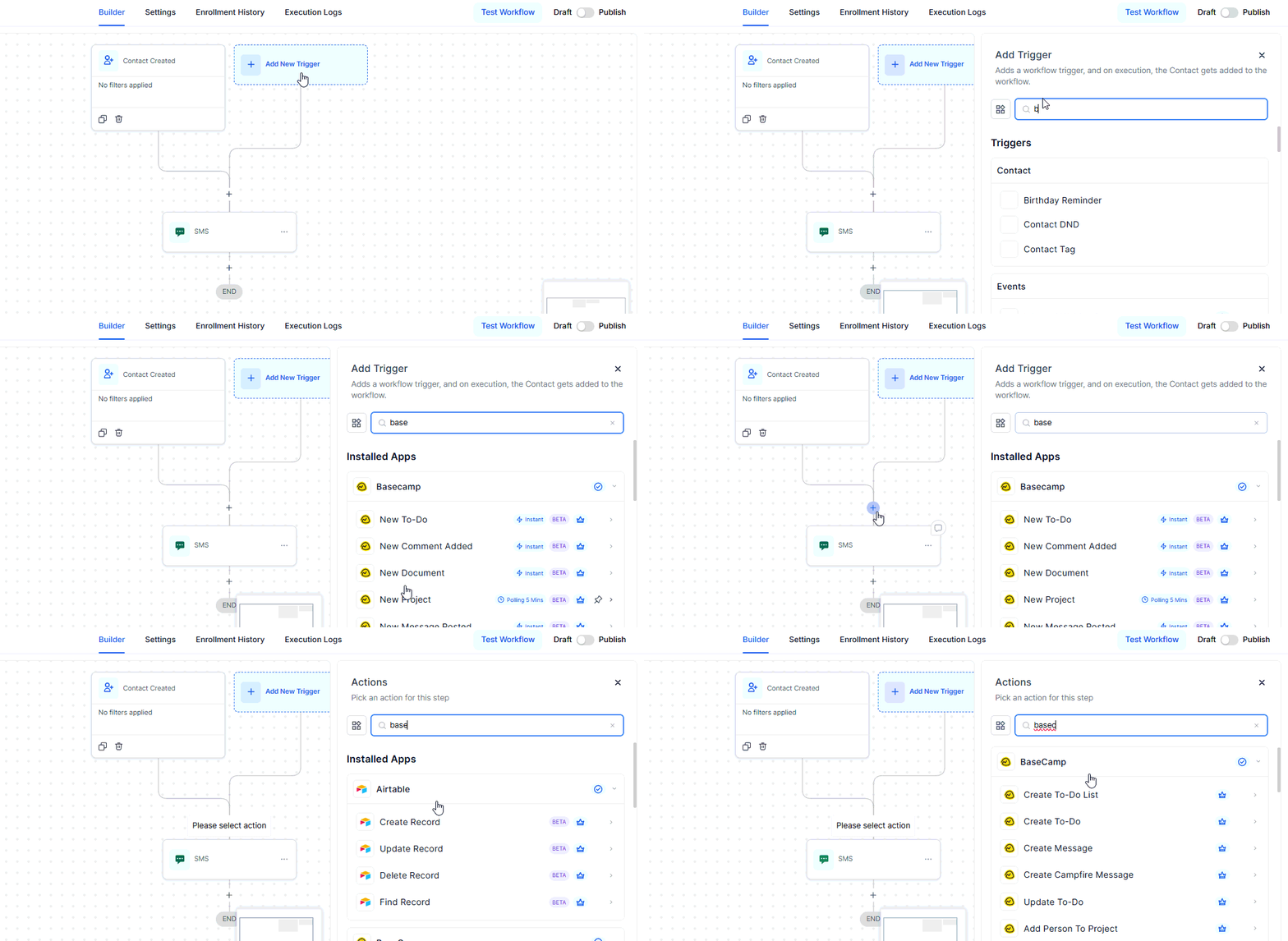
Screenshot
Connect Your Account
If your Basecamp account is already connected, configuration options will appear immediately.If not, select Connect Now and complete the authorization steps.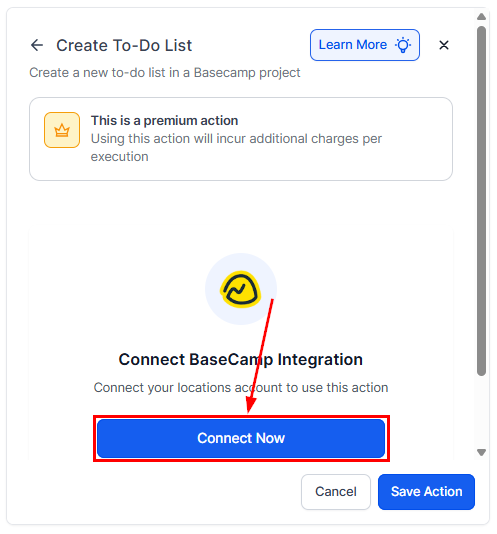
Screenshot
Alternative Setup
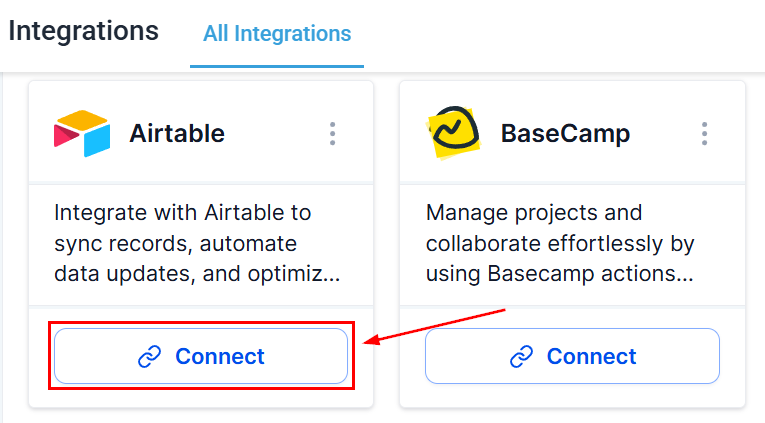
You can also connect through Settings → Integrations by selecting Basecamp and completing the authorization process.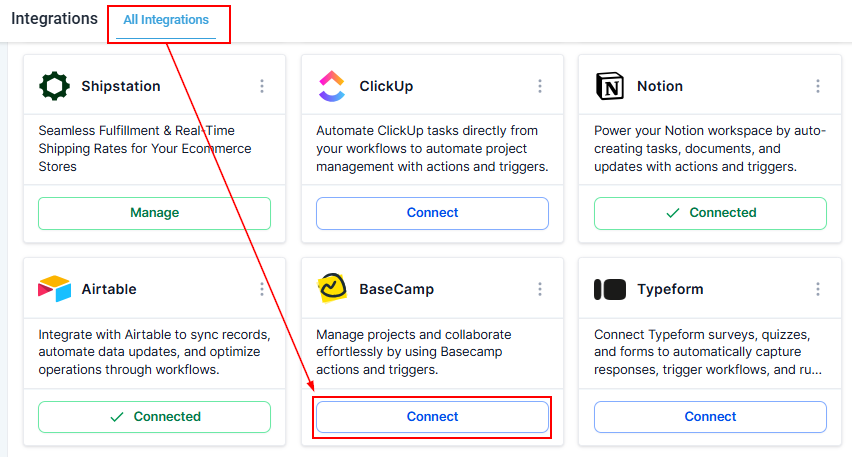
Screenshot
How Basecamp Triggers Work
Basecamp triggers are powered by webhooks provided by Basecamp’s API. When an event occurs—such as a new to-do or posted message—the workflow engine receives the webhook instantly and processes the corresponding automation.Setup Steps
Select a trigger, then configure and save it. The system will automatically retrieve the relevant Basecamp metadata, allowing you to map fields accurately for the next steps in your workflow.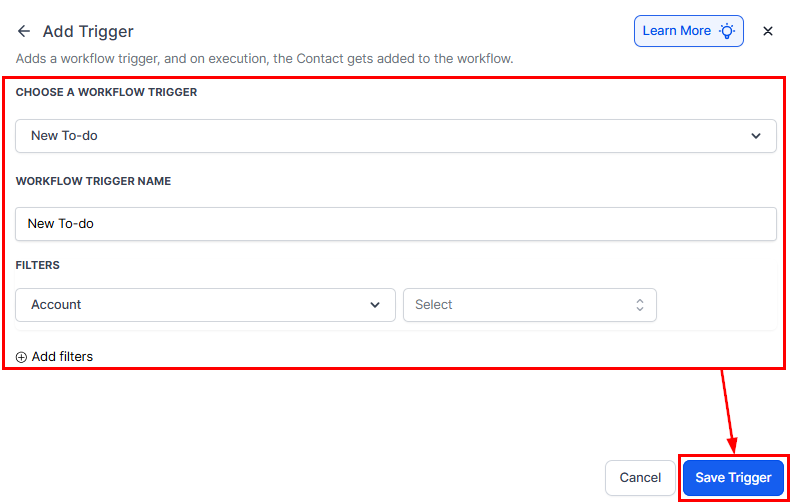
Screenshot
Common Use Cases
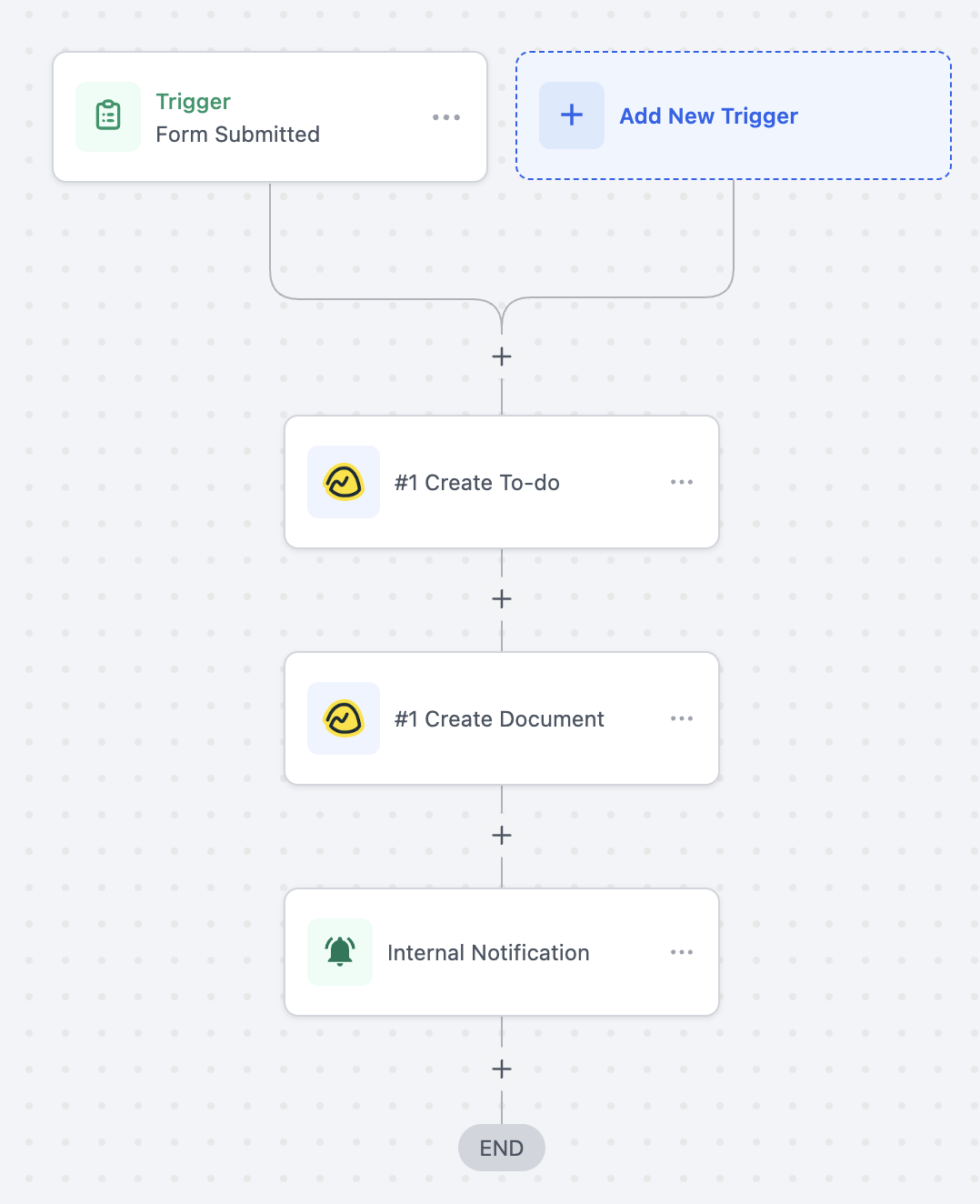
Use Case 1: Create To-dos and Documents from Form Submissions
Goal: Automatically create a Basecamp to-do and a supporting document when a client submits a form.- Trigger: Form Submitted
- Filter: Form Name = “Project Intake Form”
- Actions: Create To-do, Create Document, Internal Notification
Screenshot
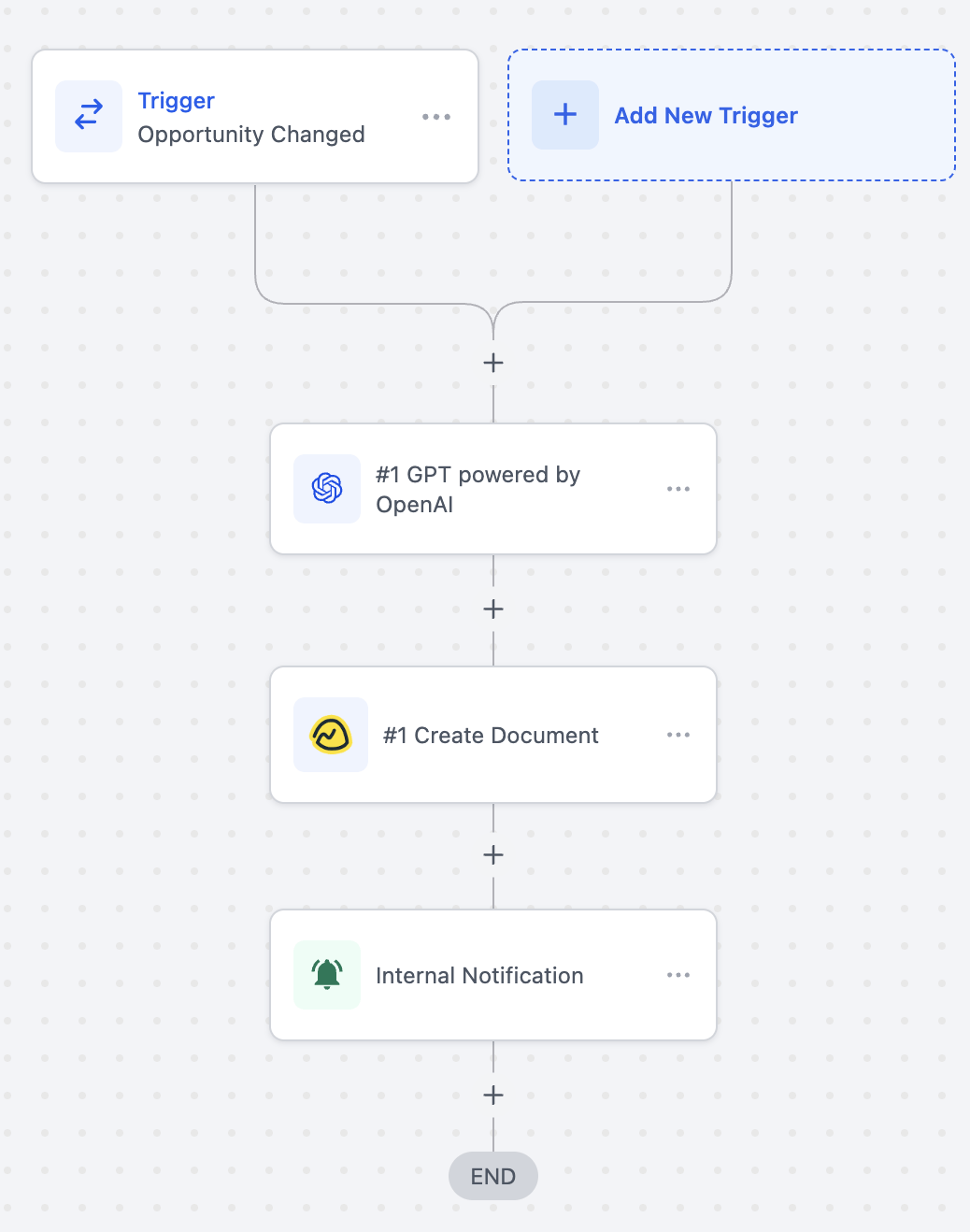
Use Case 2: Generate Basecamp Documents When an Opportunity Stage Changes
Goal: Automatically create a Basecamp document using AI-generated content when an opportunity stage updates.- Trigger: Opportunity Stage Changed
- Filter: Stage = “Closed Won”
- Actions: GPT (OpenAI), Create Document, Internal Notification
Screenshot
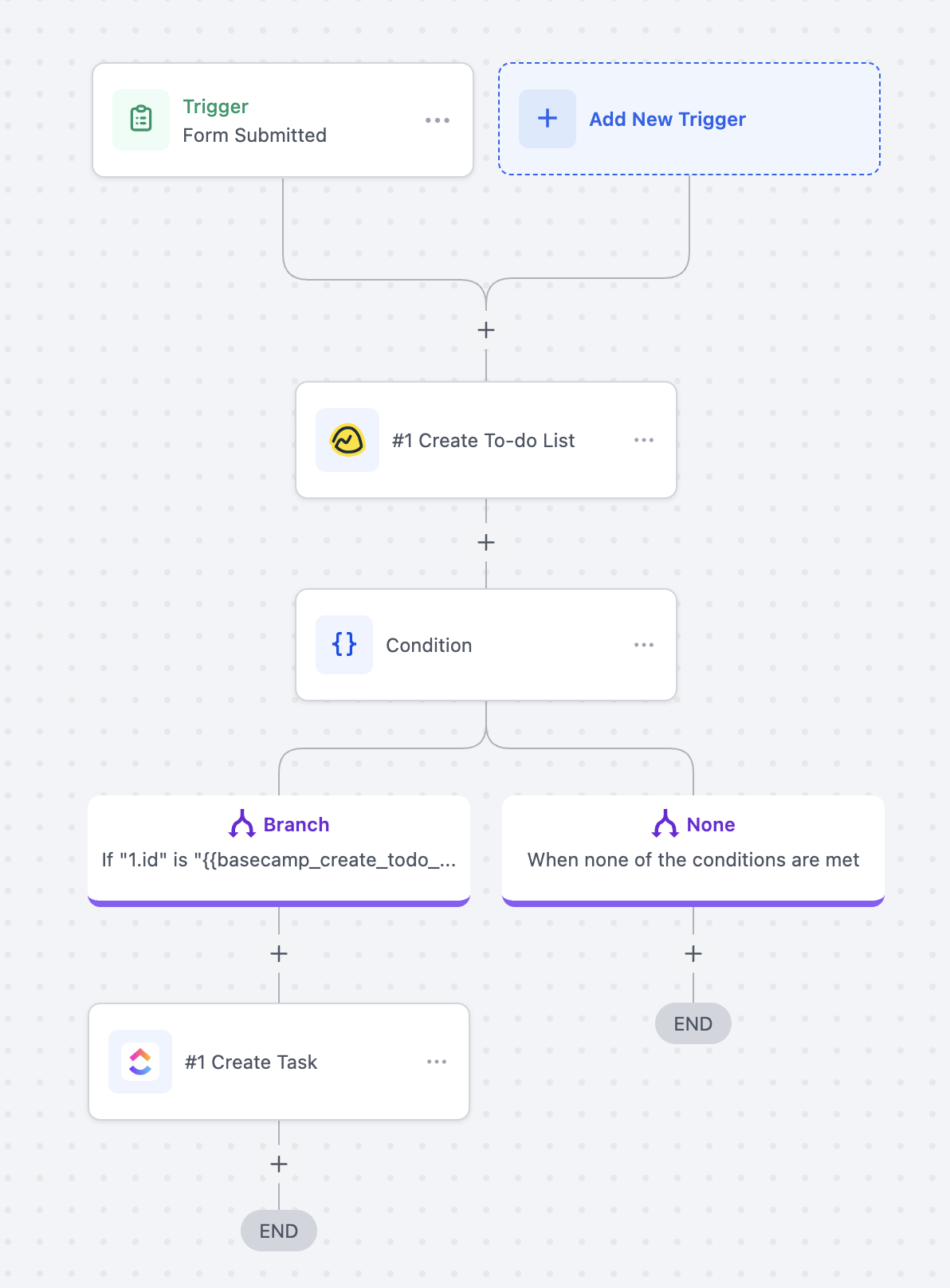
Use Case 3: Create To-do Lists and Tasks from Form Submissions
Goal: Automatically create a new to-do list and follow-up task when a form is submitted.- Trigger: Form Submitted
- Actions: Create To-do List, Conditional Check, Create Task
Screenshot
Frequently Asked Questions
Are Basecamp triggers instant?
Are Basecamp triggers instant?
Can data sync both ways?
Can data sync both ways?
Is a paid Basecamp plan required?
Is a paid Basecamp plan required?
Are actions and triggers billed?
Are actions and triggers billed?
Typeform actions and triggers
Typeform actions and triggers
Key Benefits
- Form operations at scale: Create or duplicate forms automatically, allowing each client or project to have its own copy.
- Response utilization: Search historic form responses to personalize follow-ups and enrich contact records.
Triggers and Actions

Screenshot
Setup Instructions
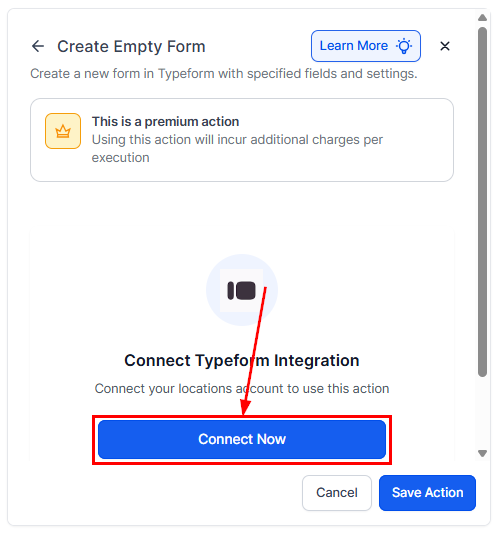
Connecting Typeform
Open your workflow builder and click + Add Trigger or + Add Action, then search for Typeform and select the desired trigger or action.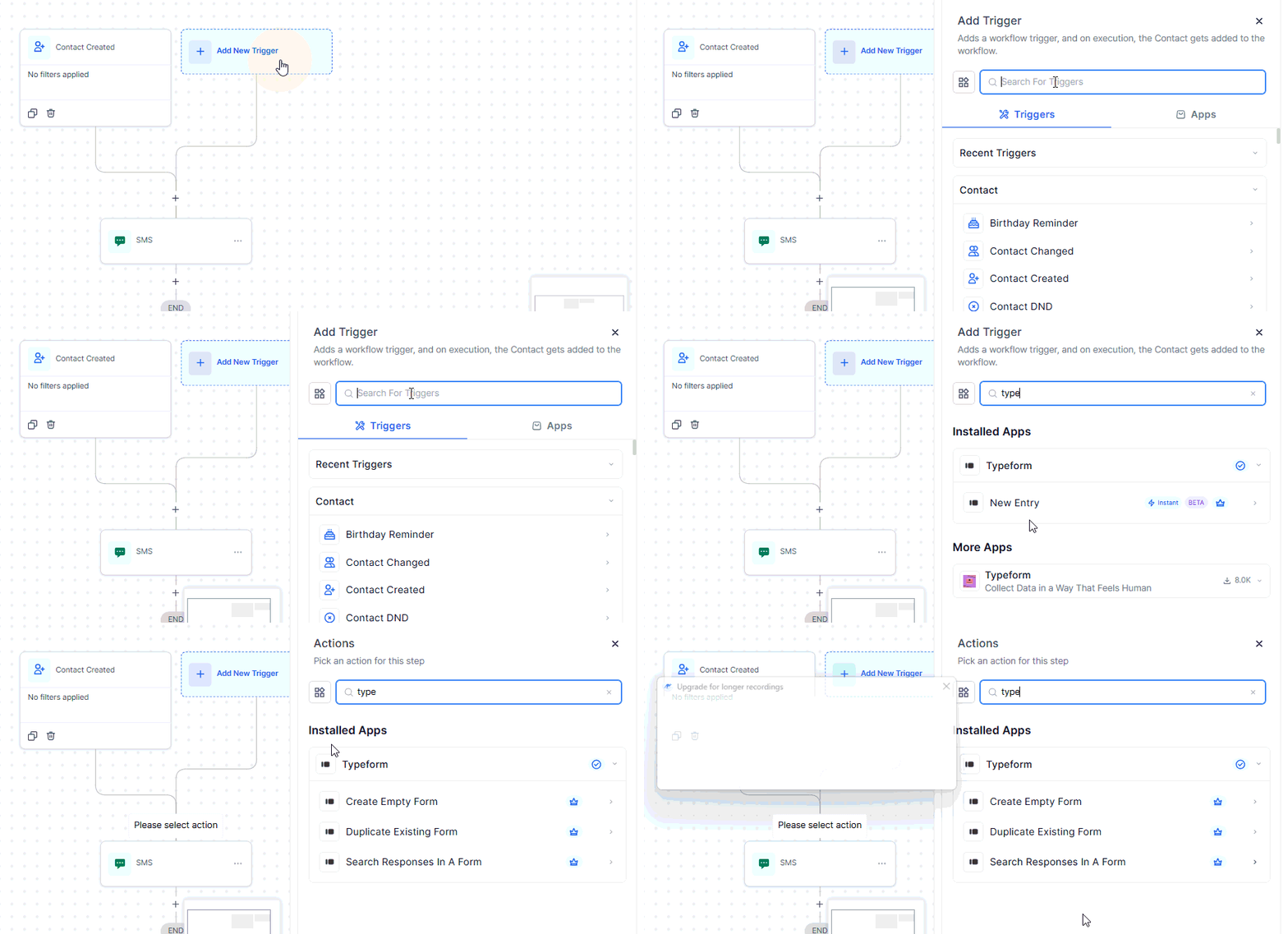
Screenshot
Screenshot
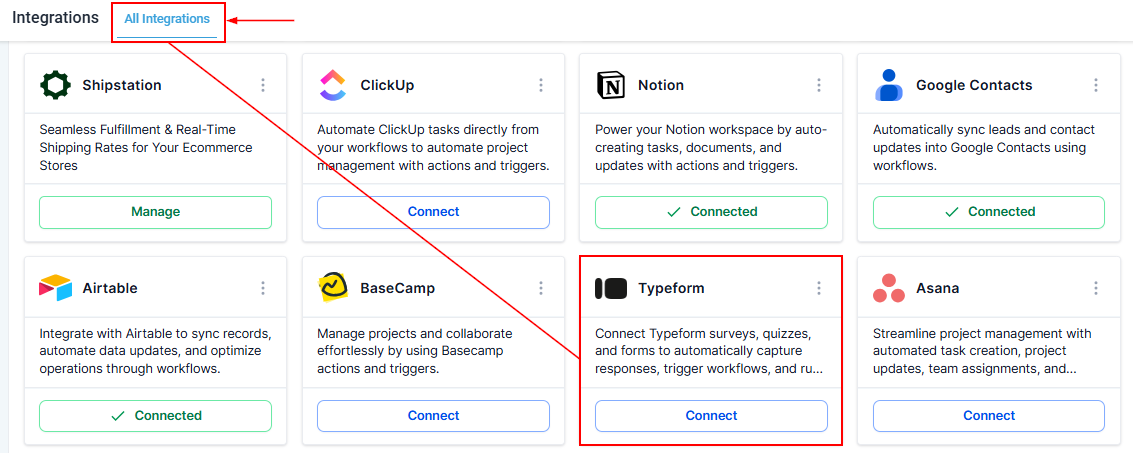
Screenshot
Building Your Workflow
Add the New Entry (Instant) trigger and select the desired form within the Form filter.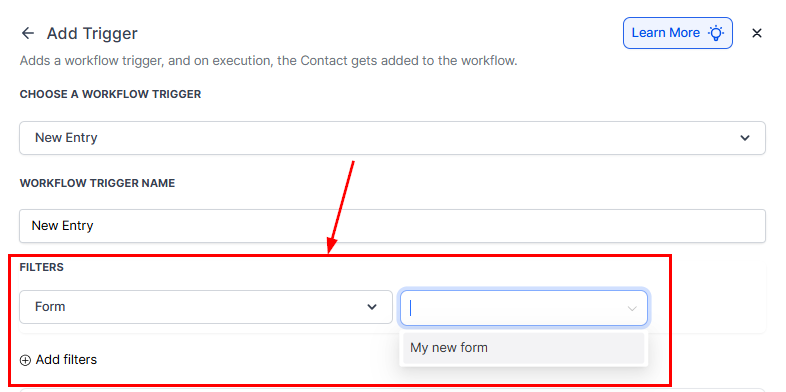
Screenshot
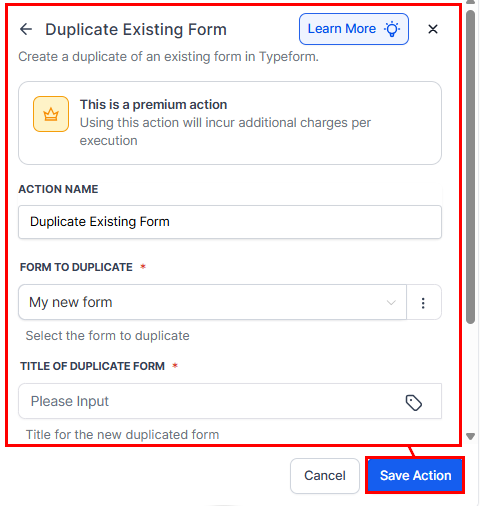
Screenshot
Use Cases
Use Case 1: Automate Task Creation and Team Notification
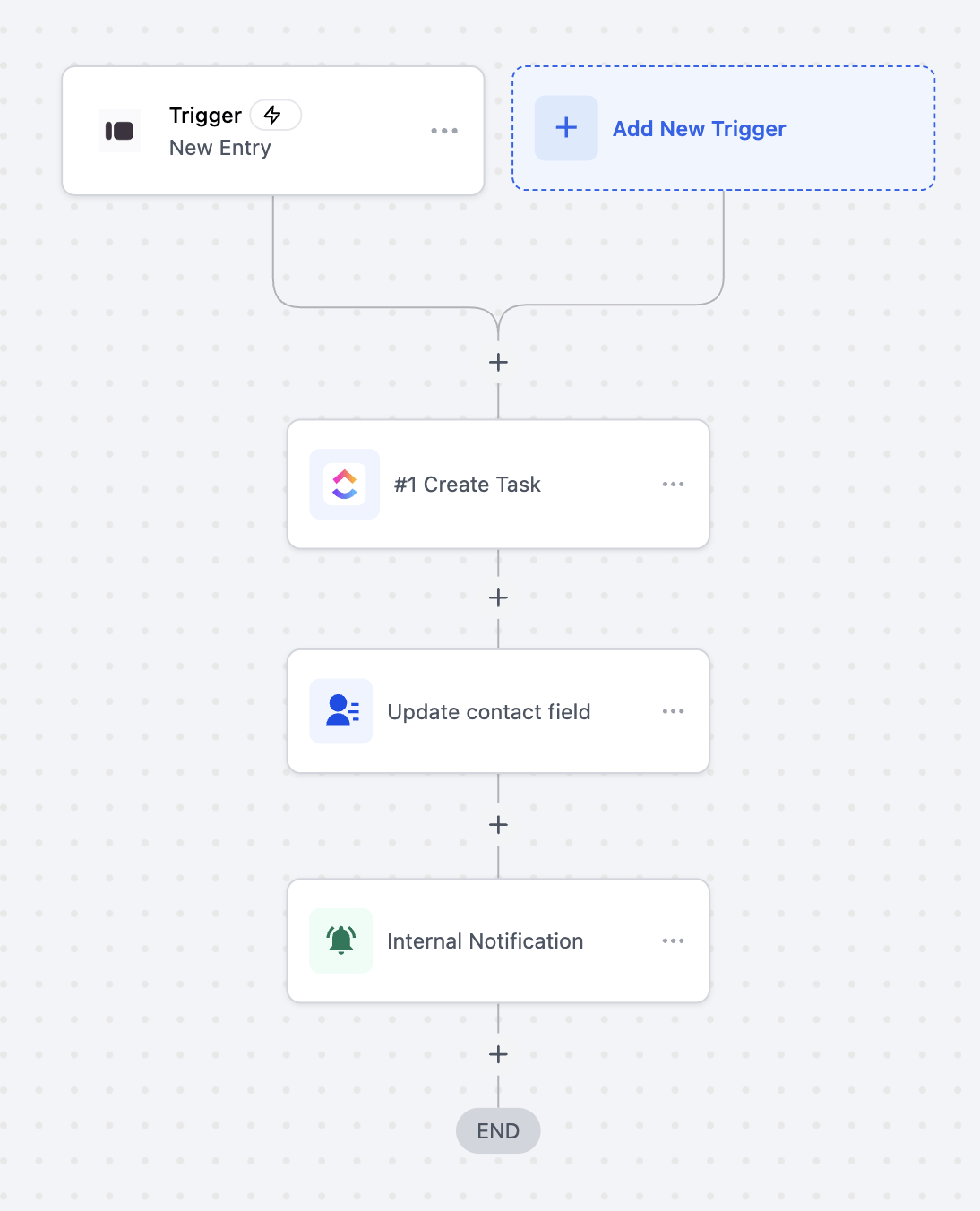
Goal: Automatically create a task, update contact information, and notify the team when a Typeform is submitted.- Setup: Trigger = New Entry (Instant), Filter = Form Name “Client Onboarding Form,” Actions = Create Task, Update Contact Field, Send Internal Notification.
Screenshot
Use Case 2: Conditional Task Creation Based on Form Responses
Goal: Automatically create documents, check submission values, and trigger different actions based on response data.- Setup: Trigger = New Entry (Instant), Filter = Form Name “Order Submission Form,” Actions = Create Document, Conditional Branching, Update Contact Field, Send Notifications.
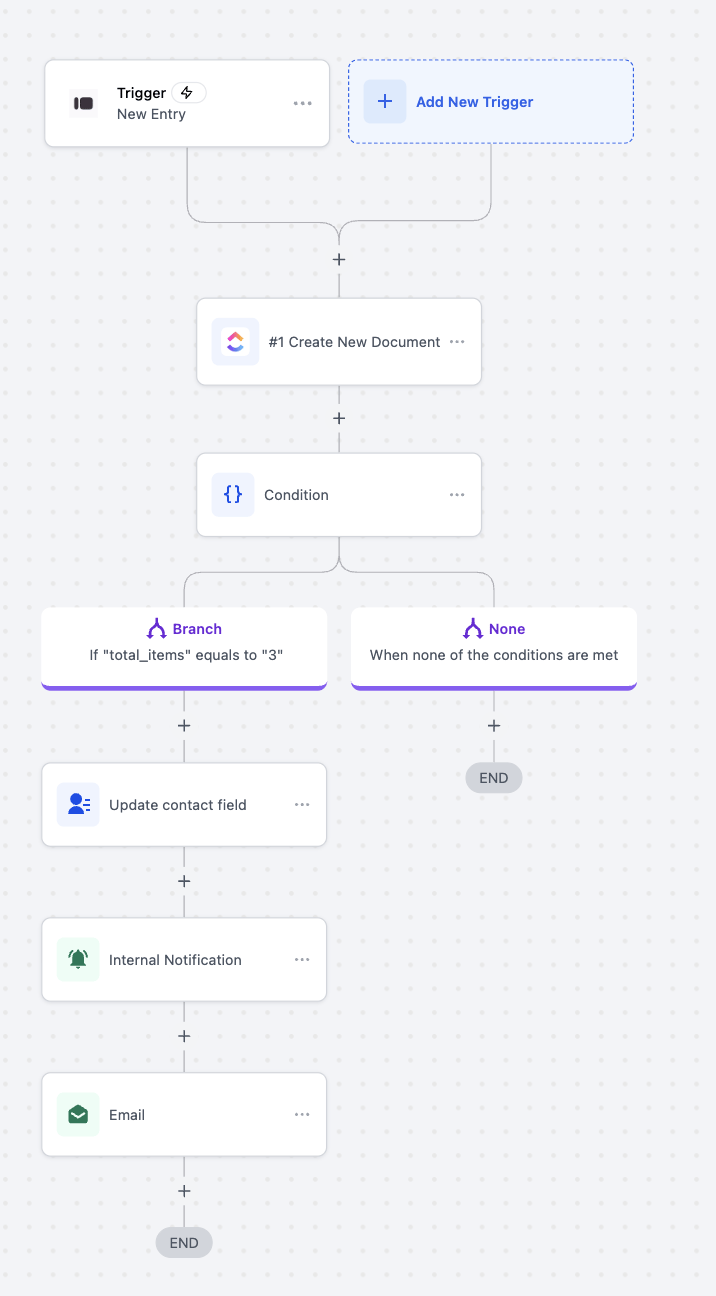
Screenshot
.Use Case 3: Automate Document Creation and Notifications on Pipeline Changes
Goal: Check for existing Typeform responses when a deal stage changes, create or duplicate documents, and notify the team or client.- Setup: Trigger = Pipeline Stage Changed, Filter = Pipeline “Client Onboarding Pipeline,” Actions = Search Responses, Create or Duplicate Document, Update Contact Field, Send Notifications.
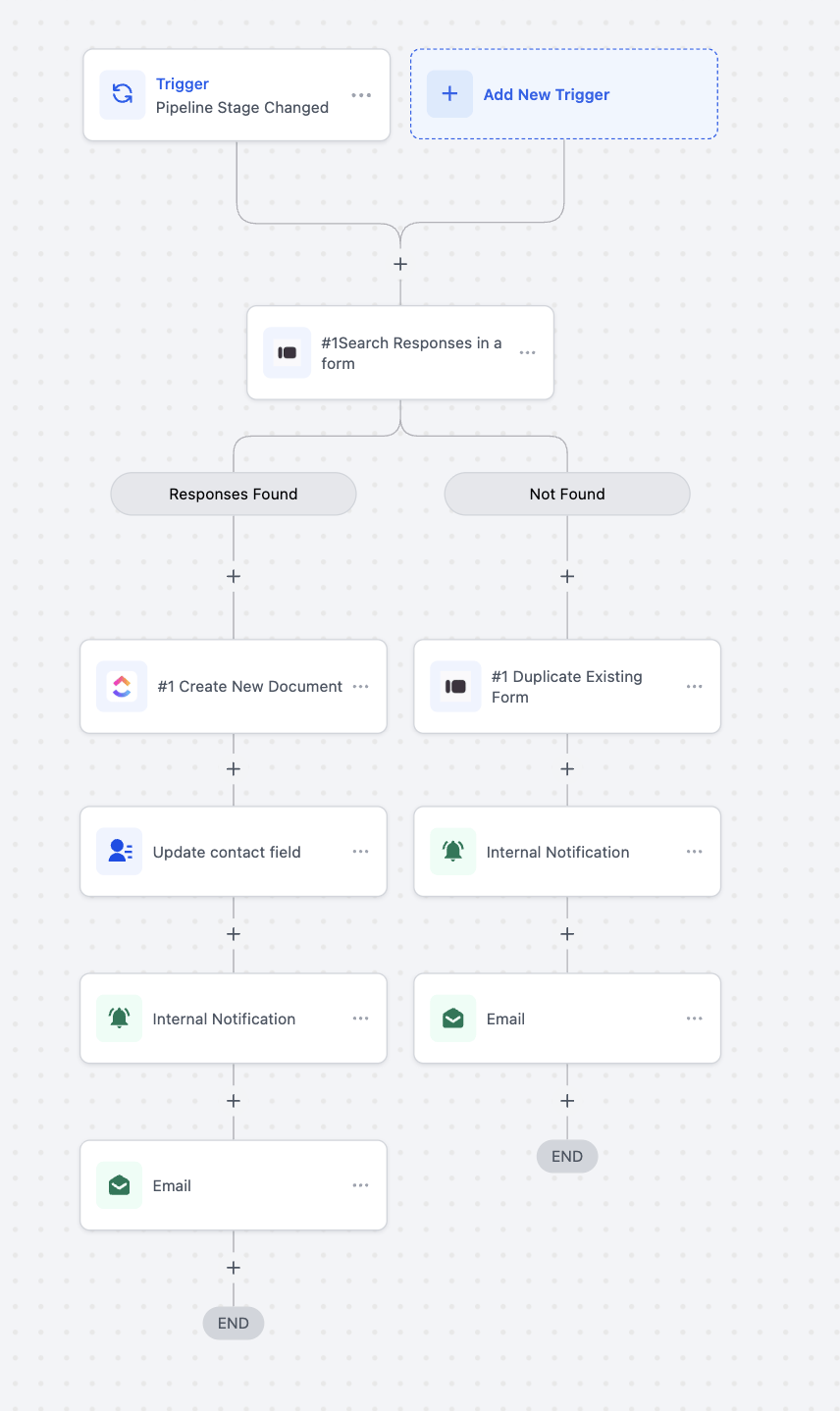
Screenshot
Frequently Asked Questions
Do I need a paid Typeform account?- No. Free and paid accounts are supported, though Typeform plan limits (e.g., responses, branding) still apply.
- Yes, each trigger and action counts toward standard execution billing.
- Forms are created in the connected Typeform workspace linked to the authorized account.
- Check execution logs for errors such as invalid form ID or expired authorization. Reconnect Typeform and test again if needed.
Asana actions and triggers
Asana actions and triggers
Key Benefits of the Asana Integration
- ****Real-time synchronization: ****Changes in Asana immediately trigger workflows, and workflow actions are reflected in Asana without delay.
- ****Reduced errors: ****Automated task creation and updates eliminate manual data entry and copy-paste mistakes.
- ****Lower operational costs: ****Replace third-party automation bridges with built-in workflow actions.
Triggers (Asana → Workflows)
These Asana events can initiate workflows:Actions (Workflows → Asana)
These actions allow workflows to perform operations in Asana:Getting Started with Asana
Search in the Workflow Builder
Locate Asana triggers or actions such as Create Task or Task Created.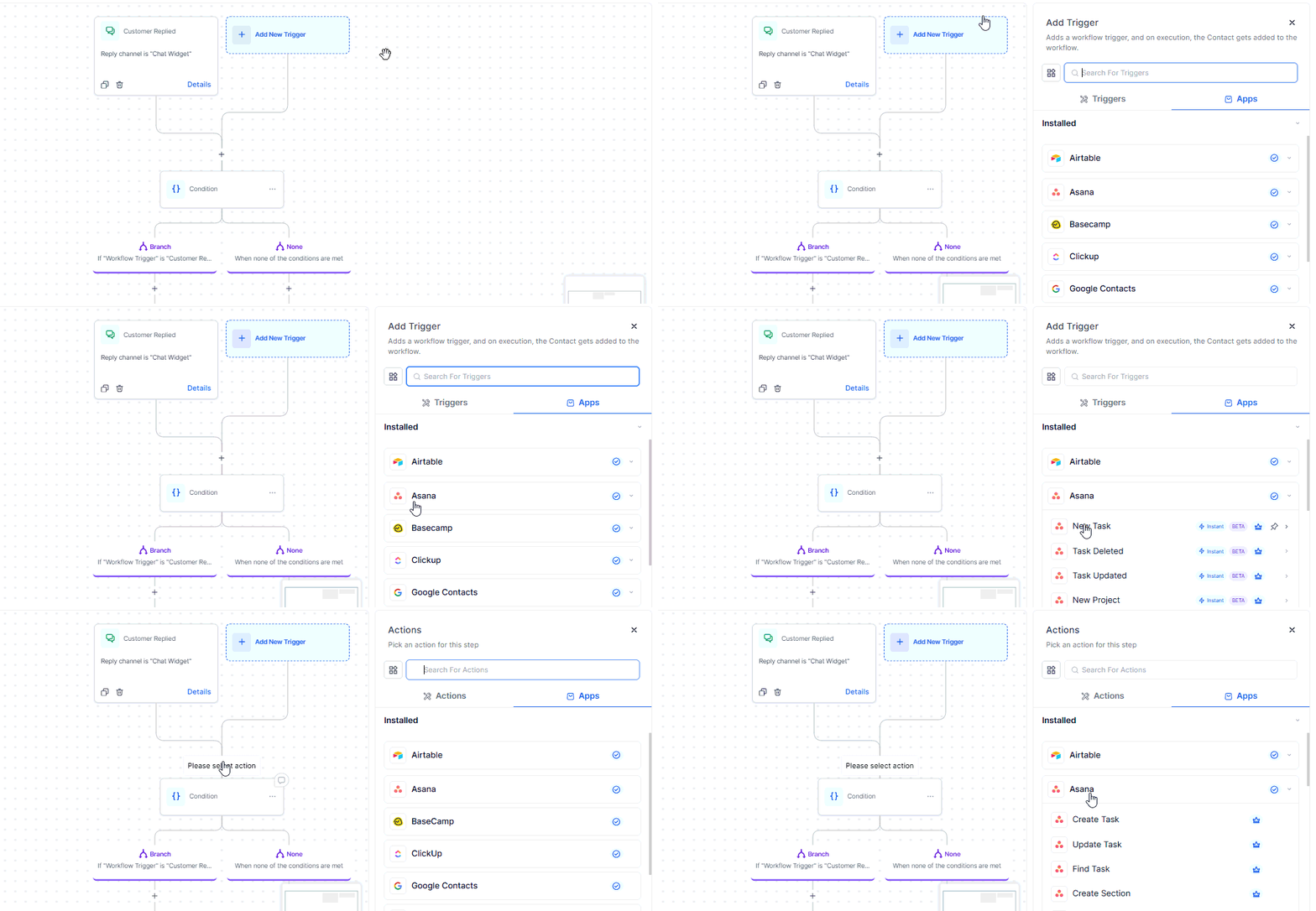
Screenshot
Connect Your Asana Account
If your account is already connected, configuration options will appear automatically. Otherwise, select Connect Now and authenticate using your Asana credentials or OAuth.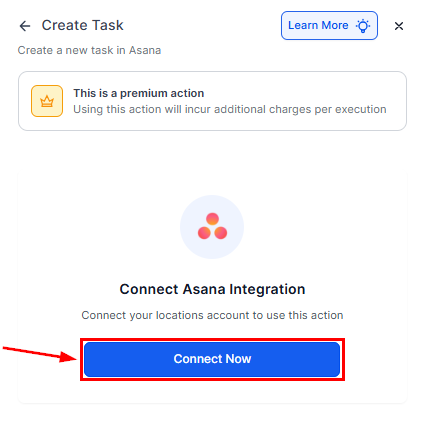
Screenshot
How Asana Triggers Work
Asana triggers are instant and webhook-based. When an event, such as a task update or new project creation, occurs in Asana, the workflow is triggered immediately, with no polling or delay.Setup steps:- Select a trigger (e.g., Task Created or Task Updated).
- Name the trigger and run Test Trigger to retrieve sample data.
- Use dynamic fields (task name, assignee, due date, etc.) in subsequent workflow actions.
Common Use Cases
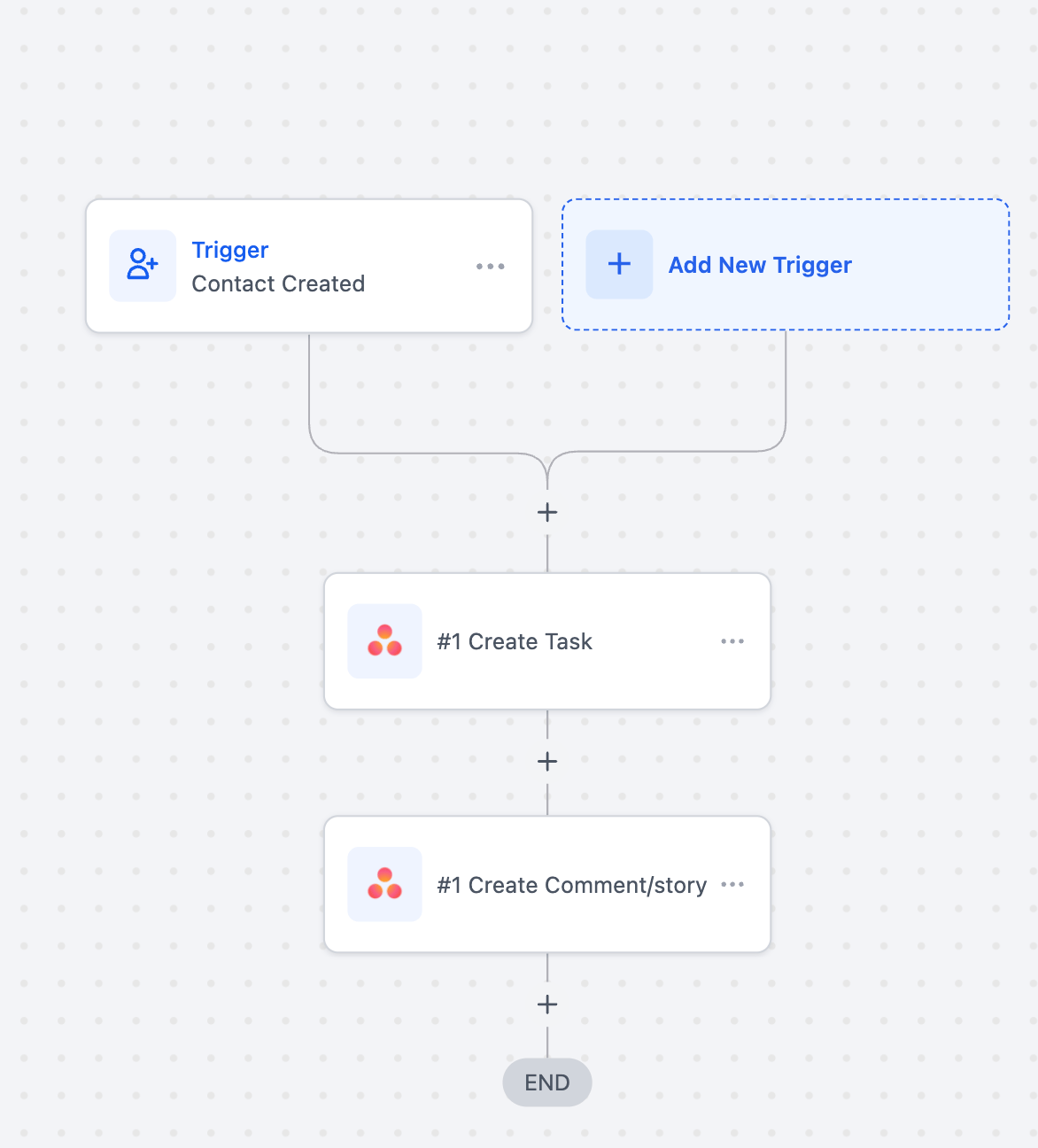
Use Case 1: Automate Task Management
Goal: Automatically create or update Asana tasks when new leads are generated.Workflow Setup****:****- Trigger: Contact Created
- ****Actions: ****Create Task > Title: New Lead:
{{contact.name}}, Assign to the respective team, and Create a Comment.
Screenshot
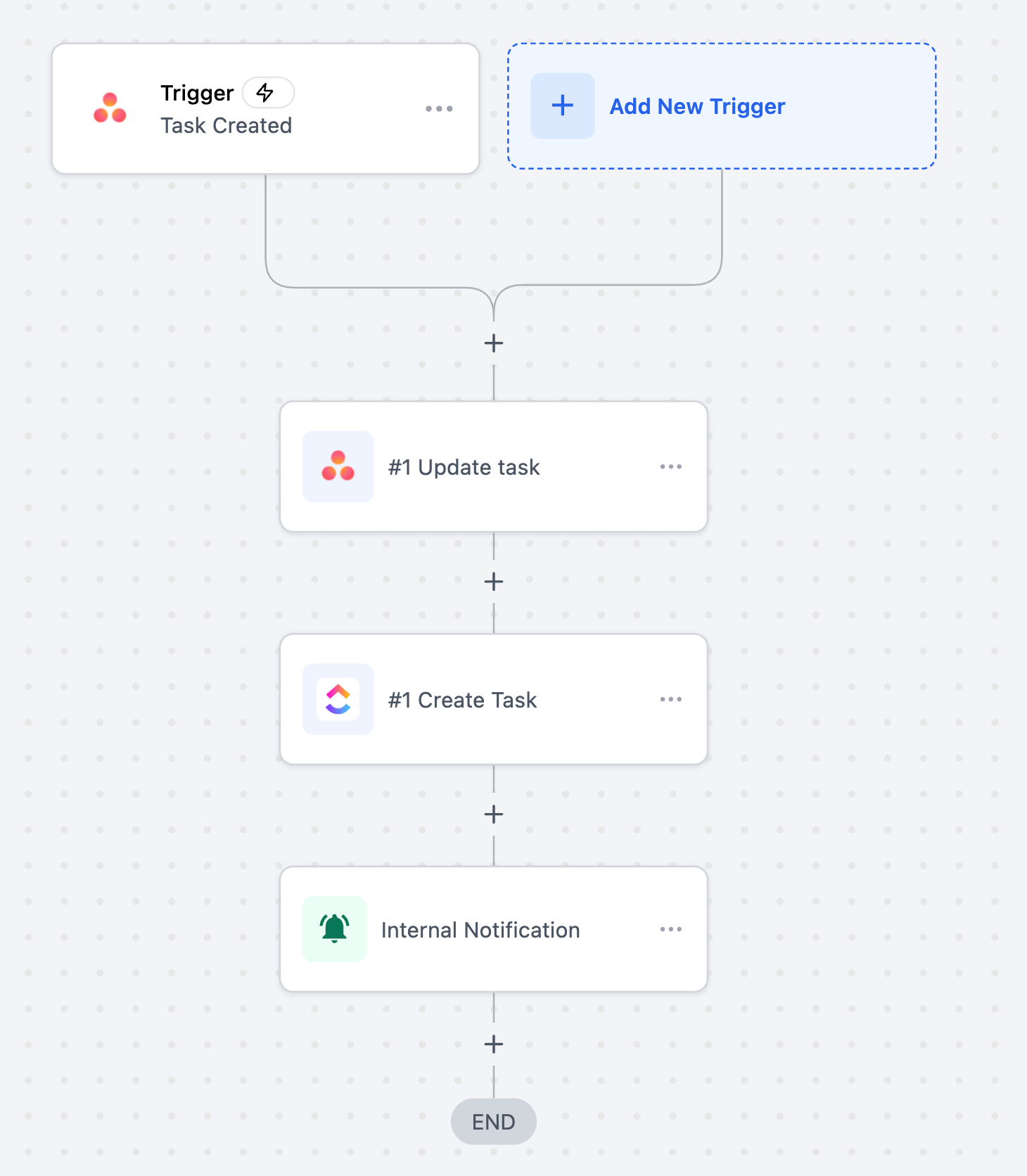
Use Case 2: Sync Projects Across Tools
Goal: Keep Asana projects aligned with other platforms such as ClickUp or Airtable.Workflow Setup****:****- Trigger: Project Created (Asana)
- ****Actions: ****Create Project in another tool or update a corresponding record and send an internal notification to project managers
Screenshot
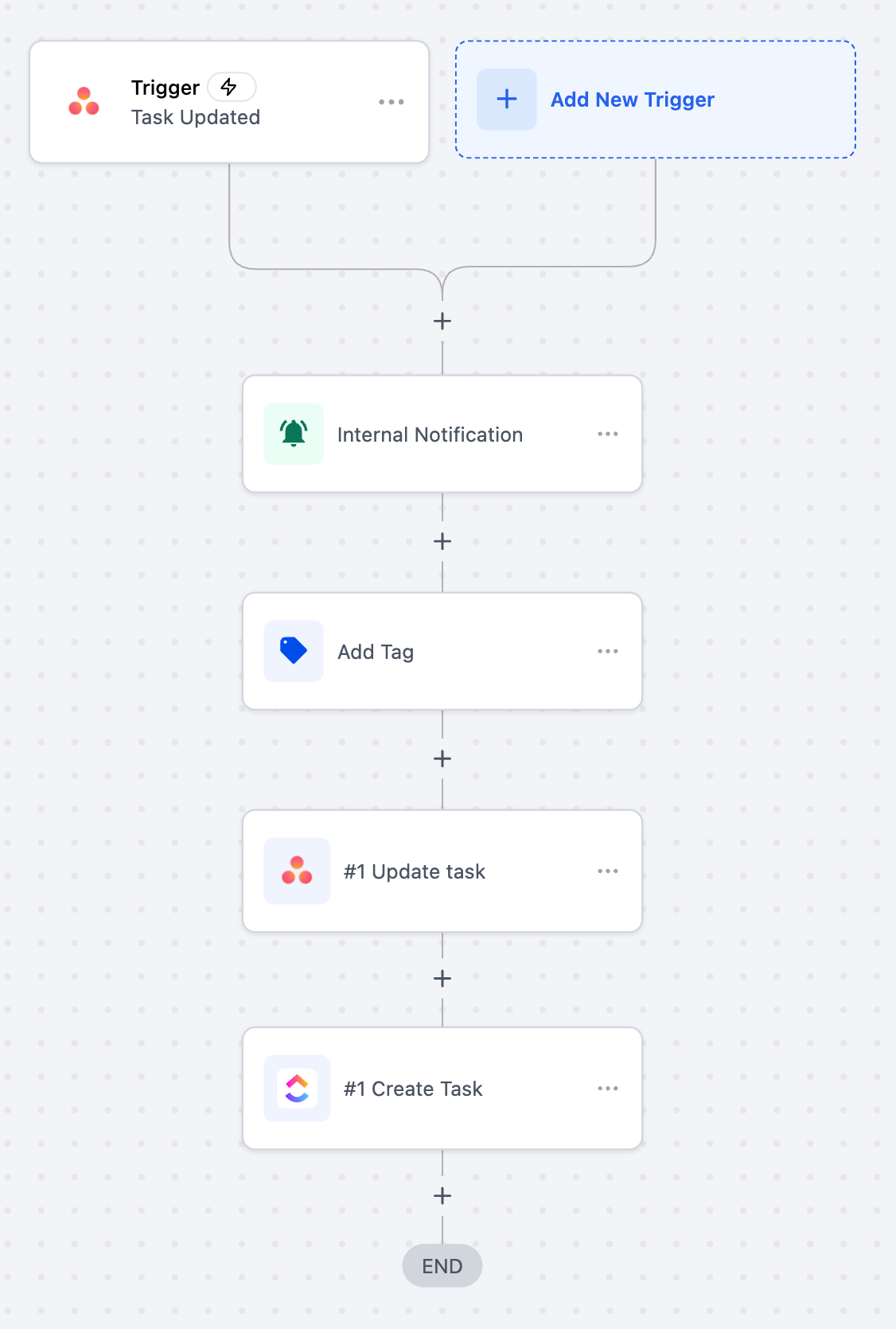
Use Case 3: Notify Teams on Task Updates
Goal:** Keep internal teams informed of key task changes.Workflow Setup****:****- Trigger: Task Updated (Asana)
- ****Actions: ****Send internal notification via Slack or email, update contact tags, and update task status in another project management tool
Screenshot
Frequently Asked Questions
Are Asana triggers instant or delayed?
Are Asana triggers instant or delayed?
Can data sync both ways between Asana and workflows?
Can data sync both ways between Asana and workflows?
Do I need a paid Asana plan?
Do I need a paid Asana plan?
Are Asana triggers and actions billed?
Are Asana triggers and actions billed?
Monday.com actions and triggers
Monday.com actions and triggers
Why This Integration Matters
With this integration, you can:- React instantly to board, item, and status changes
- Keep CRM, communication, and reporting tools synchronized
- Reduce manual coordination between departments
Triggers: From Boards to Automated Workflows
Triggers allow events inside Monday.com to initiate automation immediately.Triggers (Coming Soon)
- ****Any Column Value Changed in Board: ****Fires when a specific column—such as status, date, owner, or custom field—is updated.
- ****Any Item Moved to a Group: ****Activates when an item shifts between board groups.
- ****New Board: ****Runs when a new board is created.
- ****New Item in a Board: ****Triggers whenever a new item is added.
- ****New Subitem in Board: ****Fires when a subitem is created under a parent item.
- ****New Update in Board: ****Activates when a comment or update is added to an item.
- ****New User: ****Triggers when a new workspace user is added.
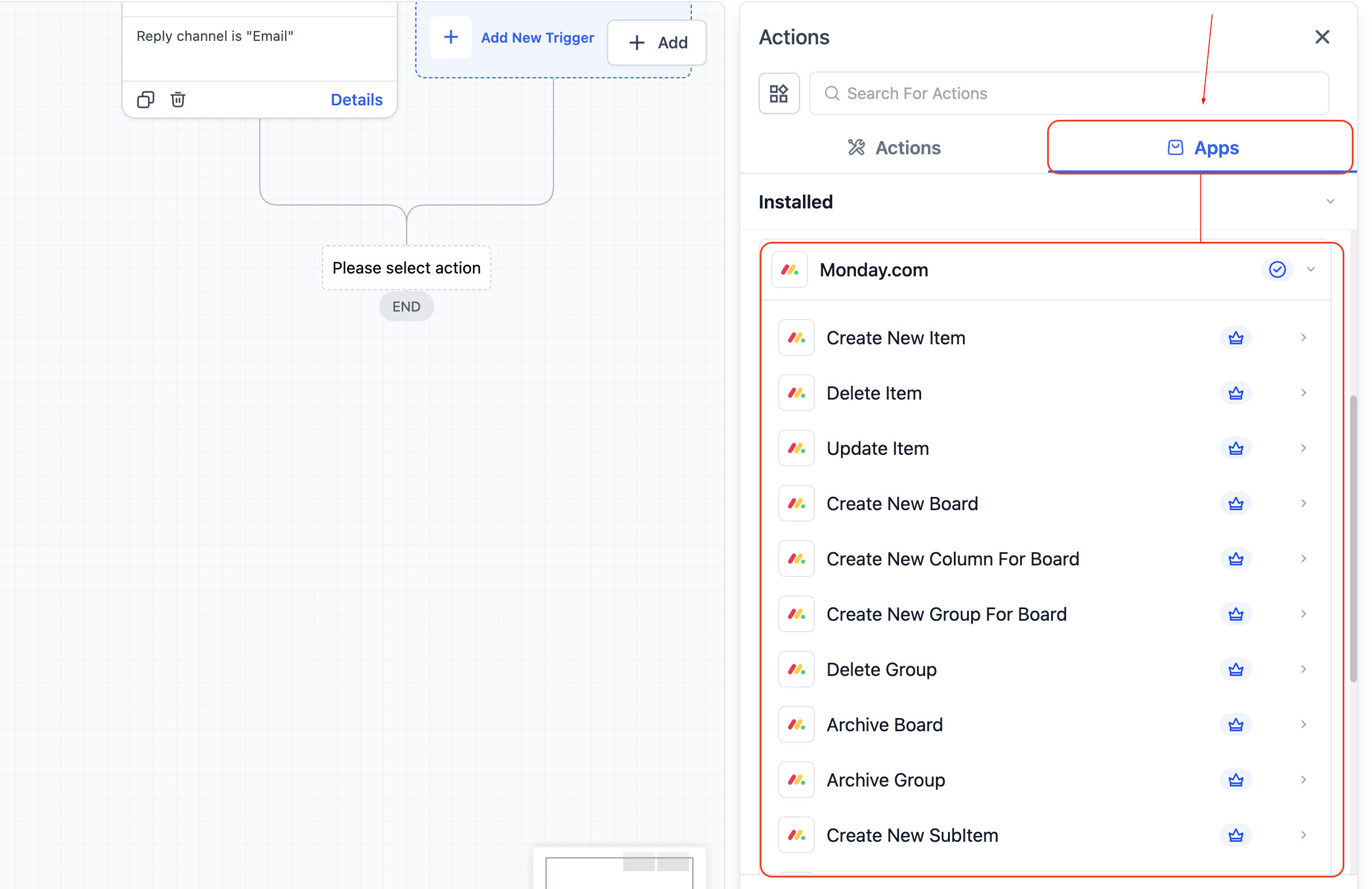
Actions: Automate Changes Back into Monday
Workflows don’t just react—they can also modify and manage boards dynamically.Available Actions
- ****Create New Board / Group / Column / Item / Subitem: ****Build new structures directly from a workflow.
- ****Update Item / Update Subitem: ****Modify status, due dates, owners, or custom columns.
- ****Archive Board / Archive Group: ****Automatically archive boards or groups.
- ****Delete Item / Delete Group: ****Remove outdated structures.
- ****Get Board Items: ****Retrieve all items for syncing or reporting.
- ****Find Items by Column Value: ****Search items dynamically using status, owner, or custom fields.
- ****Find Items by ID: ****Locate a specific item using its unique ID.
Screenshot
How It Works
To get started, locate Monday.com inside the Automation Builder by clicking Add Trigger or Add Action and searching for Monday.com.Once selected, connect your account by authorizing your workspace with your Monday.com API key.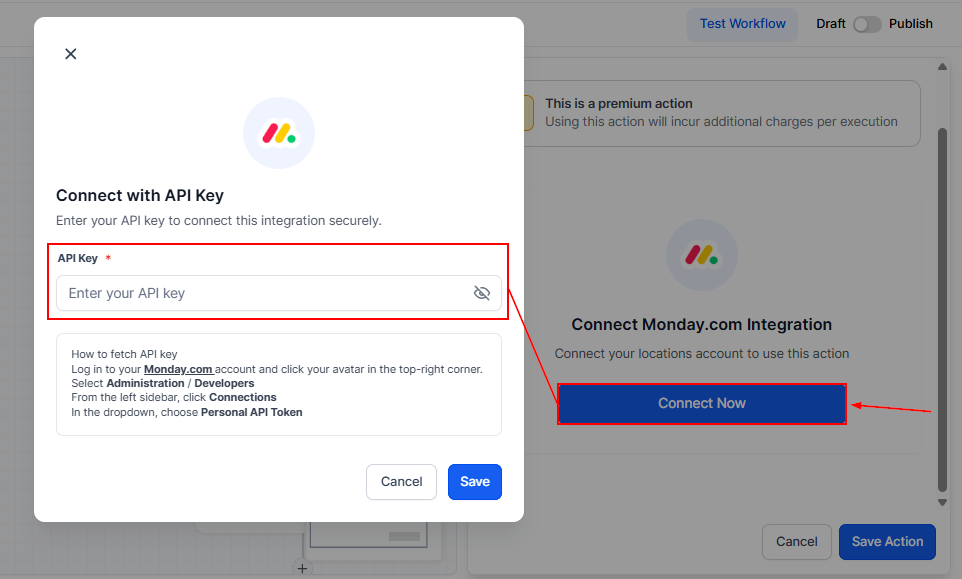
Screenshot
Practical Use Cases
Client Onboarding Automation
- Goal: Sync new onboarding items with CRM and notify internal teams.
- Trigger: New Item in Board (“Client Onboarding”)
- ****Actions: ****Create or update CRM contact, Send Slack message to the account manager, Log tracking entry in Google Sheets, and Update Monday item status to “CRM Synced”.
- ****Outcome: ****Every new onboarding item immediately updates CRM records and alerts the team.
Project Completion → Client Communication
- Goal: Notify clients when a project reaches completion.
- Trigger: Column Value Changed (Status → Completed)
- ****Actions: ****Send Gmail message to the client, Create a CRM note, Archive the item, and Send Slack update to #client-updates
- ****Outcome: ****Clients receive timely updates, and internal teams maintain visibility automatically.
Internal Task Sync Across Platforms
- Goal: Keep design or production tasks aligned between tools.
- Trigger: New Item in Board (“Design Tasks”)
- ****Actions: ****Create a task in ClickUp, Store Monday item ID in a custom field, Send Slack notification, and Update Monday item with the external task link
- ****Outcome: ****Teams operate in their preferred platforms while preserving cross-system visibility.
Frequently Asked Questions
Is this a two-way sync?- Workflows execute in one direction per trigger: Monday → Workflow → Actions.
- Most features work on free and paid plans, though advanced board capabilities may require a paid tier.
- Yes. Update Item and Update Subitem actions support multiple column mappings in a single execution.
OpenRouter actions and triggers
OpenRouter actions and triggers
How to Connect and Configure
In your workflow builder, add a new action and search for OpenRouter.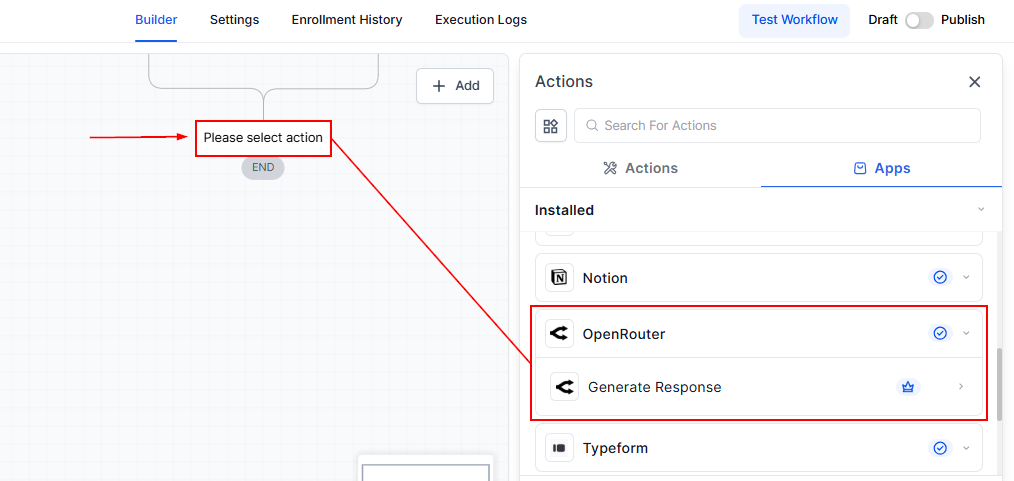
Screenshot
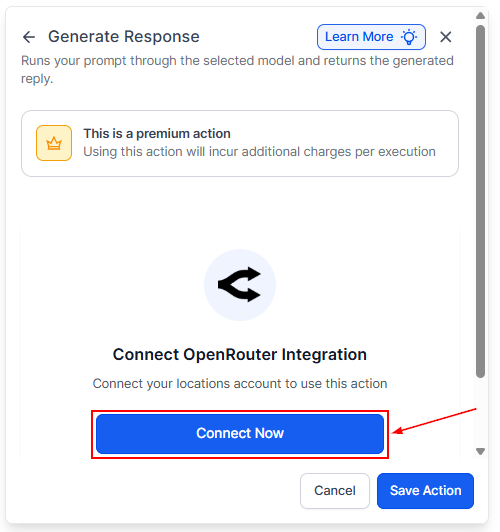
Screenshot
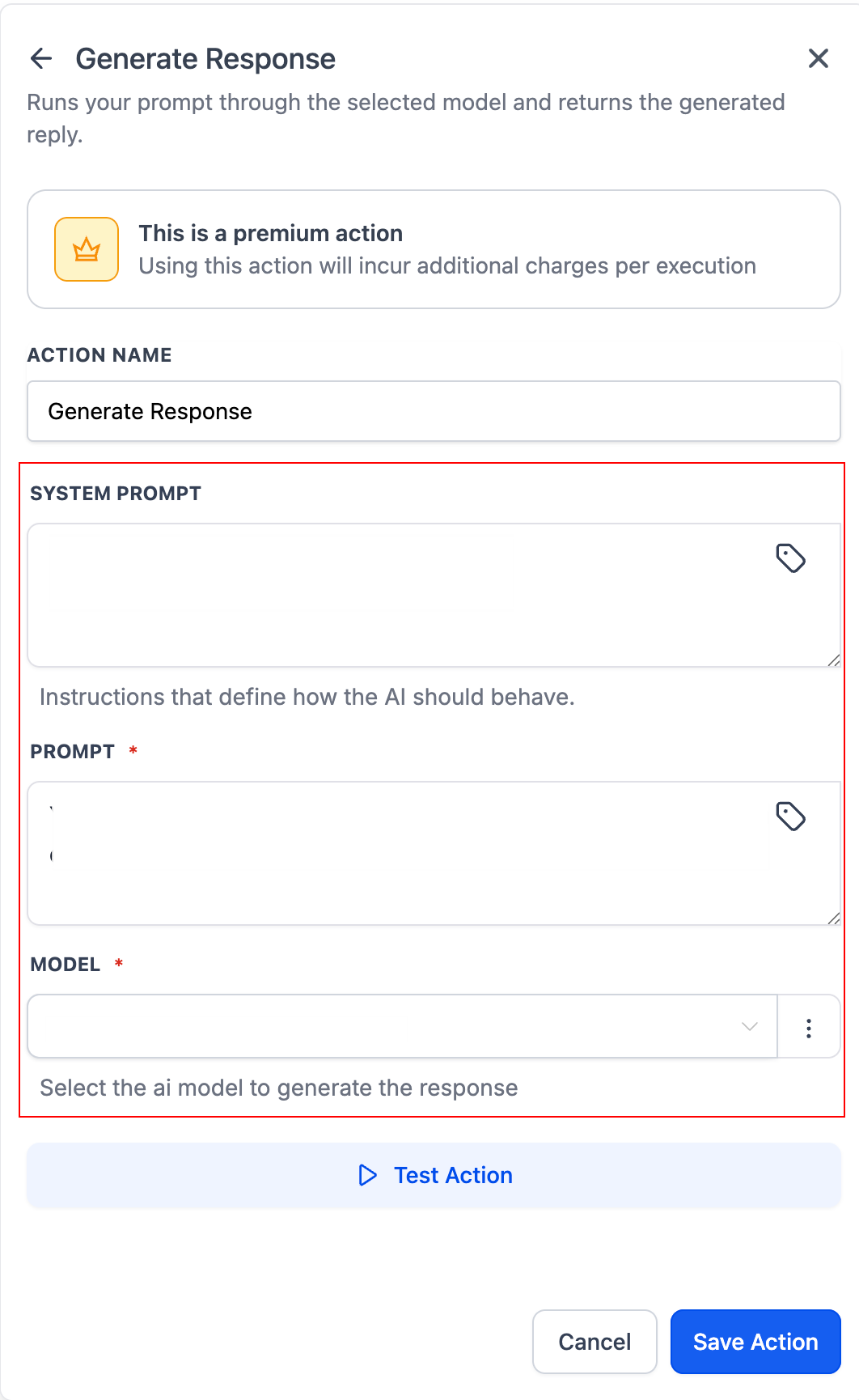
- ****System Prompt (Optional): ****Use this field to define the AI’s role, tone, or behavior. For example, you can instruct the model to act as a support agent, a concise responder, or a marketing strategist.
- ****Prompt (Required): ****Provide the main instruction, task, or question. This field supports dynamic workflow variables, allowing you to personalize responses automatically.
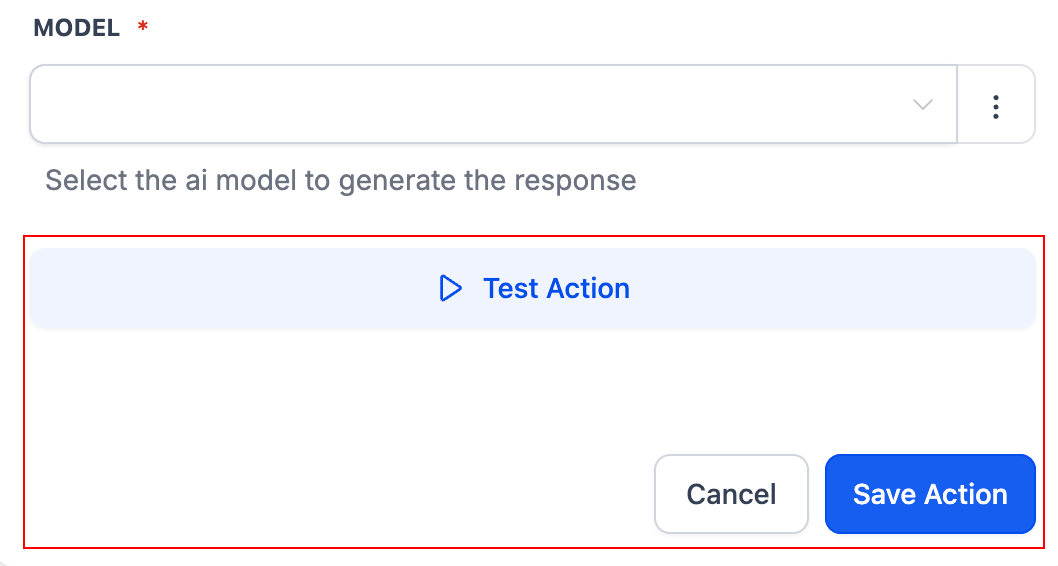
- ****Model Selection (Required): ****Choose the appropriate AI model based on your objective. Lightweight models are suitable for straightforward tasks, while more advanced models are recommended for complex or creative outputs.
Screenshot
Screenshot
Practical Applications
- AI-Powered Customer Replies: Automatically generate contextual email or SMS responses using contact data and inbound message content.
- Message and Form Summarization: Summarize long form submissions or extended conversations into concise notes that can be stored in CRM fields or used in conditional logic.
- Personalized Follow-Ups: Generate tailored follow-up messages using workflow variables such as name, service type, appointment details, or purchase history.
- Scalable Content Generation: Create structured content for emails, SMS, WhatsApp, or other communication channels without manual drafting.
Best Practices
- Be specific and explicit in your Prompt instructions.
- Use the System Prompt to control tone, structure, and intent.
- Test multiple AI models to determine the best performance-to-cost ratio.
- Keep prompts clear and concise to improve output consistency.
- Leverage workflow variables to dynamically personalize responses.
Frequently Asked Questions
Can workflow variables be used in the prompt?- Yes. Supported workflow variables can be inserted into both the Prompt and System Prompt fields to generate personalized AI responses.
- The System Prompt defines the AI’s behavioral context and tone, while the Prompt contains the primary task or instruction sent to the model.
- Select models based on task complexity. Simple tasks perform well on lighter models, while creative or analytical tasks benefit from more advanced models.
- Yes. The generated output can be mapped to custom fields, inserted into outbound messages, or passed into additional workflow actions.
- Yes. OpenRouter usage is billed according to the selected model and consumption through OpenRouter, in addition to standard automation action usage.