

Ensuring Compliance in SMS Marketing
Before launching your SMS campaign, it’s crucial to ensure compliance with recent legislative changes regarding SMS marketing. The CRM simplifies this process: In your account settings, navigate to the Messaging tab in the Phone System section. In there, confirm that the options for SMS compliance, such as adding opt-out messages and including sender information, are enabled.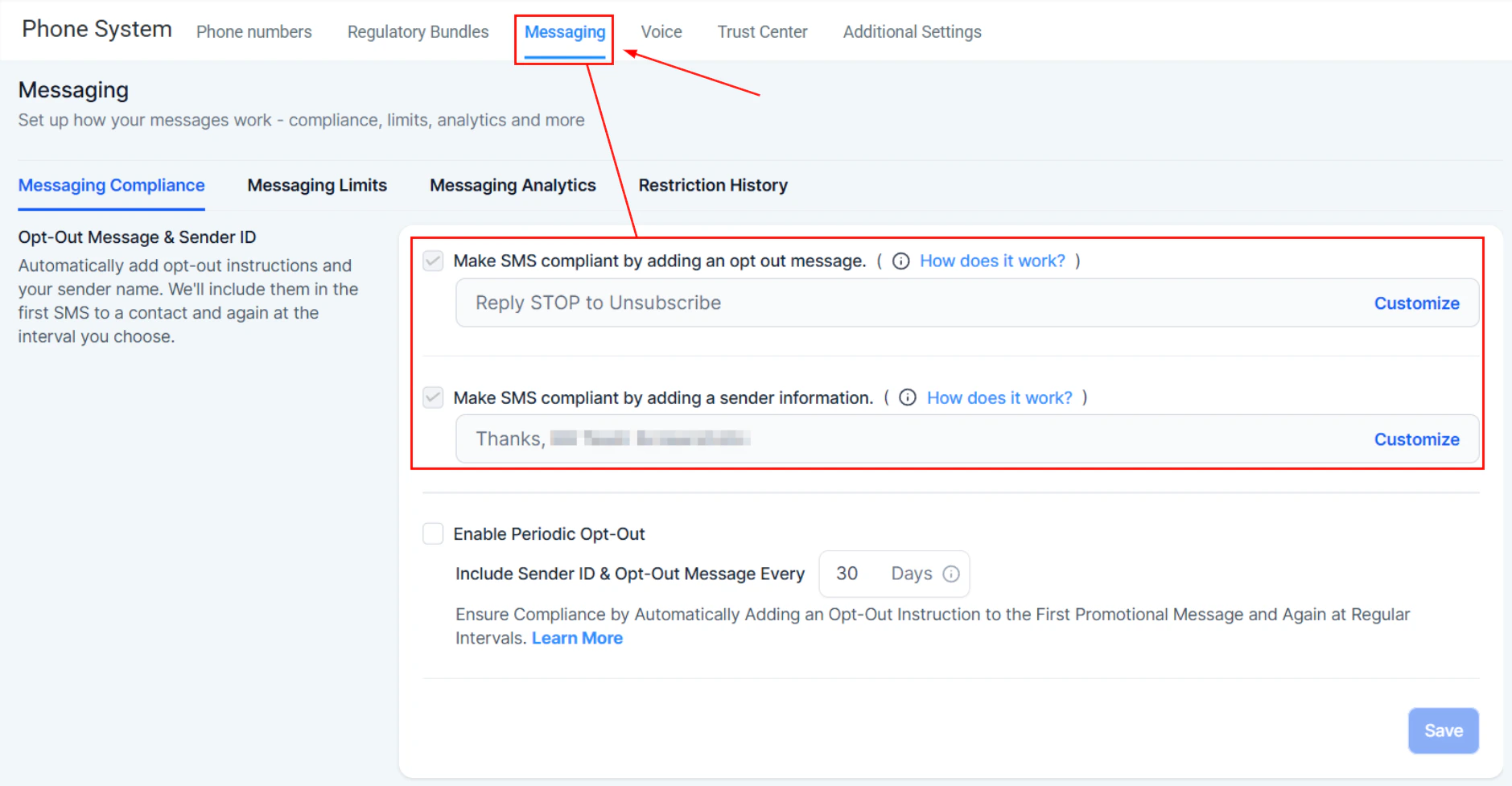
Screenshot
Building Your SMS Campaign
Creating an effective SMS campaign involves several steps, from setting up workflows to crafting the perfect message. Here’s how to get started: For campaigns involving an image, upload the image file to the Media Storage section within your account.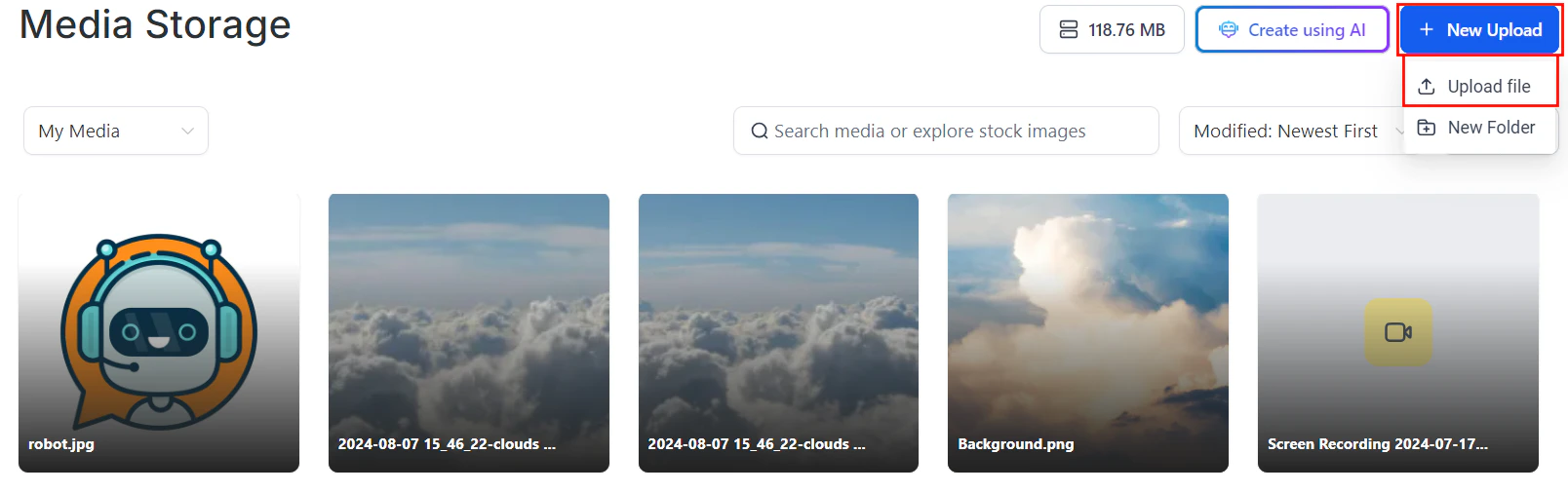
Screenshot
Screenshot
Create a Trigger Link
Navigate to the Trigger Links tab inside the Marketing section, then proceed to create a new trigger link.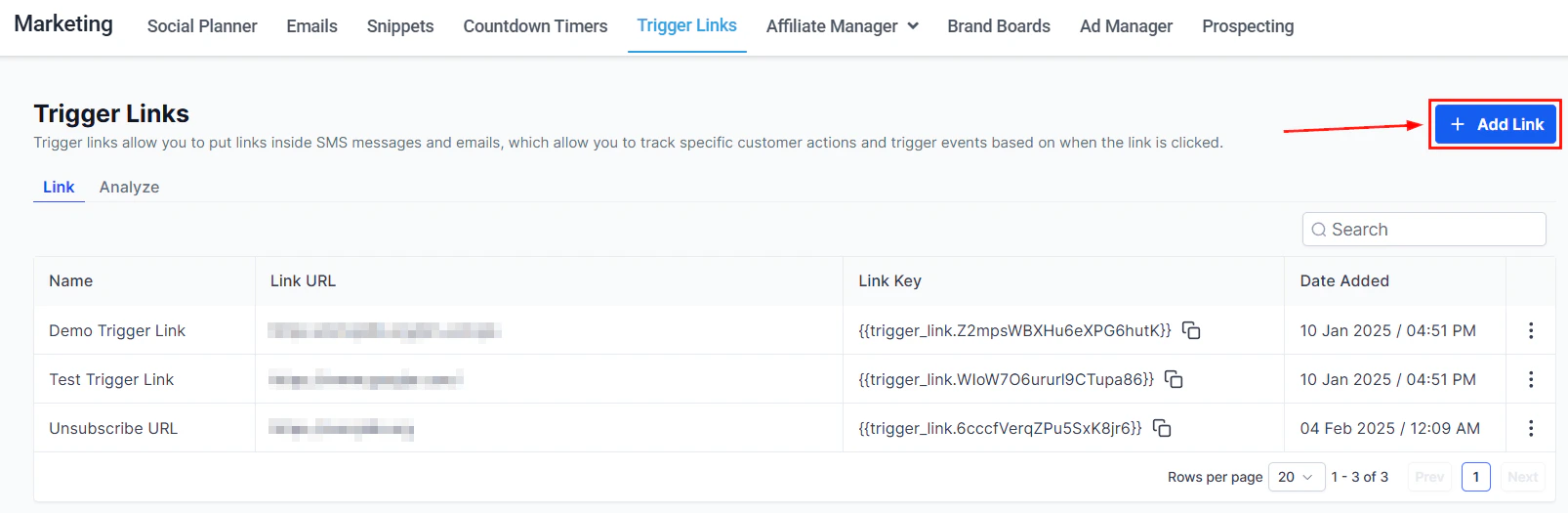
Screenshot
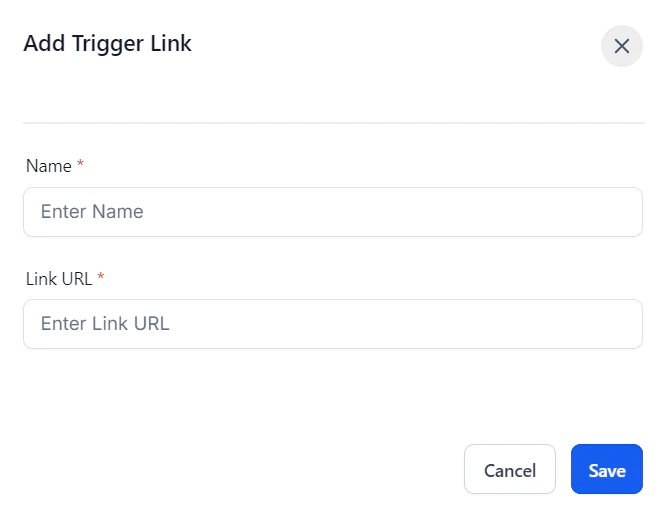
Screenshot
Initiate a Workflow
Begin creating a workflow for your campaign in the Workflows tab of the Automation section. This workflow will handle incoming messages and responses.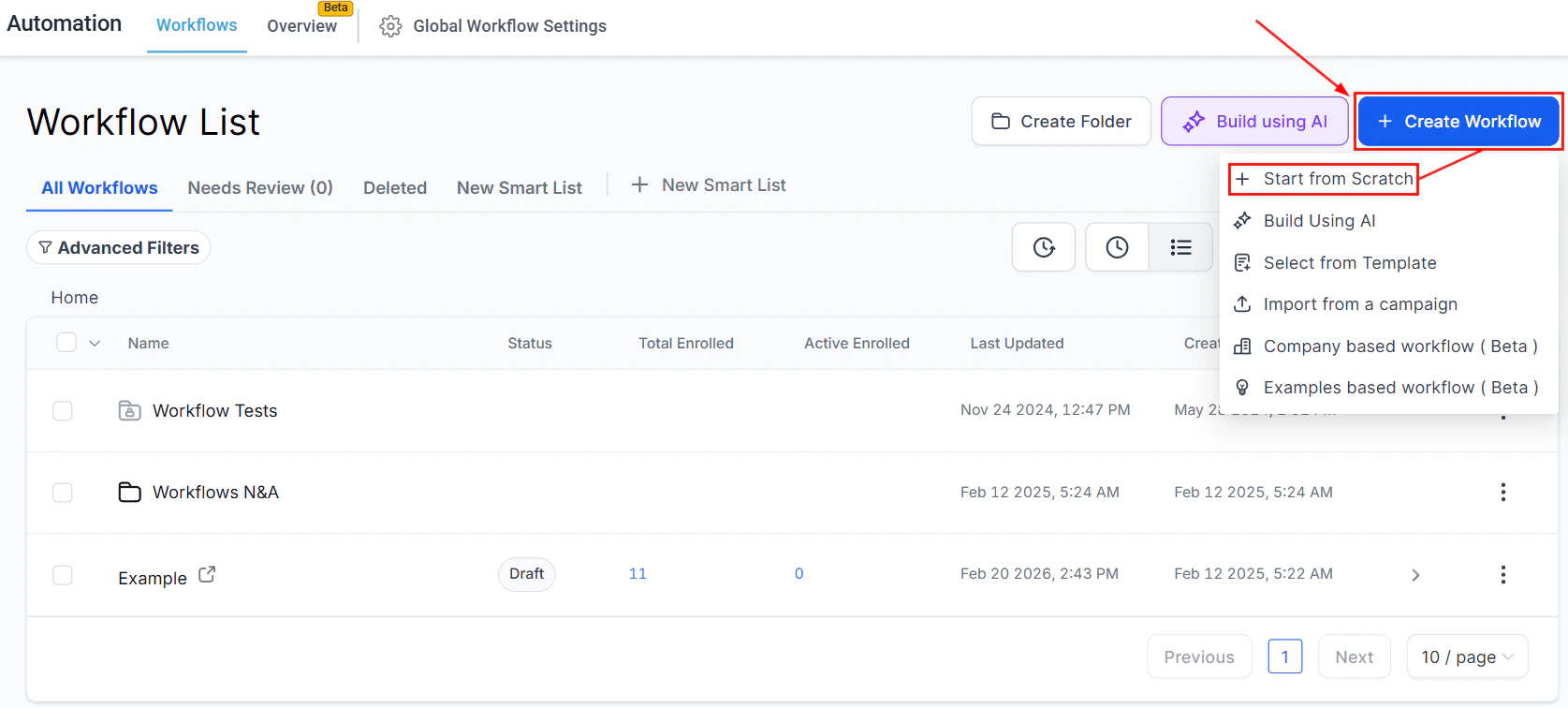
Screenshot
Set Up Triggers
Add the “Customer Replied” trigger and set the filters as “Reply Channel = SMS” and “Contains phrase” followed by your keyword to start the workflow when someone texts a specific offer code, such as “BDay20” to your business number.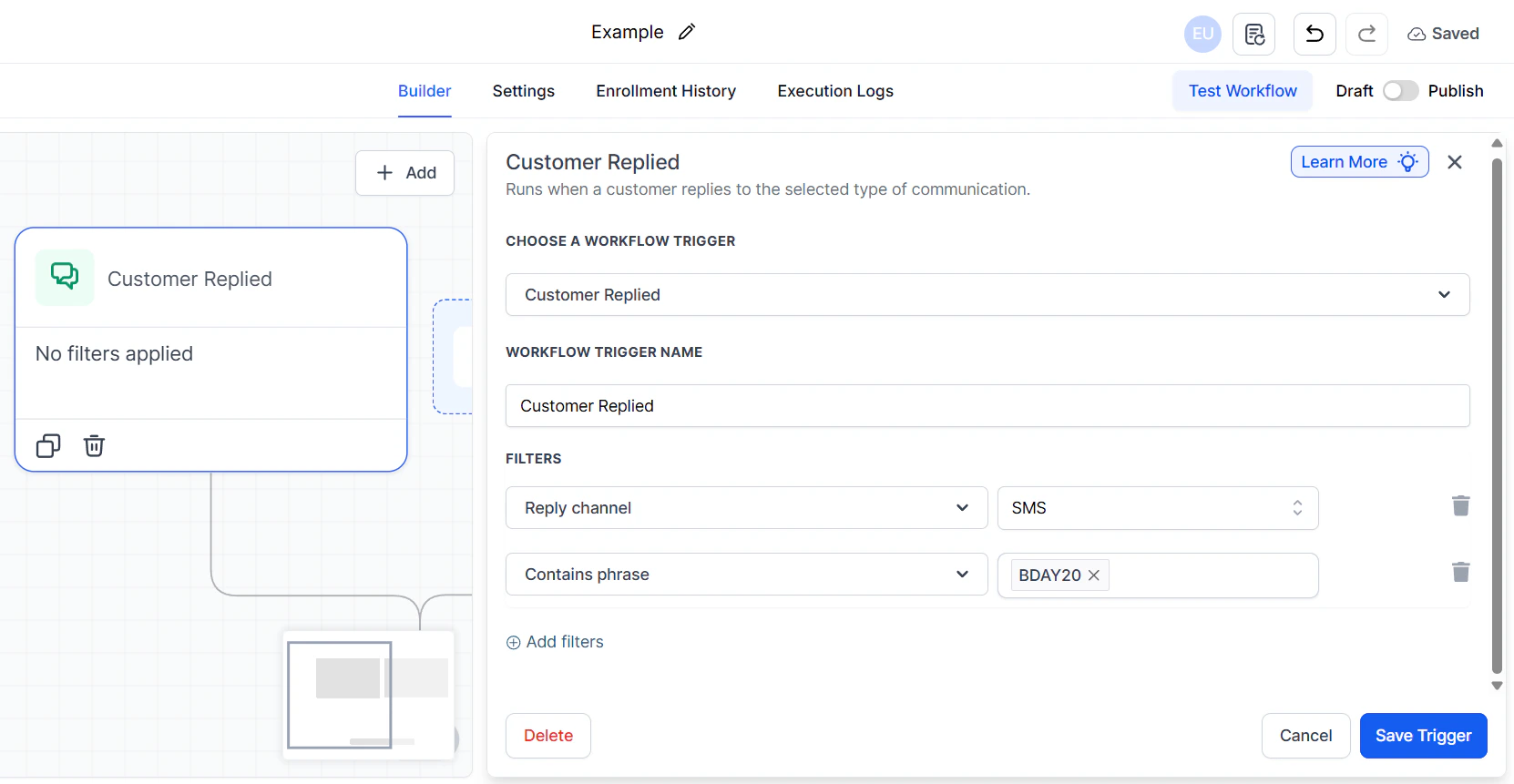
Screenshot
Craft Your Message
Compose a reply or use a template that thanks the customer for their interest and provides a link to the discount coupons or your chosen URL. Ensure the message makes the recipient feel valued and that your campaign settings comply with SMS regulations. Incorporate the trigger link into your SMS message within the workflow, ensuring recipients can easily access the coupon.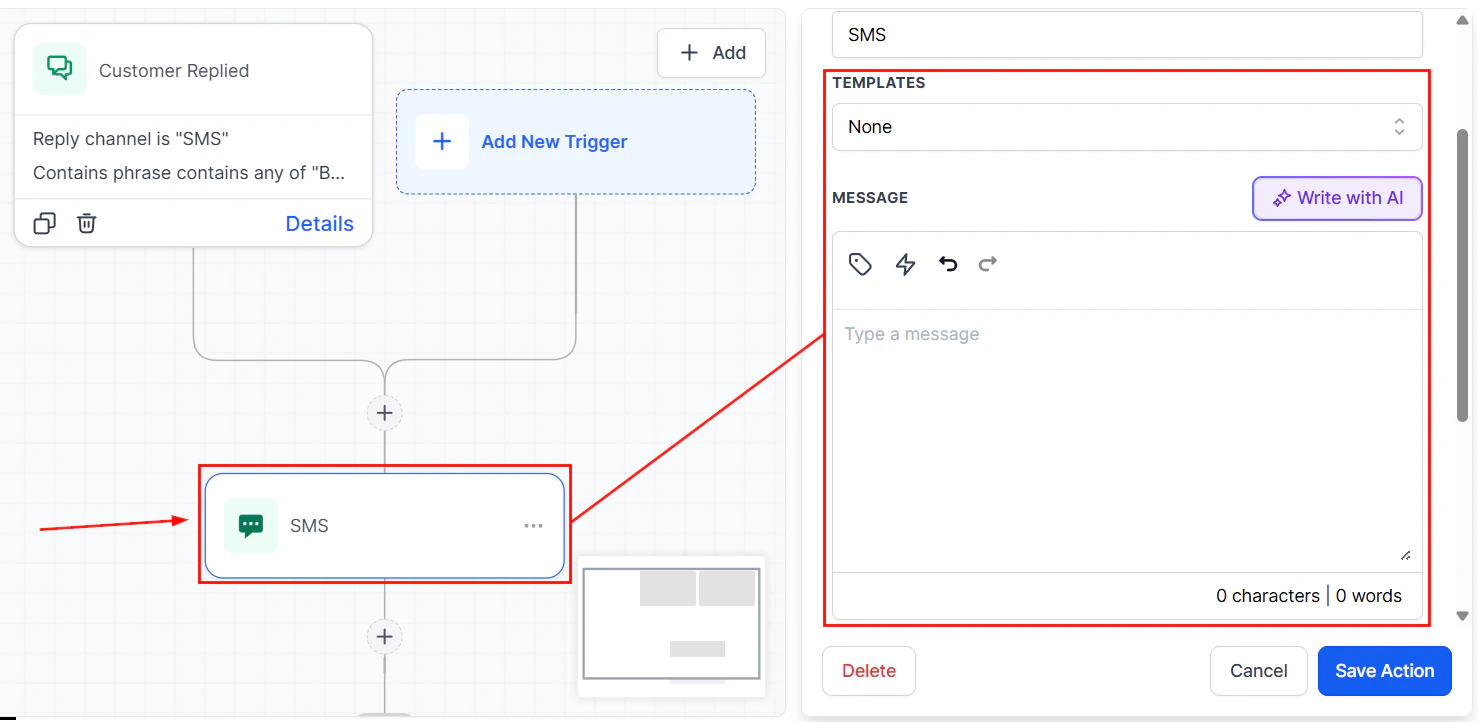
Screenshot
FAQs
What if customers don't receive the SMS?
What if customers don't receive the SMS?
Ensure your SMS settings are correct and that you’ve complied with all regulatory requirements. Check the customer’s phone number for accuracy and confirm the workflow is Published. Review Execution Logs to see whether the Send SMS step shows a success or error status.
How can I improve engagement with my SMS campaigns?
How can I improve engagement with my SMS campaigns?
Personalize messages with the contact’s first name and other merge fields. Offer genuine value (discounts, exclusive content) and use a clear call to action. Consider timing your messages for when customers are most likely to engage — typically mid-morning or early afternoon on weekdays.
Do I need to include an opt-out option in every SMS?
Do I need to include an opt-out option in every SMS?
Yes. SMS compliance regulations (TCPA in the US and equivalent laws in other regions) require that recipients have a way to opt out of future messages. HoopAI can automatically append an opt-out footer — enable this in Settings > Phone System > Messaging.
Can I send MMS (images) through an SMS campaign?
Can I send MMS (images) through an SMS campaign?
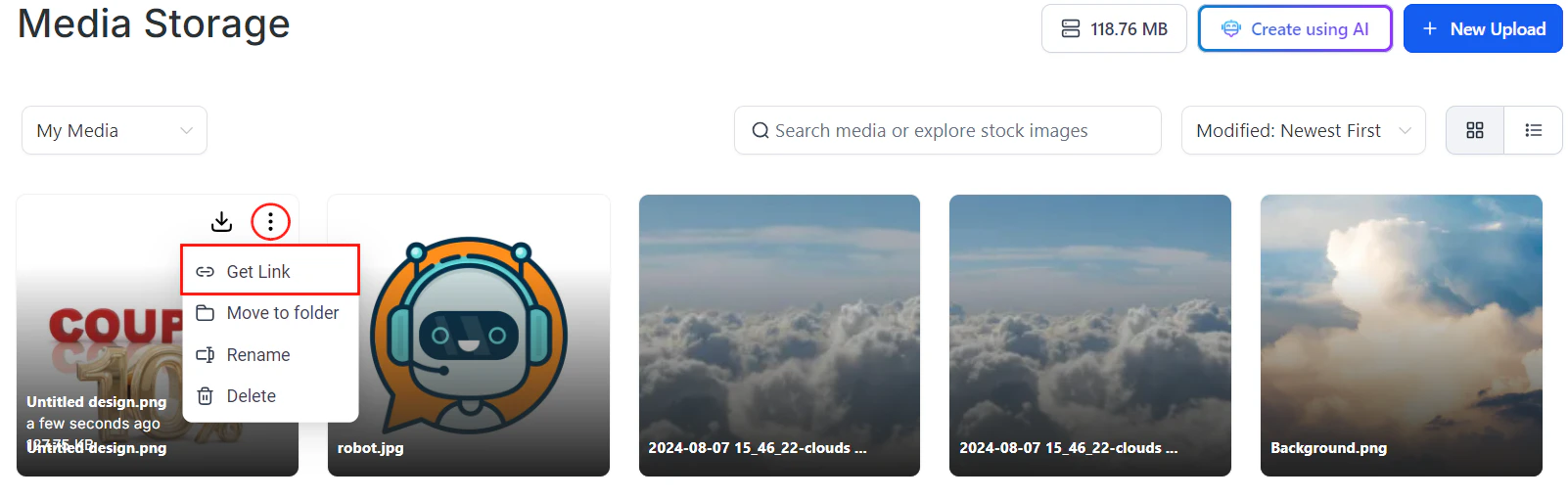
Yes. Upload the image to Media Storage, copy its link, and paste it directly into the SMS message body in the workflow action. Recipients on compatible carriers and devices will see the image inline.
How do I prevent contacts from receiving duplicate SMS messages?
How do I prevent contacts from receiving duplicate SMS messages?
Use an If/Else branch to check for a tag before sending, and add the tag after the SMS is sent. This way a contact who re-enters the workflow will be routed away from the SMS step if they’ve already received it.